 30 Credits per URL
 Portrait or Landscape PDFs
 Convert 16 Pages Free













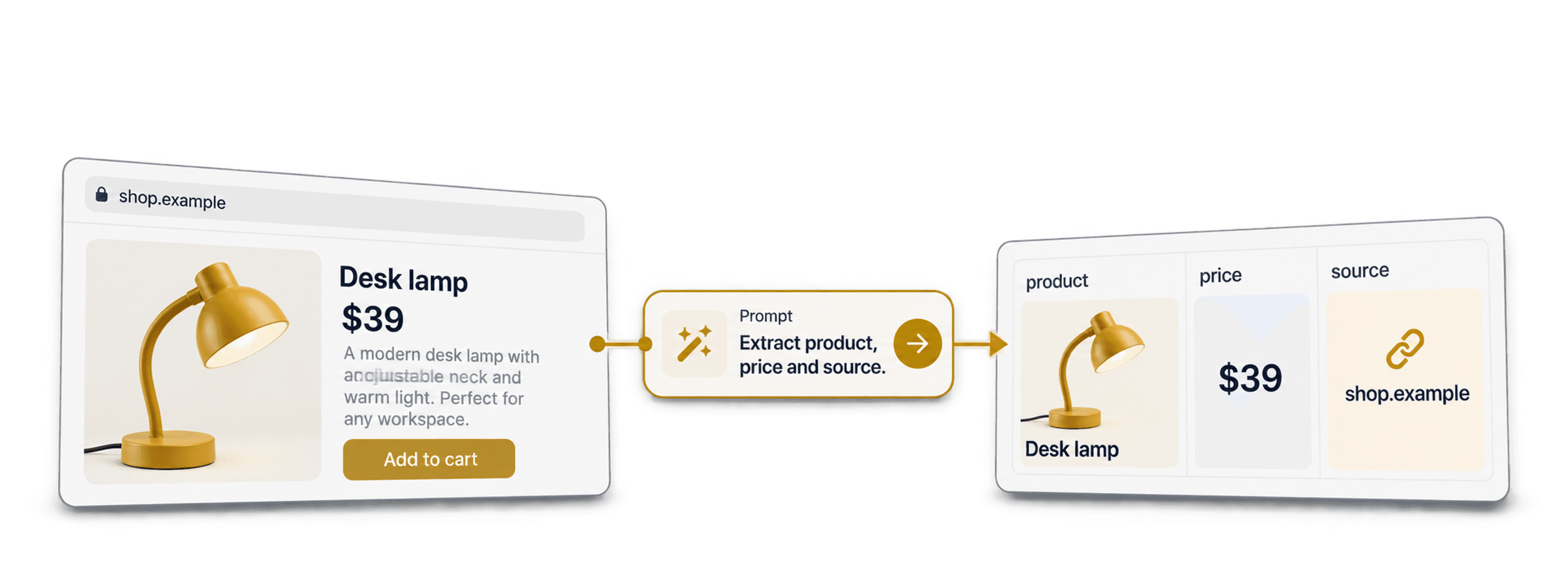
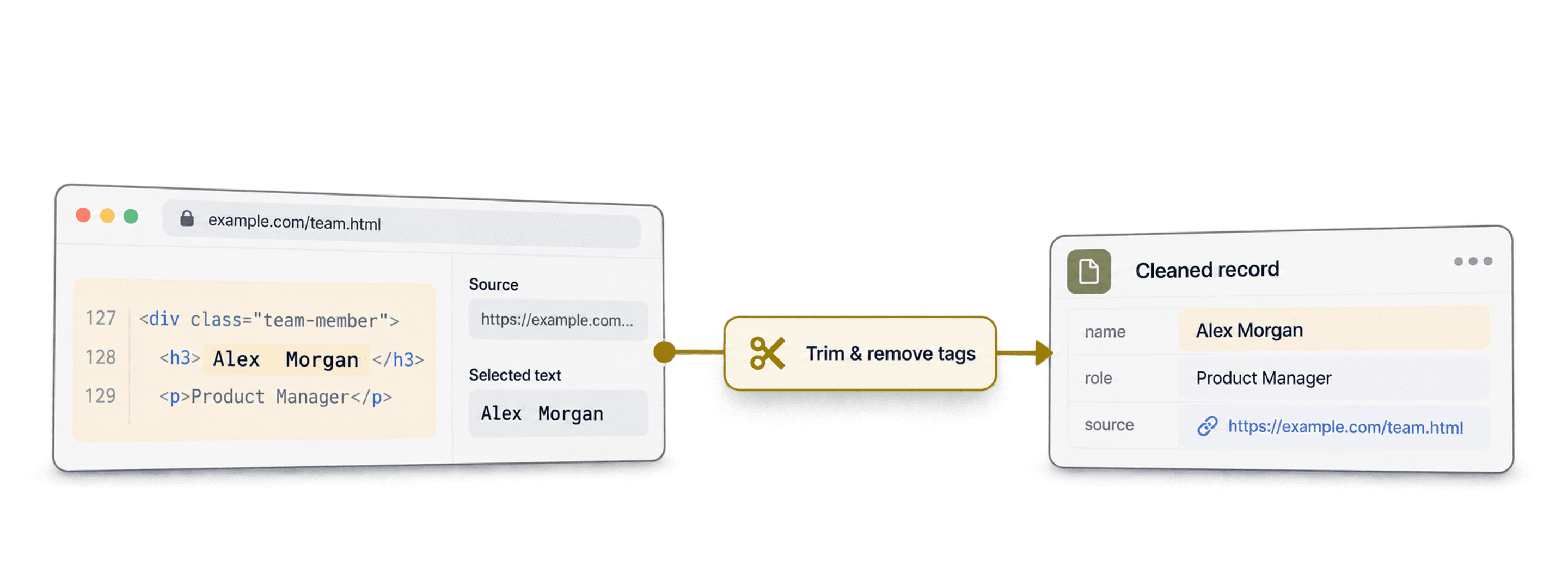
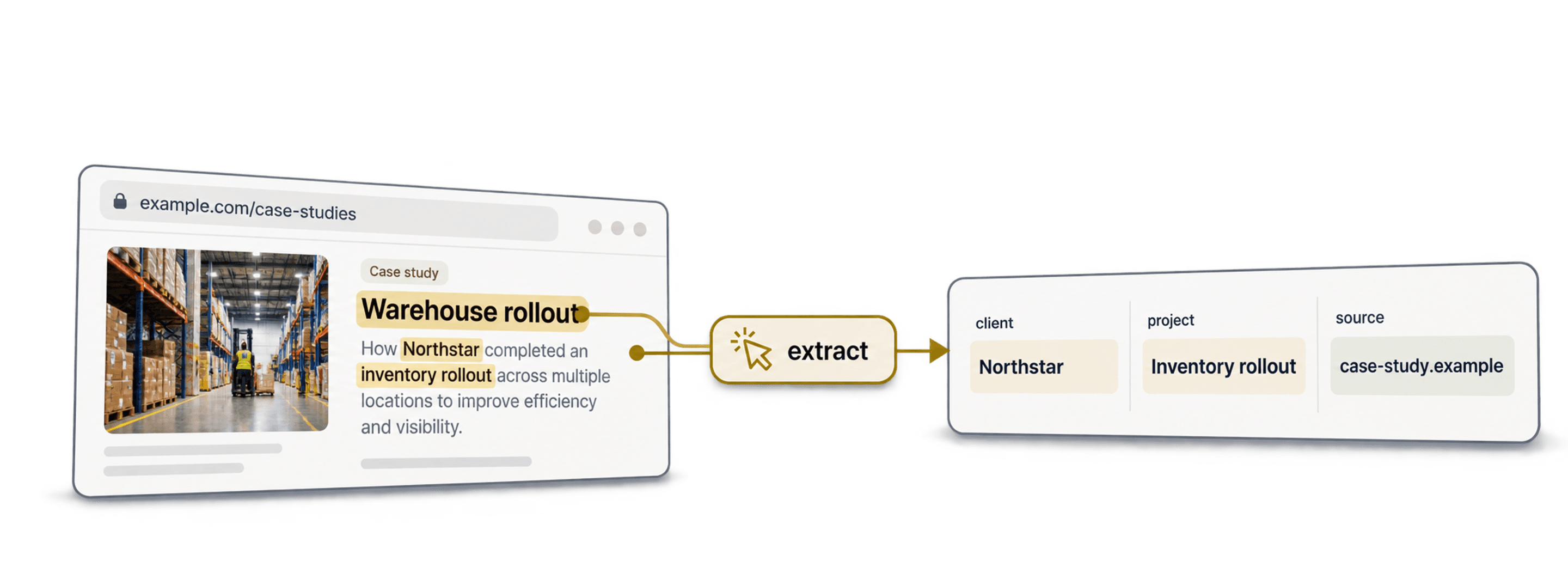

 Easy to Use
 All Settings Are Optional
 Fully No-Code
Step-by-Step Guide
Step 1: Sign Up & Upload Your Data
First, sign up for Datablist.com
Create a collection with the CSV editor. Then, upload your CSV or Excel file with the URLs you want to convert.
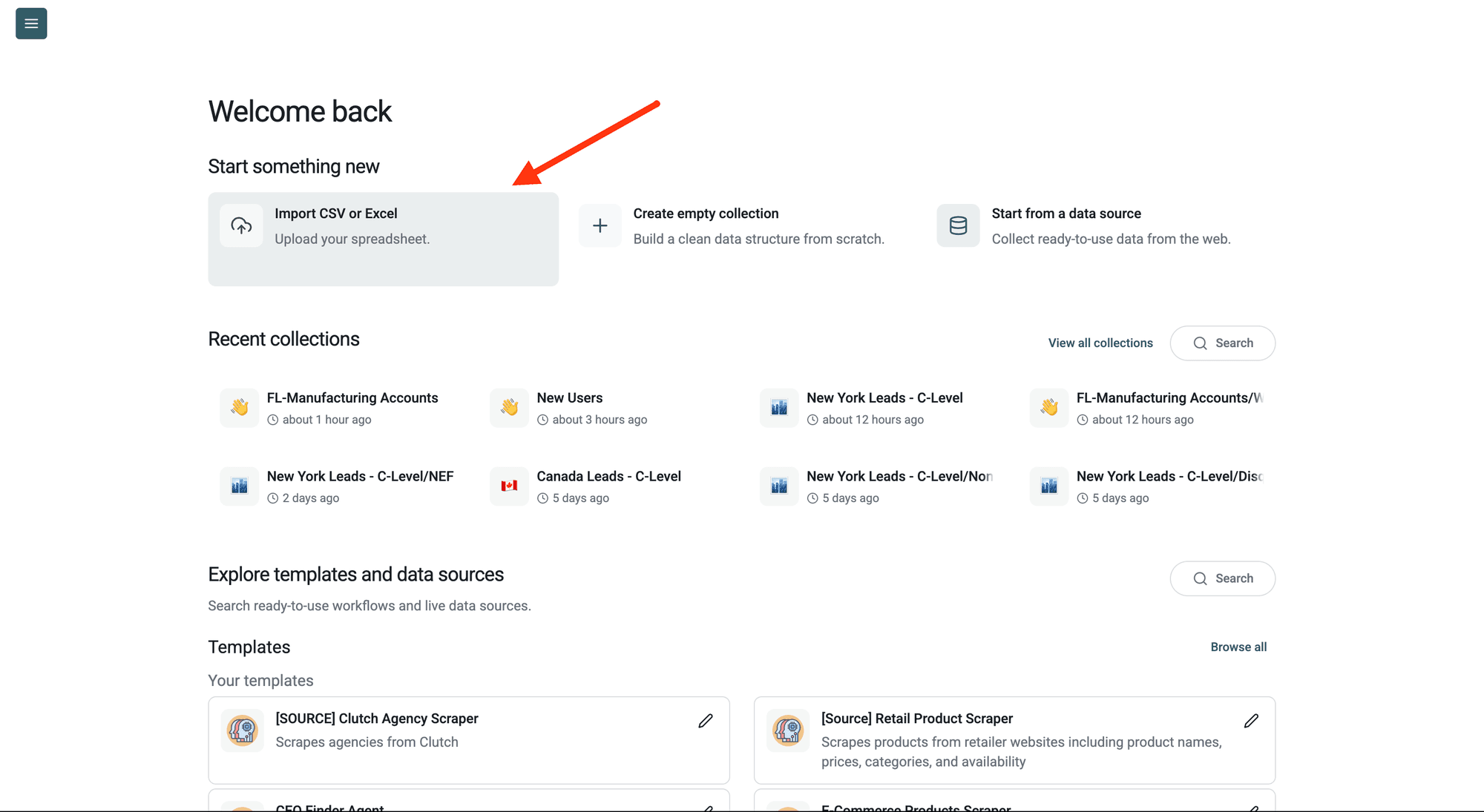
Step 2: Navigate to the Enrichment
Click Enrich in the top menu and search for WebPage to PDF file.
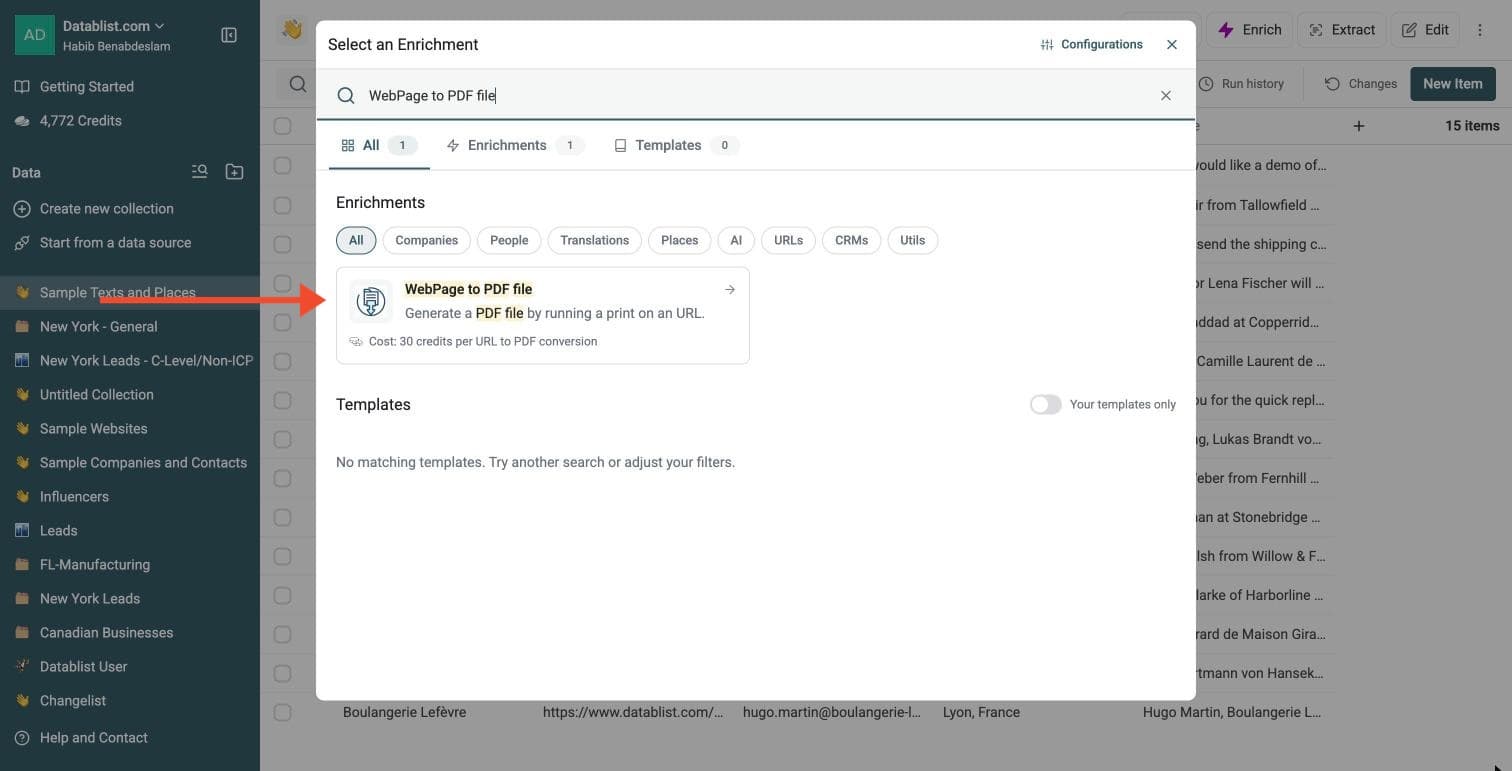
Step 3: Set Up the Enrichment
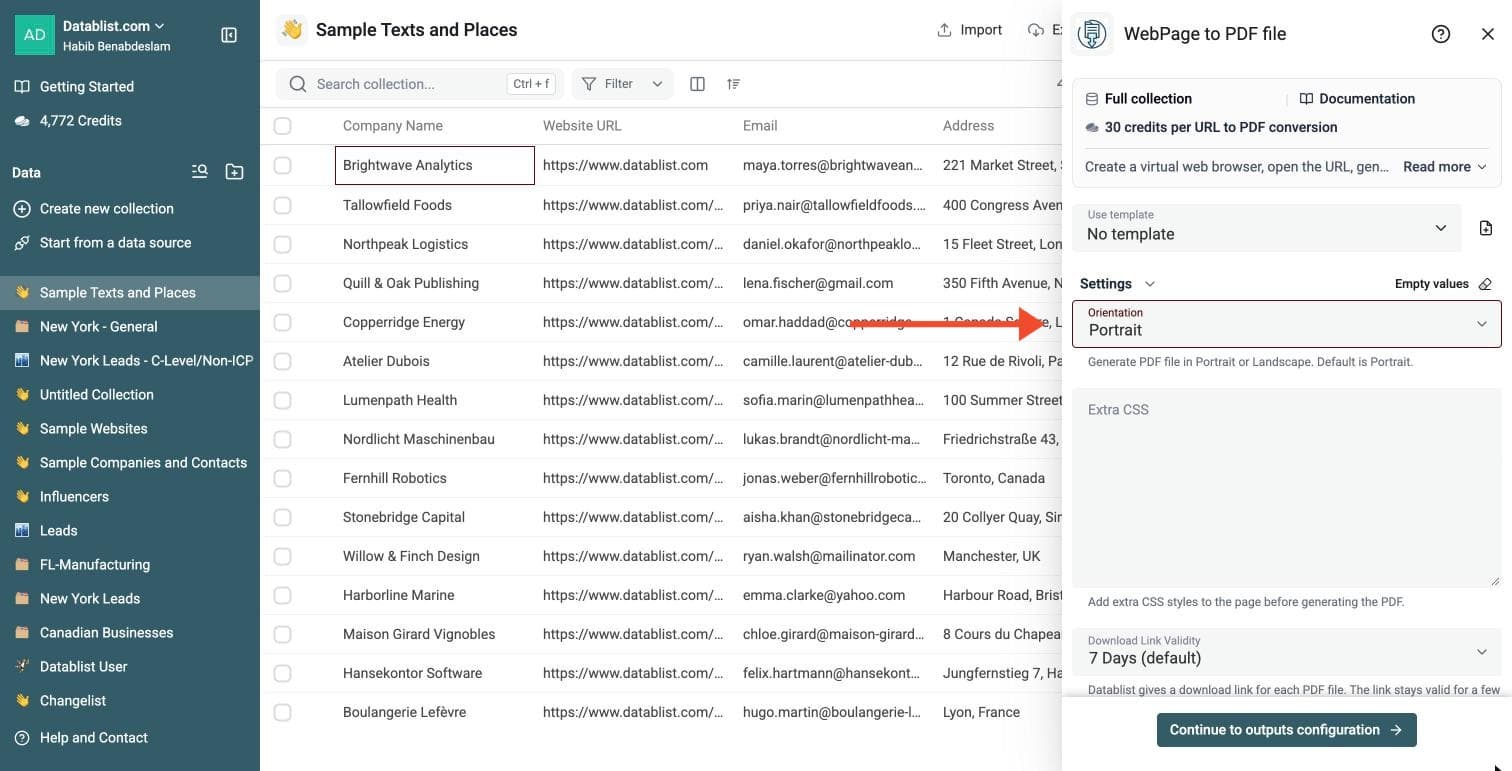
In the drawer that opens, set the PDF layout (all settings are optional):
-
Orientation: Portrait (default) or Landscape
-
Extra CSS: styles added to the page before the PDF is generated
-
Download Link Validity: 7 days (default) or 30 days
Use Extra CSS to hide unwanted cookie banners, ads or navigation before printing. Pages are opened as a public visitor: private invoices and dashboards that require a login are not supported. Test a few PDFs to check print styles and whether the page content loaded.
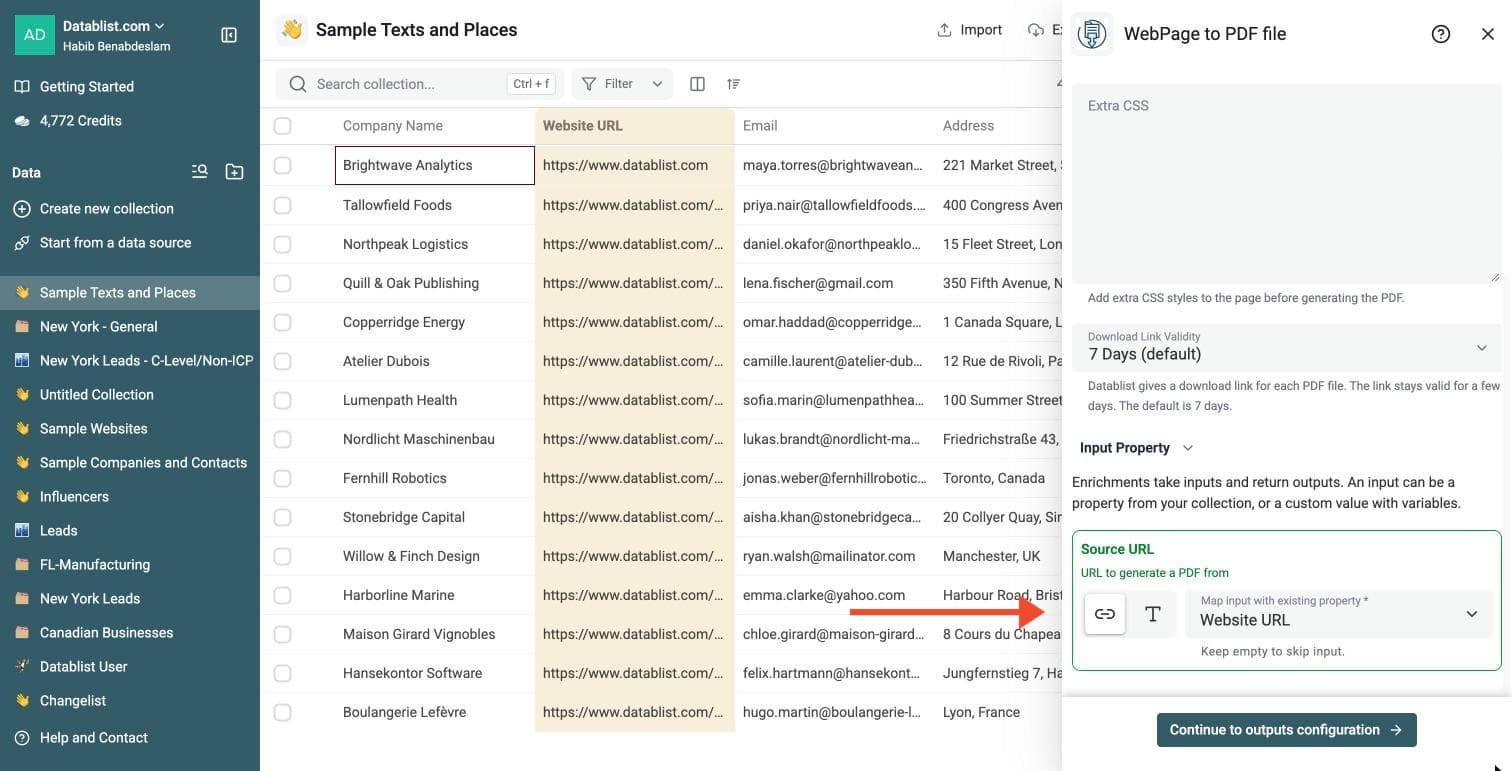
Step 4: Configure Your Inputs
Map the Source URL input to the column that holds your URLs.
Then click Continue to outputs configuration.
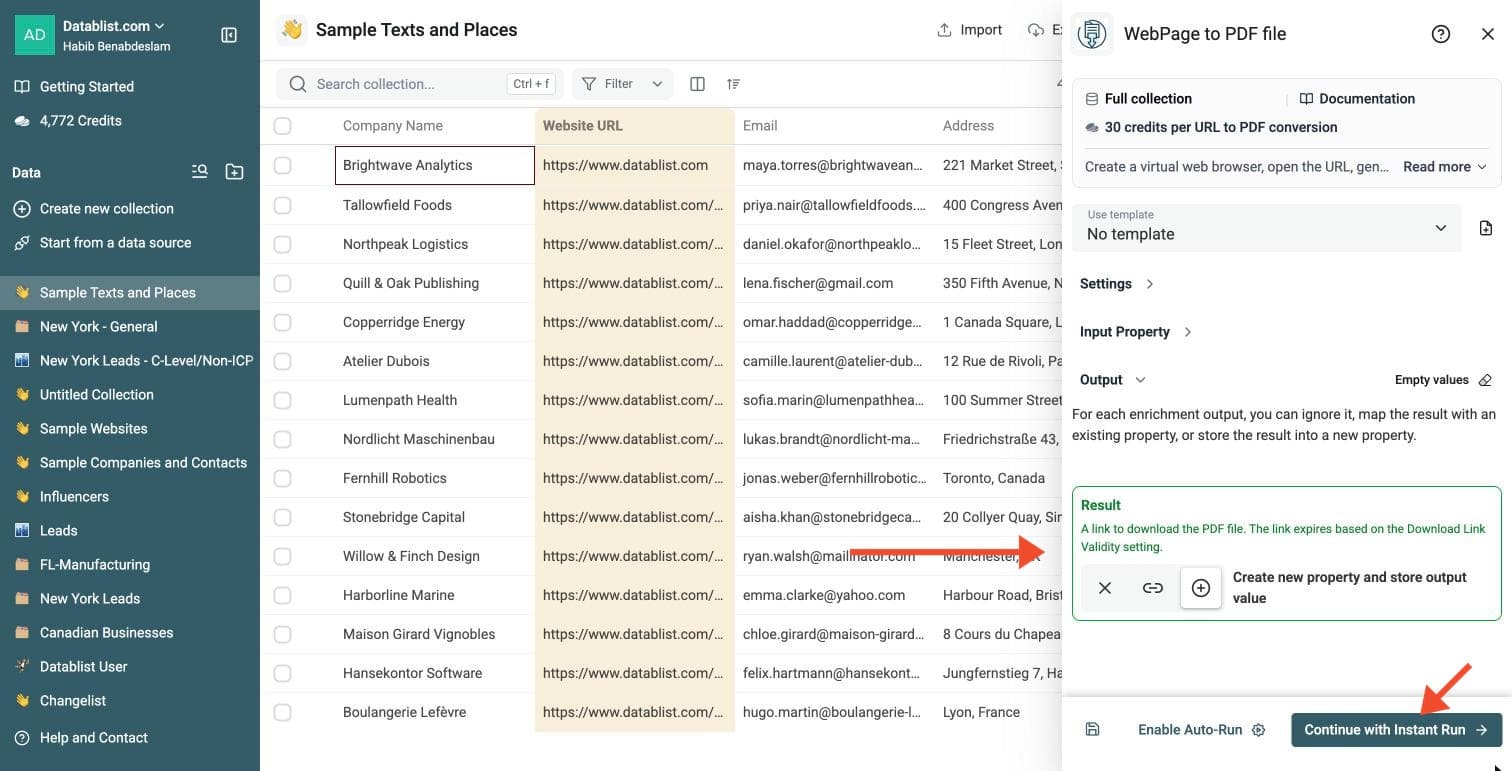
Step 5: Select Outputs
Website to PDF Tool returns one output:
- Result: a link to download the PDF file
Click the ⊕ icons to add them to your collection, then click Continue with Instant Run.
Step 6: Run the Enrichment
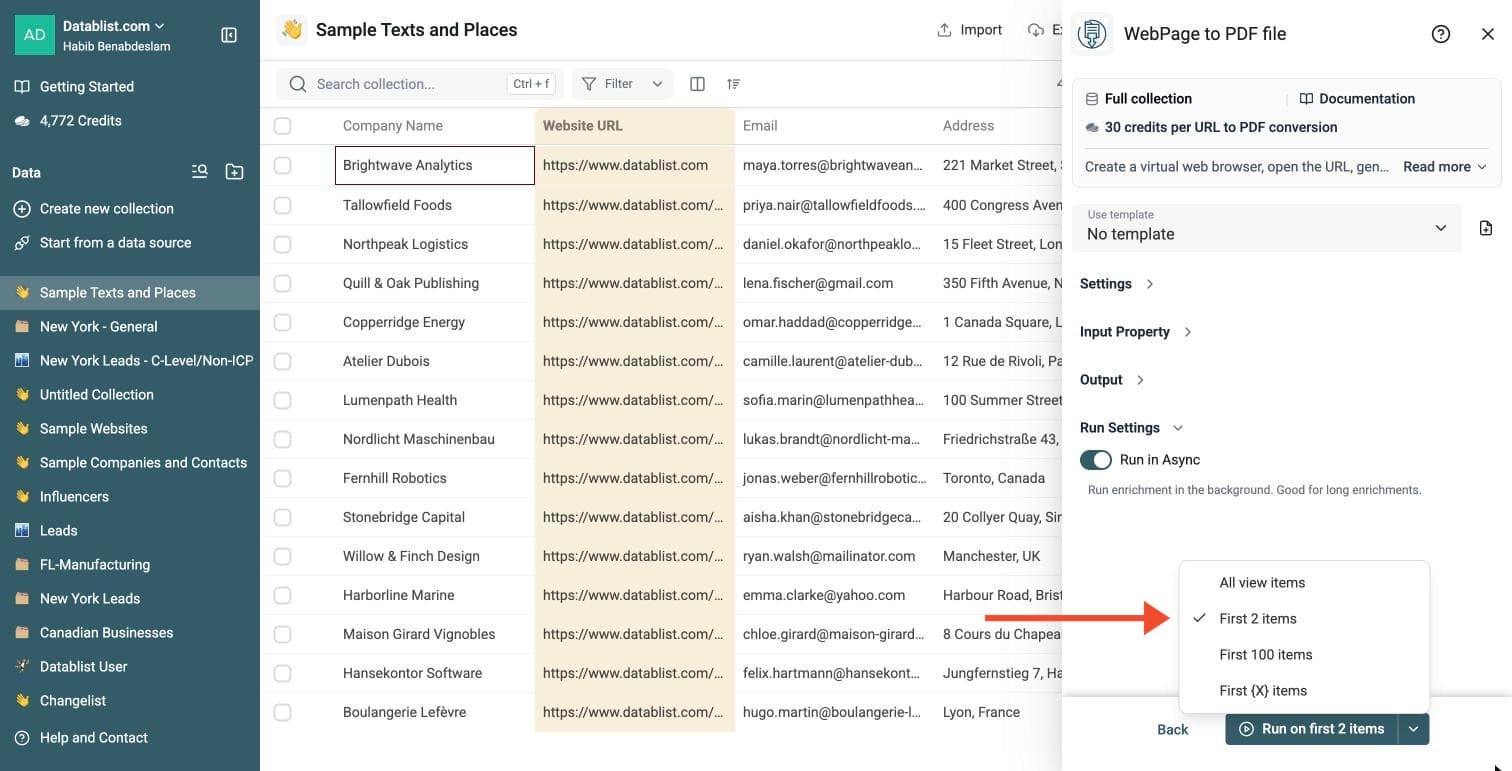
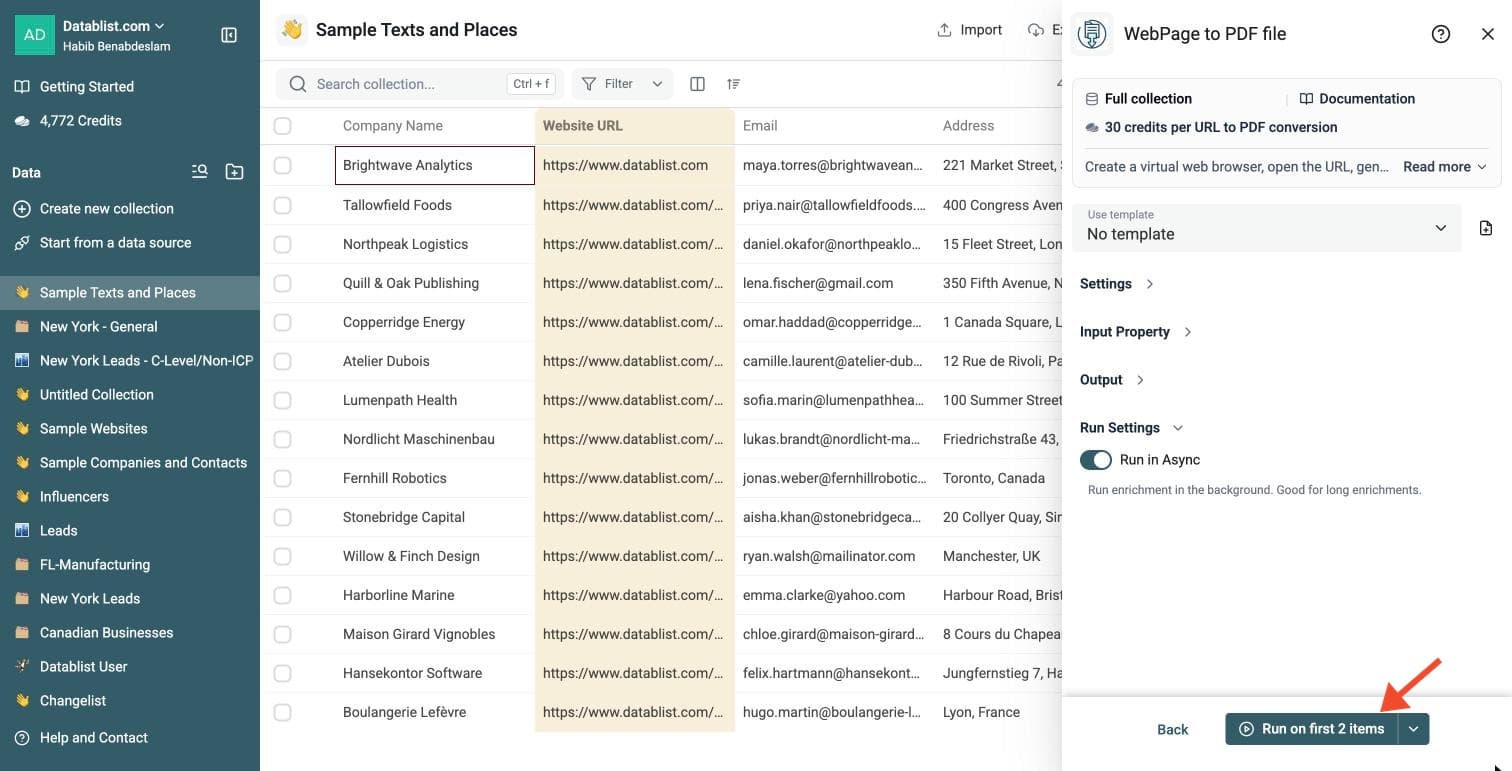
Click the chevron on the right side of the run button to choose how many items to process:
-
Run on first 2 items: Good for checking results before committing
-
Run on first 100 items: Useful for validating larger samples
-
Run on all view items: Process your entire list (or view if you've enabled filters)
Website to PDF Tool costs 30 credits per URL successfully converted. Failed or invalid URLs cost 0 credits.
Review a small sample and the run-status column before processing the full list. Filter rows that need attention, fix inputs or settings, and rerun those rows. Export your collection when the results are ready.
Cost and Credit Usage
This tool costs 30 credits per PDF generated. Datablist uses a credit system that scales with your needs:
- $20 Package: Get 20,000 credits. This lets you generate approximately 660 PDFs.
- $165 Package: Get 200,000 credits. This allows you to process over 6,600 URLs.
Why use this enrichment?
We use a headless Chrome browser to render pages. The page is rendered and printed to PDF. Its print styles, page layout and loading behavior can make the PDF differ from the normal screen view.
- Customization: Choose between Portrait or Landscape orientation to fit your content.
- Clean Output: Use the "Extra CSS" setting to inject code before printing. This is perfect for hiding cookie banners, ads, or navigation bars that clutter the final document.
- Speed: Process thousands of URLs in the background without tying up your computer.
Ideal Use Cases
- Website Archiving: Capture landing pages, competitor sites, or news articles for offline analysis or legal compliance.
- Documentation Building: Turn online help centers, wiki pages, or technical manuals into shareable offline files.
- Visual Reporting: Convert public dashboard URLs into static PDF reports for management or client reviews.
- Invoice Saving: Download lists of invoice URLs as permanent records.
❗ Download links expire
The links expire after 7 days by default or 30 days when selected. Download the files before expiration.
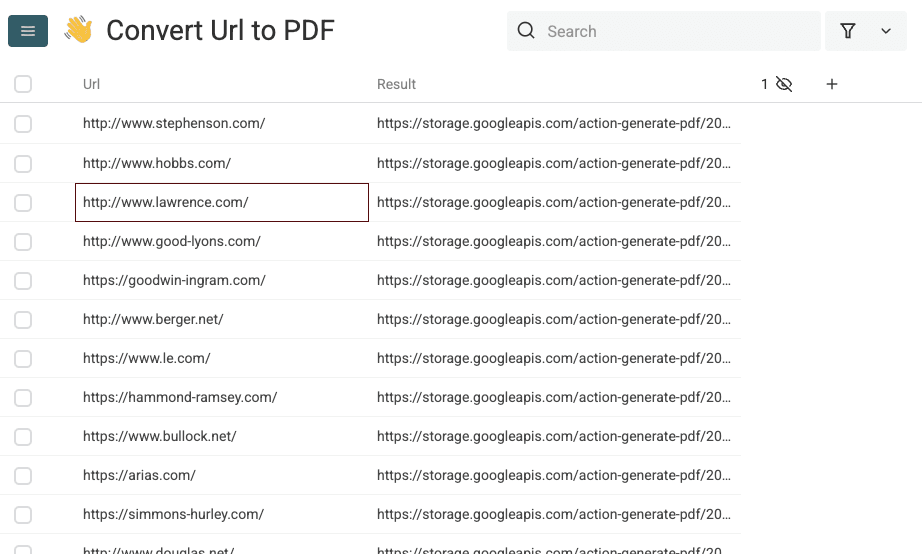
Download Your PDF Files
Downloading thousands of files manually is slow. Use a "Bulk Downloader" browser extension to save time.
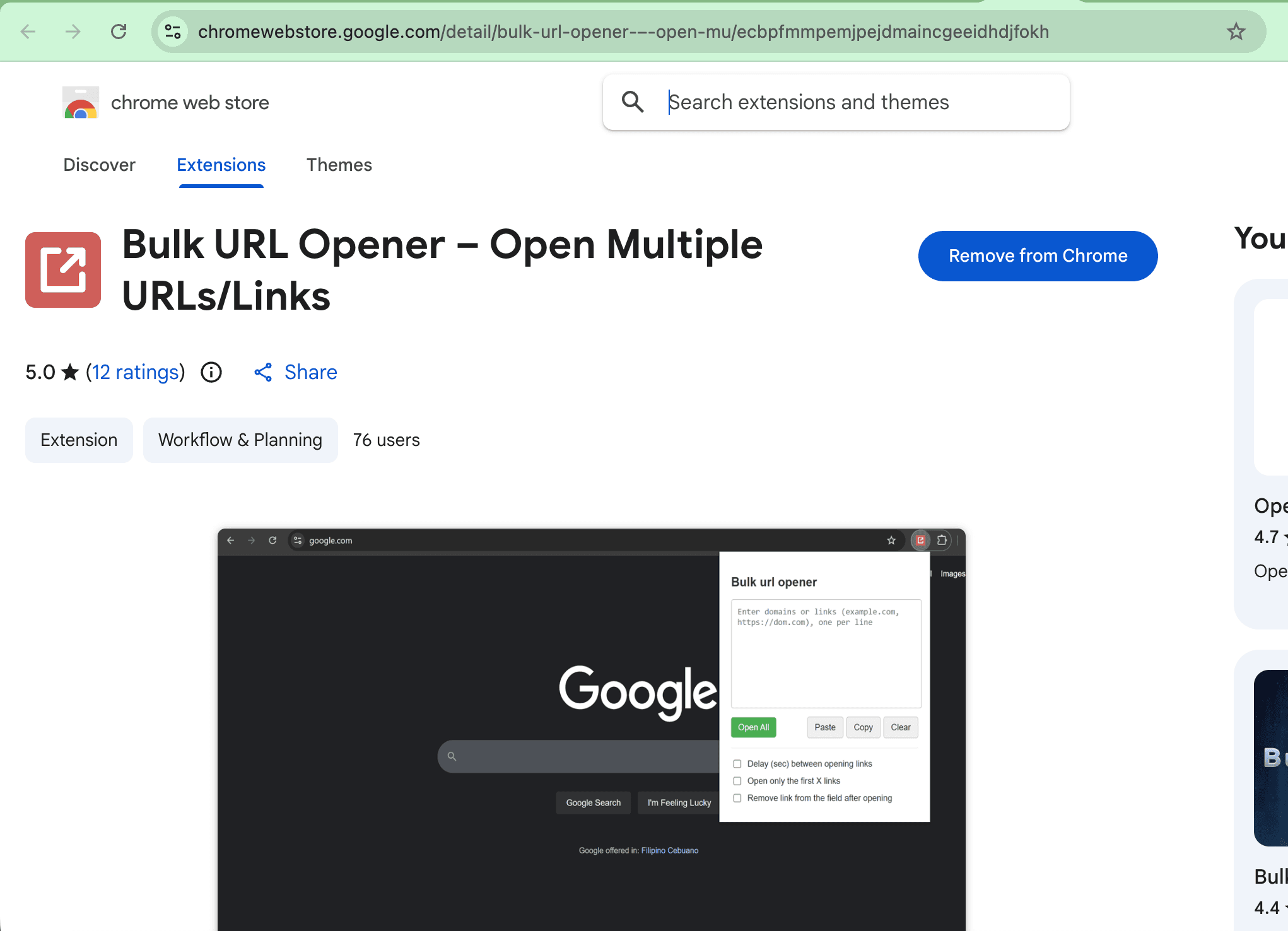
Here is how to download the files using the "Bulk URL Opener" Chrome extension.
First, add the extension to your Chrome browser (download it here).
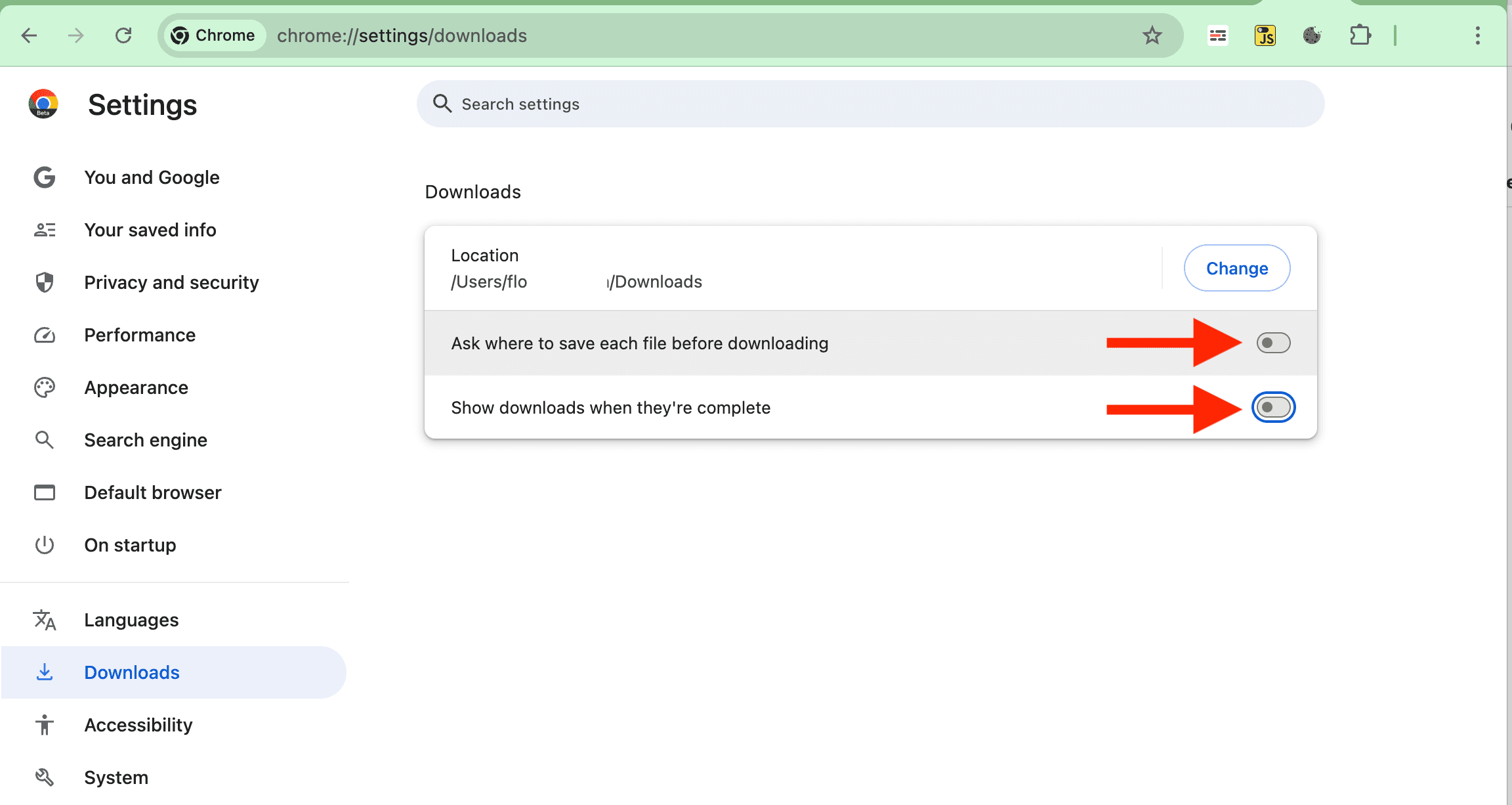
In your Chrome Settings, disable "Ask where to save each file before downloading". This prevents the browser from opening a save dialog for every single PDF.
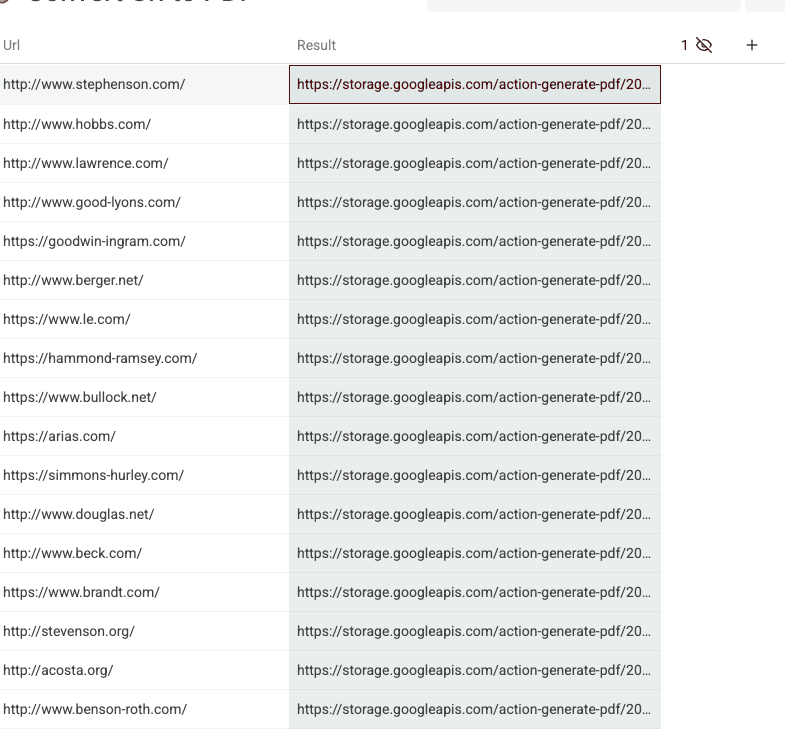
Return to your Datablist collection. Copy the list of generated PDF links.
Paste the links into the Chrome Extension and click "Open All". The extension will download the PDF files to your default Downloads folder.
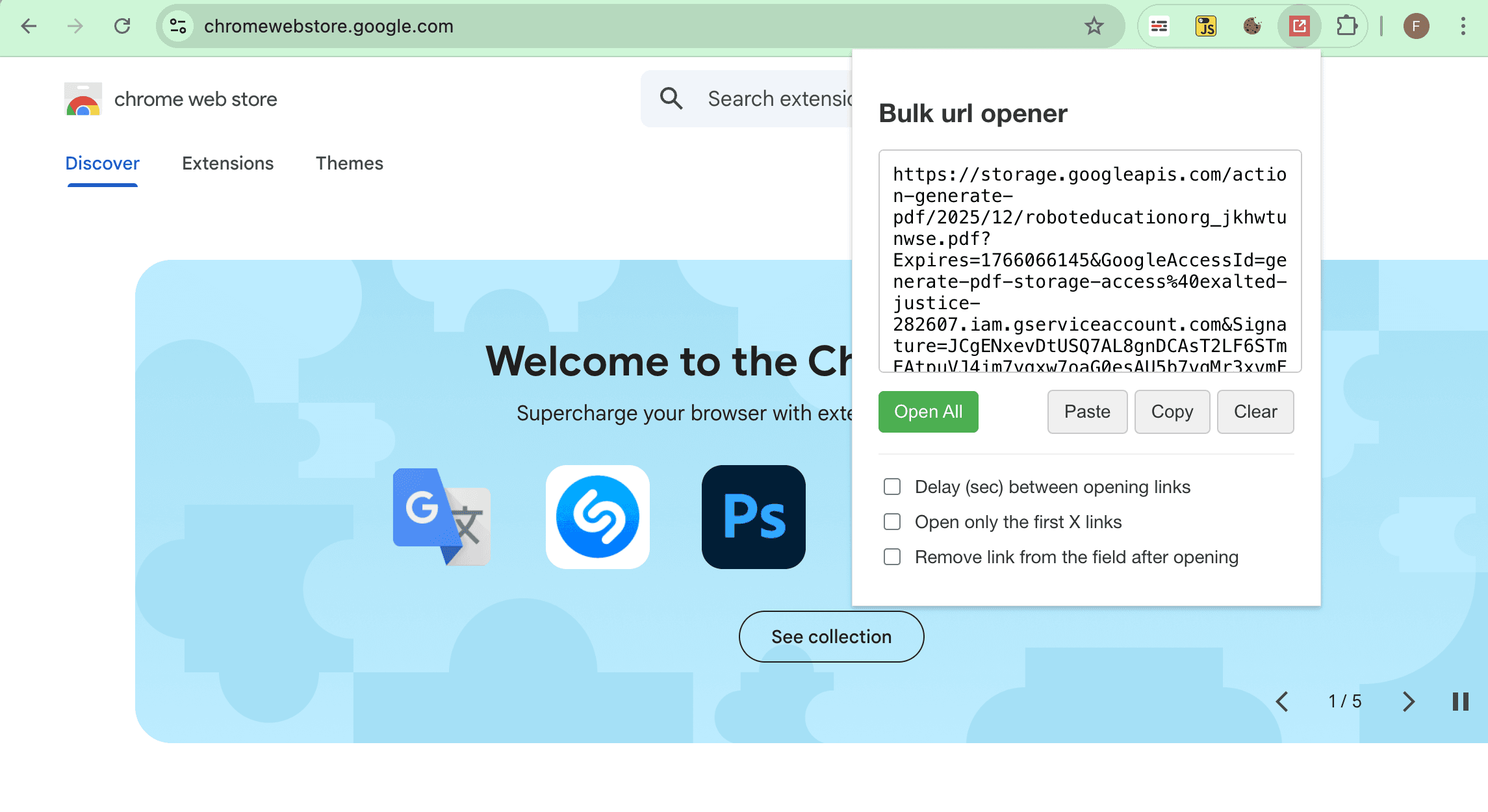
Note: Download files in batches (e.g., 100 at a time) to prevent your browser from slowing down.
When to Generate PDFs from URLs in Bulk
Use this enrichment when a webpage needs to become a file you can archive, review, or share.
Common workflows include:
- Saving invoices, receipts, or public documents from URL lists
- Archiving landing pages, pricing pages, or competitor pages
- Capturing product pages for ecommerce research
- Creating PDF snapshots for compliance or manual review
- Turning customer-facing pages into files for a team workflow
Use the run-status column to filter failed URLs, fix inputs and retry only those rows.