 1.5 Credits per Successful Lookup
 Works in Both Directions
 Match 333 Companies Free















 Easy to Use
 No Technical Configuration
 Fully No-Code
Step-by-Step Guide
Step 1: Sign Up & Upload Your Data
First, sign up for Datablist.com
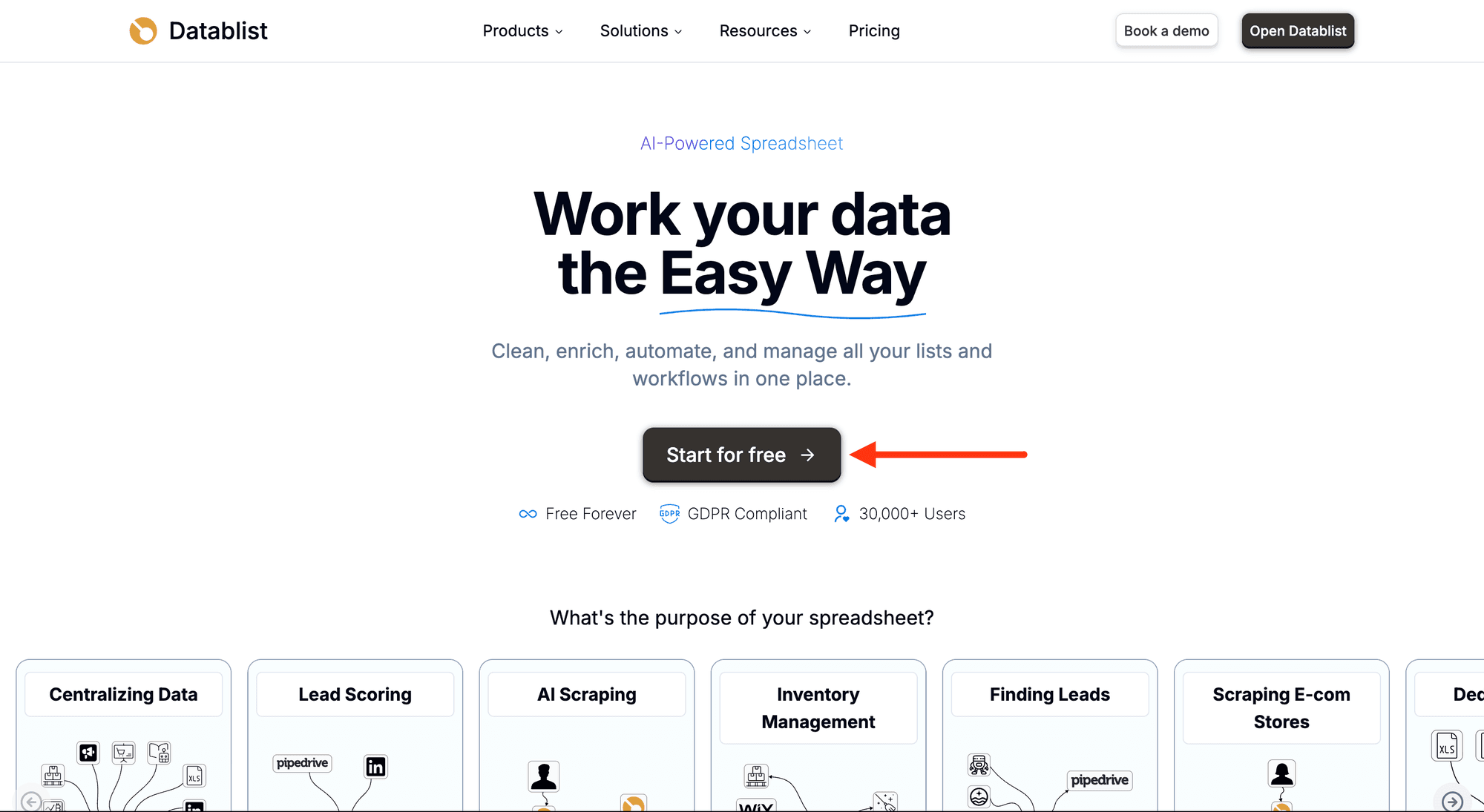
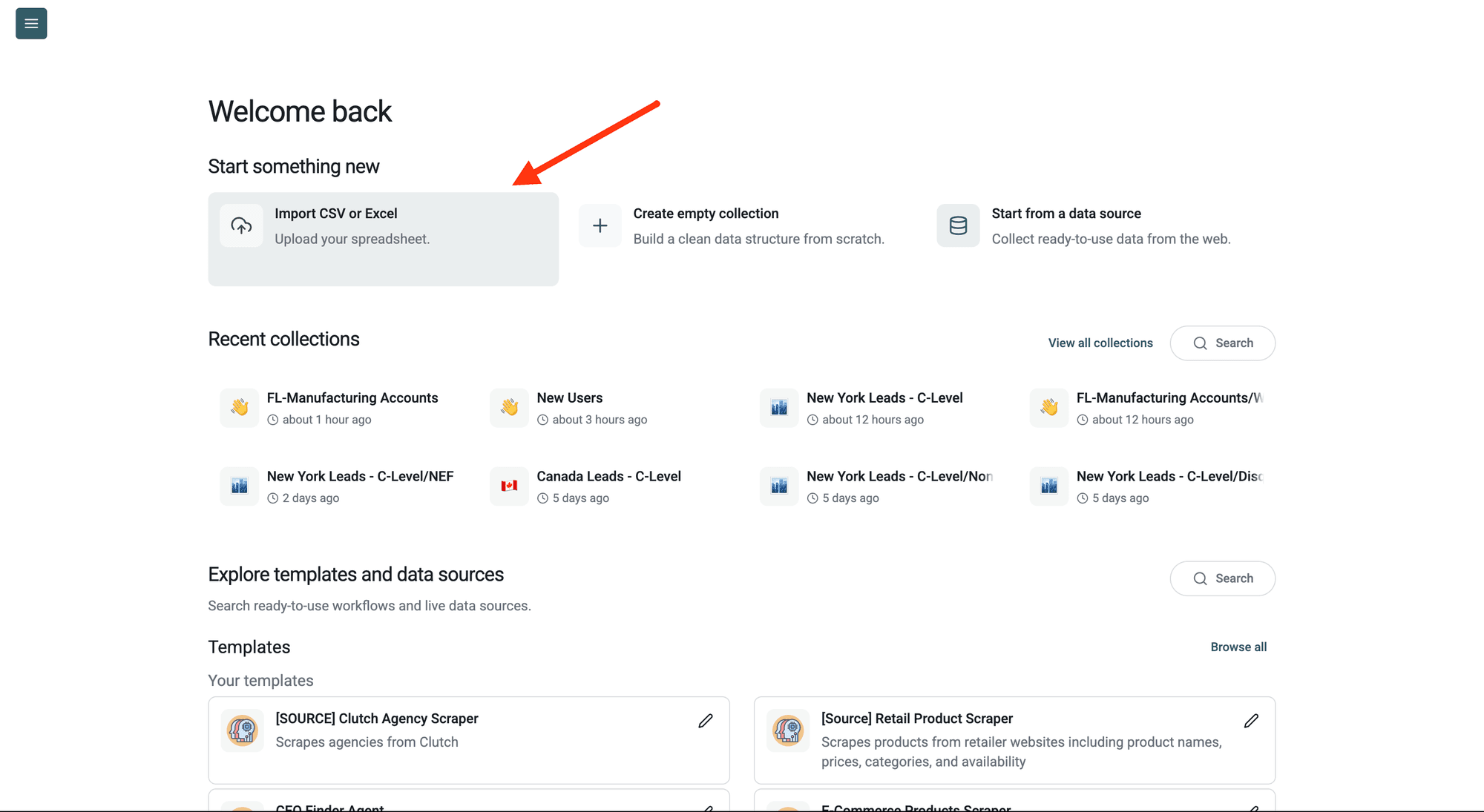
Then, import your CSV file containing the LinkedIn company URLs.
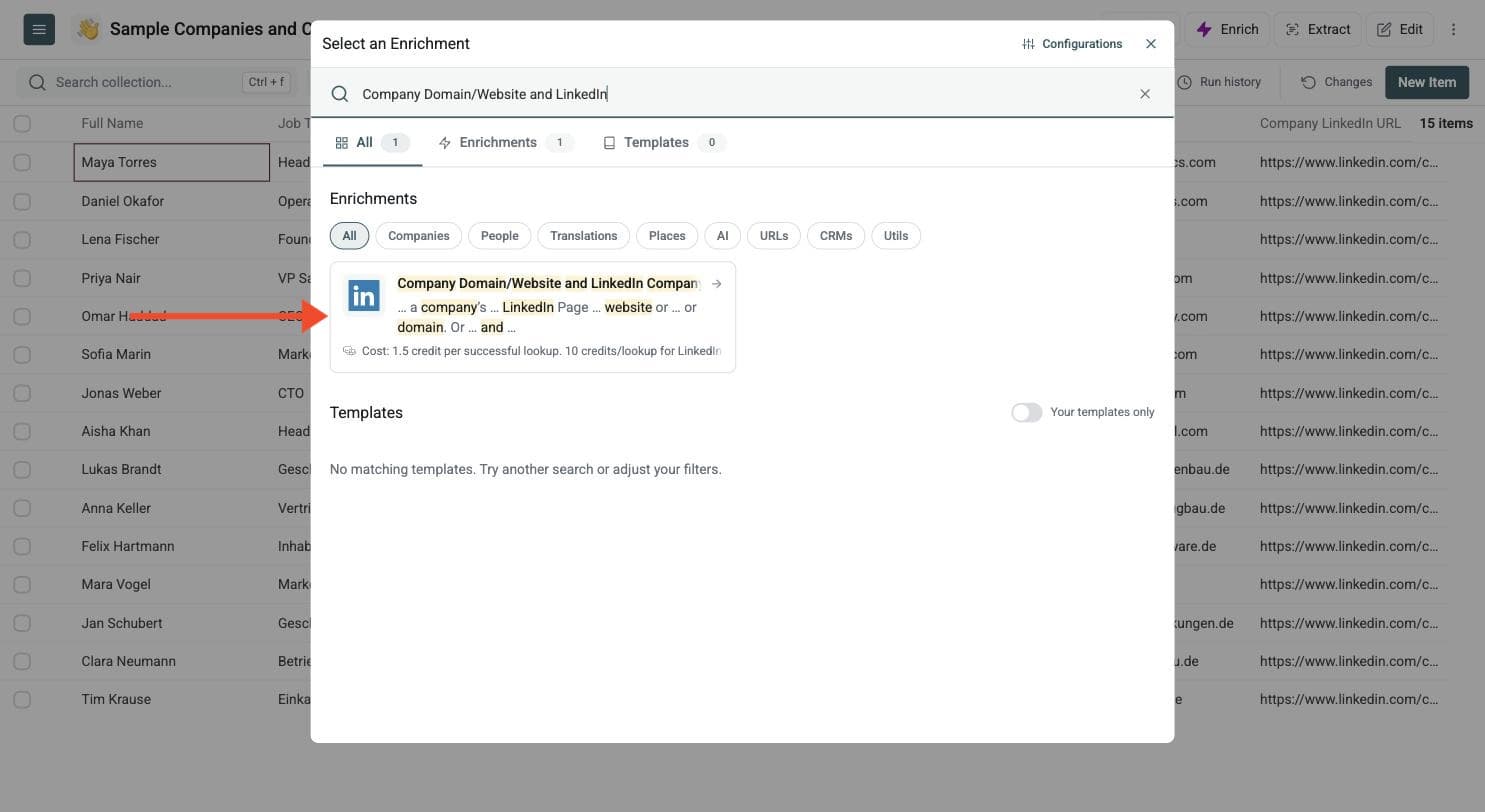
Step 2: Navigate to the Enrichment
Once you've imported the LinkedIn URLs, click on the Enrich button to access the enrichment library.
In the enrichment library, select the LinkedIn Company URL/Website Lookup enrichment, which you can find in the URLs tab.
Step 3: Set Up the Enrichment
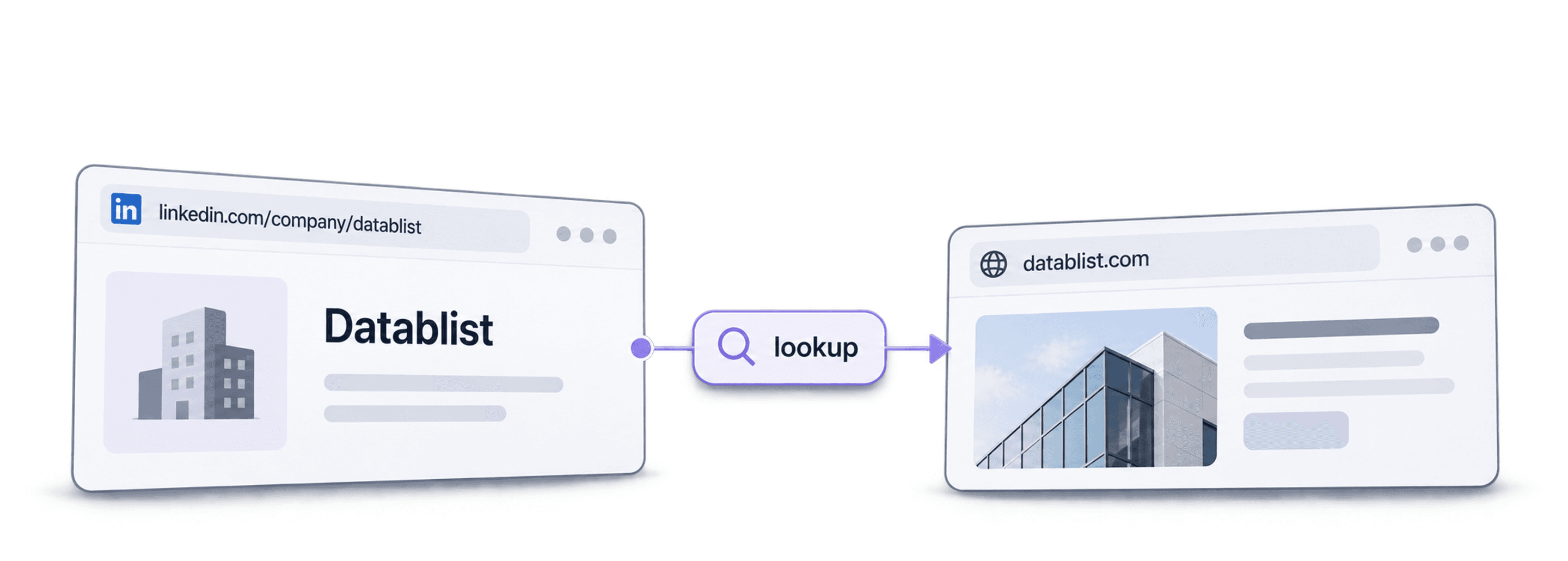
Set up the enrichment flow by selecting the Second option, which gets website URLs from LinkedIn company pages.
To get the LinkedIn company page from a domain or website instead, select the first option and follow the same steps.
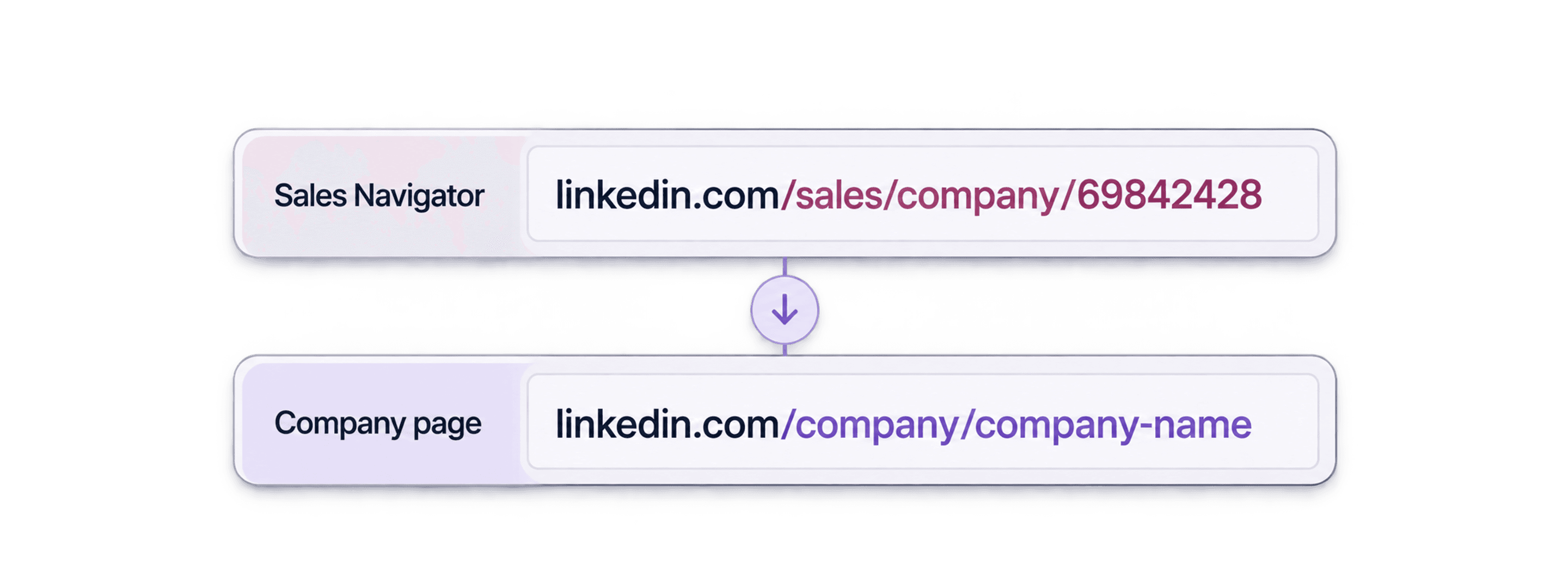
Note: this method also works with Sales Navigator URLs, but running this enrichment with Sales Navigator URLs requires 10 credits per successful lookup.
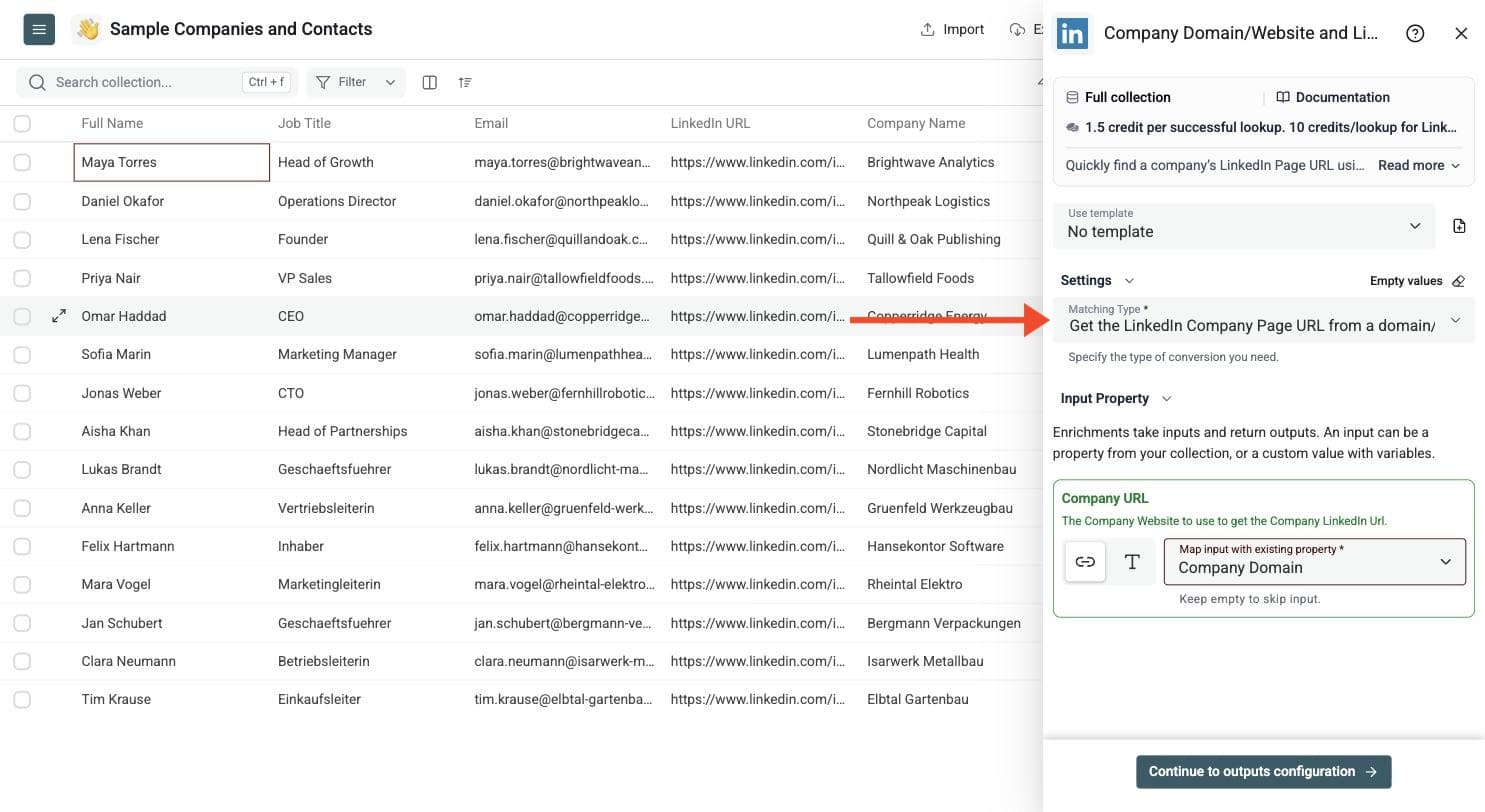
Step 4: Configure Your Inputs
Configure the LinkedIn URL column as your Input Property to get the Website URL as your output.
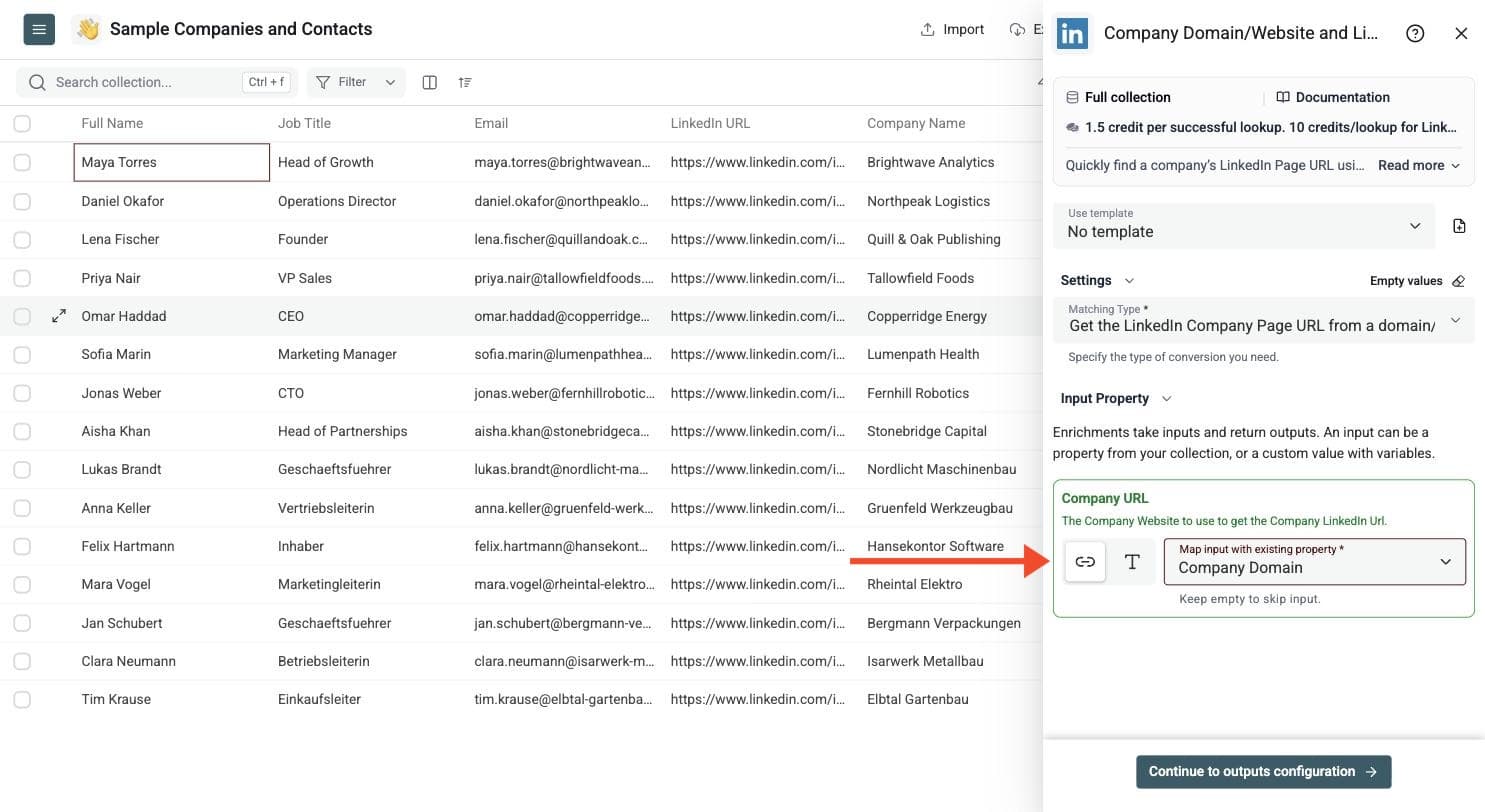
Step 5: Select Outputs
Create a new column to store the Website URLs by clicking on the ⊕ Icon.
Click on Instant Run.
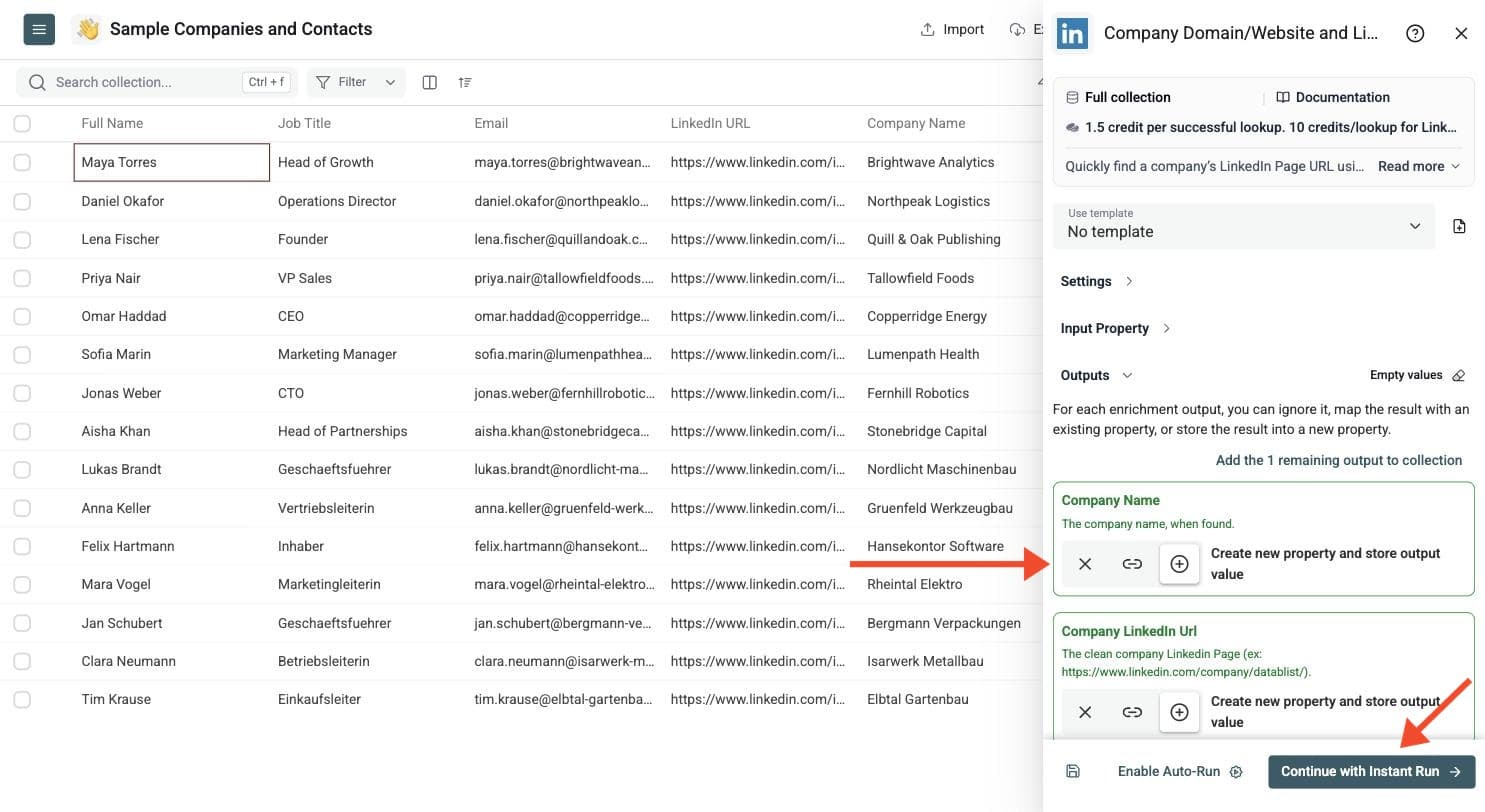
Step 6: Run the Enrichment
Now you can configure your run settings by choosing between these options:
-
Run it in Async (in the cloud)
-
Test on the first 10 items
-
Run only on the first 10, first 100, or configure it yourself
Once you have done that, click on Run Enrichment.
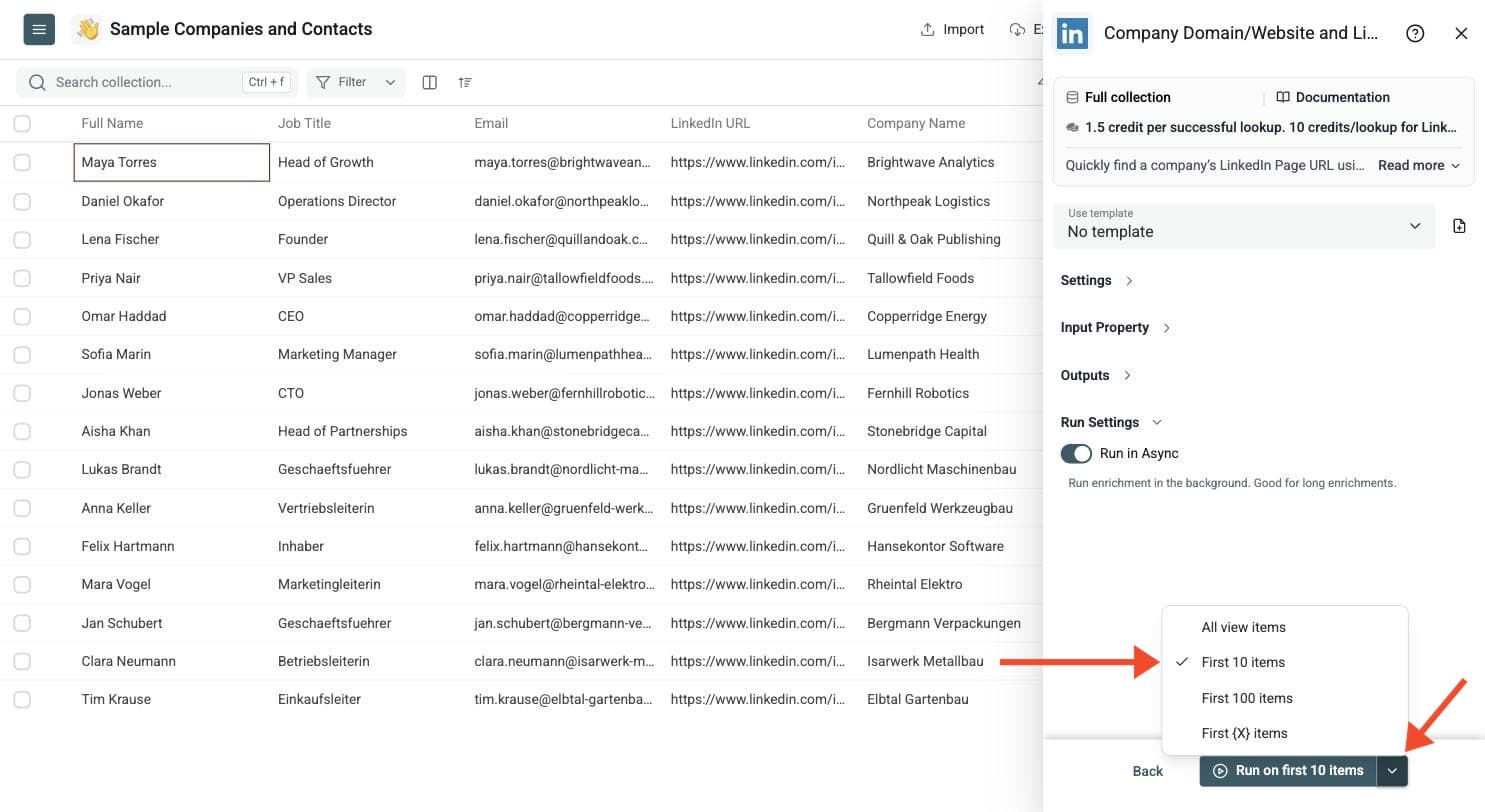
Input Formats and Matching Direction
Choose Matching Type for website-to-LinkedIn, LinkedIn-to-website, or Both to let the enrichment detect the direction from each input. The Both choice is useful when your account list mixes domains and LinkedIn company URLs.
Company website inputs can include:
- A domain:
datablist.com. - A full URL:
https://www.datablist.com/. - A website URL with a path:
https://www.datablist.com/how-to?arg=value.
LinkedIn company inputs can include standard company URLs with or without a trailing slash, regional URLs such as https://fr.linkedin.com/company/datablist/, partial URLs such as linkedin.com/company/datablist/, and supported numeric-ID or Sales Navigator company URLs. Keep tracking parameters and unrelated directory or social links out of the input list when possible.
Use company pages rather than individual LinkedIn profiles. Keep the source URL to review the company name, returned website and standardized LinkedIn company URL together. Confidence is available for website-to-LinkedIn or Both mode; it is not an identity guarantee for every lookup direction.
Two Matching Directions
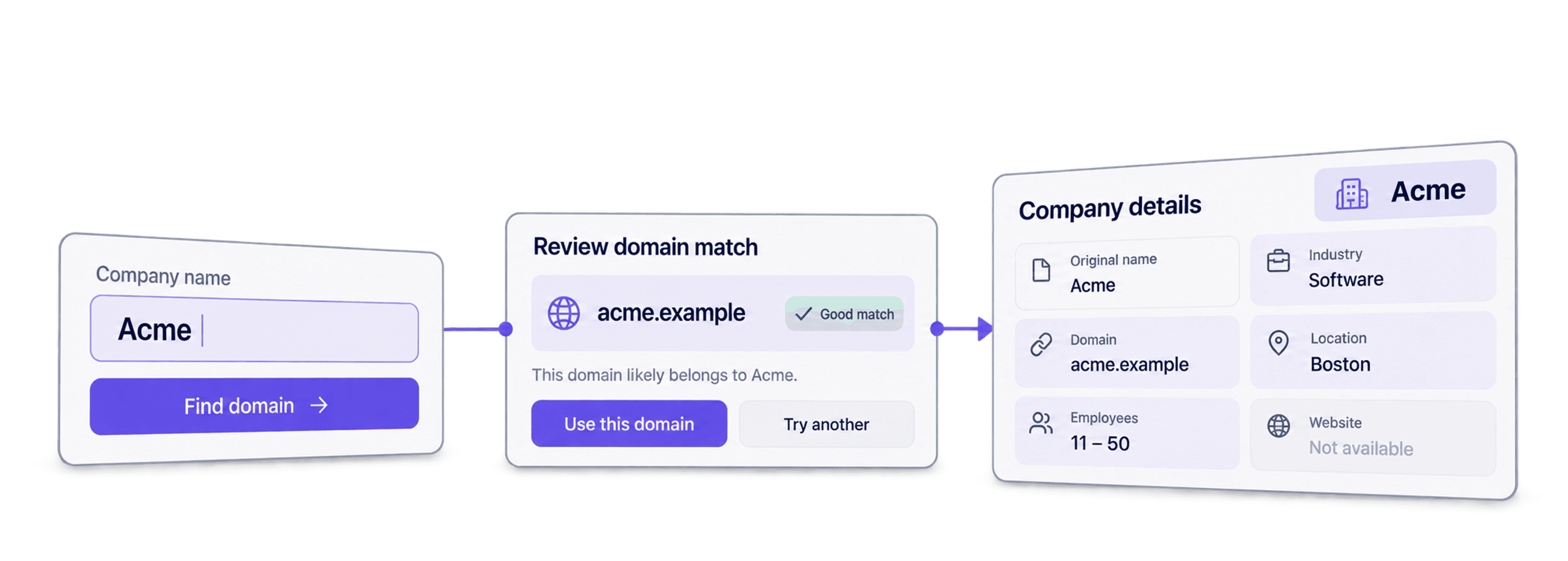
Find LinkedIn company pages from domains when your CRM only contains websites. After reviewing the matches, use LinkedIn Company Page Scraper to collect public company fields.
Find company websites from LinkedIn URLs when your account list came from LinkedIn research or a Sales Navigator workflow. This helps normalize mixed account lists before company enrichment or deduplication. Keep the original identifiers so a weak or unrelated match can be corrected without losing the source data.
Video Walkthrough
The earlier walkthrough shows the same domain and LinkedIn URL mapping workflow. Some interface labels may differ from the current illustrated steps above.