
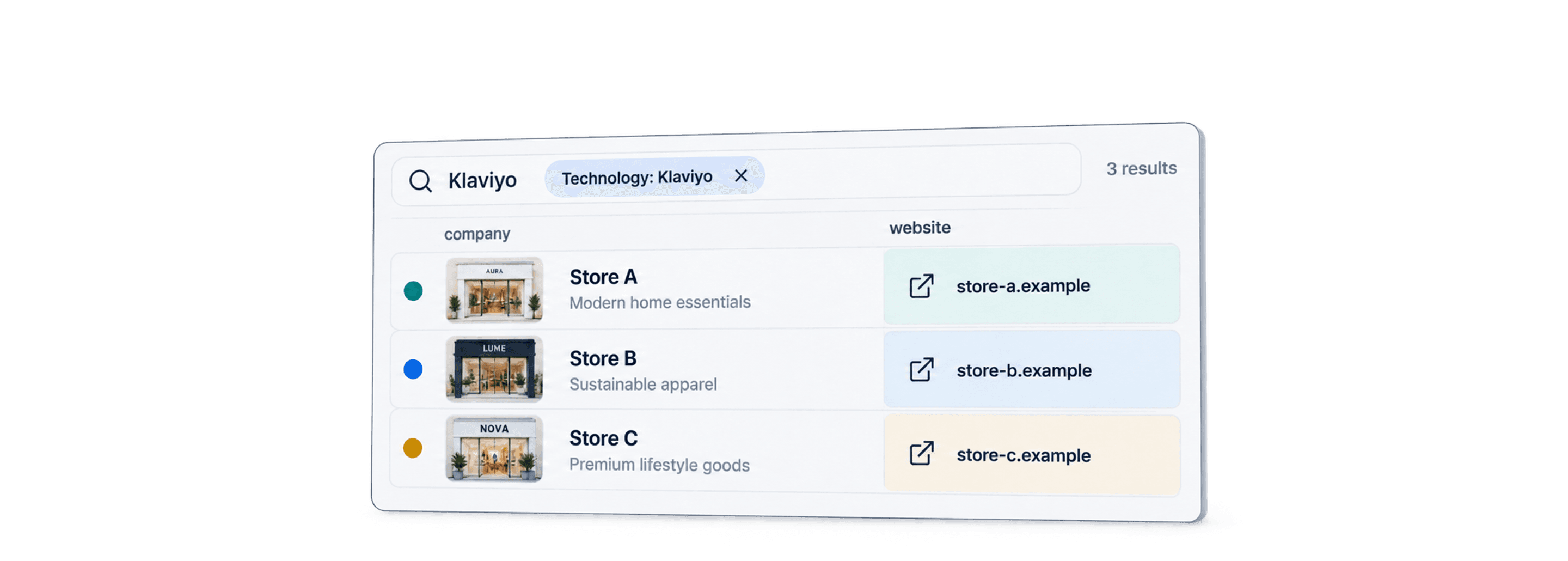
To find companies using Klaviyo, search for websites with detected Klaviyo technology, then verify which business each domain represents. Datablist's Find Companies by Technologies source lets you create that website list with country, language, and company filters.
I would start with a small, focused list. A detected script is useful evidence of a website integration, but it does not prove the company is actively sending campaigns or identify the person managing its account. The technographic prioritization guide shows how to turn that checked evidence into account scores while retaining unknowns.
How To Find Companies Using Klaviyo: The Datablist Method
An entire lead-generation workflow
Datablist lets you keep the discovered websites and the next research steps in the same collection. After checking the company identity, you can:
- Add company attributes, such as industry and employee range when available, to qualify the account.
- Use the AI Research Agent to answer a specific question from company pages, keeping the answer and source URL in separate columns. For example: “Does this store ship to Germany? Quote its delivery policy and keep the source.”
- Filter accepted accounts, identify the relevant contact, then find work emails or phone numbers with the required person identifiers.
- Clean and deduplicate the reviewed rows before exporting them for your CRM.
These follow-on steps have their own inputs and credit costs. You can build the qualified list without moving the file between tools; a technology match alone does not identify an owner or verify an email.
Choose Klaviyo as your technology. Add Shopify only if your target must use both tools, and select And for that requirement. Keep the technology operator separate from the country/language operator described below.
Datablist returns website and available company fields into a collection. You can review the domains, remove duplicate companies, and export the relevant accounts. Contact fields may be missing; a public website address is not necessarily a verified decision-maker email.
Finding Companies Using Klaviyo: The Step-by-Step Guide
The workflow has two phases:
Phase 1 of Creating a List of Companies Using Klaviyo: Preparation
The preparation phase is very easy, so easy that it is done with just a few clicks.
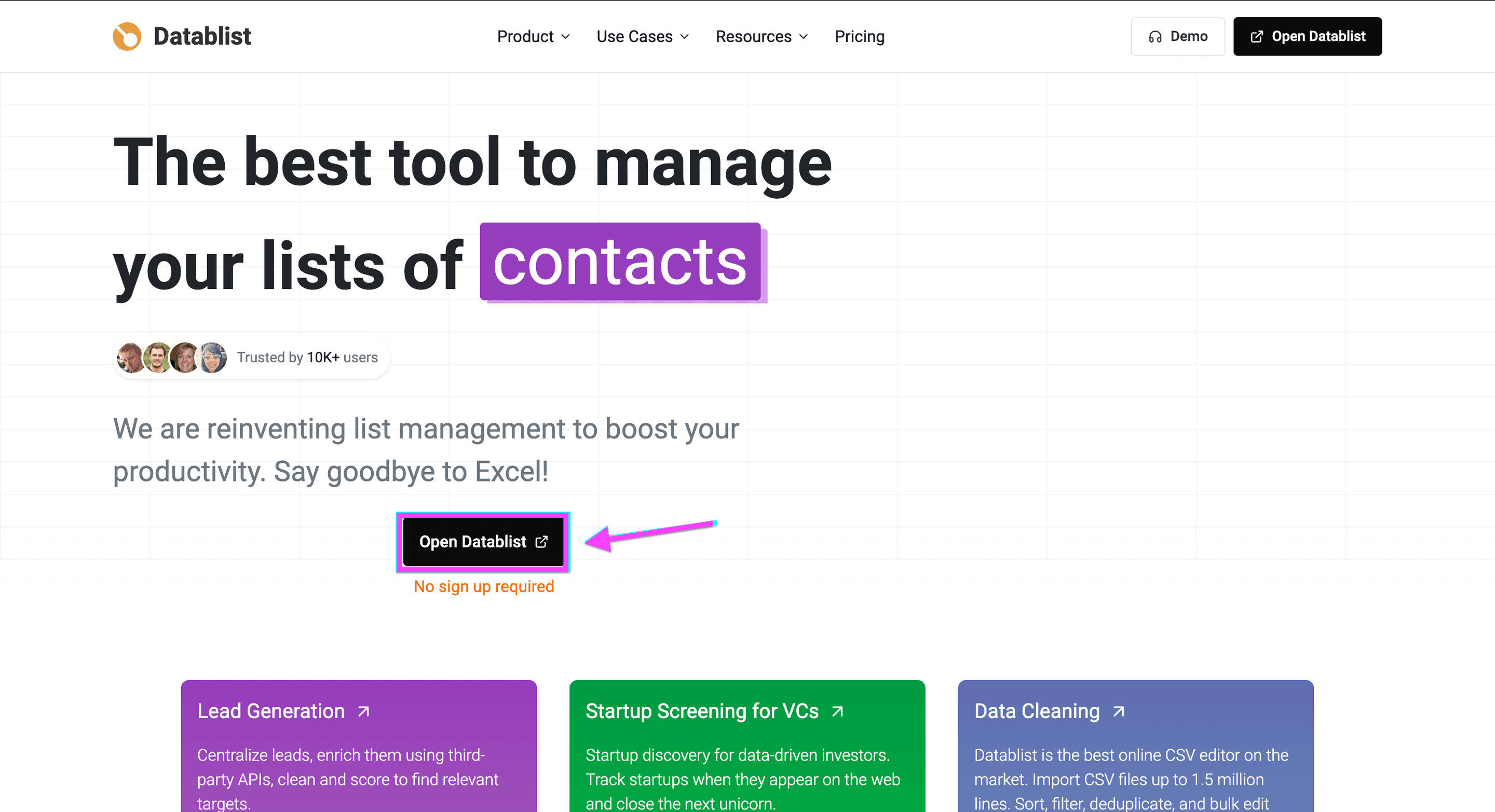
To get started, go to Datablist.com and sign up.
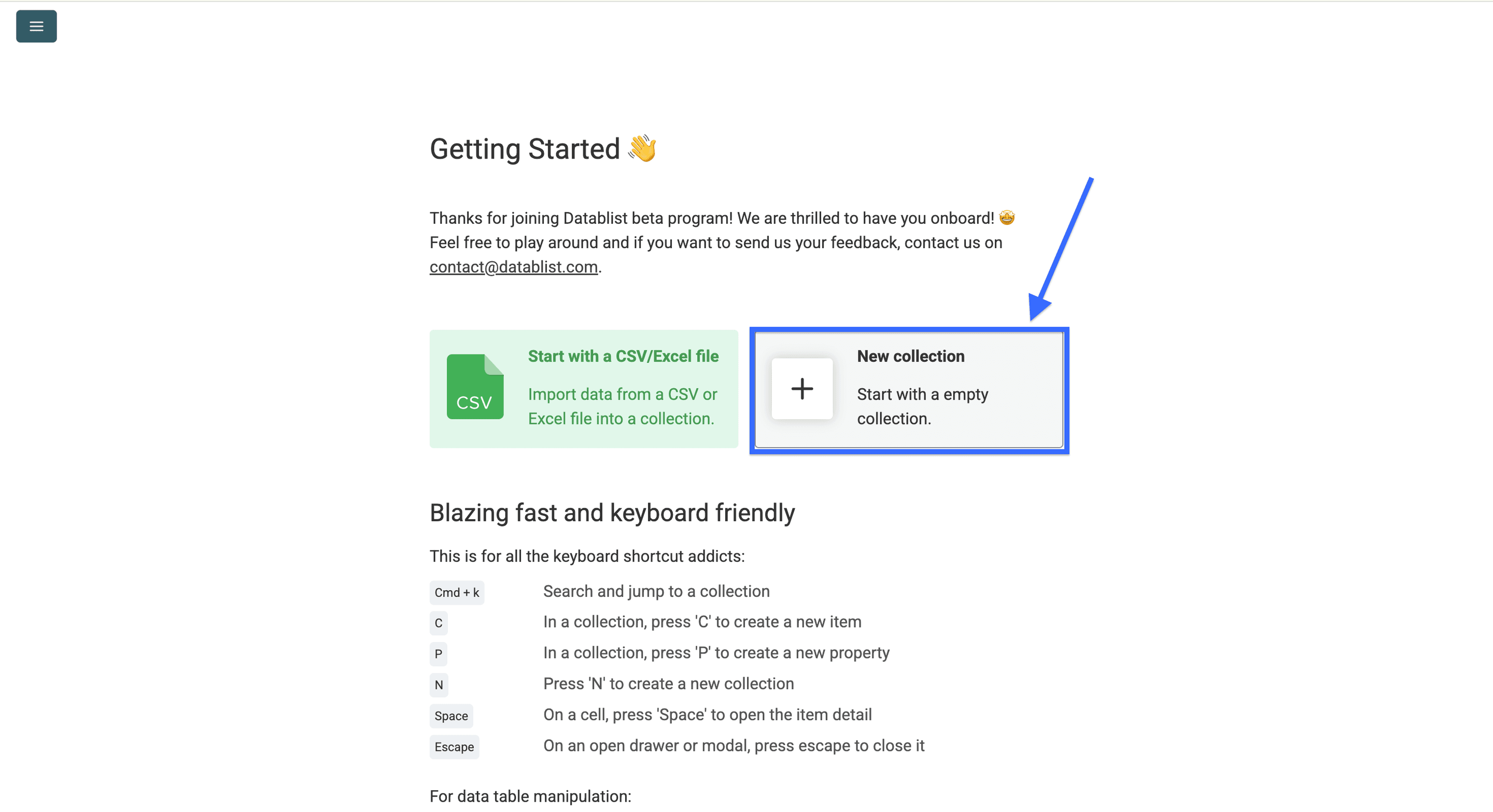
Once you sign up, create a Collection.
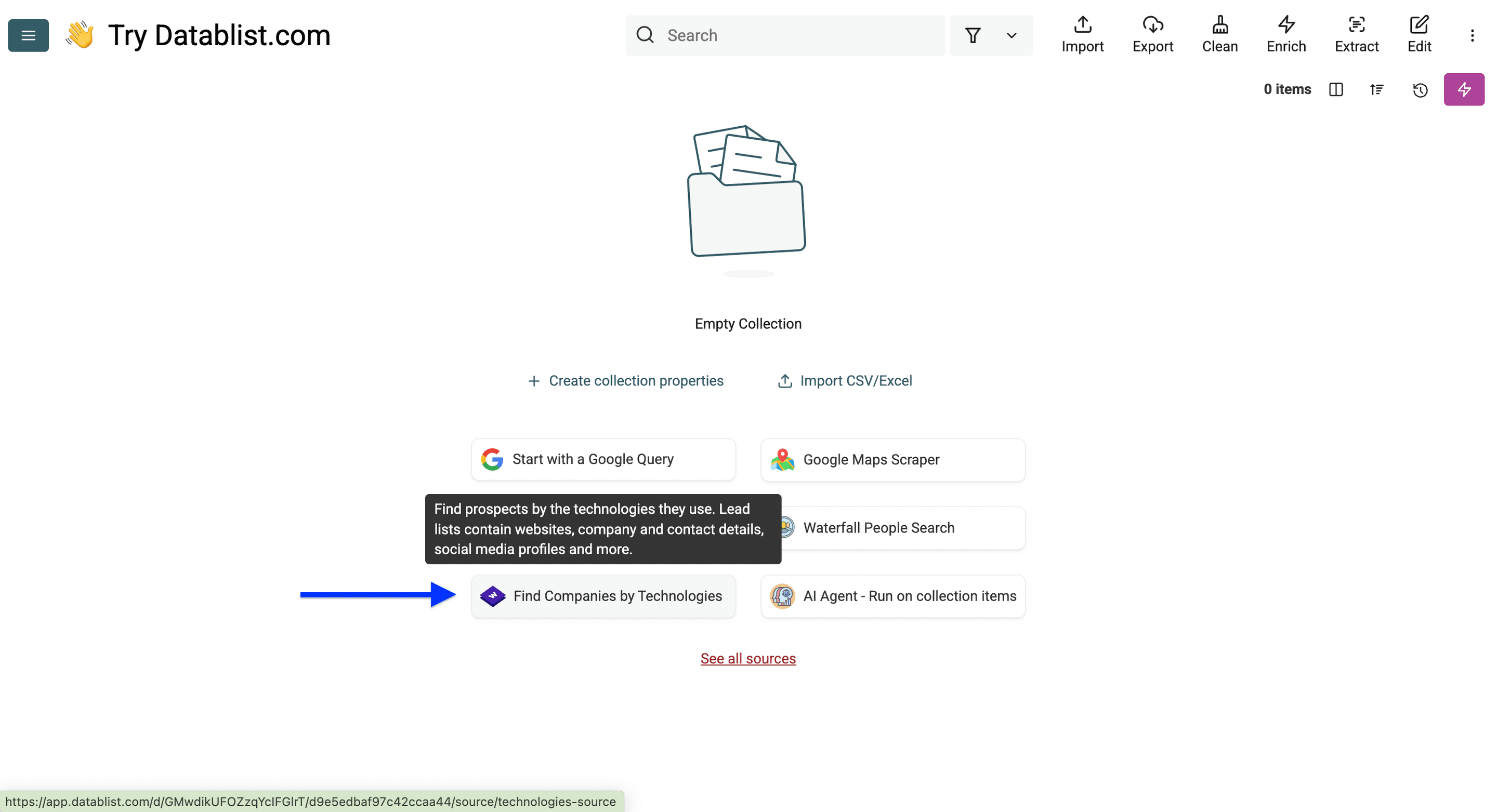
Now, click on Find Companies by Technologies.
That’s it with the prep. Now the fun part!
Phase 2 of Creating a List of Companies Using Klaviyo: Search & Filter
When you open the Technology Finder of Datablist, you’ll see 4 filter categories:
- Technology filter
- Website filter
- Company filter
- Limits and exclusions
For a concrete example, start with Klaviyo and Germany, then test a homepage keyword such as sportswear.
Step 1: Using the technology filter
The first filter is a technology category, which I’ll skip, and use the second one to filter by a specific technology: Klaviyo
👉 Check out Wappalyzer's full list of tracked technologies.
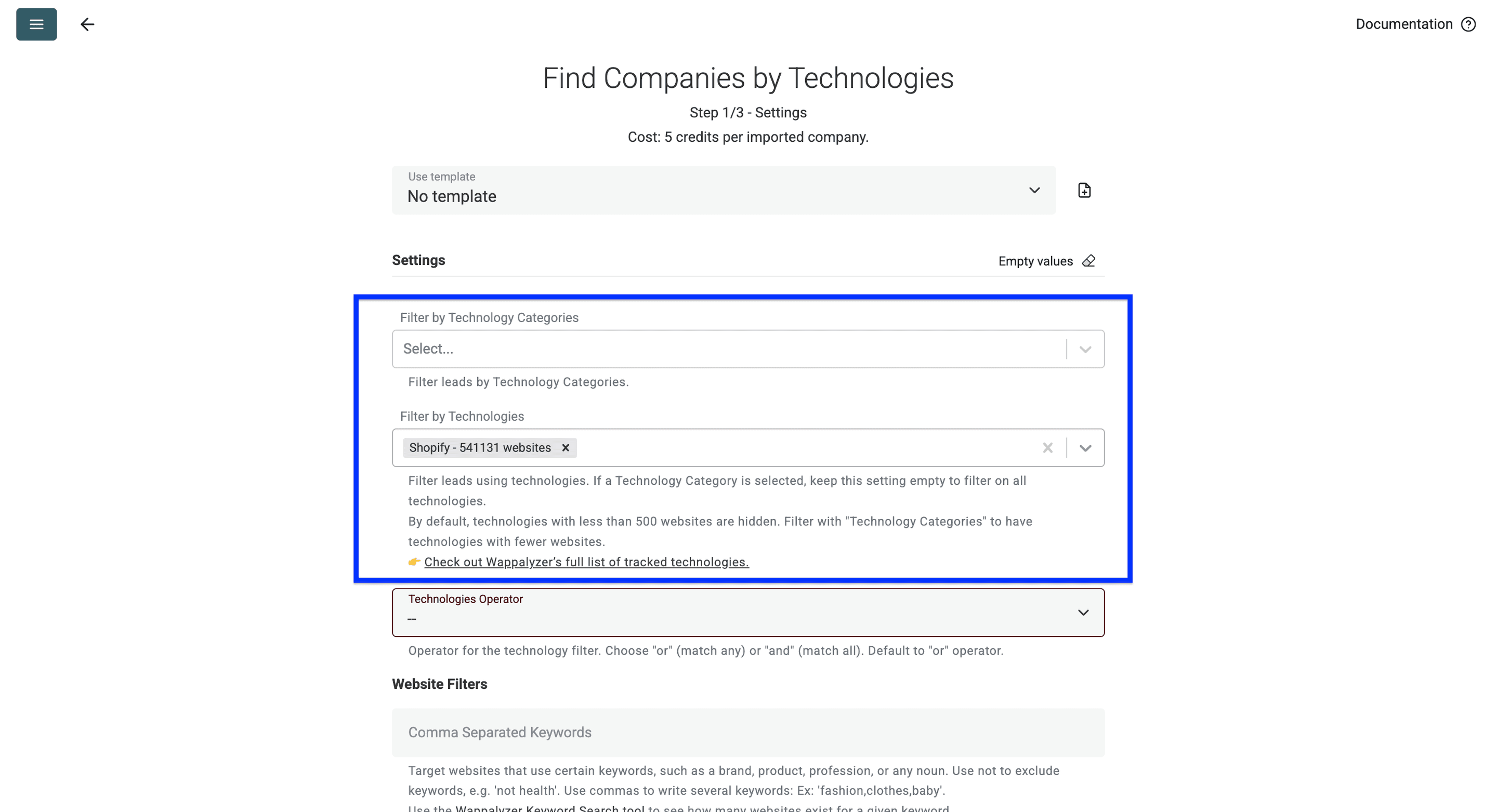
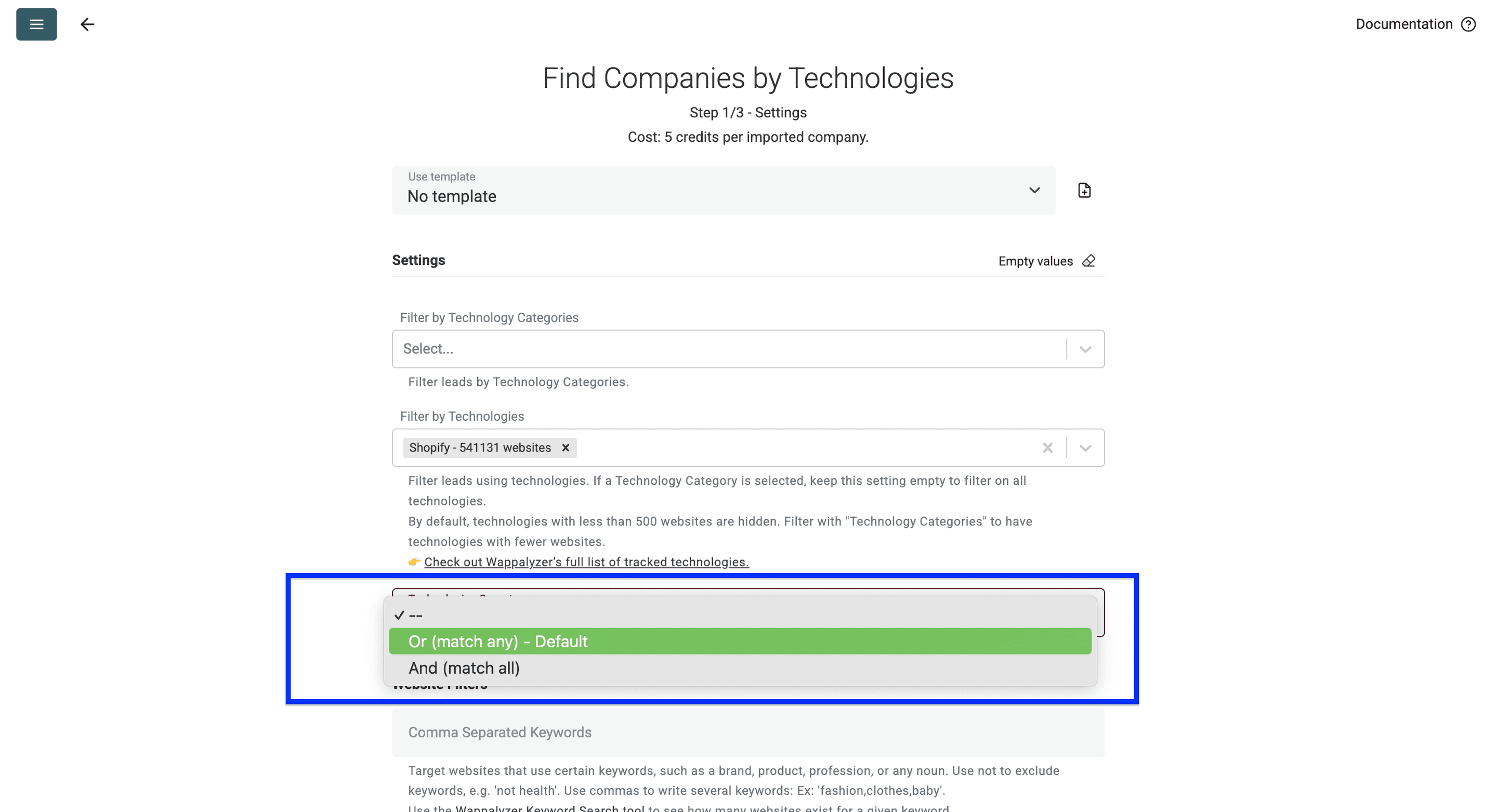
The third filter is the matching operator, which helps with multi-technology searches.
Here’s how it works:
- Option: Or operator, use this if you want to find companies running on Shopify or BigCommerce. This is the default setting.
- Option: And operator, use this if you want to find companies using Shopify + Klaviyo
For my example, this setting is not important, so I’ll skip it.
Step 2: Using website filters.
First, use keywords to narrow down your search. You can include and exclude keywords present on the homepage. e.g., 'sportswear', 'not health'. Use commas to write several keywords: Ex: 'fashion,clothes,baby'.
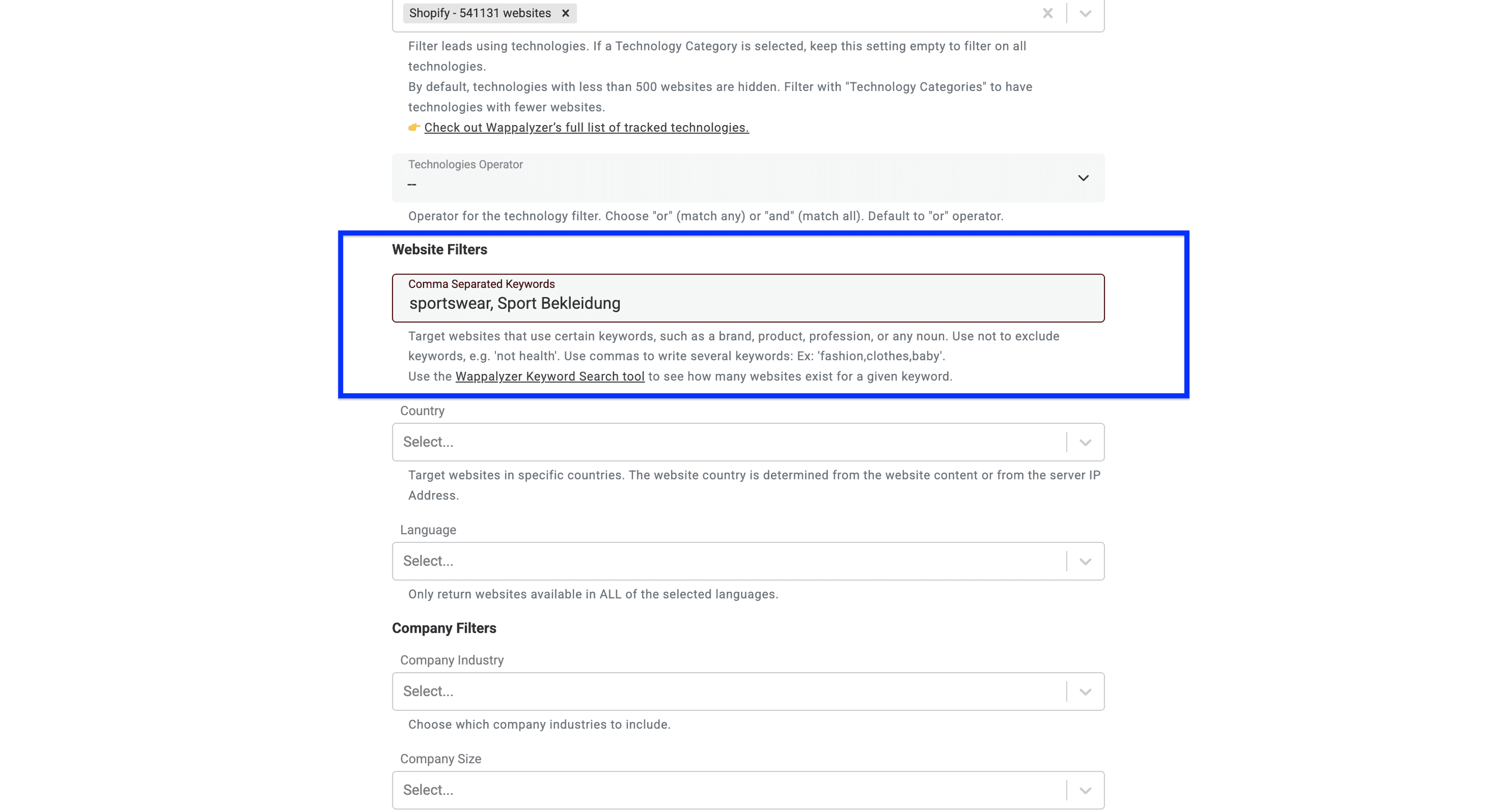
💡 2 Tips for Keyword Filtering
Tip 1: Test your keywords first - Wappalyzer doesn't match every keyword, and many return no results. Verify your keyword using the Wappalyzer Keyword Search tool before building your list.
Tip 2: Focus on homepage content - Only use keywords likely to appear on homepages (brands, product categories, industry terms). Avoid searching for specific details like shipping policies or product specifications.
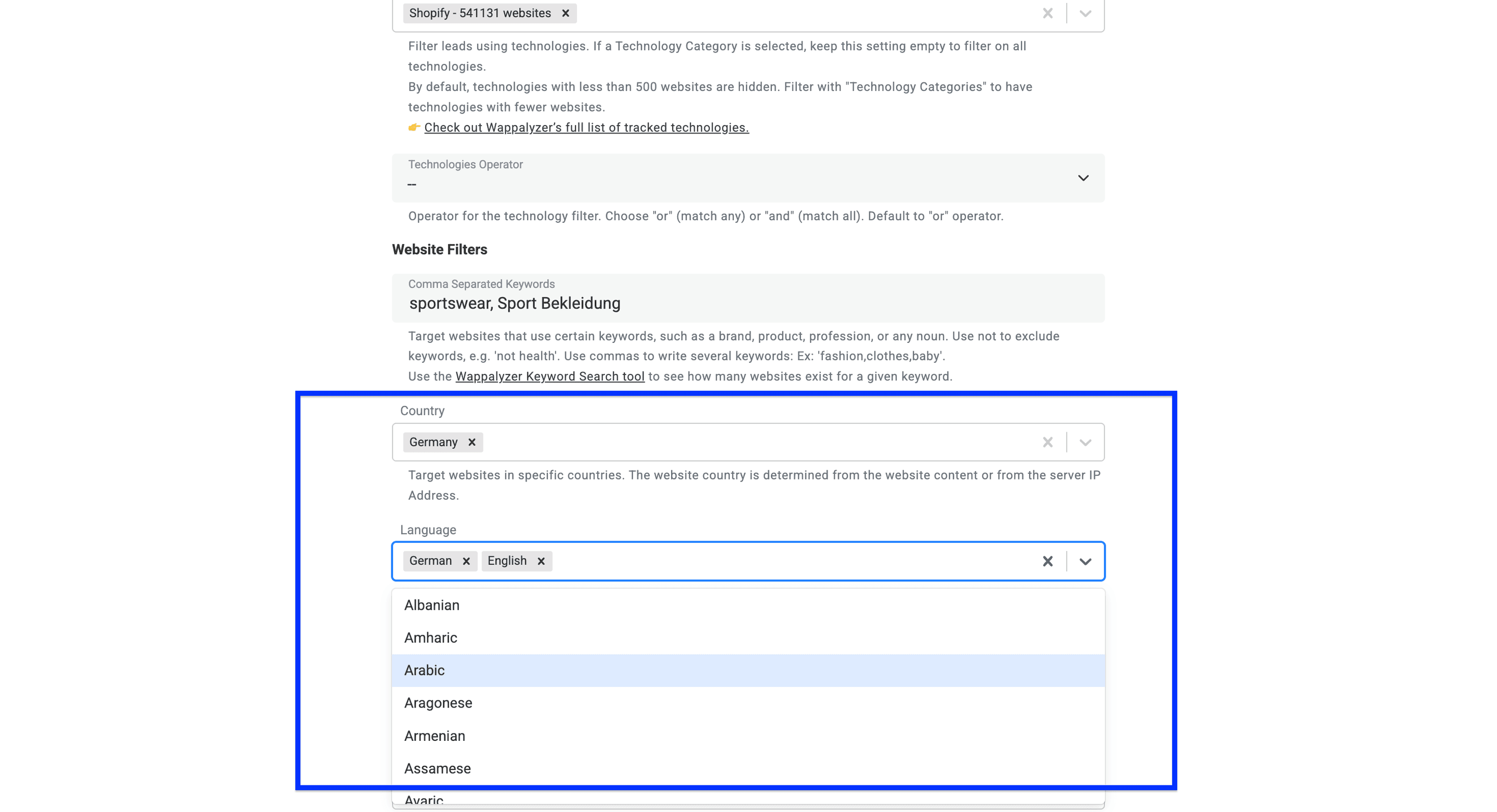
Now, select the countries you want to target.
Then select Language if it is relevant. Selecting several languages requires websites available in all those languages.
The Country filter uses website content or server IP evidence; it is not a guaranteed headquarters location. When both country and language are set, Filter by country OR language (yields more results) allows either condition. Uncheck it when both must match. For German sportswear prospects, verify the resulting company location rather than assuming every German-language website belongs to a German company.
For Shopify-based prospects, extract the storefront country code as a separate signal and verify the company's registered location independently.
Step 3: Using company filters.
The company filters allow you to do two things:
- Focus your search on industry verticals. For some technologies, the tool already tells what industry vertical they’re in (I’ll leave it open for simplicity).
- Choose the company size you want to target. I’ll leave this also open.
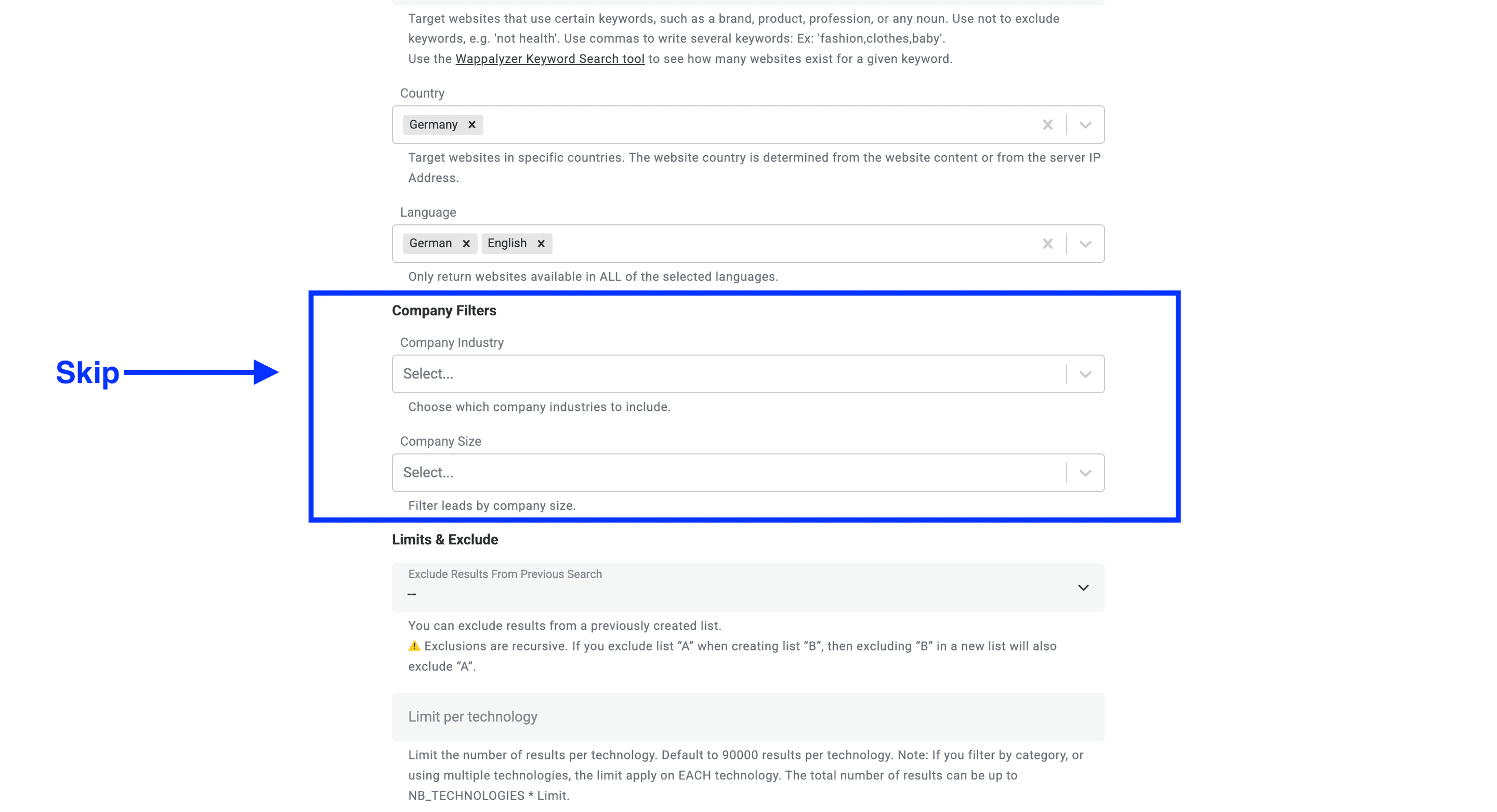
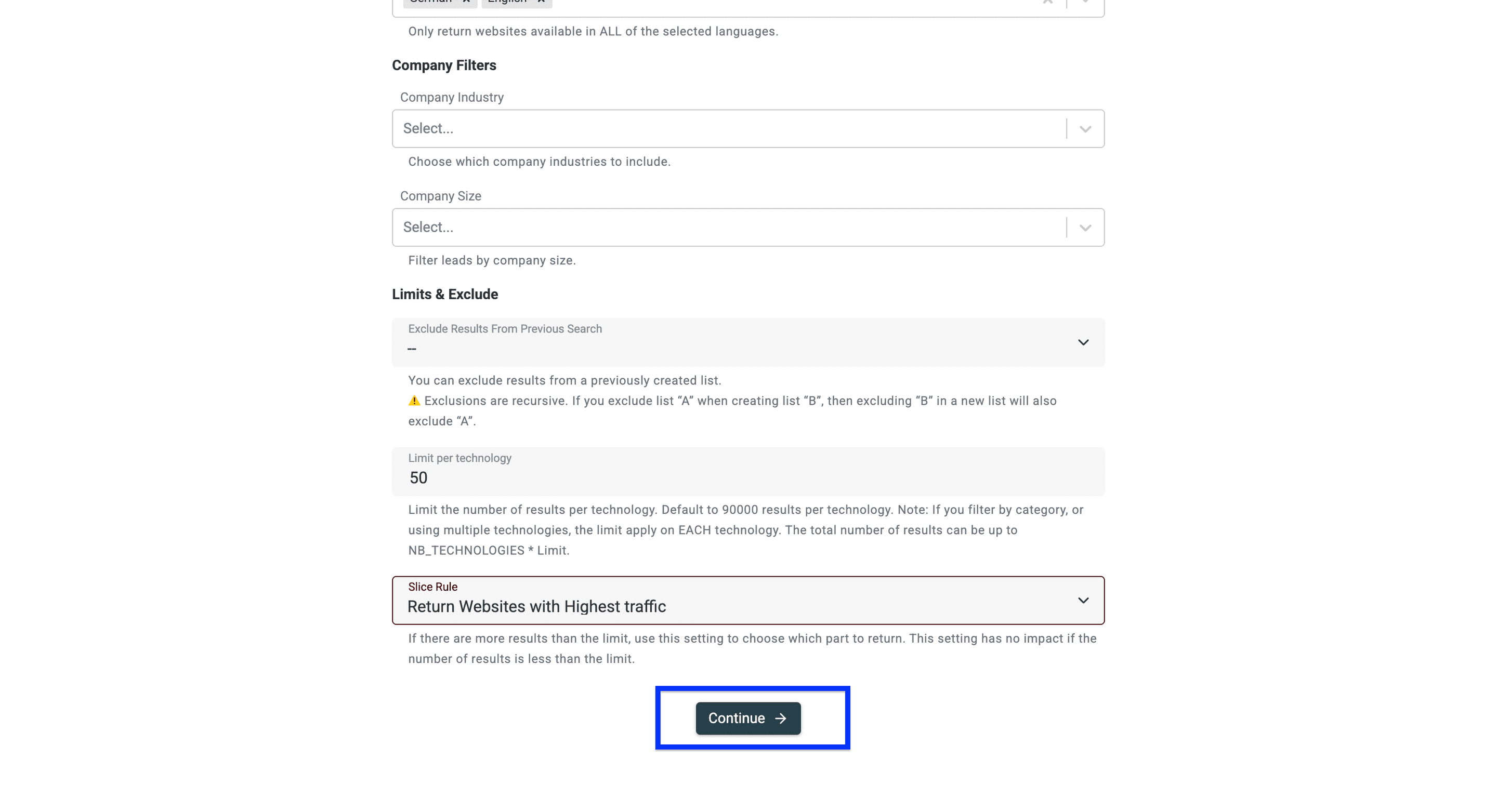
Step 4: Set limits and define exclusions
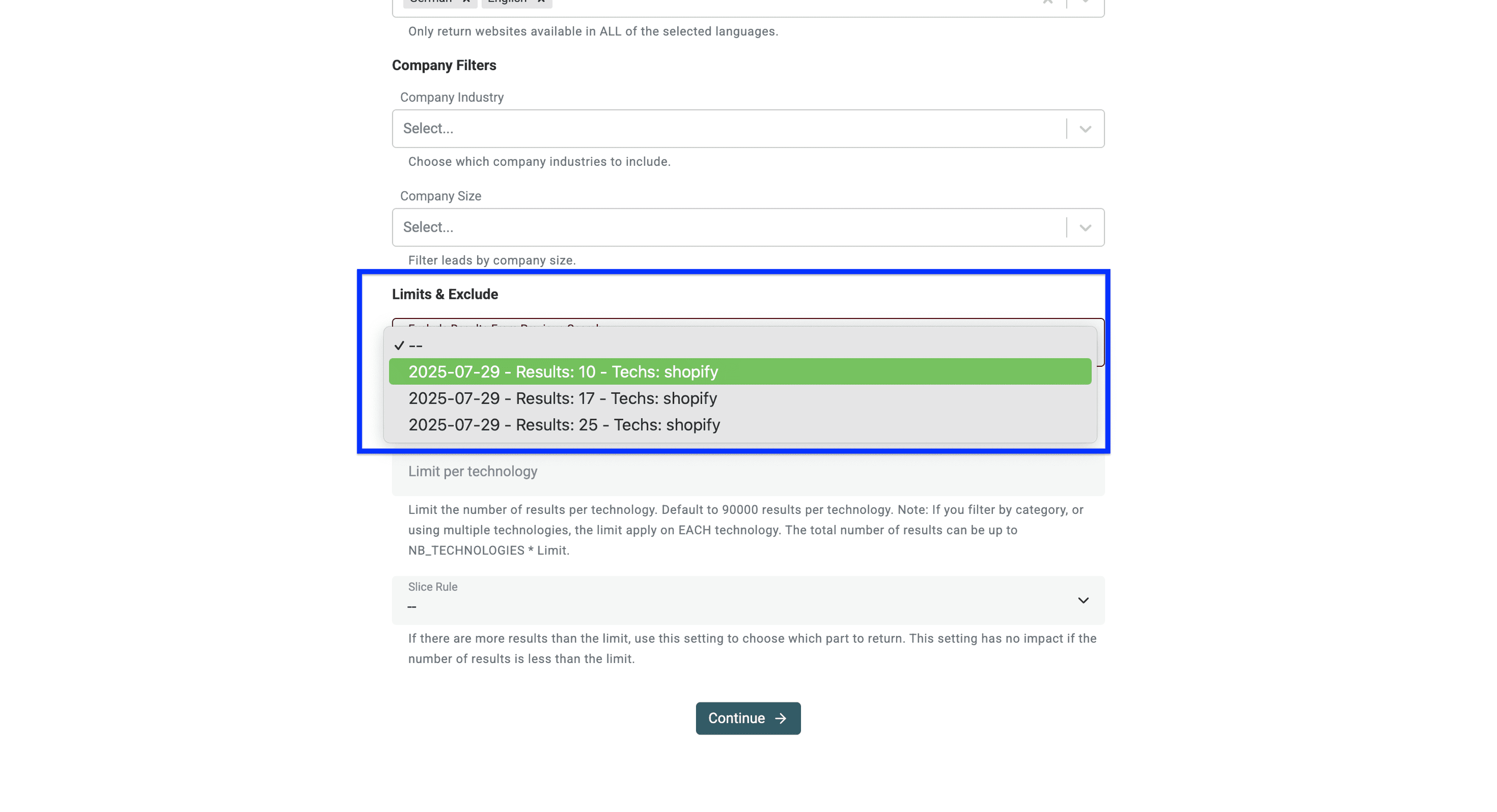
First, you can exclude results from a previously created list.
⚠️ Note: Exclusions are recursive. If you exclude list “A” when creating list “B”, then excluding “B” in a new list will also exclude “A”.
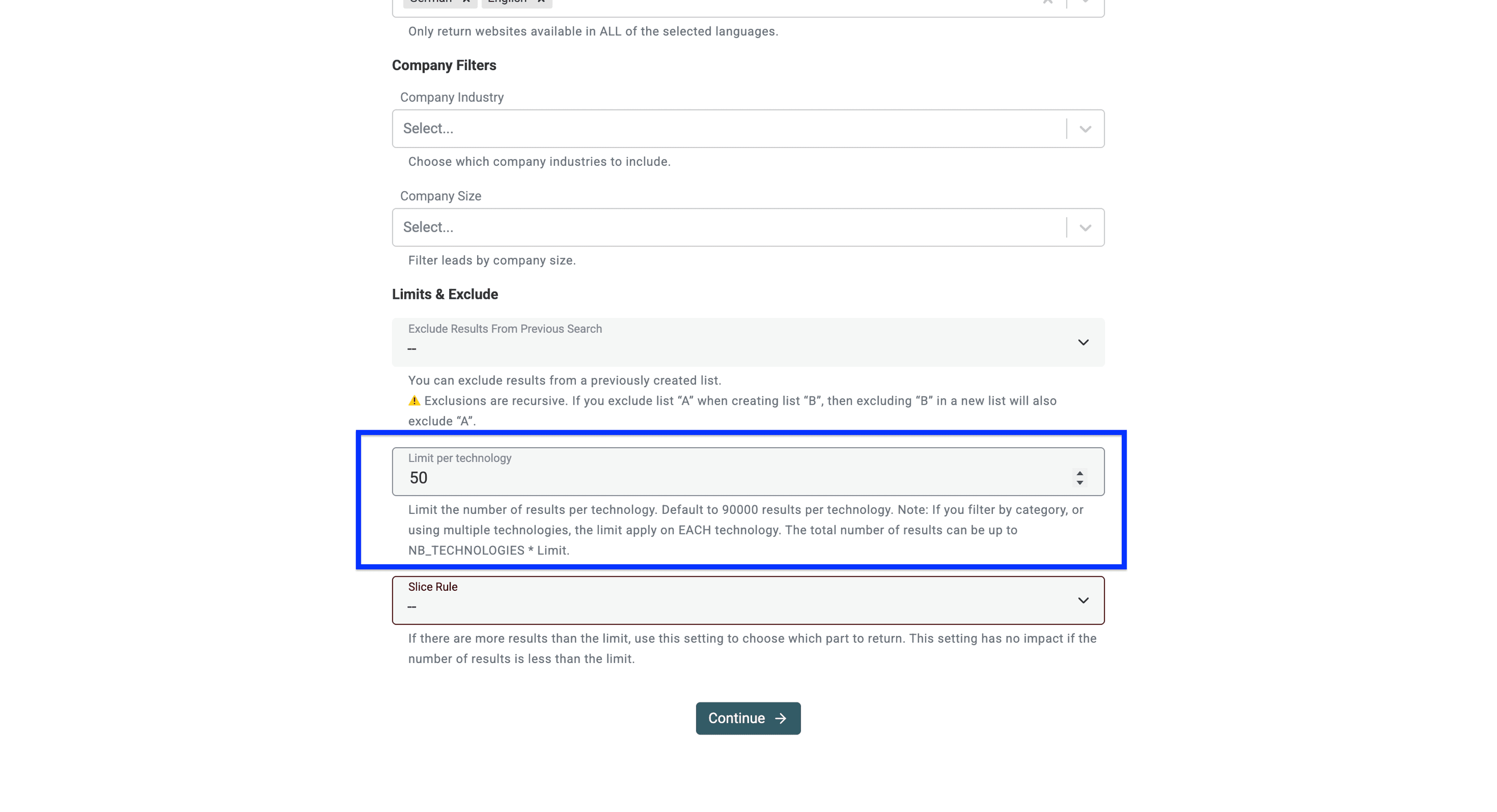
Now, you can set a limit on how many websites you want to have for each technology.
⚠️ The limit applies per technology. It is a cap, not a promised result count. The filters and available data determine how many websites are returned.
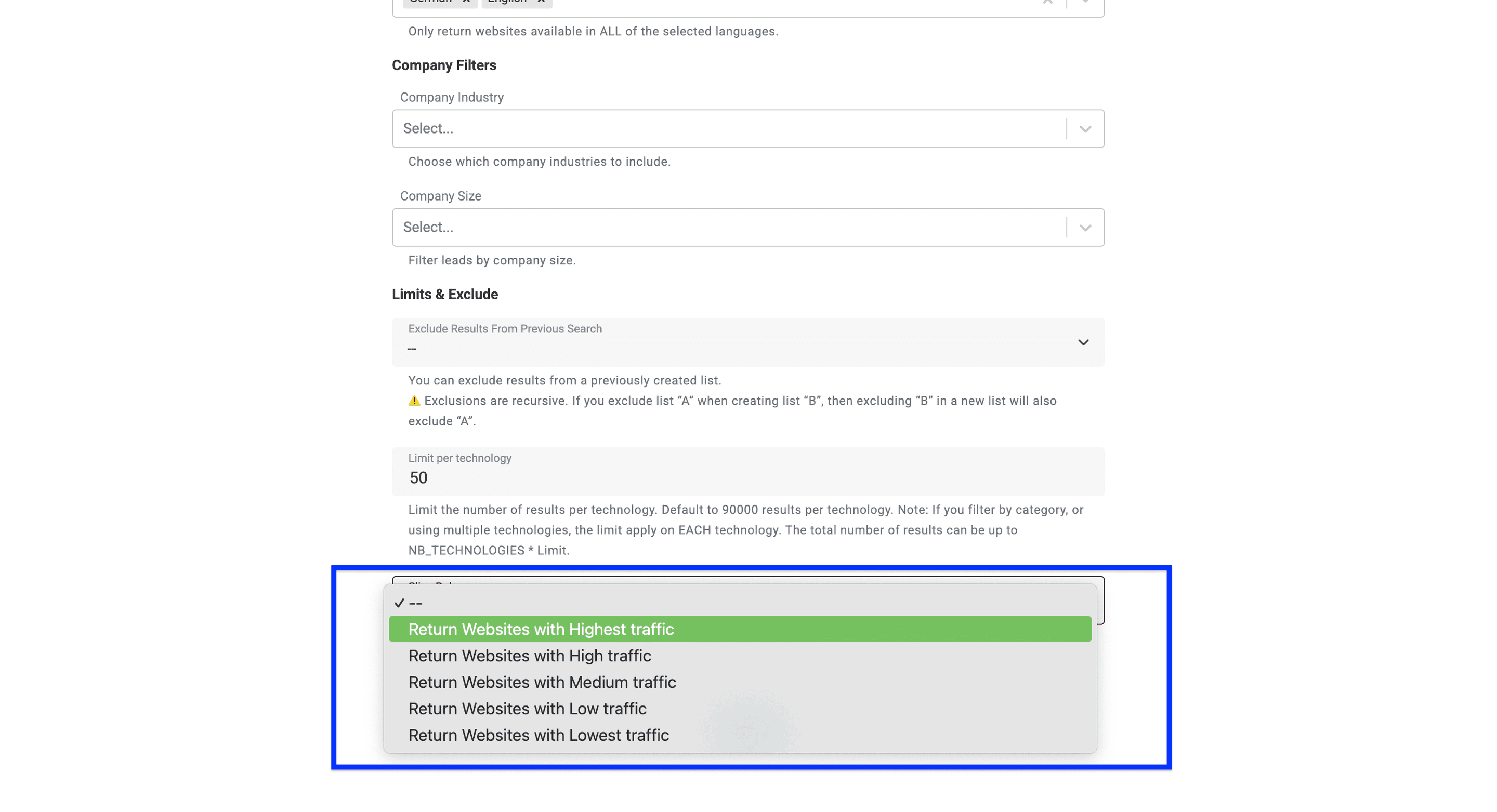
Lastly, you can set a slice rule for your search. This useful feature lets you filter websites based on their traffic volume. For example, selecting "Highest traffic" will return the most popular websites in your results.
This setting only matters when your search finds more websites than your limit allows. If your search returns fewer results than your limit, all websites will be included regardless of traffic.
Once you’ve set up all your filters, click on Continue.
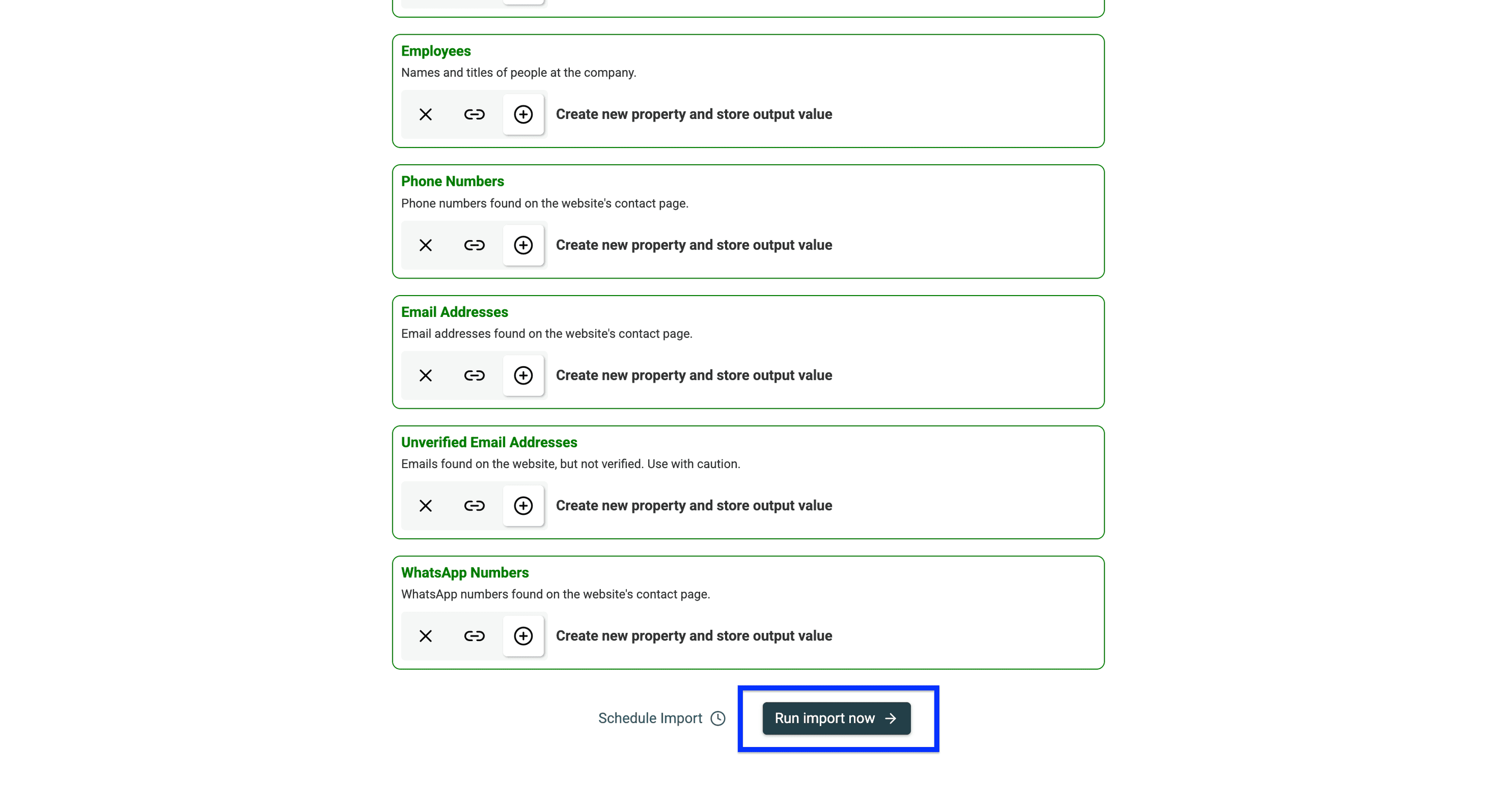
Now, you’ll see all the data points Datablist will return as configured output fields. To complete the process, navigate to the bottom of the page and click Run import now.
After the import, inspect the returned websites before treating them as qualified company accounts.
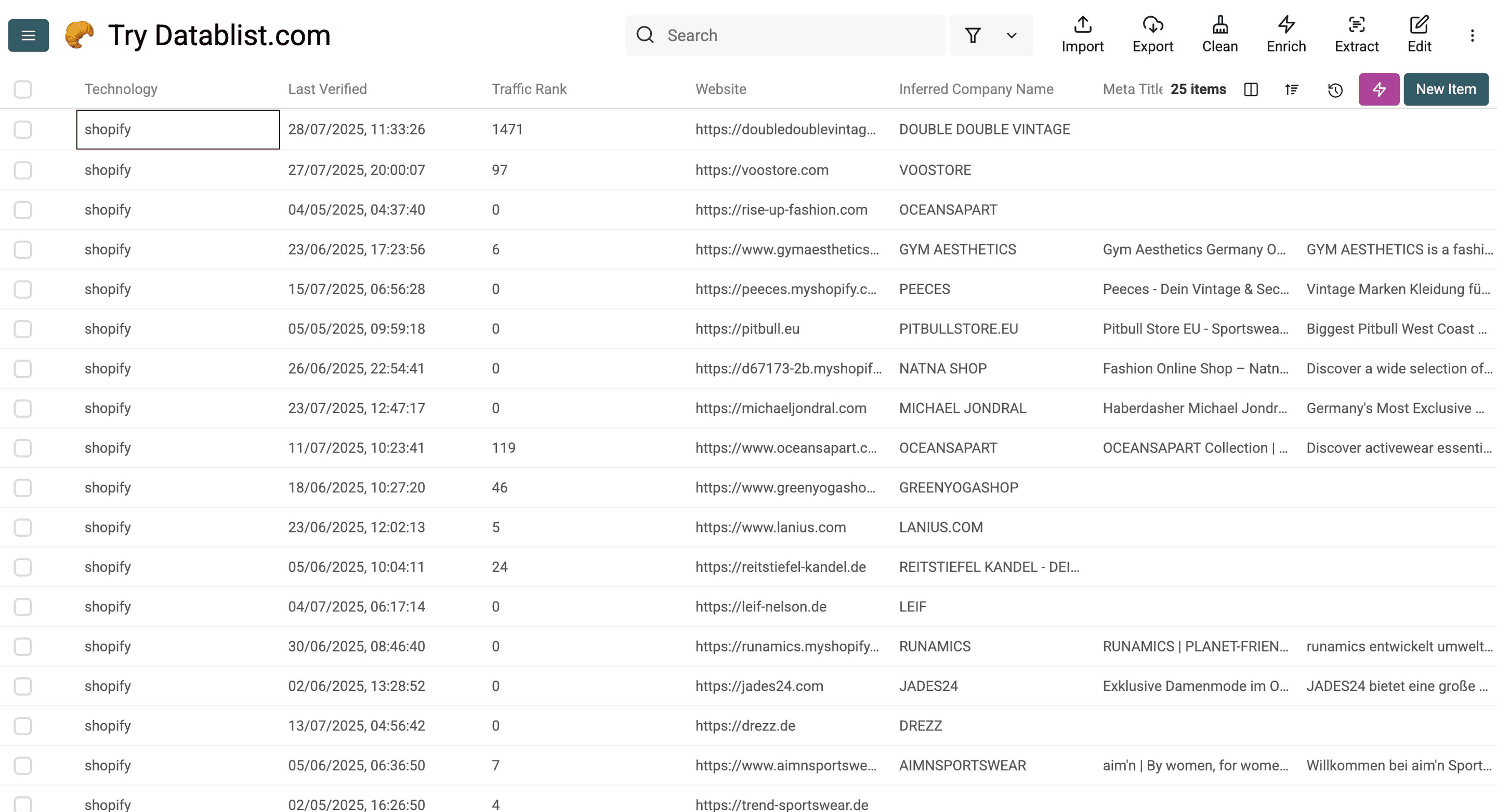
Here’s a detailed overview of the data that Datablist delivers:
Technology & Website Data
Technology, Technology Versions, Last Verified, Traffic Rank, Root Path, Website URL, Meta Title, Meta Description, Responsive, Copyright Year.
Company Data
Company Name, Inferred Company Name, Industry, About Company, Company Size, Company Type, Founded Year, Total Funding (USD), Funding Rounds, Employees, Countries, Languages, Locations.
Contact Information
Phone Numbers, Email Addresses, Unverified Email Addresses, WhatsApp Numbers, LinkedIn, Facebook, Twitter, Instagram.
Verify a Klaviyo detection before outreach
Check the Last Verified field and open a sample of the returned websites. Root Path indicates a homepage detection; a detection on another page can still be relevant. Keep the source URL and verification date with your account list.
Klaviyo's onsite tracking documentation identifies its website JavaScript as Klaviyo.js. Finding that script is a signal of an integration. Its absence on one visit is not proof that the business never uses Klaviyo: the email platform and its visible website tracking are different things.
For a known domain, inspect the site with a technology detector or use Identify technologies on websites in Datablist. The technology finder guide explains the distinction between discovering websites by technology and checking domains you already have.
Website results are not unique companies
One business may operate several domains or regional stores. Review Company Name and Website URL together. Keep distinct brands when that matches your campaign; consolidate regional domains only when you have evidence they belong to the same account.
Do not infer a contact's email or marketing budget from the presence of Klaviyo. If your next task is contact research, preserve the validated company domain as the input and keep unknown contact fields empty.
Alternative: Checking If a Company Uses Klaviyo with WhatRuns
A browser technology detector can help check a website you already know. Visit the site, run the detector, and inspect its Klaviyo result. Treat this as a sample verification step rather than evidence of a complete customer directory.
For a handful of known domains, this manual approach can be enough. For a filtered account list, use the source workflow above. In either case, record what was detected and when you checked it.
FAQ About Finding Companies Using Klaviyo
Can I find a complete list of companies using Klaviyo?
No detection-based list should be treated as a complete customer database. Website coverage, delayed observations, and tools without visible tracking can leave gaps. Use the list to find candidates and verify the accounts relevant to your campaign.
Does this export data from my Klaviyo account?
No. This workflow finds websites associated with Klaviyo technology. It does not export your Klaviyo subscribers, events, or campaign results. A search such as “Klaviyo to Excel” can refer to a different task: exporting data from an account you administer.
How should I estimate the cost?
Monthly USD pricing: Starter costs $25/month with 5,000 included credits. A $20 top-up adds 20,000 credits to an active subscription. Included credits are used first; top-ups do not expire.
Using Find Companies by Technologies at 5 credits per returned website row, 1,000 rows use 5,000 credits and fit the $25 Starter allowance. A 10,000-row import uses 50,000 credits: Starter + a $55/60,000-credit top-up costs $80, providing 65,000 credits and leaving 15,000. These are source-row budgets; review duplicates and business fit, then budget any contact enrichment separately.
Review the source's estimate before starting and use a small filtered import. Costs depend on the returned rows and your available credits. Check the credit documentation and current source configuration rather than assuming a subscription guarantees a fixed number of companies.
What should I check before exporting?
Inspect a sample's detection dates, business identity, and required filters. Remove duplicate account records, keep useful website evidence, and separate public contact fields from verified outreach contacts. Export the reviewed list when it matches your campaign criteria.