
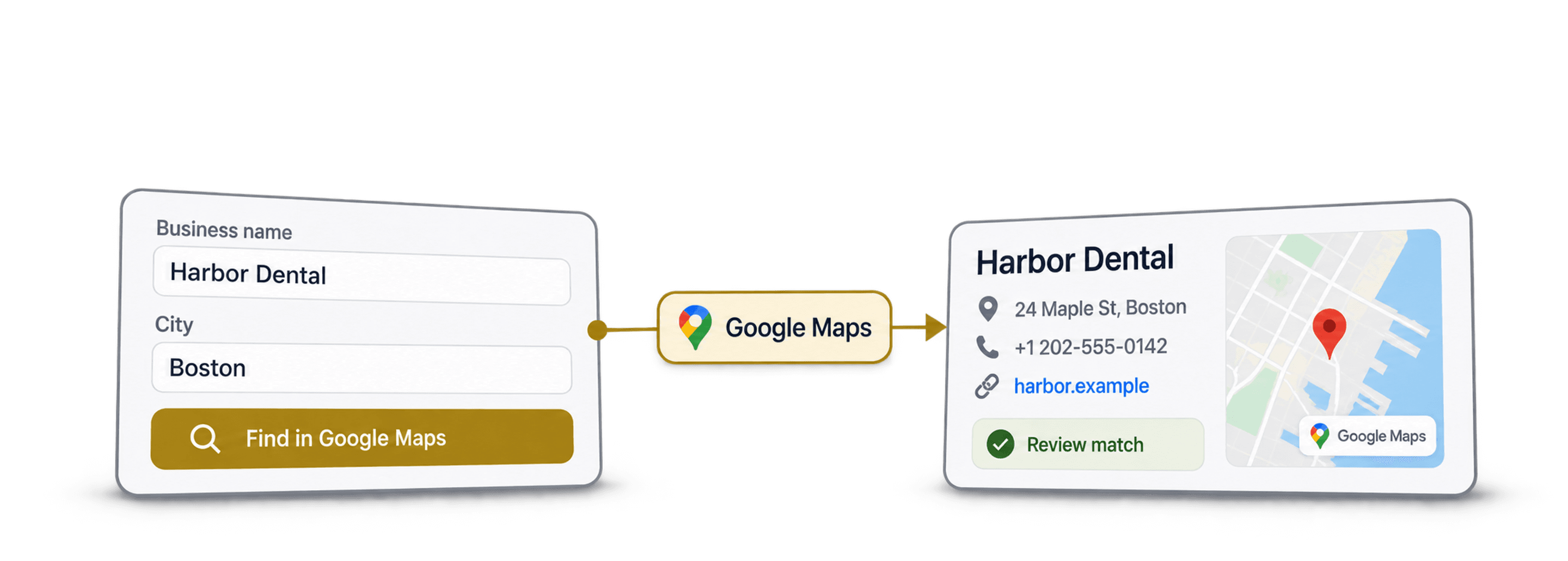
A reverse Google Maps search starts with business names you already have and looks for their Google Maps business details. In Datablist, import your list, configure Google Places/Maps Search with a business-name-and-city query, map the returned fields, and review the matches before export.
I recommend adding location context before the lookup. A chain can have several branches, and unrelated businesses can share a name. The first returned place is a candidate to check, not proof that the system found the branch in your source list.
This guide covers lookup from known business names. For discovering a new list by area or category, see Google Maps searches by ZIP code. It is also different from reverse geocoding: this enrichment does not support an exact-street-address search or a latitude/longitude-to-address conversion.
Start with the setup requirements, then follow the lookup steps. Test records with and without city information so your review reflects the actual file.
Finding Businesses On Google Maps: What You Need To Know First
The typical way to use Google Maps for lead generation is to scrape it. You set a location, add broad keywords like "restaurants" or "plumbers," and get candidate listings that need coverage checks.
But what if you already have the business names? Maybe you got them from a CRM export, a spreadsheet from a partner, or a lead list you built manually. In that case, you don't want to scrape random businesses. You want to find businesses on Google Maps and get their data.
That's exactly what this enrichment does. It's a reverse Google Maps search, a Google Maps business lookup that starts from what you already have.
How It Works
Instead of scraping Google Maps by location and category, this enrichment lets you pinpoint your search. You provide a query (built from your own data) and a target country, and Datablist returns candidate places for review.
↳ You give it a company name (and optionally, a city or other context)
↳↳ Datablist searches Google Maps in your target country
↳↳↳ It can return place details such as address, phone, website, and rating when available
You can choose to get 1 result or up to 5. If you choose more than one, they'll be added as additional columns, not extra rows, so keep that in mind when creating your lead list.
Datablist processes the existing collection rows and writes the search results into output properties. Keep a Source ID, Business Name, City, and any known address in the collection. The known address is useful for reviewing the returned place; it is not an exact-address search input.
The Requirements: What You Need
Configure Google Places/Maps Search with the settings below:
| Setting | Description |
|---|---|
| Google Places Query | Combine data from your collection using / to insert variables (e.g., /Business Name + /City creates "Haus Des Döner Frankfurt") |
| Target Country | Select the intended country explicitly; it does not establish an exact branch match. |
| Language | Choose from all available Google languages |
| Number of Results | Select 1-5 results. Note: Multiple results are added as columns, not rows, so choosing 3 will add 3 sets of data side by side. |
What Data You Get From the Business Finder
The enrichment can return these business fields. Availability depends on the place record:
| Data Point | What It Tells You |
|---|---|
| Place Name | The business name as listed on Google Maps |
| Place Address | Full street address of the business |
| Place Rating | The Google Maps star rating (1 to 5) |
| Place Rating Count | How many reviews the business has |
| Place Category | The business category (e.g., Restaurant, Law Firm) |
| Place Phone | The listed phone number |
| Place Website | The business website URL |
| Place Latitude | Geographic latitude coordinate |
| Place Longitude | Geographic longitude coordinate |
Some places lack a phone number, website, or other fields. A lookup can also return no usable result or fail. Keep those outcomes separate from a successful result with one optional field missing.
📘 Budget for the lookup
The current enrichment rate is 2.5 credits per search. Check the displayed cost and your balance before a batch, then inspect reported usage. A paid collection allowance is not a guaranteed number of successful business matches.
Find Businesses on Google Maps in Reverse: The Step-by-Step
There are two ways to set up your search, and the difference comes down to how much data you have about the businesses.
- With Keywords: You combine the business name with additional context like city, category, or region. The city helps distinguish places with the same name.
- Without Keywords: You use just the business name alone. This works when it's all you have, but accuracy depends on how unique the name is.
Both methods follow the same 6-step process. The only difference is how you configure the query in Step 3.
Finding Businesses on Google Maps With Keywords
This is the recommended approach. By adding context like a city name or business category to your query, you help Google Maps narrow down the right result.
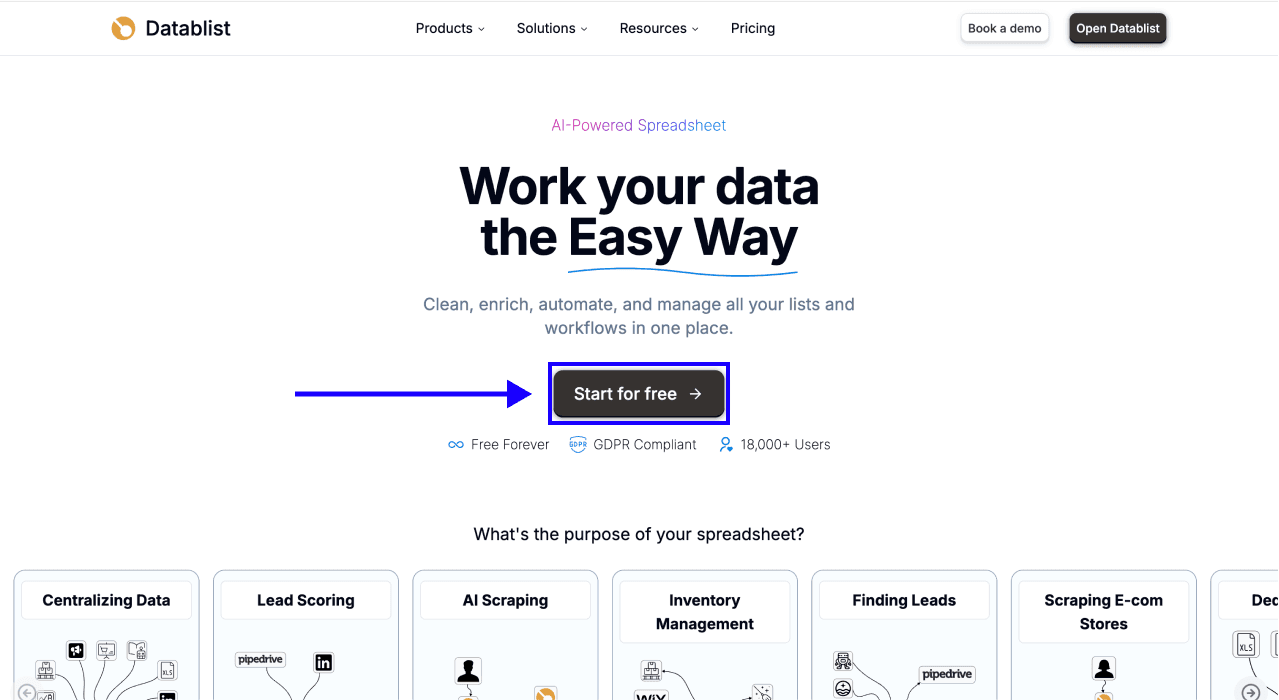
Step 1: Sign Up & Upload Your Data
First, create or open your Datablist account.
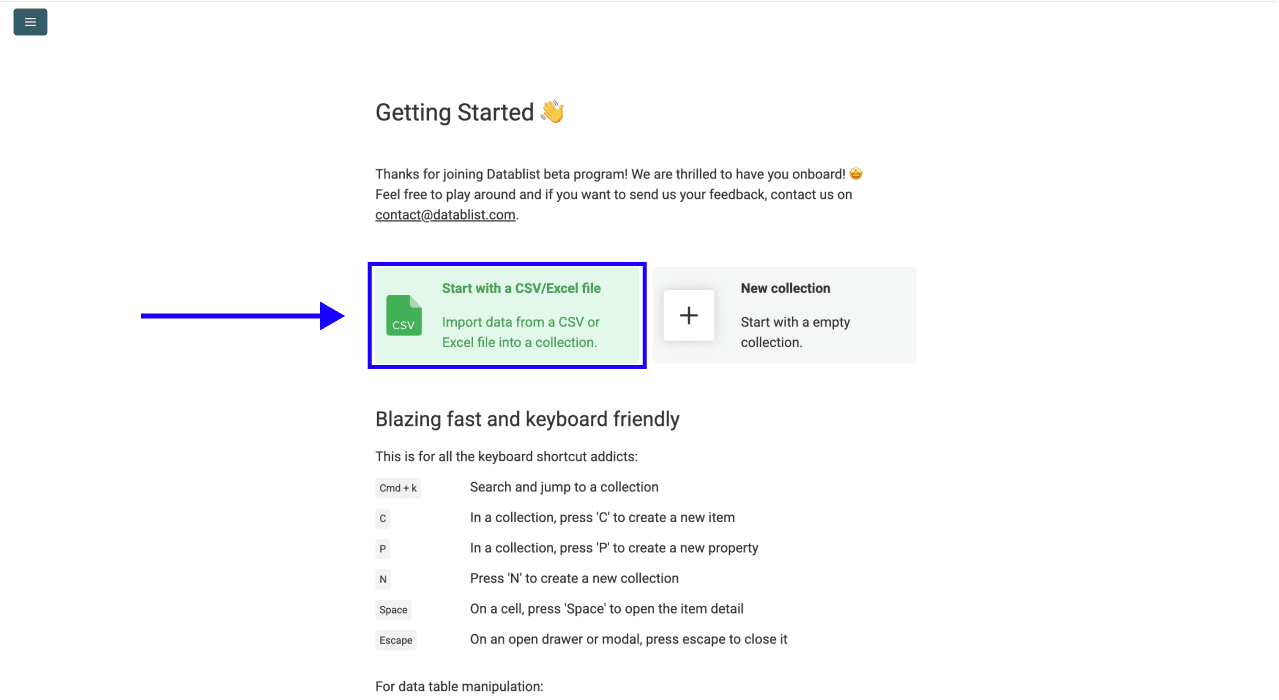
Then, import your CSV or Excel file with your list of business names (and any additional columns like city, region, or category)
Step 2: Navigate to the Enrichment
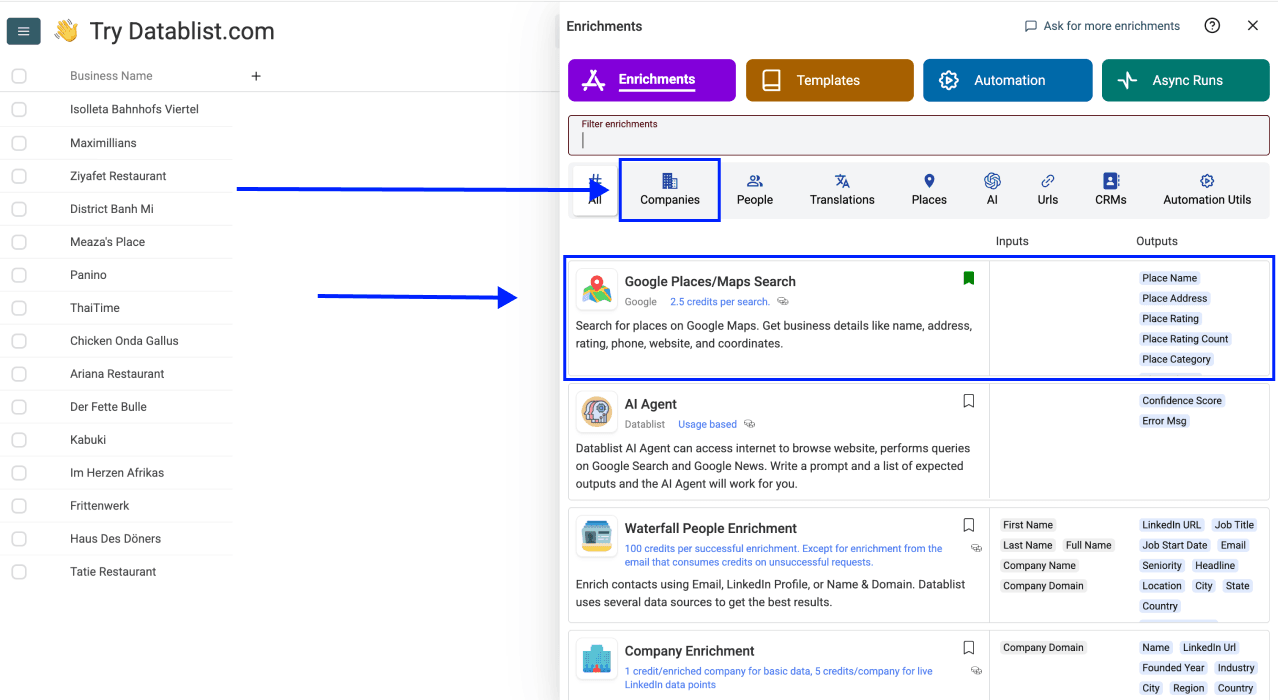
- Click on Enrich in the top menu
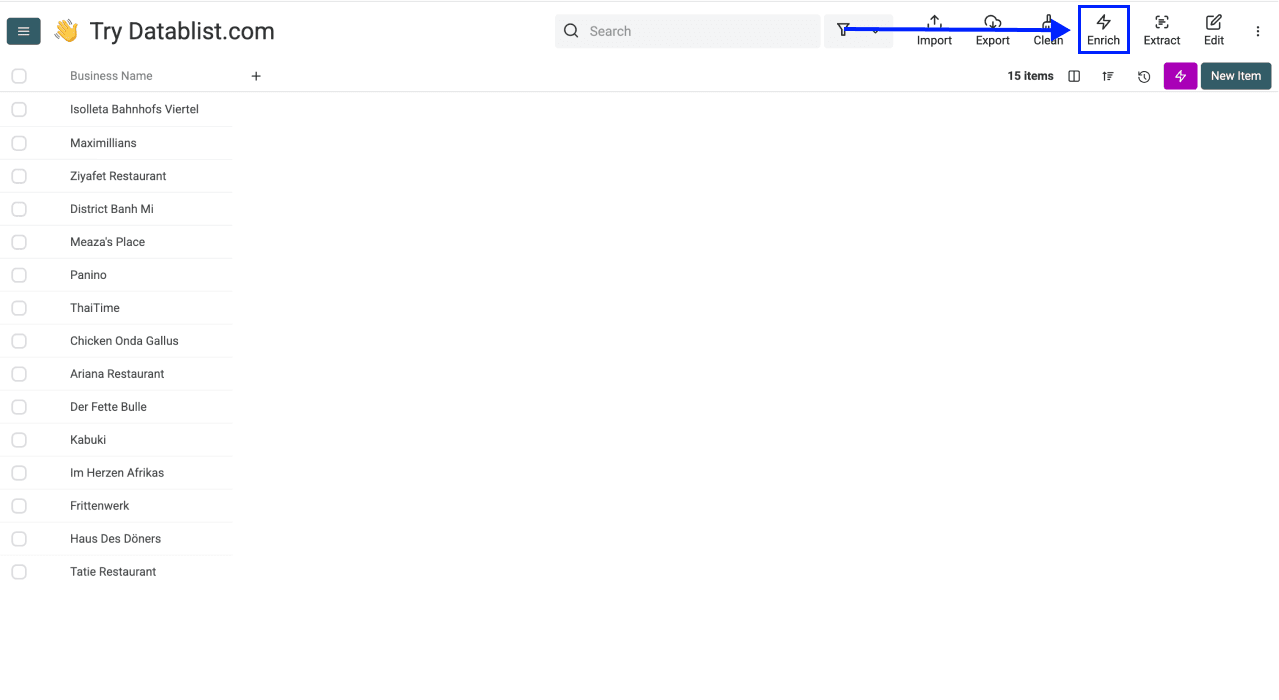
- Go to the Companies tab
- Select Google Places/Maps Search
Step 3: Configure Your Query
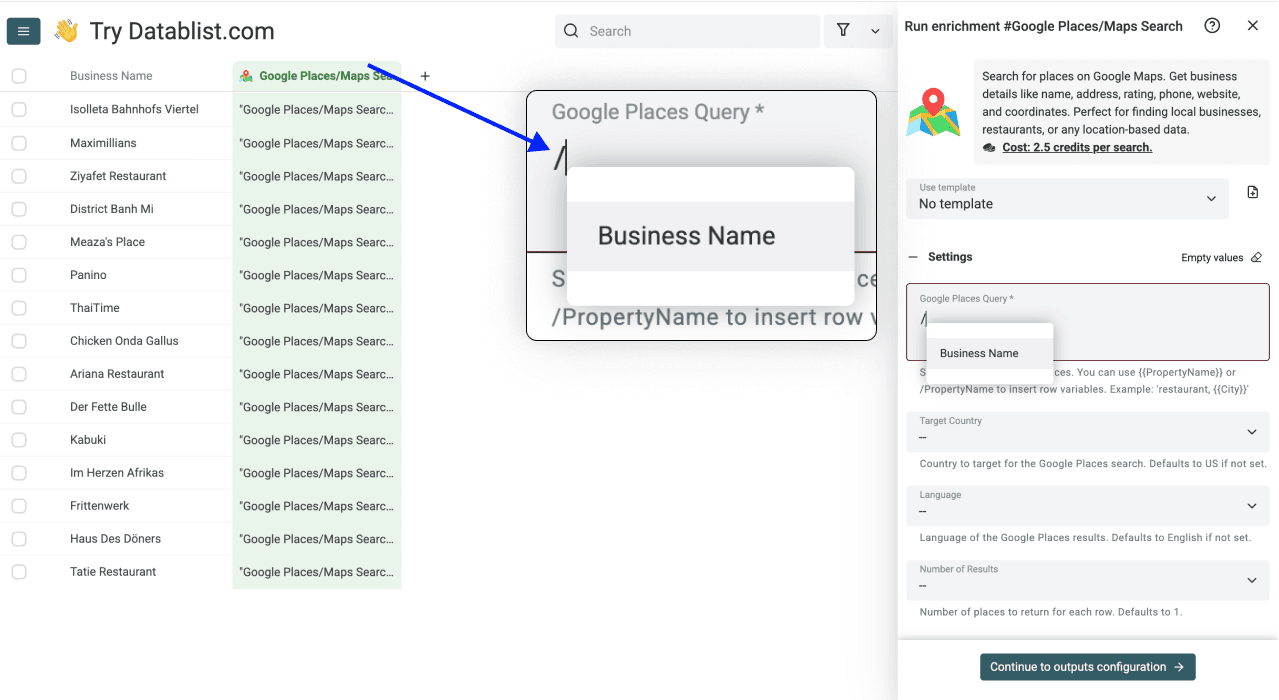
Google Places Query - Use / to insert variables from your collection. For this method, combine your business name column with your city column. For example: /Business Name + /City creates "Haus Des Döners Frankfurt"
You can also type the city name manually after inserting the variable. This achieves the same outcome, but it uses the same city for every entry.
Step 4: Configure Your Settings
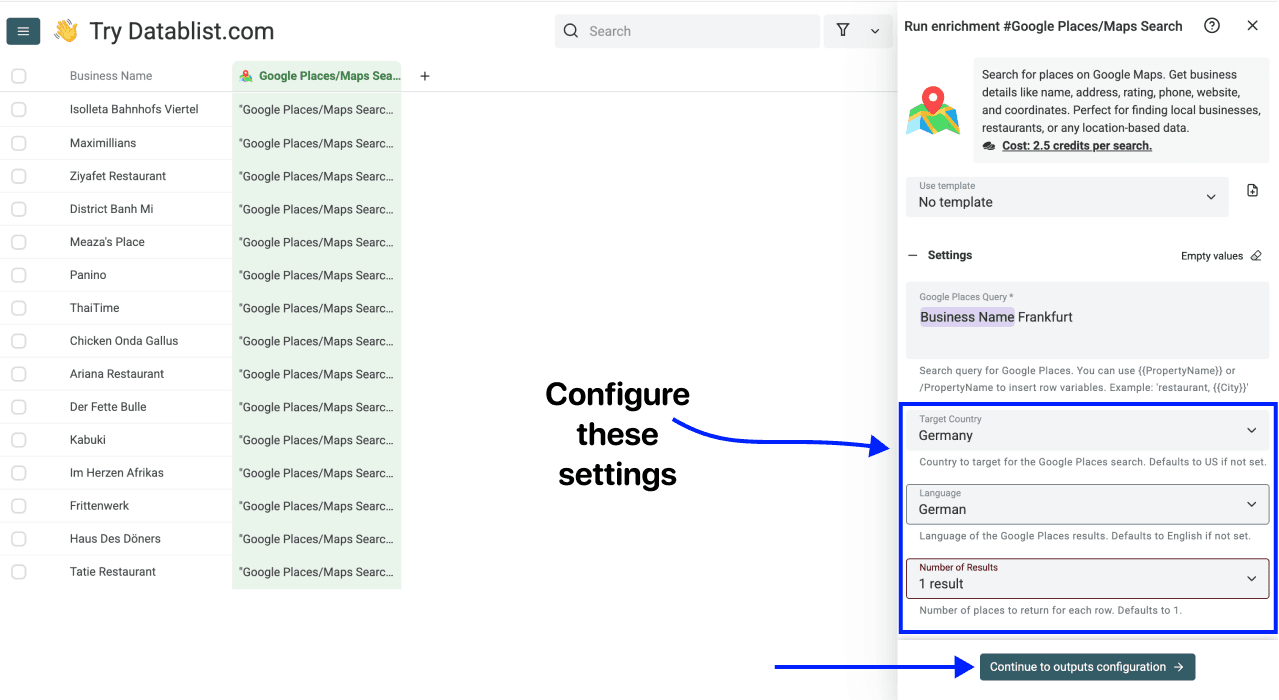
After setting up your query, you have to configure the following settings:
- Target Country - Select the country where these businesses are located
- Language - Choose the language for your results
- Number of Results - Select between 1 and 5 (we recommend starting with 1)
Once you've configured all settings, continue to the output-mapping step
Step 5: Select Outputs
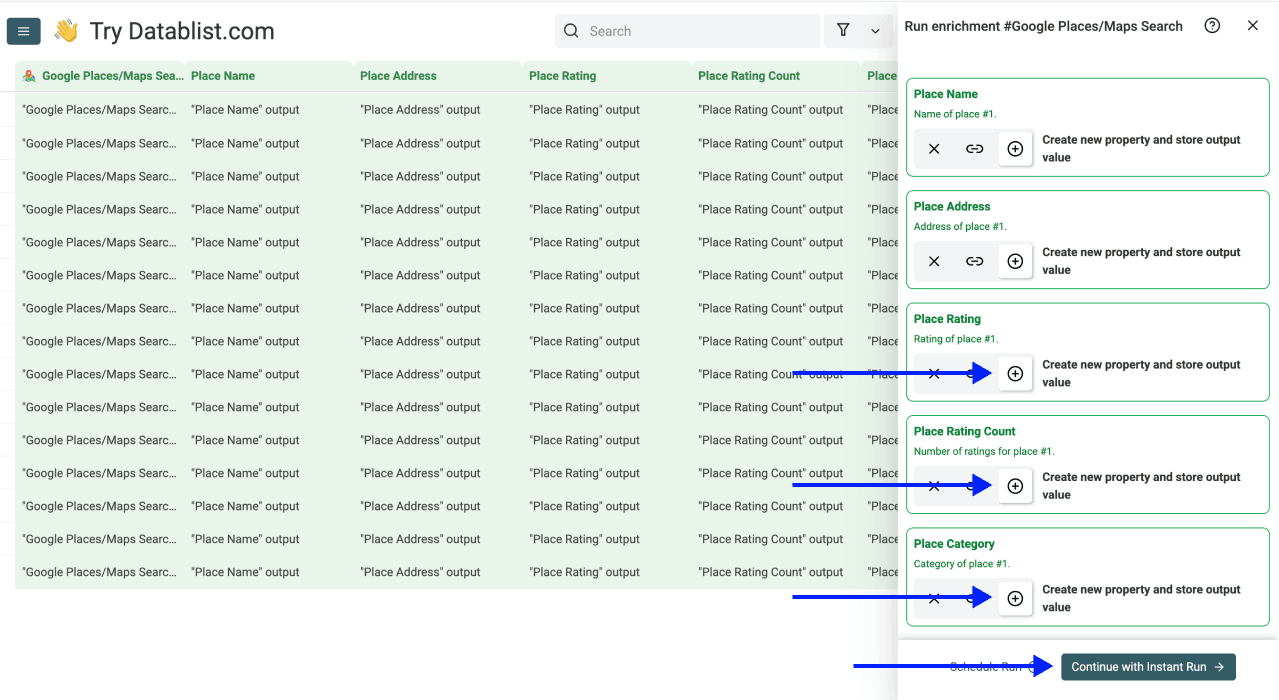
Use the add icon next to the output fields you want, such as Place Name, Place Address, and Place Website, to create output properties in your collection.
Then choose Continue with Instant Run
Step 6: Run the Enrichment
Set Number of items to process to a small sample. If the run button offers a count menu, choose a sample or First {X} items and enter the count. Inspect the current view and run scope before starting: filters can change which rows are eligible.
Review Run on and Existing data rule when retrying. Choose whether to process unprocessed rows, include errors, or rerun all eligible rows, and decide whether existing output values may be overwritten.
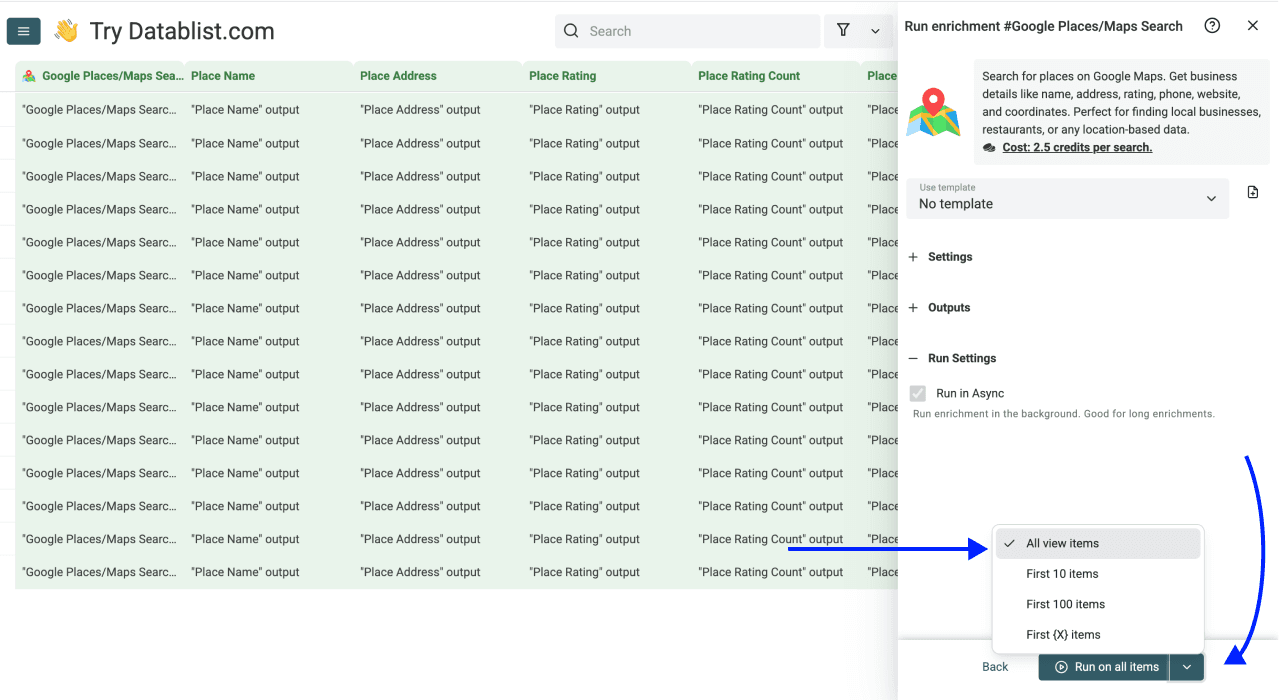
Check the count shown on the run button, then start the lookup.
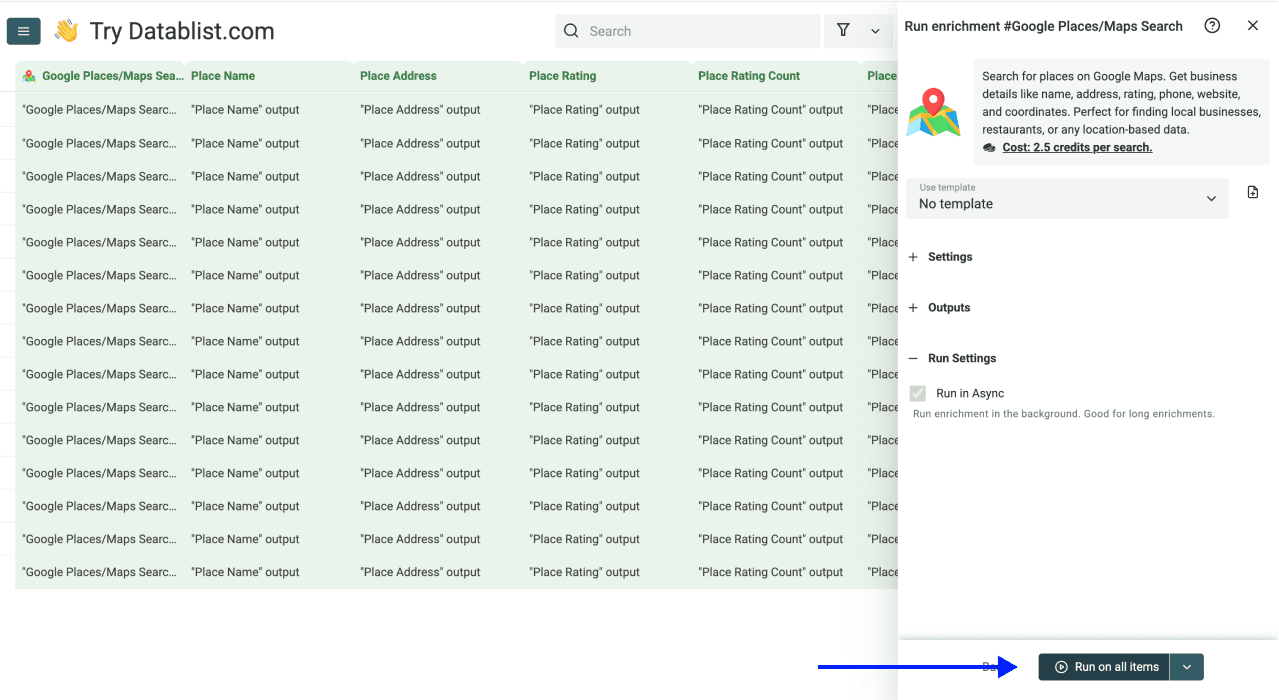
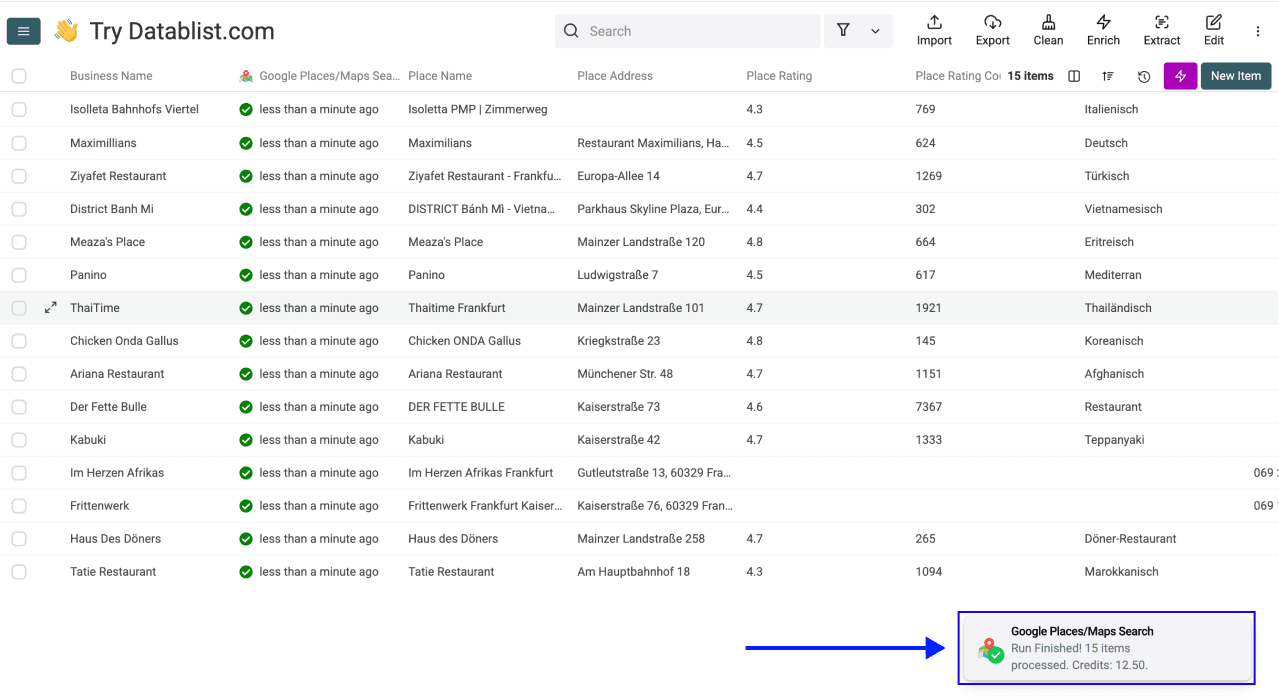
Inspect the returned places next to the source business name and location. Processing time and completeness depend on the inputs and run conditions; a completed request does not establish that the candidate is the right business.
Finding Businesses on Google Maps Without Keywords
If all you have is a list of business names with no additional context, you can still find them on Google Maps. The accuracy depends on how unique the business name is, but the process itself is just as simple.
Step 1: Sign Up & Upload Your Data
First, create or open your Datablist account.
Then, import your CSV or Excel file. In this case, your file will likely contain only a column of business names with no additional data like city or category.
Step 2: Navigate to the Enrichment
- Click on Enrich in the top menu
- Go to the Companies tab
- Select Google Places/Maps Search
Step 3: Configure Your Query
Google Places Query - Use / to insert just your business name column. Your search query will be the company name alone (e.g., "Haus Des Döners" instead of "Haus Des Döners Frankfurt")
This is where the "Without Keywords" method differs. Instead of combining multiple columns, you use / to insert only your business name column as the query.
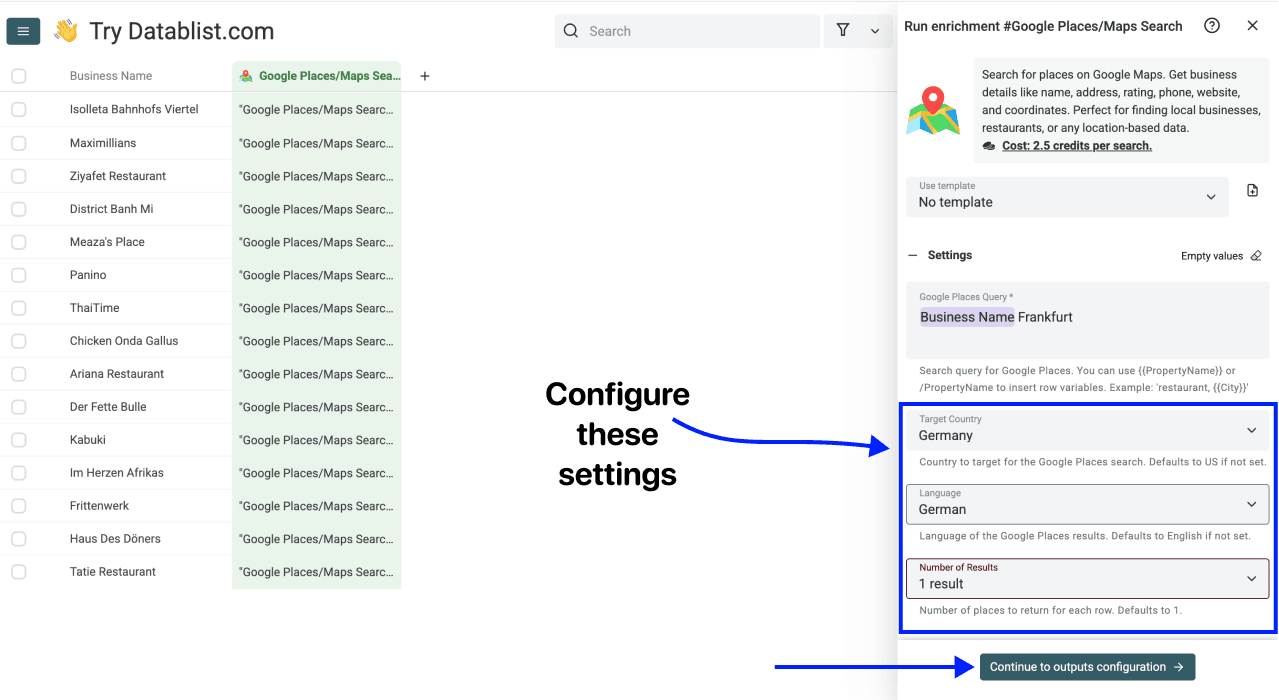
Step 4: Configure Your Settings
After setting up your query, you have to configure the following settings:
- Target Country - Select the country where these businesses are located
- Language - Choose the language for your results
- Number of Results - Select between 1 and 5 (we recommend starting with 1)
Once you've configured the settings, continue to the output-mapping step
Step 5: Select Outputs
Use the add icon next to the output fields you want, such as Place Name, Place Address, and Place Website, to create output properties in your collection.
Then choose Continue with Instant Run
Step 6: Run the Enrichment
Set Number of items to process to a small sample. If the run button offers a count menu, choose a sample or First {X} items and enter the count. Inspect the current view and run scope before starting: filters can change which rows are eligible.
Review Run on and Existing data rule when retrying. Choose whether to process unprocessed rows, include errors, or rerun all eligible rows, and decide whether existing output values may be overwritten.
Check the count shown on the run button, then start the lookup.
Now you can check your results. Note that this method has a higher chance of mismatching or not finding results at all.
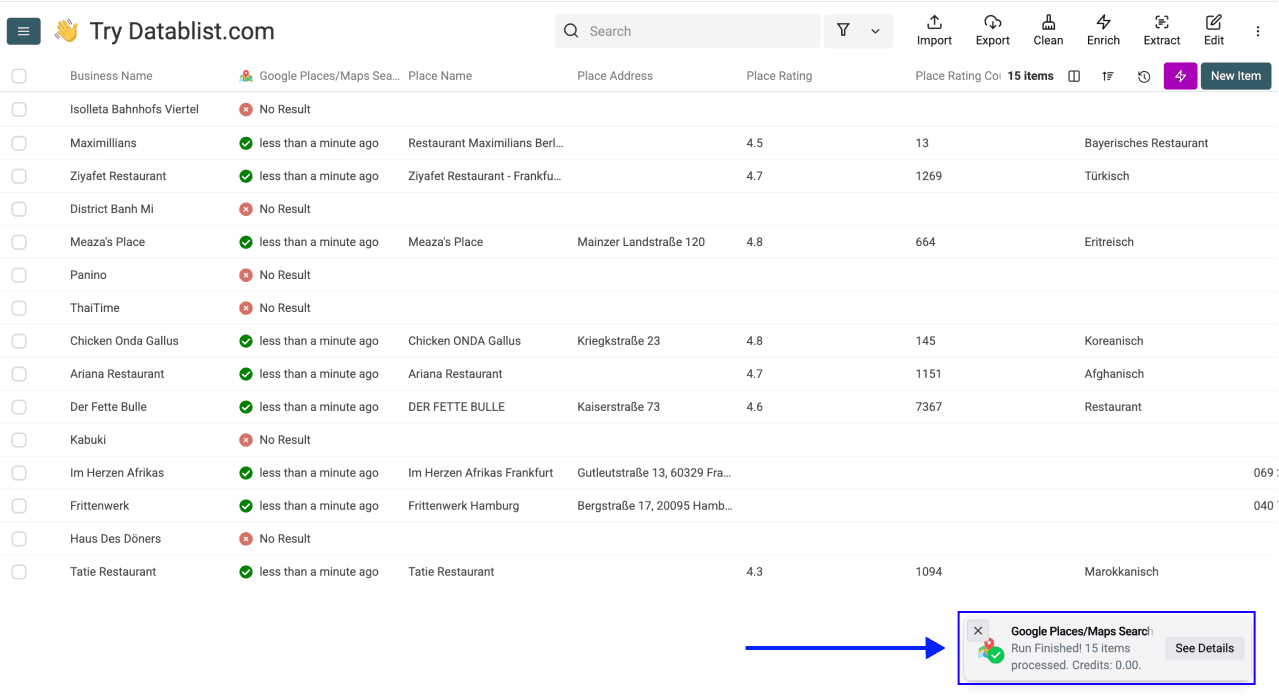
Review the Place Before Accepting It
For an illustrative input, imagine Source ID B-014, Business Name Acme Bakery, and City Lyon. The query becomes “Acme Bakery Lyon”. Accept a returned place only after comparing its name, address, and website with the business you intended to find. This is an example of a review rule, not a reported live lookup.
| Result | Review decision | Next action |
|---|---|---|
| The name and intended branch location agree. | Candidate for acceptance. | Check the website or trusted source, then record the accepted place. |
| The name agrees but the address is another city. | Unresolved branch match. | Add useful city context and inspect another candidate. |
| No website is supplied for an otherwise correct place. | Optional field missing. | Keep the reviewed place and research the website separately. |
| No usable place or a request error. | Lookup unresolved. | Check query, country, inputs, and run outcome before retrying. |
If you request several results, compare each side-by-side output group. They are alternative candidates for the same input row, not new businesses automatically added to the collection. Do not select a candidate only because it has the highest rating.
Keep source IDs and the original name, city, and known address unchanged. Use new properties for proposed output, accepted fields, and your review decision. Inspect Existing data rule before retrying so accepted websites are not overwritten unintentionally.
Export accepted business fields with Source ID and the review outcome. Keep unresolved rows identifiable for a later pass. Read exporting CSV and Excel data for the handoff to another tool.
Key Takeaways: Finding Businesses on Google Maps Is Simple
Finding businesses on Google Maps from their company names is a straightforward process. Here's what to remember:
- Use the "With Keywords" method when you can. Adding a city, region, or category helps disambiguate the search; still review the returned place.
- The "Without Keywords" method works when the business name is unique enough. If it's a common name, the target country setting alone might not be enough to pinpoint the right business.
- This enrichment is best for finding business addresses from names, pulling Google Maps ratings and review counts, and getting website URLs for companies you already know about.
What Else Datablist Can Do For You
Finding businesses on Google Maps is often just the first step. Once you have addresses, websites, and phone numbers, Datablist can help you go further:
Frequently Asked Questions (FAQ) About Finding Businesses on Google Maps
How Much Does It Cost to Find Businesses on Google Maps With Datablist?
The current enrichment rate is 2.5 credits per search. Check your available credits, displayed cost, and sample usage before processing the full collection. A search does not guarantee that a correct or complete place record will be found.
How Long Does It Take to Find 500 Businesses on Google Maps?
Duration depends on lookup requests, the inputs, and current run conditions. Test a representative sample and inspect progress and failures. This guide does not promise a completion time for 500 businesses.
Is There a Limit on How Many Businesses I Can Search For?
Review the current collection allowance, credit balance, selected rows, and run settings. Choose a batch you can validate. Cloud-sync limits and the number of search requests are separate constraints.
What Data Does the Google Places Search Return?
A successful lookup can supply Place Name, Place Address, Place Rating, Place Rating Count, Place Category, Place Phone, Place Website, Place Latitude, and Place Longitude. Some listings lack a phone number, website, or other fields; some searches return no usable place.
Do I Need Technical Skills to Find Businesses on Google Maps With Datablist?
You can configure this enrichment without writing code: import the list, map row values into the search query, choose settings, and run a sample. Matching the correct business still requires review.
Can I Enrich the Businesses I Found With More Data Like Emails or Phone Numbers?
Yes. After running the Google Places Search, you can immediately use other Datablist enrichments on the same data. For example, use the company website you just found to run a company enrichment, or use the Waterfall Email Finder to find contact emails.
What's the Difference Between Finding Businesses on Google Maps and Scraping Google Maps?
A location-and-category search discovers candidate businesses for an area. You start with a query such as “restaurants in Berlin” and review the available results. Finding businesses on Google Maps (what this article covers) means you already have specific business names and want to locate their Google Maps profiles. It's a targeted lookup, not a broad extraction.