
Turn partial records into complete business profiles using Google Places/Maps.
You might have a list of local companies and need their phone numbers. Or you own a list of street addresses and want to know which businesses operate inside. The Google Places Search enrichment solves both problems.
Feed it a company name, a specific address, or a combination of your columns. It queries Google Maps and returns up to five matches per row. You receive the official business name, street location, star rating, phone number, and website. Stop searching manually. Let the enrichment build your lead list.
Cost Explanation
This enrichment costs 2.5 credits per processed item.
- A $20 package provides 20,000 credits. This gives you 8,000 searches.
- A $150 package provides 200,000 credits. This gives you 80,000 searches.
The Starter Plan includes 5,000 free monthly credits, allowing 2,000 monthly lookups. You pay for actual usage.
Enrichment Strengths
- No Code Setup: Upload your list, build a query, and run the enrichment. No API keys needed.
- Targeted Accuracy: Combine columns like business name and city to pinpoint exact matches.
- Side-by-Side Results: Request up to 5 results per search. Extra results appear as new columns, keeping your list organized.
- Data Completeness: Turn a simple list of company names, or addresses into comprehensive profiles ready for outreach.
How It Works
You can process a reverse Google Maps lookup in four steps.
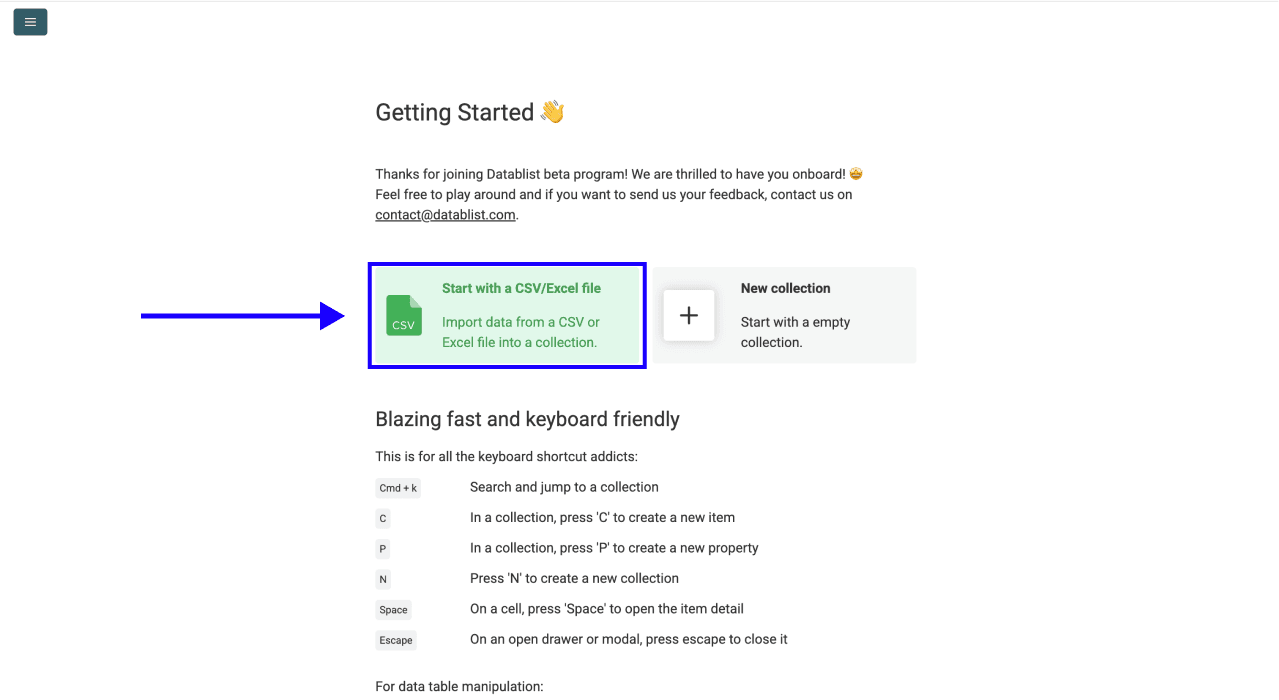
Step 1: Upload Your Data
Import your CSV or Excel file containing business names.
Navigate to the Enrichment
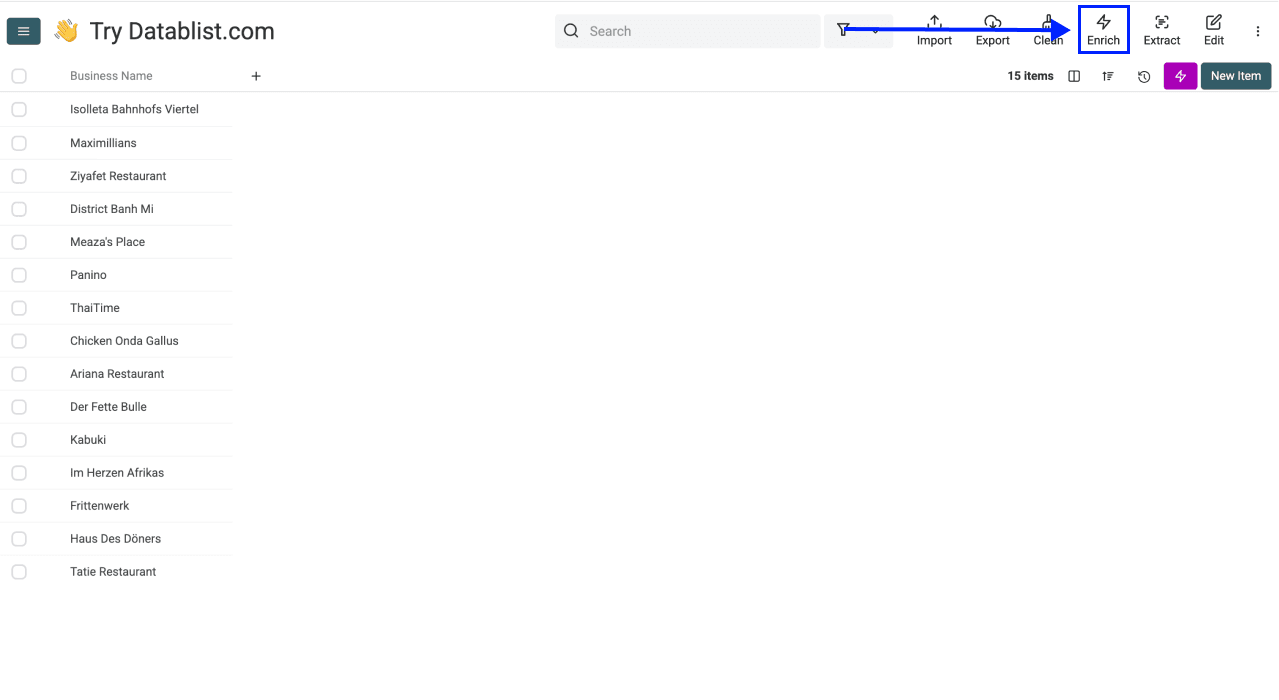
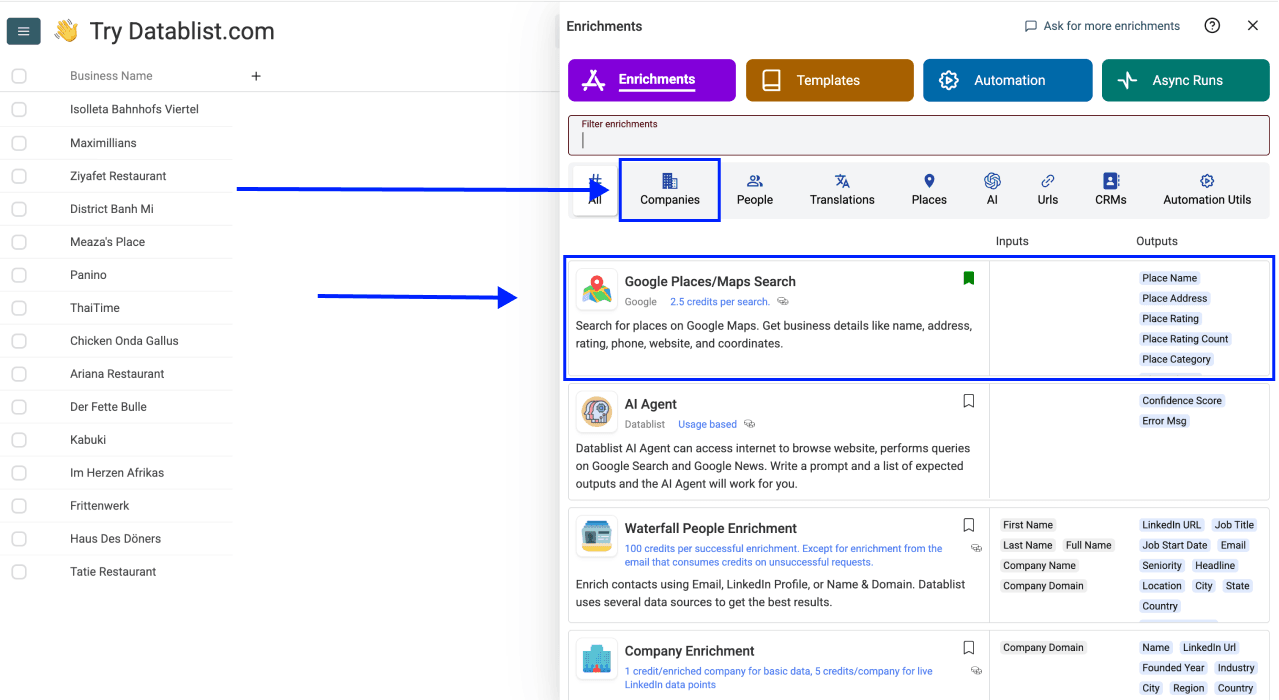
Step 2: Navigate to the Enrichment
Open the "Companies" tab in the enrichment library. Select "Google Places Search".
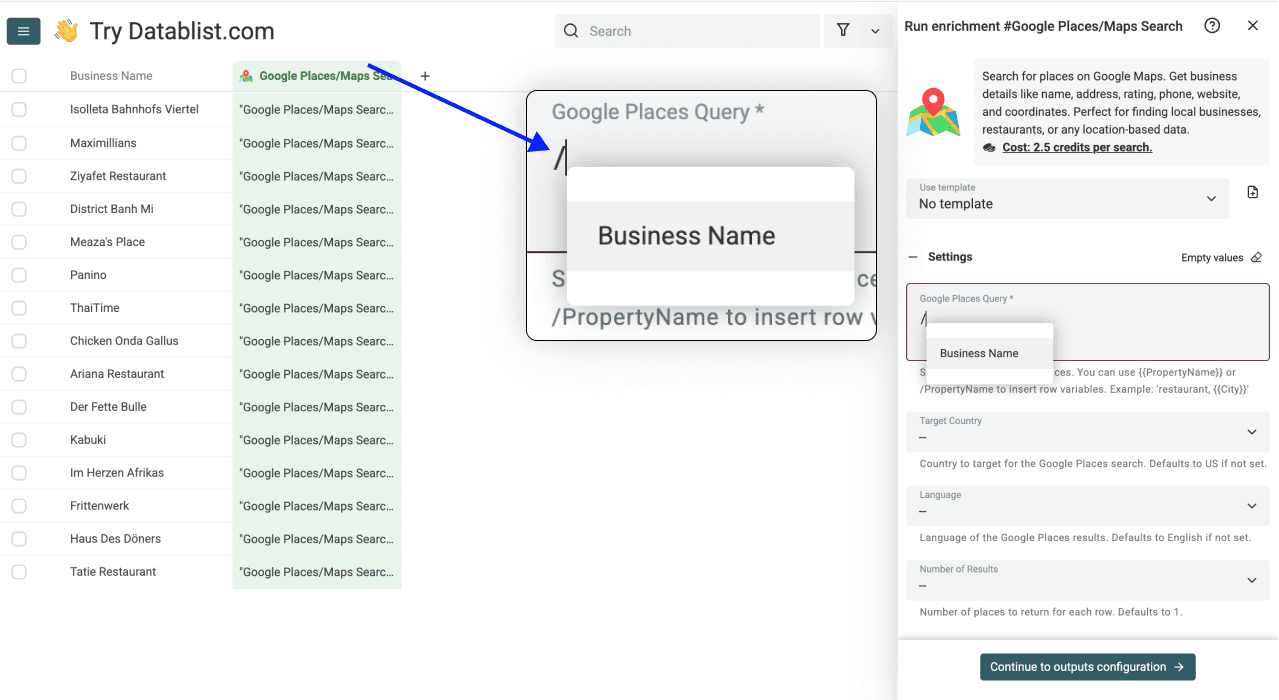
Step 3: Configure Your Query
Use / to insert variables. Combine the variables to build Google Maps queries. For example the business name column with the city column or fixed term. Context helps Google Maps find correct results.
Step 4: Select Outputs and Run
Choose your desired data points.
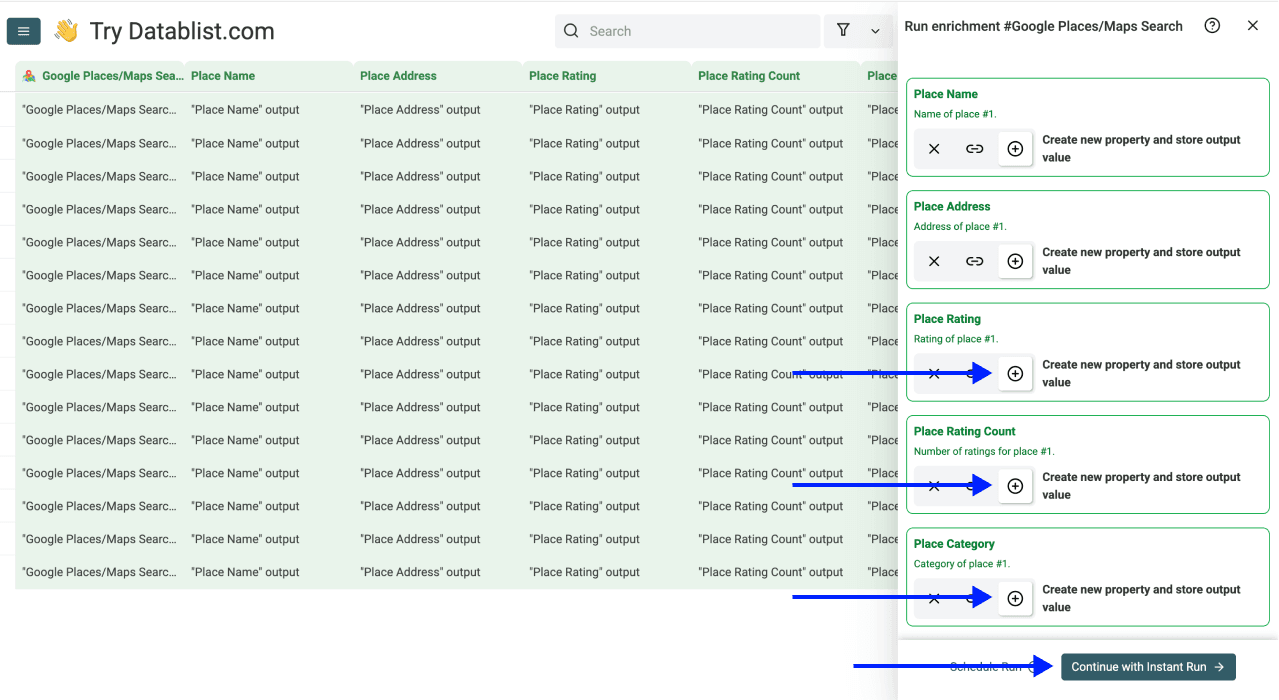
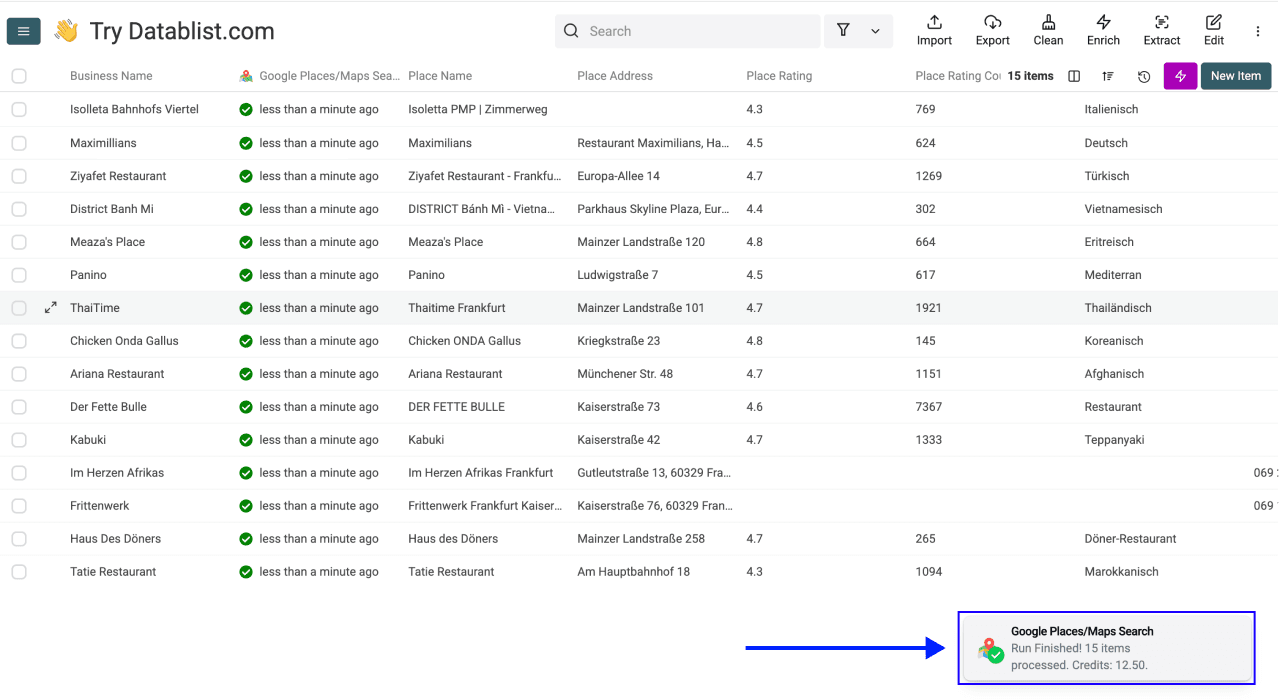
Click "Instant Run" to process your list.
FAQ/Terminology/Terms
Input Settings
- Google Place Query: The search phrase sent to the scraper. Use the
/character to insert variables from your collection. Example:/Business Name /Citycreates a precise search like "Haus Des Döner Frankfurt". - Target Country: The primary country for the search. Defaults to US.
- Language: The language for the results. Defaults to English.
- Number of results: Places returned per row. Choose 1 to 5.
Outputs For each result, the enrichment returns:
- Place Name: Official business name on Google Maps.
- Place Address: Full street location.
- Place Rating: Star rating from 1 to 5.
- Place Rating Count: Total number of reviews.
- Place Category: Primary business type.
- Place Phone: Contact number.
- Place Website: Homepage URL.
- Place Latitude & Longitude: Geographic coordinates.
Use Cases
- Find Contact Information: You have local business names and cities. You want their websites and phone numbers for calling campaigns.
- Identify Tenants: You have street addresses. You need the names of businesses operating inside those buildings.
- Locate Headquarters: You have company names. You need exact physical addresses.
- Analyze Reputation: You want to check star ratings and review counts for a list of competitors or partners.
Ideal Workflows
Combine this enrichment with other Datablist features:
- Run the Google Places Search to find business websites. Use those websites in the Company Enrichment to extract employee counts and industry data.
- Run the "Waterfall People Search" to get leads and emails to contact.
- Export your fully enriched lead list directly to your CRM.
Can I use Google Places Search to enrich local business lists?
Yes. Use it when your spreadsheet has business names, addresses, categories, or local search terms. Datablist can return structured Google Maps results so you can qualify or complete local business records.