
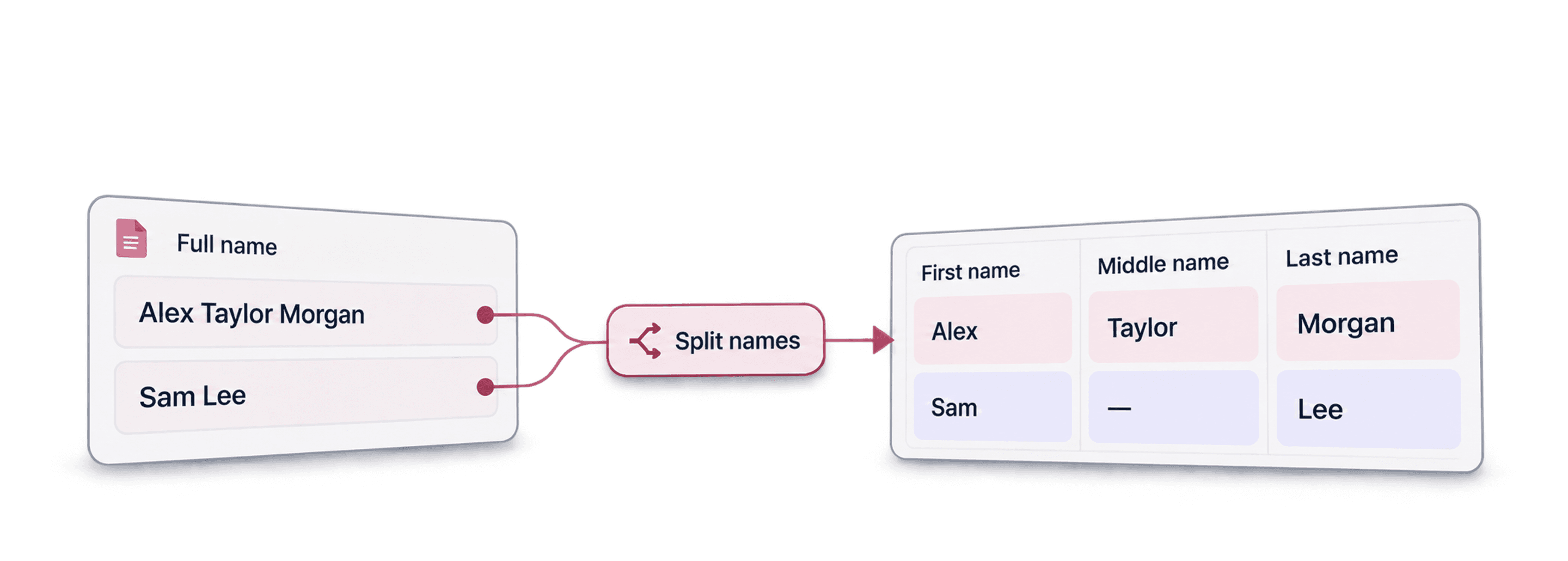
To separate names in Excel, choose a rule that matches your data: split at the first space for consistent two-part names, or use a name parser and review the uncertain records. Keep the full name and a source ID alongside the new columns so you can correct the split later.
I start by inspecting the name formats rather than choosing a formula. A column containing Ada Lovelace, Mary Jane Watson, and Watson, Mary Jane needs more than one assumption. Splitting text is straightforward; deciding which pieces belong to a person's given and family names can require context.
This guide shows the Excel formulas first, then the Name Parser enrichment in Datablist for a reviewed CSV or Excel workflow.
Method Comparison: Formulas vs. AI
Use a formula when the delimiter rule is explicit and consistent. Use the parser when you need proposed name components from varied input, then review those components before using them in a CRM or greeting. For the same fixed-delimiter approach inside Datablist, use Split Property and inspect the destination columns before running it.
| Input shape | Starting approach | Review point |
|---|---|---|
| Ada Lovelace | Split once at the first space. | Confirm that all rows use the same order. |
| Mary Jane Watson | Define whether the remainder belongs in one field or needs parsing. | A first-space split returns Jane Watson, not a verified surname. |
| Watson, Mary Jane | Handle the comma format separately. | Do not apply a first-space rule to this format. |
| Titles, suffixes, compound surnames | Use a parser with review. | Check component boundaries and preserve the full name. |
A formula identifies delimiters; it does not establish a person's name structure. The parser also returns proposed components, not a guarantee that every cultural naming convention is interpreted correctly.
For a video walkthrough, see the existing name-separation demonstration. Use the current controls described below when the recording differs from the application.
Separate Names in Excel: The Formula Method
For this example, A2 contains Ada Lovelace. Add empty First Name and Remainder columns in B and C, and keep A unchanged. These formulas assume a space separates the first token from the rest.
Extract the first part
Enter this formula in B2:
=LEFT(A2, FIND(" ", A2) - 1)
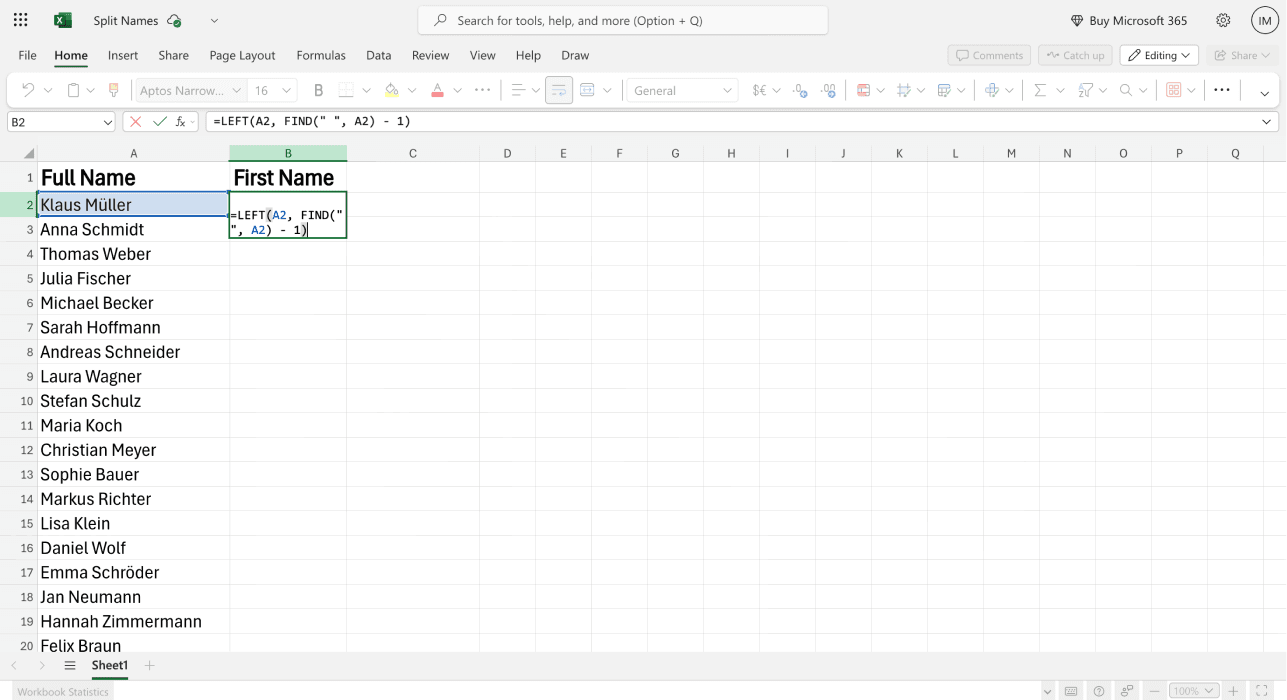
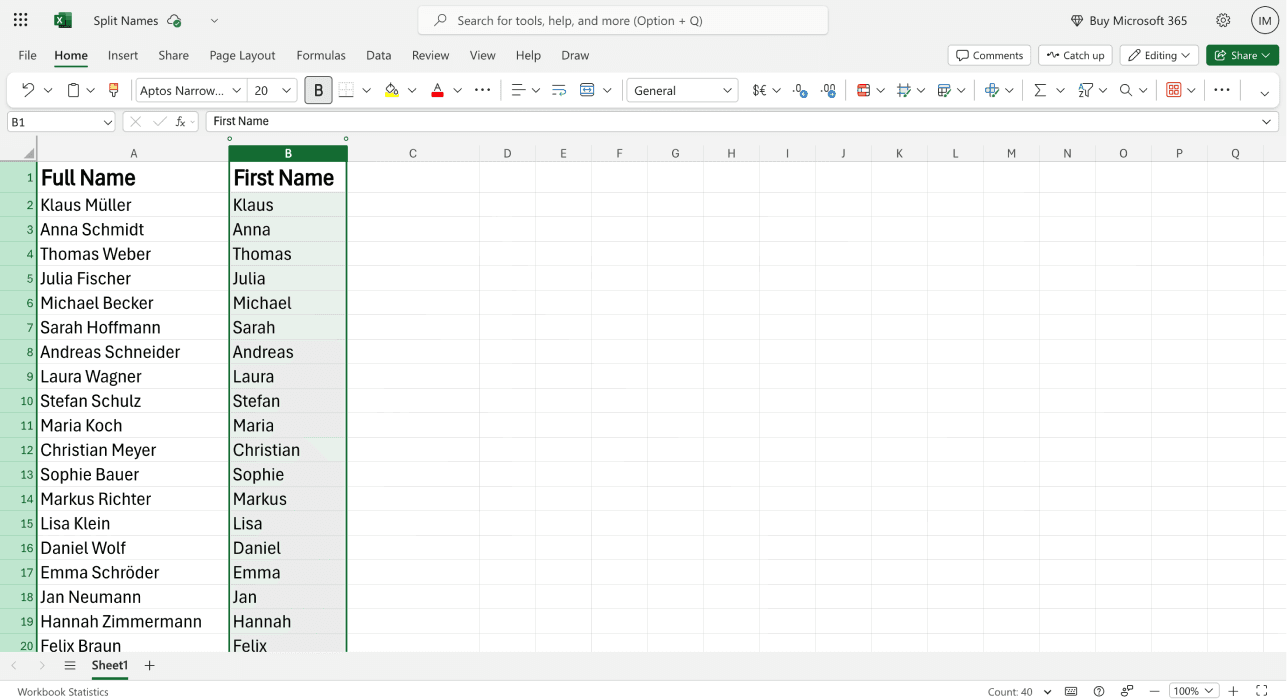
The result is Ada. Fill the formula down only after checking the input formats. For an empty cell or a single-word name, FIND cannot locate a space and returns an error; review those rows separately rather than treating the error as a missing person.
Extract the remainder
Enter this formula in C2:
=RIGHT(A2, LEN(A2) - FIND(" ", A2))
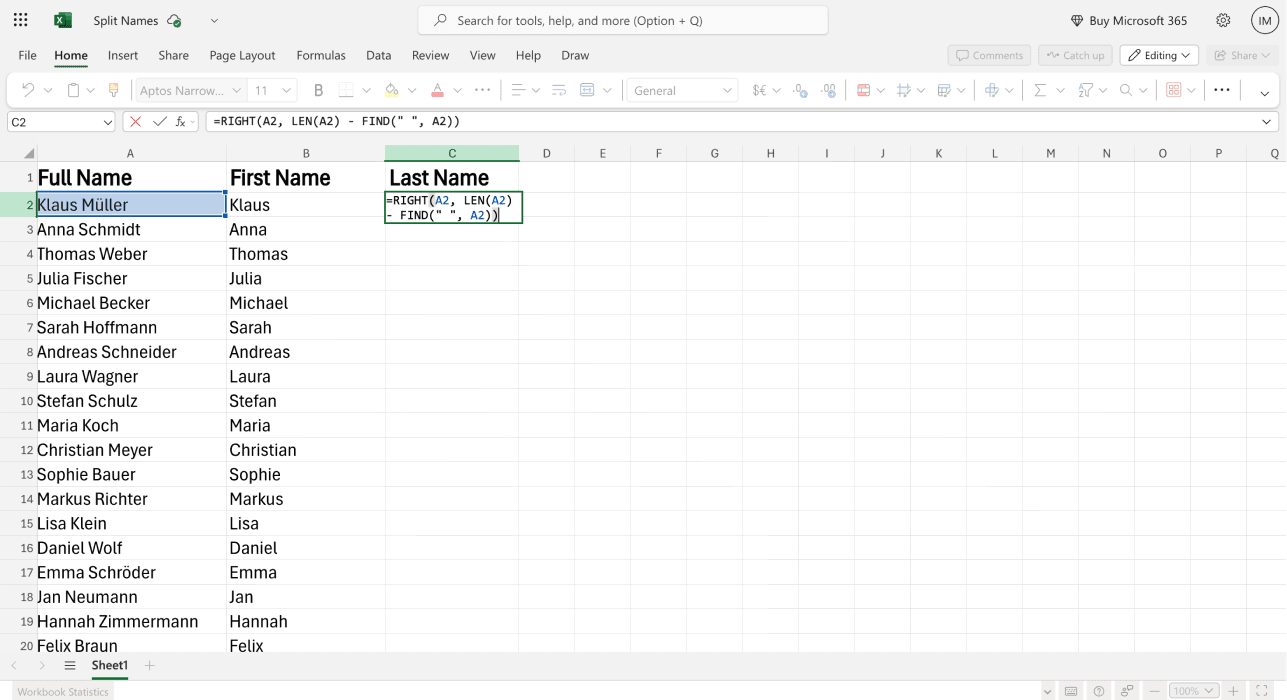
The result is Lovelace for this two-part input. With Mary Jane Watson, the result is Jane Watson. Calling C “Remainder” during review makes that limitation clear; do not rename it Last Name until your data supports the rule.
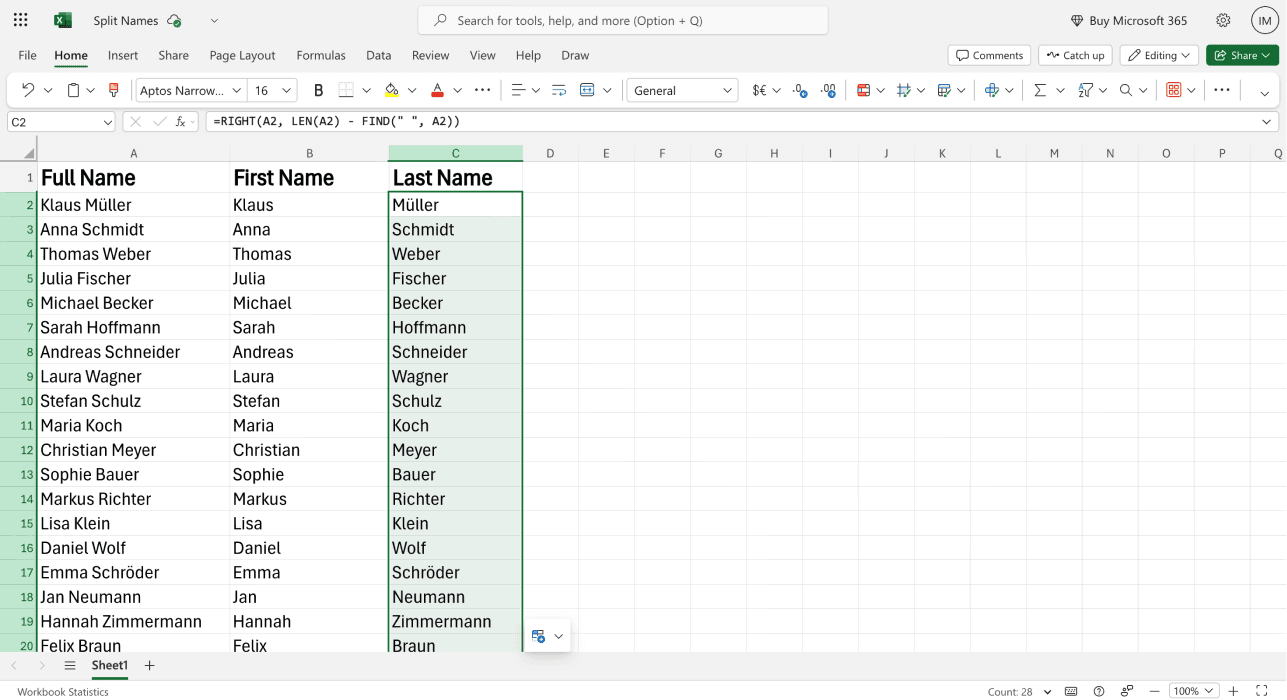
Microsoft's text-splitting guide explains position-based methods for several name formats. In versions that support them, TEXTBEFORE and TEXTAFTER offer shorter equivalents:
=TEXTBEFORE(A2," ")
=TEXTAFTER(A2," ")
These still split at the first space. They simplify the expression, not the decision about name order. Check function availability in your Excel version. Formula names and argument separators can also vary with your locale.
Limitations of the Excel formula method
Review leading spaces, repeated spaces, titles, suffixes, single-word names, and comma-separated formats before filling the whole column. A formula can be applied across many rows; the difficult part is whether one rule fits them all.
Do not automatically treat the final token as the surname. Compound surnames and given names can contain spaces. If the source provides separate name fields, those are preferable to reconstructing them from a display name.
Once you accept the results, keep a copy of the full name and paste approved formula results as values when your destination needs plain text. If the destination requires CSV, follow the Excel worksheet-to-CSV export steps and check the exported name fields. Check the destination's expected columns before export so a later edit to A does not silently change the fields you imported.
Separate Names in Excel: The AI Method
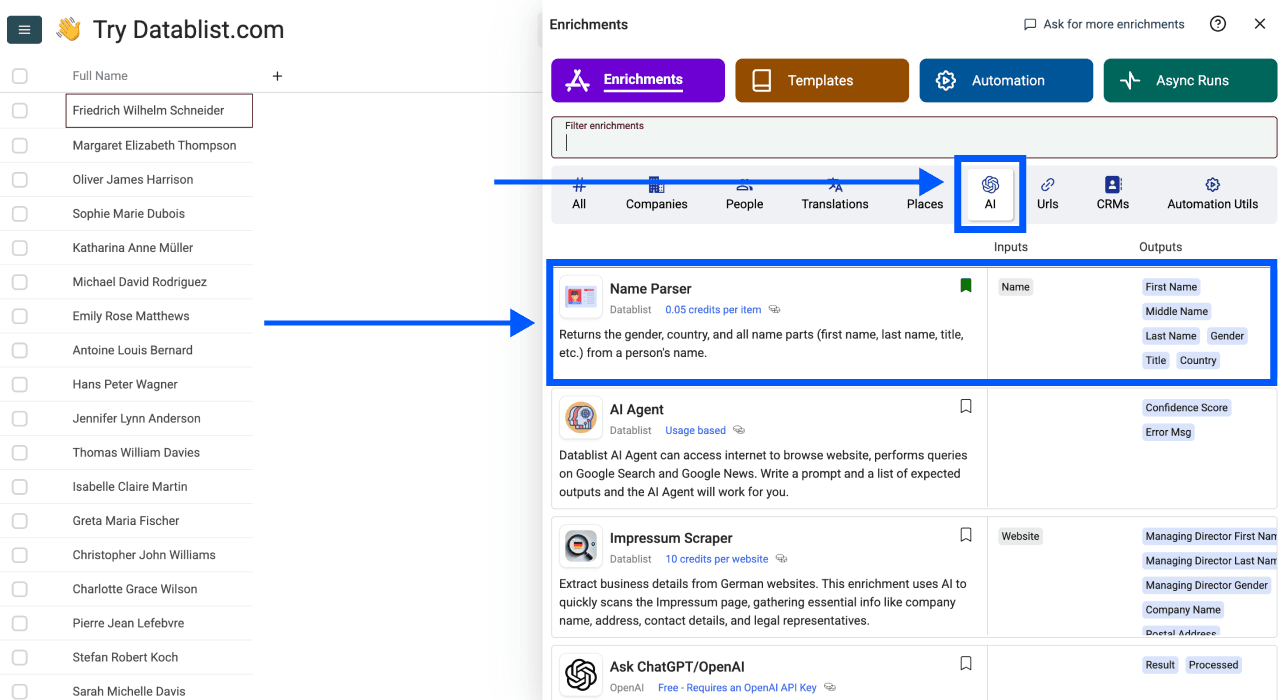
Datablist's Name Parser takes a mapped name and returns components such as First Name, Middle Name, Last Name, and Title. It also offers Gender, Country, Country Confidence, and a Processed flag.
For name splitting, I recommend selecting the name components you need and leaving demographic outputs out of the workflow unless you have a specific reason to review them. Country is an inference about where a name is common, not a person's nationality or current residence. An inferred Gender value is not verified identity information.
Load the file and preserve the original
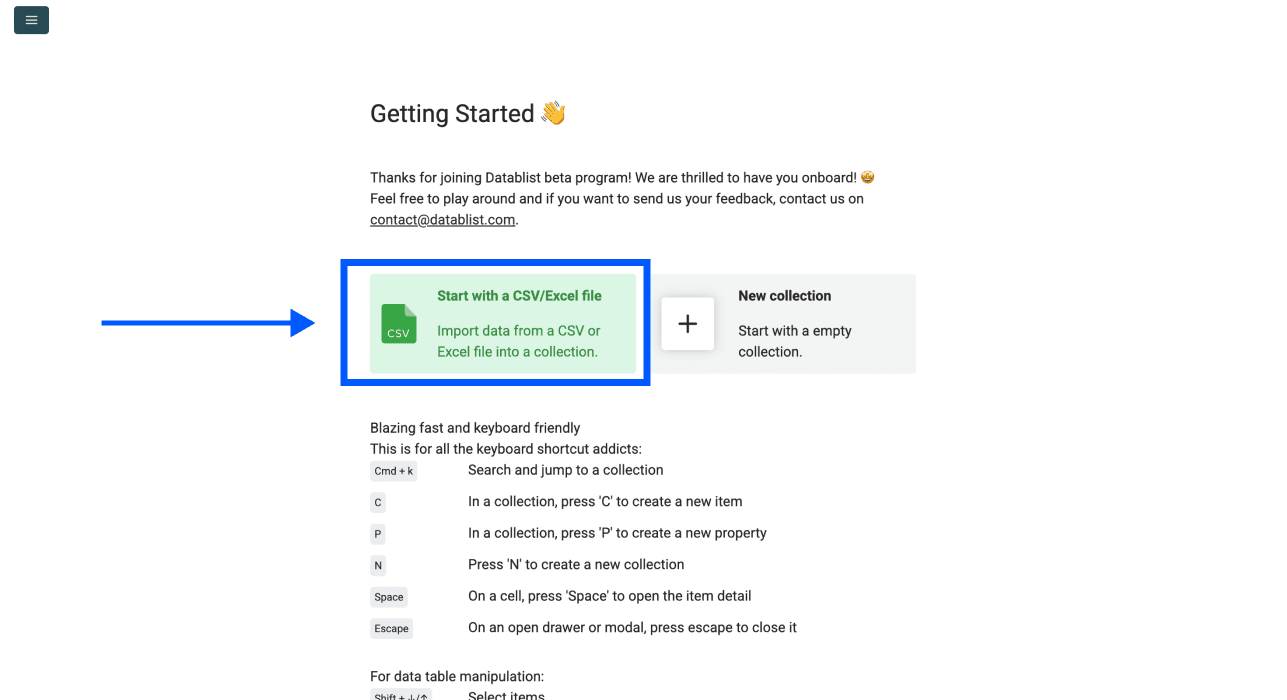
Create an account and import the Excel or CSV file. Keep a Full Name column, a stable contact ID, and any name fields that already came from a trusted source.
Use separate output properties for the proposed components. That makes it possible to compare the parsed result with the original without losing the source value.
Choose the enrichment
Open the enrichment catalog and select Name Parser. This parses existing rows; it does not create a new contact list or verify that a record belongs to the intended person.
Map the name input
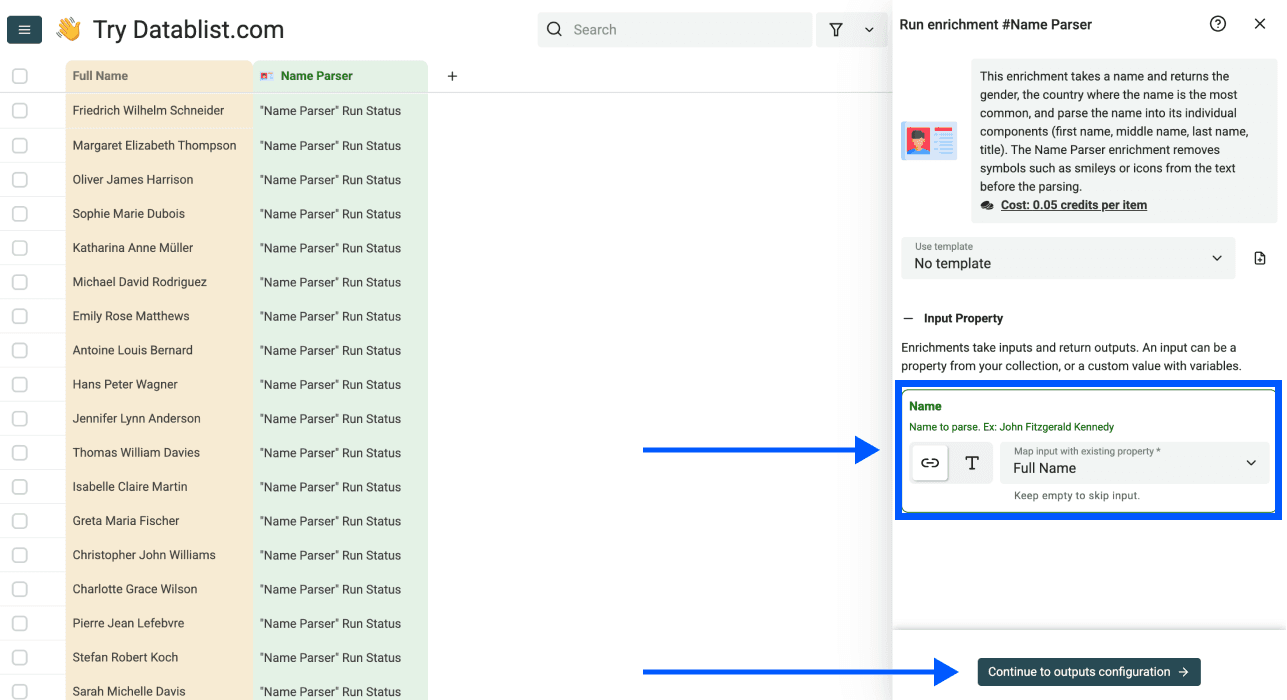
Map Name to Full Name. Review missing inputs and generic entries such as a team inbox or company name before treating them as personal names. A row containing “Sales Team” needs a different next step from a person's full name.
Map the outputs
Choose First Name, Middle Name, Last Name, and Title as needed, and write them to new properties. Keep Processed available if it helps track the run, but do not interpret it as proof that the proposed split is correct.
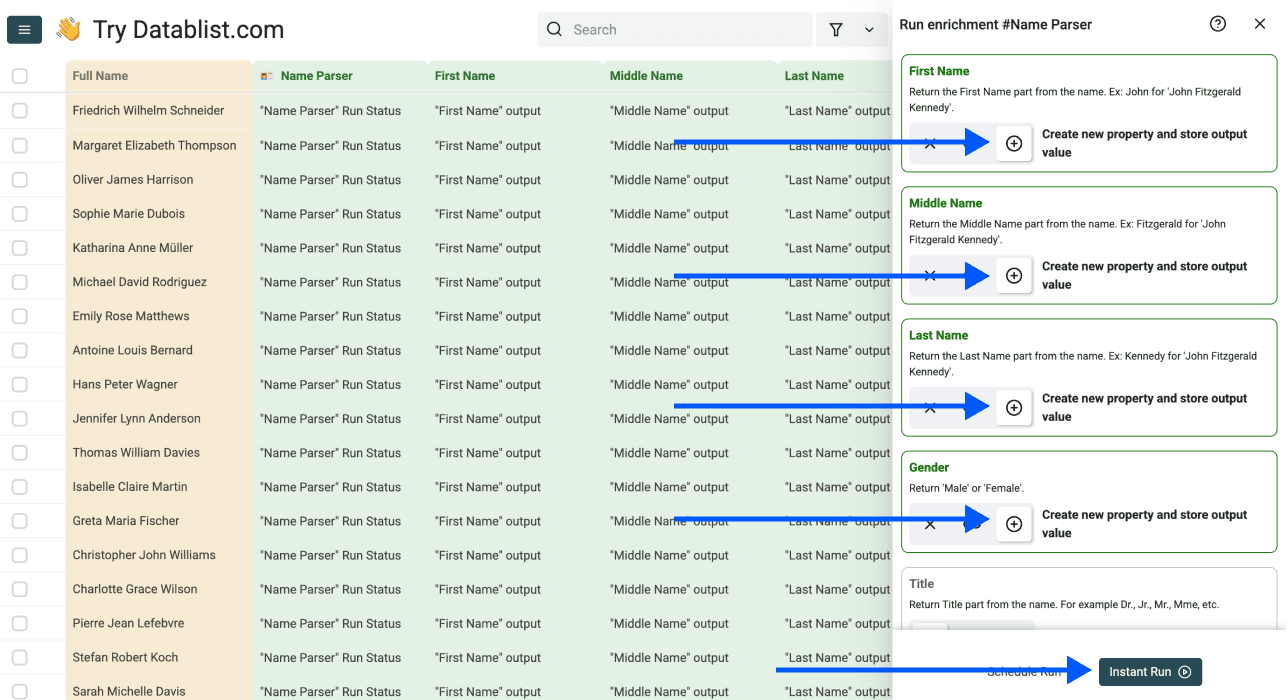
Choose Continue with Instant Run. Start with a sample containing the formats actually present in your file: ordinary two-part names, middle names, initials, suffixes, reversed names, missing inputs, and compound surnames.
Test, review, and process the remaining rows
Review the run scope and existing-data settings before executing the sample. Protect any accepted name fields from an unintended overwrite.
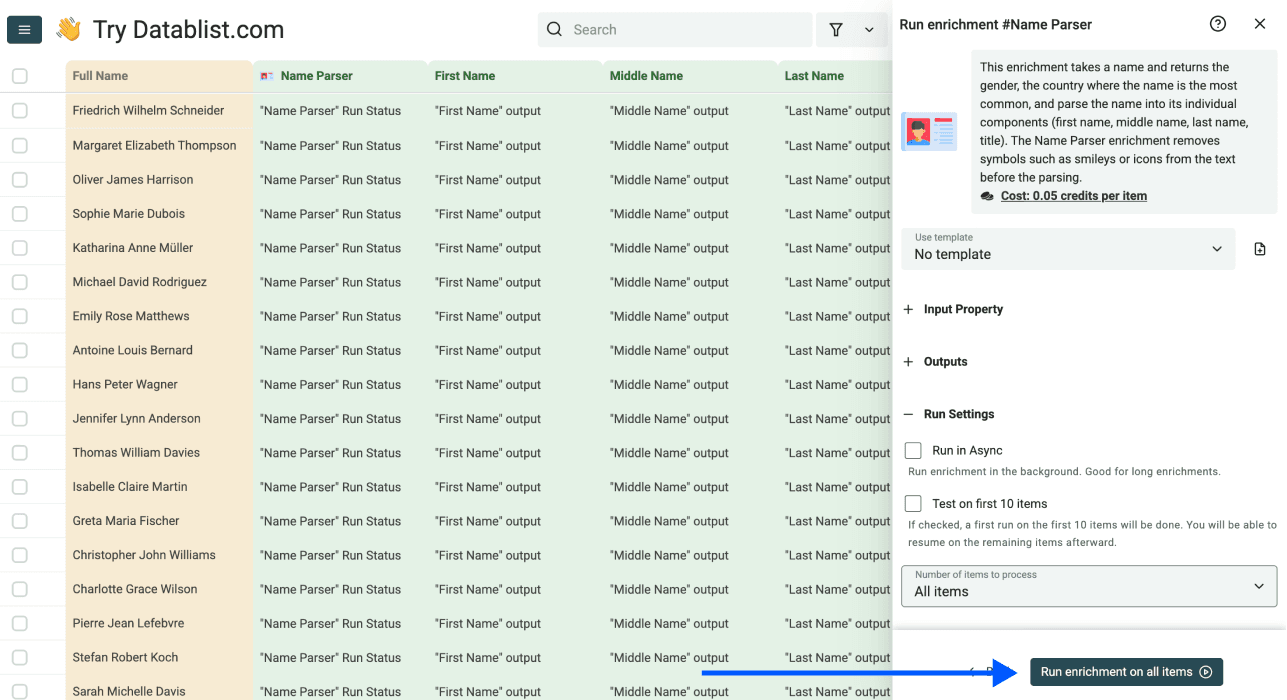
Compare the output with the full name and trusted source fields. Put uncertain records in a review queue. A request can finish successfully while its interpretation still needs correction; a blank component is not permission to guess.
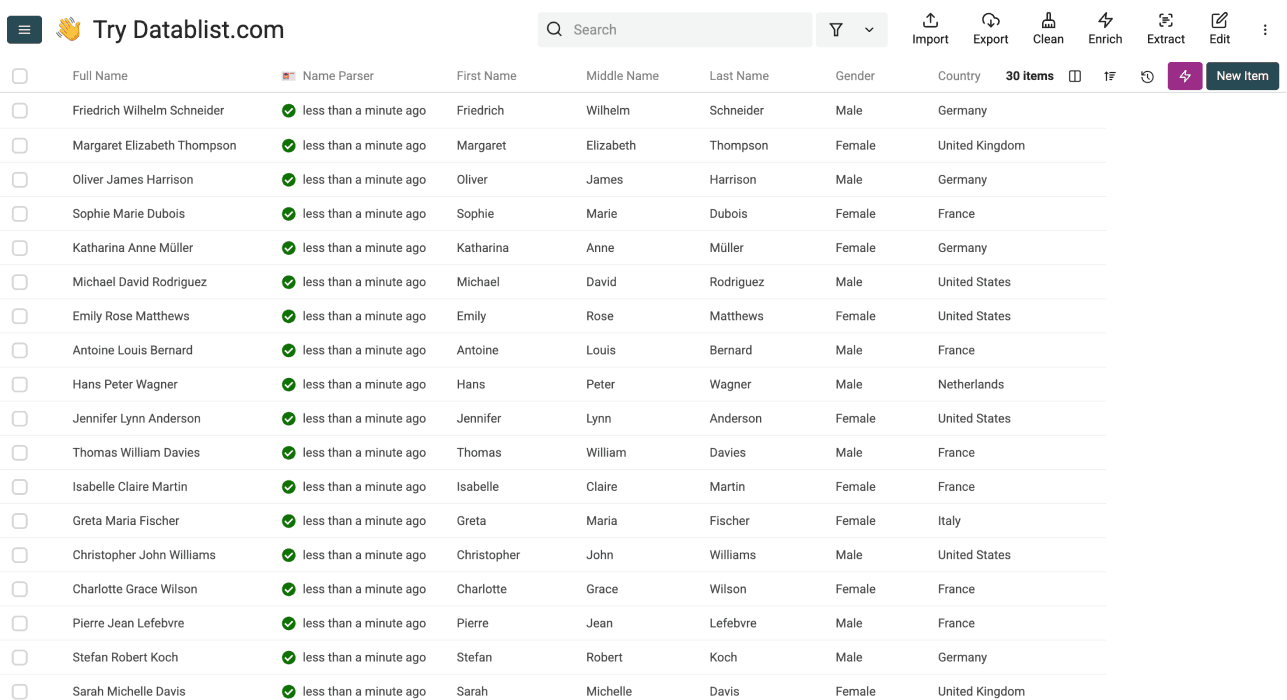
After the sample is useful, process the remaining intended rows. Inspect failed and empty-input outcomes separately, then export the approved fields with the contact ID. Check exporting CSV and Excel data for the handoff back to your spreadsheet or CRM.
Benefits of a reviewed parser workflow
The parser can propose several components without asking you to write one formula per input pattern. The benefit is a consistent review workflow: preserve the original, inspect the proposed parts, accept useful results, and keep ambiguous rows separate.
It uses credits. Check the enrichment's displayed cost and your available balance before a large batch; this guide does not promise a recurring free quota or a plan-specific name count. A collection-size allowance and a credit budget are different limits.
For personalization, an approved given name can make a greeting more natural. When you cannot establish that field, use a greeting that does not require guessing it. Keep demographic predictions separate from the name fields needed for the task.
Conclusion
Use Excel formulas for a consistent delimiter rule. Use Name Parser for proposed components from varied input, with sample review and preserved source IDs. In both workflows, keep the full name and verify the fields before importing them into another system.
Frequently Asked Questions
Can I split names without formulas?
Yes. Import the file into Datablist, map Full Name to the Name Parser input, save components in new properties, and review a sample before the remaining rows. Credit availability and run settings still apply.
What about middle names?
A first-space formula returns the first token and the remaining text. It does not distinguish a middle name from a compound surname. The parser offers a Middle Name output, but review it against source context rather than treating every additional word as a middle name.
Should I split on commas instead?
Only when the source convention is known. A value such as Watson, Mary Jane may use surname-first formatting, while a comma in another field can mean something else. Separate the formats into groups before applying a rule.
How many names can I process?
Check the current enrichment cost, credit balance, collection allowance, and run scope. The internal request batch size is not the total number of names your project can process. Avoid deriving an unlimited allowance from a free signup or from an old screenshot.
Can I extract a name from an email address?
That is a different input problem. A generic inbox such as sales@example.com does not identify a person. Use an appropriate email-name extraction workflow and review any proposed identity before using it.