 0.05 Credits per Text
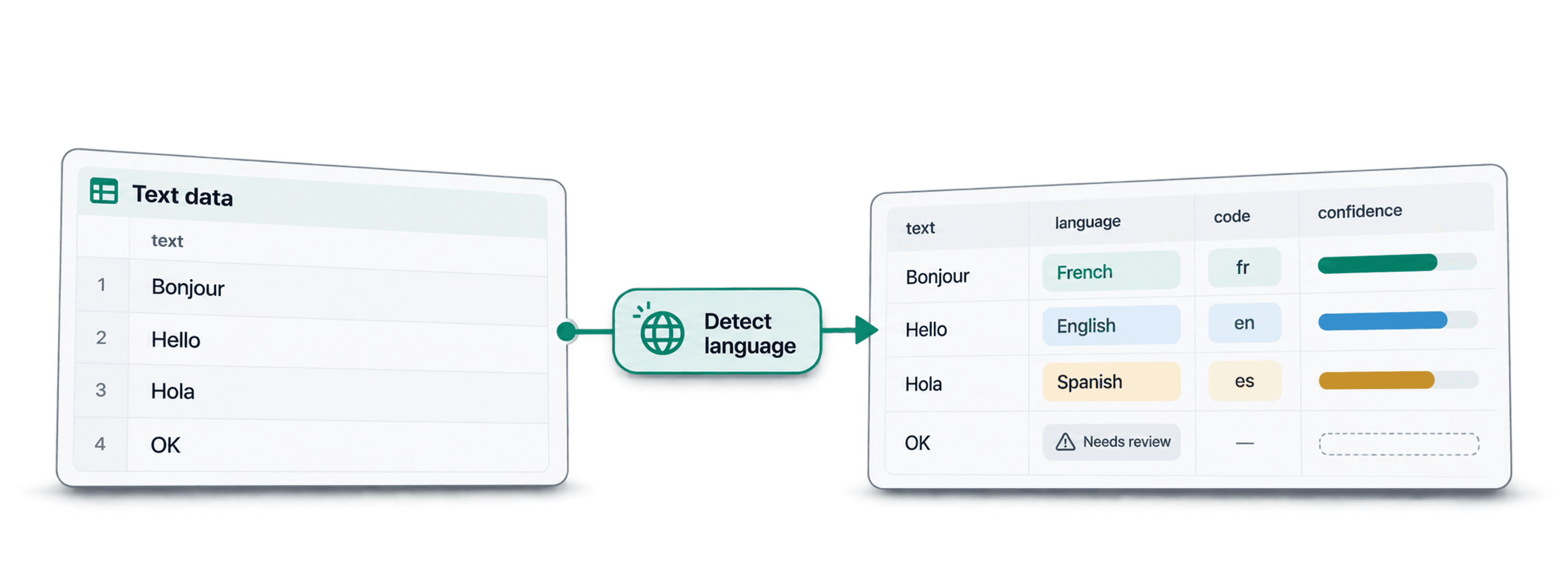
 ISO Code and Confidence Level
 500 Free Credits to Try














 Easy to Use
 No Settings to Configure
 Fully No-Code
Step-by-Step Guide
Step 1: Sign Up & Upload Your Data
First, sign up for Datablist.com
Create a collection with the CSV editor. Then, upload your CSV or Excel file with the texts you want to analyze.
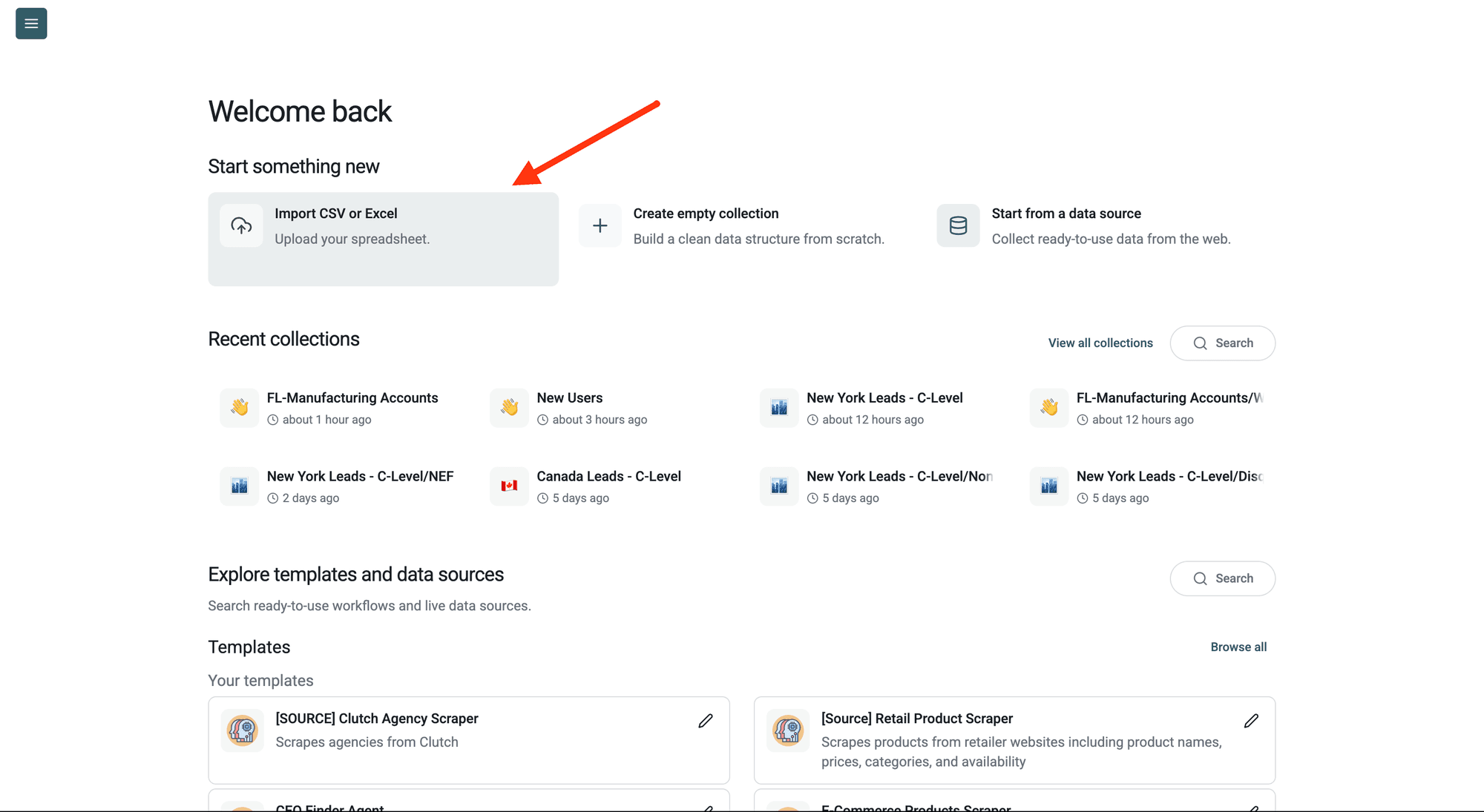
Step 2: Navigate to the Enrichment
Click Enrich in the top menu and search for Detect Language from a Text.
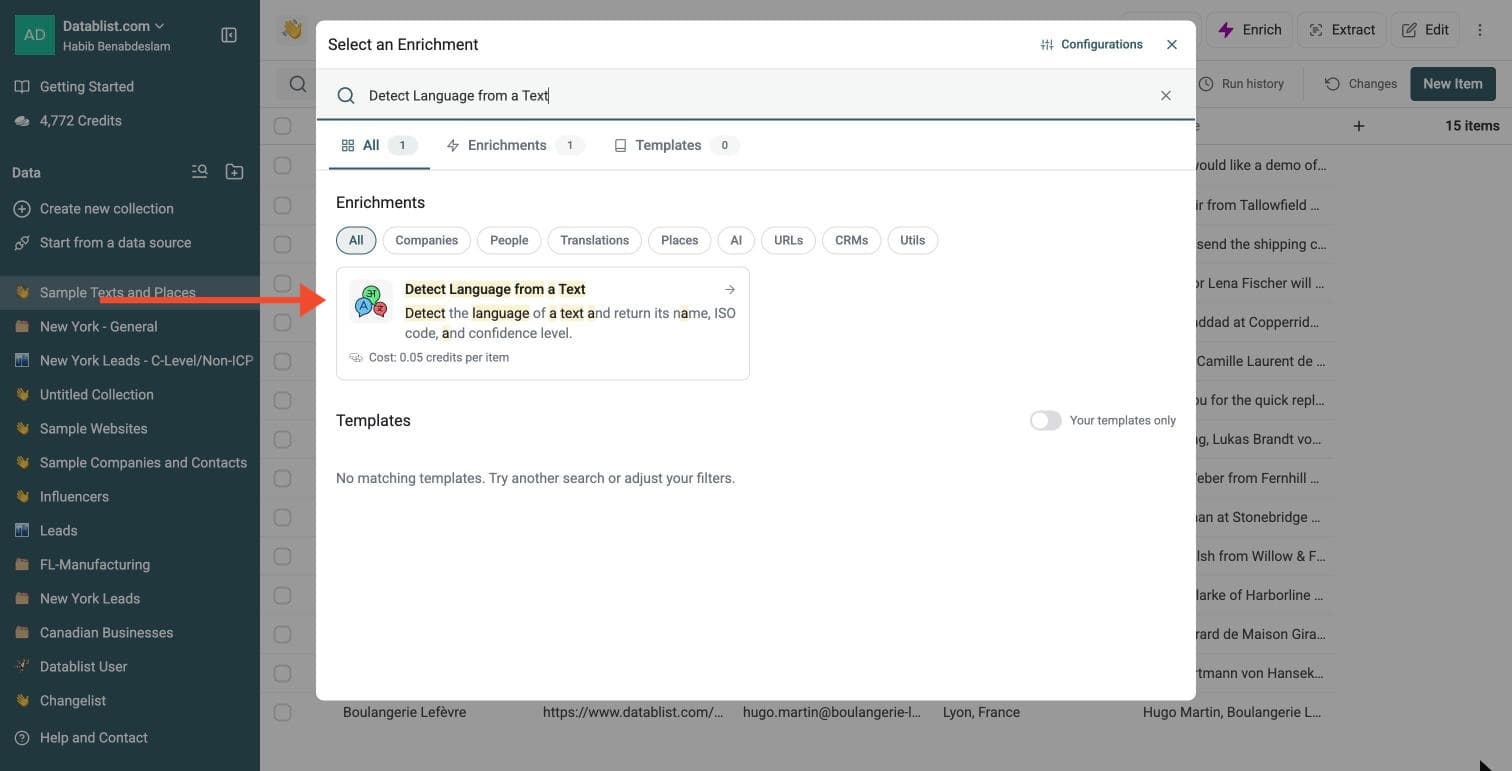
Step 3: Configure Your Inputs
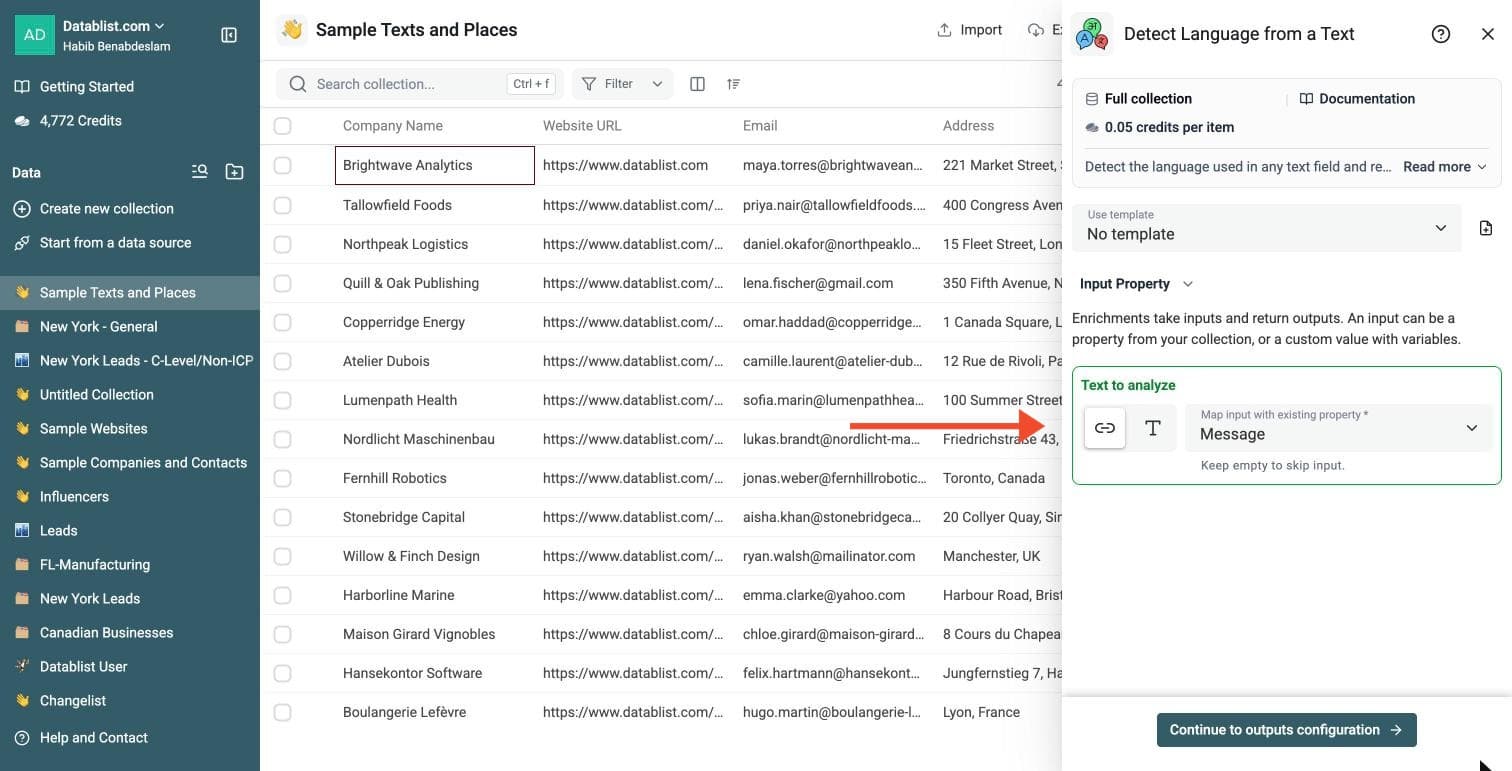
Map the Text to analyze input to the column that holds your text.
Then click Continue to outputs configuration.
Step 4: Select Outputs
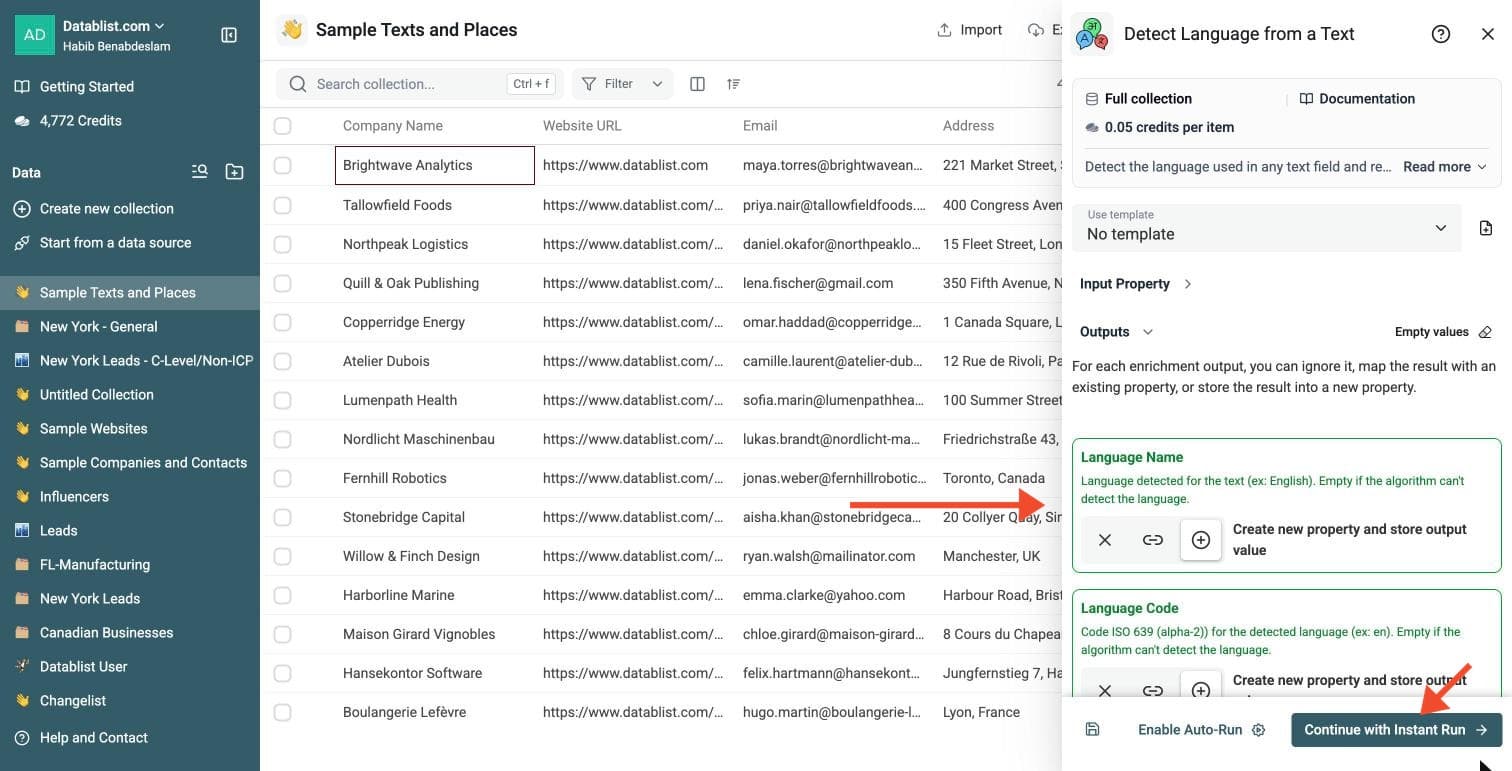
Language Detection Tool returns:
-
Language Name: the detected language, for example English
-
Language Code: the ISO 639 code, for example en
-
Language Confidence: High, Medium, Low or Very Low
Click the ⊕ icons to add them to your collection, then click Continue with Instant Run.
Step 5: Run the Enrichment
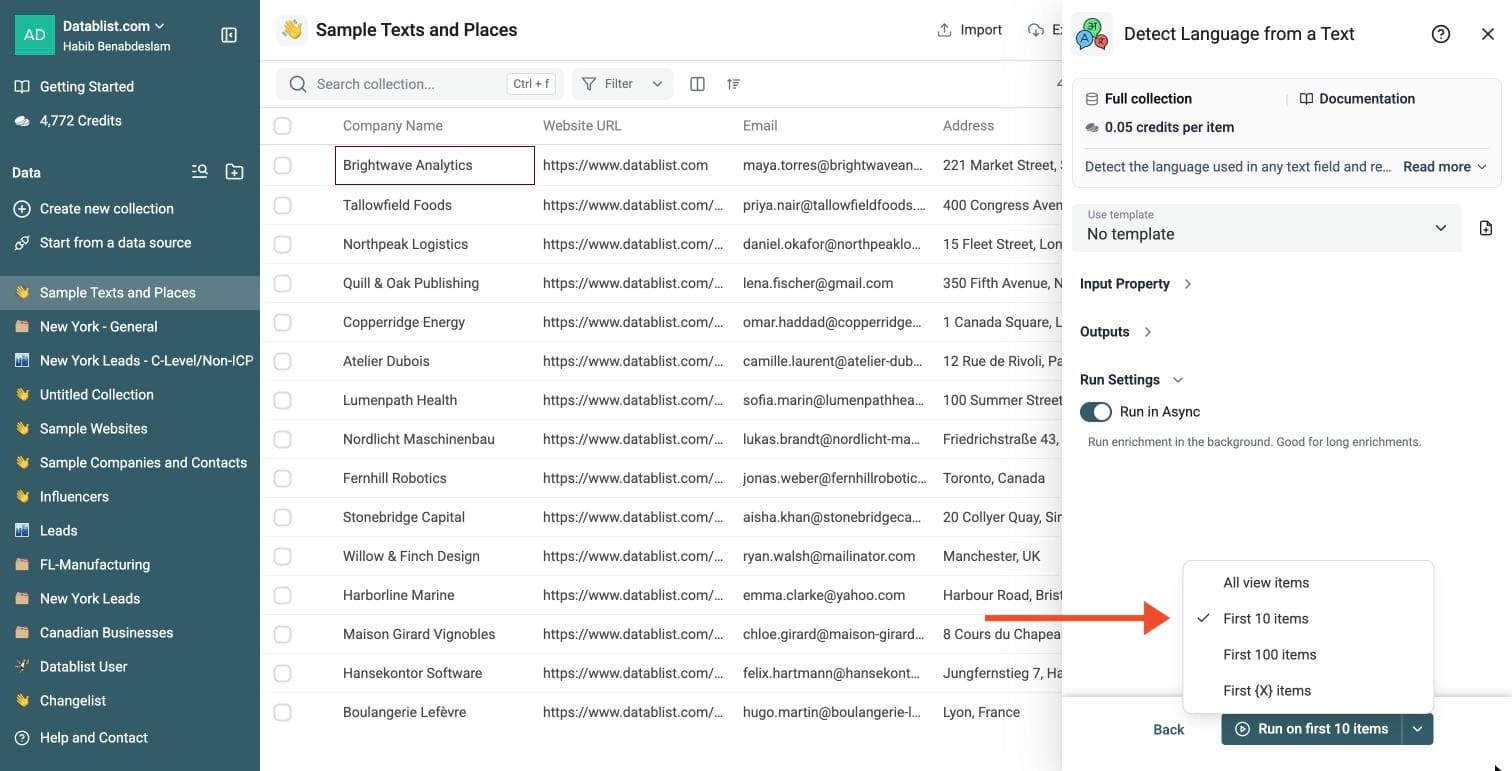
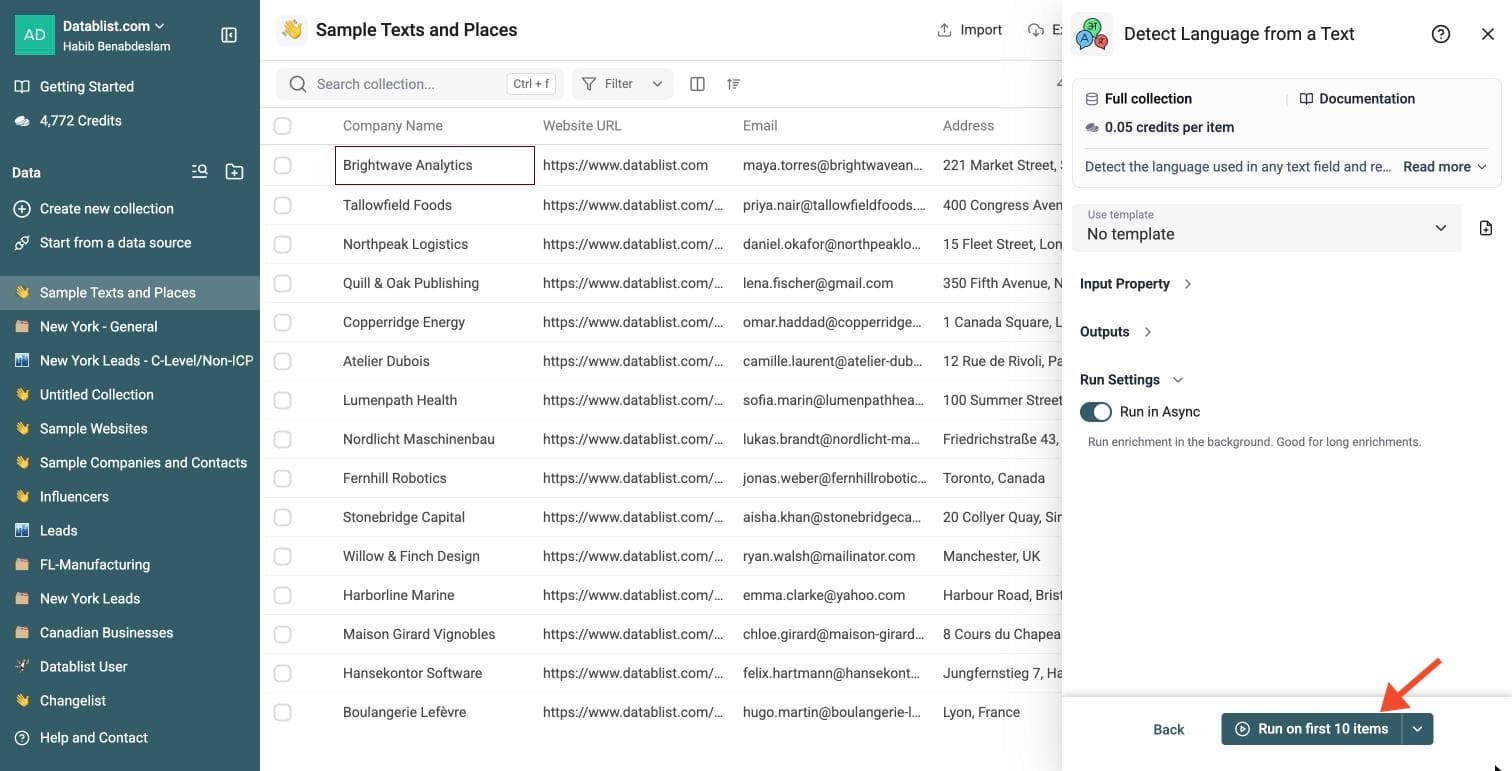
Click the chevron on the right side of the run button to choose how many items to process:
-
Run on first 10 items: Good for checking results before committing
-
Run on first 100 items: Useful for validating larger samples
-
Run on all view items: Process your entire list (or view if you've enabled filters)
Language Detection Tool costs 0.05 credits per text.
Review a small sample and the run-status column before processing the full list. Filter rows that need attention, fix inputs or settings, and rerun those rows. Export your collection when the results are ready.
What You Get
For each text, Datablist returns:
- Language Name - English, French, Spanish, German, etc.
- Language Code - ISO 639 code such as
en,fr,es, orde. - Language Confidence - High, Medium, Low, or Very Low.
When the text is empty, Datablist marks the row as invalid. When the language is too uncertain, Datablist marks the row as no result. Use these statuses to filter rows needing a manual check.
Why Use This Instead of an LLM?
LLMs can detect languages, but they are not the right tool for most bulk language detection jobs.
Language detection is a classification task. You do not need a generative model to answer "What language is this text?" for every row in a file.
Use this enrichment when you need:
- Lower cost - Run language detection for large lists without paying AI-token prices.
- Fast processing - Process rows faster than an LLM prompt per item.
- Bulk scale - Work with large CSV or Excel files, including hundreds of thousands of items.
- Long text support - Detect language from descriptions, emails, reviews, article extracts, and scraped webpage text.
- Manual review control - Use the confidence level to filter low-confidence results.
Common Use Cases
Segment Leads by Language
Detect the language used in form submissions, LinkedIn messages, website inquiries, or lead notes. Then split your list by language before sending email campaigns or assigning sales reps.
Example:
| Text | Language Name | Language Code | Confidence |
|---|---|---|---|
| Hello, I would like more information about your product. | English | en | High |
| Bonjour, je souhaite recevoir plus d'informations. | French | fr | High |
| Hola, quiero saber mas sobre sus servicios. | Spanish | es | Low |
Route Support Tickets
Run language detection on incoming support messages and route tickets to the right team.
You can create views such as:
- French tickets for the French support team
- German tickets for your DACH team
- Low-confidence tickets for manual review
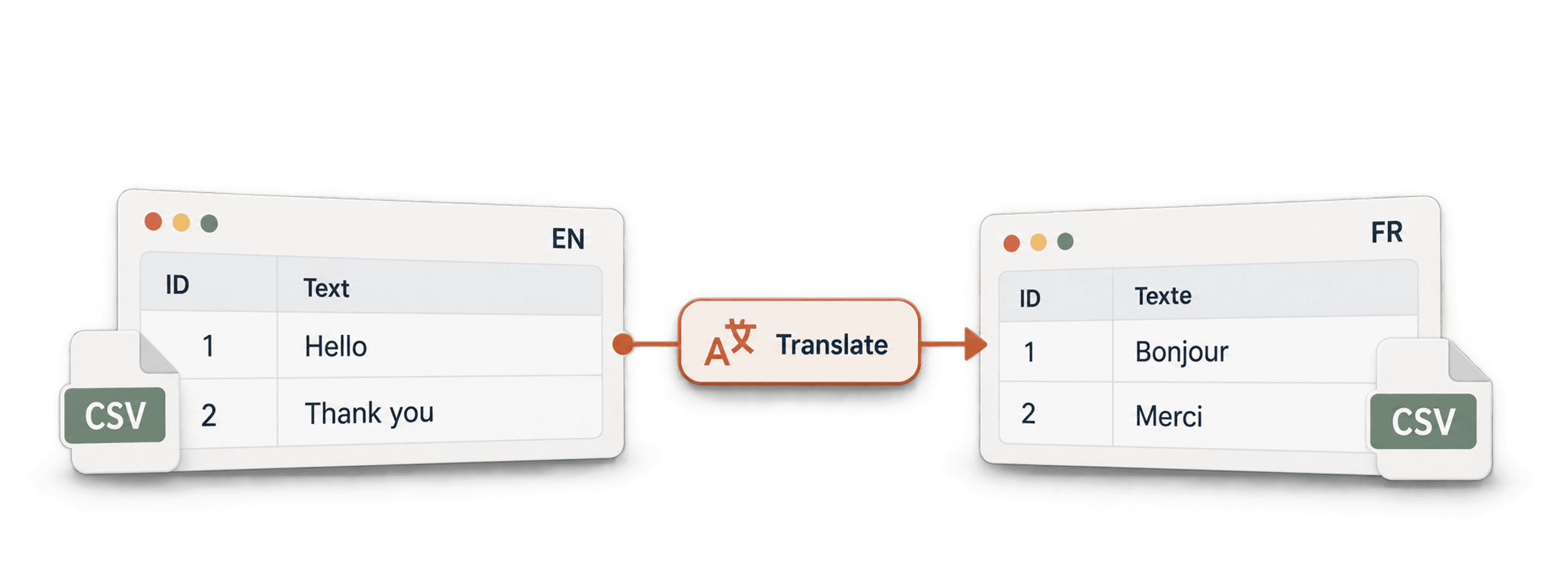
Prepare Texts for Translation
Before translating a list of texts, detect the source language. This helps you:
- Skip texts already written in the target language
- Group rows by source language
- Send each group to the right translation workflow
- Avoid translation errors caused by wrong source language settings
Analyze Reviews and Survey Answers
Customer feedback often mixes languages in the same file. Detect the language first, then run sentiment analysis, keyword extraction, or manual review per language.
This is useful for:
- Product reviews
- NPS comments
- App store reviews
- Survey answers
- Customer interviews
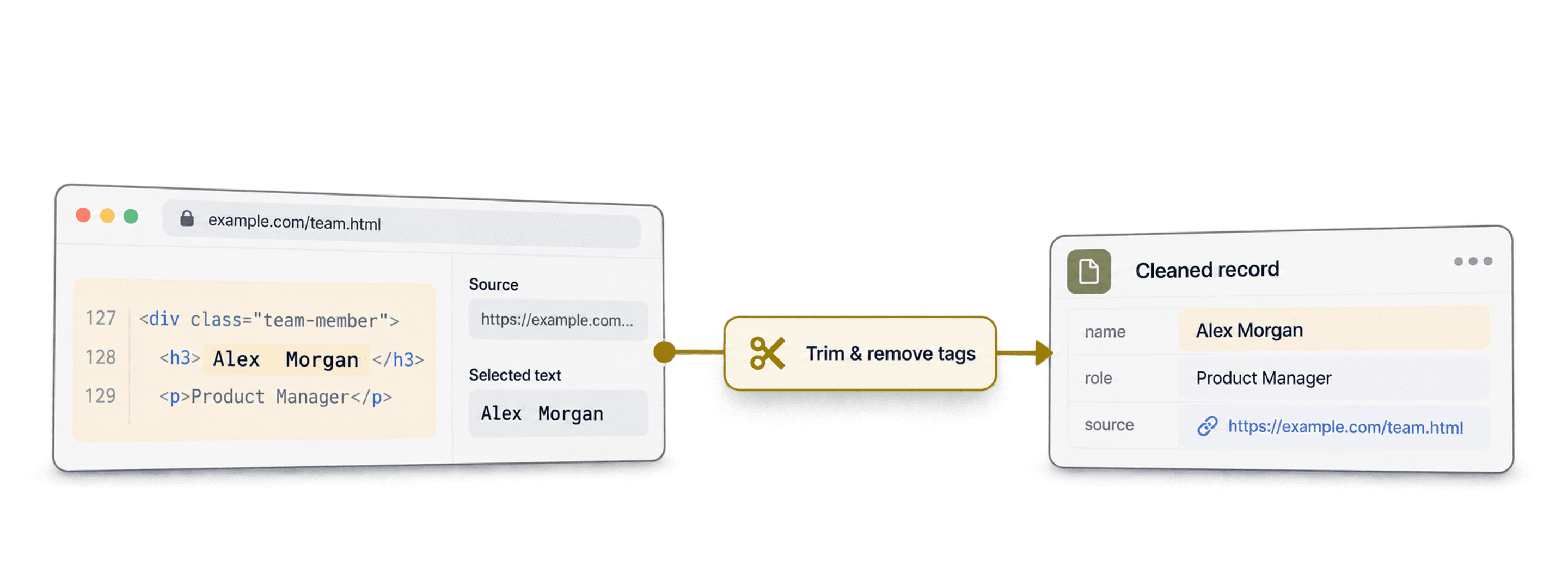
Clean Scraped Web Data
When you scrape websites, directories, job posts, or article snippets, the result may contain several languages. Use bulk language detection to keep only the languages you need.
Example workflows:
- Keep only English pages from a scraped URL list
- Remove non-target language content before analysis
- Split scraped descriptions by market
Example Inputs and Outputs
| Input Text | Language Name | Language Code | Confidence |
|---|---|---|---|
| Thanks for your help. I will send the file today. | English | en | High |
| Merci pour votre aide. Je vous envoie le fichier aujourd'hui. | French | fr | High |
| Gracias por la informacion, te contacto manana. | Spanish | es | Medium |
| Guten Tag, ich habe eine Frage zu meiner Bestellung. | German | de | High |
| 12345 / www.example.com / Paris |
These examples are illustrative. When no language is detected, the language and confidence outputs stay empty; check the run-status column for the no-result status.
Tips for Better Results
- Use a full sentence when possible. Language detection works better with more words.
- Keep useful text. Do not remove accents if you can keep them.
- Detect language before translation, classification, or sentiment analysis.
- Filter by confidence when you use the results in automation.
- For mixed-language texts, the enrichment returns the main detected language.
Review Low-Confidence Rows
After the run, filter the confidence column.
Use this workflow:
- Keep High and Medium confidence results for automated workflows.
- Review Low confidence rows when accuracy matters.
- Check rows with no result. They may contain numbers, URLs, names, short fragments, or mixed languages.
Empty inputs and texts with no detected language cost 0 credits. Successful detections cost 0.05 credits per row.