
Need to translate product descriptions, support tickets, website copy, or lead data stored in a spreadsheet?
Copying rows into DeepL one by one does not scale. Exporting files, translating them manually, and pasting the result back into your CSV also creates formatting mistakes and duplicate work.
Datablist's DeepL Translator enrichment translates a full column in bulk. Import your CSV or Excel file, choose the source text column, select a target language, and Datablist writes the translation to a new column for every row.
Translate Only the Columns You Choose
Many online CSV translation tools translate the whole file. They process every column and every cell, including IDs, URLs, SKUs, tags, formulas, and fields you may not want to change.
Datablist gives you column-level control.
You choose the source column to translate and the output column where the DeepL translation should be saved. Your original column stays unchanged.
This is useful when:
- Only one or two columns need translation
- Technical fields must stay in the original language
- Product IDs, URLs, SKUs, and tags must not change
- You want to translate one column with DeepL and another with Google Translate or ChatGPT
- You want to filter rows and translate only matching items
For example, you can translate product descriptions with DeepL, keep SKUs untouched, and use ChatGPT later for SEO titles that need custom instructions.
Step-by-step guide
Step 1: Load your CSV or Excel file on Datablist
Create a free account and import your data file. Datablist is a powerful CSV editor, perfect for opening large CSV files or Excel files with thousands of rows.
Create a new collection and import your file.
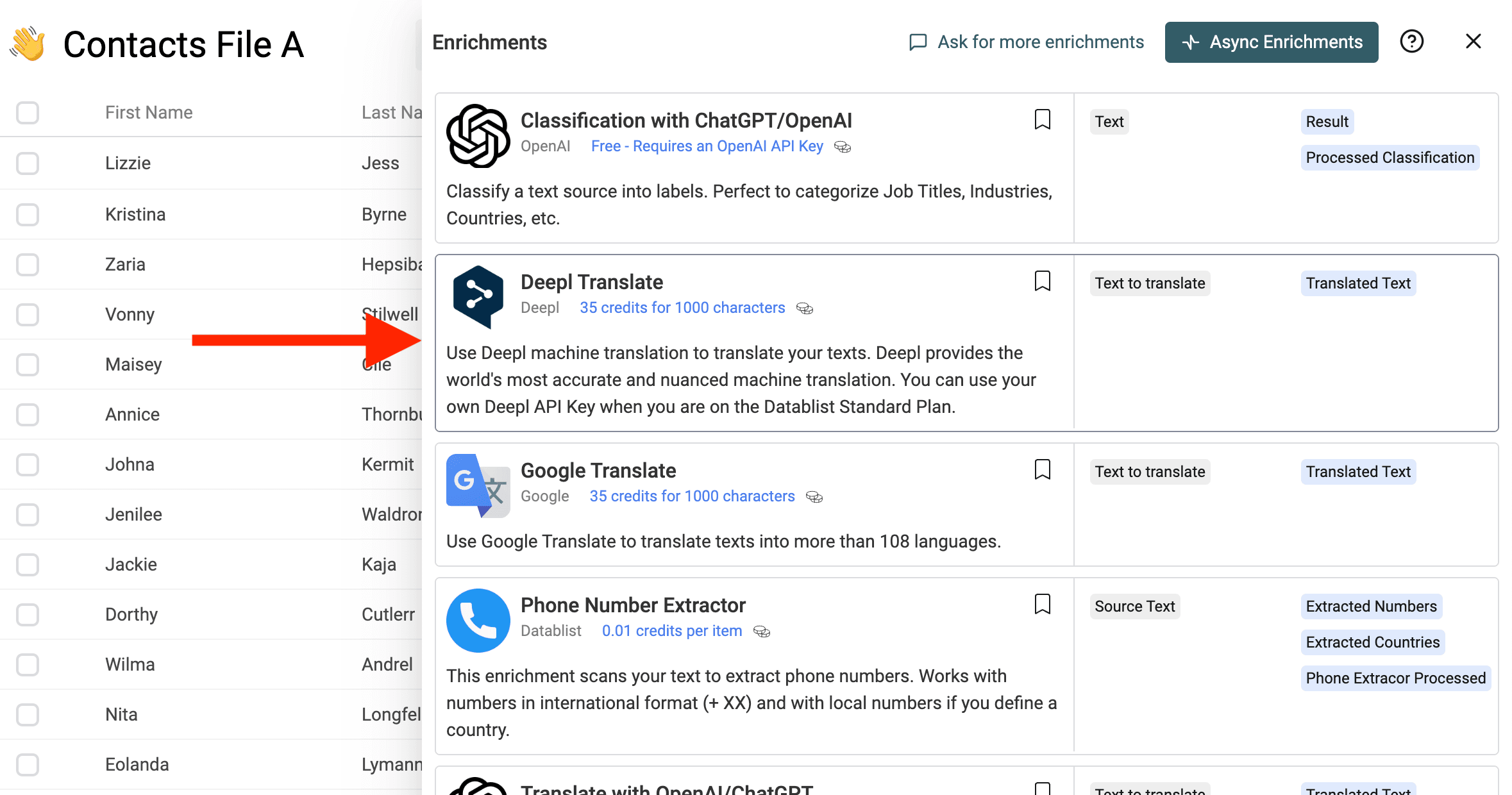
Step 2: Select the "DeepL Translate" enrichment
Click on the "Enrich" button, and search for "DeepL Translate".
Step 3: Configure the translation
The enrichment has one required input and a few settings:
- Target Language: Choose the language you want to translate to. For English, select either British English or American English.
- Source Language: Leave this empty to let DeepL auto-detect the source language, or select the source language when your file contains short text snippets that are hard to detect.
- Text to translate: Map this input to the column containing the original text.
- Translated Text: Create or select the output column where Datablist will write the translated content.
Step 4: Preview and run in bulk
Run a preview on a few rows first. Check that the target language, tone, and formatting are correct.
When the preview looks good, run the enrichment on the full collection. Datablist processes the rows in bulk and keeps the original column untouched.
What You Get in Datablist
For each row, the enrichment returns one output:
- Translated Text - The translated content returned by DeepL.
Datablist also keeps a run status for each row. If a row has empty text, fails, or needs a different setting, you can filter those rows and rerun only them.
Supported Translation Settings
Target Language
The target language is required. Supported targets include Bulgarian, Chinese, Czech, Danish, Dutch, English (American), English (British), Estonian, Finnish, French, German, Greek, Hungarian, Indonesian, Italian, Japanese, Korean, Latvian, Lithuanian, Norwegian, Polish, Portuguese (Brazilian), Portuguese (European), Romanian, Russian, Slovak, Slovenian, Spanish, Swedish, Turkish, and Ukrainian.
Source Language
The source language is optional.
Leave it empty when your file contains natural text. DeepL will detect the source language automatically.
Set it manually when you translate:
- Short labels or product names
- UI strings
- Mixed-language datasets
- Text with little context
Use Your Own DeepL API Key
Premium Datablist users can provide their own DeepL API Key in the enrichment settings.
Use this option when:
- You already have a DeepL API subscription
- You need to translate a very large dataset
- You want translations billed directly by DeepL instead of Datablist credits
When you use your own DeepL API key, Datablist does not charge translation credits for the rows processed with that key.
Advanced Settings
Enable Advanced Settings when you need more control over the translation.
Formality
DeepL can make translations more formal or less formal for some target languages.
This is useful when translating:
- Sales emails
- Customer support messages
- Website copy
- Product descriptions
Formality is available for languages such as German, French, Italian, Spanish, Dutch, Polish, Portuguese, Japanese, and Russian.
Context
Context helps DeepL translate short or ambiguous text more accurately.
For example, if your source column contains short product names, category labels, or UI strings, add context such as:
These are ecommerce product titles for a fashion store. Keep brand names unchanged.
The context is used to guide the translation. It is not translated itself.
Preserve XML Tags
Enable XML tag handling when the text contains markup that must stay in place.
Example:
<p>Free shipping for <strong>premium customers</strong></p>
This is useful for HTML snippets, XML exports, CMS content, and product descriptions with formatting tags.
Ignore Tags
Use Ignore Tags to tell DeepL not to translate text inside specific XML tags.
For example, if your text contains:
<brand>Datablist</brand> helps teams clean CSV files.
You can ignore the brand tag to keep the brand name unchanged.
How Much Does It Cost?
When you use Datablist credits, the DeepL Translator costs 35 credits per 1,000 characters translated.
Examples:
- 10,000 characters translated -> 350 credits
- 100,000 characters translated -> 3,500 credits
- 1,000,000 characters translated -> 35,000 credits
If you use your own DeepL API key, Datablist credits are not used for the translation.
Common Use Cases
Translate Product Catalogs
Translate product names, descriptions, attributes, and SEO text before importing the data into Shopify, WooCommerce, Prestashop, or another ecommerce platform.
Localize Website or CMS Content
Export your CMS content to CSV, translate a column in Datablist, then reimport the translated content into your CMS.
Translate Support Tickets or Reviews
Translate customer feedback, support tickets, survey answers, or product reviews into a common language before analyzing them.
Translate Lead and CRM Data
Translate job titles, company descriptions, notes, or custom fields before using the data in sales workflows.
Tips Before Translating a Large File
- Preview a few rows before translating the full file.
- Keep the original source column and write translations to a new column.
- Set the source language manually for short or ambiguous text.
- Use context for product names, category labels, and UI strings.
- Enable XML tag handling when translating HTML or XML content.
- Use your own DeepL API key for very large translation jobs.
When DeepL Translation Fits Best
Use DeepL Translator when you need high-quality translation for spreadsheet text and want predictable source and target language settings.
Good fits include:
- Product descriptions in ecommerce catalogs
- Customer reviews or survey answers
- Support tickets and helpdesk exports
- Website copy stored in CSV files
- Lead notes, company descriptions, or localized outreach snippets
Keep one source text per row. If your file contains HTML or structured values, test a few rows first and review the translated output before running the full file.
FAQ
Can I translate a CSV file with DeepL?
Yes. Import your CSV into Datablist, select the text column, choose the target language, and save the DeepL translation in a new column.
Can I translate an Excel file?
Yes. Datablist supports Excel imports. After translation, export the enriched file back to CSV or Excel.
Do I need a DeepL API key?
You can use the options available in the enrichment. If you use your own DeepL API key, DeepL bills your account for API usage.
Should I set the source language?
Set the source language when your file uses one known language. Leave automatic detection when your rows contain several languages.