 Cheapest Waterfall on the Market
 GDPR Compliant















 Easy to Use
 No Technical Configuration
 Fully No-Code
Step-by-Step Guide
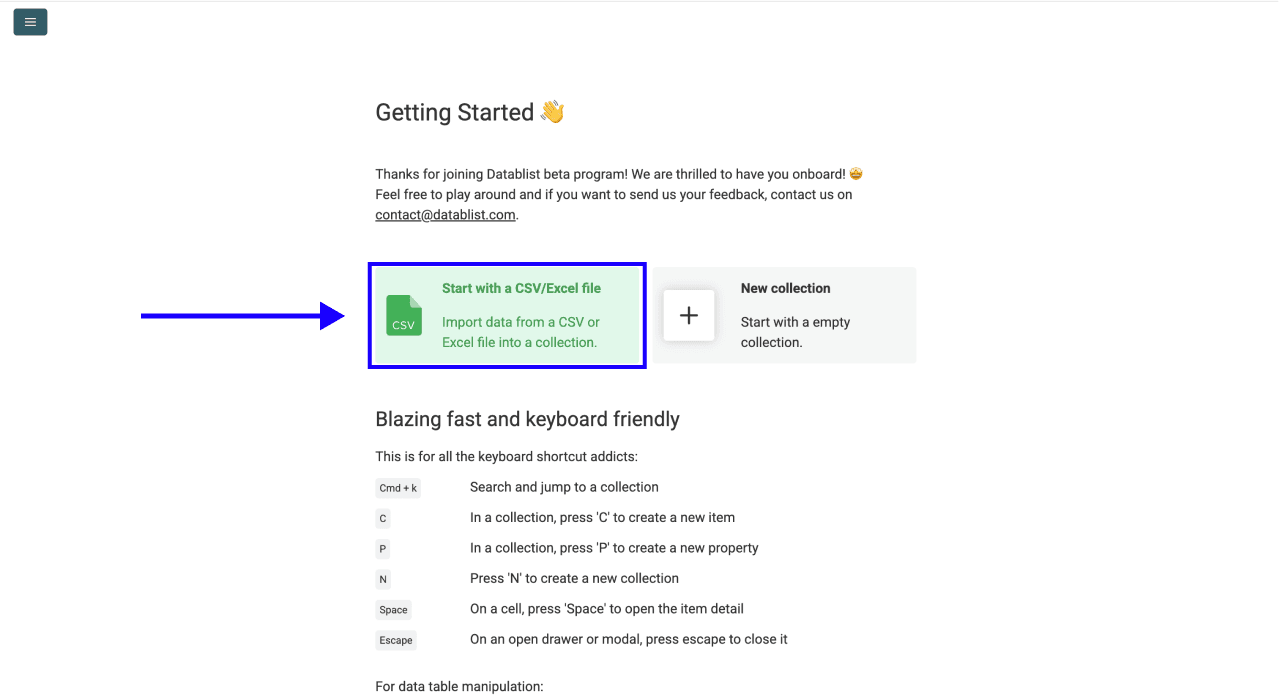
Step 1: Sign Up And Upload Your Data
First, sign up for Datablist.com.
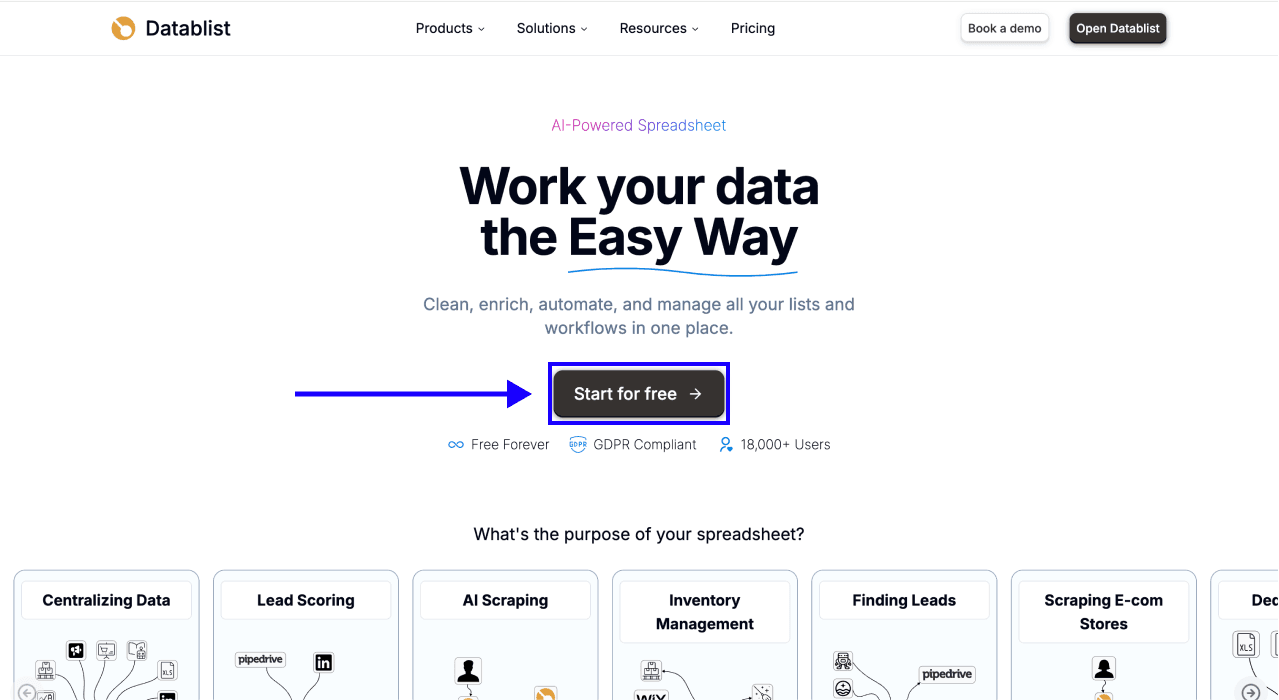
Create a new collection and upload your CSV or Excel file containing your list of contacts. Datablist is a CSV editor for opening large lead lists, CRM exports, and prospecting files.
You need a person's name and company name or domain, or standard LinkedIn profile URLs. If your names are in a single column, you can use the Full Name setting in Step 3.
Step 2: Navigate To The Enrichment
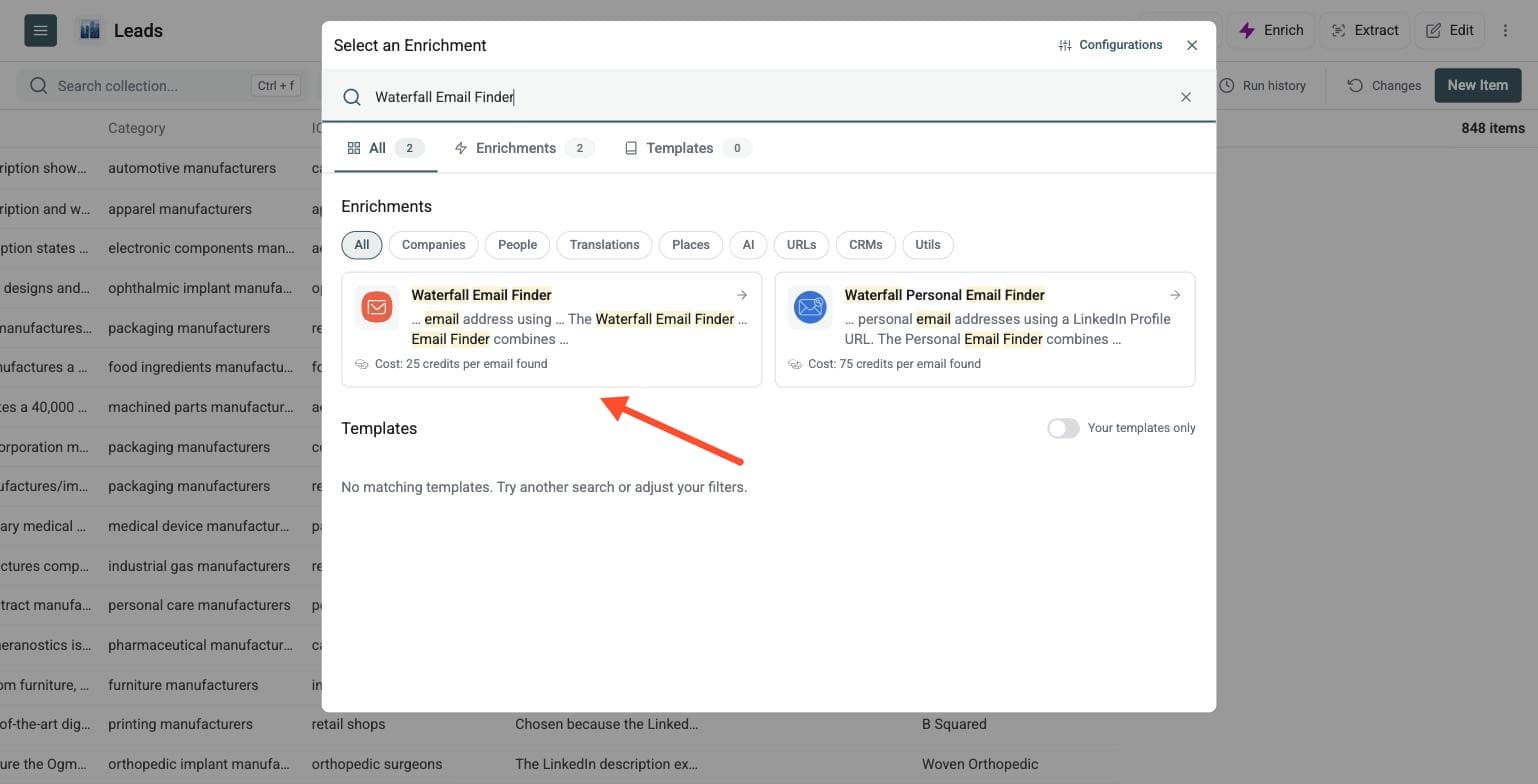
- Click Enrich in the top menu.
- Go to the People section.
- Select Waterfall Email Finder. You can also search for Email Finder.
Step 3: Set Up The Enrichment
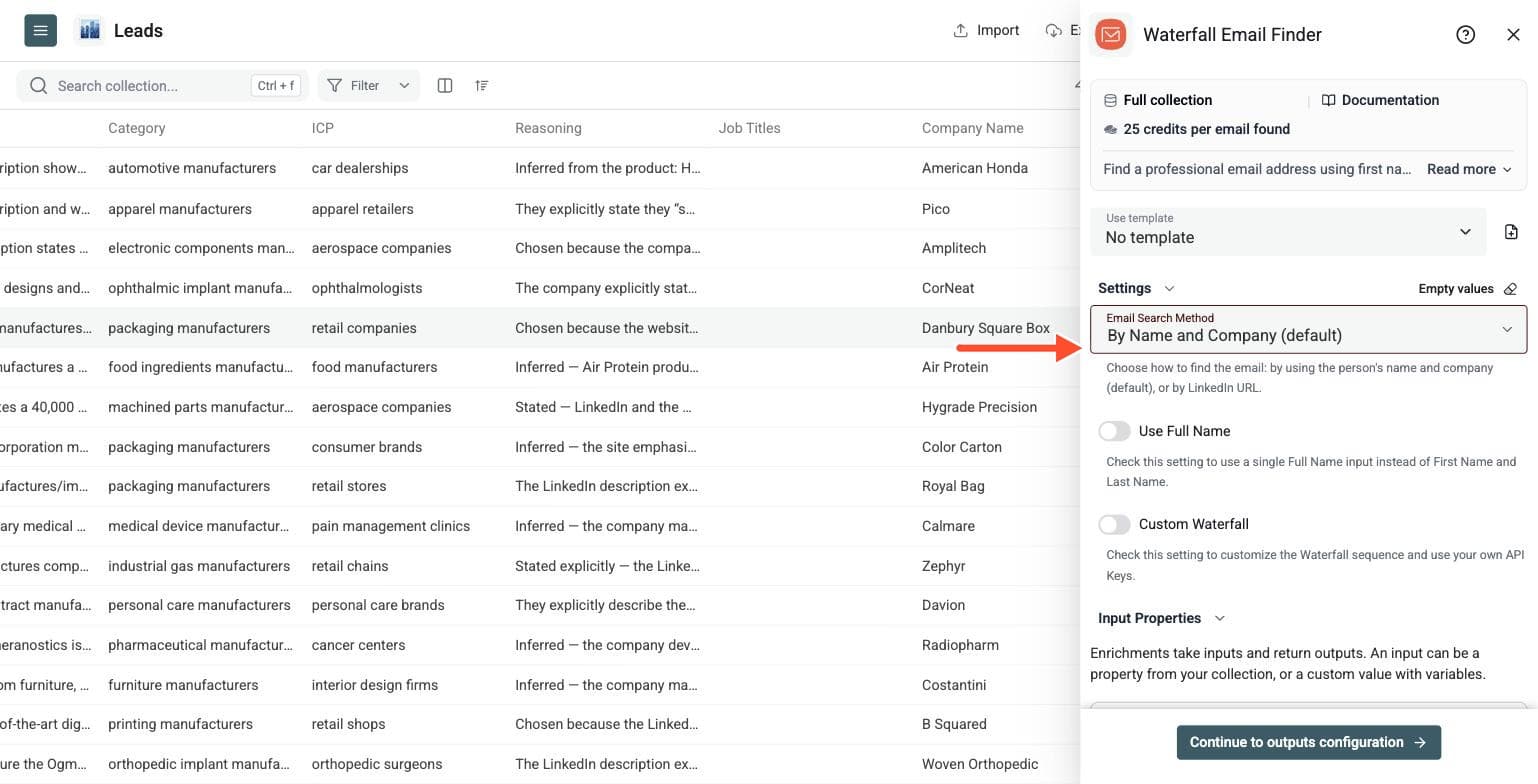
Under Email Search Method, keep By Name and Company when your file contains names and companies. Choose By LinkedIn URL when your list contains LinkedIn profile URLs instead.
Datablist uses a waterfall approach: it tries several email providers in sequence and stops when one returns a usable email. This improves coverage compared with relying on one provider.
By Name and Company
Use this mode with First Name, Last Name, and Company Name or Domain. If your file has one combined name column, enable Use Full Name to use Full Name instead of separate first and last names.
A LinkedIn Profile URL is optional in this mode and can help providers identify the right person.
By LinkedIn URL
Use this mode when your file contains standard LinkedIn profile URLs, such as https://www.linkedin.com/in/profile-id. Sales Navigator profile URLs are not supported by this enrichment.
This works for lists from LinkedIn scraping, event attendee research, or manual prospecting. If your list came from a Sales Navigator workflow, use the standard LinkedIn profile URLs rather than Sales Navigator URLs.
You do not need to scrape extra profile details before searching for work emails in this mode. Read How to Find Emails From LinkedIn Profile URLs for the full workflow.
Custom Waterfall With Your Own API Keys
Keep the default Datablist waterfall unless you want to use your own provider subscriptions. For By Name and Company, enable Custom Waterfall and open Waterfall Sequence to set the provider order and enter an API key for each provider. The sequence runs from top to bottom.
Supported custom providers are:
- Icypeas
- Enrow
- Prospeo
- Wiza
- Findymail
- LeadMagic
- TryKitt
- Enrich.so
- FullEnrich
With your own API keys, provider usage is billed through your provider accounts. Custom Waterfall is available for the name-and-company method, not the LinkedIn URL method.
For the complete setup, read How to Use Your Own API Keys in a Waterfall Email Finder.
Step 4: Configure Your Inputs
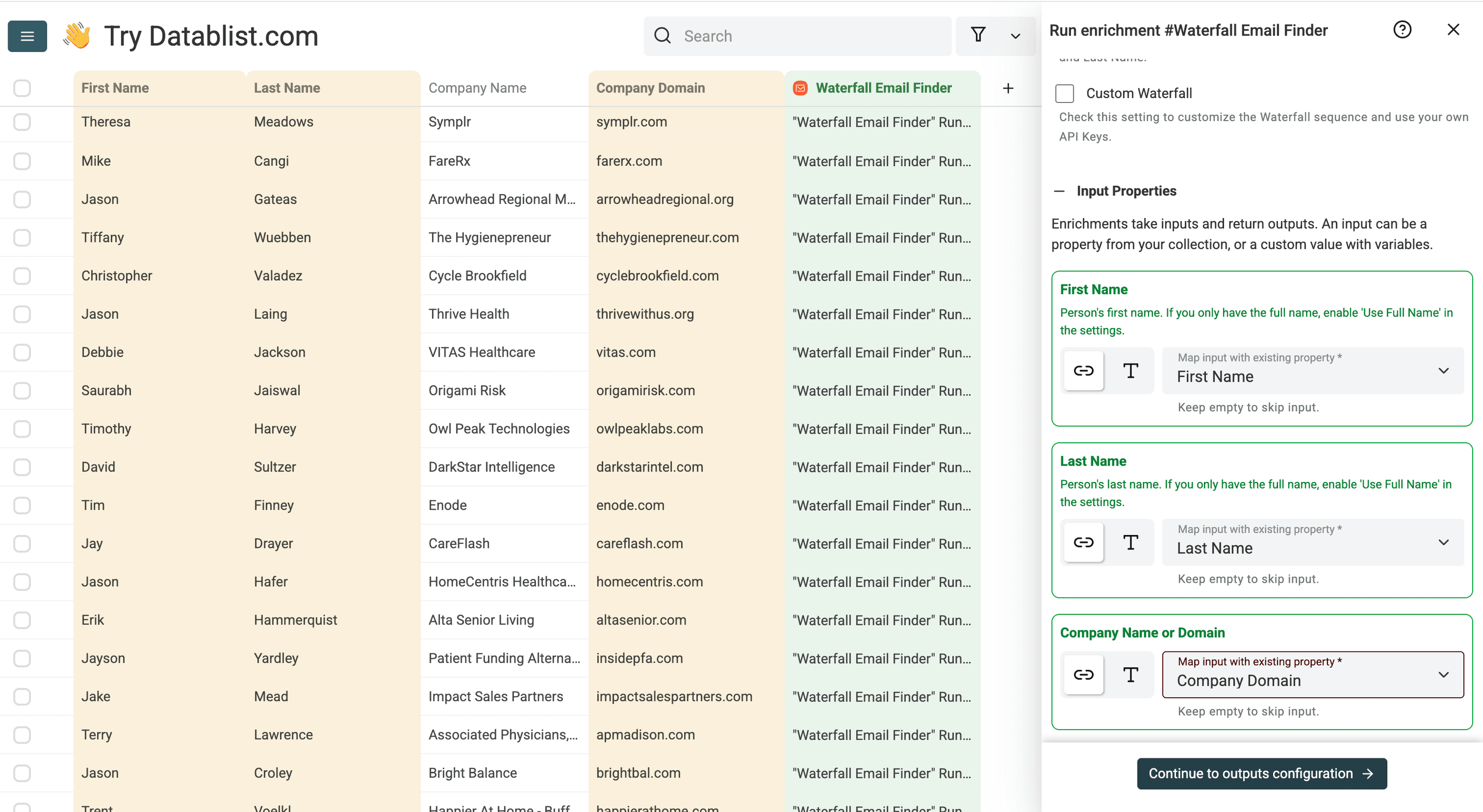
Map the inputs to the matching columns in your collection:
- First Name to your first-name column.
- Last Name to your last-name column.
- Company Name or Domain to your company name or company domain column.
- Optionally, LinkedIn Profile to your standard LinkedIn profile URL column.
If you enabled Use Full Name, map the Full Name column instead of first name and last name. For By LinkedIn URL, map only the LinkedIn Profile column.
Find Work Emails Without Company Domains
Map a company-name column directly when no domain is available. For this internal domain lookup, Email Finder uses company databases only. It checks Datablist's company datasets for a likely domain, validates candidate websites, and uses a domain only when the available data does not conflict. It then sends the person's name and company information through the email-provider waterfall.
When the company databases resolve the name, you do not need a separate domain-finding run. This internal domain-resolution step does not add a separate action-credit charge.
For more complex or ambiguous company names, first run Company Name to Domain. Its default workflow can fall back to Google for names the databases miss. Then map the returned domain into Email Finder.
A known domain remains the most precise input. Company names can be ambiguous, especially for subsidiaries, regional companies, and businesses with generic names. When Datablist cannot select a safe domain, it keeps the original company name and lets compatible providers continue the search instead of inventing a domain.
Once your inputs are mapped, click Continue to outputs configuration.
Step 5: Select Outputs
The default waterfall returns three fields:
- Email: The work email address found for the contact.
- Email Status: Deliverability information for a found email, such as
verifiedorunverified. - MX Provider: The email provider behind the mailbox, such as Google, Microsoft, Proofpoint, Mimecast, or another provider.
With Custom Waterfall, you can also add the Provider output to see which email-finding provider returned the result. This is different from MX Provider, which identifies the mail host.
Click the ⊕ icons to create output columns, or map outputs to existing properties. Then click Instant Run to open the run settings.
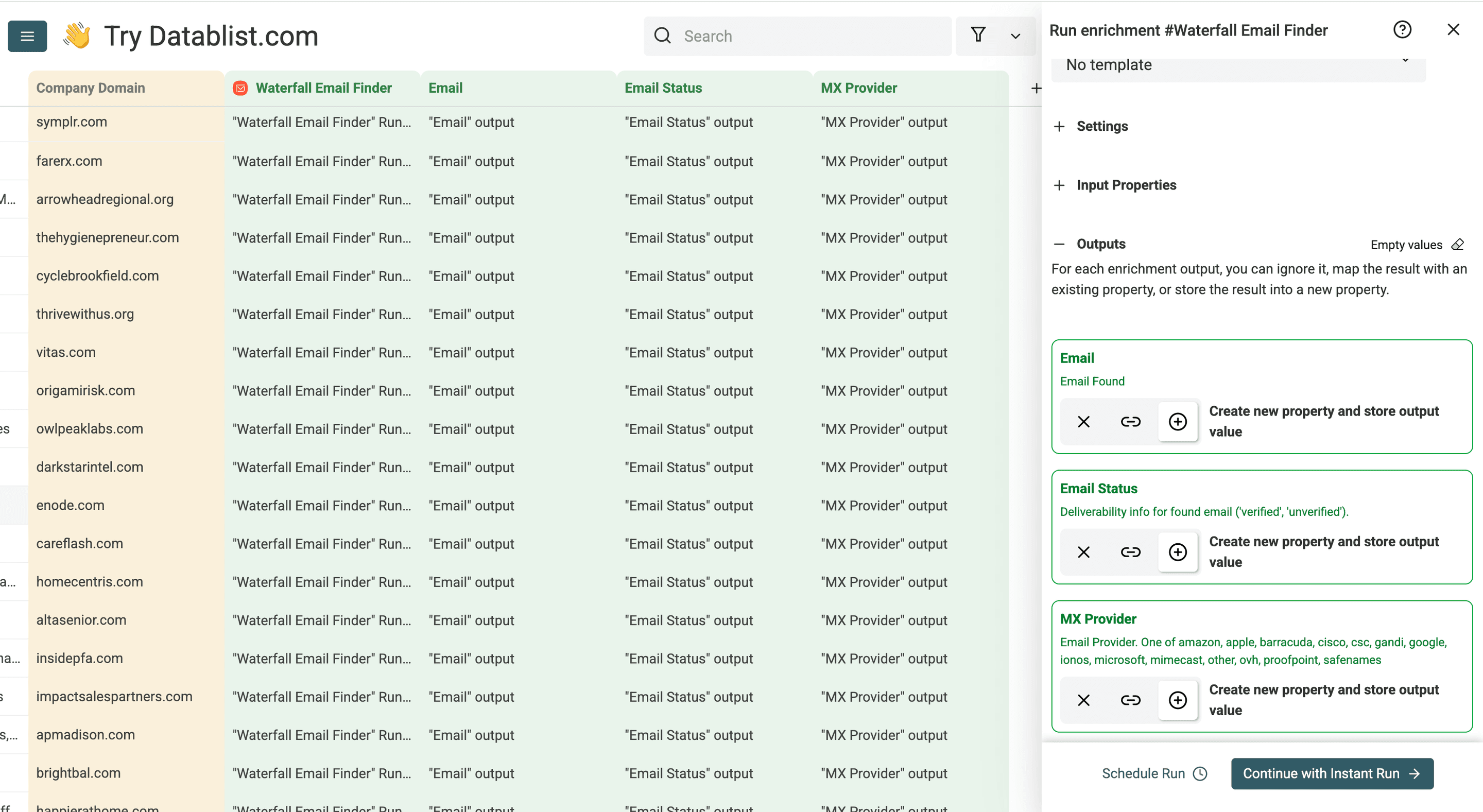
Datablist creates a run-status column automatically. Use it to review rows where no email was found or the source data was missing or invalid. Email Status describes deliverability for an email that was found.
Step 6: Run The Enrichment
Configure your run settings by clicking the chevron on the right side of the button:
- Run on first 10 items: Good for checking results before committing.
- Run on first 100 items: Useful to validate larger samples.
- Run on first {X} items: Choose exactly how many to process.
- Run on all view items: Process your entire list, or the rows in your filtered view.
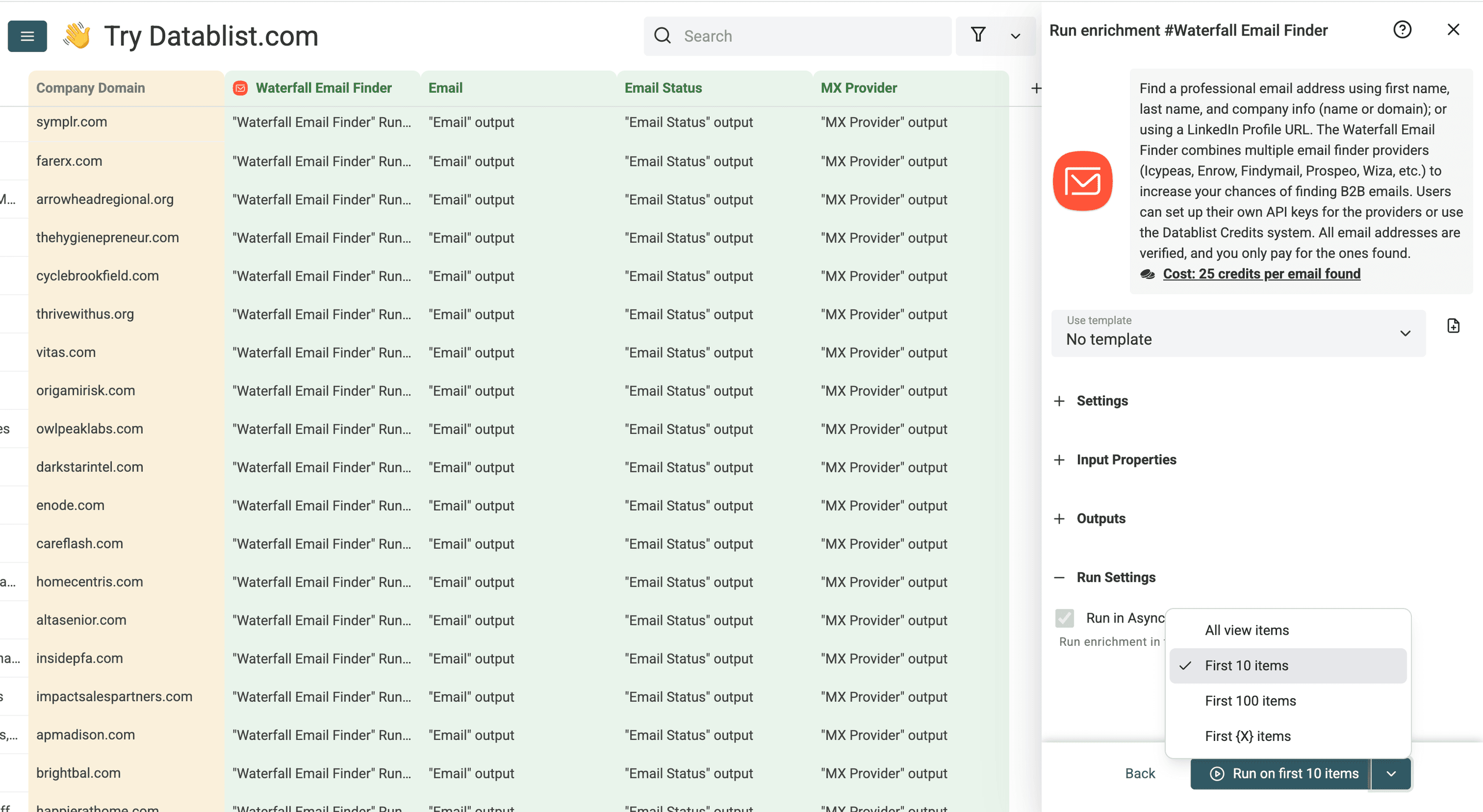
Once you have chosen your preferred option, click Run on X items. Start with a preview, check the results, then process the full file.
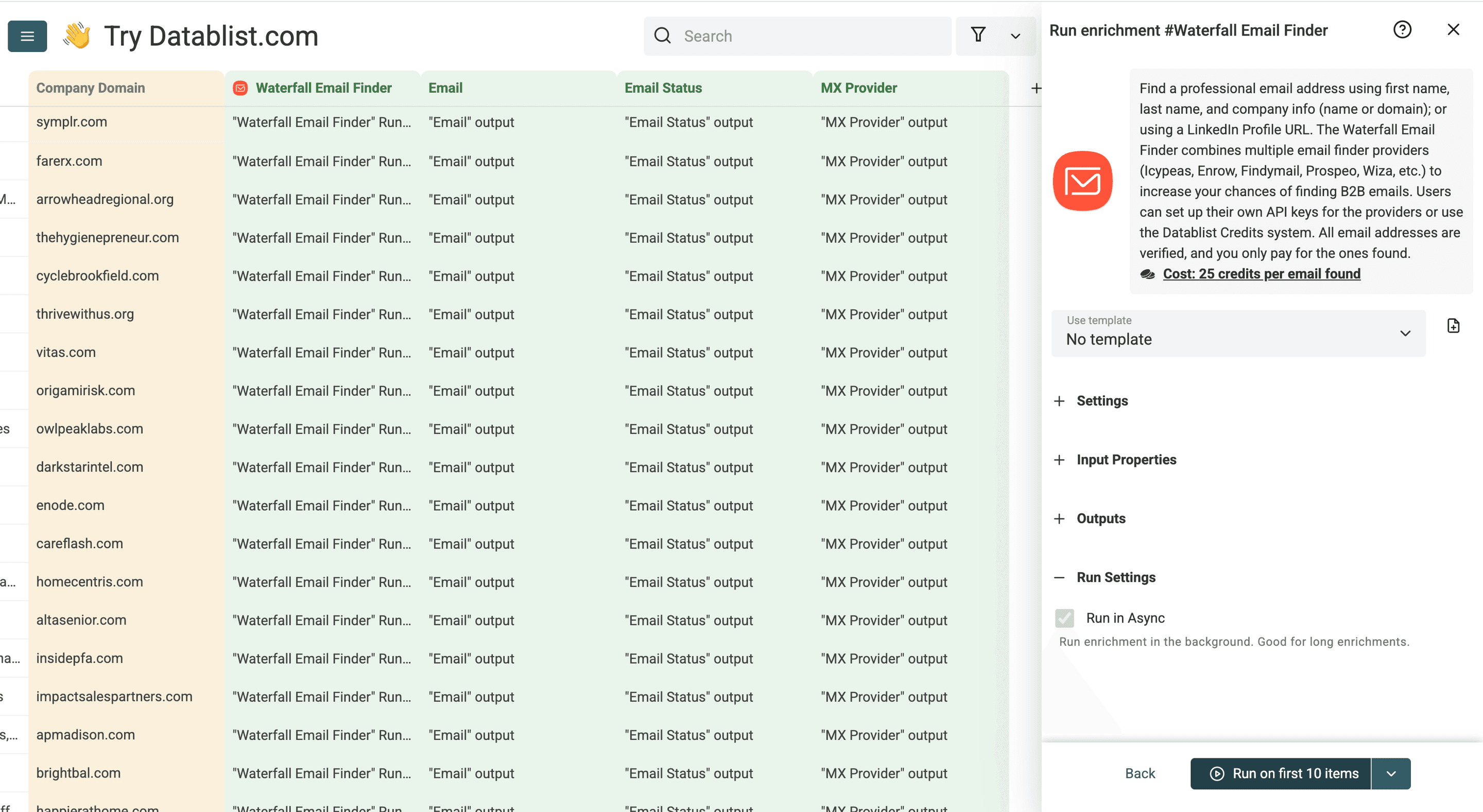
The default waterfall costs 25 Datablist credits per work email found. You pay for successful results; rows with no email found are not charged. For example, 1,000 found emails use 25,000 credits, and 20,000 credits can find up to 800 work emails. Use the page's calculator for current plan and top-up prices.
To retry only unresolved contacts, filter your view to rows where Email is empty, correct missing or invalid inputs, and choose Run on all view items. Keep the original source columns so you can review and fix those rows.
Input Quality Tips
Better input data gives better email finding results.
- Use the company name directly for database-backed domain resolution. For more complex names, run Company Name to Domain first, then use the returned domain.
- Prefer a known company domain when you have one because it removes ambiguity.
- Keep company names specific. Add the legal or commercial name instead of a generic label such as
Marketing Agency. - Use separate first name and last name columns when available; enable Use Full Name when your file has one combined name column.
- Avoid passing directory URLs, LinkedIn company URLs, or generic website pages as the company domain.
- Use standard LinkedIn profile URLs for the LinkedIn mode.
- Keep the original source columns so you can debug missing or invalid inputs.
What To Do After Finding Emails
Finding the email is only one step in a clean outreach workflow. After running Waterfall Email Finder, you can:
- Filter to keep only
verifiedemails. - Review
unverifiedemails before sending. - Run email verification on older lists before outreach.
- Use Datablist's AI enrichments to personalize cold emails.
- Export the clean list to your CRM or outreach tool.
If you are working with an old list, read Email List Cleaning before sending any campaign.
Use Cases
Use the bulk workflow for:
- Sales prospecting
- Recruiting outreach
- Lead list building
- CRM enrichment
- Agency list building
- Event attendee enrichment
For a comparison of email-finding methods, read The Best Methods to Find Someone's Email Address.