 0.20 Credits per URL
 Title and Meta Description
 500 Free Credits to Try















 Easy to Use
 All Settings Are Optional
 Fully No-Code
Step-by-Step Guide
Step 1: Sign Up & Upload Your Data
First, sign up for Datablist.com
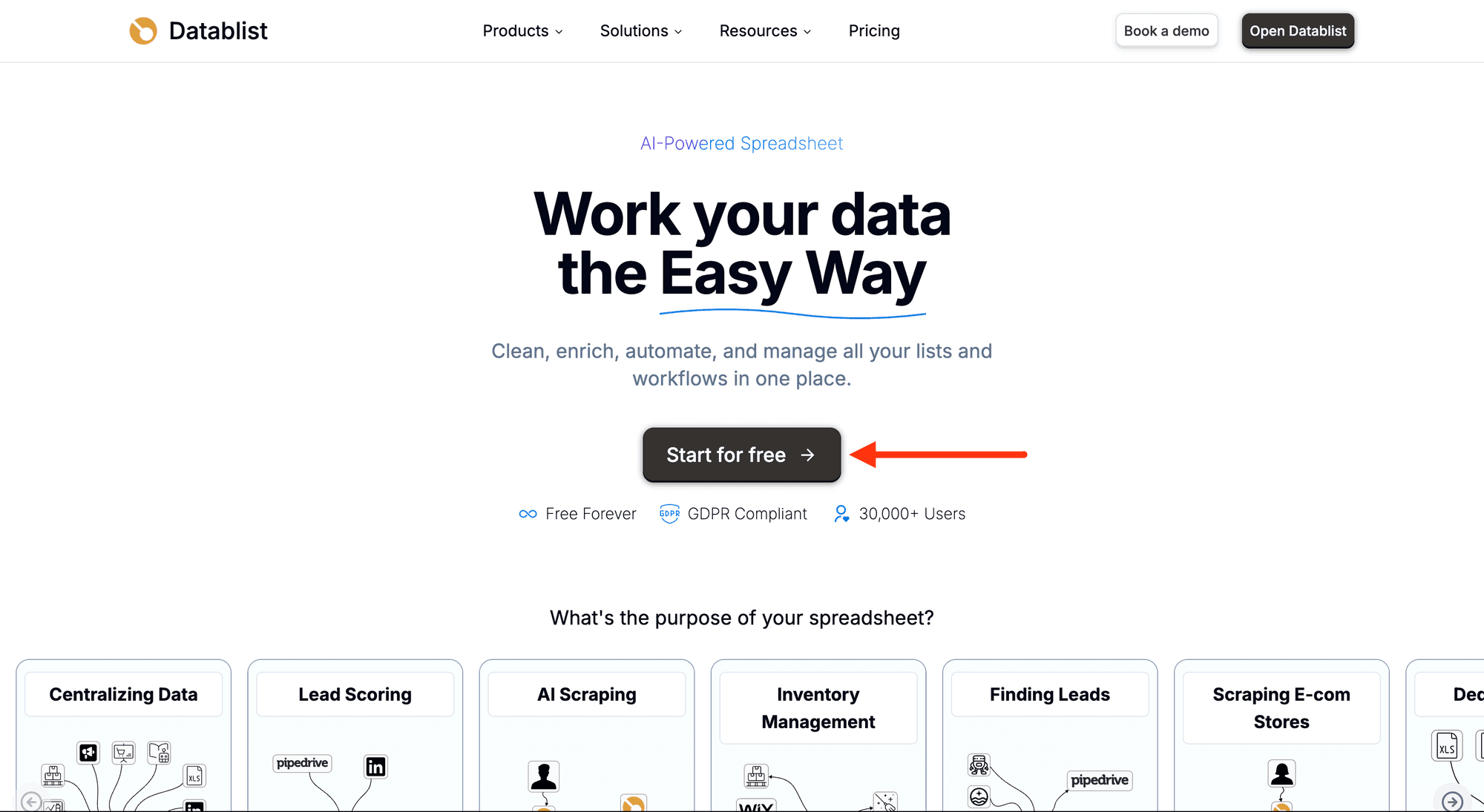
Create a collection with the CSV editor. Then, upload your CSV or Excel file with the URLs you want to check.
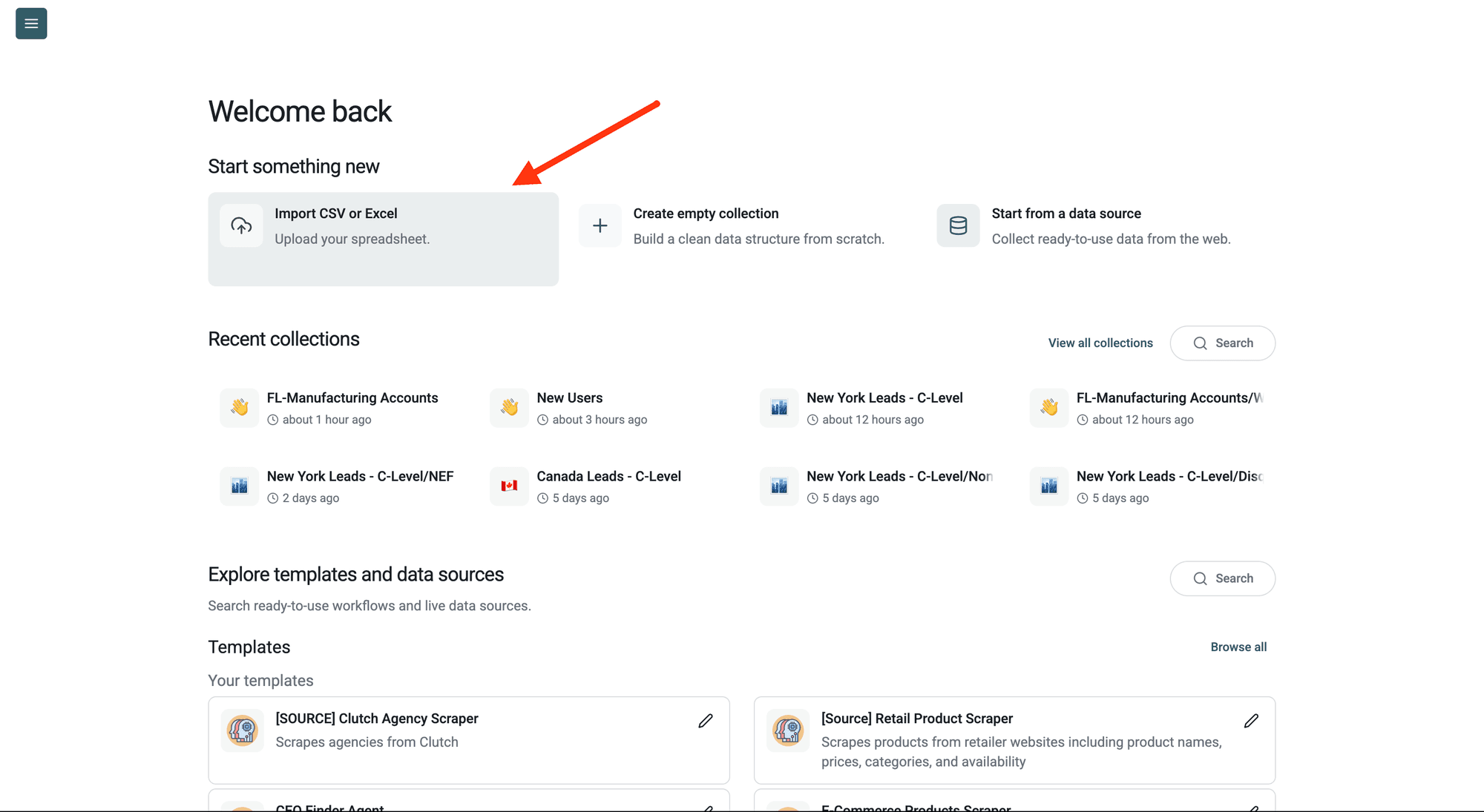
Step 2: Navigate to the Enrichment
Click Enrich in the top menu and search for Fetch website meta information.
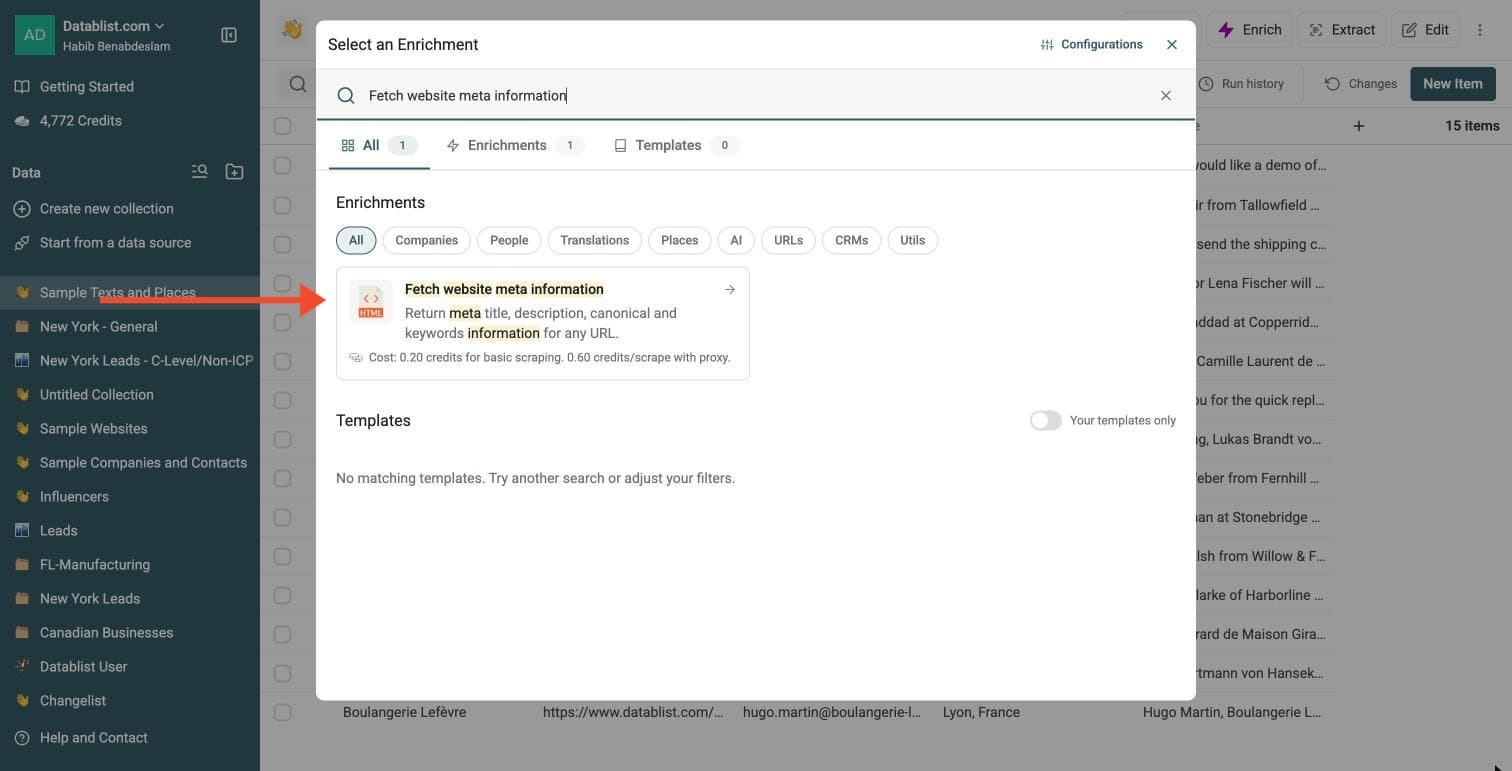
Step 3: Set Up the Enrichment
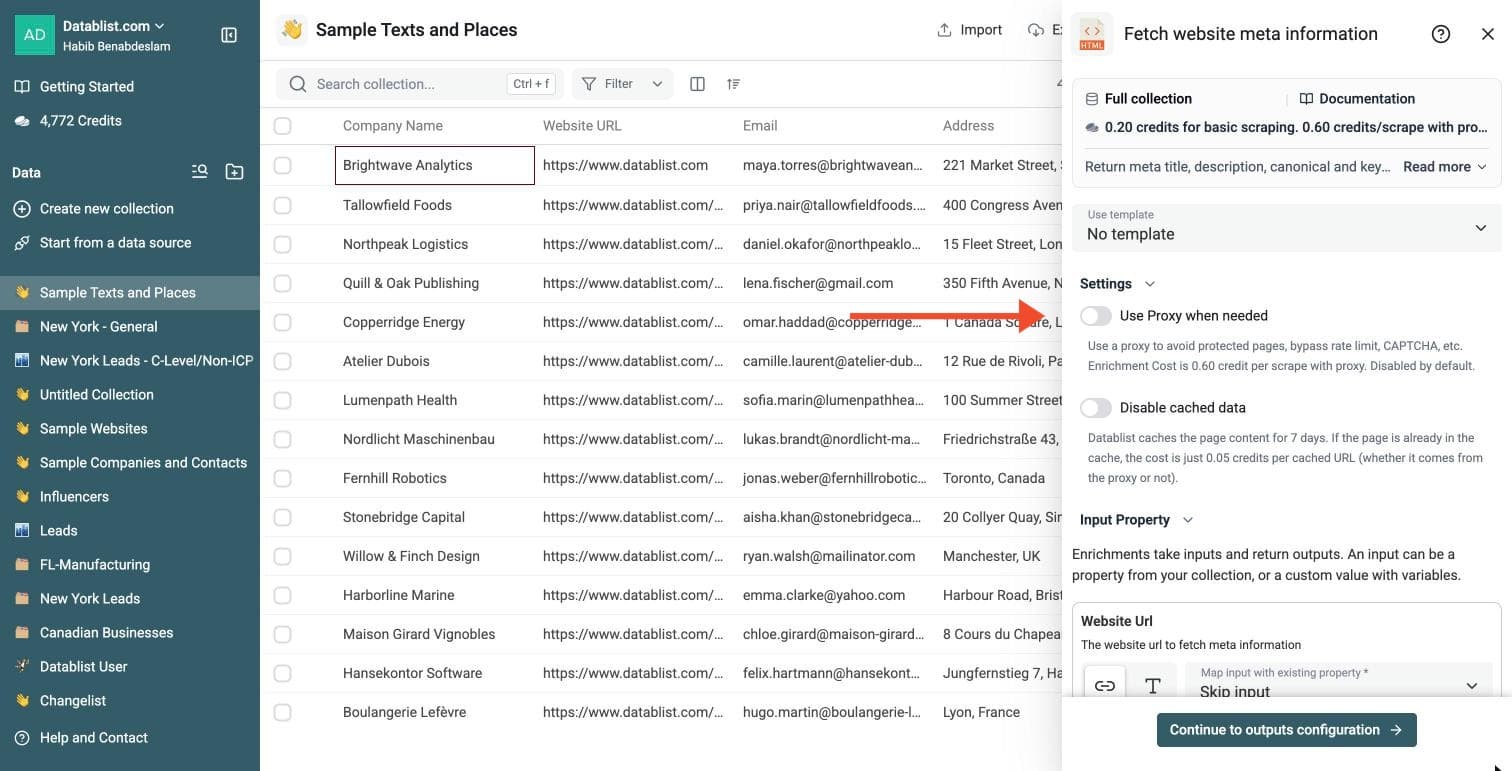
In the drawer that opens, choose how pages are fetched (both settings are optional):
-
Use Proxy when needed: use a proxy for protected pages. Costs 0.60 credits per scrape with proxy
-
Disable cached data: fetch a fresh copy instead of using the 7-day cache
With Use Proxy when needed enabled, Proxy Policy lets you choose proxy-on-error (the default) or always-proxy. Raw domains and full URLs are accepted. Empty or invalid inputs are marked in the run-status column.
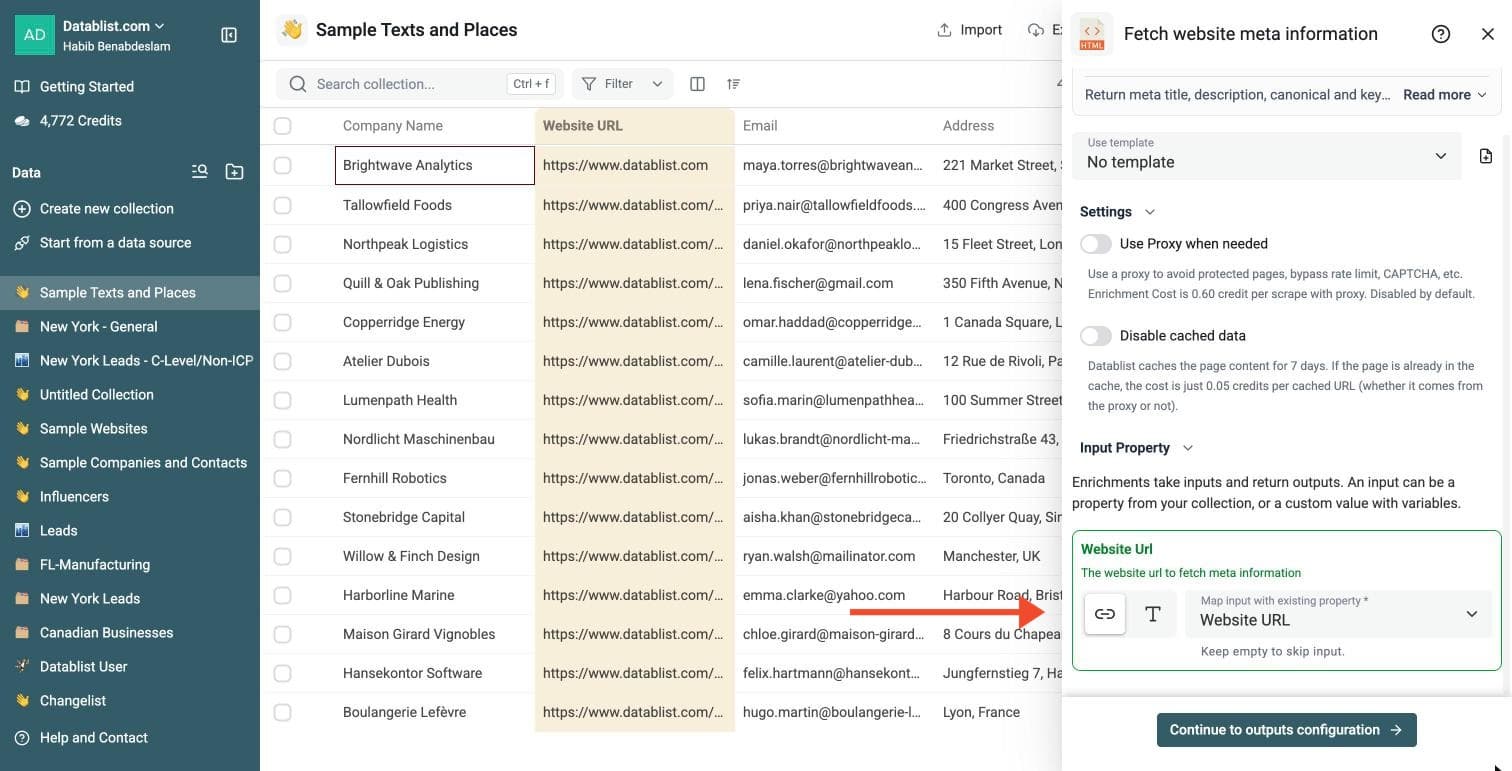
Step 4: Configure Your Inputs
Map the Website Url input to the column that holds your URLs.
Then click Continue to outputs configuration.
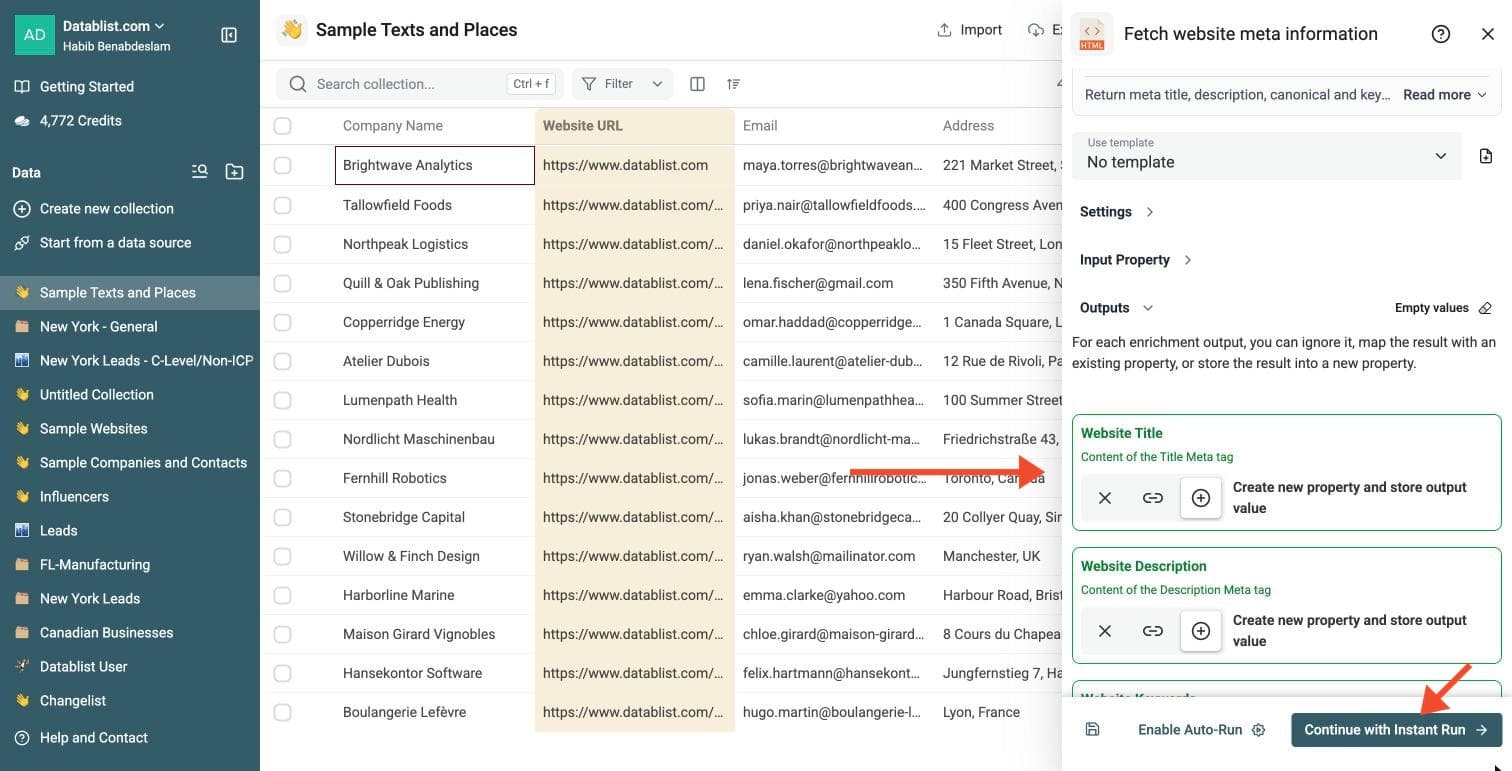
Step 5: Select Outputs
Website Meta Data Fetcher returns:
-
Website Title: the page title
-
Website Description: content of the Description meta tag
-
Website Keywords: content of the Keywords meta tag
-
Website Canonical tag
-
Website online?: whether the website is reachable
Click the ⊕ icons to add them to your collection, then click Continue with Instant Run.
Step 6: Run the Enrichment
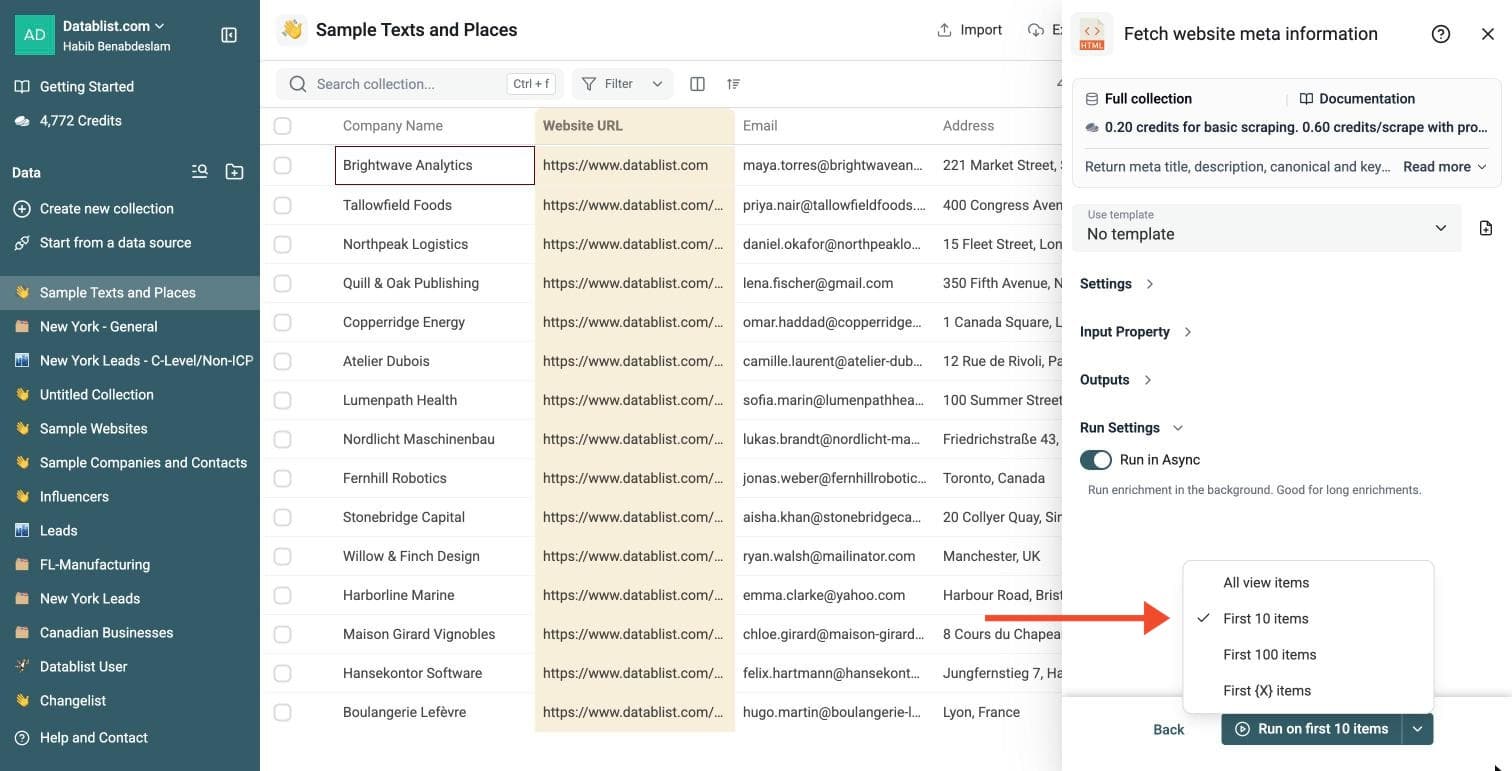
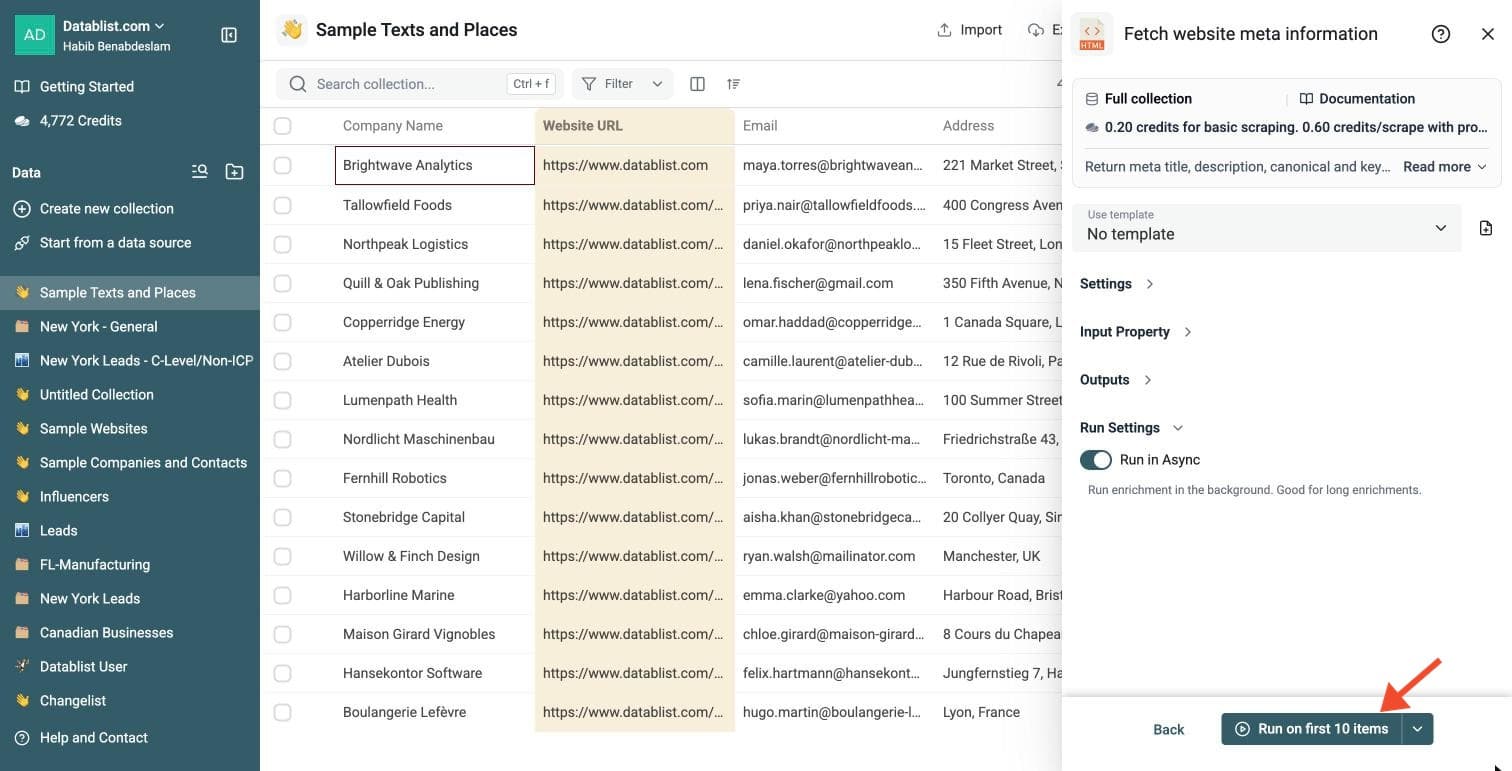
Click the chevron on the right side of the run button to choose how many items to process:
-
Run on first 10 items: Good for checking results before committing
-
Run on first 100 items: Useful for validating larger samples
-
Run on all view items: Process your entire list (or view if you've enabled filters)
Website Meta Data Fetcher costs 0.20 credits per URL, 0.60 with the proxy.
Review a small sample and the run-status column before processing the full list. Filter rows that need attention, fix inputs or settings, and rerun those rows. Export your collection when the results are ready.
Common Use Cases
SEO Metadata Audit
Export a list of pages from your CMS or sitemap, then collect titles and descriptions. Use Datablist filters to find missing, duplicated, or short metadata.
Lead Qualification
Enrich company domains with page titles and descriptions. This helps you understand what a company does before sending the list to sales.
Content Inventory
Build a content inventory from URLs. Add metadata columns, then group pages by topic, canonical URL, or missing description.
Competitor Research
Collect titles and descriptions from competitor pages to compare positioning, keywords, and landing page structure.
Domain Cleanup
Check whether URLs are online before using them in campaigns, directories, or partner lists.
Cost Examples
Basic scraping costs 0.20 credits per URL.
Proxy scraping costs 0.60 credits per URL.
Cached URLs cost 0.05 credits per cached URL when page content is already available in the 7-day cache.
Examples:
- 1,000 basic URL fetches cost 200 credits.
- 1,000 proxy URL fetches cost 600 credits.
- 1,000 cached URL fetches cost 50 credits.
Datablist sends URLs in batches of up to 50. This is a processing batch size, not a limit on your full URL list.
Tips for Better Results
- Keep the original URL column and write metadata to new columns.
- Enable proxy only when regular fetching misses too many pages.
- Disable cache when you need the latest metadata after a website update.
- Use the canonical output to detect duplicate pages.
- Filter rows where Website online? is false before running downstream enrichments.
What SEO Metadata Helps You Check
Fetch Meta Data from URLs is useful when you need a quick inventory of webpage metadata from a list of URLs.
Use it to check:
- Page titles
- Meta descriptions
- Canonical URLs
- Meta keywords when present
- Whether a website is reachable
This helps SEO teams, agencies, and marketers audit large URL lists without opening each page.