 0.05 Credits per Text
 Finds People and Company Names
 500 Free Credits to Try













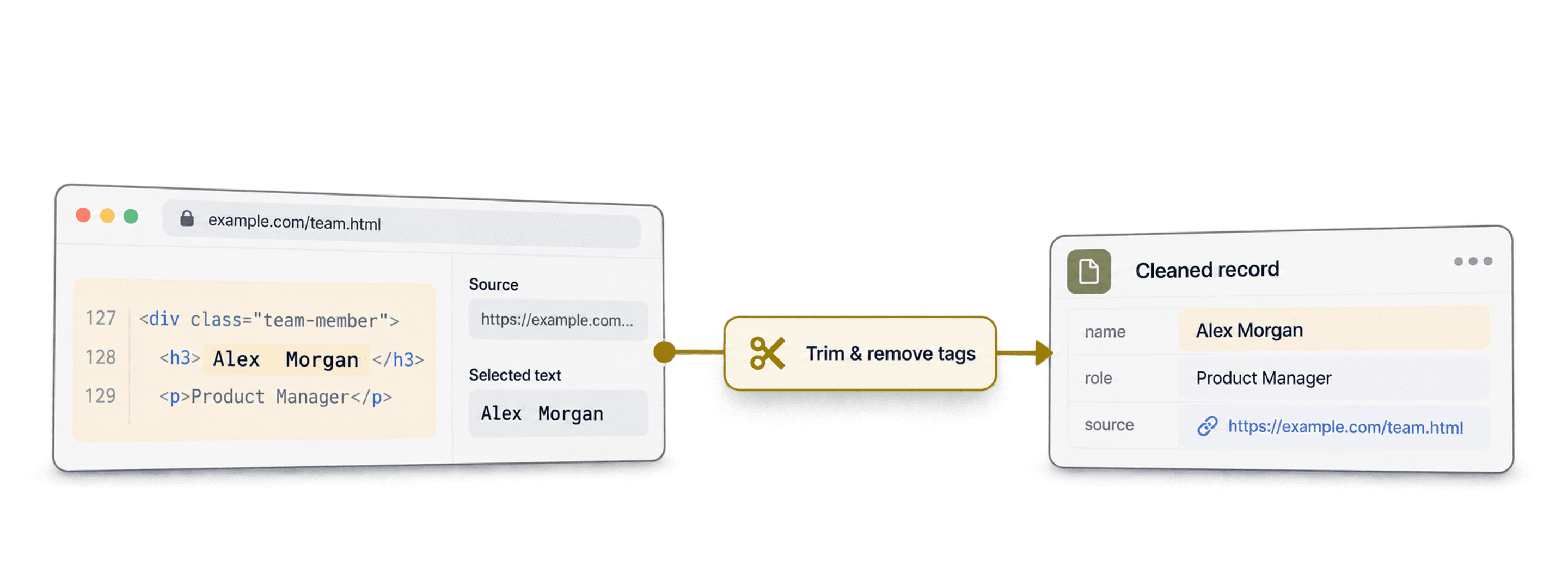
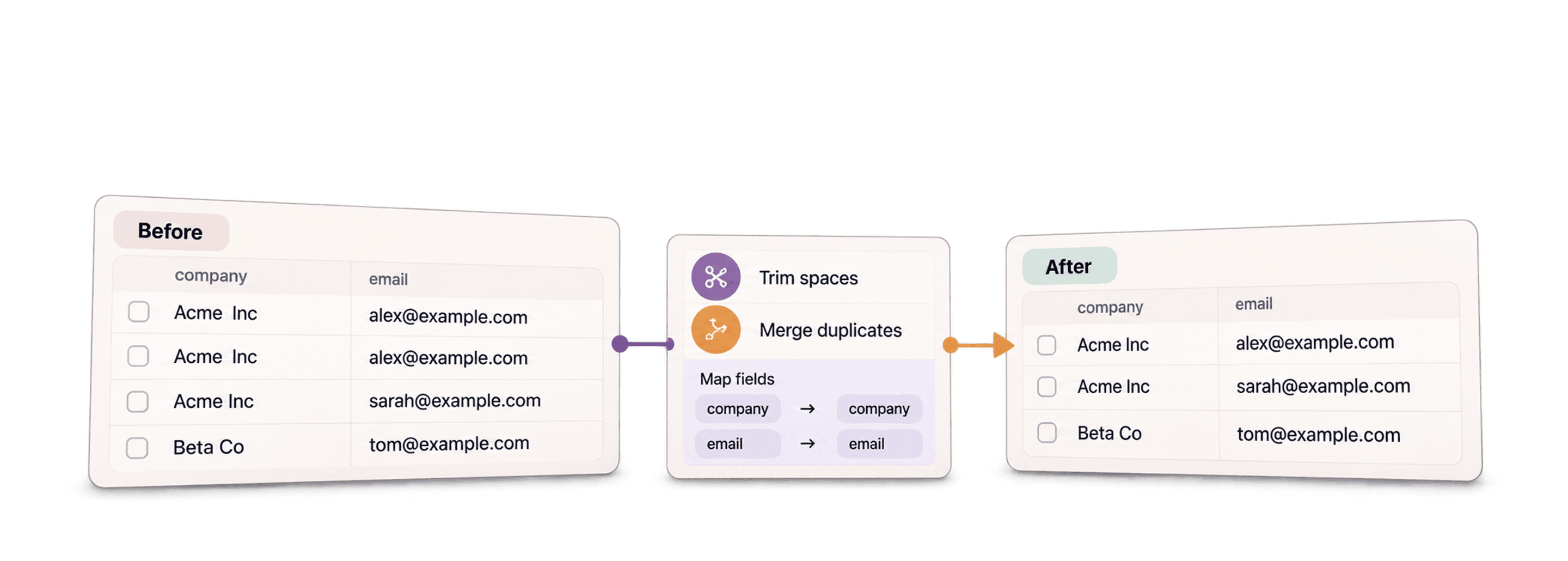
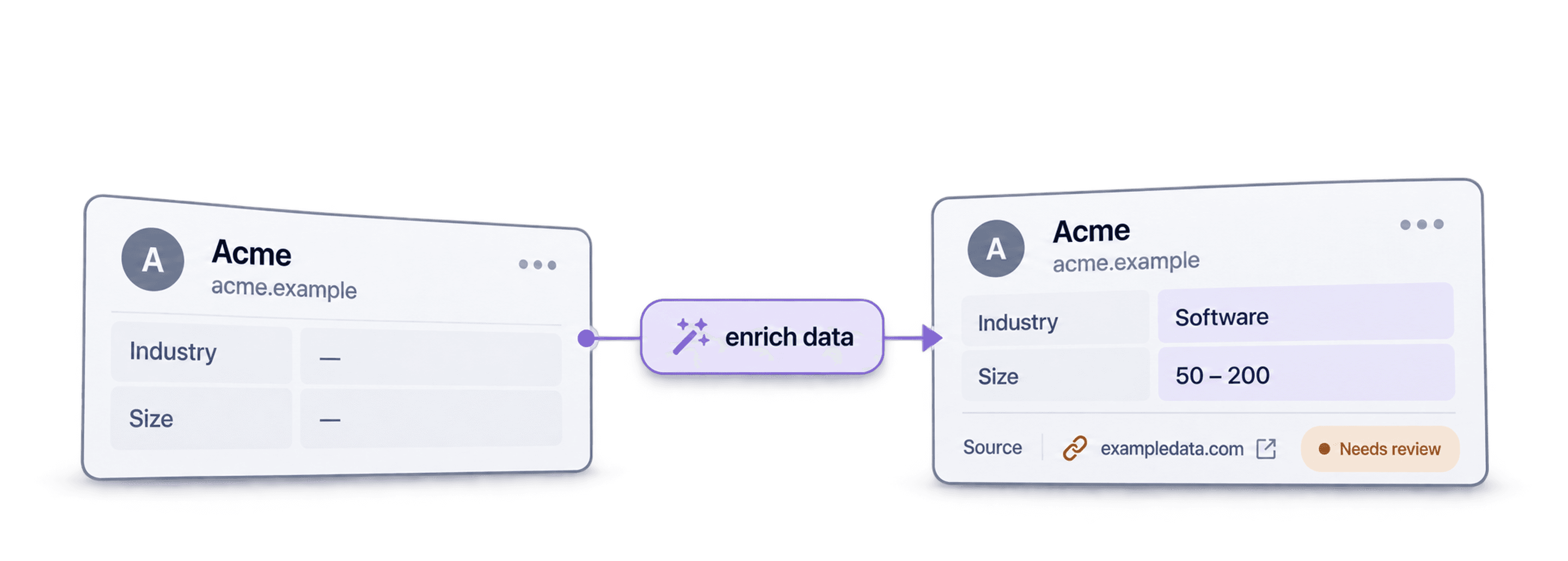

 Easy to Use
 All Settings Are Optional
 Fully No-Code
Step-by-Step Guide
Step 1: Sign Up & Upload Your Data
First, sign up for Datablist.com
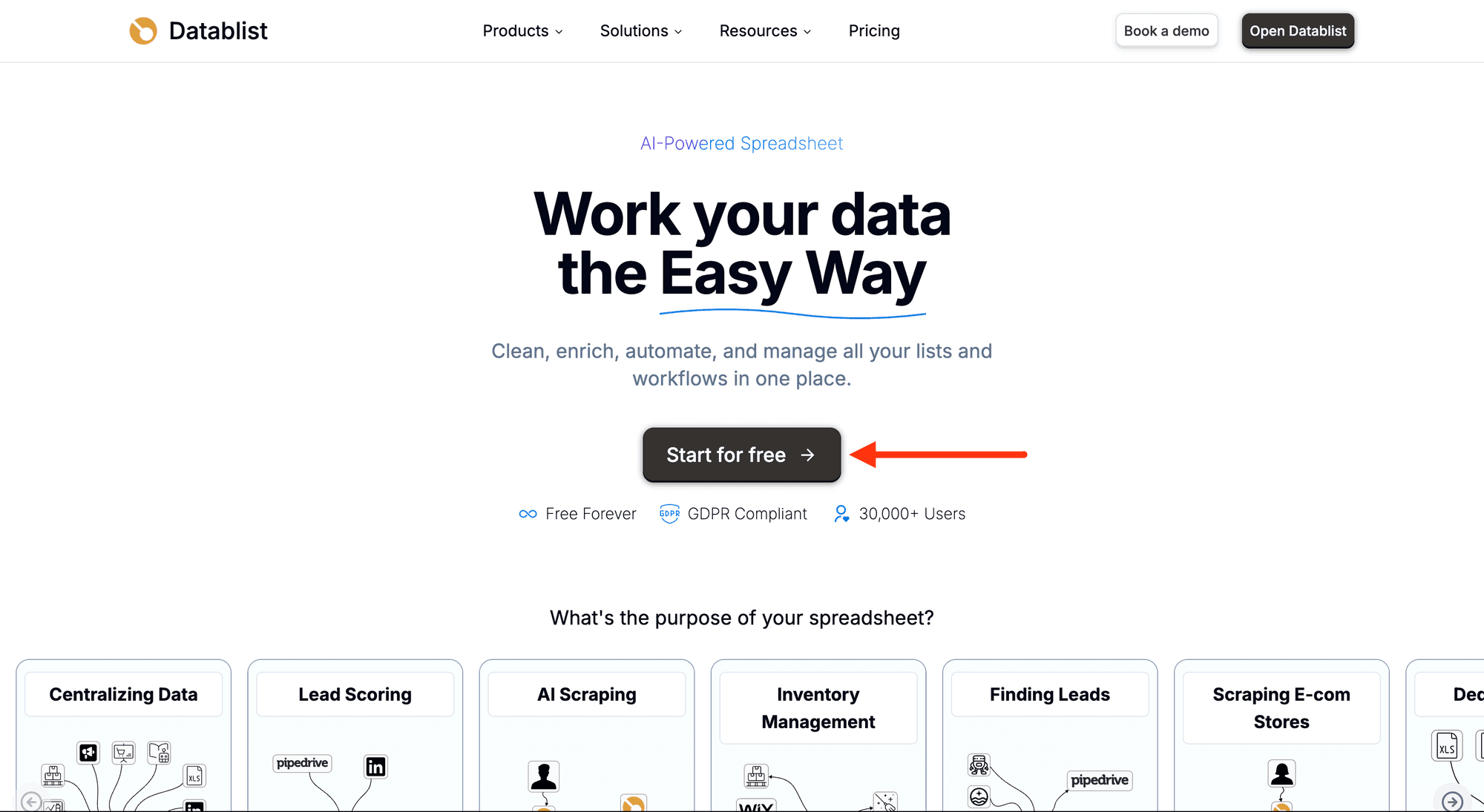
Create a collection with the CSV editor. Then, upload your CSV or Excel file with the texts you want to read.
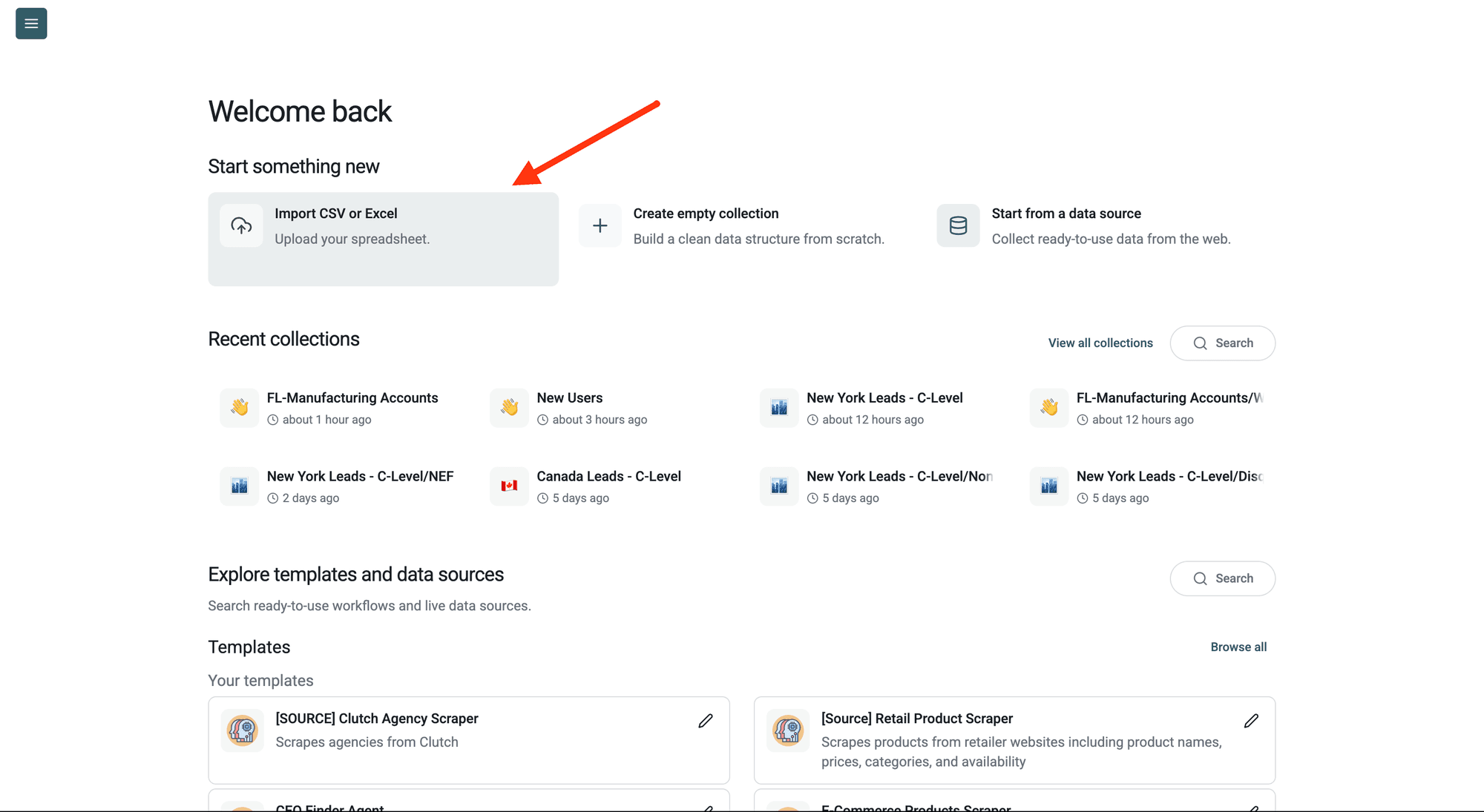
Step 2: Navigate to the Enrichment
Click Enrich in the top menu and search for Entity name extraction.
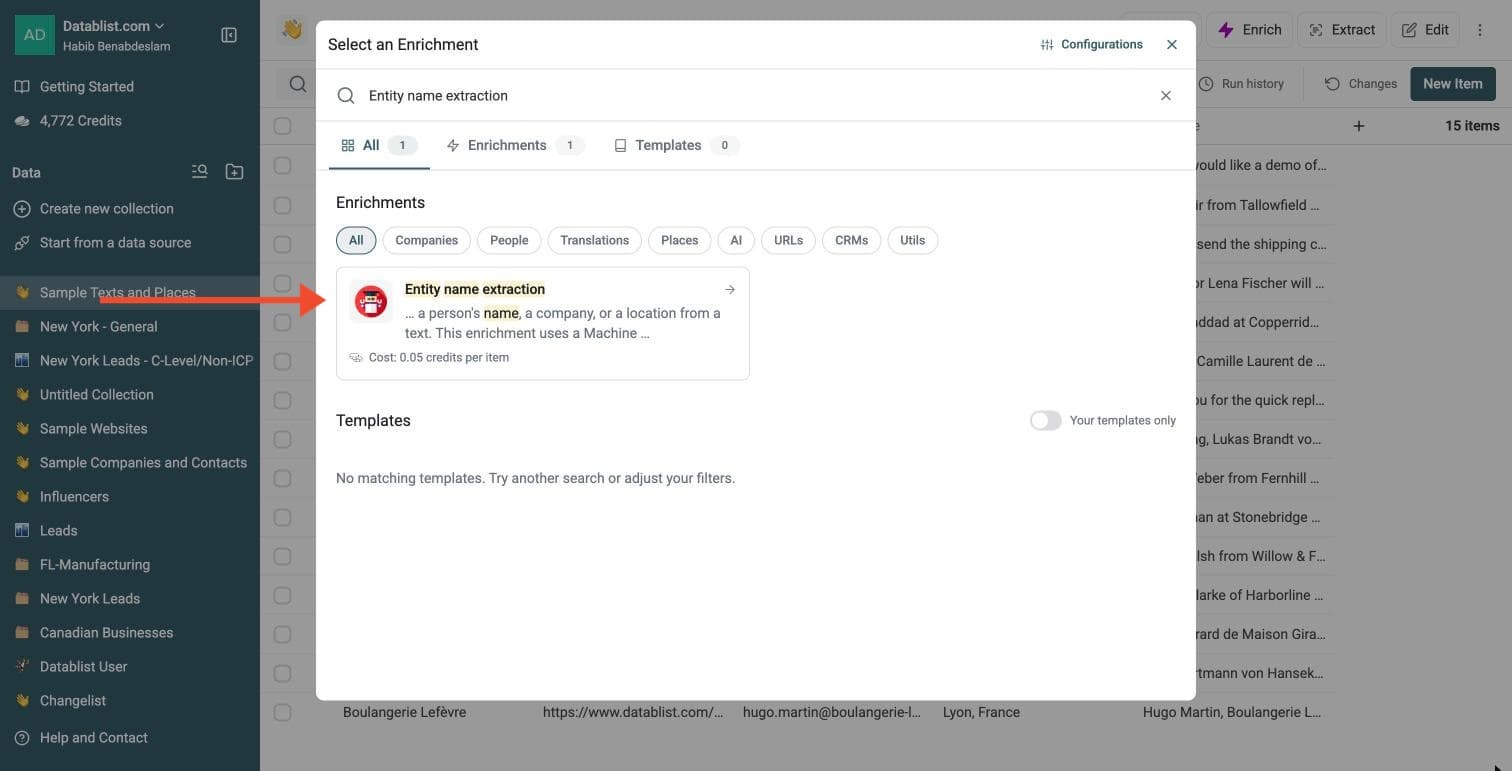
Step 3: Set Up the Enrichment
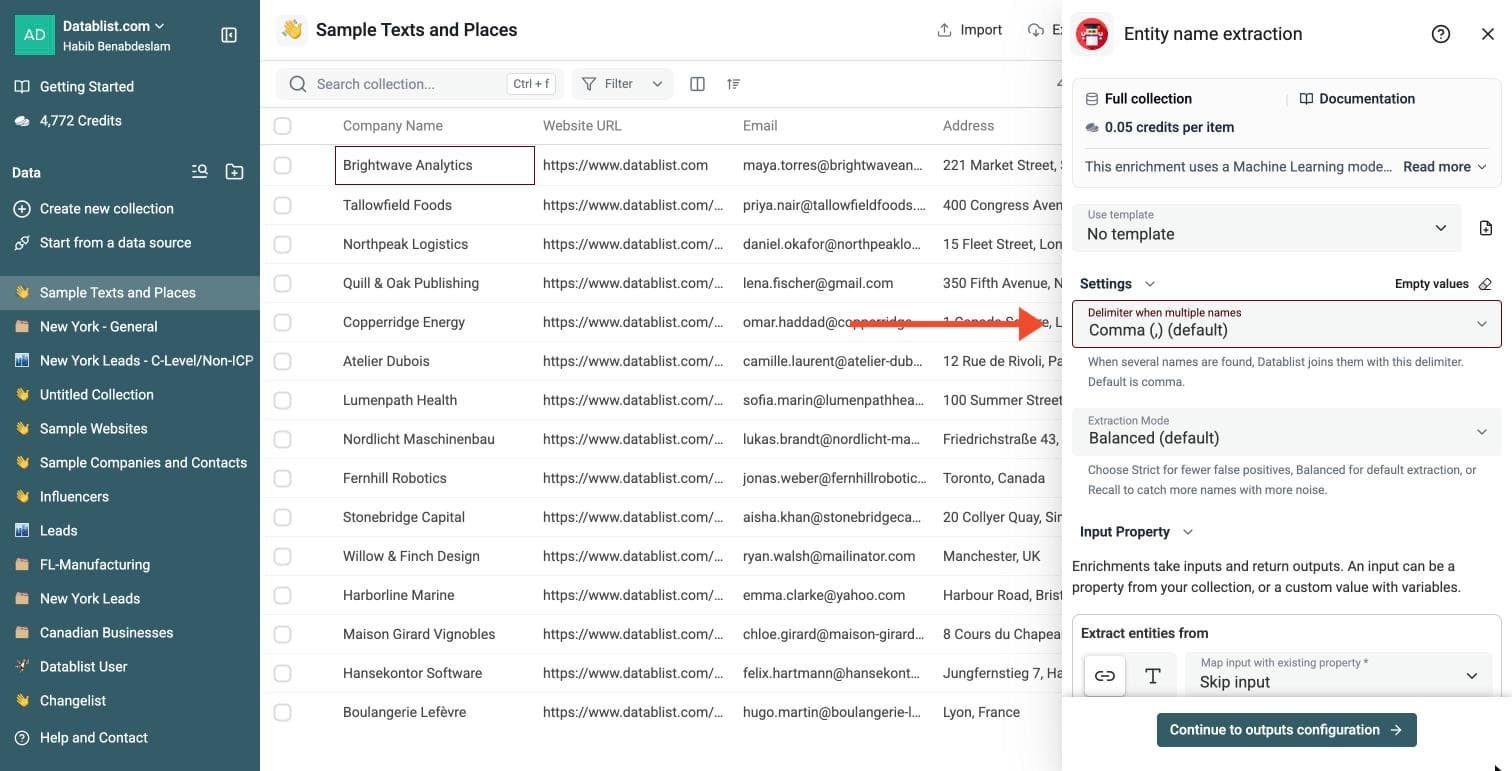
In the drawer that opens, set how names are returned:
-
Delimiter when multiple names: comma (default), space, hyphen or semicolon
-
Extraction Mode: Strict for fewer false positives, Balanced (default), or Recall to catch more names
When several names are found, Datablist joins them in the same output column. Comma is the default delimiter. Use semicolon when extracted values may contain commas. To expand delimited values into one entity per row, use the CSV Rows Splitter.
Balanced is the default mode for most lists. Use Strict when you prefer missing weak names over adding wrong names. Use Recall when you plan to review extra names after the run.
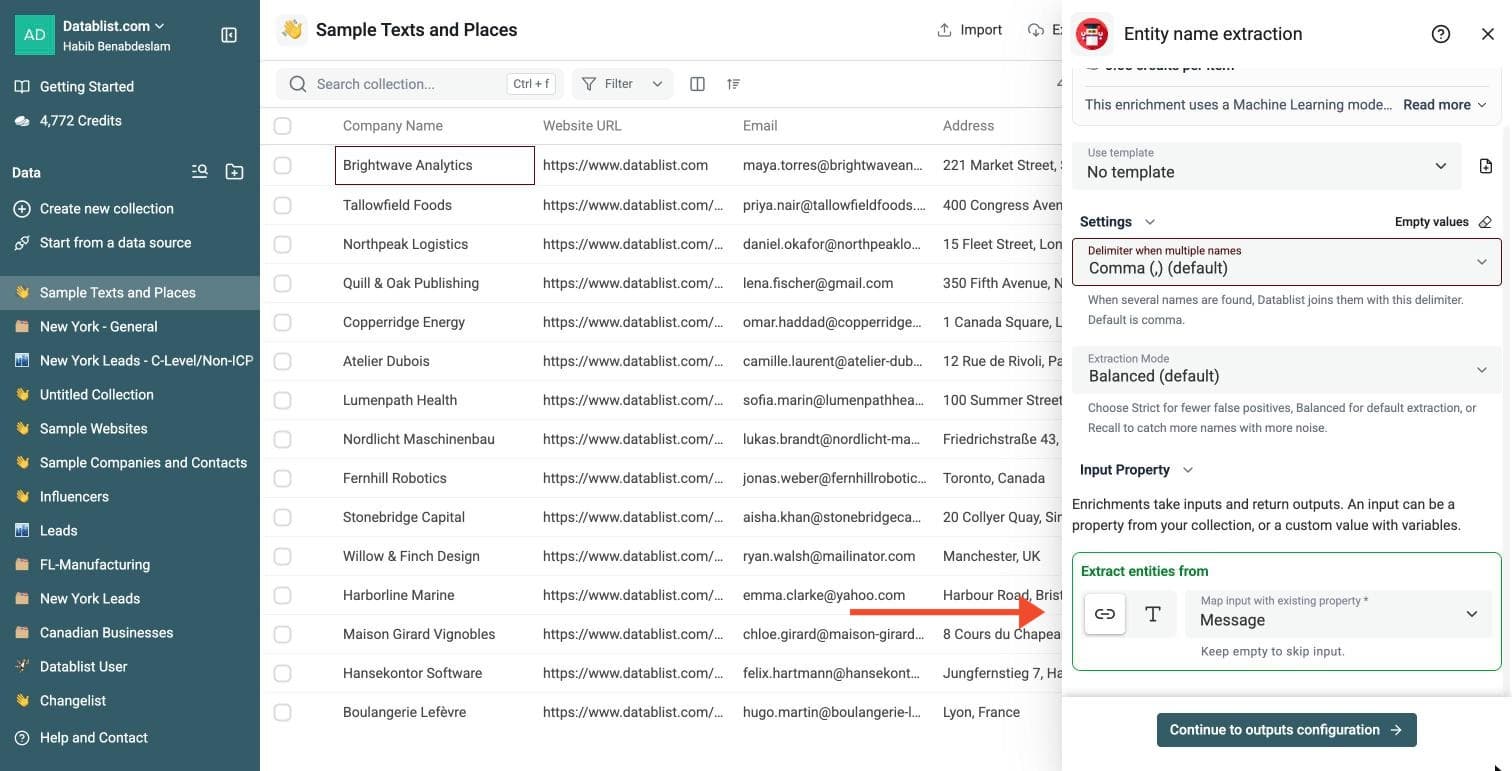
Step 4: Configure Your Inputs
Map the Extract entities from input to the column that holds your text. This can be a job description, customer message, LinkedIn or Instagram bio, company description, scraped paragraph or CRM note.
Then click Continue to outputs configuration.
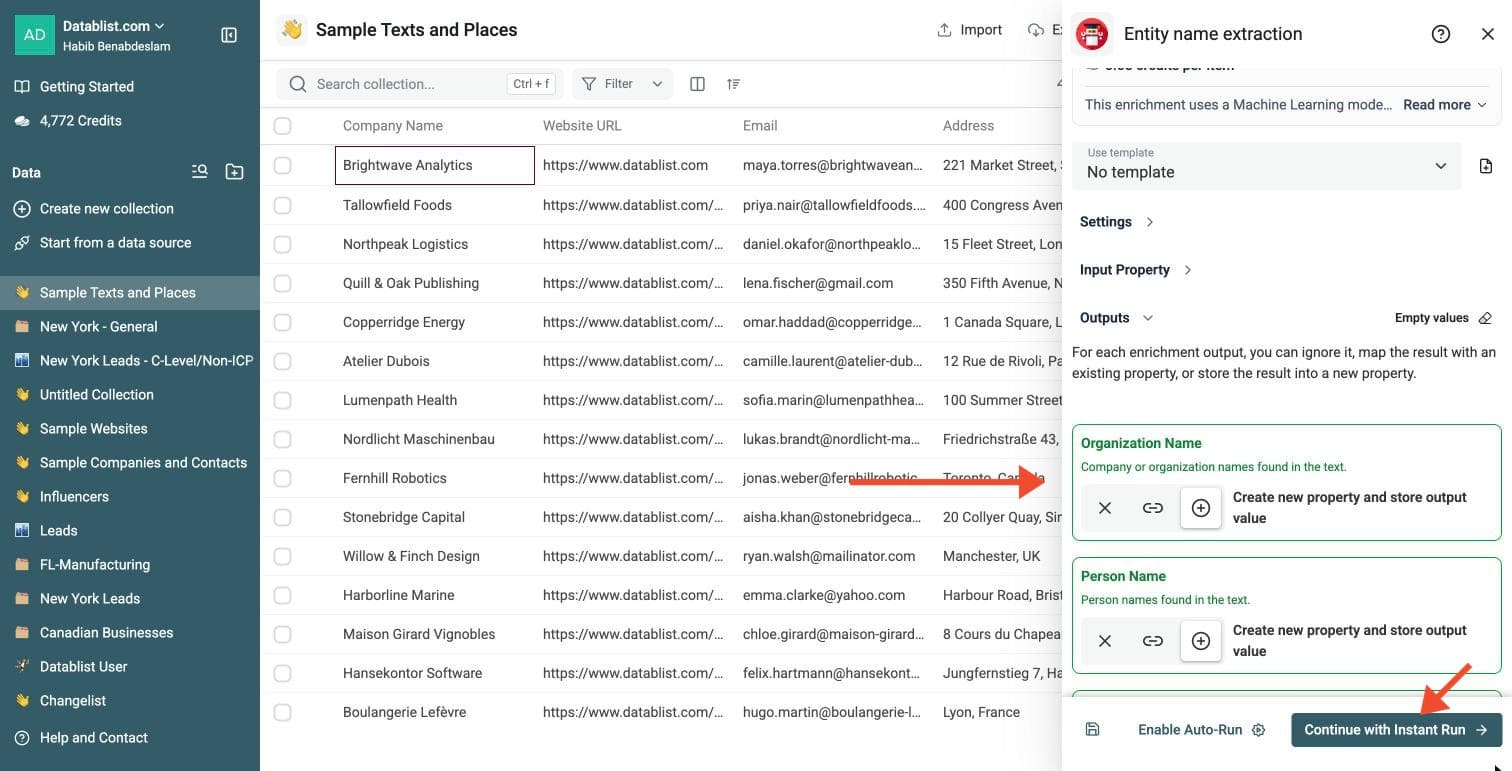
Step 5: Select Outputs
Entity Name Extraction returns:
-
Organization Name: companies and organizations found in the text
-
Person Name: people found in the text
-
Location: places found in the text
Click the ⊕ icons to add them to your collection, then click Continue with Instant Run.
Step 6: Run the Enrichment
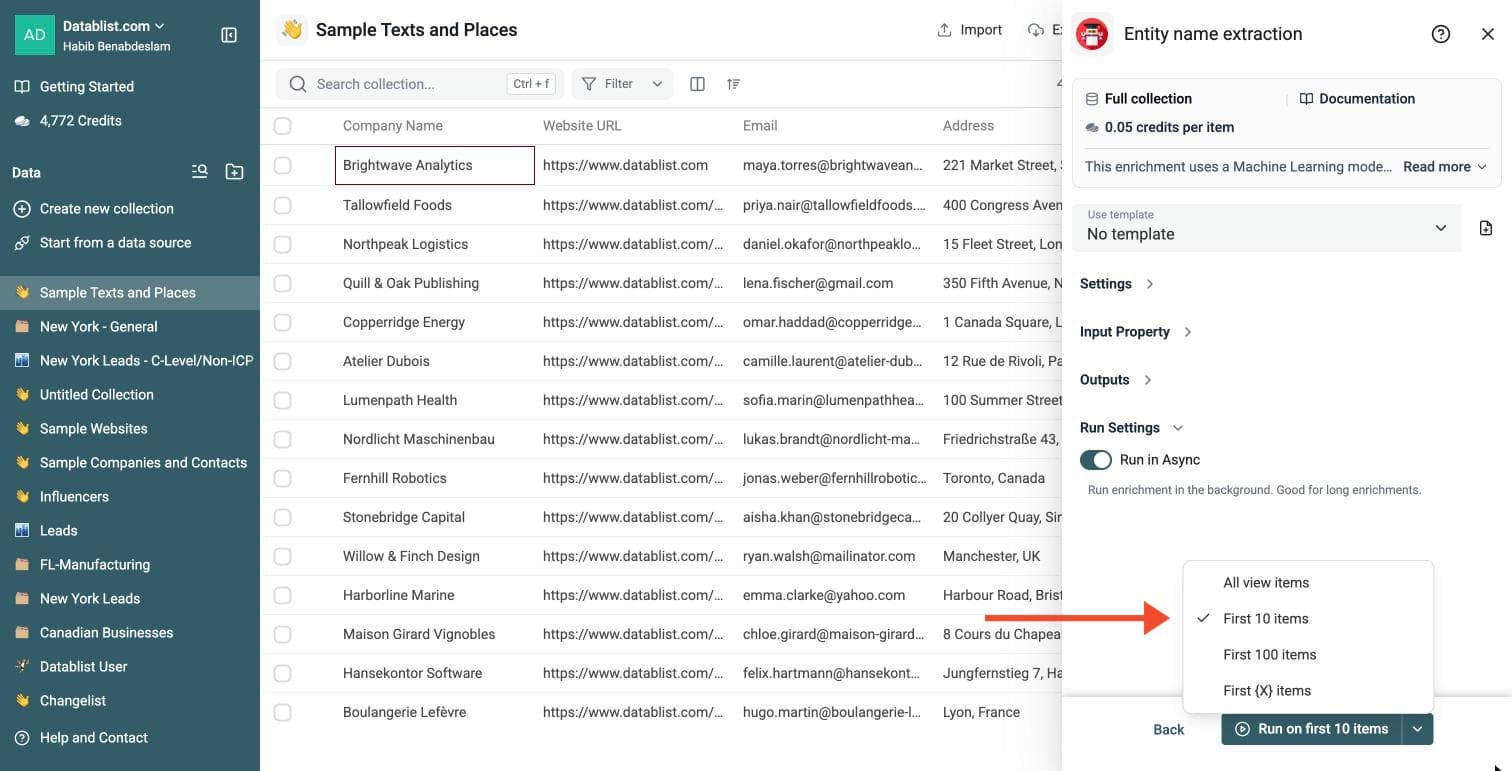
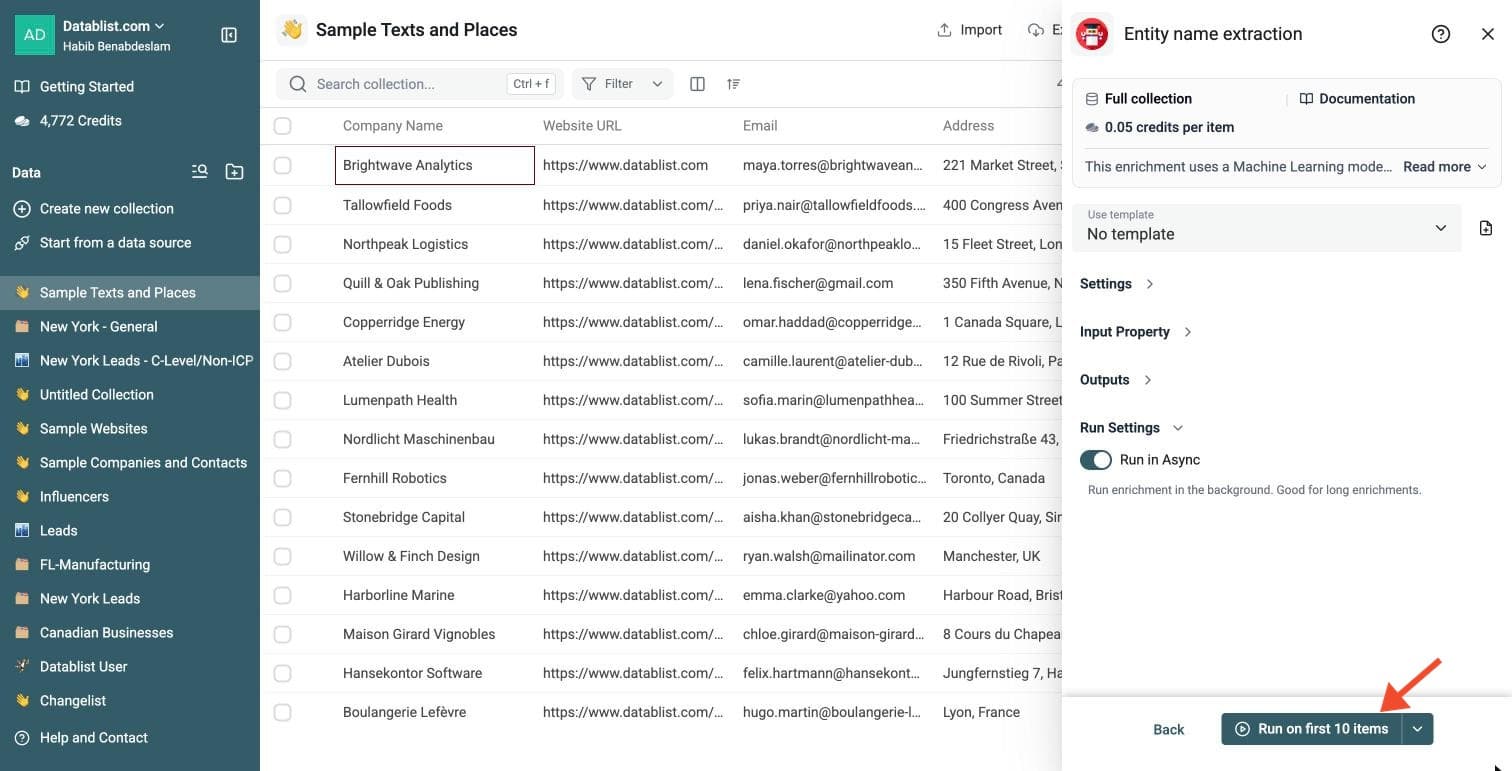
Click the chevron on the right side of the run button to choose how many items to process:
-
Run on first 10 items: Good for checking results before committing
-
Run on first 100 items: Useful for validating larger samples
-
Run on all view items: Process your entire list (or view if you've enabled filters)
Entity Name Extraction costs 0.05 credits per text.
Review a small sample and the run-status column before processing the full list. Filter rows that need attention, fix inputs or settings, and rerun those rows. Export your collection when the results are ready.
Why Use This Entity Extractor?
Use it when your text contains names but not clean columns.
- Cheap at scale - 10,000 rows cost 500 credits, around $0.50.
- Built for big lists - Run it on large CSV and Excel files inside Datablist.
- AI extraction without LLM pricing - The model finds entities locally, without sending each row to a large generative model.
- Fixed row cost - Text length does not change the price.
- No regex setup - It handles natural text where names appear in different positions.
- Works with messy text - Use it on notes, snippets, bios, tickets, form answers, or scraped pages.
- Resumable runs - Each processed row gets a status, so you can run large lists in several passes.
- Free trial friendly - New accounts get 500 credits, around $0.50 in credits, enough to process up to 10,000 rows.
Entity Extraction Examples
Here are a few examples of text you can process in bulk.
| Source Text | Person Name | Organization Name | Location |
|---|---|---|---|
| Ben Misner works at Aryeo in Denver. | Ben Misner | Aryeo | Denver |
| Agathe is a Customer Success Expert at lemlist in Paris. | Agathe | lemlist | Paris |
| Sarah Chen joined Notion after working in San Francisco. | Sarah Chen | Notion | San Francisco |
| We met Elena García from Stripe during a fintech event in Madrid. | Elena García | Stripe | Madrid |
| Acme Robotics is hiring field engineers across Berlin and Munich. | Acme Robotics | Berlin, Munich |
Common Use Cases
Extract Companies from Text
Pull company names from scraped webpages, news snippets, CRM notes, or form submissions.
Example: extract companies from a list of LinkedIn bios, then run Company Enrichment on the result.
Extract People from Notes
Find person names in meeting notes, support tickets, recruiting messages, or event attendee descriptions.
Example: parse sales notes to recover people mentioned by account executives.
Extract Locations from Text
Extract cities, countries, or places from job ads, product reviews, travel data, or customer messages.
Example: pull cities from job descriptions before filtering by region.
Prepare Data for Another Enrichment
Use the extracted organization or location as input for another Datablist enrichment, such as Company Enrichment or Location Lookup.
Clean Unstructured CRM Fields
Turn long notes into structured fields before filtering, exporting, or syncing the data to another tool.
Structure Survey Answers
Extract brands, people, and places from open survey answers without reading each response by hand.
Analyze Scraped Web Pages
Scraped pages often contain names, companies, and locations in the same paragraph. Use this enrichment to split them into columns before filtering or deduplicating your list.
Workflows with Other Datablist Enrichments
Entity extraction often works best after a scraper. The scraper collects messy text. This enrichment turns that text into clean columns.
Extract Companies and Locations from Instagram Bios
Use the Instagram Profile Scraper to collect Instagram bios, categories, websites, follower counts, and public contact details.
Then run Entity Name Extraction on the Bio column to extract:
- Company names mentioned in creator or local business bios
- Places mentioned in travel, restaurant, real estate, coaching, or local service profiles
- Person names mentioned in agency, founder, or team bios
This helps when a bio says Founder at Acme Studio - Paris but the company and location are not separate fields.
If you build Instagram lead lists from Google searches, see the guide on searching and scraping Instagram profiles by keyword. After scraping profiles, use this enrichment to structure the bio text.
Extract Companies from Facebook Group Member Bios
Facebook group member exports often include a short bio. The bio may contain work, school, city, or company information in one field.
After following the guide to scrape Facebook group members and enrich them with LinkedIn profiles, run Entity Name Extraction on the Bio column to find company and location signals.
This is useful before LinkedIn lookup. A name plus a company or city makes profile matching easier than a name alone.
Prepare Inputs for Company Enrichment
When you extract organization names from notes, bios, or scraped text, you can pass those names into Company Enrichment or another company lookup workflow.
This turns unstructured text into a company list you can enrich with domains, websites, LinkedIn data, or firmographic data.
Supported Languages
The current model is intended for English text. For other languages, translate a sample into English or test carefully before processing a large file.
It works best when the source text includes enough context around the names.
What Is an AI NER Model?
NER means Named Entity Recognition.
An AI NER model reads text and marks words that represent real-world entities. For this enrichment, the model looks for:
- People - Names such as
Sarah ChenorBen Misner. - Organizations - Company and organization names such as
StripeorAcme Robotics. - Locations - Places such as
Paris,Denver, orSan Francisco.
This is different from keyword search. A keyword search only finds exact words you define. A NER model uses context to decide whether a word is a name, a company, or a place.
For example, Paris can be a location in one sentence and part of a person name in another. The model uses nearby words to make that decision.
NER is useful when your data comes from natural language: CRM notes, bios, resumes, scraped pages, survey answers, and support tickets.
How It Compares to ChatGPT Extraction
You can ask ChatGPT to extract entities from text, but that is often overkill for this task.
Entity Name Extraction is made for one job: find people, companies, and locations. It uses an AI NER model with a fixed row price, without a generative-model call for each row.
Use this enrichment when you need fast, low-cost extraction across thousands of rows. Use a ChatGPT enrichment when you need reasoning, custom rules, summaries, or complex classification.
Why Fixed Pricing Matters for Long Text
LLM extraction usually depends on token count. A long bio, page snippet, support ticket, or scraped paragraph costs more than a short sentence because the model reads more input tokens.
Entity Name Extraction has a fixed row price. A short note and a longer text field both cost 0.05 credits when processed. Since 1,000 credits cost around $1, this is about $0.00005 per row.
This matters when you process large text columns:
- Instagram bios and profile descriptions
- Facebook member bios
- CRM notes
- Job descriptions
- Scraped web page snippets
- Survey answers
Compare the fixed row cost with your chosen LLM and text lengths when estimating a large extraction job.
Cost Examples
Entity Name Extraction costs 0.05 credits per processed row. 1,000 credits cost around $1.
Examples:
- 1,000 rows cost 50 credits, around $0.05.
- 10,000 rows cost 500 credits, around $0.50.
- 100,000 rows cost 5,000 credits, around $5.
New accounts get 500 free credits on signup, around $0.50 in credits, which covers up to 10,000 rows with this enrichment.
Empty rows are skipped without credits. Rows with text are processed and cost 0.05 credits, about $0.00005, even when no entity is found.
Rows with no extracted entity are marked as no result. Empty inputs are marked as empty data, so you can filter them after the run.
Questions This Tool Answers
People often look for this enrichment when they ask:
- How can I extract company names from a text column?
- How can I extract people and locations from a CSV file?
- How can I turn CRM notes into structured fields?
- How can I extract companies from Instagram bios?
- How can I extract companies from Facebook member bios?
- How can I run named entity recognition on an Excel file?
- How can I extract entities without paying LLM token costs?
If your source is a spreadsheet with free-text fields, this enrichment gives you a direct workflow: import the file, map the text column, choose outputs, preview, and run.
Tips for Better Results
- Use a source column with natural text, not isolated keywords.
- Choose semicolon as delimiter if you plan to split values later.
- Keep the original text column for review.
- Run a preview with short and long text examples.
- Use Strict mode when false positives are costly.
- Use Recall mode when you want to catch more entities and review later.
- Chain the output with other enrichments when you need more structured data.