
Full names are not enough when you need clean personalization, deduplication, or CRM imports. You often need separate columns for first name, last name, title, gender, or likely country.
Datablist's Name Parser enrichment parses a name column in bulk. It splits full names into structured fields and can guess gender, the country where the name is most common, and a confidence level for the country.
It also handles messy spreadsheet values. For example, it can parse names written in all caps, names stored as email addresses, Last, First formats, names with titles, and names followed by job context.
Use it to clean lead lists, prepare cold emails, format CRM imports, normalize event attendees, or split names from scraped data.
Step-by-step guide
Step 1: Load your CSV or Excel file on Datablist
Create a free account and import your data file. Datablist is a CSV editor built for large lists, so you can parse thousands of names without spreadsheet formulas.
Create a new collection and import your file.
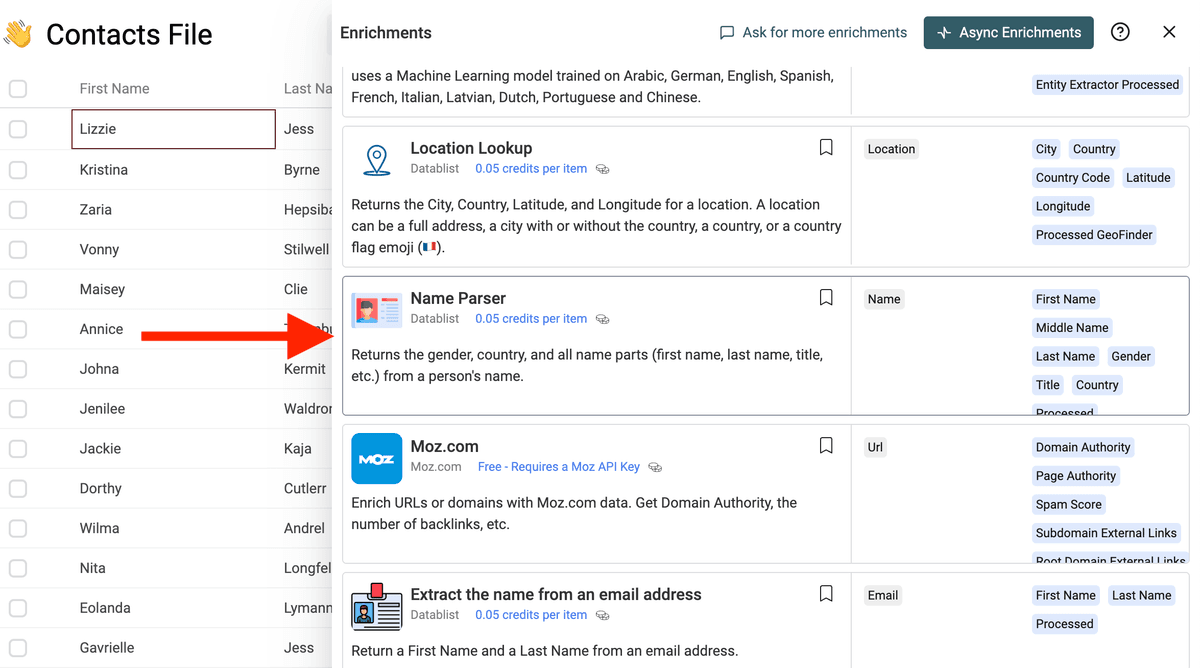
Step 2: Select the "Name Parser" enrichment
Click on the "Enrich" button, and search for "Name Parser".
Step 3: Map the Name Input
Connect the Name input to the column that contains the full name.
Examples:
John Fitzgerald KennedyDr. Marie CurieJean DupontAna Maria SilvaSMITH, JOHNjohn.doe@example.comJohn Smith (CEO)
Datablist cleans the value before parsing it. It removes extra spaces, fixes casing when the source is all caps, strips some trailing context, and rejects values that do not look like person names.
Step 4: Choose the Output Columns
The enrichment can return:
- First Name - The first name part.
- Middle Name - The middle name part.
- Last Name - The last name part.
- Gender - Male or Female when Datablist can infer it.
- Title - Title or honorific, such as Dr., Mr., Jr., or Mme.
- Country - The country where the name is most common.
- Country Confidence - Confidence for the country inference.
- Processed - A checkbox used to track processed rows.
Gender and country are computed only when you select those outputs. If you only need first and last names, map only those columns.
The country output is based on name frequency. It is useful for rough segmentation, deduplication, and list cleanup. It is not a verified location.
Example outputs:
| Input | First Name | Middle Name | Last Name | Title | Country | Country Confidence |
|---|---|---|---|---|---|---|
| John Fitzgerald Kennedy | John | Fitzgerald | Kennedy | United States | High | |
| Dr. Marie Curie | Marie | Curie | Dr | France | High | |
| SMITH, JOHN | John | Smith | United States | High | ||
| Poullin Florian | Florian | Poullin | France | High | ||
| john.doe@example.com | John | Doe | United States | High | ||
| John Smith (CEO) | John | Smith | United States | High |
Step 5: Preview and Run
Run a preview on a sample of names. Include simple names, names with titles, compound names, and names from different countries.
When the output looks correct, run the enrichment on the full list.
Messy Name Formats Supported
Real lists rarely contain clean full names. The Name Parser handles many common spreadsheet formats.
Names with titles and suffixes
The parser recognizes titles and honorifics such as:
Dr. Jane SmithMr John Doe Jr.Mme Marie CurieProf. Albert EinsteinSir Isaac NewtonM. Jean Dupont
It returns the title in a separate output when available.
Names in uppercase or lowercase
If your file contains JOHN DOE, Datablist returns John and Doe.
This helps with exports from CRMs, event tools, and legacy databases where names are stored in uppercase.
Last name first formats
The parser supports comma-separated names such as:
SMITH, JOHNDoe, Jane - CFOde la Cruz, Juan
It also detects some reversed two-word names when the data gives a strong signal. For example, Poullin Florian becomes:
- First Name: Florian
- Last Name: Poullin
Email-style values
If your name column contains email addresses, Datablist can parse the local part when it looks like a person name:
john.doe@example.com-> John Doemary-jane.smith@example.com-> Mary-Jane Smithjane_smith123@example.com-> Jane Smithjohn.smith+newsletter@example.com-> John Smith
Generic inboxes are rejected instead of parsed as names. Examples: support@example.com, hr@example.com, jobs@example.com, press@example.com, and no-reply@example.com.
Plus aliases are handled when the local part still contains a name. For example, john.smith+newsletter@example.com is parsed, but john+newsletter@example.com is skipped because it does not contain enough name evidence.
Names with trailing context
Datablist removes some common context after the name:
John Smith (CEO)-> John SmithElon Musk - Tesla-> Elon MuskJane Doe | Product Manager-> Jane DoeMarie Curie • Nobel Prize-> Marie Curie
This is useful for scraped data, LinkedIn exports, and event attendee lists where the name field contains a role or company.
Compound and international names
The parser supports hyphenated names, apostrophes, particles, and accented characters:
Jean-Luc PicardAnne-Marie O'NeillJuan de la CruzLeonardo da VinciGabriel García MárquezMohamad Bin Salman
For gender and country, Datablist uses name frequency data. The country output is a likely country for the name, not a verified location.
Country Confidence
Some names point clearly to one country. Others are common in many countries.
The Country Confidence output helps you decide how much to trust the country value:
- High - The name gives a clear country signal.
- Medium - The country signal is useful, but not unique.
- Low - The country signal is weak.
- Very Low - The name gives little country evidence.
Use this field before segmenting a list by country. For example, you can keep High and Medium rows for broad analysis, then leave Low rows blank or review them.
Do not use the country output as proof of nationality, residence, or legal location. It is a name-based guess.
Values Rejected as Non-Person Names
Name Parser avoids returning fake names for values that are not person names.
It rejects:
- Empty values
N/A,unknown,null, and similar placeholders- Numbers and symbol-only values
- Initial-only values such as
J D - Obfuscated emails such as
john at example dot com - Generic inboxes such as
support@,hr@, andjobs@ - Company names with legal suffixes such as
Acme LLC,Datablist SAS, orExample GmbH - Unsupported non-Latin names when the parser cannot identify a reliable person name
Rejected rows are marked in the run status so you can filter and review them.
This matters for bulk work. The parser prefers an empty result over a wrong first name when a row looks like a company, mailbox, placeholder, or noisy export value.
Run Status and Credits
Each processed row gets a run status.
- Parsed rows return a success status and cost 0.05 credits.
- Rows where the parser runs but finds no reliable name return a no-result status and cost 0.05 credits.
- Empty inputs return an empty-data status and do not use credits.
The Processed output lets you skip rows that were already checked when you rerun the enrichment.
Use the no-result status to inspect rows manually. It often finds bad source data: company names in the contact column, role inboxes, placeholders, or names with scripts the parser cannot validate.
Common Use Cases
Personalize Cold Emails
Split full names into first names so your outreach tool can use a clean greeting.
This works even when the source file contains values such as SMITH, JOHN, john.doe@example.com, or John Smith - CEO.
Clean CRM Imports
Many CRMs expect first name and last name in separate fields. Name Parser prepares the file before import.
Normalize Event or Webinar Lists
Turn attendee names into structured fields before deduplication, segmentation, or follow-up campaigns.
Prepare Recruiting Data
Split candidate names from resumes, sourcing exports, or job board data before uploading them to an ATS.
Improve Deduplication
Separate name parts before matching records. This helps when one file has John Smith and another has John A. Smith.
Name Parser or Extract Name from Email?
Use Name Parser when your column contains a mix of full names and name-like email addresses.
Use Extract Name from Email Address when your input is only email addresses and you want a tool focused on email patterns.
Cost Examples
Name Parser costs 0.05 credits per parsed or attempted row.
Examples:
- 1,000 names cost 50 credits.
- 10,000 names cost 500 credits.
- 100,000 names cost 5,000 credits.
New accounts get 500 free credits on signup, which covers up to 10,000 name parsing rows.
Empty rows are skipped without credits. Rows with text that the parser checks but cannot validate are attempted rows and cost 0.05 credits.
Tips for Better Results
- Keep the original full name column.
- Write parsed values to new columns.
- Preview names from several countries before running a large file.
- Map gender and country only if you need them.
- Map Country Confidence when you use the country output.
- Keep the Processed column so reruns skip rows already checked.
- Filter no-result rows after the run to inspect bad inputs, company names, and placeholders.
- Use the country output for broad segmentation only. It is based on name frequency, not a verified address.
FAQ
Can I split full names from a CSV file?
Yes. Import your CSV or Excel file, map the full name column, and run Name Parser to create structured name fields in bulk.
What fields can Name Parser return?
The page lists outputs such as first name, last name, title, gender, likely country, and confidence fields depending on your selected outputs.
Can it handle names with titles or suffixes?
Yes. The page includes support for messy name formats such as titles, suffixes, uppercase names, lowercase names, and last-name-first formats.
Should I keep the original name column?
Yes. Keep the original full name and write parsed fields into new columns so you can review edge cases and rerun rows if needed.