 35 Credits / 1k Characters
 109 Target Languages
 500 Free Credits to Try














 Easy to Use
 Fully No-Code
 38,000+ Users
Step-by-Step Guide
Step 1: Sign Up & Upload Your Data
First, sign up for Datablist.com
Create a new collection with the CSV editor. Then, upload your CSV or Excel file with the text you want to translate.
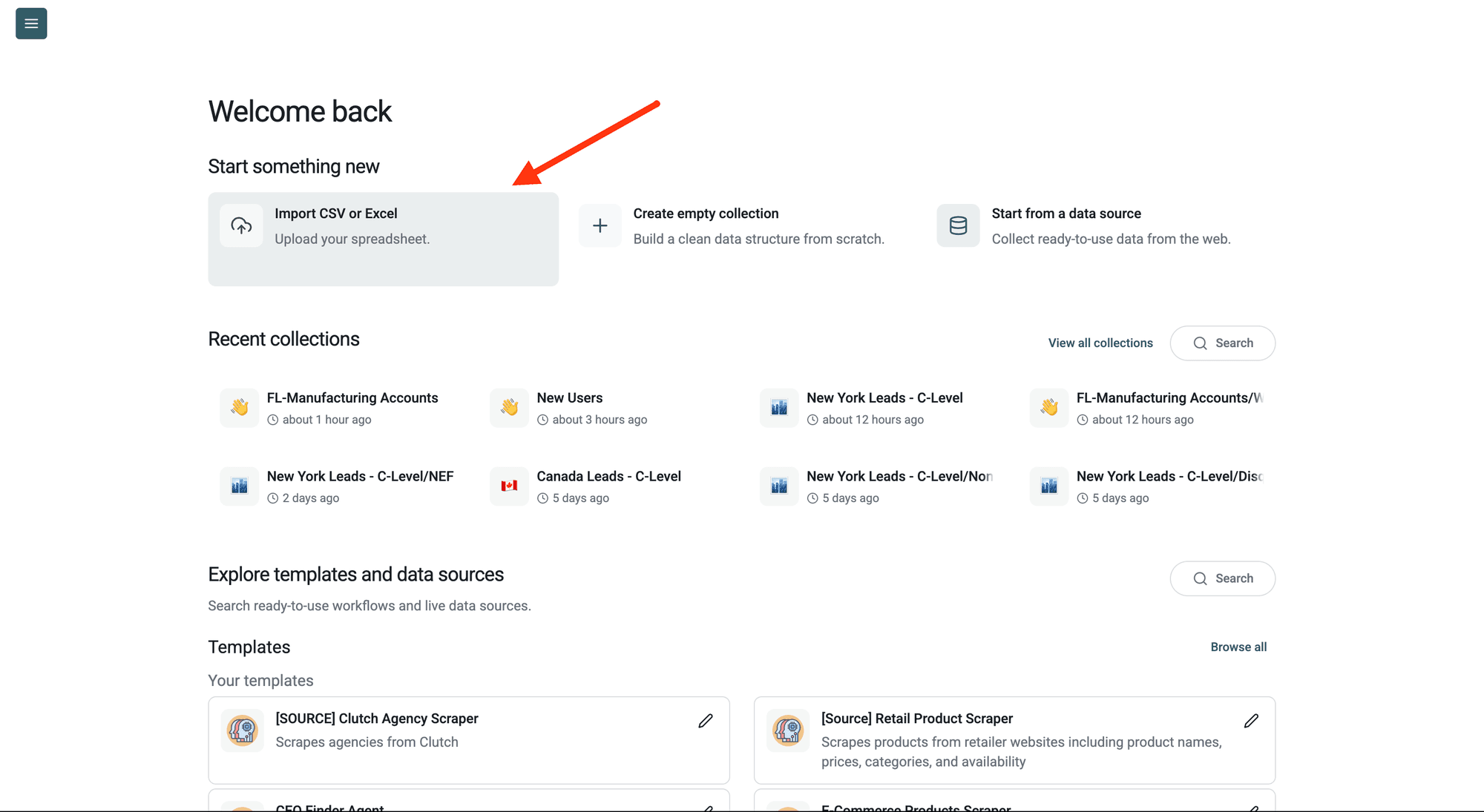
Step 2: Navigate to the Enrichment
Click Enrich in the top menu and search for Google Translate.
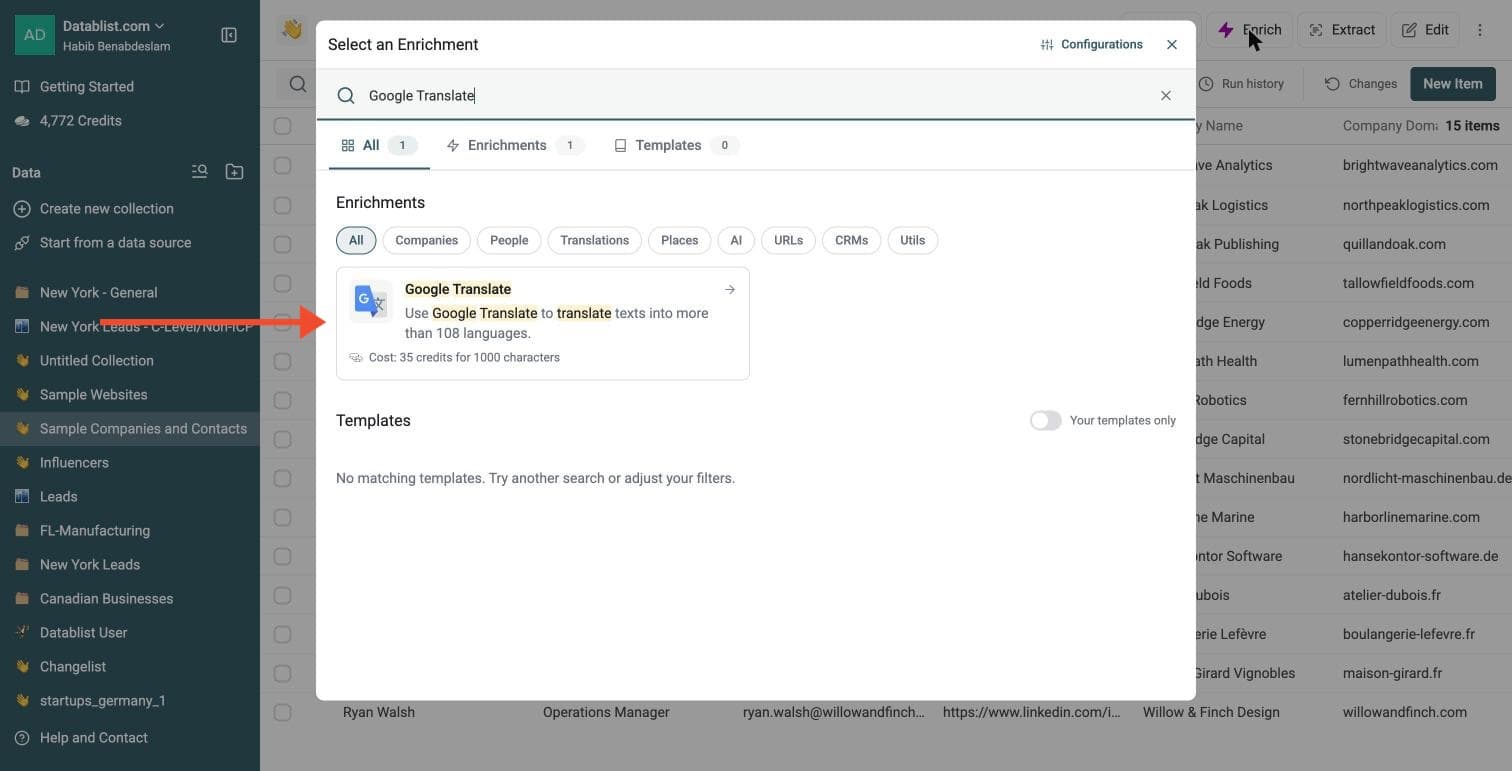
Step 3: Set Up the Enrichment
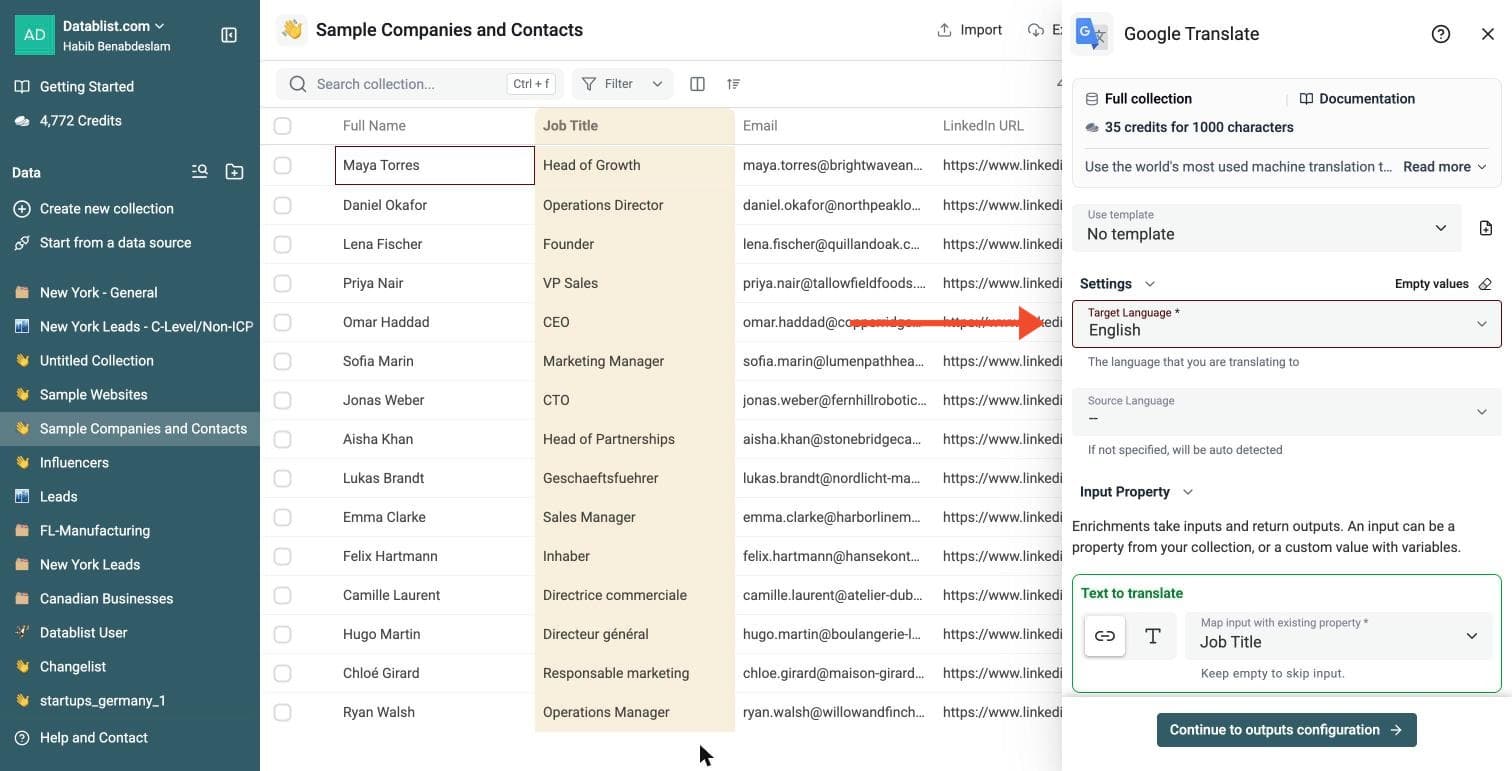
In the drawer that opens, choose your languages:
-
Target Language: required. The language you are translating to
-
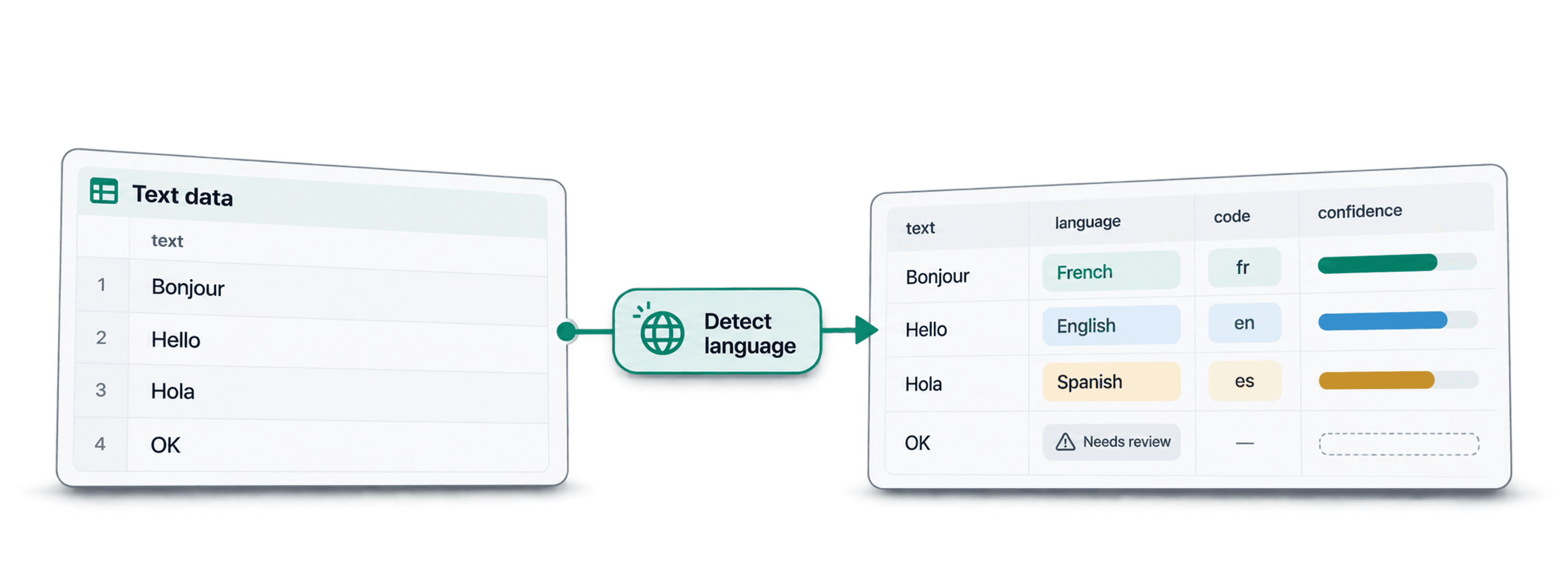
Source Language: optional. Leave it empty and the language is detected automatically
Step 4: Configure Your Inputs
Map the Text to translate input to the column that holds the text you want to translate.
Then click Continue to outputs configuration.
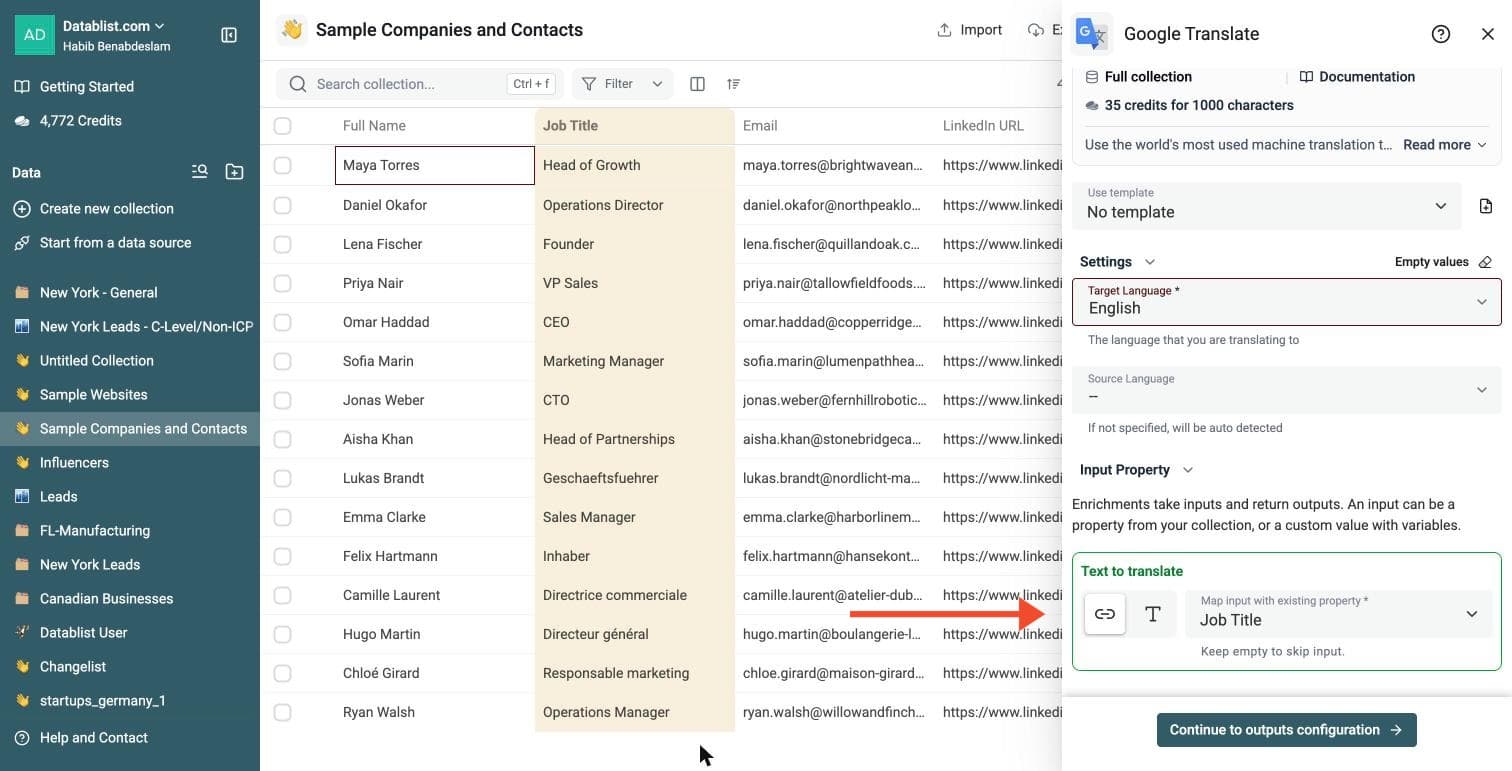
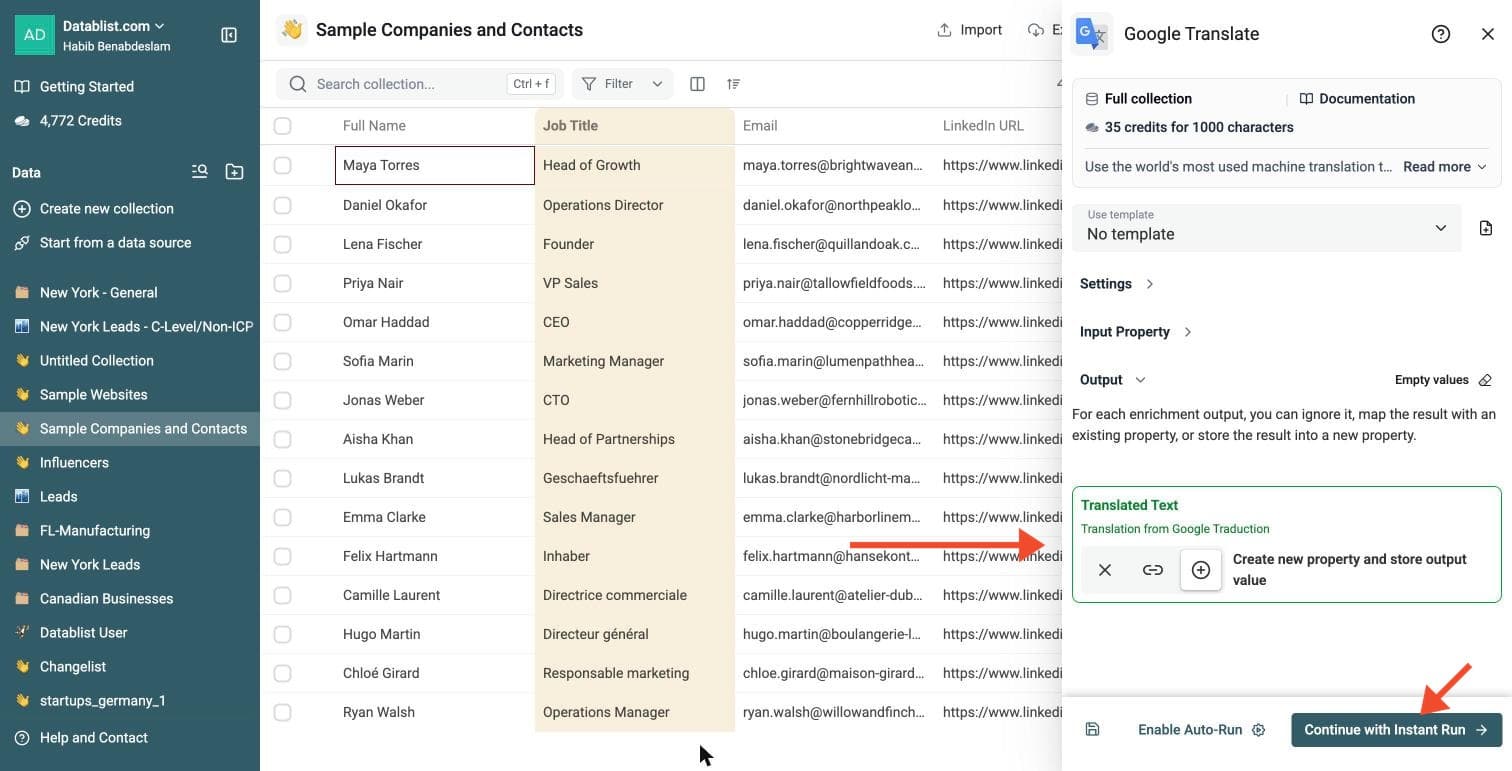
Step 5: Select Outputs
Google Translate Connector returns one output:
- Translated Text: the translation from Google
Click the ⊕ icon to create a new property for it, then click Continue with Instant Run.
Step 6: Run the Enrichment
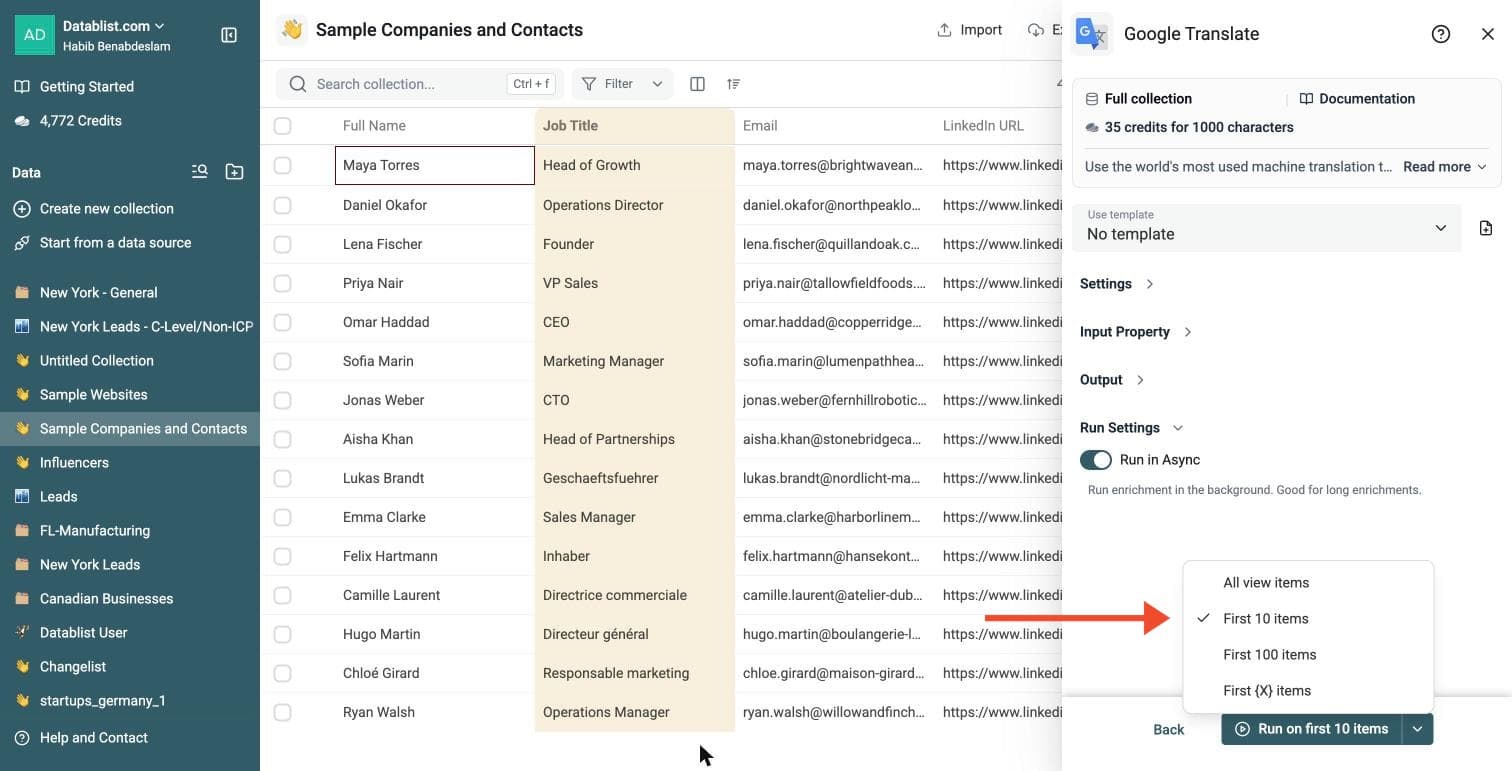
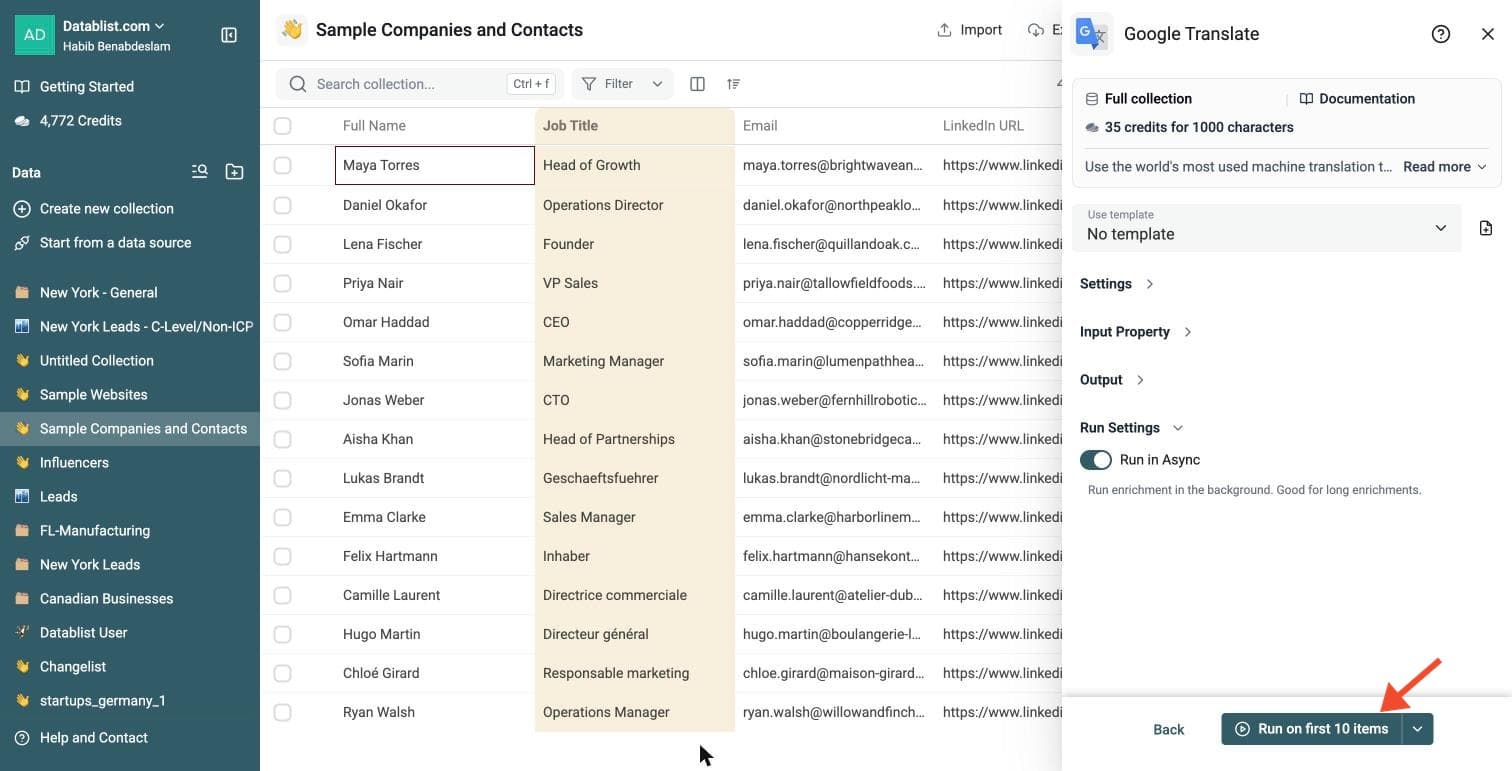
Click the chevron on the right side of the run button to choose how many items to process:
-
Run on first 10 items: Good for checking results before committing
-
Run on first 100 items: Useful for validating larger samples
-
Run on all view items: Process your entire list (or view if you've enabled filters)
Google Translate Connector costs 35 credits per 1,000 characters.
Check the translated text and run-status column on a small sample. Filter empty or failed rows, fix the input or settings, and rerun only those rows. Export the resulting collection when you are ready.
Translate Only the Columns You Choose
Many online CSV translation tools translate the whole file. They process every column and every cell, including IDs, URLs, tags, codes, notes, and fields you may want to keep unchanged.
Datablist works differently.
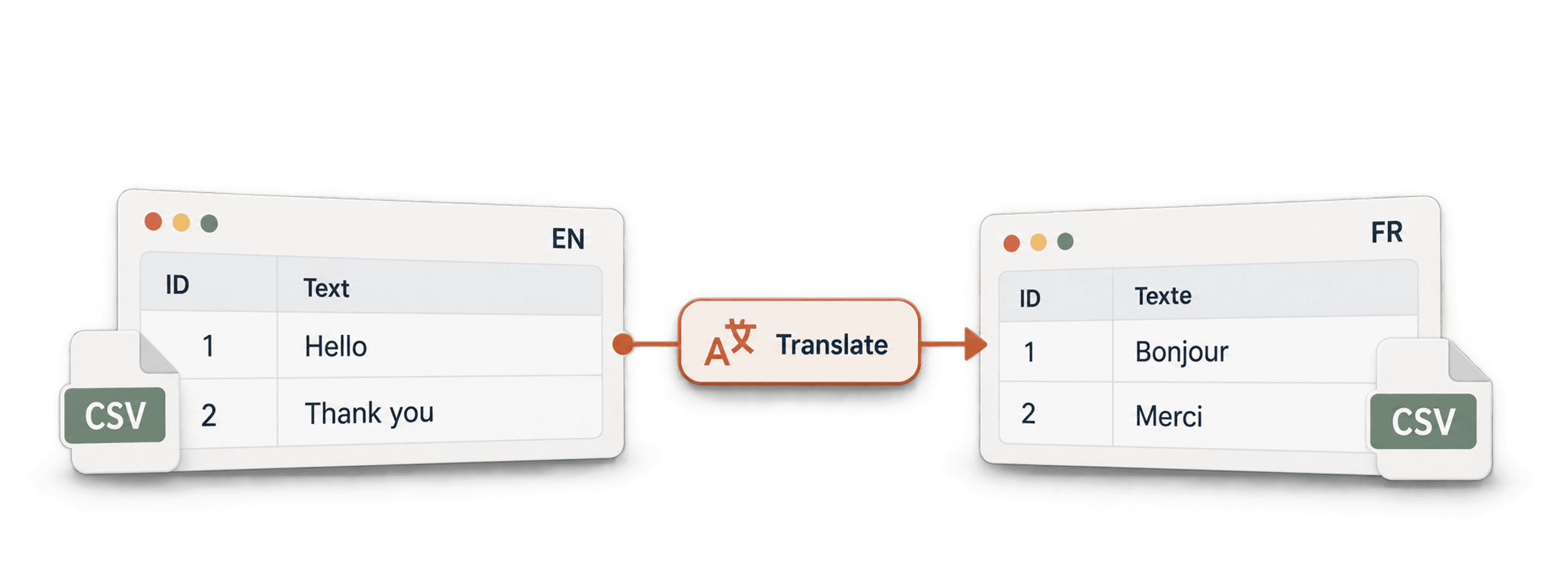
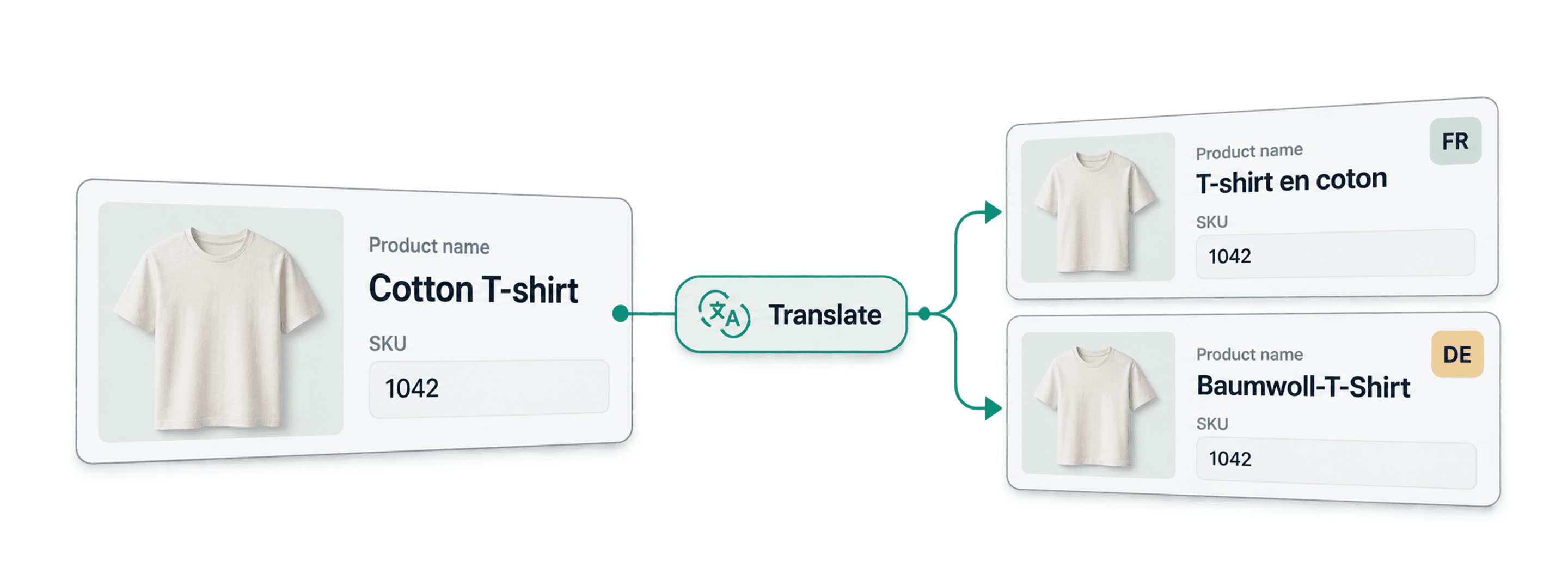
You choose the exact column to translate and the output column where the translation should be saved. Your original data stays untouched.
This helps when:
- Only one column needs translation
- Product IDs, SKUs, URLs, and tags must stay unchanged
- You want to translate product names with Google Translate and descriptions with DeepL or ChatGPT
- You want to test translation quality on one column before translating more fields
- You need to filter rows and translate only matching items
For example, you can filter your catalog to products in one category, translate only the Description column, then run another translation engine on SEO Title if needed.
What You Get
For each row, Datablist returns:
- Translated Text - The translated text returned by Google Translate.
Rows with empty source text are marked in the run status, so you can filter them later.
Common Use Cases
Translate Ecommerce Catalogs
Translate product names, product descriptions, category labels, and attribute values before importing data into Shopify, WooCommerce, Prestashop, or another ecommerce platform.
Translate Customer Feedback
Bring customer reviews, support tickets, and survey answers into one language before analysis. This makes tagging, sentiment review, and reporting easier.
Translate Lead and CRM Data
Translate job titles, company descriptions, notes, and form submissions before routing leads to a local sales team.
Localize Website Exports
Export CMS pages or SEO metadata to CSV, translate the source column, then reimport the translated content into your CMS.
Cost Examples
Google Translate costs 35 credits per 1,000 characters translated.
Examples:
- 10,000 characters cost about 350 credits.
- 100,000 characters cost about 3,500 credits.
- 1,000,000 characters cost about 35,000 credits.
The cost depends on the number of characters in the source text, not the number of rows. A file with short labels costs less than a file with long descriptions.
Google Translate or DeepL?
Use Google Translate when you need broad language coverage and fast bulk processing.
Use DeepL Translator when you want DeepL-specific options such as formality, context, XML tag handling, or your own DeepL API key.
Use Translate with ChatGPT/OpenAI when you need custom instructions, tone control, or translation of structured content with extra rules.
Tips Before Translating a Large File
- Preview a few rows before running the full list.
- Keep the original column and write translations to a new column.
- Set the source language manually when the source text is short.
- Clean empty rows before running to keep your results easier to review.
- Split long HTML or product descriptions into a dedicated column before translation.
Google Translate vs AI Translation
Use Google Translate when you need fast, direct translation for a spreadsheet column. It is a good fit for product names, short descriptions, reviews, support messages, and lead notes.
Use ChatGPT translation when you need custom instructions, tone control, or special handling for HTML, JSON, placeholders, or brand vocabulary.