
To scrape Indeed job postings for lead generation, open Datablist's Indeed Jobs Scraper, provide public Indeed search URLs or a keyword and location list, and review the imported job rows. A posting can indicate a hiring need, but it does not prove that the company has budget for your offer. Qualify each company before outreach.
For example, search for Sales Operations in New York, then review the resulting Job Title, Job Company Name, Indeed Offer URL, and Date Posted fields. If a company fits your market, use the job description to understand the role before finding an appropriate contact.
In this guide, I'll show you:
- Why you should use hiring signal for your cold outreach
- How to filter and scrape Indeed Job Offers automatically
- How to automate Indeed Job Offers scraping every day/week/month
Watch the video below for step-by-step instructions on how to use the Indeed Jobs Scraper.
Why use hiring signals for Lead Generation?
Not all leads are created equal. Some prospects are just browsing, while others have a real, urgent need. To maximize your outreach efforts, focus on high-intent signals—clear indicators that a company is ready to buy.
Common Lead Generation Signals
- Website Activity – Tracking visitors to your pricing page or demo request form.
- Technology Adoption – Identifying companies that start using a complementary or competitive tool.
- Funding Rounds – Companies that recently raised capital often have new budgets and initiatives.
- Job Openings (Hiring Signal) – Companies actively looking to fill roles signal pain points and budget allocations.
Why Hiring Signals Are One of the Best Lead Indicators
Hiring signals stand out because they show immediate business needs. When a company posts a job listing, they are investing money and effort into solving a problem. This means they:
- Have a clear pain point they need to address.
- Are willing to pay for a solution.
- Have urgency—they don’t want this problem to persist.
Unlike funding rounds, which indicate potential growth but not necessarily immediate need, job postings reflect a problem they are actively working to solve right now.
Who Benefits Most from Hiring Signals?
Hiring data is gold for businesses that provide services, tools, or expertise that align with job openings. Some of the best use cases include:
- Recruitment Agencies & Headhunters – Find companies hiring in bulk or for hard-to-fill roles.
- B2B SaaS Companies – Target businesses hiring for roles related to your software (e.g., CRM tools for sales hires).
- Marketing & Lead Gen Agencies – Offer services to companies growing their sales and marketing teams.
- IT & Dev Agencies – Identify firms hiring for development roles and pitch outsourced solutions.
- AI & Automation Companies – Find businesses with inefficiencies in hiring and propose AI-driven solutions.
By tracking hiring signals, you can reach out to the right people at the right time—when they need you the most.
How to filter and scrape Indeed Job Offers automatically
Manually tracking job postings is time-consuming. Instead of checking Indeed daily, you can automate the process with Datablist. By setting up targeted searches, you can extract fresh job listings in minutes—without coding.
Step 1: Sign up for Datablist
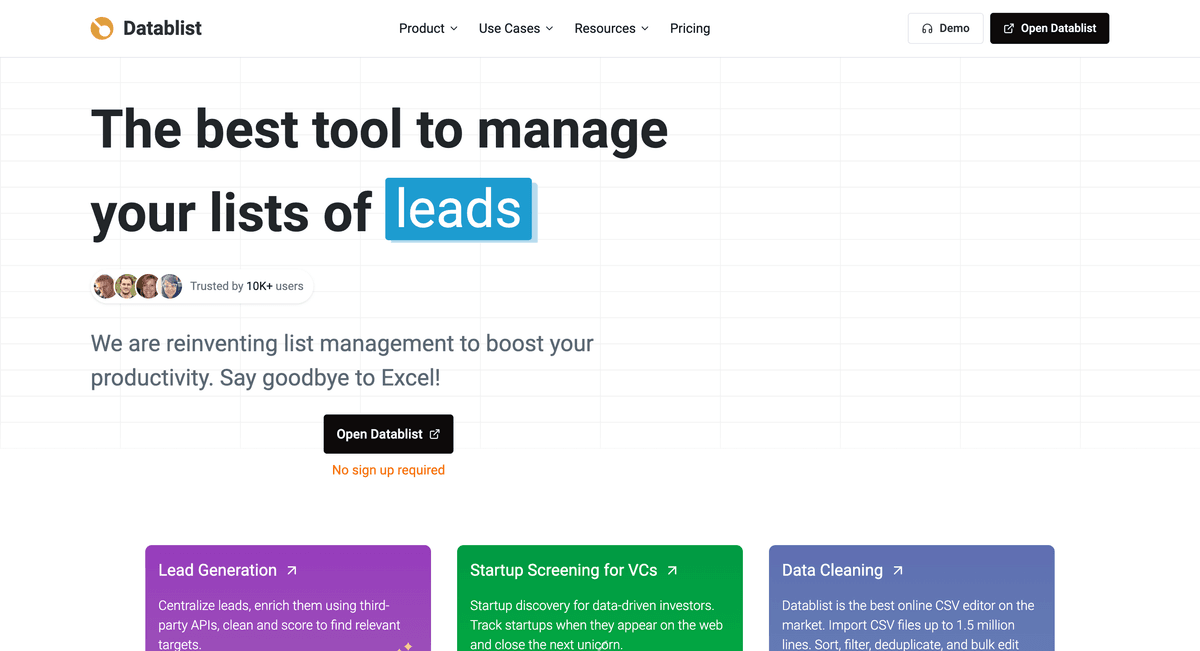
Datablist is an AI Co-Pilot for modern GTM Teams with unlimited possibilities.
One of those is the ability to scrape job offers from different sources such as Indeed, WelcomeToTheJungle, allowing B2B Teams to reach out when they're needed the most.
Step 2: Start Your Search
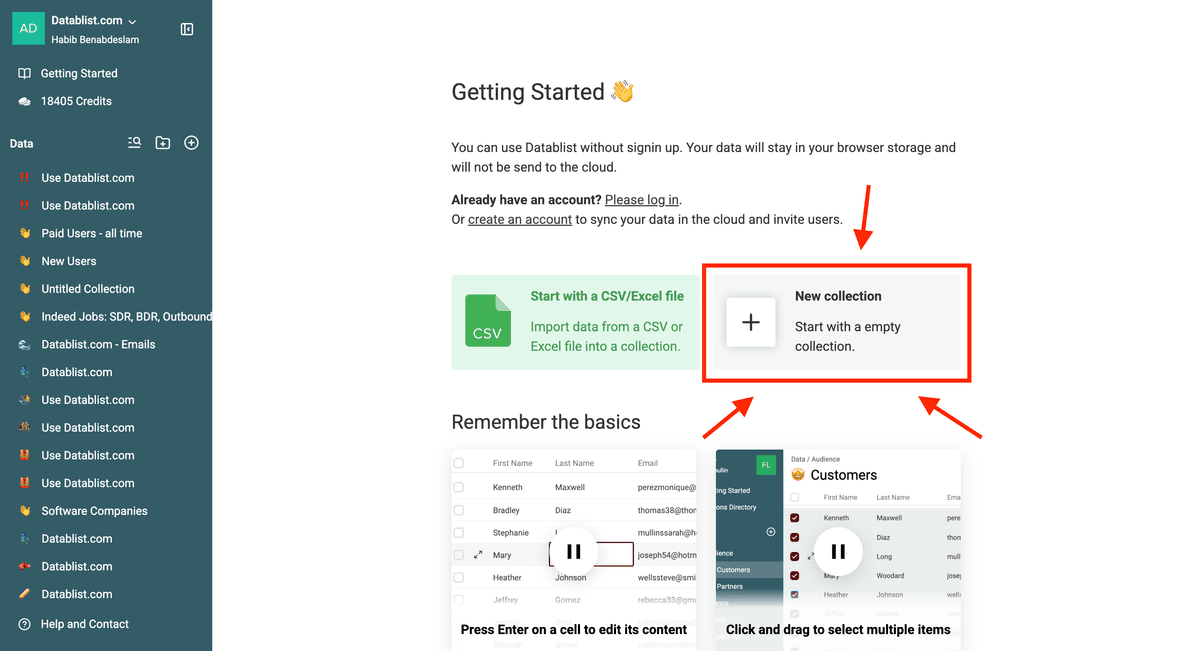
Once you've logged in to Datablist, you need to create a new collection. This new collection with store our Indeed Job Offers.
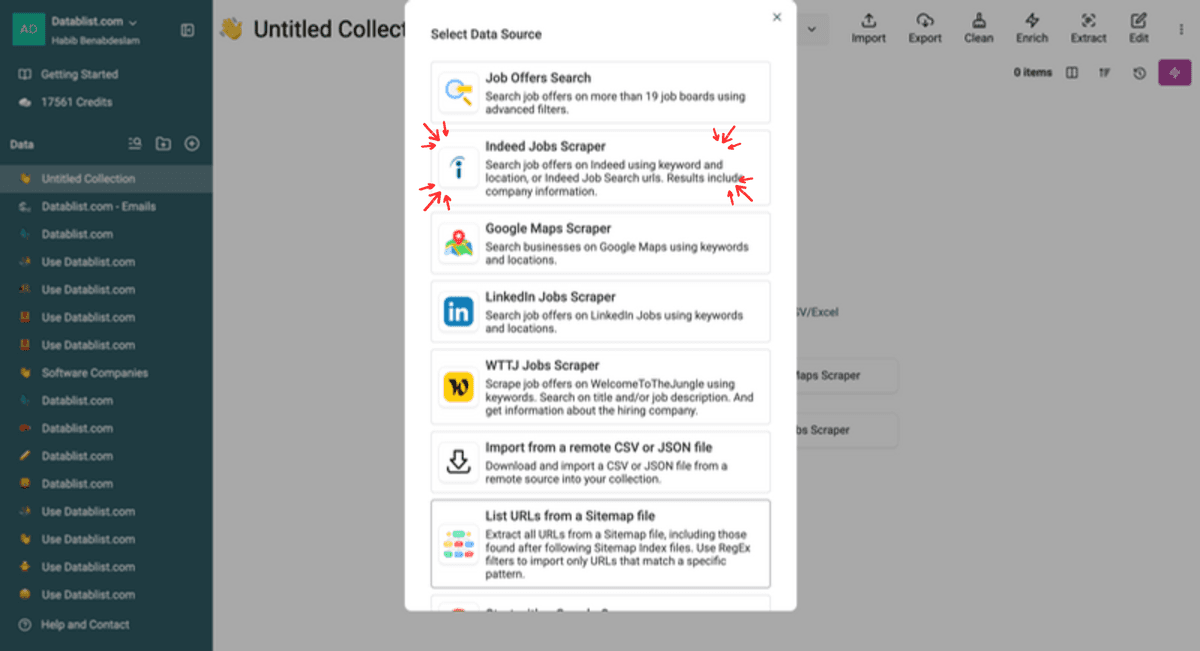
Then, click on "See all sources". The list of sourcs is also available from with "Import -> Import from data sources" from the header.
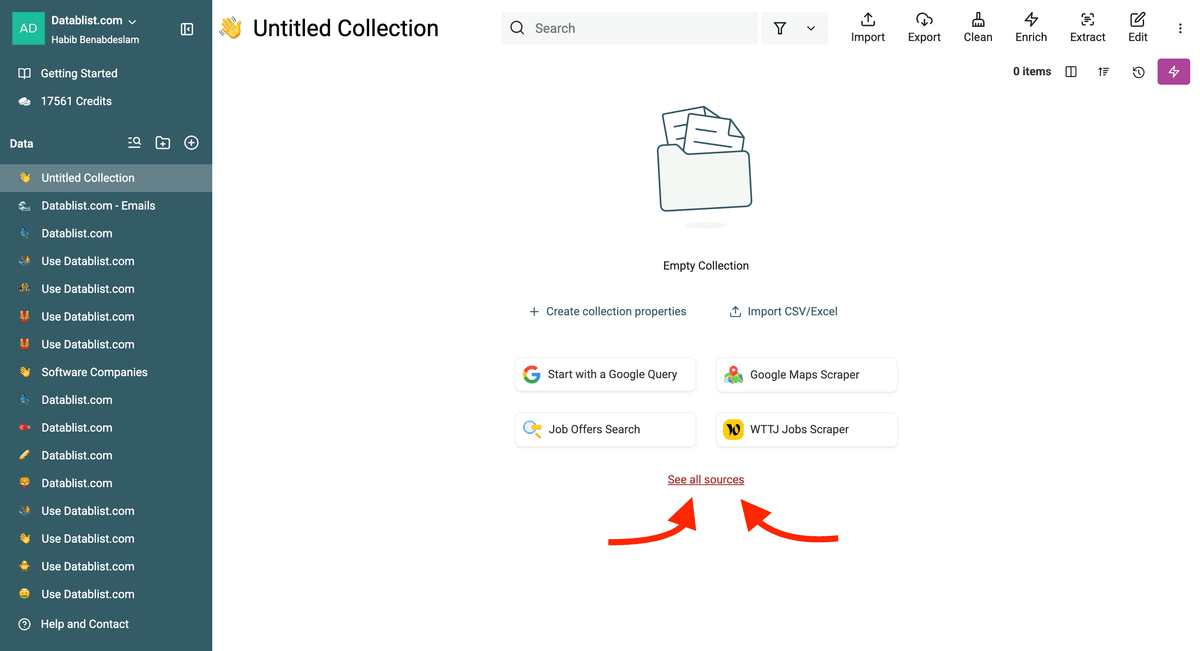
Then select the "Indeed Job Scraper".
Step 3: Narrow Your Search Down
Now you'll have to choose what job offers you want to scrape by choosing one of these methods:
- Using filters and keywords
- Copying your Indeed URLs and pasting them into Datablist
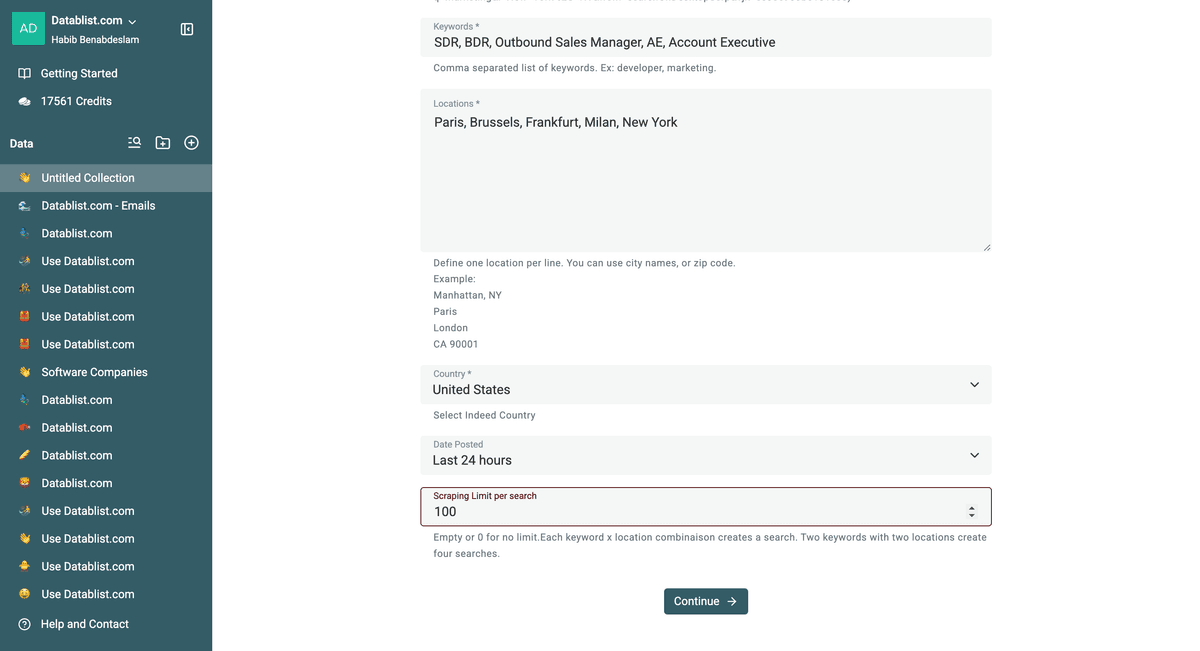
I will go with filters and keywords today. You specify your search by:
- Search words for job titles, separated by commas
- Locations (cities, zip codes, country, district)
- Indeed country (each country has its own regional website)
- Posting date
Each keyword and location pair creates a separate search. For example, Sales Operations and Revenue Operations across New York and Boston produce four searches. Start with a narrow set and review the estimated credits shown in the scraper before running it.
After starting your search, you can select from the following fields to include in your results:
-
Job Company Name
-
Job Company Website
-
Job Company Description
-
Job Company Staff Range
-
Job Company Industry
-
Job Company Revenue
-
Job Company Address
-
Job Company Rating
-
Job Company Reviews Count
-
Job Source
-
Indeed Offer URL
-
Job Title
-
Job Location
-
Job Country
-
Job Type
-
Job Description
-
Job Benefits
-
Job Salary Range
-
Date Posted
-
Apply Link
-
Company Indeed Link
📘 Company website and profile fields may be empty when Indeed does not expose them for a posting. Keep the Indeed offer URL so you can check the source.
Step 4: Get Your Results.
Run the source and inspect a sample of the imported rows. The duration depends on the number of searches and available postings; do not assume every search returns the requested maximum.
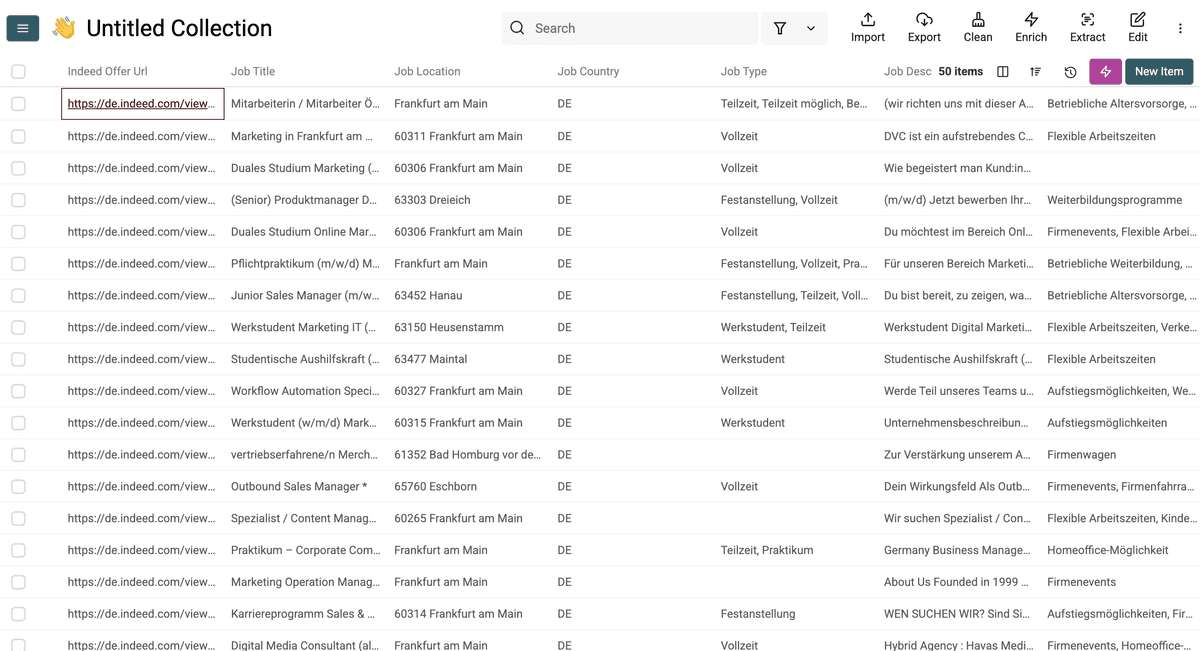
📘 The current source charges 5 Datablist credits per imported job offer. The limit applies per search or public listing URL, up to 500 results each. Review the estimate in the source settings and Datablist's credit guide before starting a large run.
Schedule Indeed Job Offers Scraping
To keep your job leads up to date, you can schedule automatic imports of new job offers. This ensures your outreach is always based on fresh data.
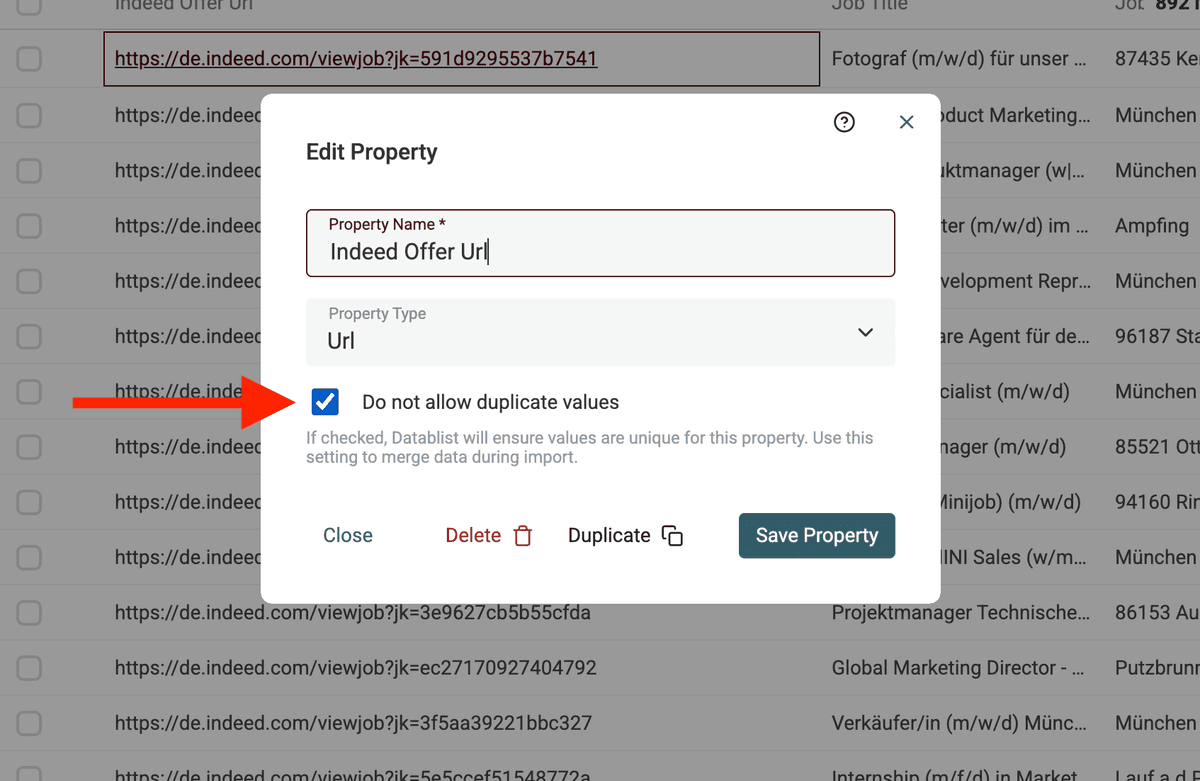
Step 1: Prevent Duplicate Job Offers
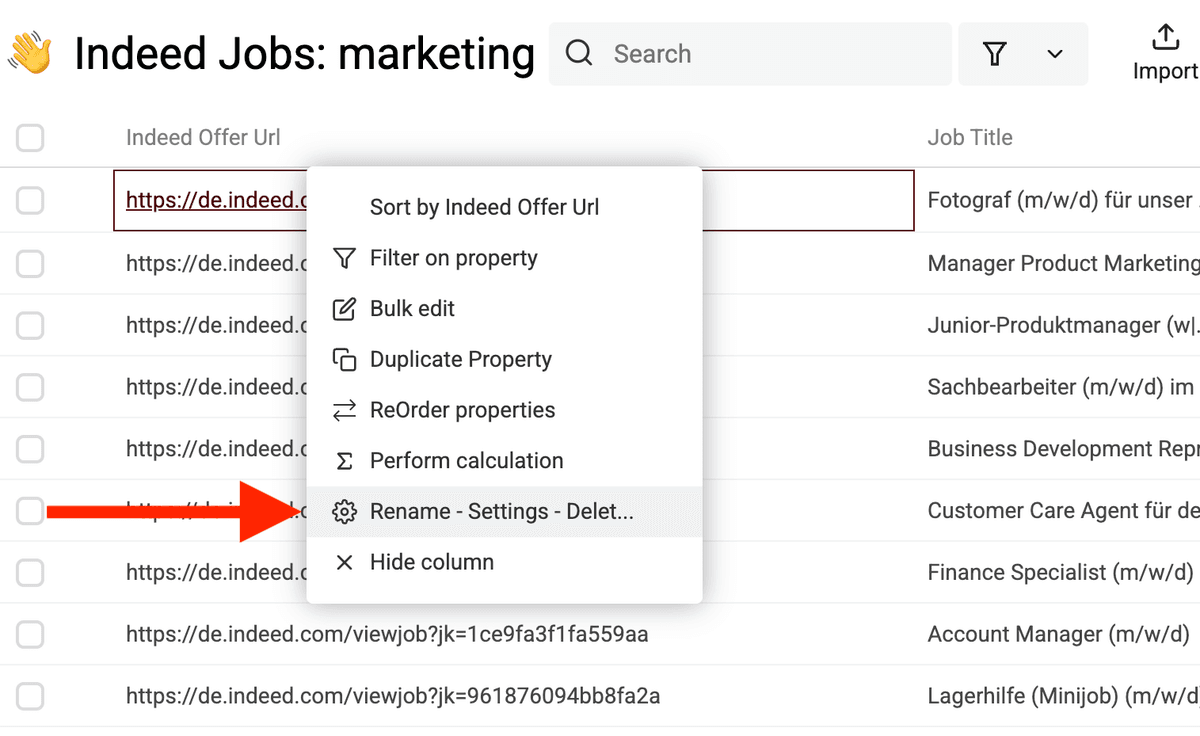
Before setting up automation, enable unicity on the "Job Offer ID" field. This prevents duplicate job postings from being imported.
- Open your collection settings.
- Locate the "Job Offer ID" field.
- Enable the "Do not allow duplicate values" setting.
Step 2: Automate Job Offer Imports
With unicity enabled, you can now schedule automatic imports.
- Open the Indeed Job Scraper source. Either on a new collection, or with "Import -> Import from data sources" from the header.
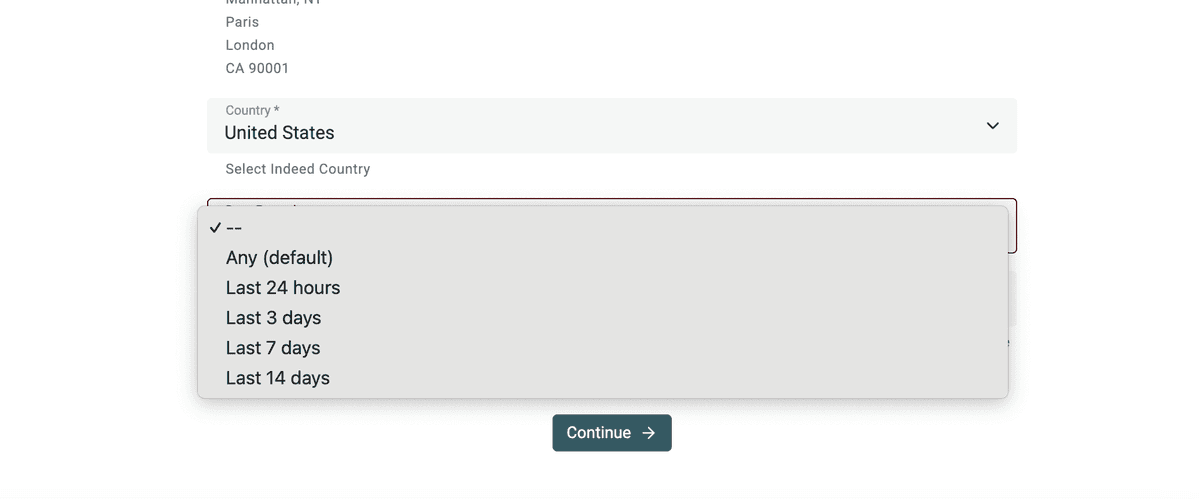
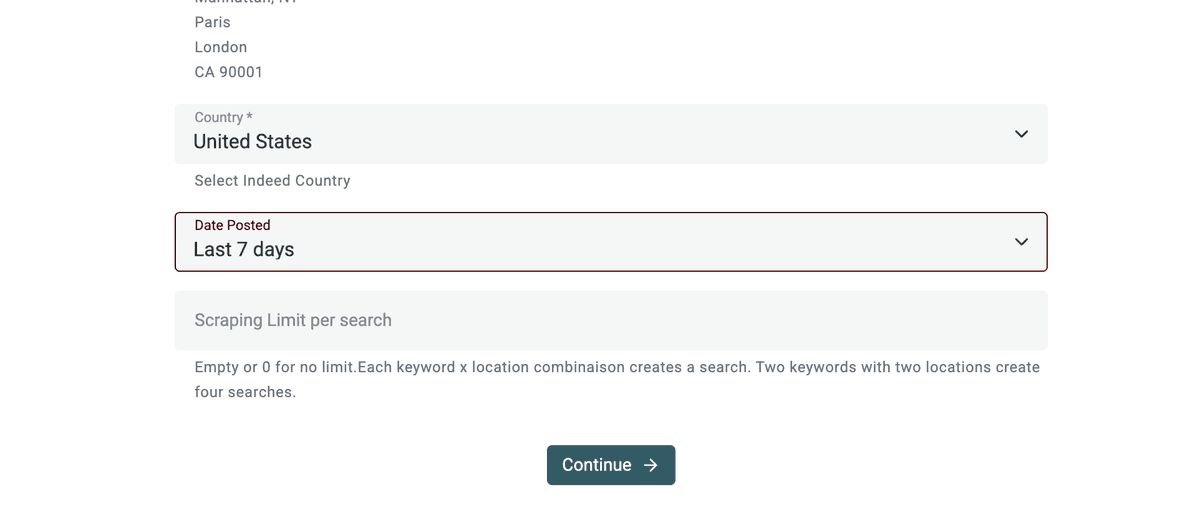
- If you use Keywords and Locations, set Date Posted to Last 7 days for a weekly run. For the search-URL mode, configure the date filter on Indeed and paste a public results URL. The date setting in Datablist is available for keyword searches.
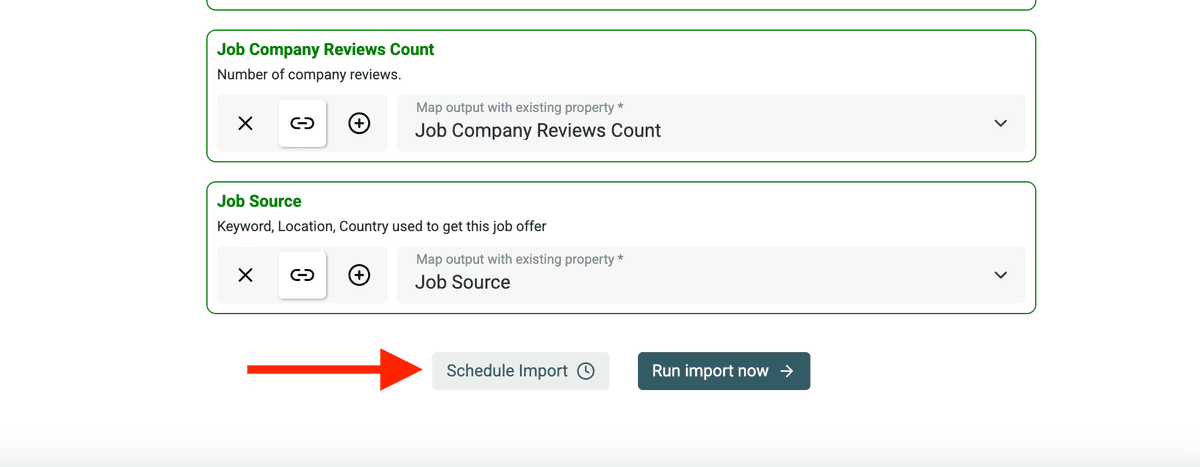
- Click "Continue", and on the outputs listing page. At the bottom, select "Schedule Import". And choose how often you want new job offers to be imported (daily, weekly, or monthly).
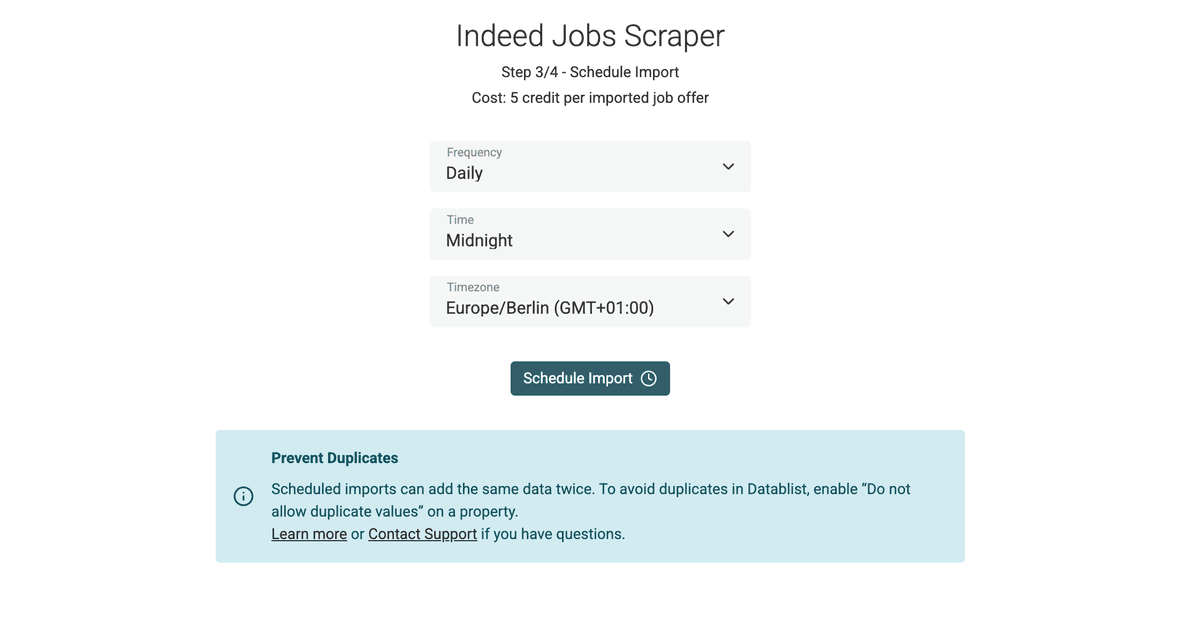
- Continue to save your automation.
- You can trigger this automation manually anytime you want from the "Enrich -> Automation" panel.
That’s it! Now Datablist will fetch the latest job postings based on your filters, keeping your lead list constantly updated.