
Most guides to scrape LinkedIn jobs hand you a Python script or a risky browser extension. Even if they work, you are left with a CSV of postings and no idea who to contact.
The job posting is only half the story. It tells you a company is hiring, which is a strong buying signal, but it does not hand you the person who makes the hiring decision.
This guide shows the no-code path to scrape LinkedIn job postings without putting your account at risk, then turn them into company domains and hiring-manager contacts, all in one place.
📌 Summary For Those In a Rush
The core idea: scraping LinkedIn job postings shows you which companies are hiring, but a posting is not a lead; the contact behind it is.
This article explains why no-code, account-safe scraping works, then shows you how to scrape LinkedIn Jobs and go from job postings to company domains and contacts in one platform.
What you will leave with:
- A no-code way to scrape LinkedIn jobs without risking your account
- The full workflow from postings to company domains
- Hiring-manager and decision-maker leads, emails included where found
What This Guide Will Cover
- Whether you can scrape LinkedIn jobs without code
- How to scrape LinkedIn jobs without risking your account
- What Datablist is and how it turns postings into leads
- How to scrape LinkedIn jobs with the LinkedIn Jobs Scraper
- How to turn scraped postings into company domains
- How to find the hiring managers behind each posting
Yes, You Can Scrape LinkedIn Jobs Without Code
Before any tool talk, the real question: can a non-technical person scrape LinkedIn jobs without writing a line of code? The short answer is yes. The longer answer is why it has felt out of reach until now.
Why LinkedIn Gives You No Way To Export LinkedIn Job Postings
LinkedIn has no native export. You can browse postings all day, but there is no button that drops them into a spreadsheet or a CSV.
So most people try to use Python scripts, Apify actors, or copy and paste, one posting at a time. Each method falls apart after the first dozen rows, and you still end up with a flat list that is painful to filter or act on.
What No-Code LinkedIn Job Scraping Actually Does
No-code scraping skips the scripts entirely. Instead of running code against LinkedIn, you point a managed scraper at a search, and it returns the postings as structured, exportable rows.
That means every posting arrives with its own fields: job title, company name, industry, location, and more. The result is a clean list you can sort, filter, and enrich, not a wall of useless text.
This is the part the code-heavy guides skip over. You do not need to be technical to get a usable list of LinkedIn job postings; you need the right tool doing the extraction for you.
How To Scrape LinkedIn Jobs Without Risking Your Account
Account safety is where most free scraping methods quietly fail. The method you pick decides whether you are still browsing LinkedIn next week or staring at a locked account.
Why Code Scripts And Extensions That Scrape LinkedIn Jobs Get Accounts Blocked
Free scripts and browser extensions scrape from inside your own logged-in session. They fire automated requests that don’t look like normal browsing, and that pattern is exactly what triggers a block.
There is also a hard ceiling on volume. A single LinkedIn search is capped at 1000 results, so a script trying to brute-force its way past that limit only draws more attention to your account.
When the blocked account is the same one you use to find and talk to clients, a free download is a bad trade.
📘 Search Limits At A Glance
LinkedIn caps a single search at 1000 results, and the scraper returns up to 500 postings per search. Plan several searches across keywords and locations to cover a full market.
How A No-Code LinkedIn Jobs Scraper Keeps Your Account Safe
A managed no-code scraper never touches your personal account. It runs the extraction on its own infrastructure, so your login is not the thing making thousands of requests.
That separation is the whole point. Your account stays a normal account, and the heavy lifting happens somewhere that is built to handle it. However, safe extraction is the start, not the finish line. The bigger question is which platform takes you from a clean scrape all the way to a contactable lead.
What Datablist Is And How It Turns Scraped LinkedIn Jobs Into Leads
If you have never heard of the tool behind this workflow, a quick introduction before the hands-on sections.
Datablist: The No-Code Way To Scrape LinkedIn Jobs And Find Leads
Datablist.com is a no-code platform with 60+ tools and more than 30,000 users, built for finding, enriching, and cleaning data without writing a line of code.
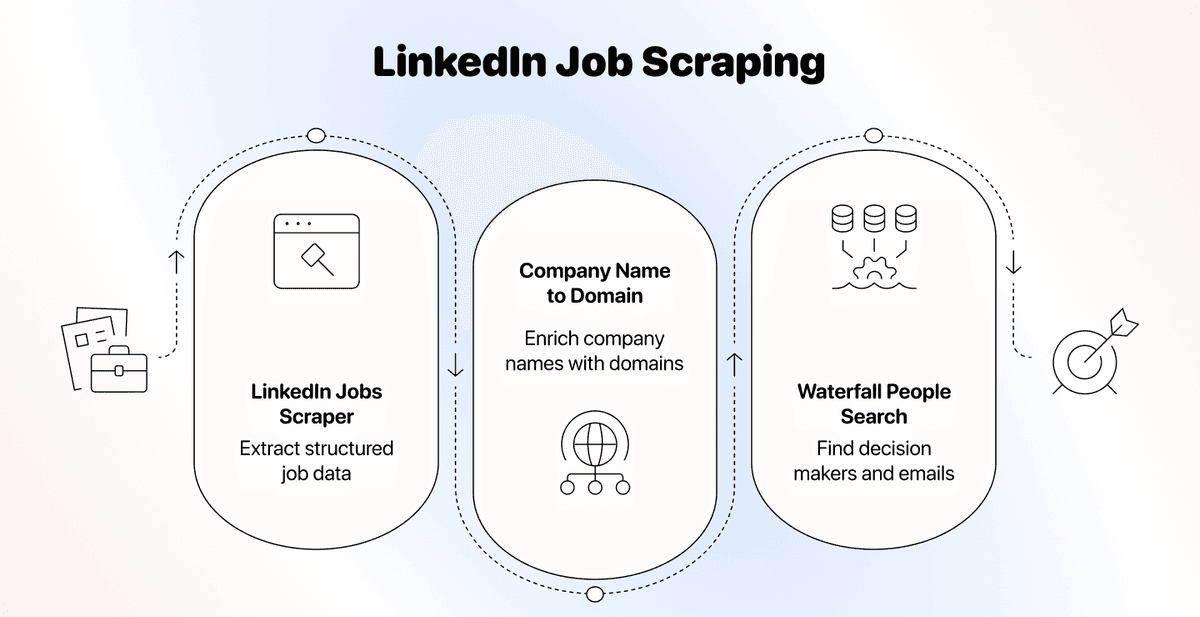
For scraping LinkedIn jobs, the value is that the whole job lives in one place. The workflow runs in three moves:
- Scrape LinkedIn job postings with the LinkedIn Jobs Scraper
- Resolve each company name into a verified domain
- Find the hiring managers and decision-makers behind each posting
Every step runs in the same platform, so you never export a CSV into another tool just to keep the workflow moving.
Why Scraping LinkedIn Job Postings Alone Will Not Find You Clients
A scraped posting tells you a company has demand. It does not tell you who signs off on the hire, and it does not hand you an email. That gap is where most scraping guides leave you. A list of job postings feels like progress, but you cannot send an offer to a job ad.
The two how-to sections after the scraper close that gap: first the company domain, then the person behind it. That is the difference between a pile of data and an actual deal.
How To Scrape LinkedIn Jobs With Datablist
This is the hands-on part. The LinkedIn Jobs Scraper lives on the Sources tab and turns a set of keywords and locations into a structured list of postings. It costs 2 credits per imported posting.
Step 1: Sign Up On Datablist.com
Create your Datablist account. It takes about a minute, and with the free trial you get 500 credits, enough to scrape 250 jobs.
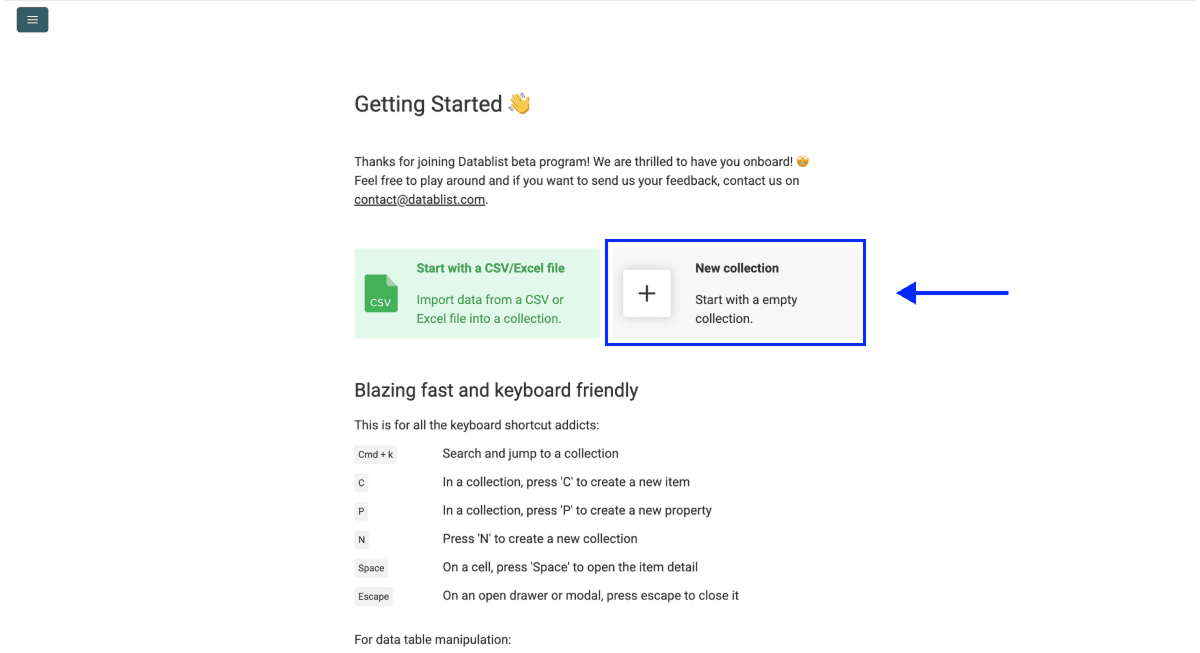
Step 2: Create A New Collection
Once you are in, click New Collection. This is the workspace your scraped postings will land in.
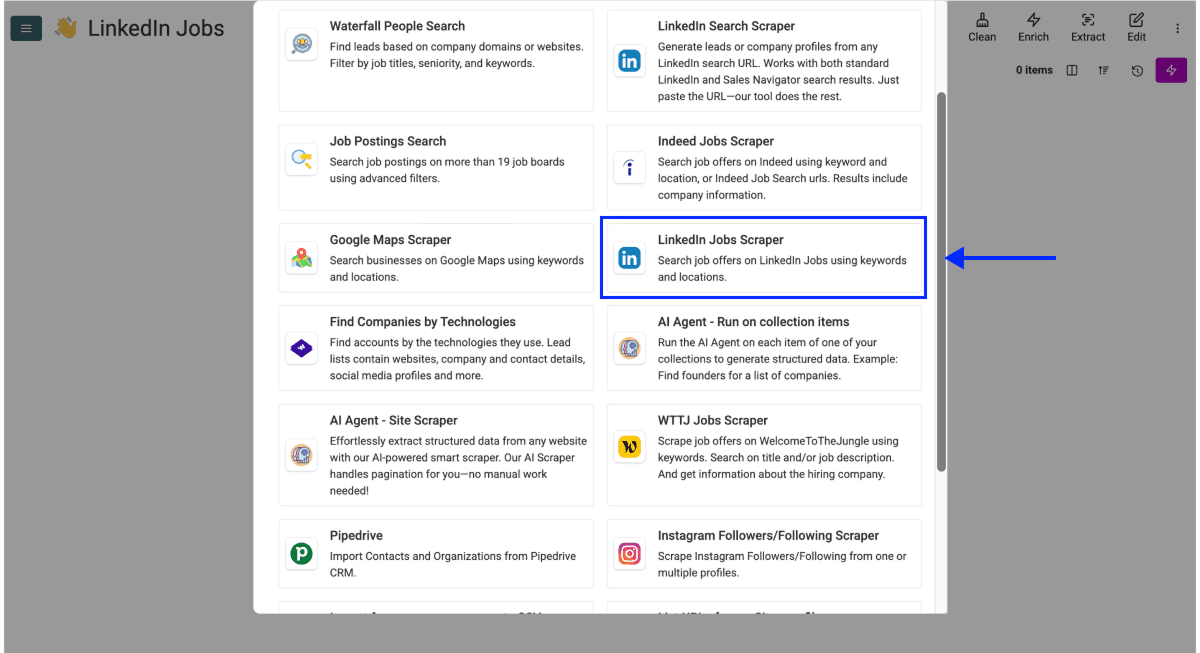
Step 3: Open The LinkedIn Jobs Scraper
- Click on See all Sources
- Select the LinkedIn Jobs Scraper
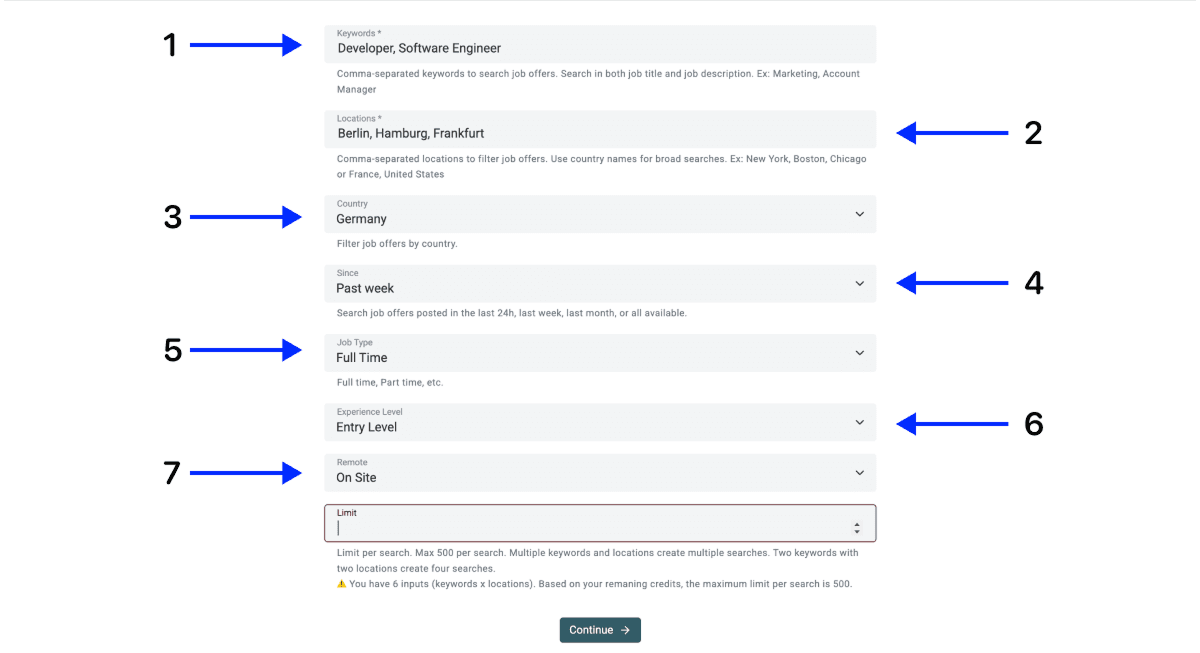
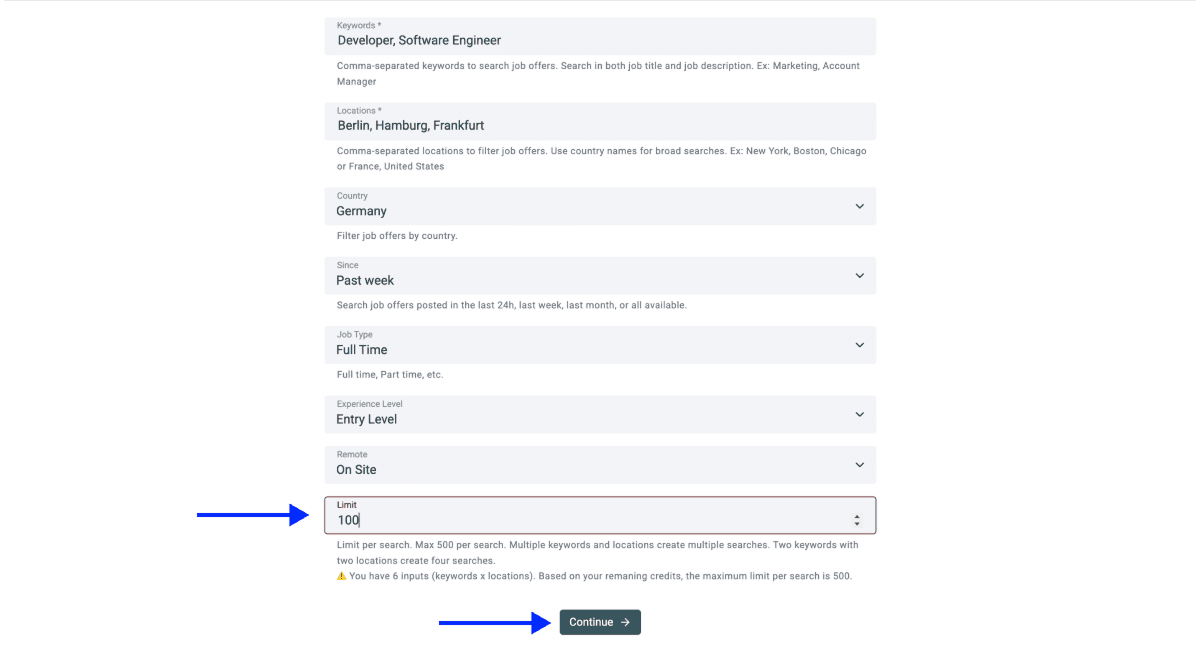
Step 4: Set Up Your Keywords And Locations
The scraper takes two inputs, Keywords and Locations, plus filters for Country, Job Type, Experience Level, Remote, and Time Period. For this walkthrough, the setup looks like this:
- Keywords: Developer, Software Engineer
- Locations: Berlin, Hamburg, Frankfurt
- Country: Germany
- Time Period: Past week
- Job Type: Full Time
- Experience Level: Entry Level
- Remote: On-Site
Every keyword and location combination runs as its own search. Two keywords across two locations create four searches; the setup above runs two keywords across three locations, so six searches in total.
Running several searches in one job is how you cover a whole market in a single run instead of scraping one city at a time and stitching the results together later.
Step 5: Run The Search
-
Set your limit per search
-
Click on Continue
Each search returns up to 500 postings; in our example we capped each at 100, so the six searches import 600 postings in total.
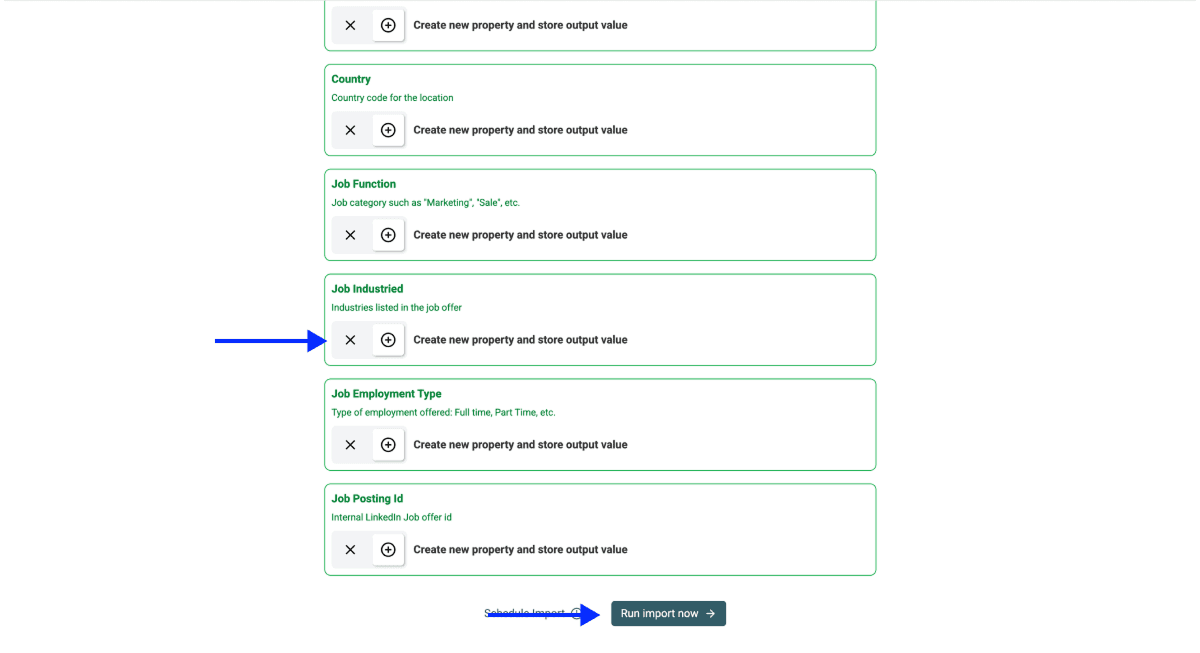
- Select your outputs. Datablist creates a property for every data point it can return. Remove the ones you do not need with the ✕ icons
- Click on Run Import Now
Step 6: Review Your Imported Postings
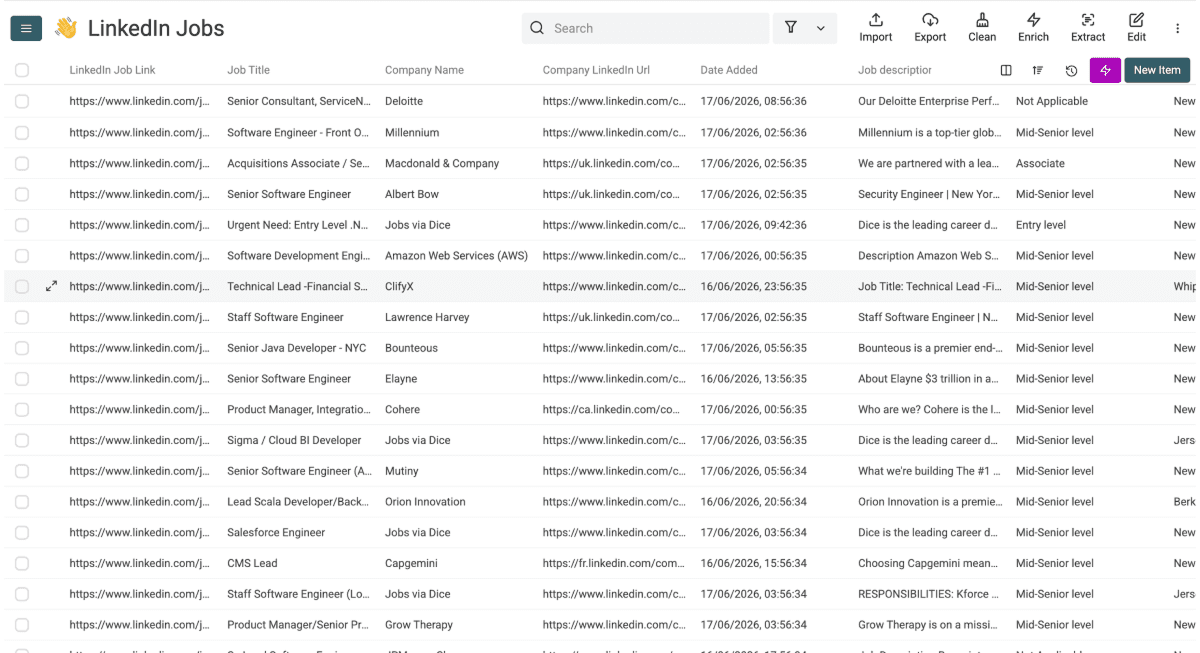
Within a few minutes, every posting lands as a row in your collection, fully structured. The scraper returns 13 fields per posting, grouped like this:
| Category | Data Points |
|---|---|
| Job details | Job Title, Job description, Seniority Level, Job Function, Job Industries, Job Employment Type |
| Company details | Company Name, Company LinkedIn Url |
| Links and IDs | LinkedIn Job Link, Job Posting Id |
| Location and timing | Location, Country, Date Added |
📘 What Each Scraped Job Posting Costs
The scraper charges 2 credits per imported job posting, and you pay only for postings you actually import. A 600-posting run costs 1,200 credits.
How To Turn Scraped LinkedIn Job Postings Into Company Domains
A job posting gives you a company name and a LinkedIn URL, not a domain. However, in order for you to be able to find lead you’ll need the domain first, so this step is about how to find company name to domain.
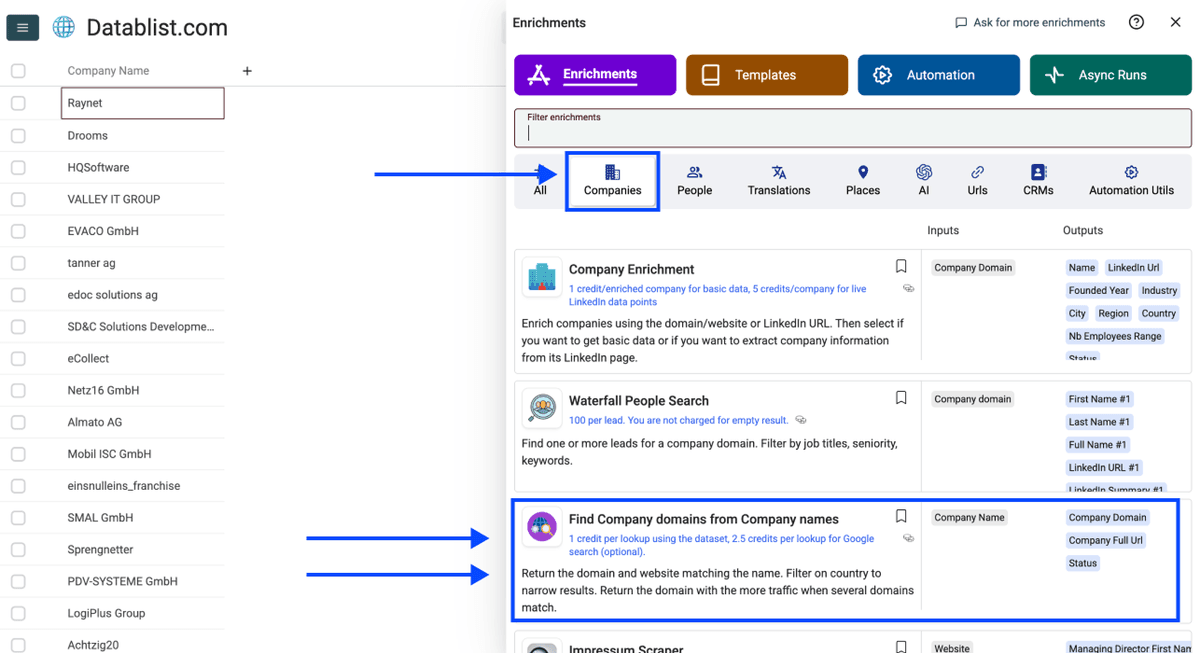
Datablist.com handles this with the Domain Finder enrichment on the Companies tab. Because your postings are already in Datablist, you can run it straight away, no export-import needed.
Step 1: Open The Find Company Domains Enrichment
- Click Enrich in the top menu
- Switch to the Companies tab
- Select Find Company Domain from Company Name
Step 2: Set The Workflow To Database Plus Google Fallback
Under Workflow, pick the option that uses the company dataset with a Google fallback. Datablist checks its verified database first, then uses Google only for the names it cannot match.
That order keeps cost down: the database lookup costs 1 credit per domain found, and each Google fallback lookup costs 2.5 credits.
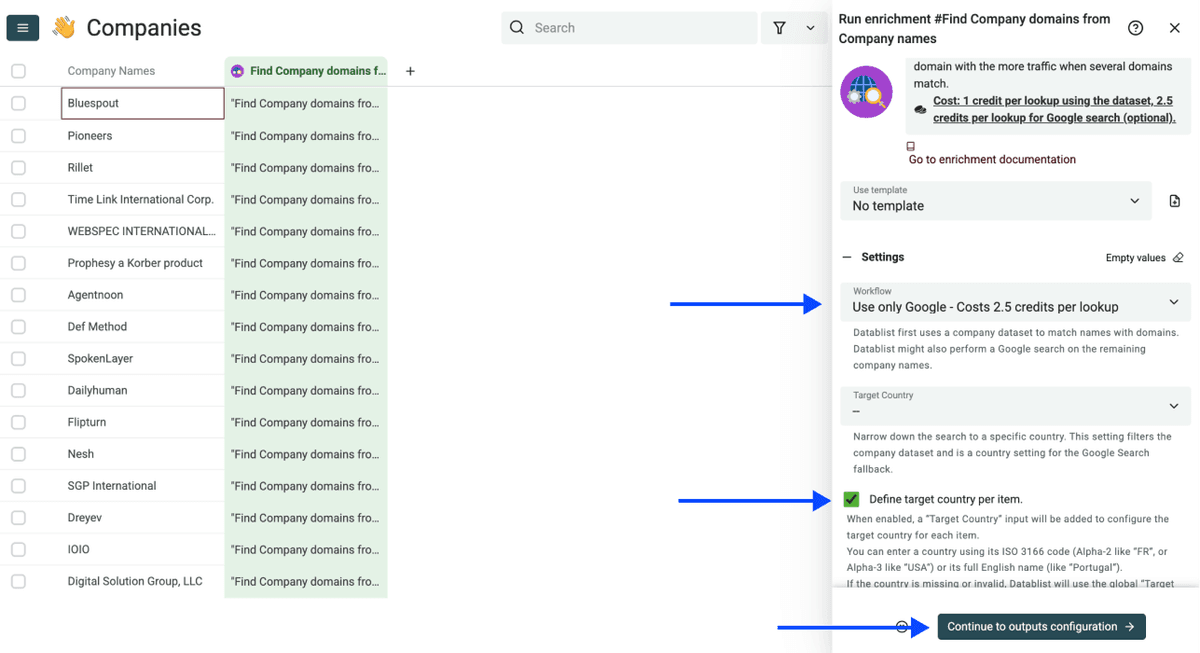
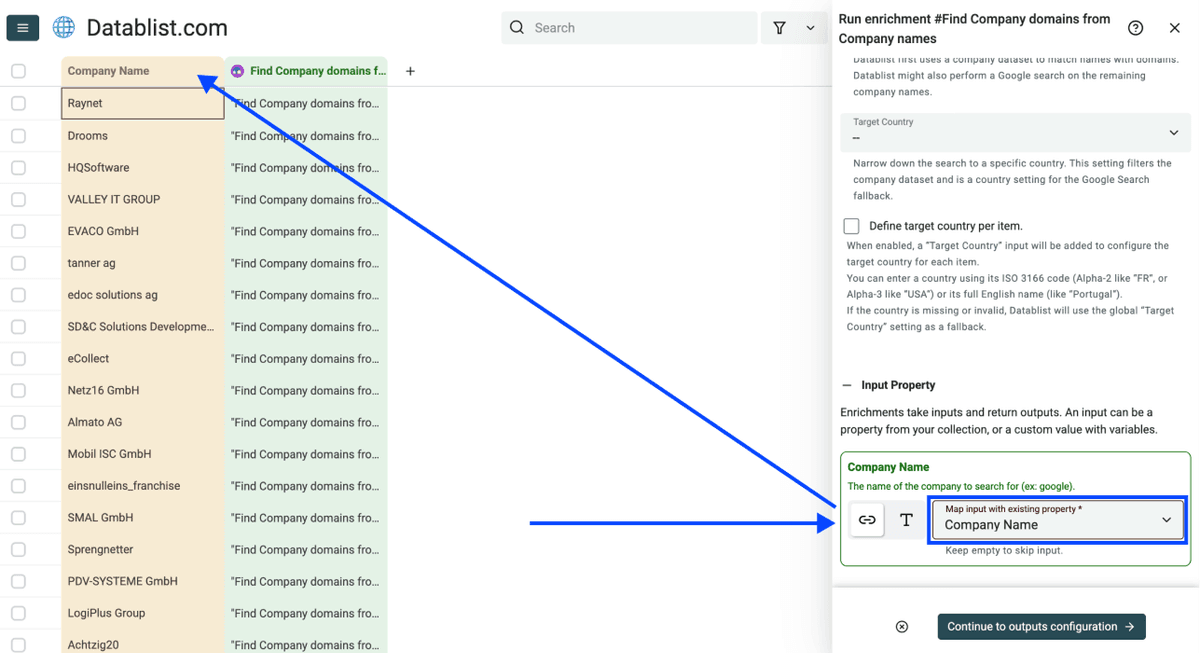
Step 3: Map Your Company Name Column
- Set the Company Name column as the Input Property
- Click Continue to outputs configuration.
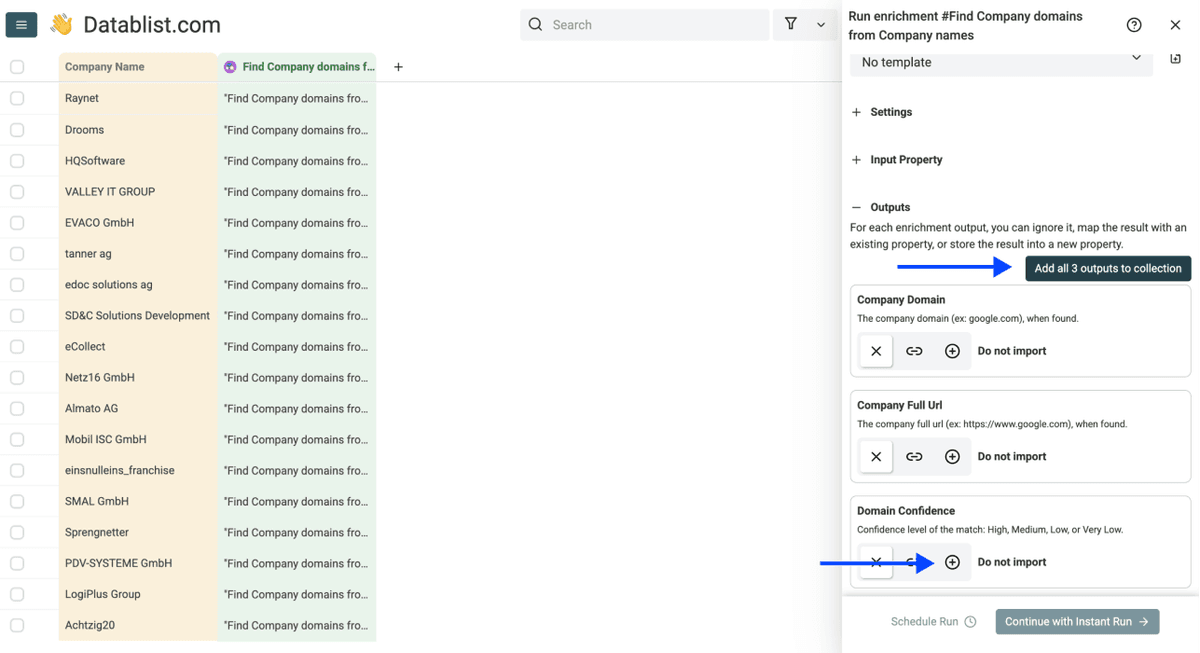
Step 4: Select Your Domain Outputs
- Use the ⊕ icons or Add all 3 outputs to collection to add the domain, website URL, and confidence rating to your collection
- Click Instant Run
Step 5: Run The Enrichment In Bulk
Configure your run settings by clicking the chevron on the right side of the button. You can choose between:
- Run on first 10 items: Good for checking results before you commit
- Run on first 100 items: Useful for validating a larger sample
- Run on first X items: Lets you choose how many rows to process
- Run on all view items: Process your entire list, or just the current view if you have filters on
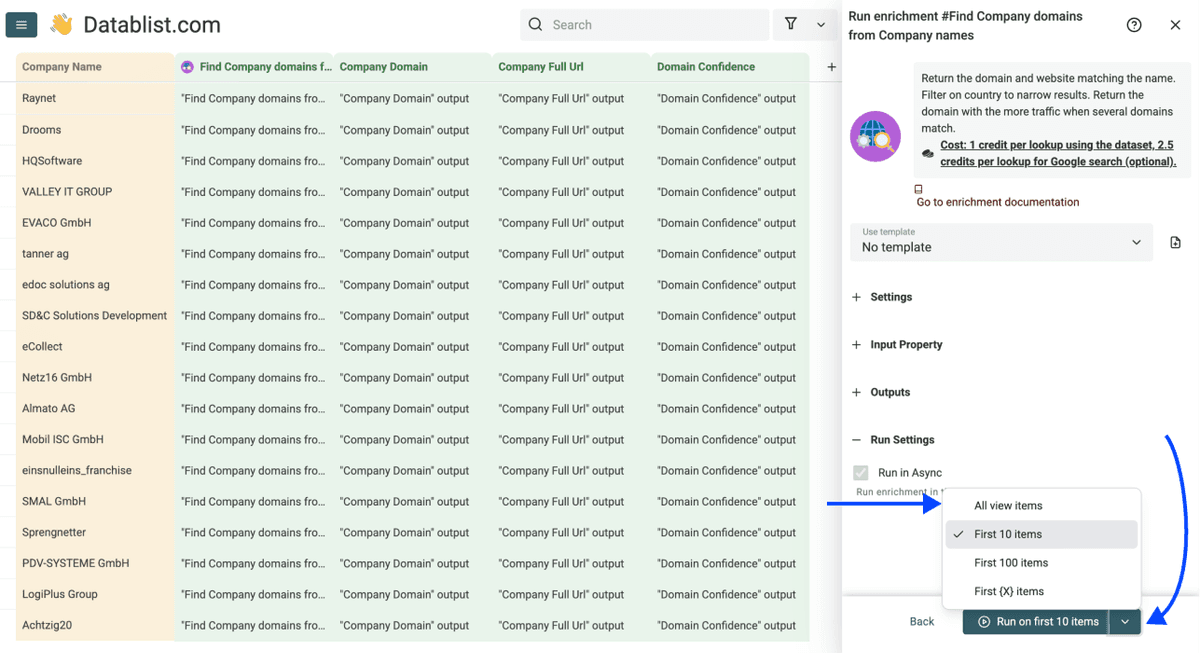
Once you have chosen your option, click Run on X items.
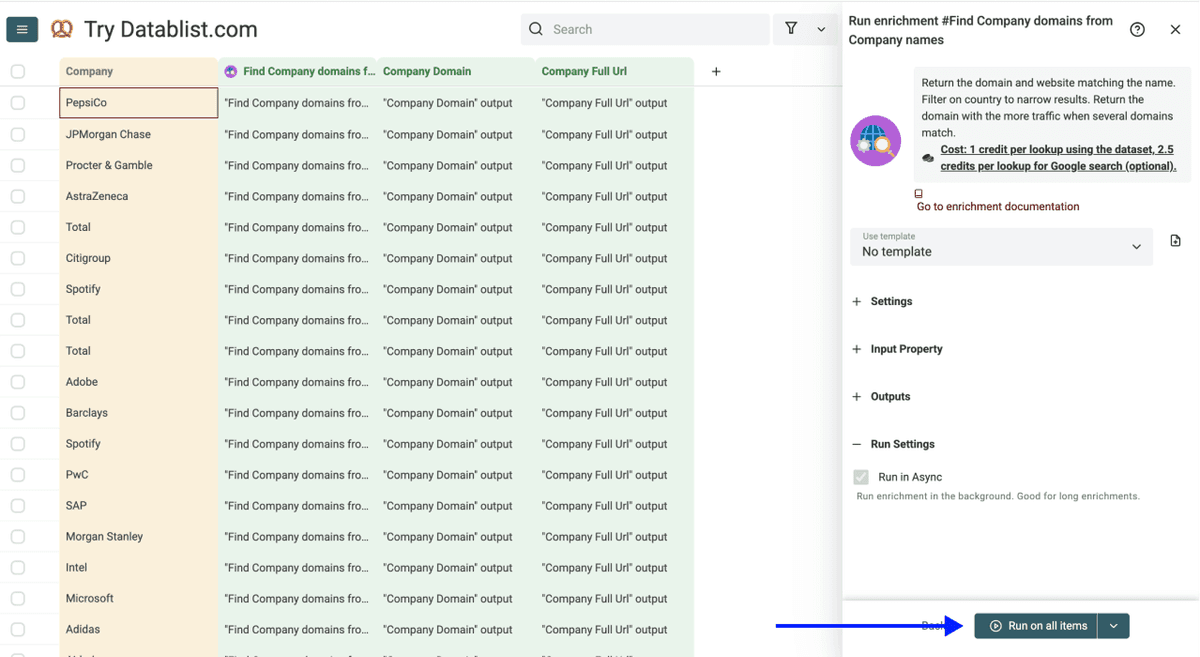
Within minutes, you have a column of verified domains sitting next to your scraped company names, each with a confidence rating, so you can accept strong matches and review the uncertain ones.
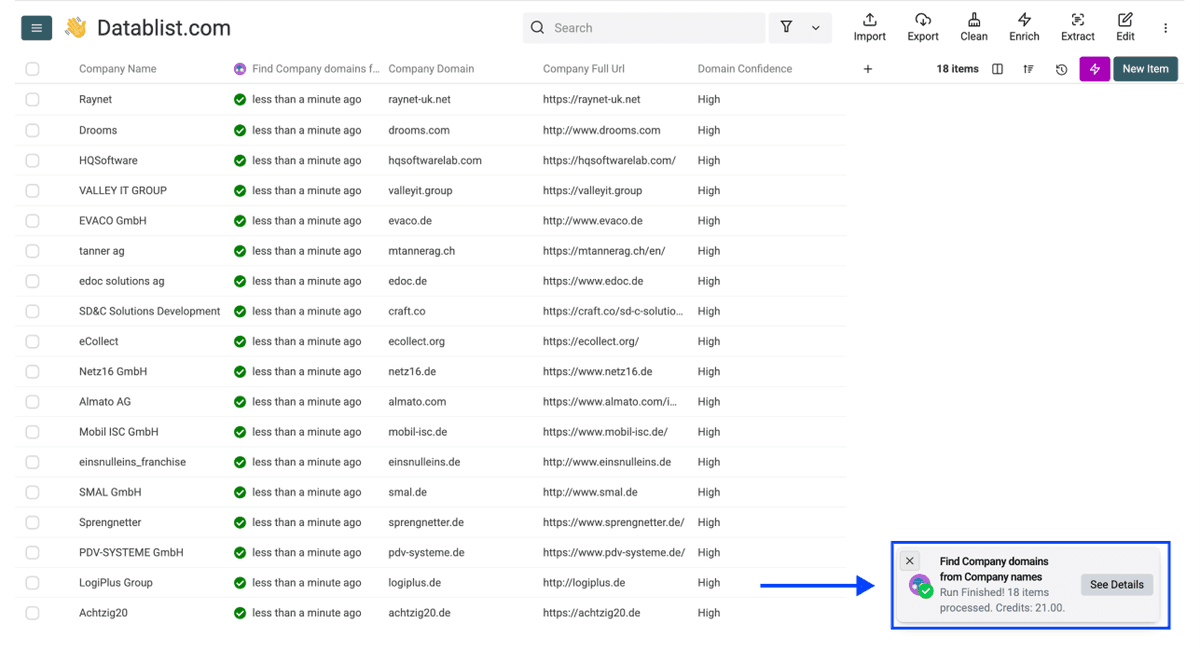
📘 What To Do If Datablist Doesn’t Find All Domains
Sometimes, Datablist can’t find all company domains in one run. This happens usually for companies that have ambiguous names or for companies that are to small/new and don’t exist in any database yet.
In this case you can use Datablist’s AI Agent to search for the missing. More information in our guide on Company Name to Domain 👈🏽
How To Find Hiring-Manager And CEO Leads After Scraping LinkedIn Jobs
In this step we’ll turn you scraped job postings into a lead list you can use to sell your services. To do so, Datablist’s Waterfall People Search takes your company domains and finds the people inside each company with emails where we find them.
Want the full lead-building workflow beyond hiring signals? Here's how to find leads using Datablist 👈🏽
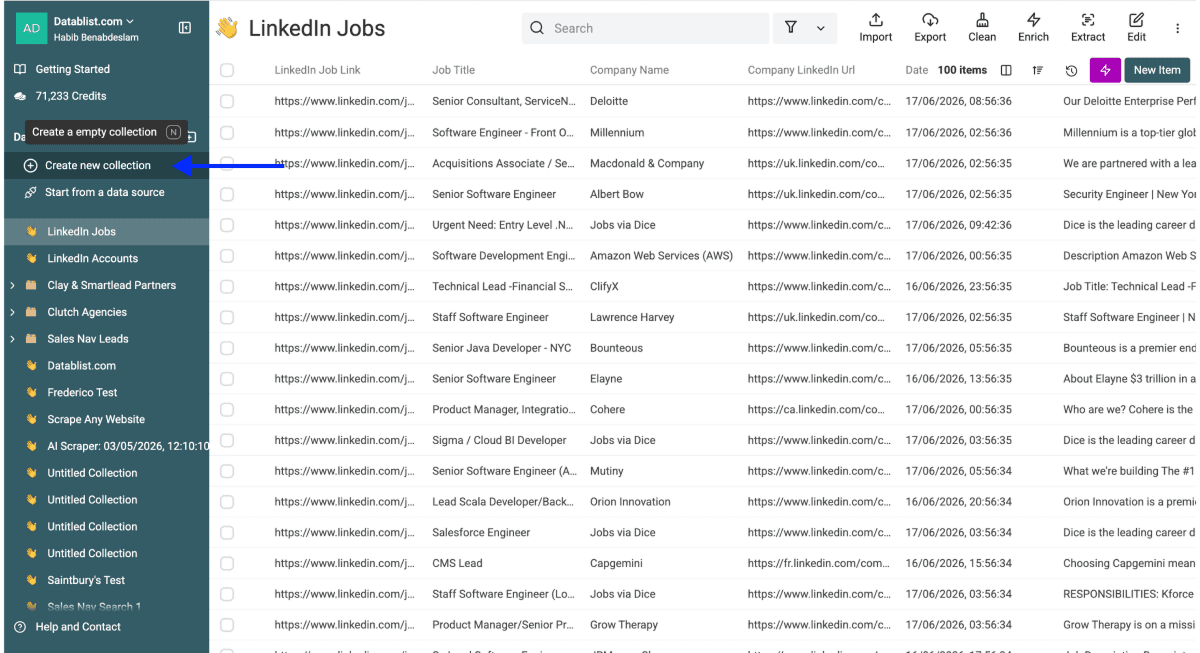
Step 1: Create A New Collection
Before you run a lead search, create a separate collection to hold the people you find. Keeping leads apart from your job and company data stops the two datasets from mixing as the search adds new rows.
Datablist lets you group related collections in one folder, so you can keep your account and job data in one collection and your leads in another, side by side in the same place.
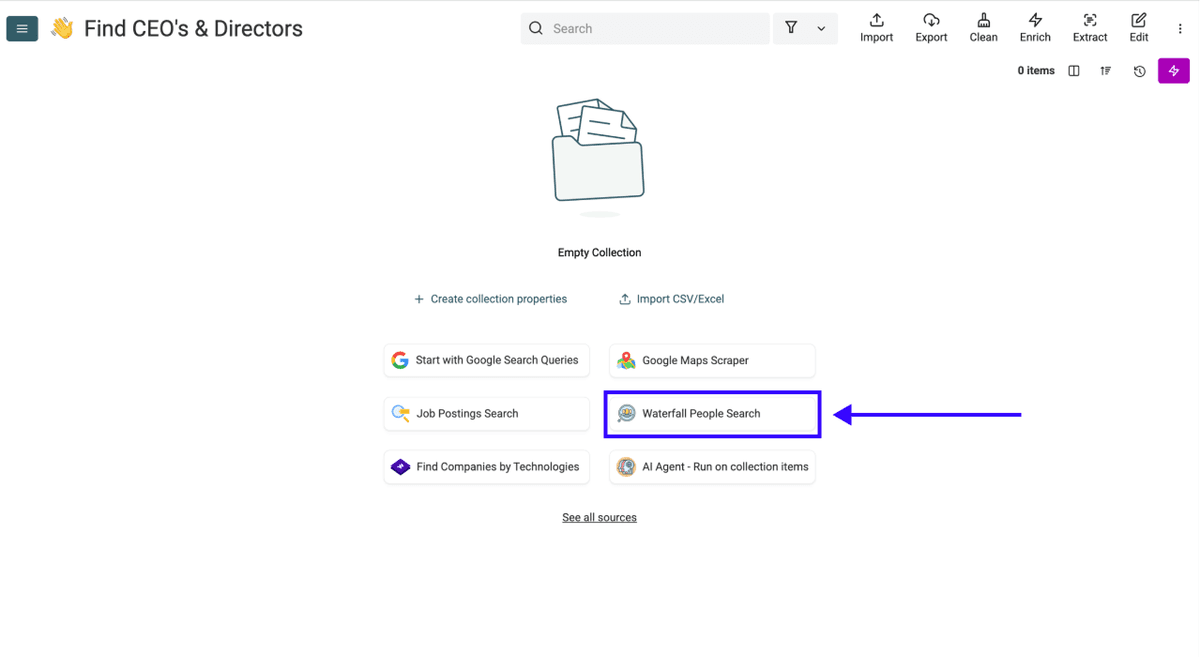
Step 2: Open The Waterfall People Search
- Select the Waterfall People Search from the source list
- Map your collection as the Input Collection
- Choose the domain column as the Input Property
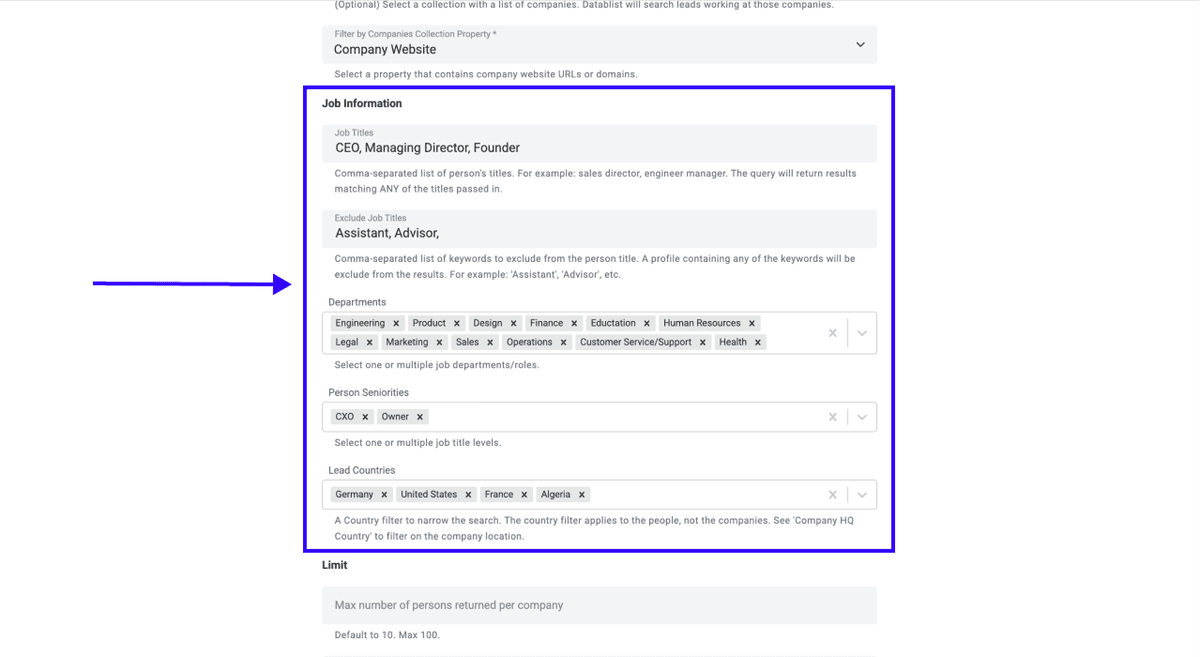
Step 3: Set The Job Titles You Want To Reach
Person's Titles takes a comma-separated list and returns anyone matching any title. For a recruiter working hiring signals, a strong mix is: Hiring Manager, CEO, Founder, VP of HR, Recruiting Manager, Owner.
Narrow further with Departments, Person Seniorities, and Lead Countries if you only want decision-makers in a specific region.
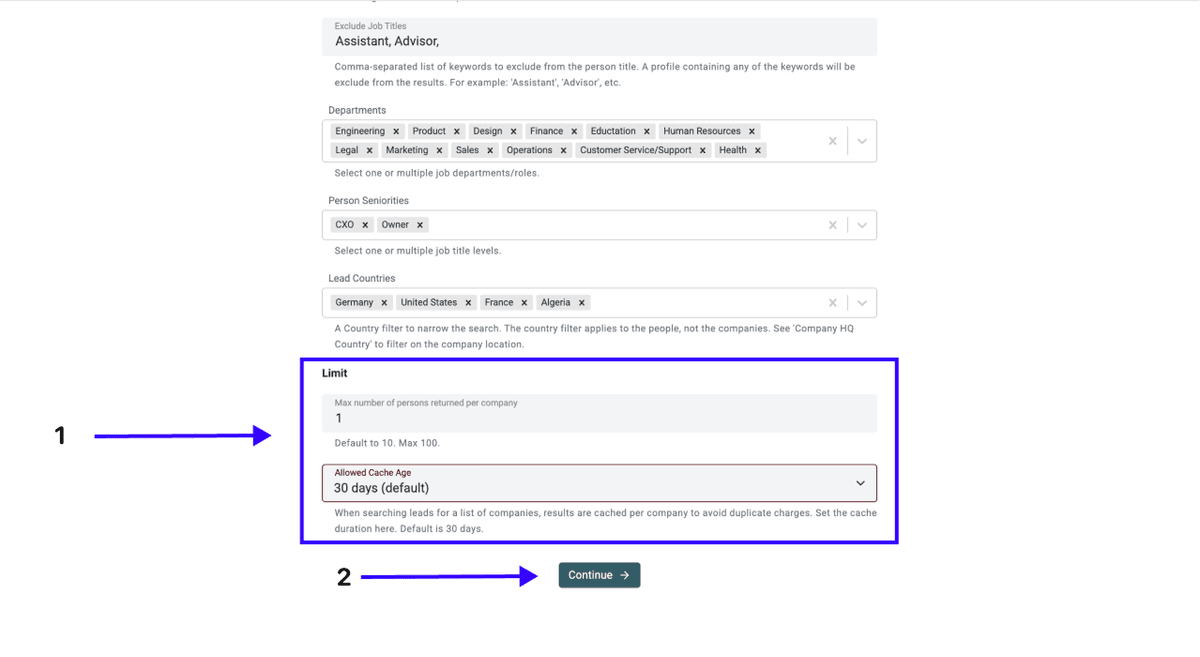
Step 4: Set Your Contact Limit And Cache
- Set the Contact Limit Returned Per Company
- Choose your Cache Settings
- When everything is set, click Continue.
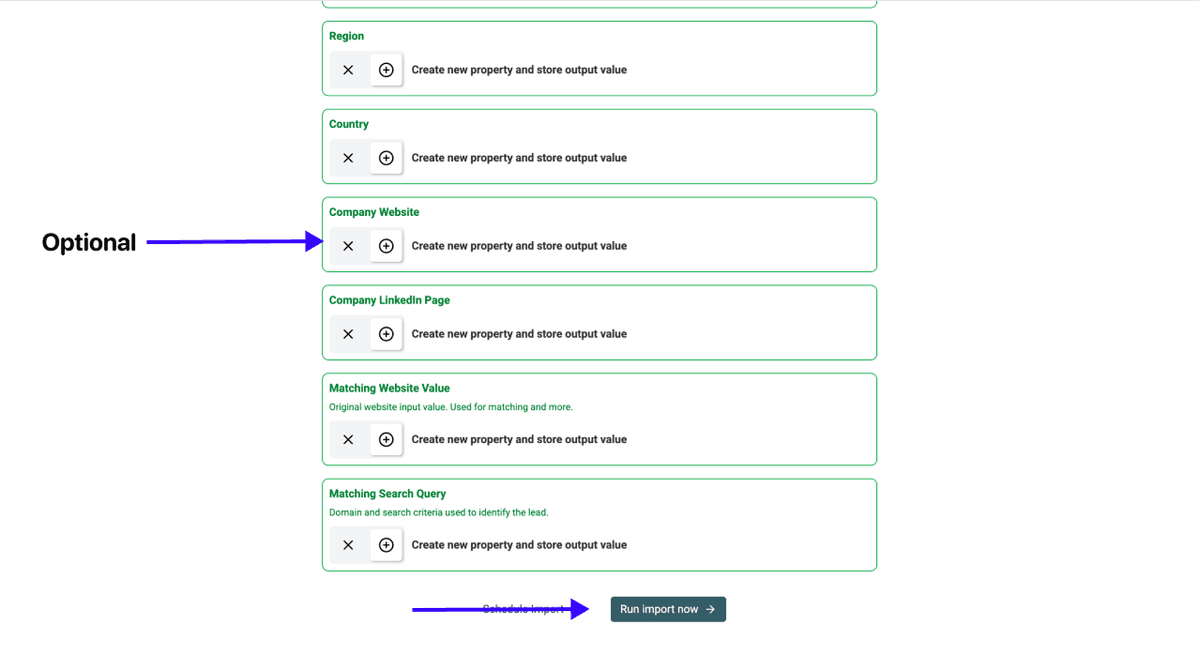
Step 5: Select Your Outputs And Run
Datablist creates a property for every data point it can return.
- Remove the ones you do not need with the ✕ icons
- Click Run import now
Each imported lead costs 100 credits and includes an email address where one is found.
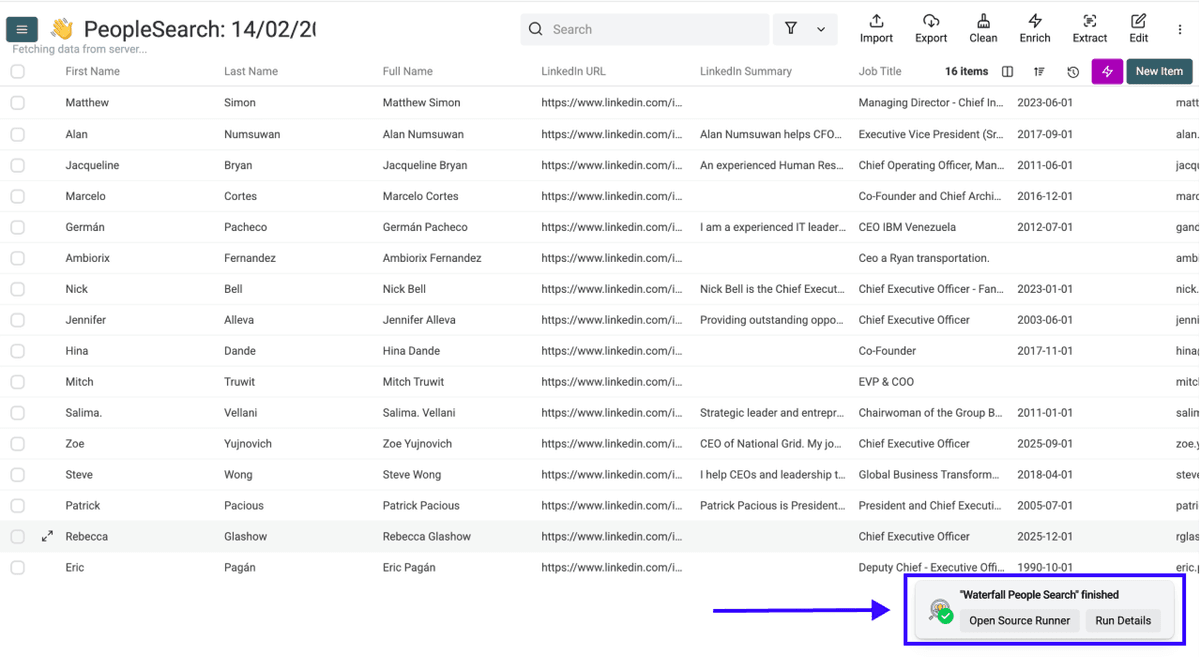
Step 6: Review Your Lead List
After a few minutes, your collection holds names, titles, and emails sitting next to the job posting that surfaced them. That is a contactable lead built from a live hiring signal, not a cold list.
Scraped LinkedIn Jobs Are Only Worth It Once You Reach The Hiring Manager
Scraping LinkedIn job postings is good, but it’s not enough to actually get leads. A LinkedIn job posting is a signal that a company has demand right now, but the deal is done with the person who owns the hire, not the job ad.
Luckily with Datablist you can un the full no-code workflow in one place, postings to domains to contacts, and you turn hiring signals into outreach-ready leads.
Frequently Asked Questions About Scraping LinkedIn Jobs
How Much Does It Cost To Scrape LinkedIn Jobs With Datablist?
The scraper costs 2 credits per imported posting which is about $0.002. With Datablist’s trial plan you get 500 free credits which is enough to scrape 250 job postings from LinkedIn.
How Fast Can I Scrape LinkedIn Jobs In Bulk?
Most runs finish in a few minutes. You set your keywords, locations, and a limit per search, start the job, and the postings land in your collection while you work on something else.
How Many LinkedIn Job Postings Can I Scrape Per Search?
Each search returns up to 500 postings, and LinkedIn caps a single search at 1000 results. To cover more, split the work across multiple keywords and locations, since each combination runs as its own search.
What Data Do You Get When You Scrape A LinkedIn Job Posting?
Each posting returns 13 fields, including the job title, description, seniority, function, industries, and employment type, plus the company name, company LinkedIn URL, job link, posting ID, location, country, and date added.
Do I Need Any Coding Skills To Scrape LinkedIn Jobs?
No. With Datablist The whole workflow is no-code: pick the scraper, type your keywords and locations, and run. There are no scripts to maintain and no API keys to manage.
Can I Get Hiring-Manager Emails From Scraped LinkedIn Jobs?
Yes. After turning company names into domains, the Waterfall People Search finds people by job title and returns an email where one is found. You can target hiring managers, founders, owners, or HR leaders.
Can You Scrape LinkedIn Jobs Without Code?
Yes. A managed no-code scraper runs the extraction for you and returns postings as structured rows, so you never write a line of Python or install a browser extension.
Is It Safe To Scrape LinkedIn Jobs Without Getting Your Account Blocked?
It is when the scraper runs on its own infrastructure instead of your logged-in session. Free scripts and extensions scrape from inside your account, which is what tends to trigger a block. This is the same concept Datablist’s Sales Navigator Scraper runs on: no risk to your account.
Can I Export LinkedIn Job Postings To A CSV Or Spreadsheet?
There's no way to export LinkedIn job postings, which is the core problem. Datablist's scraper solves it by collecting the postings into a structured list you can filter, enrich, and export whenever you want.
Should I Use A Python Script Or A No-Code Tool To Scrape LinkedIn Jobs?
A script can work if you are a developer who wants to maintain it. For a non-technical recruiter, a no-code job scraping tool is faster to run, safer for the account, and it does not break every time the page layout changes.
Is It Better To Scrape LinkedIn Jobs Or Buy A Prebuilt Lead List?
Scraping gives you fresh hiring signals tied to companies with active demand, which a static bought list cannot match. You also control the targeting, so every lead maps to a real, current job opening.
What Can Recruiters Actually Do With Scraped LinkedIn Job Postings?
A posting shows which companies are hiring right now. Enrich it into a domain and a decision-maker contact, and you have a warm reason to reach out: you know they have the demand your service solves.