 1 Credit per 1,000 Characters
 Choose Your GPT Model
 500 Free Credits to Try














 Easy to Use
 Fully No-Code
 38,000+ Users
Step-by-Step Guide
Step 1: Sign Up & Upload Your Data
First, sign up for Datablist.com
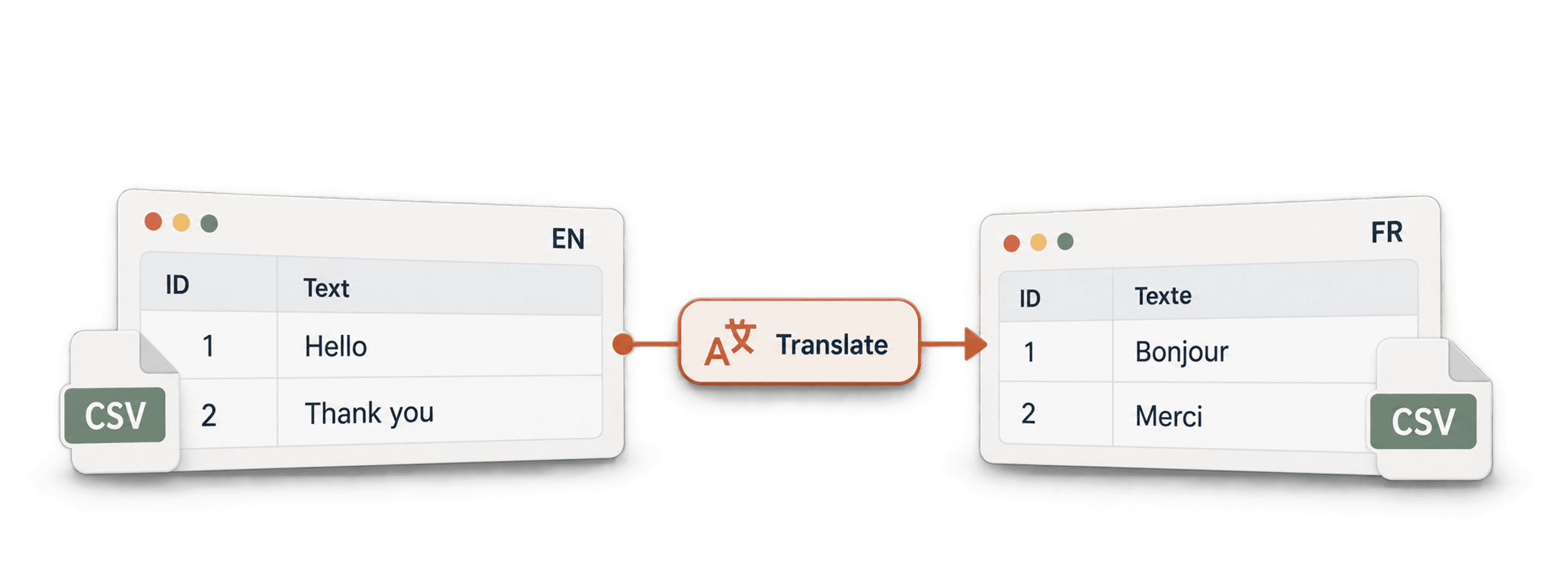
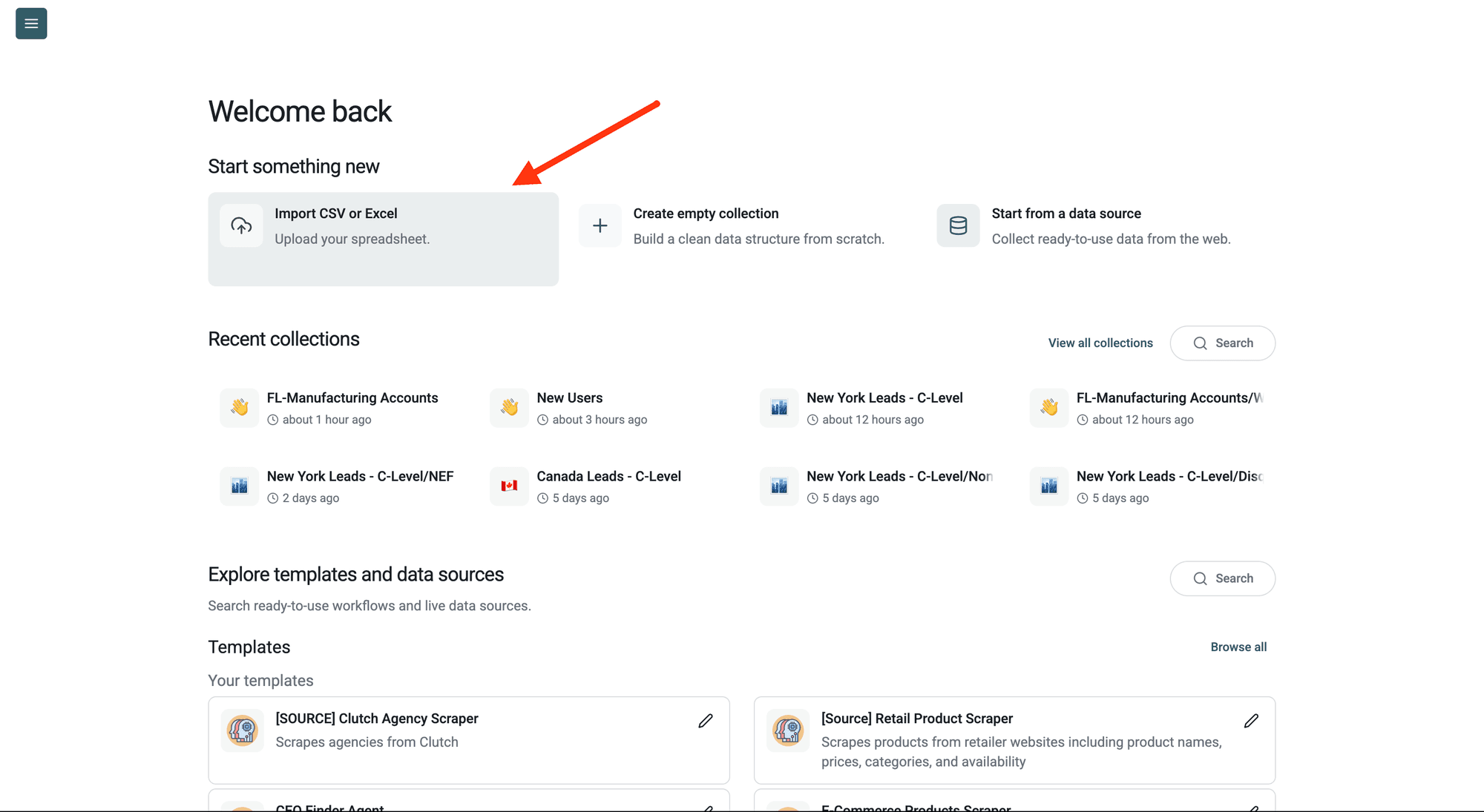
Create a collection with the CSV editor. Then, upload your CSV or Excel file with the text you want to translate.
Step 2: Navigate to the Enrichment
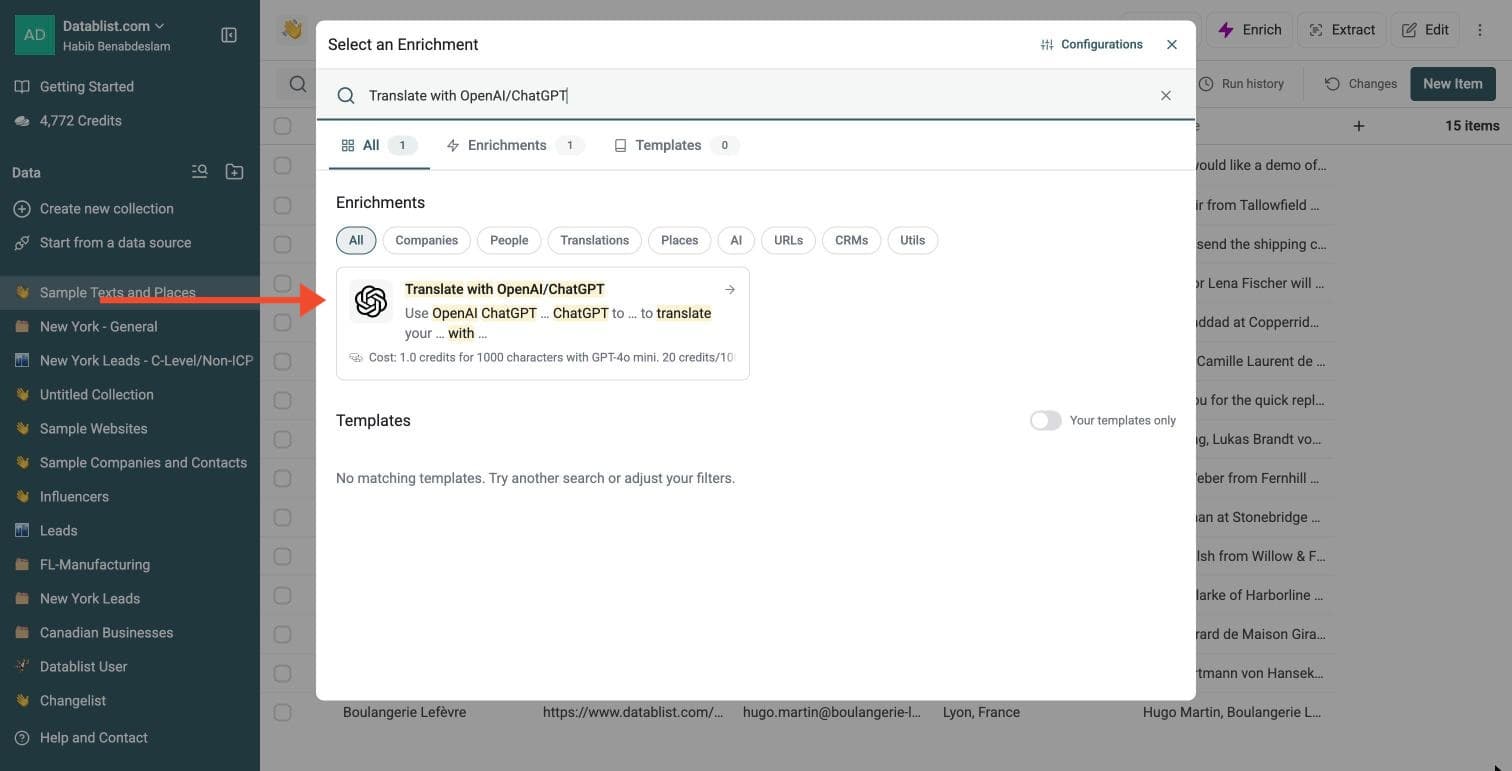
Click Enrich in the top menu and search for Translate with OpenAI/ChatGPT.
Step 3: Set Up the Enrichment
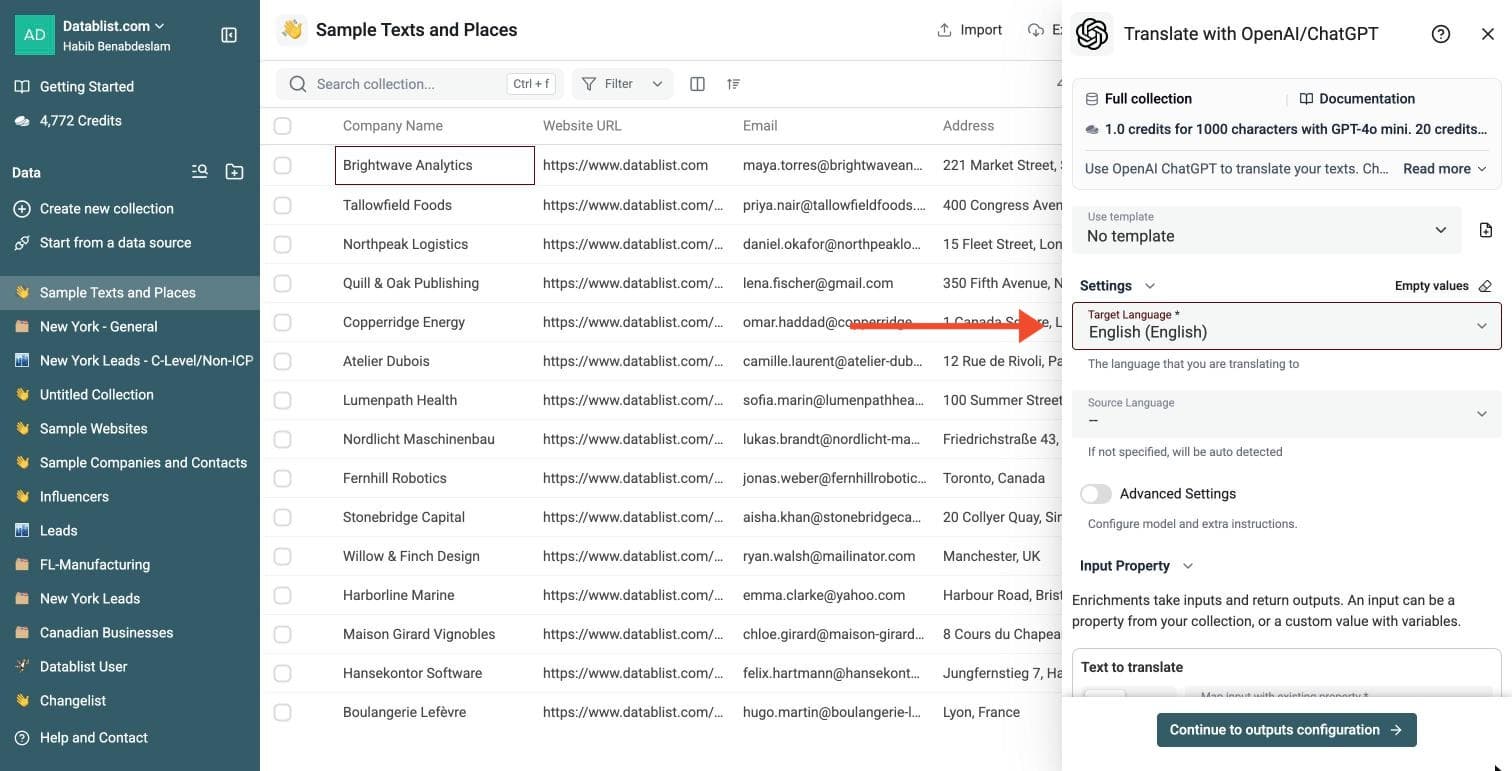
In the drawer that opens, choose your languages:
-
Target Language: required. The language you are translating to
-
Source Language: optional. Leave it empty and it is detected automatically
-
Advanced Settings: switch it on to choose the GPT model and add extra or custom instructions
Under Advanced Settings, Extra Instructions is a menu: choose Keep XML or HTML structure, Keep JSON structure, or Custom Instructions. Choosing Custom Instructions reveals the required text field for your tone, glossary, placeholder or formatting rules.
Step 4: Configure Your Inputs
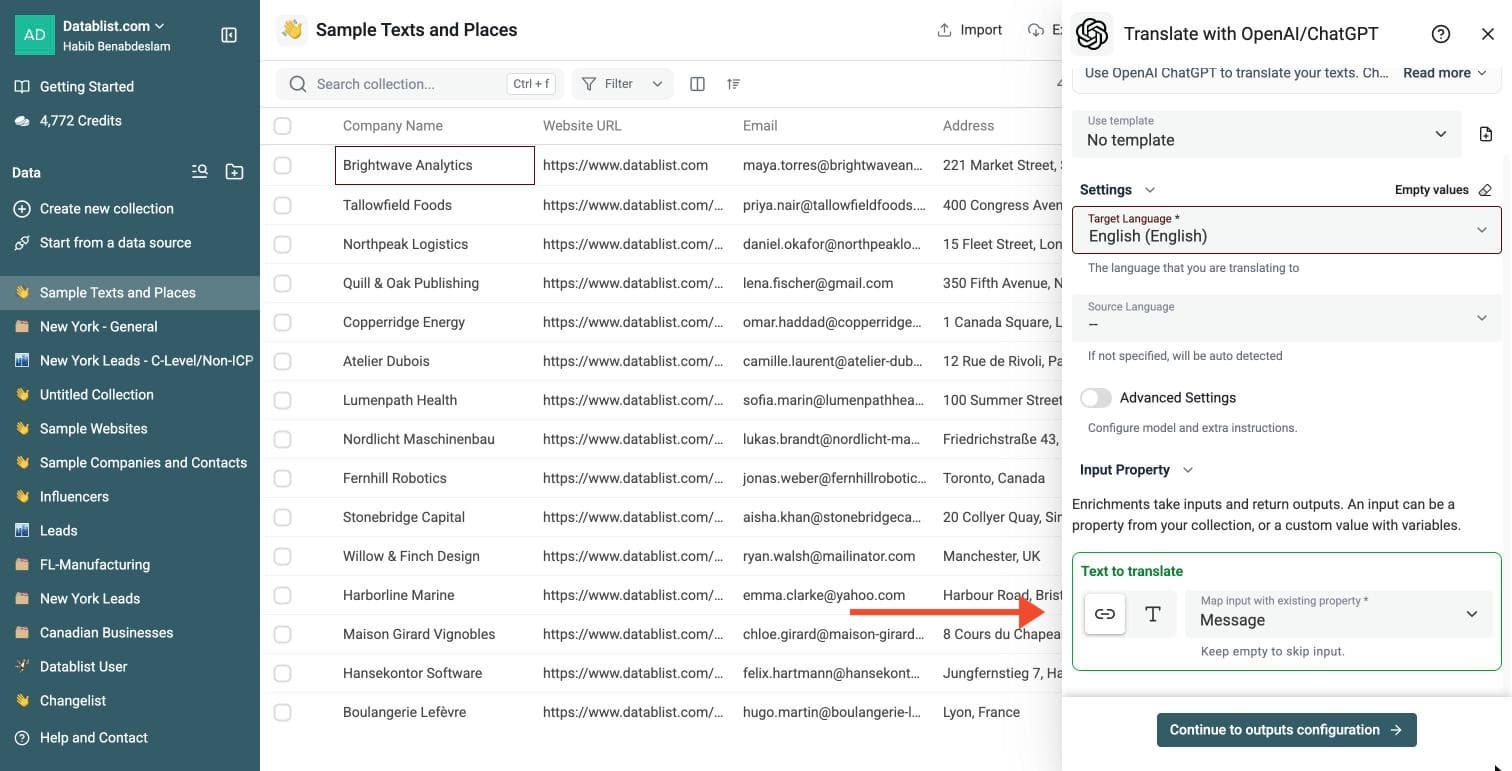
Map the Text to translate input to the column that holds the text you want to translate.
This enrichment translates one column at a time. To translate several columns, run it once per column.
Then click Continue to outputs configuration.
Step 5: Select Outputs
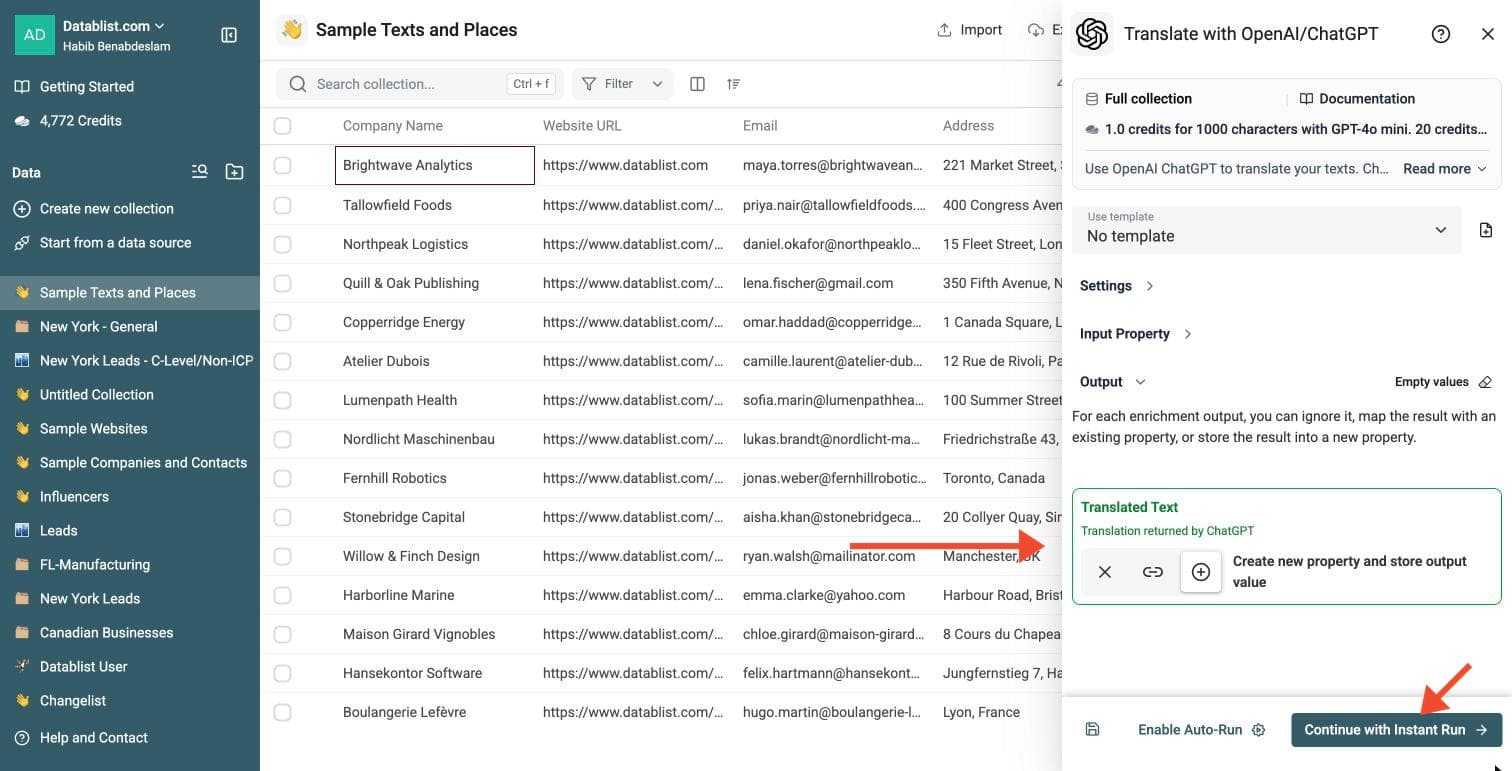
ChatGPT Powered Translation Tool returns one output:
- Translated Text: the translation returned by ChatGPT
Click the ⊕ icons to add them to your collection, then click Continue with Instant Run.
Step 6: Run the Enrichment
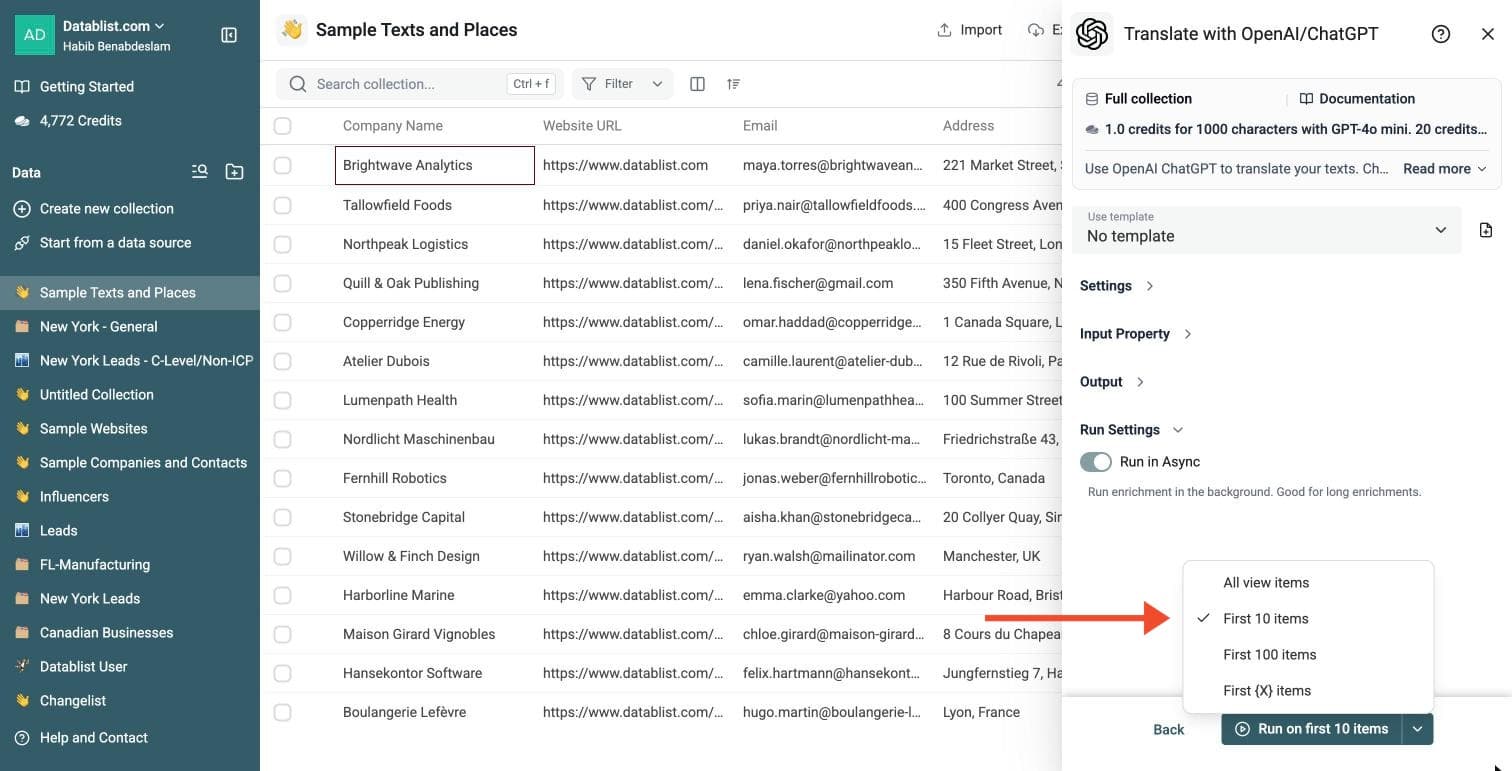
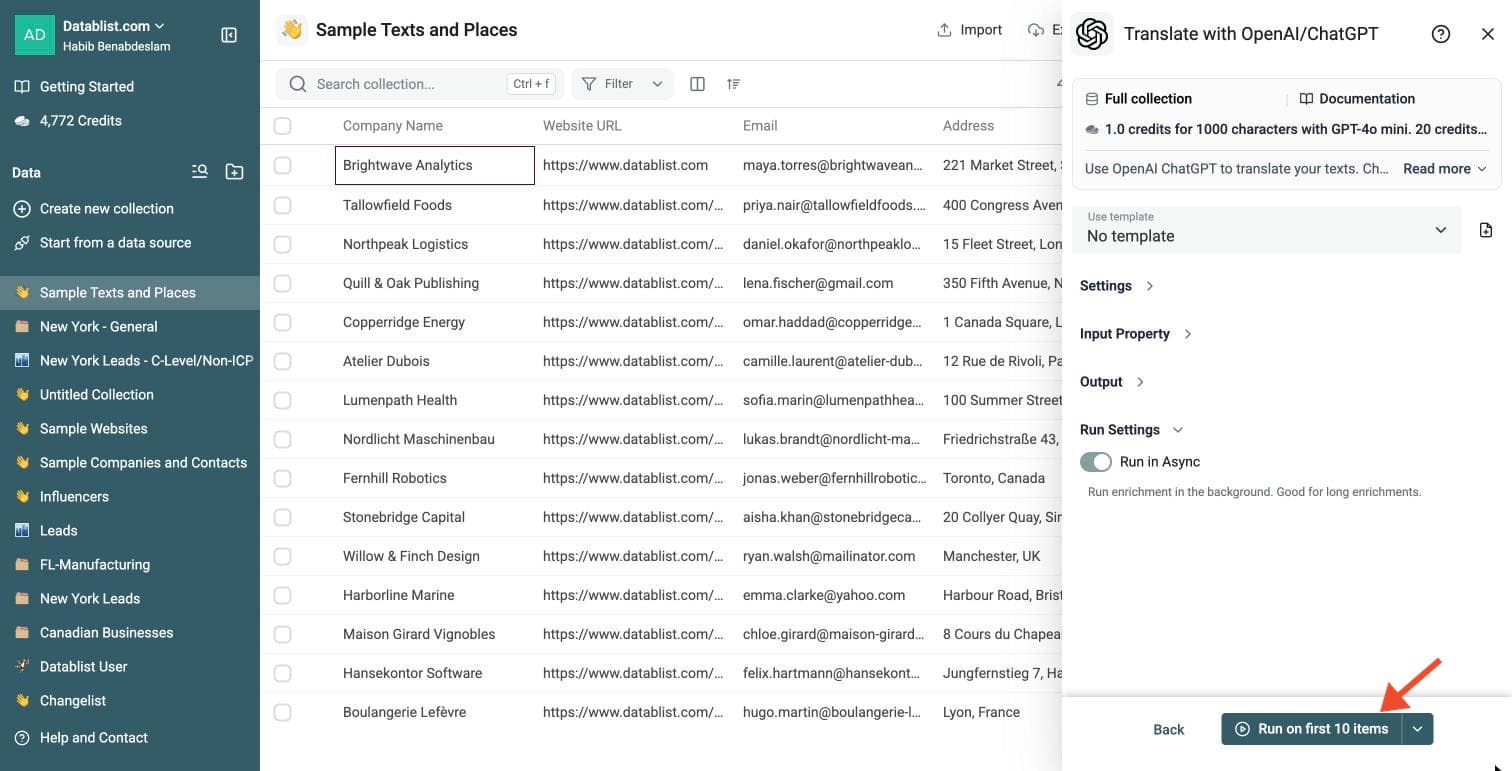
Click the chevron on the right side of the run button to choose how many items to process:
-
Run on first 10 items: Good for checking results before committing
-
Run on first 100 items: Useful for validating larger samples
-
Run on all view items: Process your entire list (or view if you've enabled filters)
ChatGPT Powered Translation Tool costs about 1 credit per 1,000 characters with GPT-4o mini. This is an estimate; actual billing depends on input and output token usage and the selected model. Empty text is marked as empty data and costs 0 credits.
Review a small sample and the run-status column before processing the full list. Filter rows that need attention, fix inputs or settings, and rerun those rows. Export your collection when the results are ready.
What This Enrichment Does
This enrichment runs ChatGPT translations on rows from your CSV or Excel file.
You can:
- Translate one text column at a time
- Choose the target language
- Let ChatGPT detect the source language
- Set a source language when you know it
- Choose the GPT model
- Add instructions for HTML, XML, JSON, or custom rules
- Track row status for missing text or failed translations
- See the credits used for each translated row
The output is Translated Text, the translated version of your input. Review the run-status column and credits used in the run details when checking missing text, failed translations or costs.
Translate Only the Columns You Choose
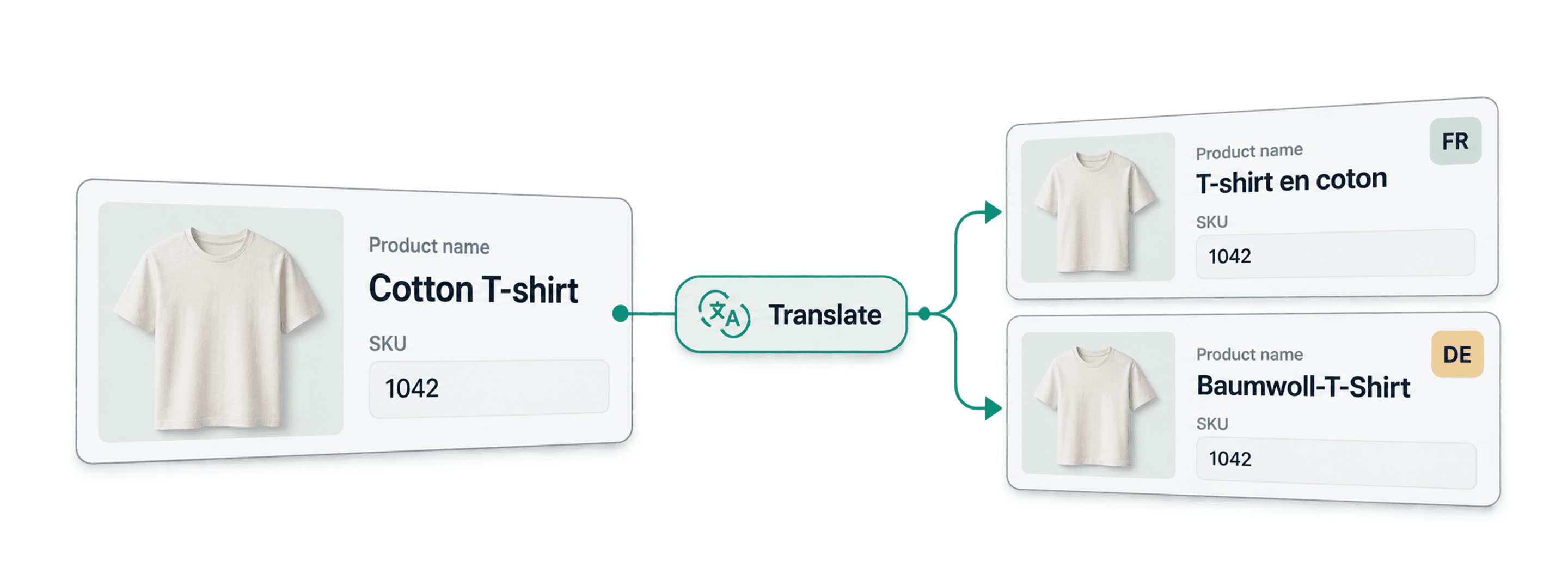
Many online CSV translation tools translate the whole file. They process every column and every cell, including IDs, SKUs, URLs, tags, codes, and fields that should stay unchanged.
Datablist lets you translate one selected column at a time.
You choose the input column and the output column. Your original data stays untouched.
This gives you more control:
- Translate only the column that needs work
- Keep IDs, URLs, tags, and internal notes unchanged
- Translate filtered rows only, such as one product category or one language segment
- Use ChatGPT for columns that need instructions, tone, HTML, XML, or JSON rules
- Use another engine for another column, such as Google Translate for short labels or DeepL for long descriptions
For example, you can translate product descriptions with DeepL, then use ChatGPT on SEO titles with a custom instruction to keep brand names and local keywords.
Why Use ChatGPT for Bulk Translation?
ChatGPT works well when context matters.
It can handle short labels, long paragraphs, product descriptions, support messages, and copy with tone or formatting rules. You can also add instructions, such as keeping HTML tags or preserving JSON keys.
This is useful when you need more control than a basic find-and-translate workflow.
Good Use Cases
Translate Product Catalogs
Translate product titles, descriptions, bullet points, and specifications from an ecommerce CSV.
Use extra instructions when your product descriptions contain HTML.
Translate Customer Reviews
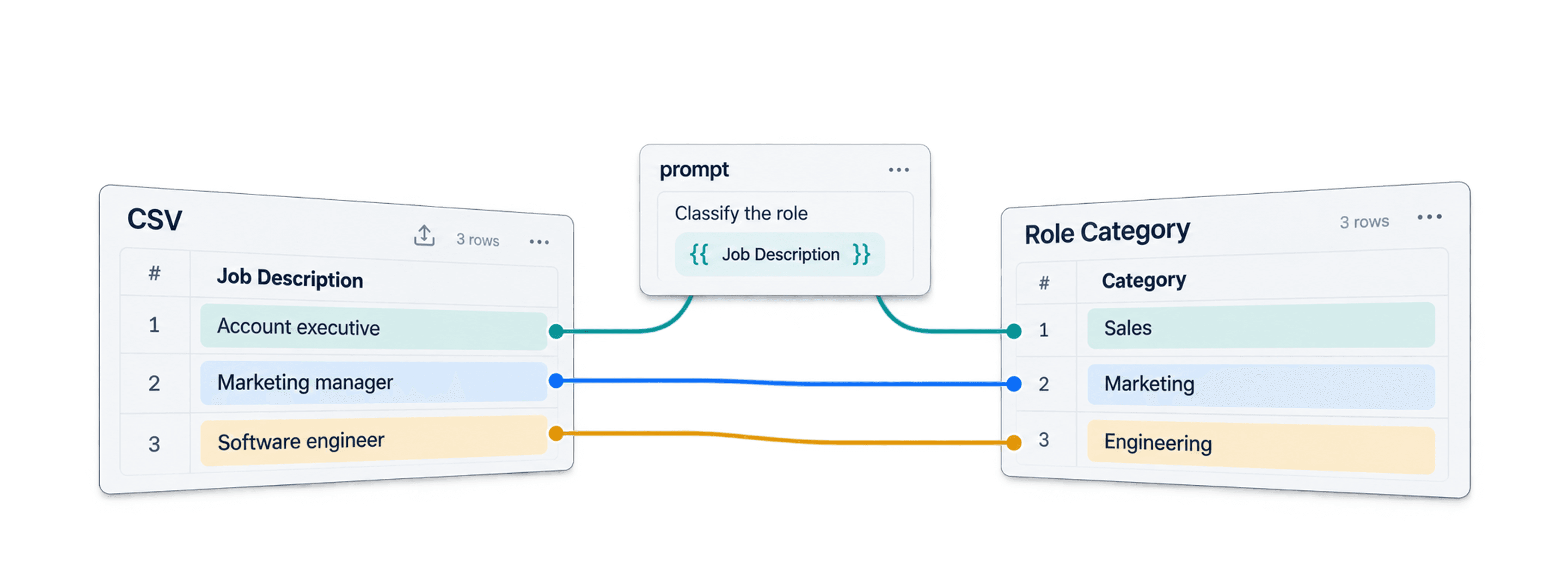
Turn multilingual reviews into one language before analysis, tagging, or sentiment classification.
Translate Support Tickets
Translate customer messages before routing, tagging, or replying.
Translate Website or App Content
Translate labels, snippets, help text, landing page copy, or app strings stored in a spreadsheet.
Use the JSON option when your content comes from a localization file.
Translate Sales and Recruiting Lists
Translate notes, company descriptions, LinkedIn snippets, job descriptions, or outreach context before sending them to another workflow.
Keep HTML, XML, or JSON Structure
Some translation jobs need more than plain text.
In Advanced Settings, use the Extra Instructions menu to choose a structure-preservation preset or reveal the Custom Instructions field. You can tell ChatGPT to:
- Keep HTML or XML tags
- Keep JSON structure
- Follow custom instructions
Examples:
- Translate only text inside HTML tags.
- Keep product JSON keys unchanged.
- Keep placeholders such as
{first_name}or{{company}}. - Translate only a specific field inside a block of text.
This helps when you translate ecommerce descriptions, website copy, localization files, or templated messages. Test a sample and validate the translated markup, JSON keys and placeholders before exporting.
Source and Target Languages
You must choose a target language.
The source language is optional. If you leave it empty, ChatGPT detects the source language from the text.
Set the source language when:
- All rows use the same source language
- The text is short
- The text contains names, codes, or industry terms
- You want fewer language-detection mistakes
The enrichment supports many target languages, including English variants, French, German, Spanish, Italian, Portuguese, Dutch, Polish, Chinese, Japanese, Korean, Arabic, and many more.
Pricing
Datablist charges credits based on token usage.
The default model is GPT-4o mini, estimated around 1 credit per 1,000 characters.
Model estimates shown in the enrichment:
- GPT 5: about 20 credits per 1,000 characters
- GPT 5 mini: about 5 credits per 1,000 characters
- GPT 5 nano: about 0.9 credits per 1,000 characters
- GPT 4.1: about 20 credits per 1,000 characters
- GPT 4.1 mini: about 1 credit per 1,000 characters
- GPT-4o: about 20 credits per 1,000 characters
- GPT-4o mini: about 1 credit per 1,000 characters
These character-based figures are budget estimates, not fixed charges. Actual costs depend on input and output tokens. Newer models are also available in the current menu, with the GPT-6 Astra estimate reaching about 50 credits per 1,000 characters.
Use smaller models for large translation files when cost matters. Use larger models when tone, context, or difficult text matters more.
Learn more about the Datablist Credits System.
Tips for Better Translations
- Set the source language when the text is short.
- Use custom instructions for brand tone or formatting rules.
- Use the HTML/XML option when text contains tags.
- Use the JSON option for localization files.
- Translate one column at a time.
- Test a small sample before translating a large file.
- Keep the original column and write translations to a new column.