 5 Credits per Deliverability Check
 Verifies Mailboxes Across Providers
 Verify 100 Emails Free














 Easy to Use
 No Technical Configuration
 Fully No-Code
Step-by-Step Guide
Step 1: Sign Up & Upload Your Data
First, sign up for Datablist.com
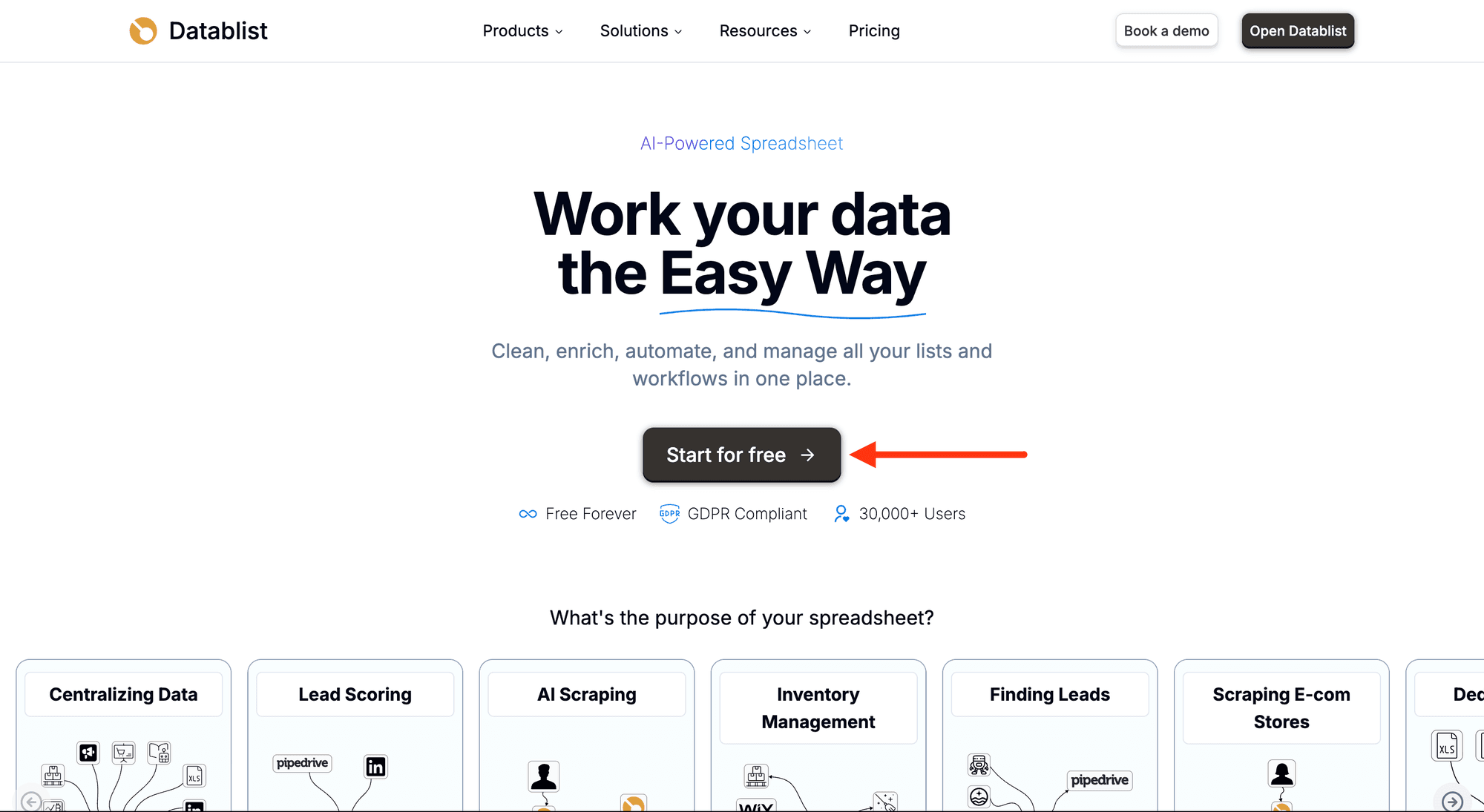
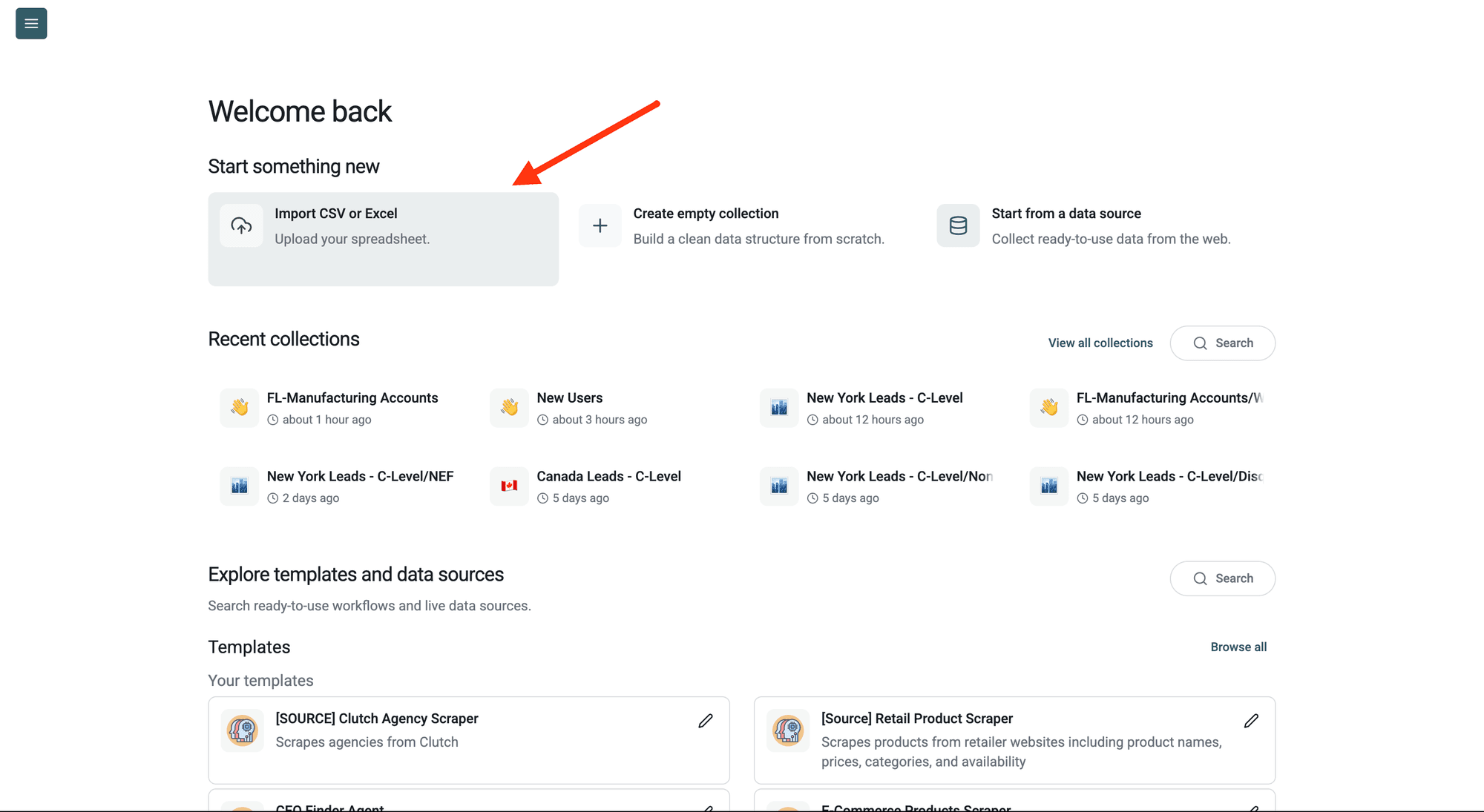
Then, upload your CSV or Excel file with your list of email addresses.
Step 2: Navigate to the Enrichment
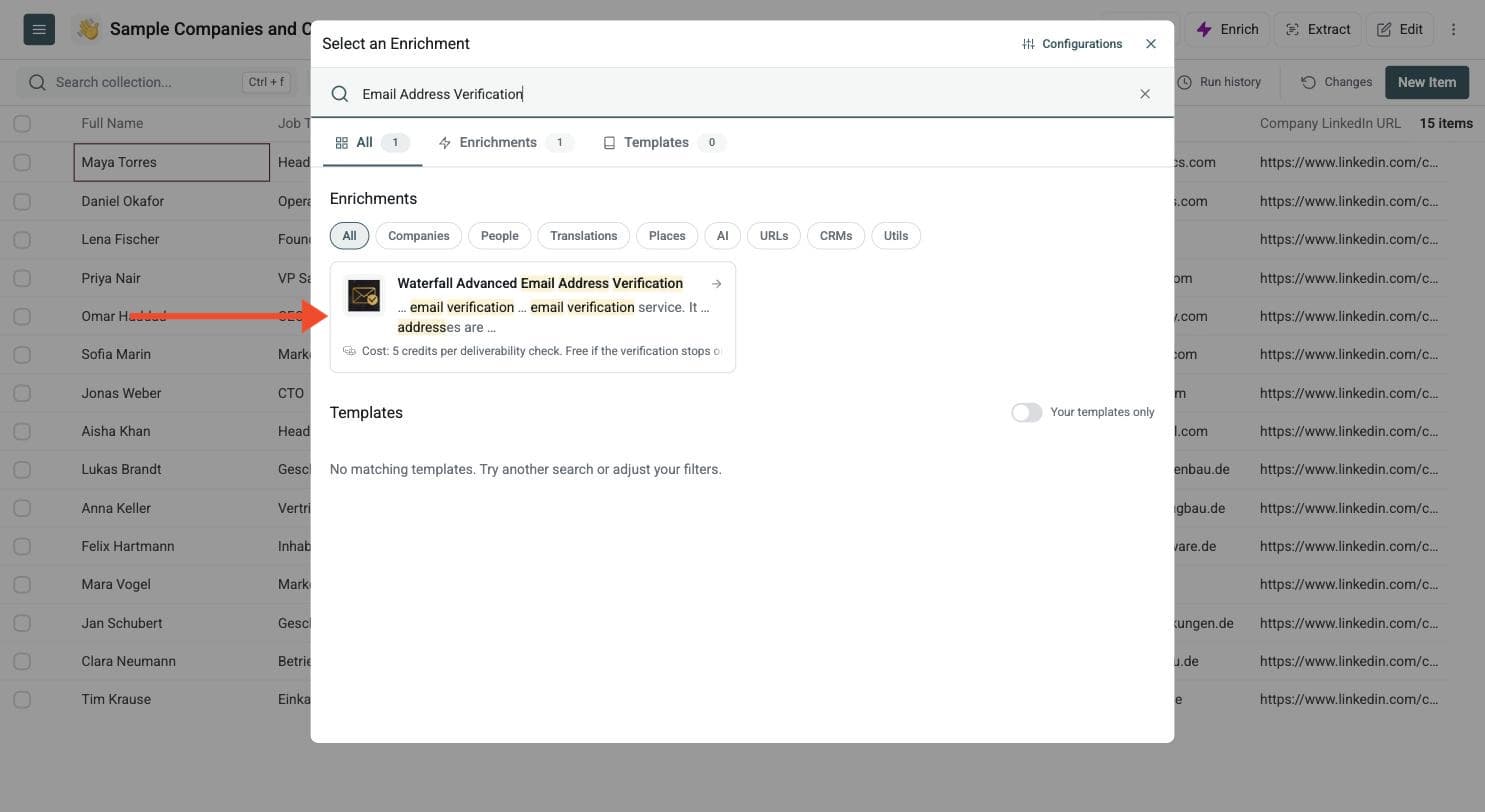
Click Enrich, then search for Waterfall Advanced Email Address Verification.
Step 3: Set Up the Enrichment
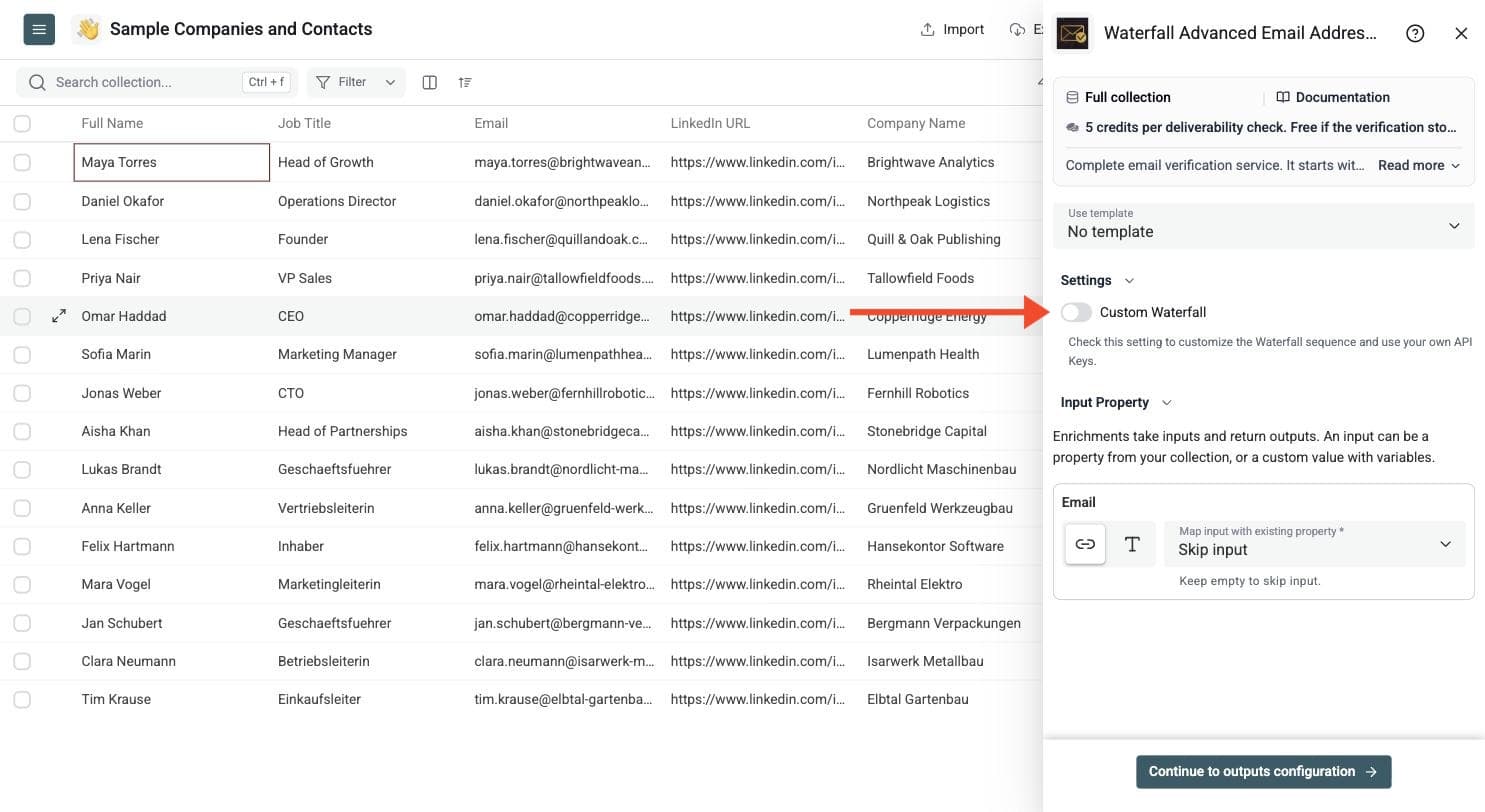
You'll see the following settings:
-
Custom Waterfall: Check this setting to customize the waterfall sequence and use your own API keys.
-
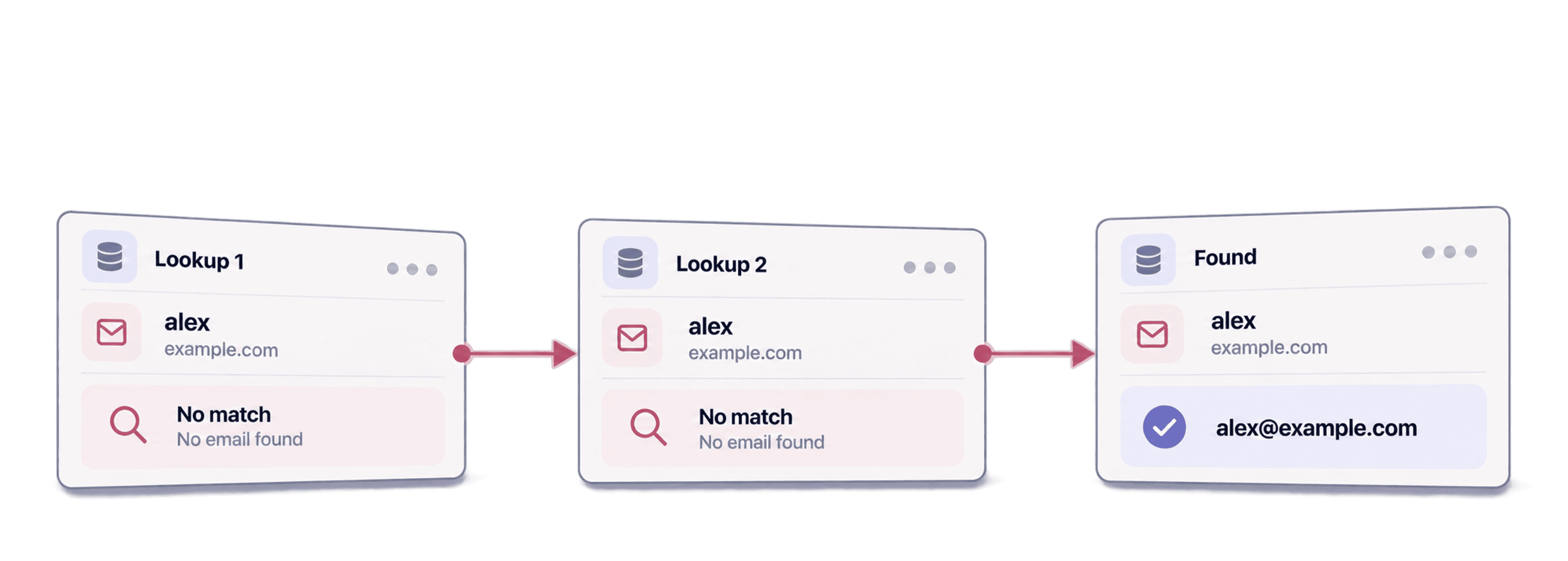
Waterfall Sequence: Define each provider and configure your API keys. Catch-all and unknown emails are passed down to the next provider.
By default, Datablist uses its own waterfall verification sequence, so you can leave both settings alone.
With Custom Waterfall, choose MillionVerifier, Icypeas, Enrow, Reoon, Findymail, LeadMagic, BulkEmailChecker or QuickEmailVerification. Set the provider order and add each provider's API key. Icypeas also requires your user ID. This is useful when you already have provider accounts and want to run verification from your spreadsheet.
Risky, catch-all and unknown results can continue to the next provider in your sequence. Datablist retries temporary provider rate limits for a limited period, so a 429 response does not immediately end the sequence. With a custom sequence, add the Validation Provider output to see which service supplied the result.
Once you're done here, scroll down to configure your inputs.
Step 4: Configure Your Inputs
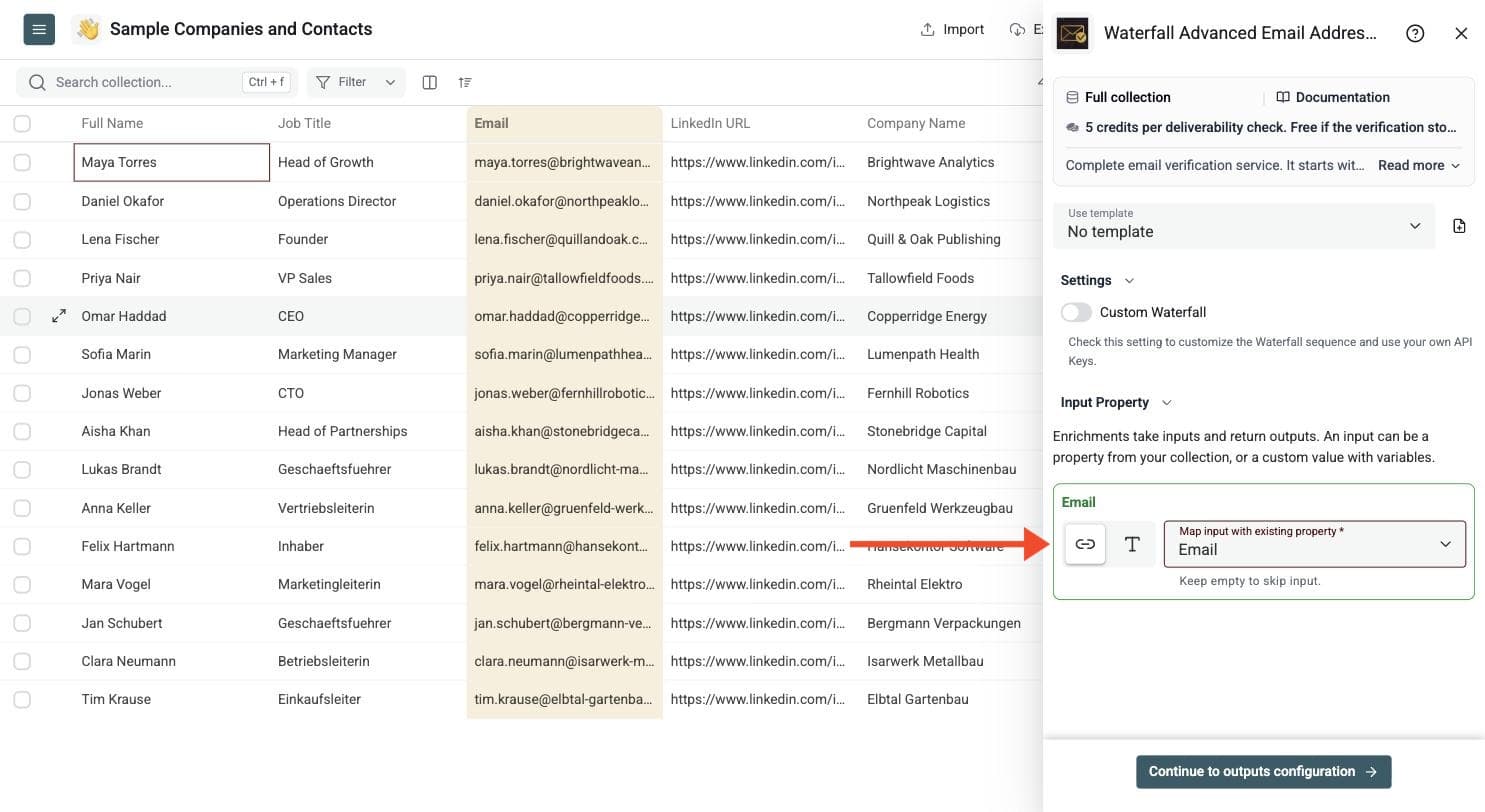
- Map the column that contains your email addresses as the Email input
Then click Continue to outputs configuration.
Step 5: Select Outputs
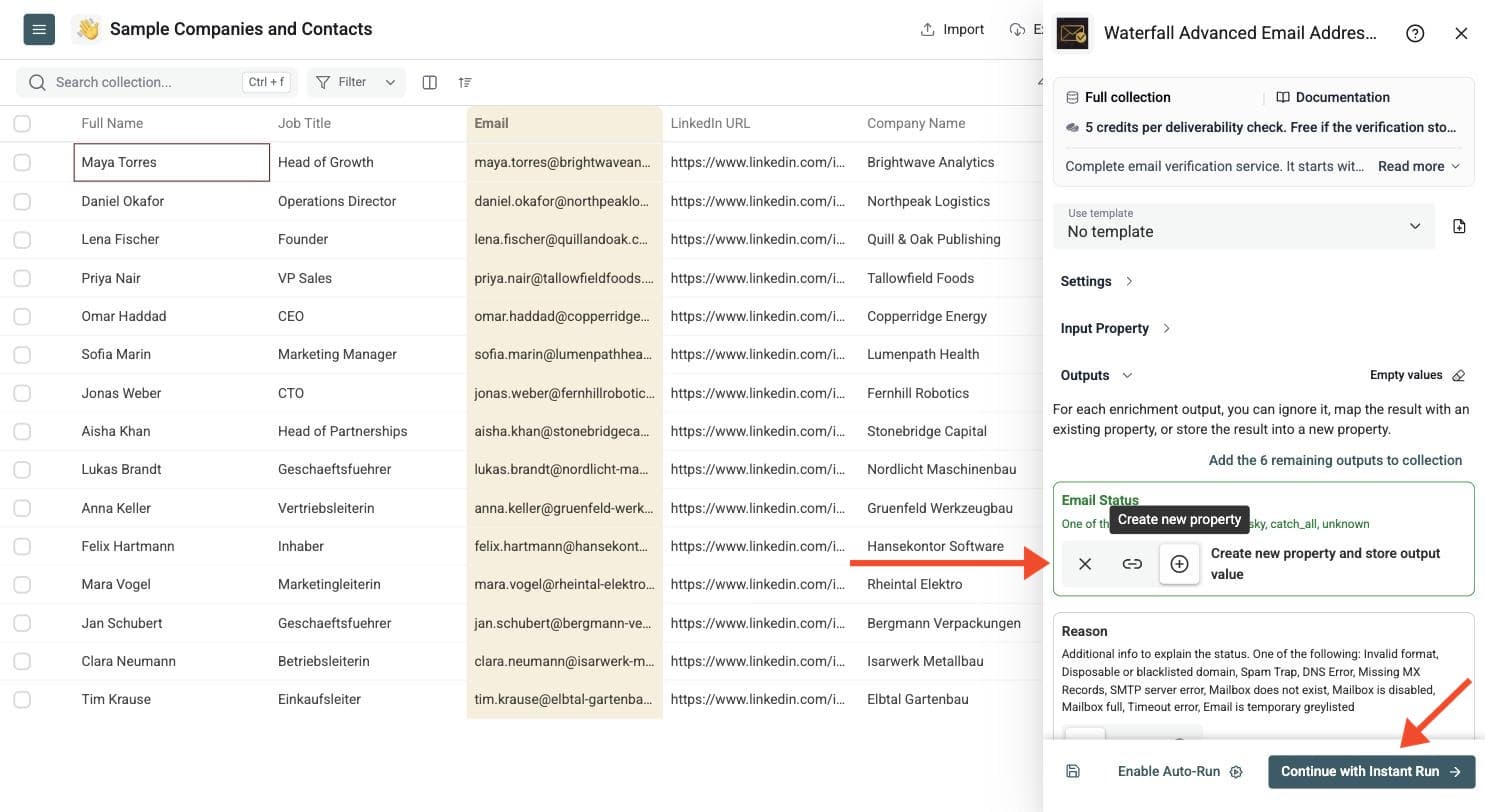
The Waterfall Email Verifier returns these data points:
-
Email Status: valid, invalid, risky, catch_all or unknown
-
Reason: Why the email got this status
-
Suggested Email: A corrected address when a likely typo is found
-
Free Provider: True for domains such as Gmail, Yahoo or Hotmail
-
Role Account: True for addresses such as support@ or team@
-
Domain: The part after the @
-
MX Provider: The email infrastructure provider
Click the ⊕ icons to add them to your collection, then click Instant Run.
Step 6: Run the Enrichment
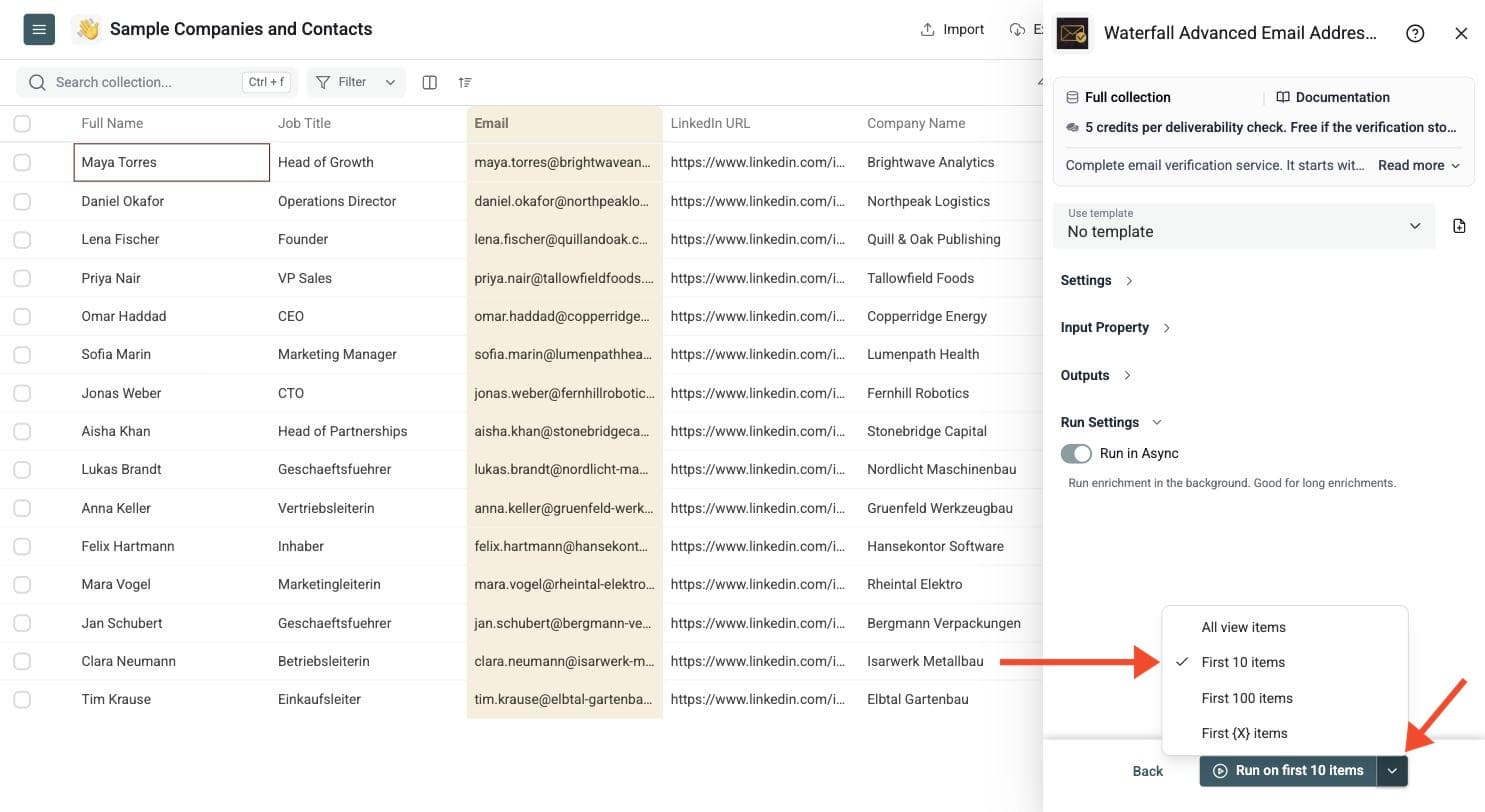
Run a preview on a few rows first. Check the returned status, reason and suggested email fields. Click the chevron on the right side of the run button to choose how many items to process:
-
Run on first 10 items: Good for checking results before committing
-
Run on first 100 items: Useful for validating larger samples
-
Run on all view items: Process your entire list (or view if you've enabled filters)
Then run the enrichment on all rows. Datablist keeps a run status for each item, so you can filter failed rows, empty rows, invalid emails, catch-all domains and unknown results.
Email Validation vs Email Verification
People often use email validation and email verification to mean the same thing, but they are not identical.
Email validation checks whether an address is usable as data. Basic checks can identify:
- Bad format, such as
name@@company.com. - Missing or invalid domains and missing MX records.
- Disposable or temporary email domains.
- Free email providers and role accounts.
Email verification goes deeper. It checks whether the mailbox is likely to exist and accept messages. Providers can use mailbox checks, catch-all detection and other deliverability signals. A result is an assessment at the time of the check, not a guarantee that a future message will reach the inbox.
Datablist validates the address and domain first, then runs deeper verification when those checks allow it. For syntax, disposable-domain and domain-level checks, use the Free Email Validator. Use the advanced verifier when you need mailbox-level results or a custom provider sequence.
Review Your Email Verification Results
Use Email Status together with Reason when deciding which rows to keep:
- valid: The provider considers the address deliverable. Use these rows first for outreach.
- invalid: The address failed validation or verification. Remove it from your sending list, or review a suggested correction.
- risky: The address may work, but the result carries risk. Review it separately.
- catch_all: The domain accepts many addresses, so that result alone does not confirm the individual mailbox.
- unknown: The provider could not return a reliable answer. Review the reason, improve the input or consider checking again later.
Reasons can explain invalid format, missing MX records, a disposable domain, a nonexistent or full mailbox, a timeout or temporary greylisting. Keep that context in a CRM cleanup export so your team knows why a contact was excluded.
Keep the original email column. Suggested Email can help repair a likely typo, but review the correction and verify it before replacing the original value. Free Provider and Role Account help separate personal-provider addresses and shared mailboxes such as support@, sales@ or team@ from individual business contacts.
Cost Examples
With the default managed sequence, a deliverability check costs 5 credits:
- 100 deliverability checks cost up to 500 credits.
- 1,000 deliverability checks cost up to 5,000 credits.
- 5,000 deliverability checks cost up to 25,000 credits.
Rows that stop early on syntax or domain errors can cost nothing, so the final charge can be lower. Custom API-key usage is billed through your provider accounts. Use the calculator and credits documentation for current package prices rather than assuming a fixed dollar value per credit.
What To Do After Verification
Filter the collection by status before exporting it to your CRM or sending tool. Keep valid addresses first, and review risky, catch-all and unknown rows separately based on your campaign requirements. Remove invalid and disposable addresses from the sending list.
Use this workflow for cold outreach lists, newsletter exports, event invitations, recruiting campaigns, old CRM contacts and form submissions. For personalized outreach, review role accounts separately from individual contacts. For a broader cleaning workflow, see Email List Cleaning.