 Free With Your Own Key
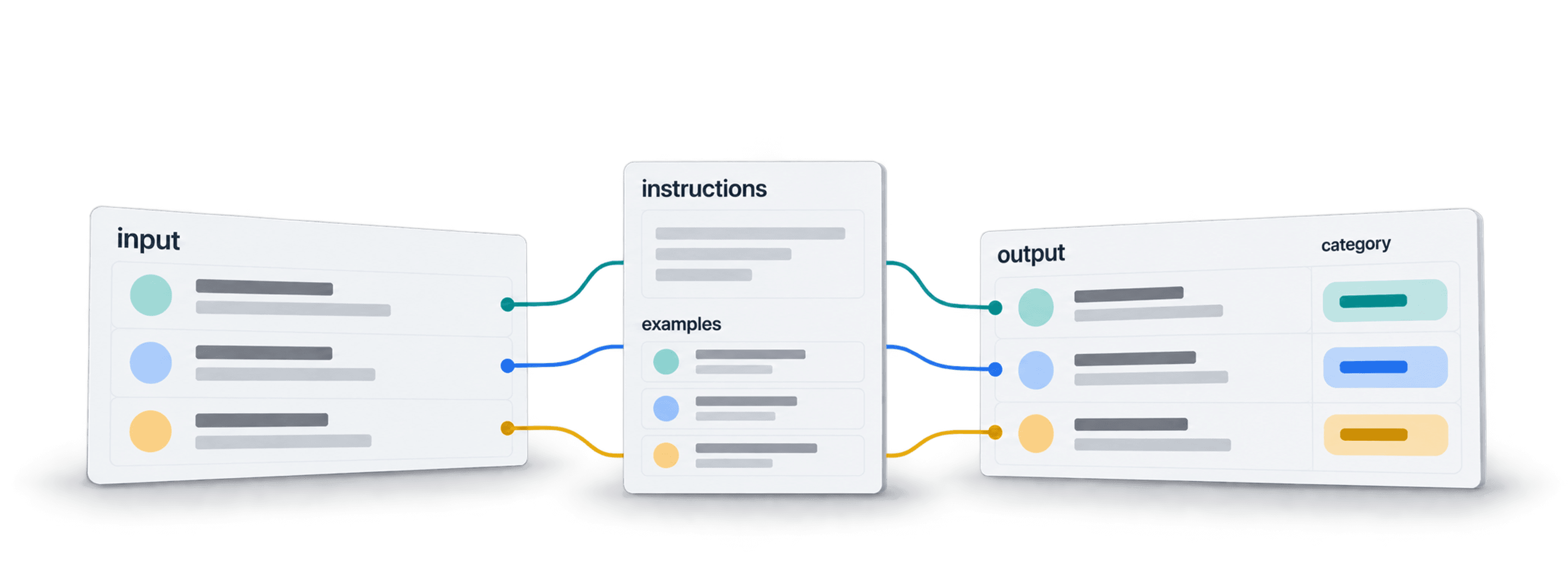
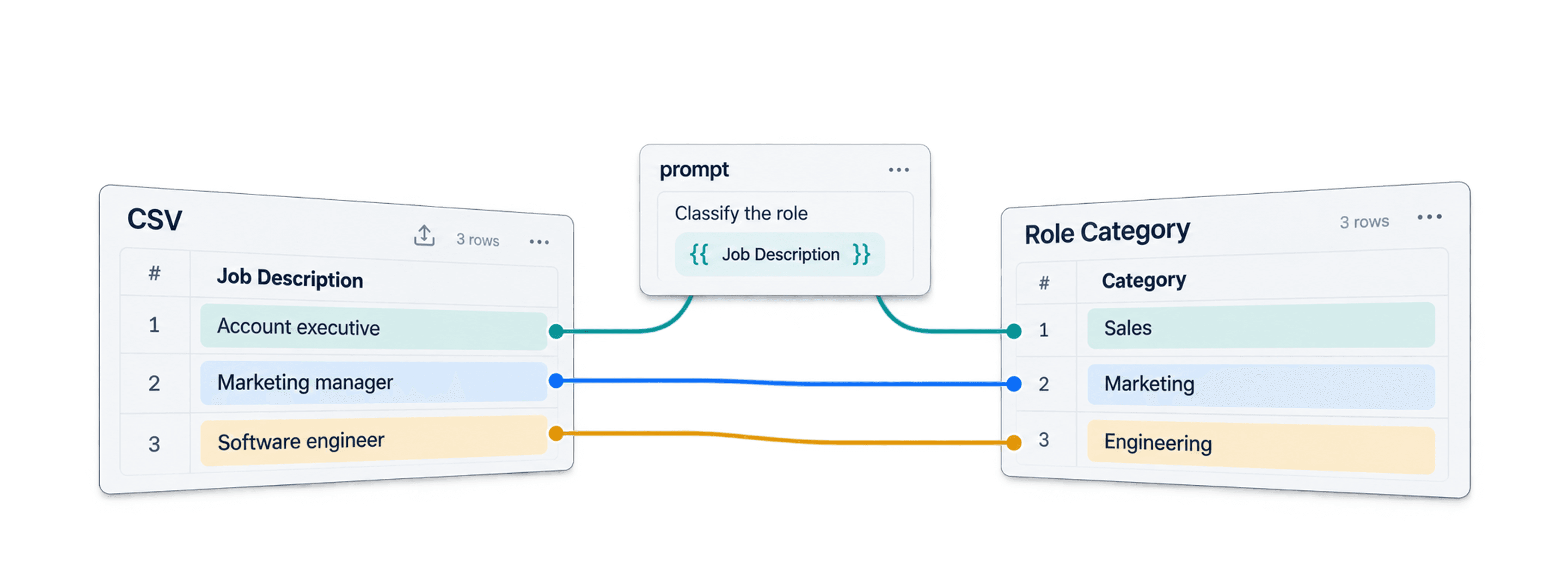
 Sort Rows Into Your Own Labels
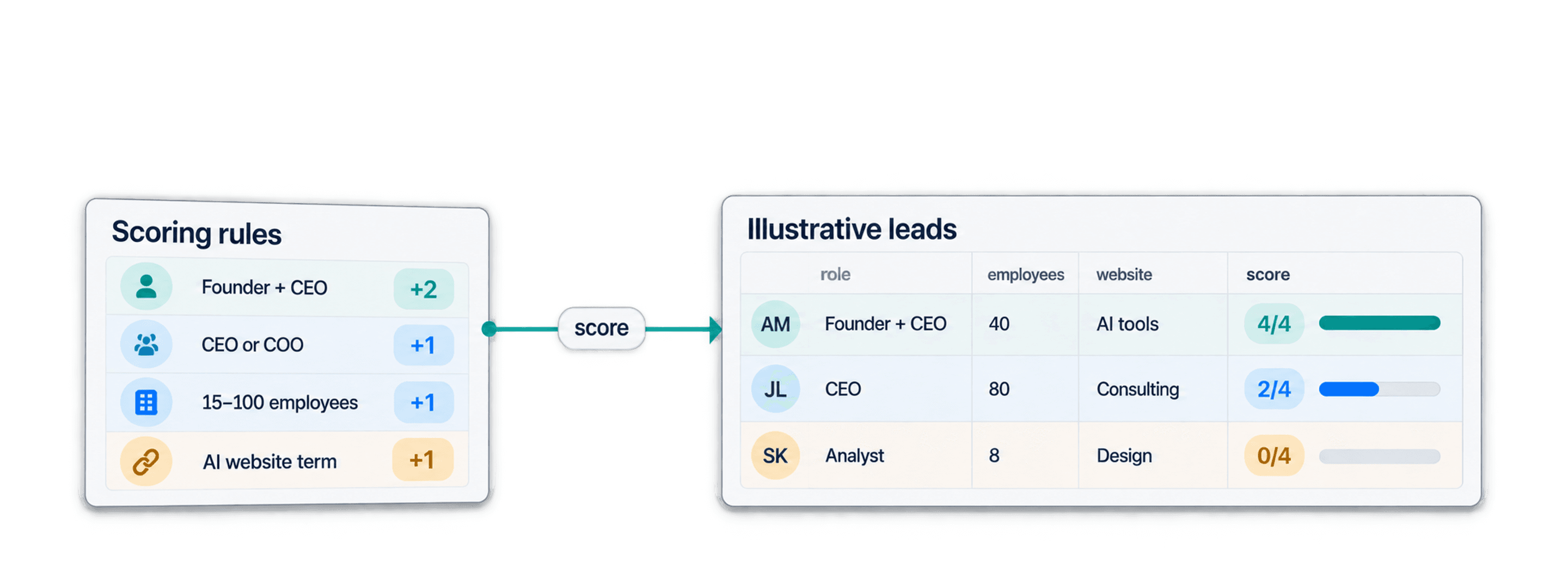
 Confidence Level for Every Match















 Easy to Use
 Fully No-Code
 38,000+ Users
Step-by-Step Guide
Part 1: Get your OpenAI API key
Follow OpenAI's own instructions: Setting up and managing prepaid API billing.
Step 1: Sign In and Add API Credits
Sign in to the OpenAI API platform at platform.openai.com. The API has its own billing, separate from a ChatGPT subscription.
Open the API billing overview, select Add payment details and buy your first credits. The minimum purchase is $5.
A free OpenAI account without API credits will not work with this enrichment.
Step 2: Create and Copy Your Secret Key
Open API keys and select Create new secret key.
Give the key a name, create it and copy it right away. OpenAI shows the full key only once, so paste it somewhere safe.
Part 2: Run the enrichment in Datablist
Step 3: Sign Up & Upload Your Data
First, sign up for Datablist.com
Then, upload your CSV or Excel file with the text you want to classify.
Your file should contain one column with the text you want to classify. This can be a company description, customer message, review, lead note, website text, or any other text field.
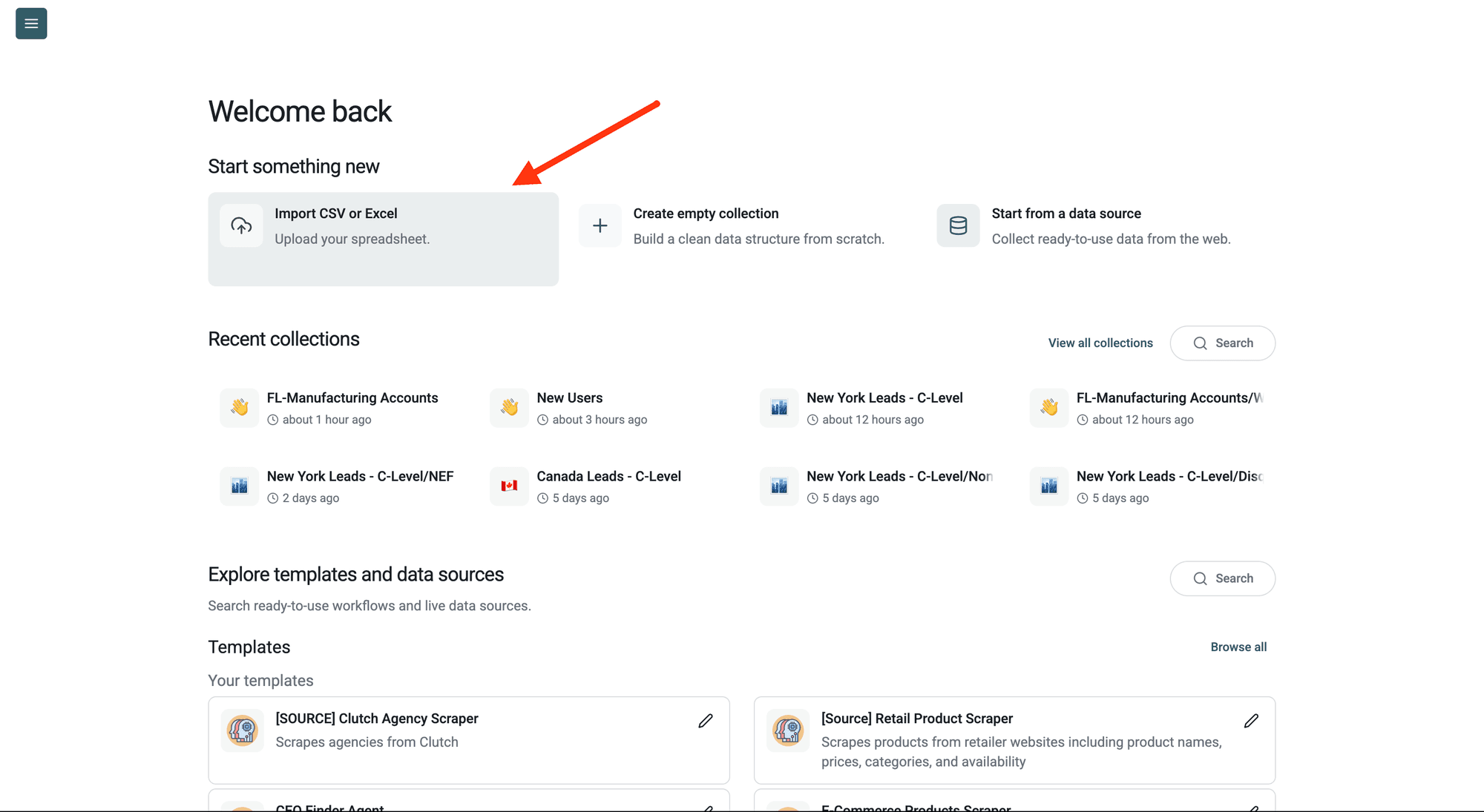
Step 4: Navigate to the Enrichment
Click Enrich in the top menu and search for Classification.
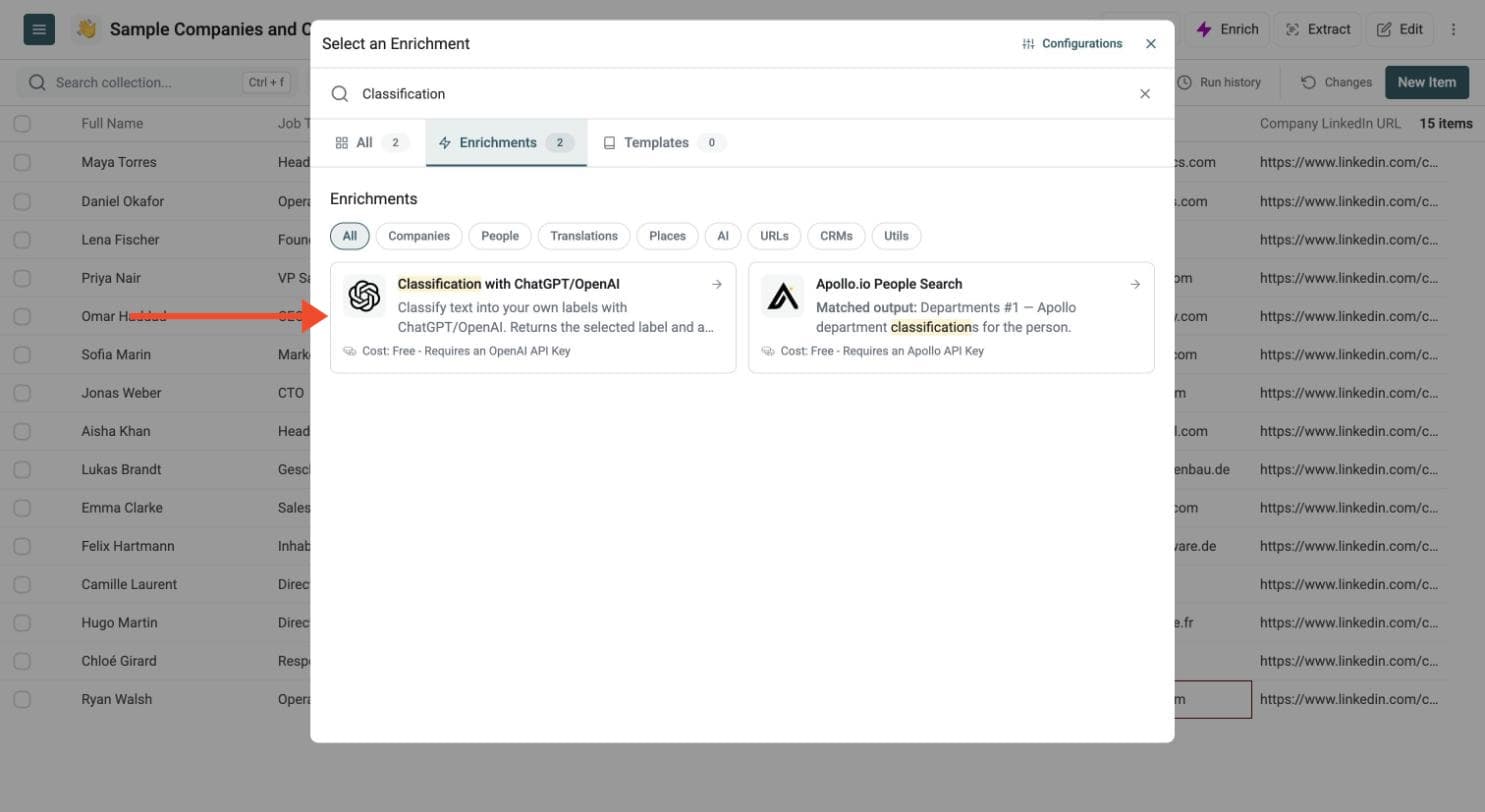
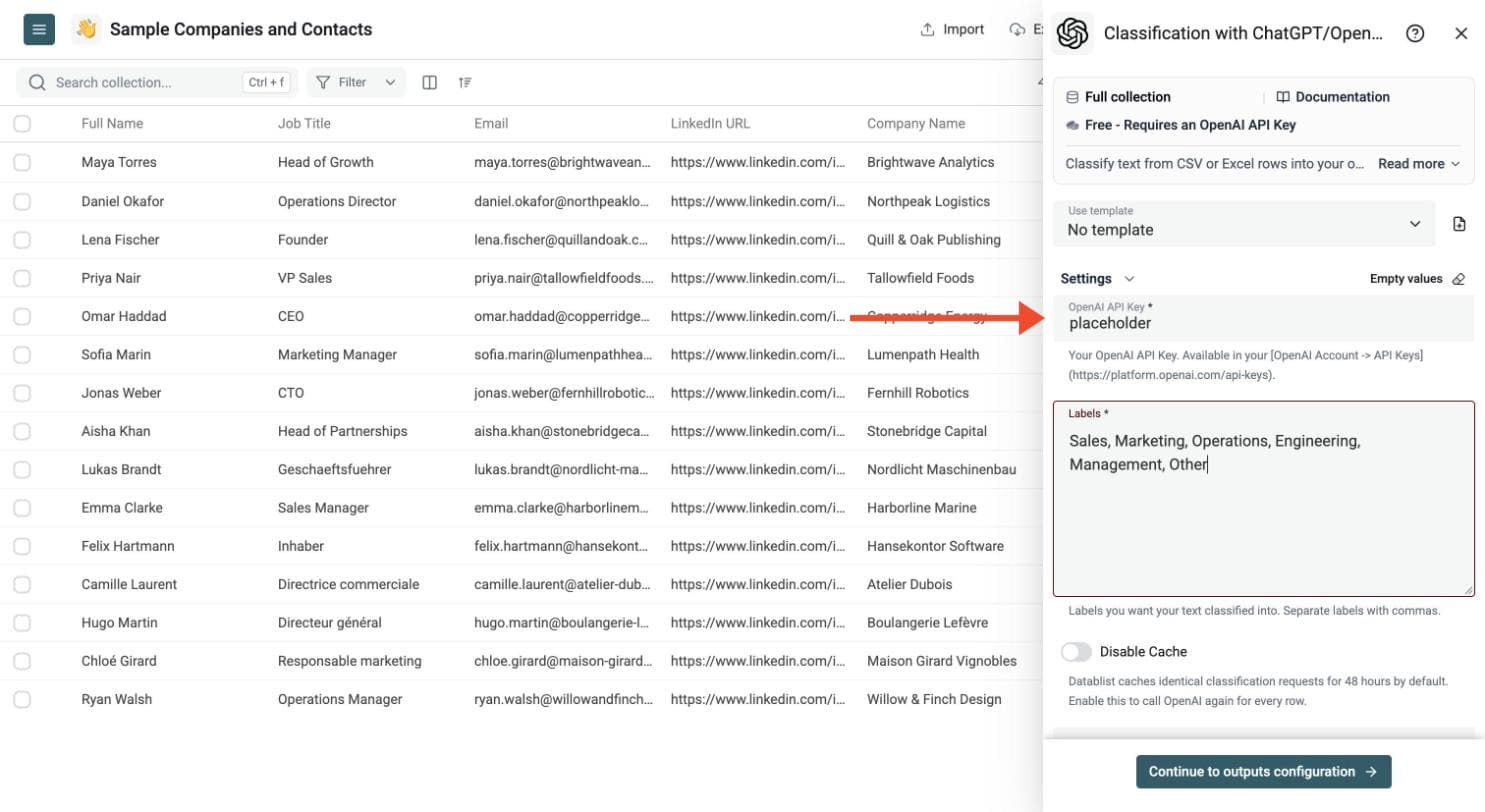
Step 5: Paste Your API Key
In the drawer that opens, paste your OpenAI API key in the OpenAI API Key field.
Datablist sends the key with your run to call OpenAI. Do not share it with others.
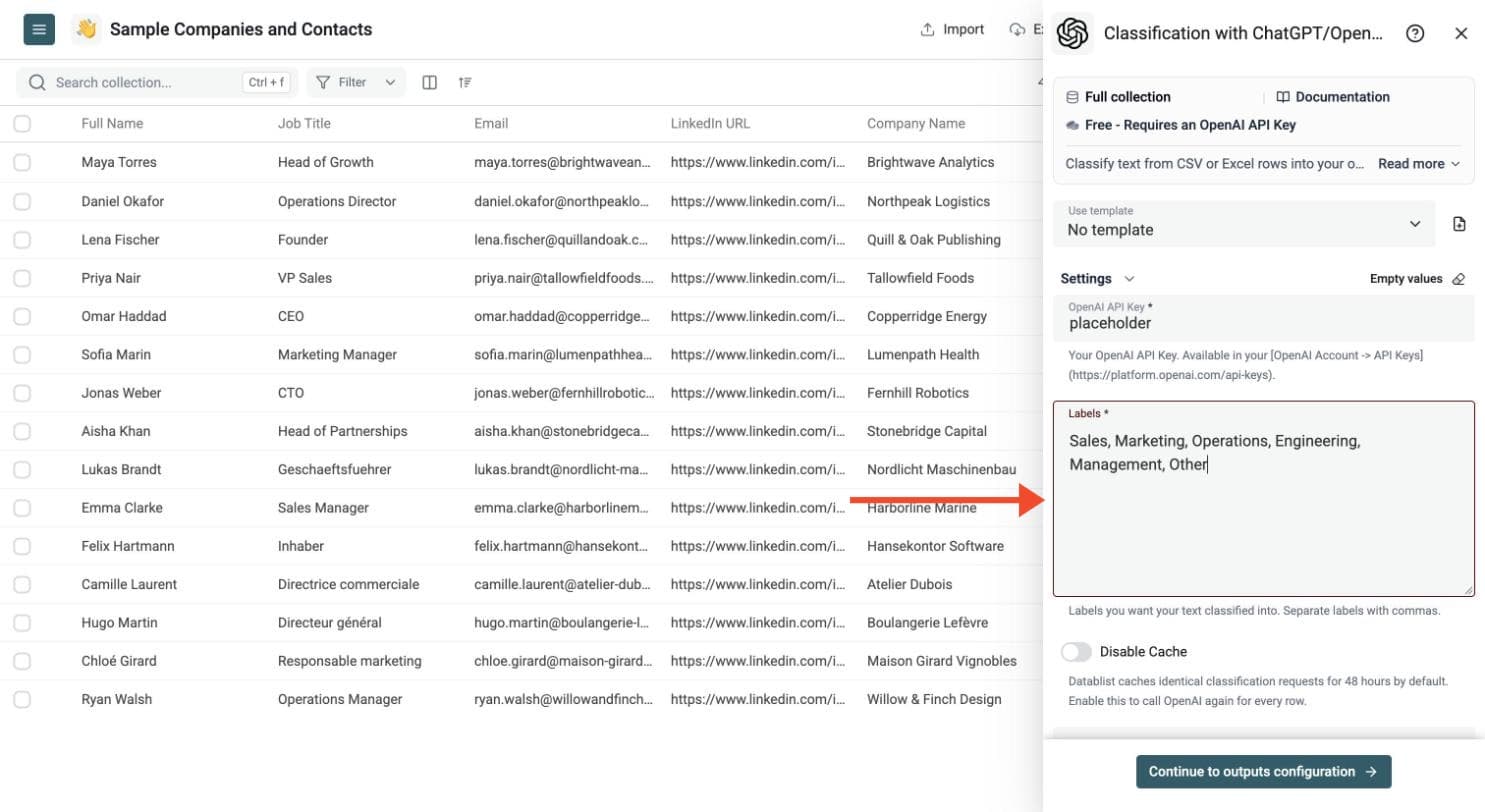
Step 6: Define Your Labels
Type the labels you want each row sorted into, separated by commas. Add a catch-all label such as Other for rows that fit none.
Show example labels
Labels
Sales, Marketing, Operations, Engineering, Management, Other
Datablist caches identical classification requests for 48 hours. On a paid Datablist plan, switch on Disable Cache to skip stored results and request fresh classifications.
Step 7: Map the Text to Classify
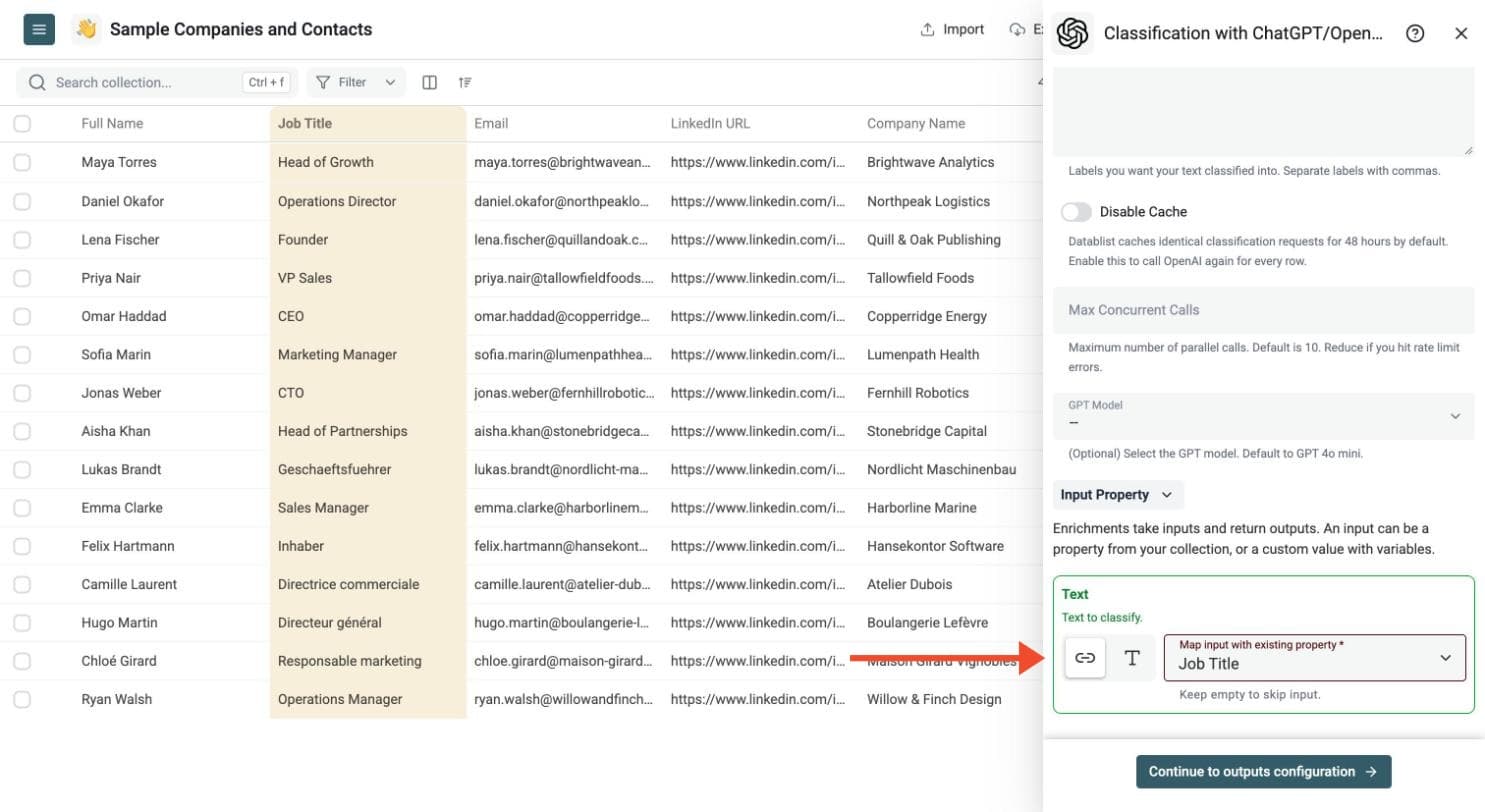
Map the Text input to the column you want to classify, for example Job Title.
Then click Continue to outputs configuration, and click the ⊕ icons to add the outputs to your collection.
For better results, use the most useful text column. A full company description often works better than a short company name.
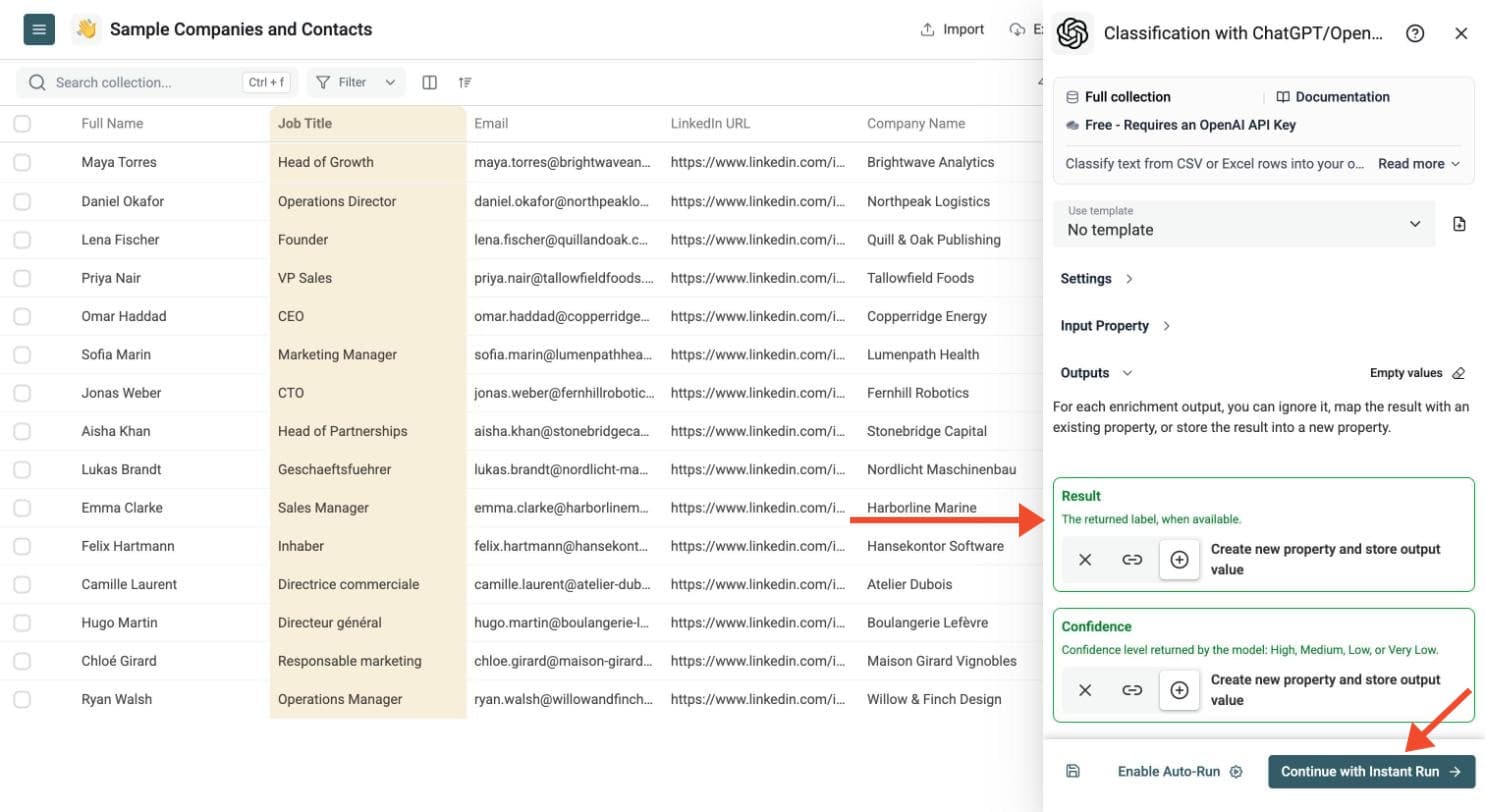
Step 8: Select Outputs
Classification with ChatGPT/OpenAI can return:
-
Result: the label selected for the row
-
Confidence: High, Medium, Low or Very Low
Use the confidence level to review Low or Very Low matches. Rows with missing text or no matching label are marked with an error status in the run-status column, so you can filter and retry them later.
Step 9: Test on a Few Rows, Then Run
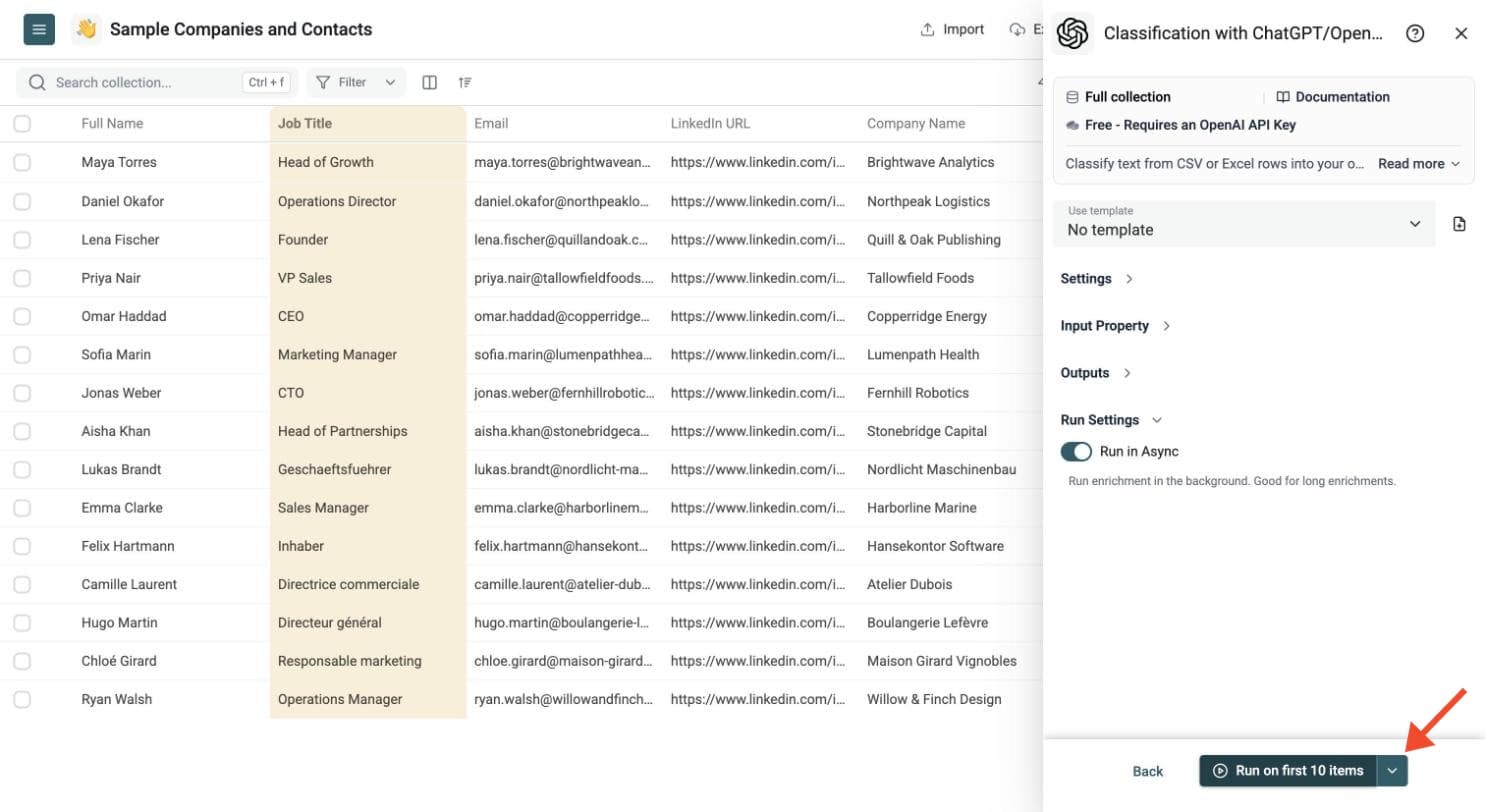
Run a sample first. Click the chevron on the right side of the run button to choose how many items to process:
-
Run on first 10 items: Good for checking results before committing
-
Run on first 100 items: Useful for validating larger samples
-
Run on all view items: Process your entire list (or view if you've enabled filters)
Check the labels on a few rows, adjust your label list if needed, then run the full list.
Filter rows by label after the run and export the final file.
Good Use Cases
Classify Leads by Intent
Upload a list of form submissions, demo requests, or LinkedIn messages. Ask ChatGPT to classify each row as:
- High intent
- Medium intent
- Low intent
- Not relevant
This helps sales teams focus on the rows worth a reply.
Segment Companies by Industry
If your CSV contains company descriptions or scraped website text, classify each company into a short list of industries.
Example labels:
- SaaS
- Ecommerce
- Agency
- Manufacturing
- Consulting
- Other
Use the result to build segments before outreach or analysis.
Tag Support Tickets
Classify support messages by topic:
- Billing
- Bug report
- Feature request
- Account access
- Cancellation
- Other
This gives you a quick view of what customers ask about without reading every ticket.
Sort Reviews and Survey Answers
Run classification on customer reviews, NPS answers, or survey comments.
Example labels:
- Pricing
- Product quality
- Onboarding
- Support
- Performance
- Missing feature
Use the labels to find patterns before writing a report.
Detect Sentiment or Tone
Classify text as positive, neutral, negative, angry, confused, or satisfied. This works well for reviews, replies, comments, and chat transcripts.
Example Classifications
Here are simple examples you can run in Datablist.
Lead intent
Input text:
We are comparing tools and need to export 50,000 contacts this week.
Labels:
- High intent
- Medium intent
- Low intent
- Not relevant
Expected result: High intent
Support topic
Input text:
I cannot log in after resetting my password.
Labels:
- Billing
- Bug report
- Feature request
- Account access
- Other
Expected result: Account access
Company segment
Input text:
We sell hosted analytics software for finance teams.
Labels:
- SaaS
- Ecommerce
- Agency
- Consulting
- Other
Expected result: SaaS
Built-In Cache for Duplicate Text
For models that support structured outputs, Datablist groups up to 10 unique, uncached texts in each OpenAI request. Each text gets its own label and confidence. Groups shrink for longer texts, and long individual texts run on their own without being shortened. Other models use individual requests.
Grouping shares the label list and instructions across rows, reducing repeated prompt content. Classification still uses your OpenAI API key and costs zero Datablist credits; OpenAI bills your account for API usage.
Datablist caches identical classification requests by default for 48 hours.
If your CSV or Excel file contains duplicate text, Datablist reuses the first classification result instead of calling OpenAI again. This avoids paying OpenAI twice for the same text with the same labels and matching request settings.
Example:
- 1,000 rows contain the same company description
- Datablist classifies the first matching row
- The other matching rows reuse the cached label
On a paid Datablist plan, you can skip stored results with Disable Cache. Identical texts within the same request group still share a classification.
Optional Model and Flex Settings
You can choose the GPT model. Select Other to enter a custom Model id. Some models support Use Flex Mode, which can reduce OpenAI costs but may take longer. Flex settings only appear when the selected model supports them.
Flex Timeout (seconds) defaults to 360 seconds (6 minutes), with a maximum of 1,500 seconds (25 minutes). Review failed rows and retry them later if needed. Read the OpenAI Flex mode guide for timeout and retry recommendations.
Max Concurrent Calls defaults to 10. Reduce it if your OpenAI account hits rate limits.
Tips for Better Results
- Use 3 to 12 labels when possible.
- Keep labels short and clear.
- Keep labels distinct.
- Add
OtherorUnknownfor weak matches. - Avoid labels with overlapping meanings.
- Use enough source text to make a decision.
- Test on 10 or 100 rows before running a large list.
- Keep cache enabled when your file may contain duplicate text.
- Use flex mode on supported models when cost matters more than speed.
- Review rows with Low or Very Low confidence.
- Filter and review a sample after the run.
If two labels overlap, ChatGPT may switch between them. For example, SaaS and Software can conflict. Use one or make the difference clear.
Pricing
This enrichment is free to run in Datablist.
You need your own OpenAI API key, and OpenAI charges your account for API usage.
Datablist caches identical classification requests by default, so duplicated text does not trigger duplicate OpenAI calls during the cache window.
For supported models, flex mode can lower OpenAI costs. It may take longer to return results.
⚠️ You must have credits in your OpenAI account. This enrichment will not work with an OpenAI account that has no API billing or credits.