 From 1 Credit per Company
 Basic or Live LinkedIn Data
 Enrich 500 Companies Free













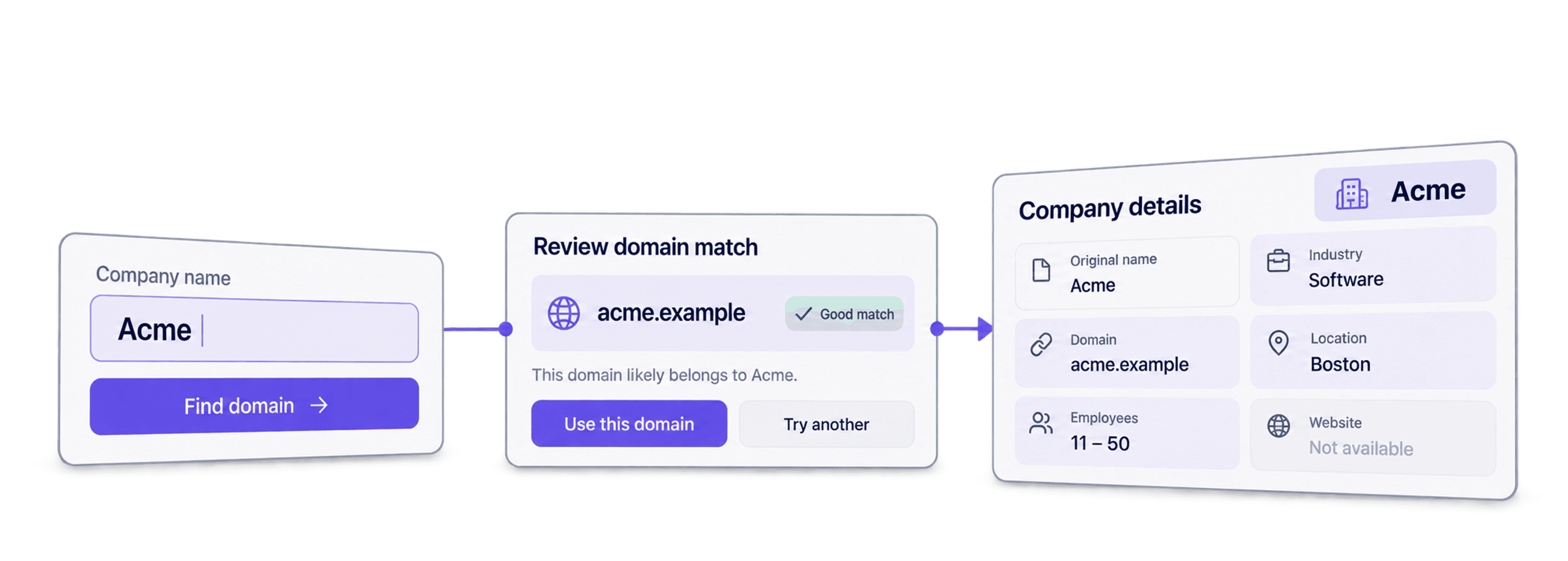
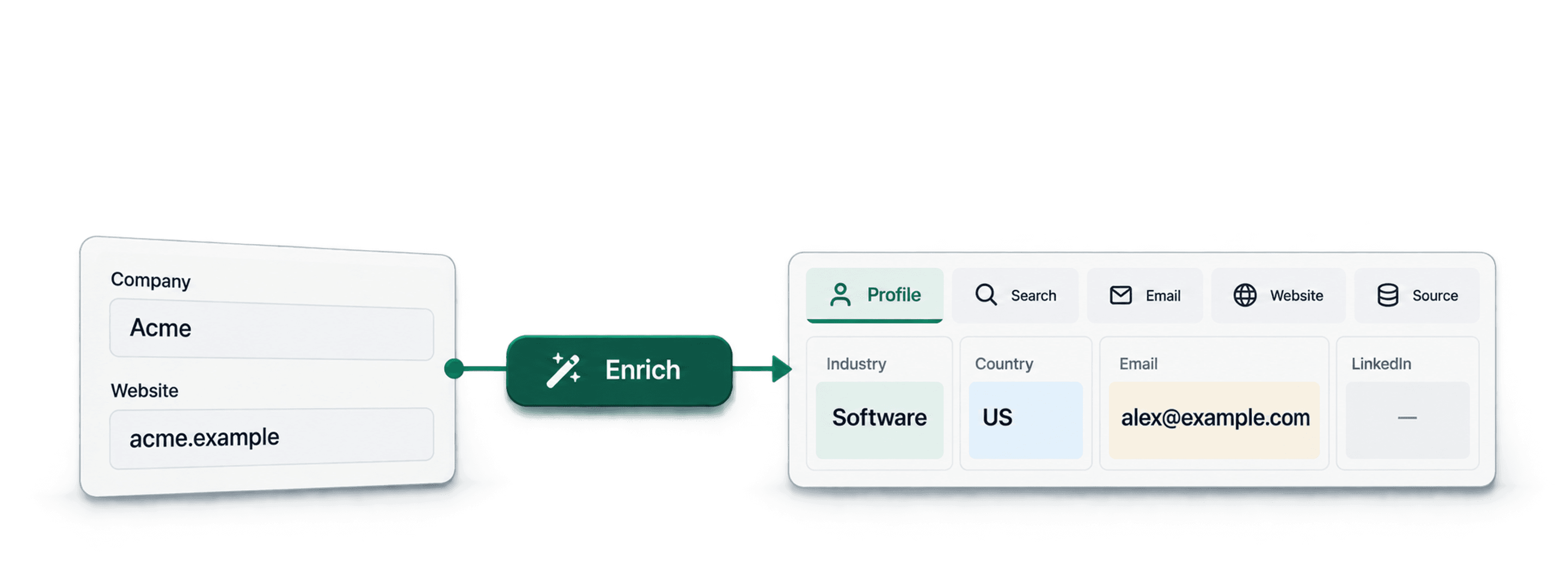
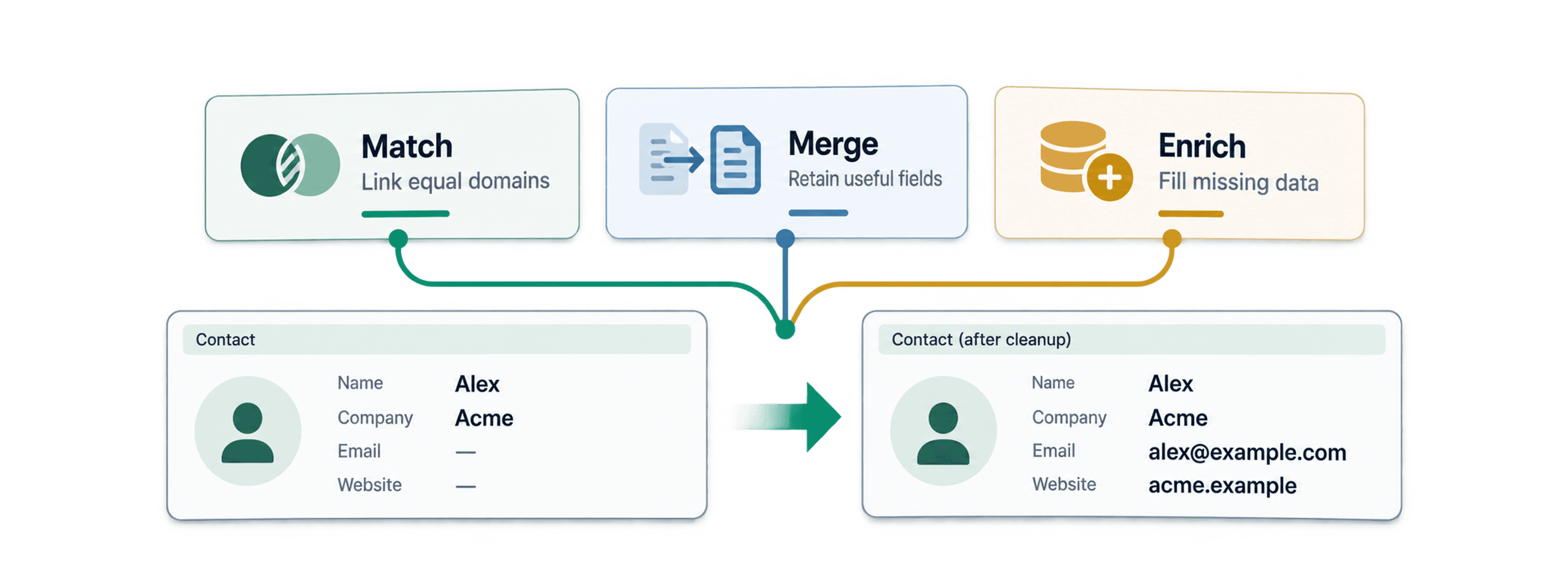


 Easy to Use
 No Technical Configuration
 Fully No-Code
Step-by-Step Guide
Step 1: Sign Up & Upload Your Data
First, sign up for Datablist.com
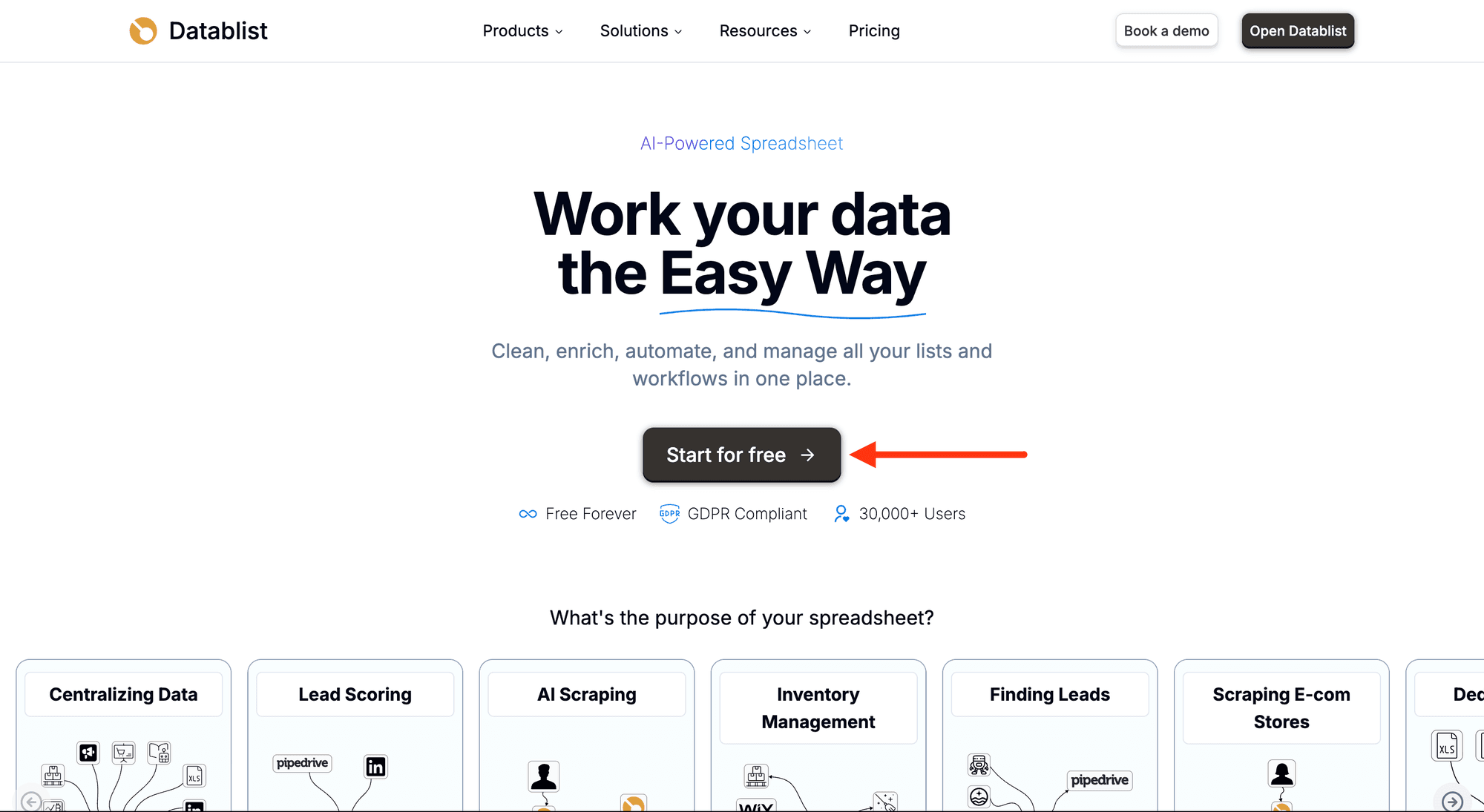
Then, upload your CSV or Excel file with your list of companies. Each row needs a company domain, a website URL or a LinkedIn company URL.
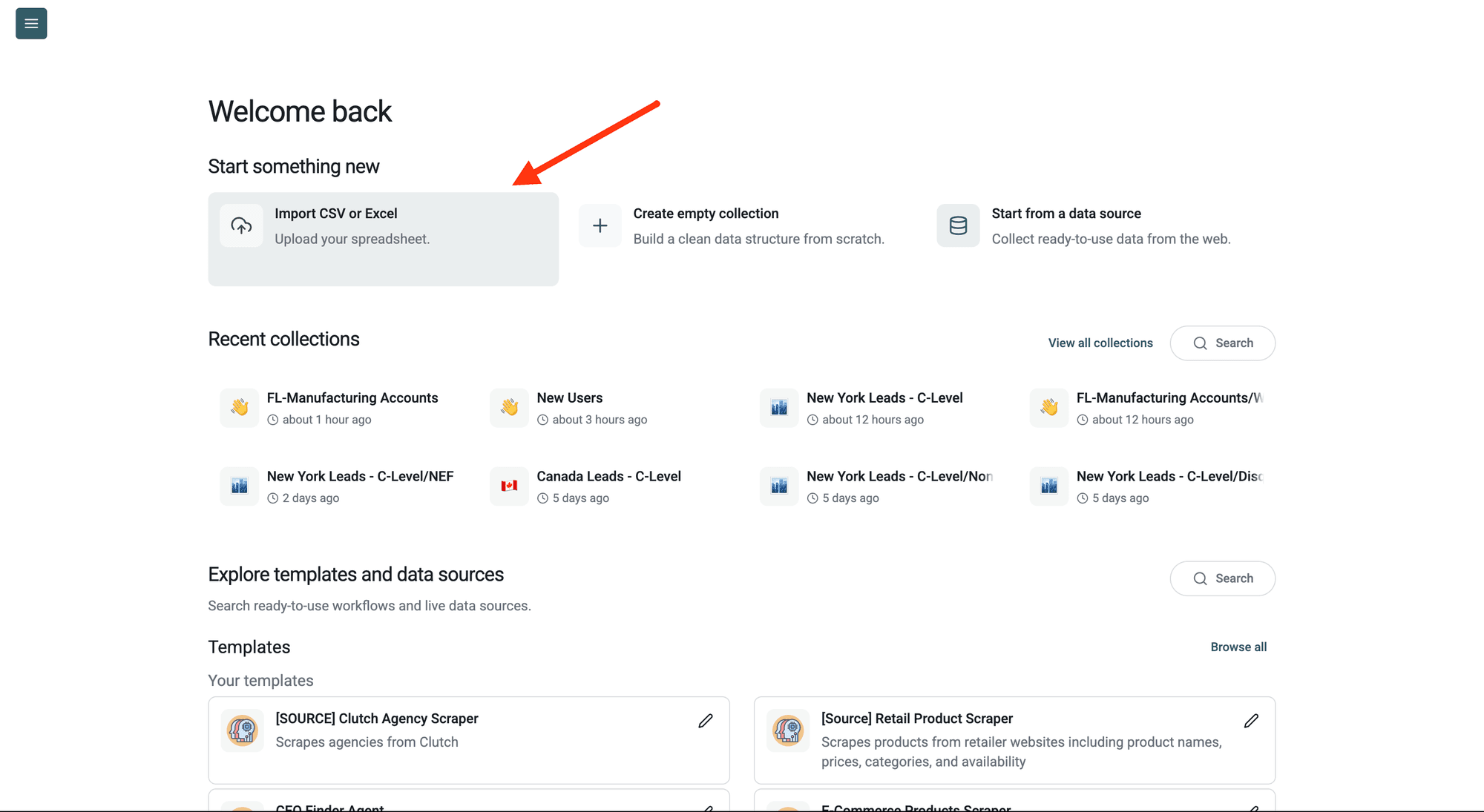
Step 2: Navigate to the Enrichment
-
Click on Enrich in the top menu
-
Go to the Companies tab
-
Select Company Enrichment
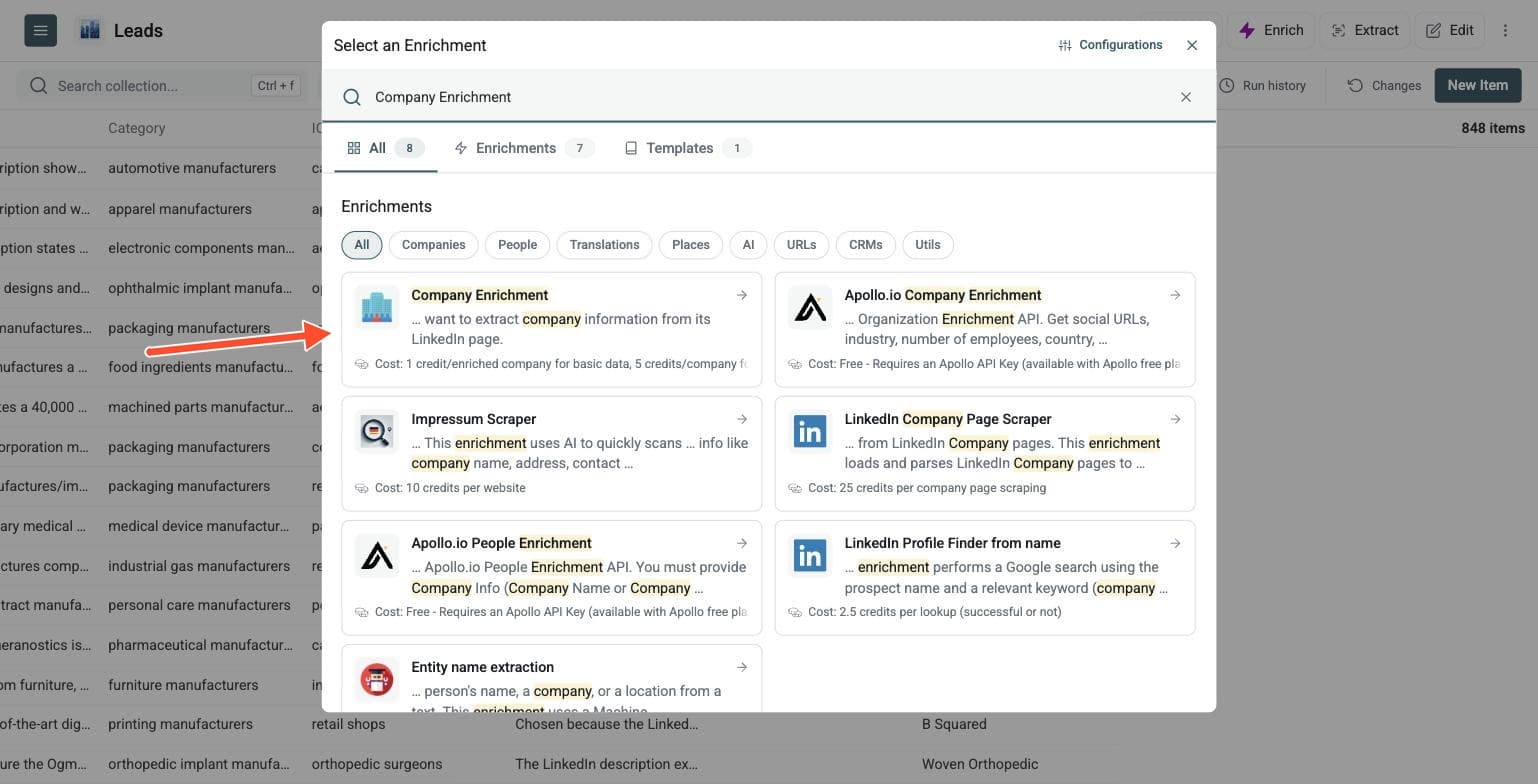
Step 3: Set Up the Enrichment
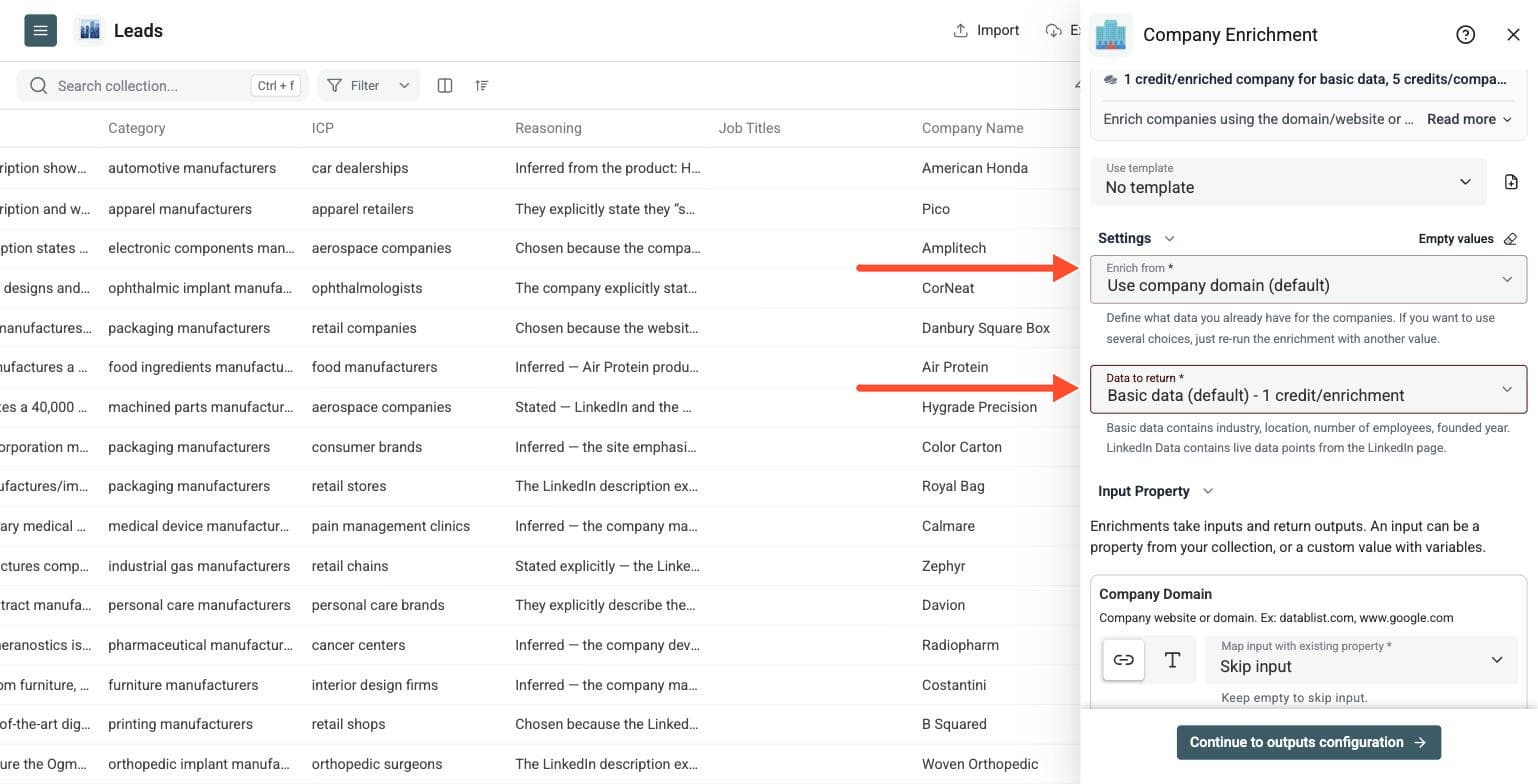
You'll see the following settings:
-
Enrich From: Select whether you are using a company domain or a LinkedIn URL
-
Data to Return: Choose "Basic data" (1 credit) for industry, location, employees, and founded year, or "Scrape LinkedIn Data" (5 credits) for live LinkedIn data points
The setup is straightforward. Pick your options and scroll down to configure your inputs.
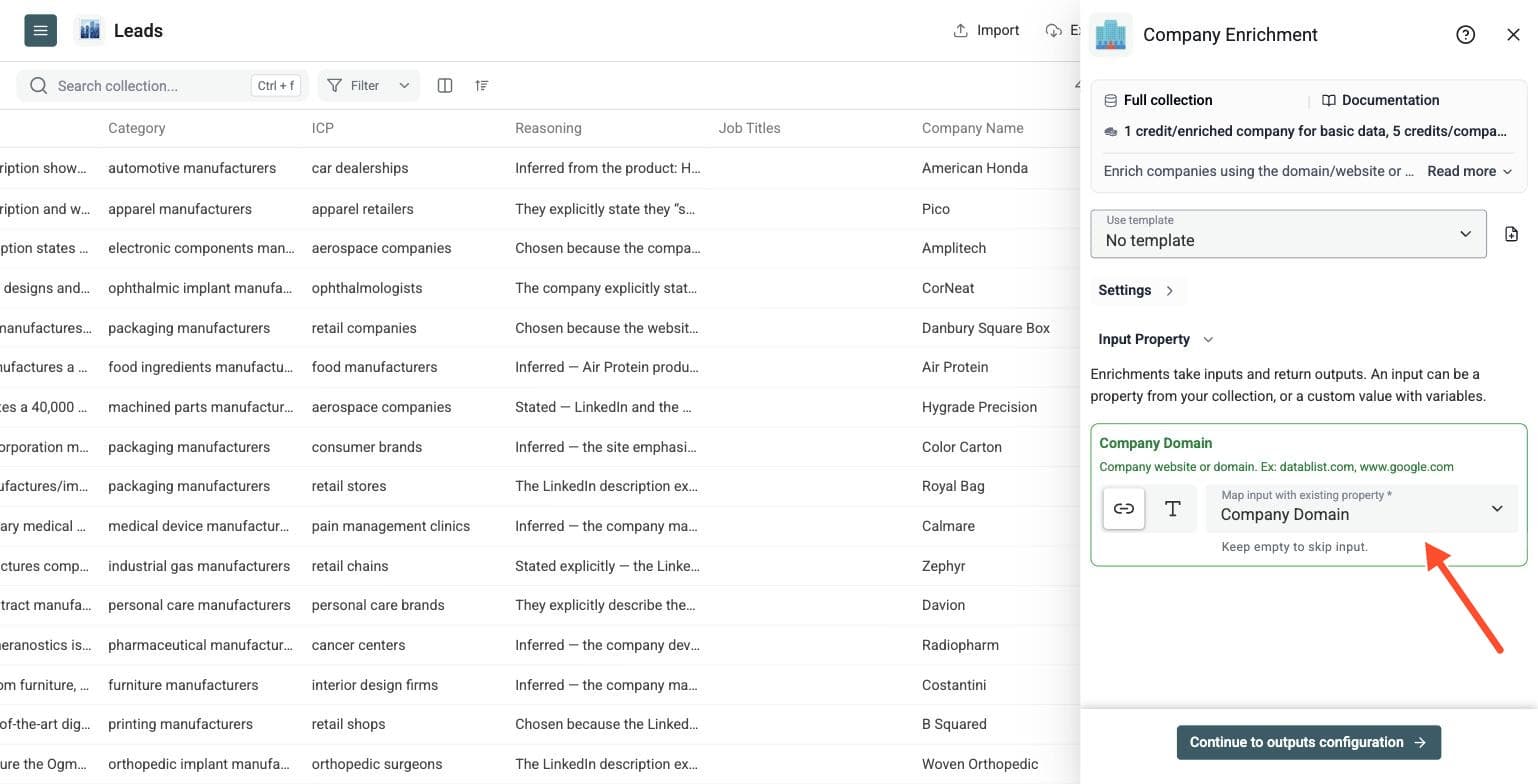
Step 4: Configure Your Inputs
Map the column containing your company domains as the Input Property.
If you chose Use company LinkedIn Url instead, map your LinkedIn company URL column. Use one row per company and keep the original identifier for review. Basic results work with regular company URLs; use LinkedIn data for Sales Navigator company URLs and LinkedIn school URLs.
Then click Continue to outputs configuration.
Step 5: Select Outputs
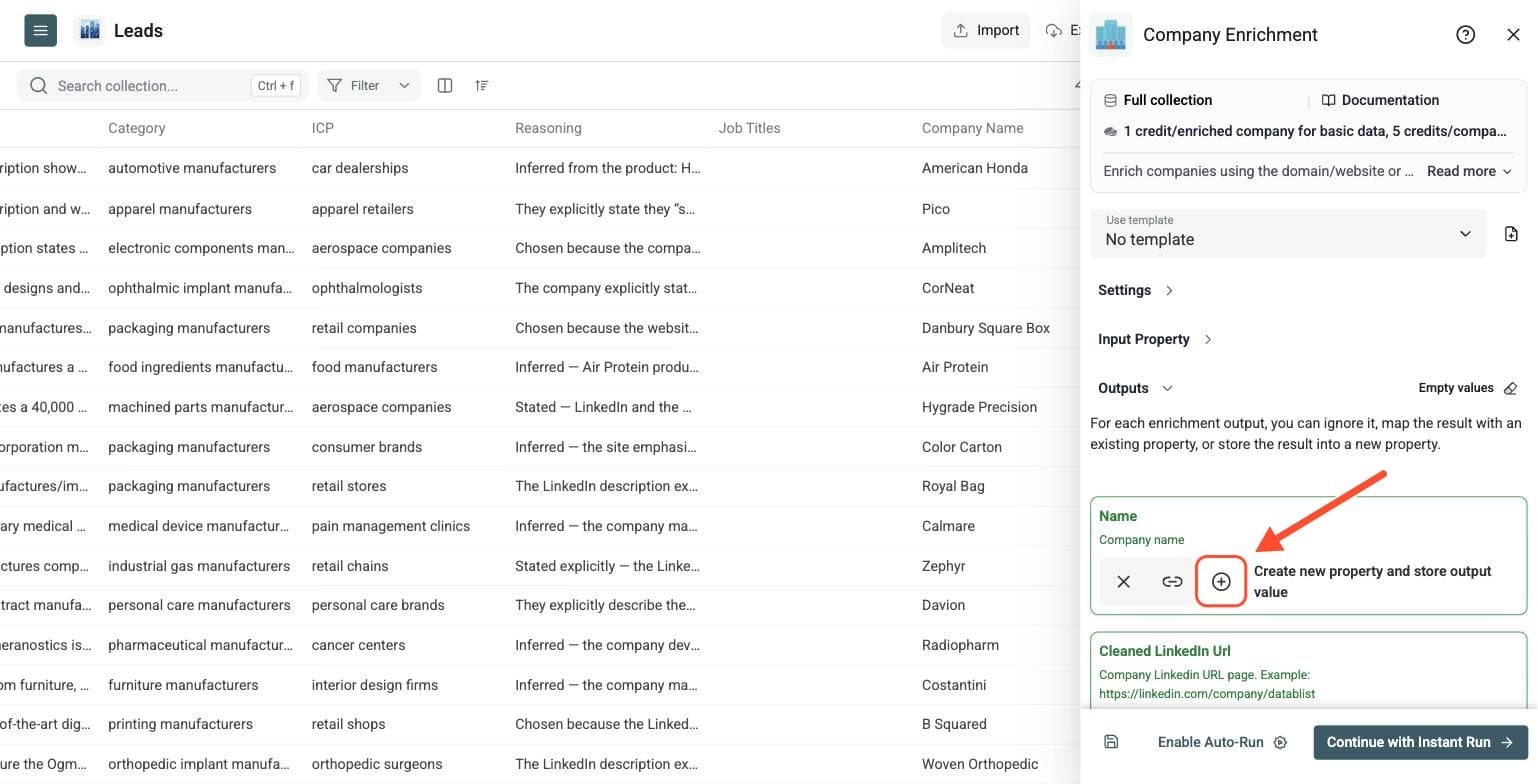
Datablist will show you all available data points. Click the ⊕ Icons to add the ones you need.
Basic fields include company name, cleaned LinkedIn URL, founded year, industry, city, region, country and employee range. A website is also available when enriching from a LinkedIn URL. LinkedIn results add description, slogan, follower count, internal company ID and specialities. The available fields depend on your input and result choices.
Once you have selected your outputs, click Instant Run.
Step 6: Run the Enrichment
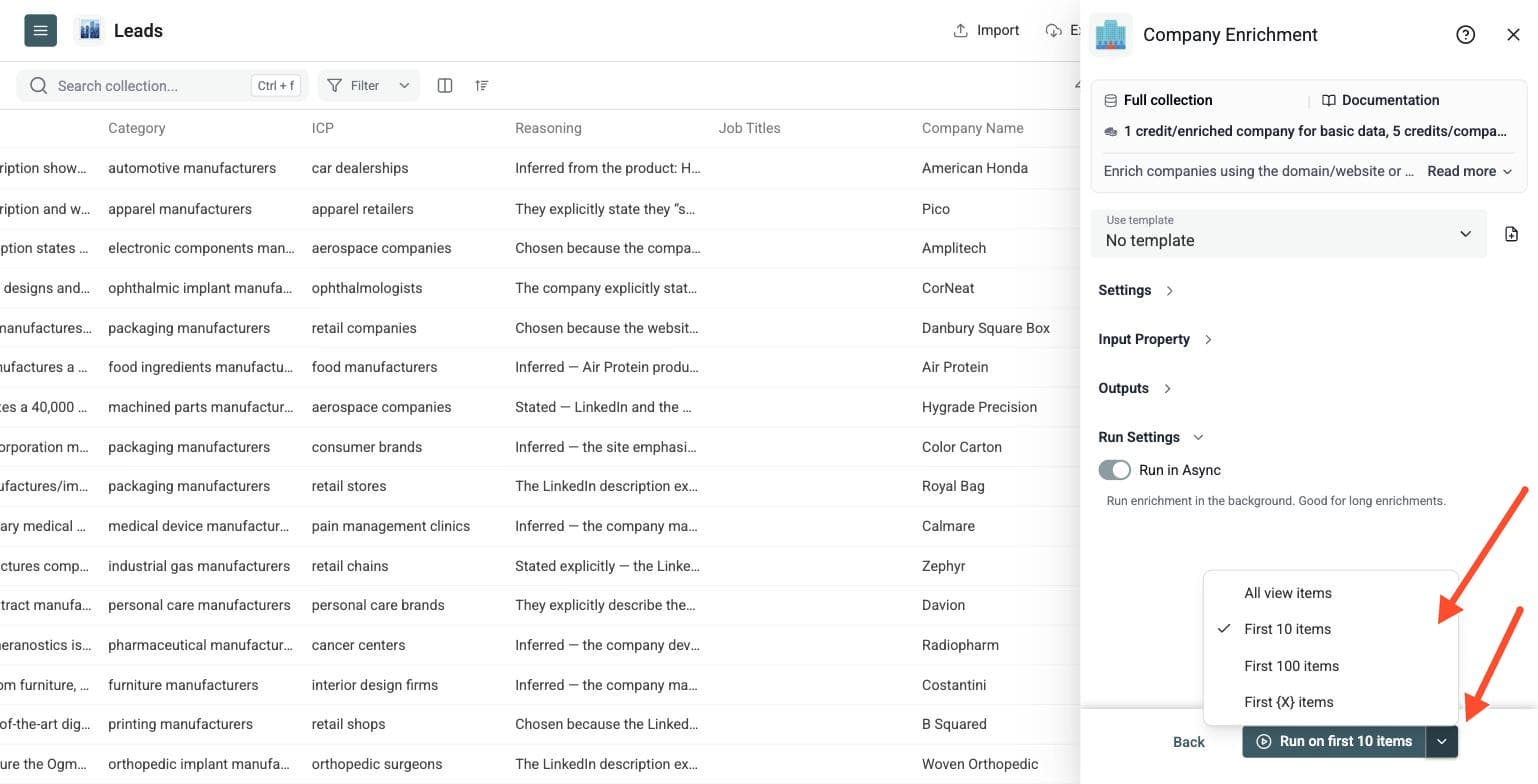
Finally, configure your run settings by clicking on the chevron on the right side of the button. This will allow you to choose between the following options:
-
Run on first 10 items: Good for checking results before committing
-
Run on first 100 items: Useful if you want to validate larger samples
-
Run on first {X} items: Lets you choose how many items you want to process
-
Run on all view items: Process your entire list (or view if you have enabled filters)
Once you have chosen your preferred option, click Run on X items.
Workflows You Can Run
Domain to Basic Company Data
Use domains or websites when you need account fields for CRM cleanup, segmentation or lead scoring. Inputs such as datablist.com and https://www.datablist.com can return company name, industry, location, founded year and employee range. Basic results cost 1 credit per enriched company.
Domain to LinkedIn Company Data
Use company websites when you want public LinkedIn company data. Datablist first finds a matching LinkedIn company page, then enriches it with description, slogan, follower count, internal ID and specialities. Review the company identity before using those fields for account research.
LinkedIn URL to Basic Company Data
Use a regular LinkedIn company page when it is your available identifier and you need standard company fields. It can add the website, industry, location, founded year and employee range. Basic results expect regular LinkedIn company URLs; Sales Navigator company URLs and school URLs need LinkedIn data mode.
LinkedIn URL to LinkedIn Company Data
Use this workflow when you already have LinkedIn company URLs and want richer public profile fields. LinkedIn data mode supports regular company URLs, Sales Navigator company URLs and LinkedIn school URLs. It costs 5 credits per enriched company.
Tips for Better Match Rates
- Use clean domains such as
datablist.com, rather than long tracking URLs. - Keep personal email-provider domains such as
gmail.comout of the company identifier column. - Use regular LinkedIn company URLs for Basic results.
- Use LinkedIn results for Sales Navigator company URLs and school URLs.
- Preview a few rows and compare the company name, website and industry with your source list.
- Keep the run status to identify invalid or not-found rows, improve their identifiers and rerun only those records.
Use Cases
Clean and Segment CRM Accounts
Upload a CRM export with domains, fill missing company fields, and review them before deduplication, routing or reporting. Use industry, country, region and employee range to build segments. For example, filter for software companies in the United States with 51–200 employees before preparing an outbound campaign.
Prepare Account Scoring
Add firmographic fields before scoring accounts. Company size, industry, location and LinkedIn data help you decide which accounts deserve contact research.
Turn Scraped Domains Into Accounts
If you collected websites from directories, job boards or Google Places Search, enrich the website column. Filter the accounts, then use Waterfall People Search to find contacts at companies that fit your criteria.
Enrich LinkedIn or Sales Navigator Lists
Run LinkedIn data mode on company URLs from LinkedIn research or Sales Navigator exports. Review the returned identity and add the fields you need. Use Waterfall Email Finder later when you have identified the people you want to contact.
Credit Examples
If every row is enriched, 10,000 Basic results use 10,000 credits and 10,000 LinkedIn results use 50,000 credits. A balance of 20,000 credits covers up to 20,000 Basic results or 4,000 LinkedIn results. Rows that are not enriched can make the total lower. Use the calculator for current package prices and currency.