 2.5 Credits per Search
 Business Phone and Website
 Run 200 Searches Free
















 Easy to Use
 Fully No-Code
 38,000+ Users
Step-by-Step Guide
Step 1: Sign Up & Upload Your Data
First, sign up for Datablist.com
Create a collection with the CSV editor. Then, upload your CSV or Excel file with the businesses or places you want to find.
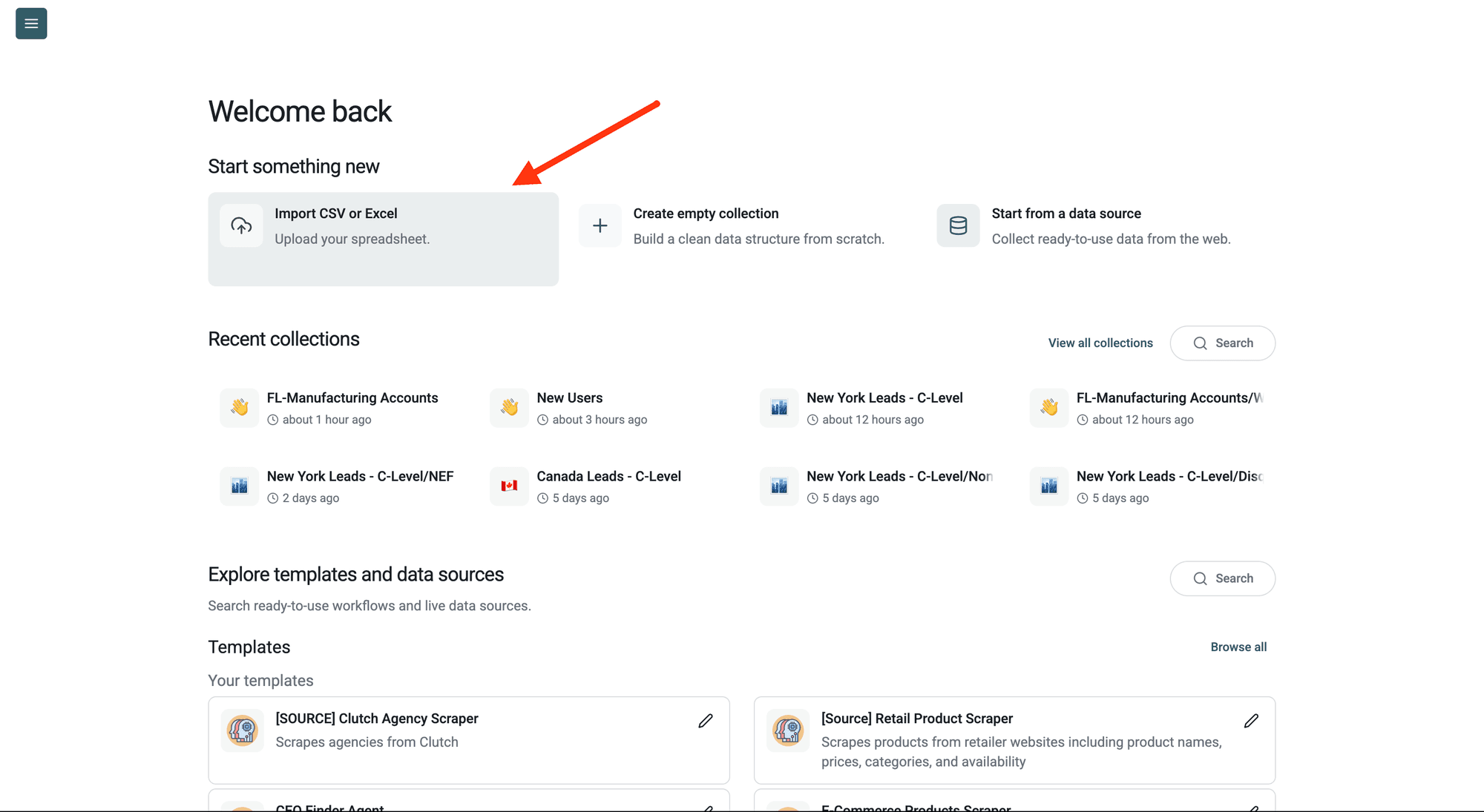
Step 2: Navigate to the Enrichment
Click Enrich in the top menu and search for Google Places/Maps Search.
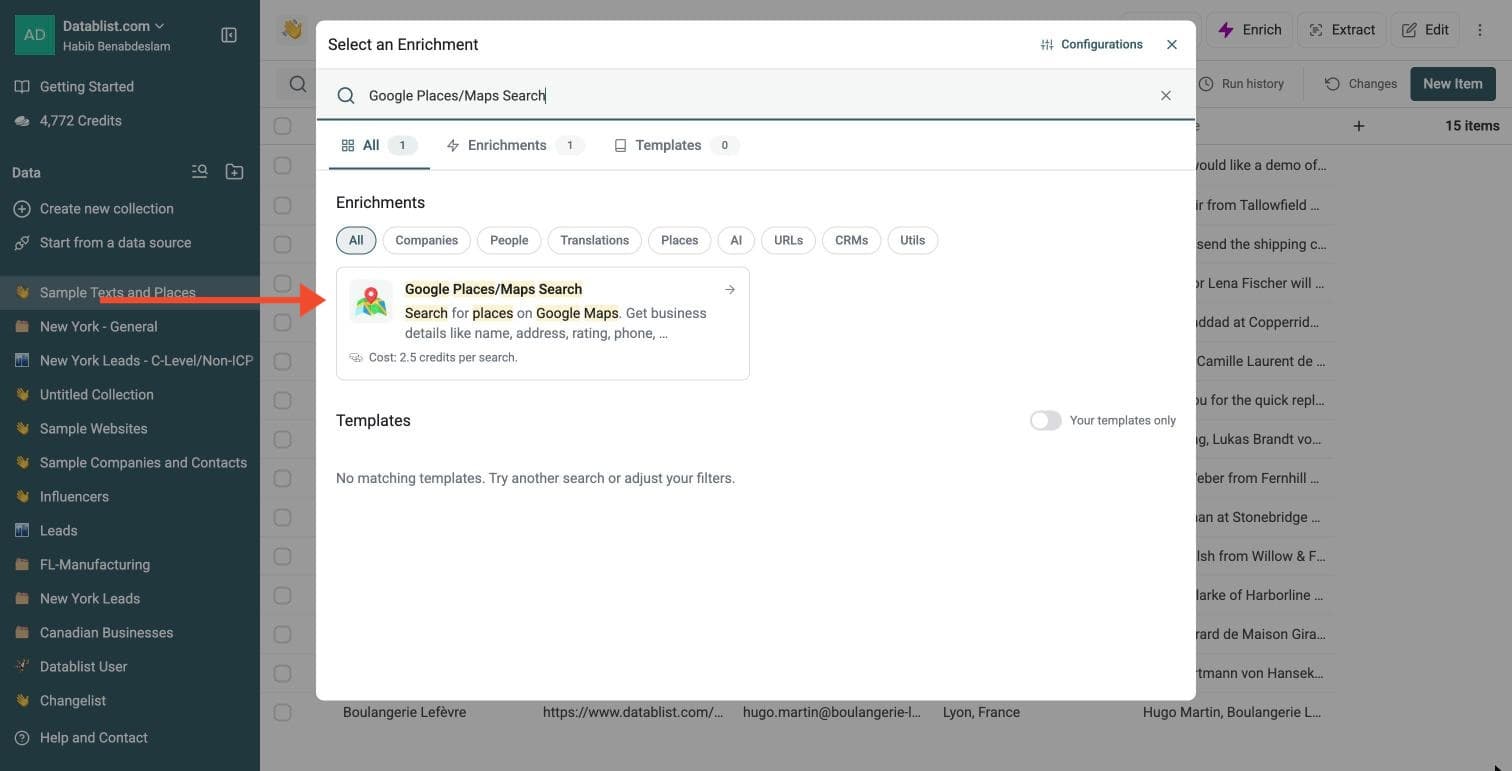
Step 3: Set Up the Enrichment
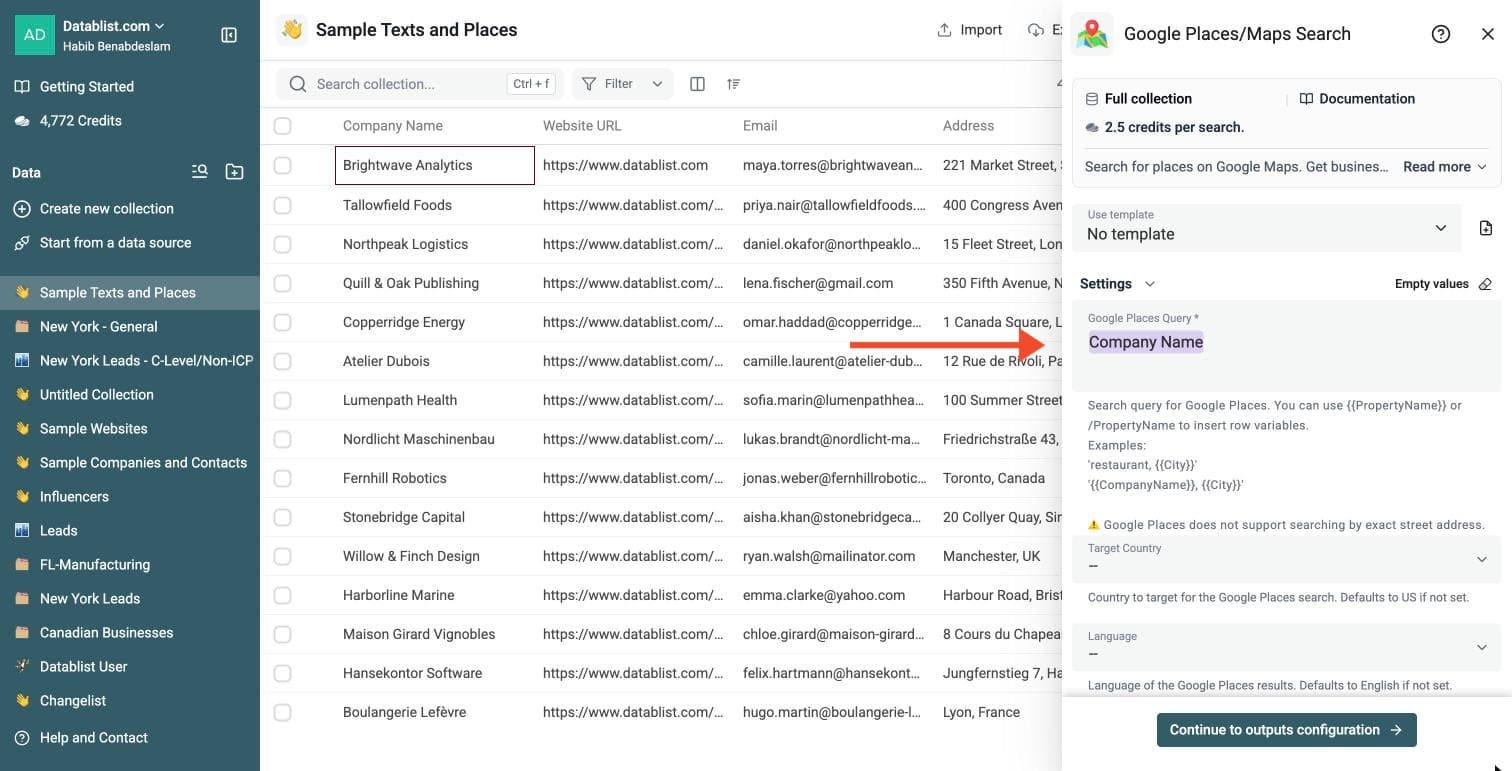
In the drawer that opens, build your search:
-
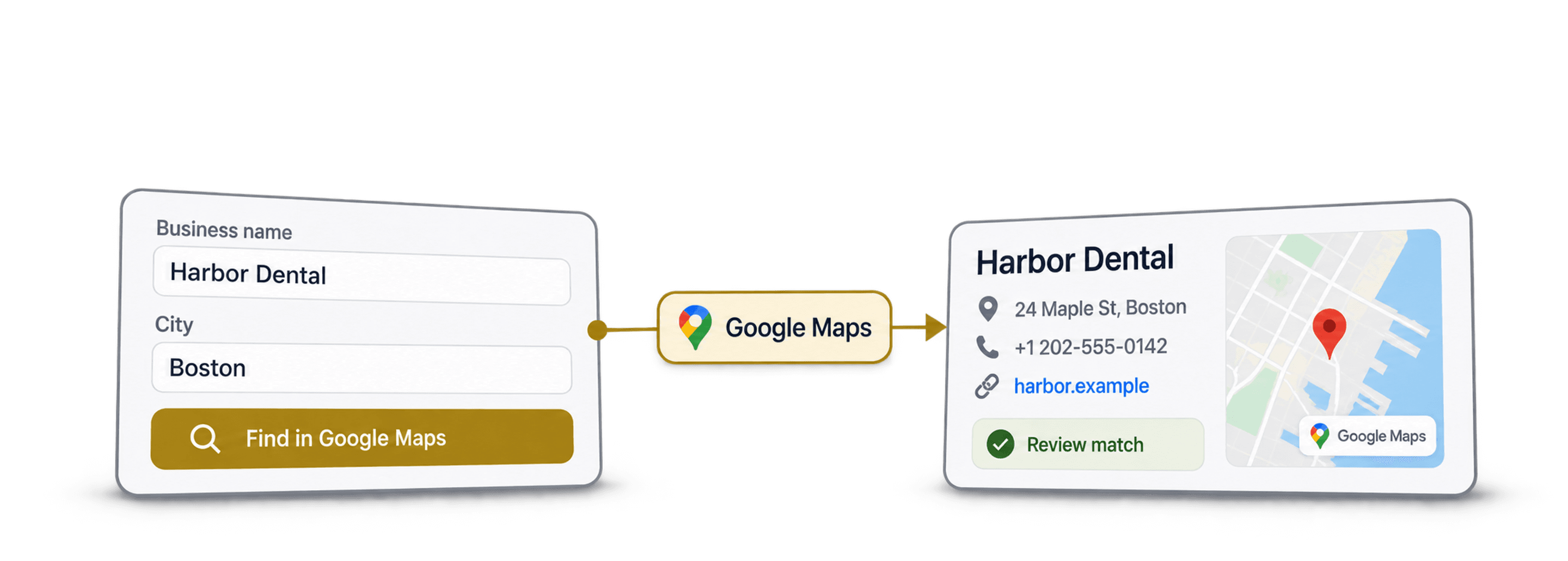
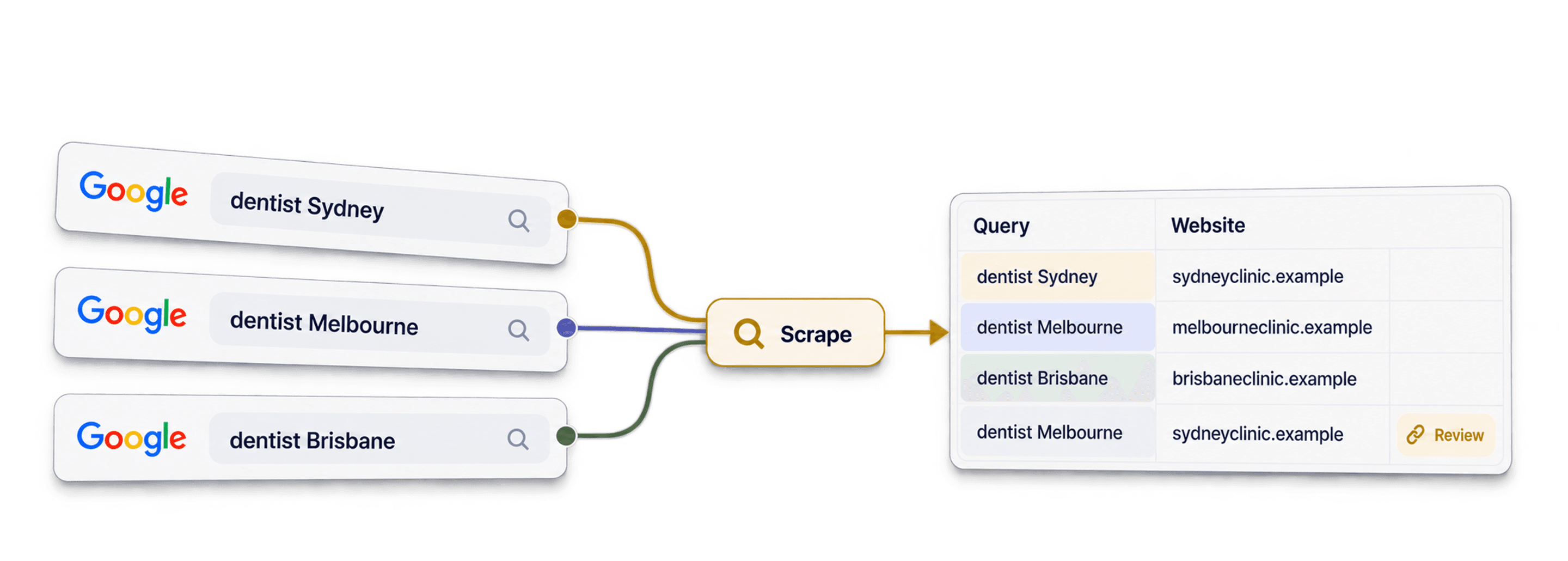
Google Places Query: required. Type a slash and choose a column, for example Company Name, and add words such as the city
-
Target Country: optional. Defaults to the US
-
Language: optional. Defaults to English
-
Number of Results: optional. Up to 5 places per search
There is no separate input-mapping step: the columns inserted into Google Places Query supply the values for each row. Combine business name and city, for example /Business Name /City to search for Haus Des Döner Frankfurt. The default is one result; choosing up to five adds result columns side by side.
Use business names, categories and cities. This connector does not support exact street-address lookup to identify every tenant in a building. Check the returned address and category before using a match.
Step 4: Select Outputs
Google Maps Connector returns, for each place:
-
Place Name and Place Address
-
Place Rating and Place Rating Count
-
Place Category, Place Phone and Place Website
-
Place Latitude and Place Longitude
Click the ⊕ icons to add them to your collection, then click Continue with Instant Run.
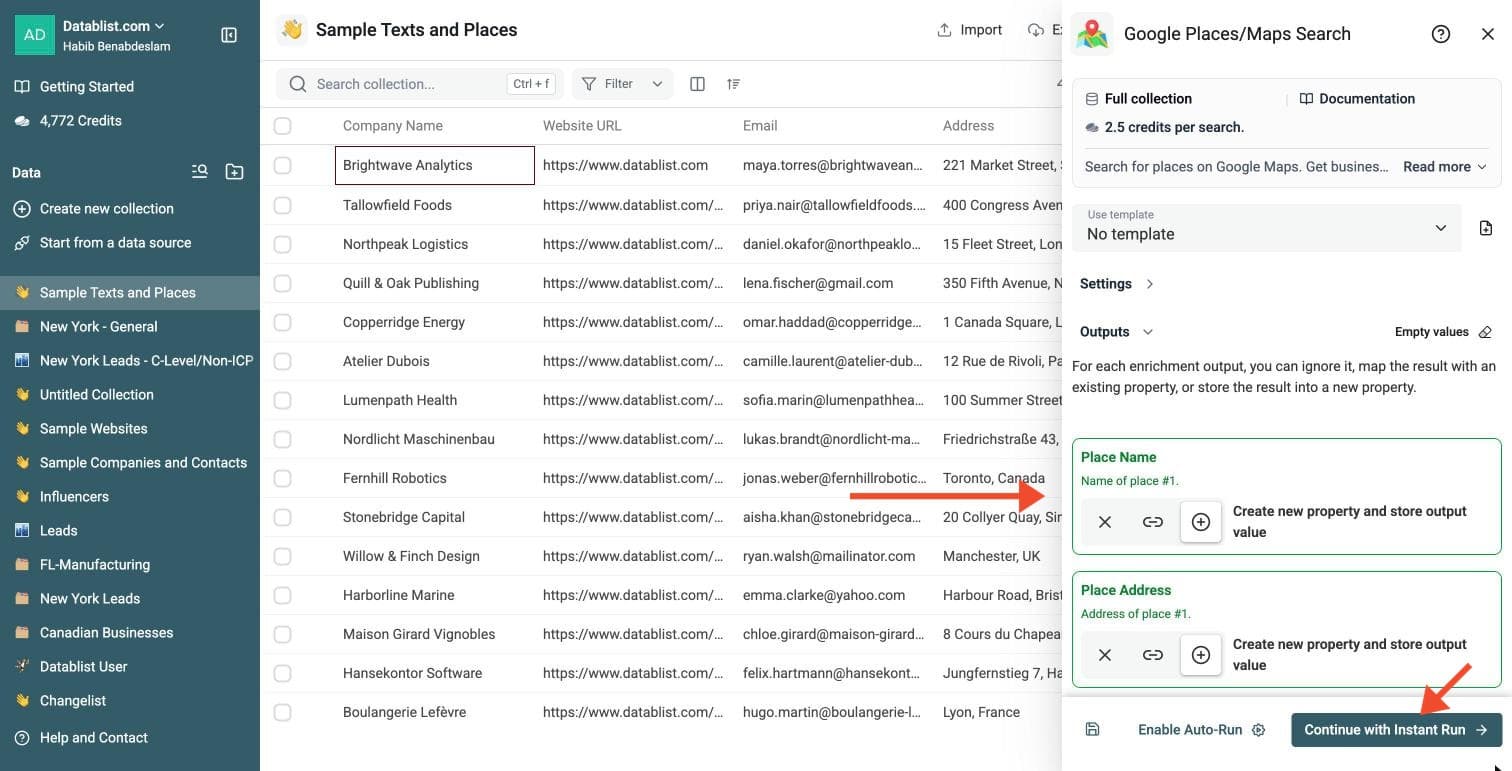
Step 5: Run the Enrichment
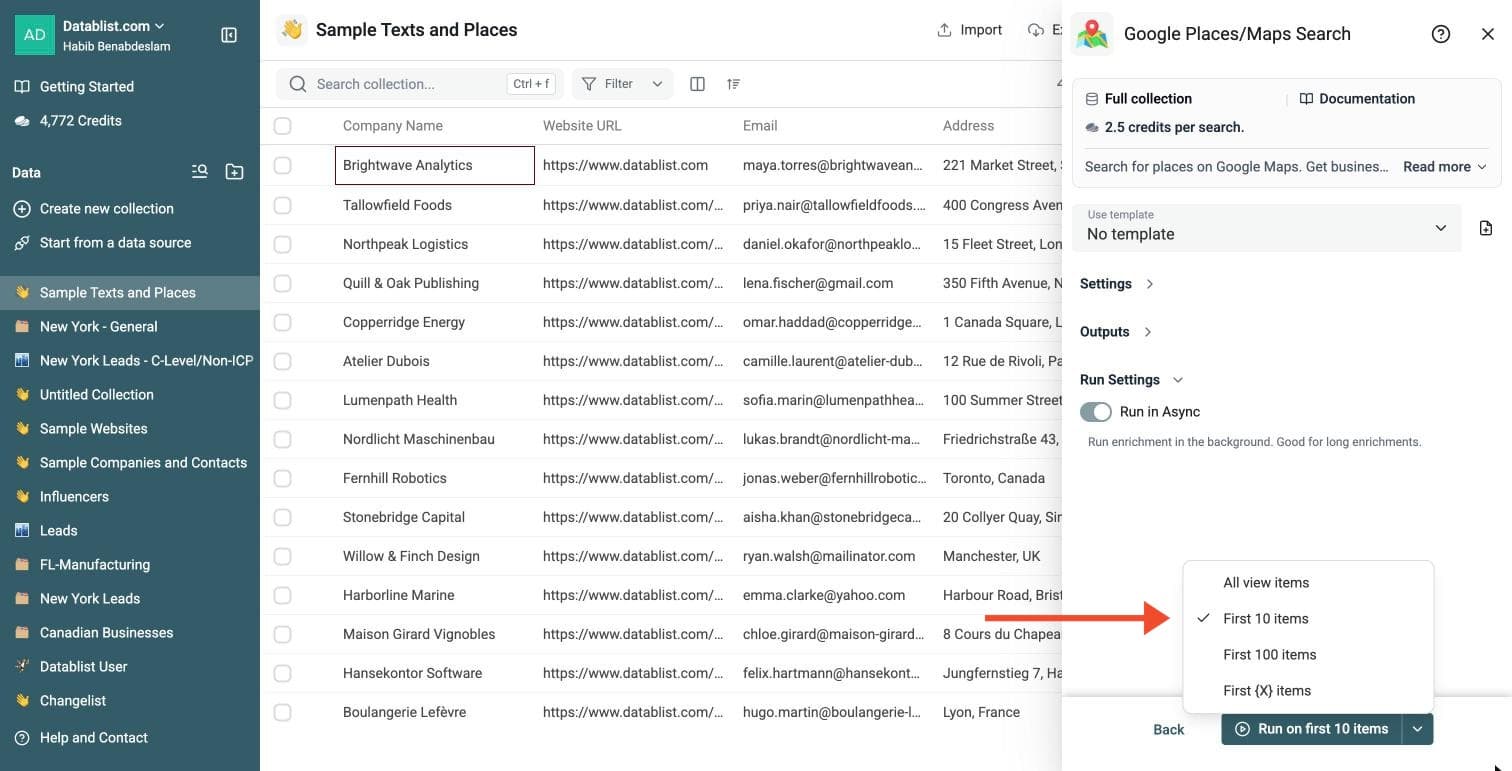
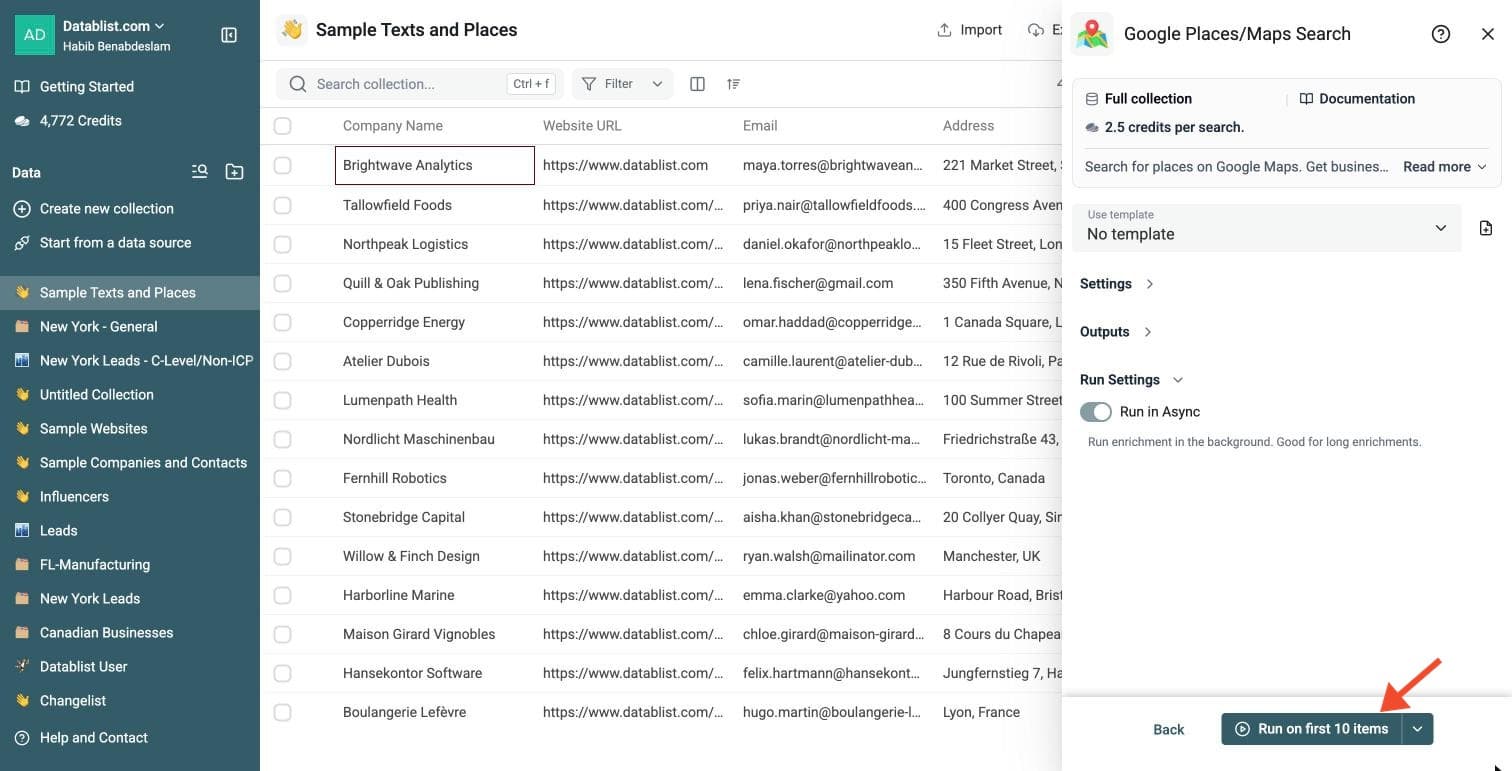
Click the chevron on the right side of the run button to choose how many items to process:
-
Run on first 10 items: Good for checking results before committing
-
Run on first 100 items: Useful for validating larger samples
-
Run on all view items: Process your entire list (or view if you've enabled filters)
Google Maps Connector costs 2.5 credits per search.
Review a small sample and the run-status column before processing the full list. Filter rows that need attention, fix inputs or settings, and rerun those rows. Export your collection when the results are ready.
Cost Explanation
This enrichment costs 2.5 credits per processed item.
- A $20 package provides 20,000 credits. This gives you 8,000 searches.
- A $165 package provides 200,000 credits. This gives you 80,000 searches.
The Starter Plan includes 5,000 included monthly credits, allowing 2,000 monthly lookups. You pay for actual usage. These examples assume fresh completed searches. Cached queries within 24 hours and failed provider requests cost 0 credits.
Enrichment Strengths
- No Code Setup: Upload your list, build a query, and run the enrichment. No API keys needed.
- Targeted Accuracy: Combine columns like business name and city to pinpoint exact matches.
- Side-by-Side Results: Request up to 5 results per search. Extra results appear as new columns, keeping your list organized.
- Data Completeness: Turn a simple list of company names and cities into comprehensive profiles ready for outreach.
Use Cases
- Find Contact Information: You have local business names and cities. You want their websites and phone numbers for calling campaigns.
- Locate Business Addresses: You have company names and need their listed addresses. Check the returned branch before treating an address as a headquarters.
- Analyze Reputation: You want to check star ratings and review counts for a list of competitors or partners.
Ideal Workflows
Combine this enrichment with other Datablist features:
- Run the Google Places Search to find business websites. Use those websites in the Company Enrichment to extract employee counts and industry data.
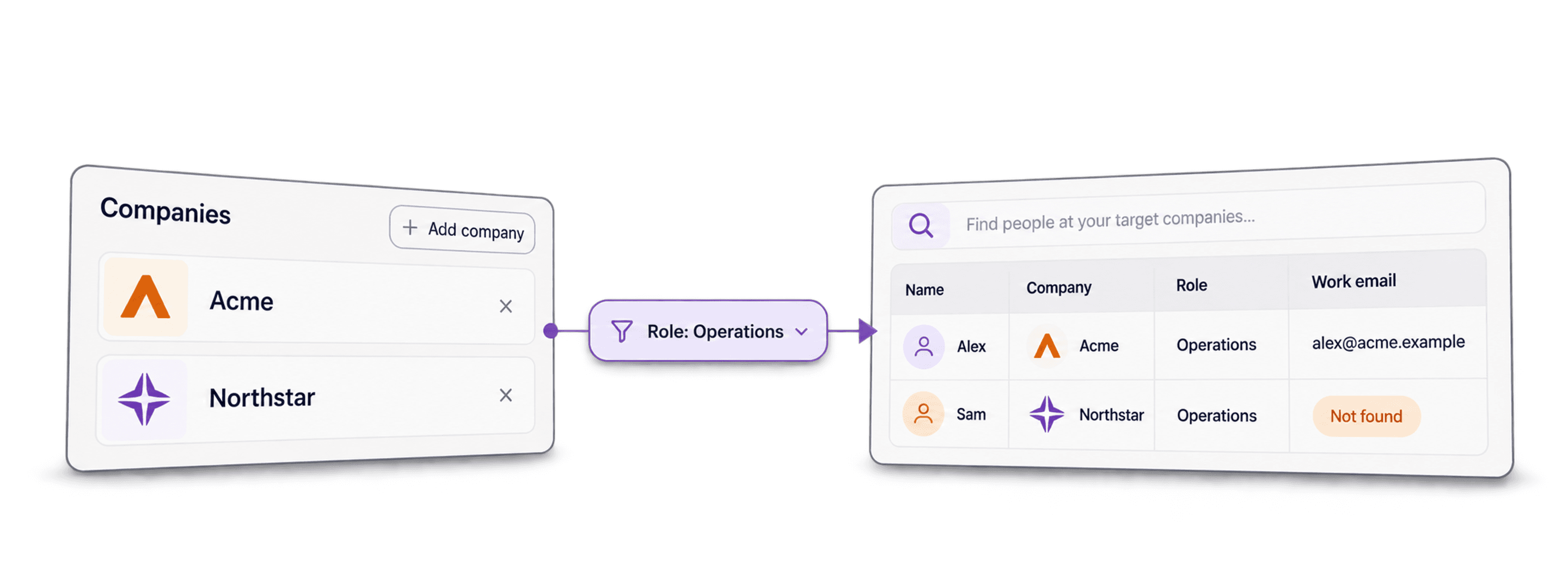
- Run Waterfall People Search to find contacts for matched companies.
- Export your enriched lead list as CSV or Excel, then import it into your CRM.