
Messy location fields are hard to segment. One row says "NYC", another says "Paris, France", another has a country flag, and another contains a full address.
Datablist's Location Lookup enrichment turns location text into structured geographic fields. It can return the city, country, country code, latitude, and longitude for each row in a CSV or Excel file.
Use it to clean lead lists, normalize CRM locations, prepare map data, segment customers by country, or enrich event and job data.
Step-by-step guide
Step 1: Load your CSV or Excel file on Datablist
Create a free account and import your data file. Datablist is a CSV editor built for large lists, so you can clean location columns without formulas or geocoding scripts.
Create a new collection and import your file.
Step 2: Select the "Location Lookup" enrichment
Click on the "Enrich" button, and search for "Location Lookup".
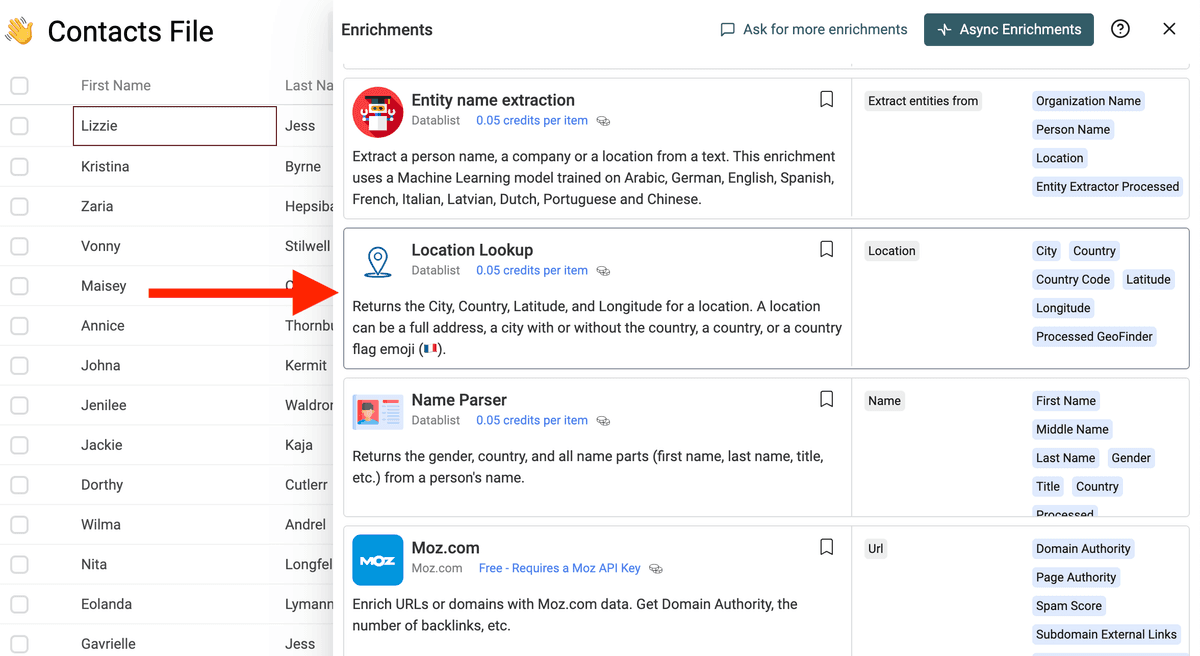
Step 3: Map Your Location Column
Connect the Location input to the column that contains your location text.
The input can contain:
- A city name
- A city with country
- A full address
- A country name
- A country flag
- A mixed location string copied from a profile or CRM field
Then choose the output columns you want Datablist to create.
Step 4: Preview and Run
Run a preview on a few rows. Check that common cases in your file return the expected country and coordinates.
When the preview looks good, run the enrichment on the full collection.
What You Get
The Location Lookup enrichment can return:
- City - The matched city name, when available.
- Country - The matched country name.
- Country Code - The ISO 3166-1 alpha-2 country code, such as
fr,gb, orde. - Latitude - The latitude coordinate.
- Longitude - The longitude coordinate.
- Processed GeoFinder - A checkbox used to track processed rows.
If Datablist cannot find a result, the row is marked with a run status so you can filter and review it.
Common Use Cases
Segment Leads by Country
Clean free-text location fields from LinkedIn exports, event attendees, or forms. Then filter leads by country before routing them to the right sales team.
Prepare Data for Maps
Add latitude and longitude to cities, stores, offices, suppliers, venues, or customers before importing the data into a map tool.
Normalize CRM Locations
Turn mixed location values into consistent city and country columns. This helps deduplication, reporting, and territory assignment.
Clean Recruiting Data
Normalize candidate locations before filtering by region, remote policy, or office proximity.
Cost Examples
Location Lookup costs 0.05 credits per processed row.
Examples:
- 1,000 rows cost 50 credits.
- 10,000 rows cost 500 credits.
- 100,000 rows cost 5,000 credits.
Rows with empty location data are marked as empty and do not return a location.
Tips for Better Results
- Include the country when city names are ambiguous, such as "Paris, France" or "Paris, Texas".
- Keep raw location text in the original column and save results to new columns.
- Use the country code output when you need stable filters or exports.
- Run a preview on rows from several countries before launching a large job.
- Filter rows with no result and enrich them again after adding more context.
Best Inputs for Location Lookup
Location Lookup is built for messy location text. It can help when your file mixes cities, countries, abbreviations, addresses, and free-text locations.
Examples:
NYCParis, FranceBerlinAustin TXLondon, UK- Full postal addresses
For best results, keep one location per row. If a row contains several locations, split the data before enrichment.
FAQ
Can I clean location data from a CSV file?
Yes. Import your CSV or Excel file, map the messy location column, and run Location Lookup in bulk.
What fields can it return?
The page lists structured geographic fields such as city, country, country code, latitude, and longitude.
Can I use it before mapping data?
Yes. Use the latitude and longitude outputs to prepare records for mapping, routing, territory planning, or distance-based scoring.
What if a location is ambiguous?
Add more context when possible, such as country, region, or address. Review uncertain rows before using the data for segmentation or mapping.