No Login Required
 GDPR Compliant
 38,000+ Users















 Easy to Use
 Doesn’t Risk Your Account
 Fully No-Code
Step-by-Step Guide
Step 1: Sign Up And Upload Your Data
Sign up for Datablist.com.
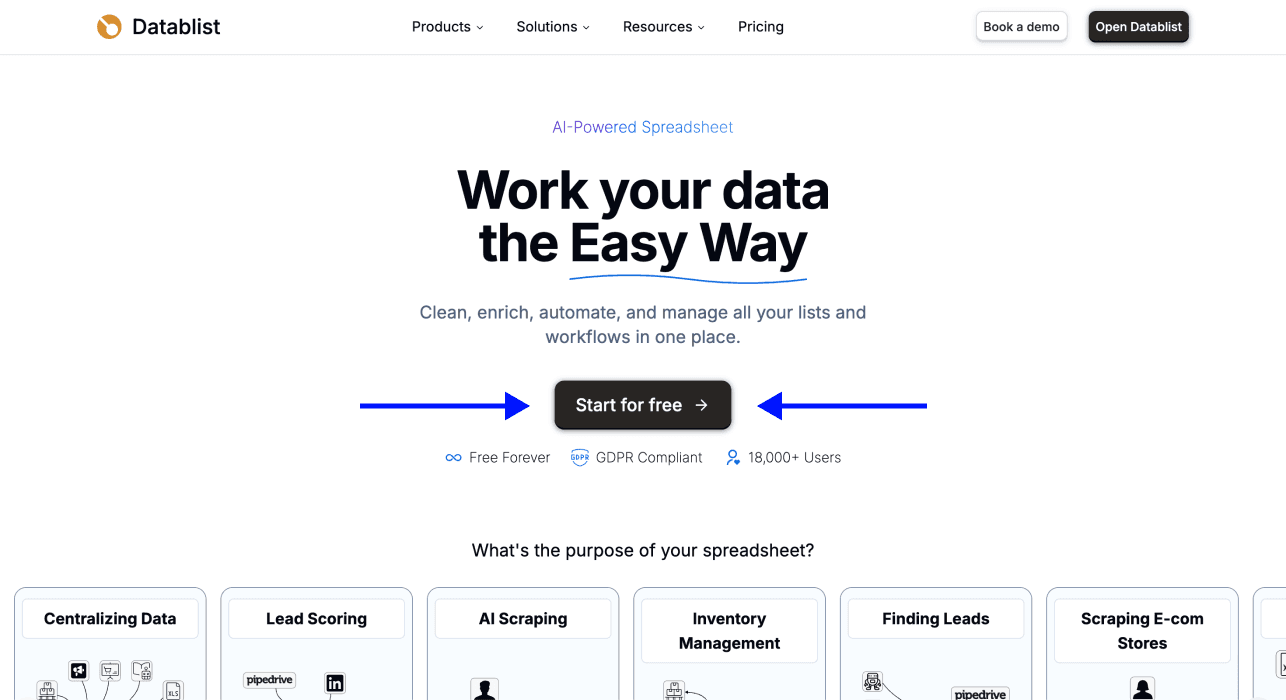
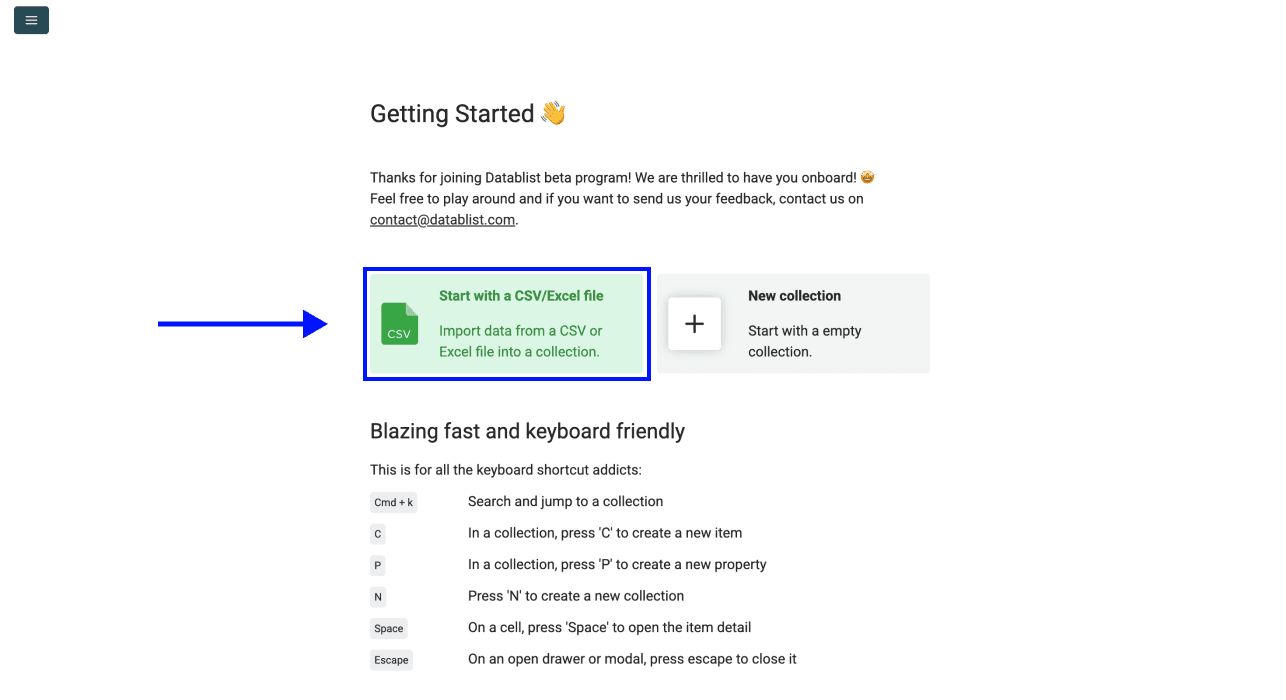
Create a new collection and upload your CSV or Excel file containing LinkedIn profile URLs. Datablist is a CSV editor for opening large lead lists and CRM exports.
Use one profile URL per row. Standard public profile URLs and Sales Navigator lead URLs can be mixed in the same column. You do not need the person's name, company, or LinkedIn credentials to run the scraper.
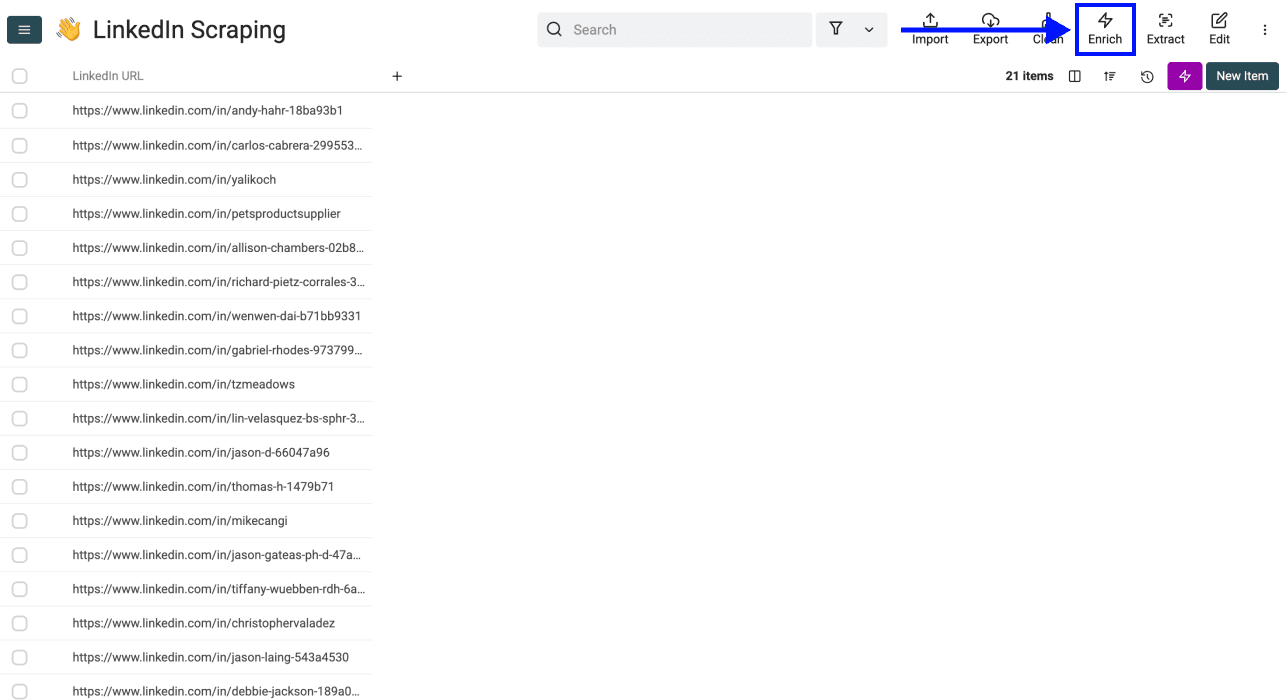
Step 2: Navigate To The Enrichment
Click Enrich in the top menu.
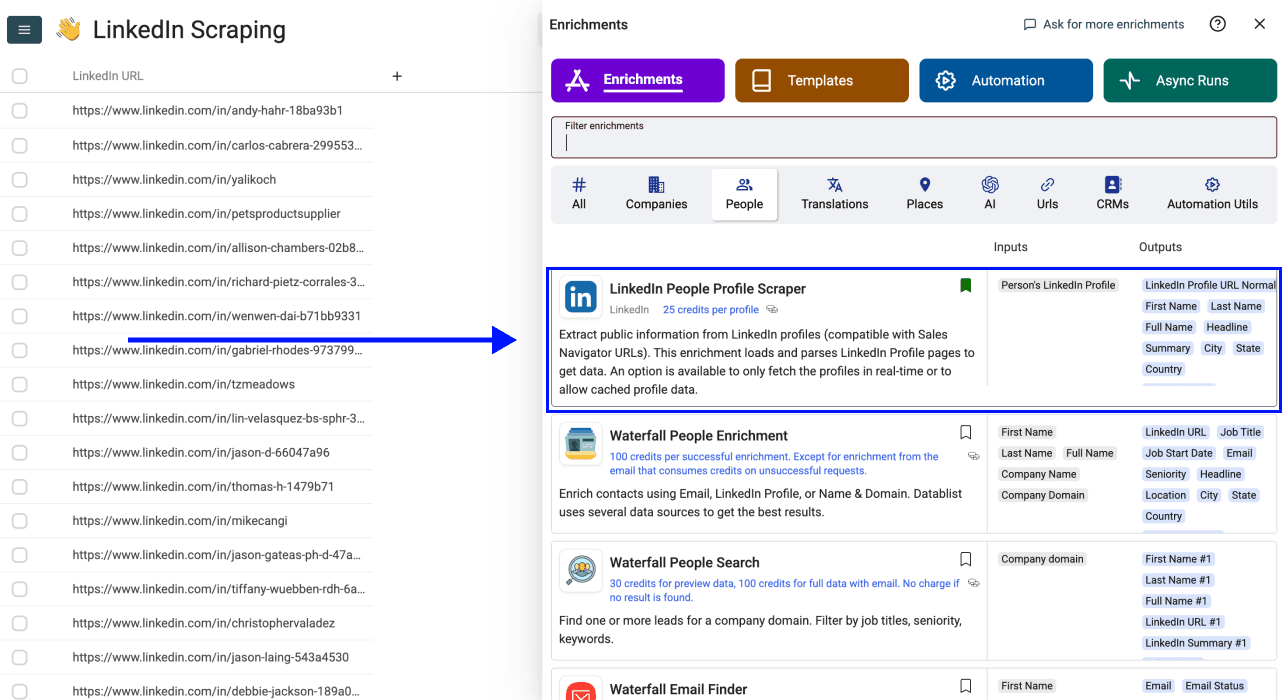
Go to the People section and select LinkedIn Profile Scraper. You can also search for LinkedIn Profile Scraper in the enrichment library.
Step 3: Set Up The Enrichment
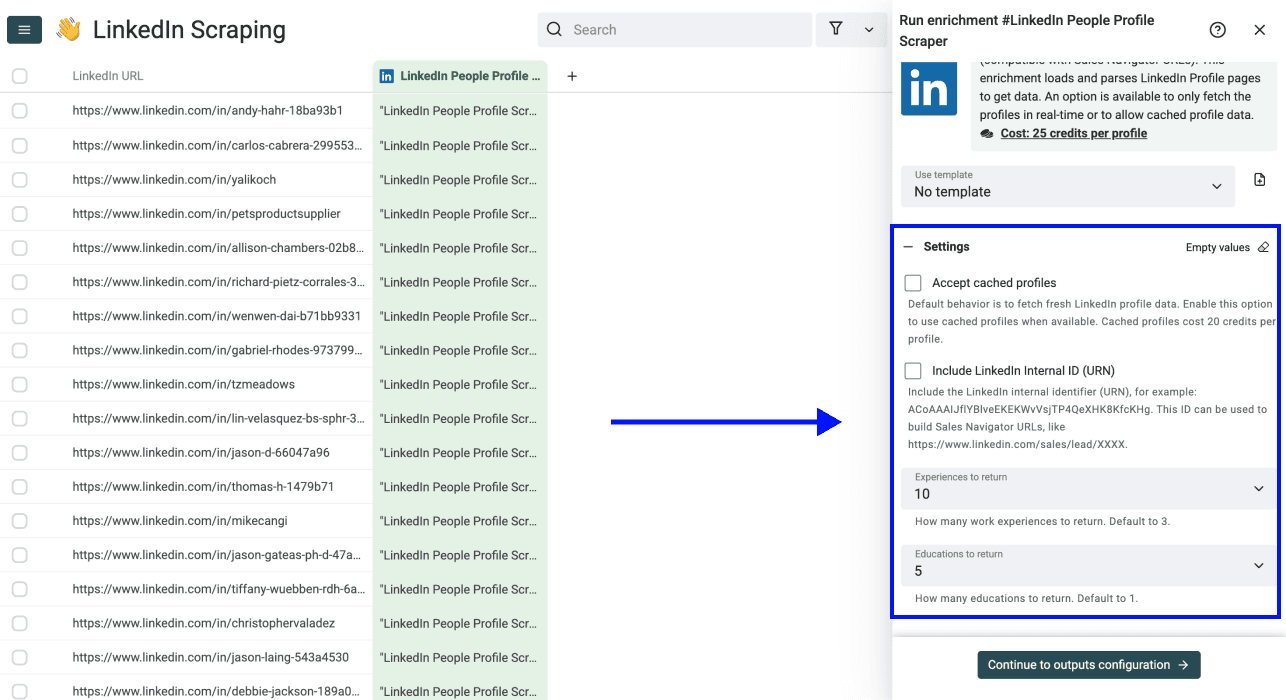
Once you select LinkedIn Profile Scraper, a drawer opens with settings. Fresh profile data is the default. Use it when you need to refresh job titles, employers, or locations before outreach or recruiting.
A contact database can lag behind a person's latest job change. Scraping the available public LinkedIn profile gives you the information on that profile, though its accuracy still depends on what the person has updated.
Choose the settings that fit your list:
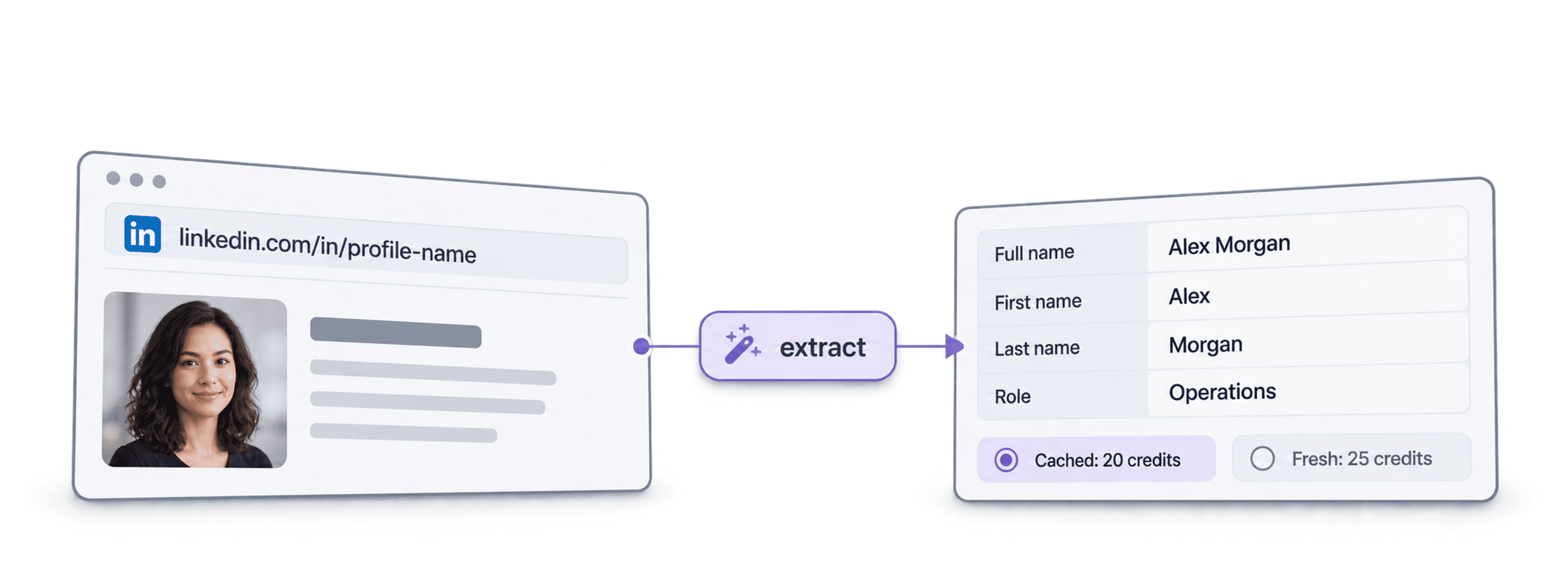
- Accept cached profiles: Use cached profiles when available. Cached results cost 20 credits instead of 25 for fresh data. If a cached result is unavailable, a fresh lookup can still cost 25 credits.
- Include LinkedIn Internal ID (URN): Return the internal identifier, such as
ACoAAAIJflYBlveEKEKWvVsjTP4QeXHK8KfcKHg. It can be used to build a Sales Navigator URL. This option requires fresh data. - Include Pictures: Return profile-picture and company-logo URLs. This option also requires fresh data. These image URLs expire quickly, so download the images if you need to keep them.
- Experiences to return: Choose 3, 5, or 10 work experiences. The default is 3.
- Educations to return: Choose 1, 3, or 5 education entries. The default is 1.
Leave Accept cached profiles off when using Include LinkedIn Internal ID (URN) or Include Pictures. Those options are unavailable in cached mode.
Step 4: Configure Your Inputs
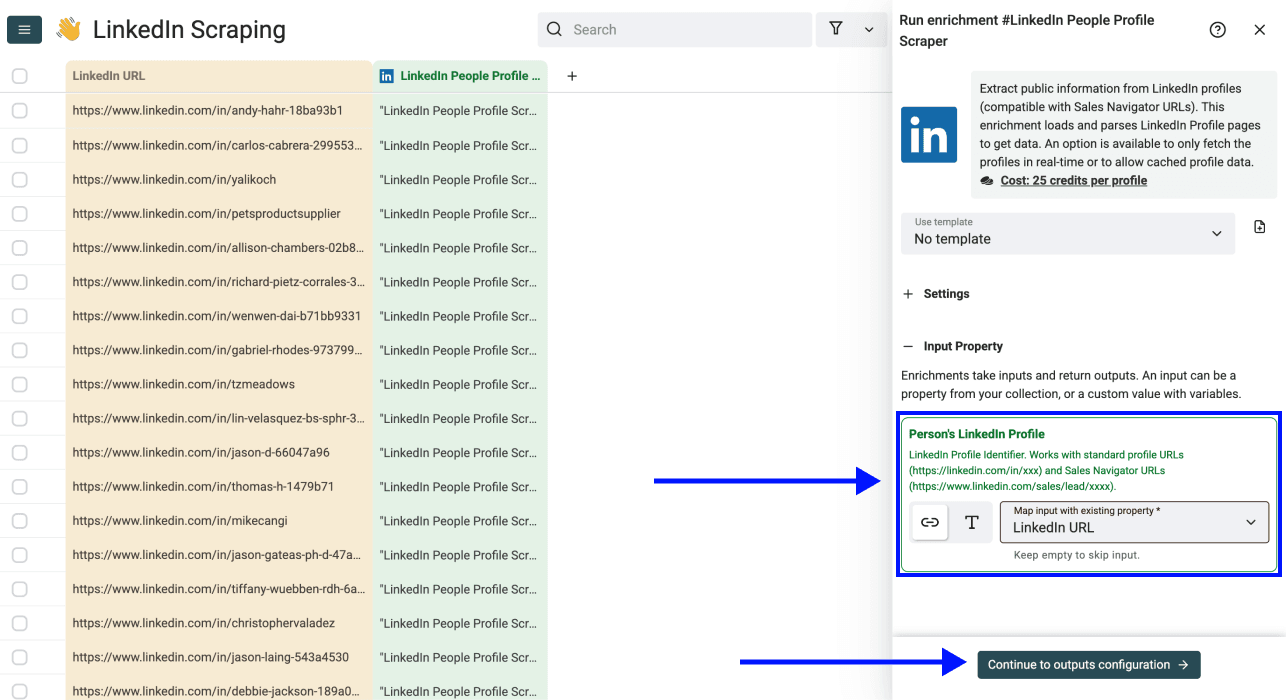
Map the column containing your LinkedIn profile URLs to Person's LinkedIn Profile. Accepted examples include:
- A public profile:
https://www.linkedin.com/in/profile-id - A Sales Navigator lead:
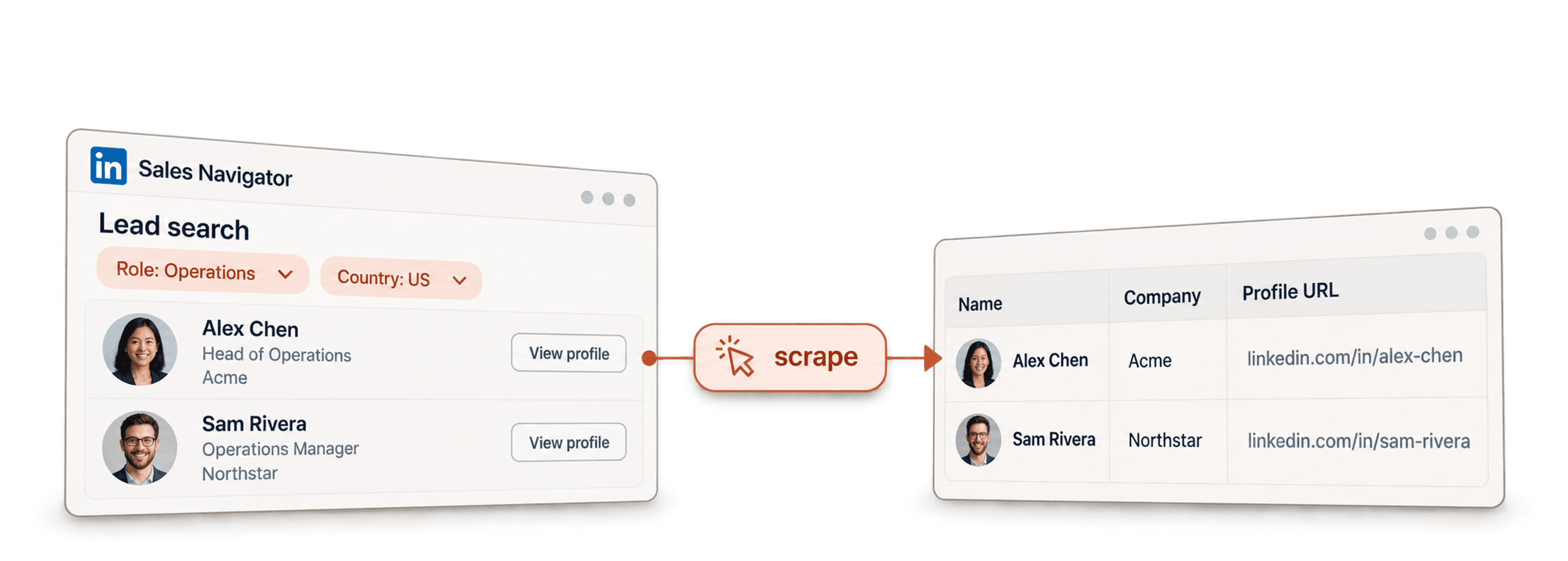
https://www.linkedin.com/sales/lead/XXXX
Keep the original URL column so you can audit the results and correct inputs before retrying failed rows. When scraping Sales Navigator URLs, the LinkedIn Profile URL Normalized output returns the public profile URL. Read how to convert LinkedIn Sales Navigator profiles to public URLs for that workflow.
Click Continue to Outputs Configuration when ready.
Step 5: Select Outputs
Configure where the scraped data will be stored. You can map outputs to existing columns or create new columns. Click the ⊕ icons to add the outputs you need, or use the shortcut to add all columns.
Useful outputs include:
- Identity and location: First Name, Last Name, Full Name, Headline, Summary, City, State, Country, and Location.
- Current or last work experience: Job title, employment type, description, dates, and location, plus company name, LinkedIn company page, website, description, industry, and employee range.
- Earlier work experiences: Job title, company name, employment type, description, and start and end dates, up to the number selected in settings.
- Education: School, degree, field of study, and dates, up to the number selected in settings.
- LinkedIn Profile URL Normalized: The clean public profile URL, including when the input is a Sales Navigator lead URL.
The current or most recent work experience includes detailed company data. Earlier roles have work-history fields without the same company enrichment. Available fields vary by profile; an empty field does not necessarily mean the scrape failed.
For a CRM refresh, decide whether to update existing fields or fill only missing values. Writing into new columns first makes it easier to compare scraped data with your original records.
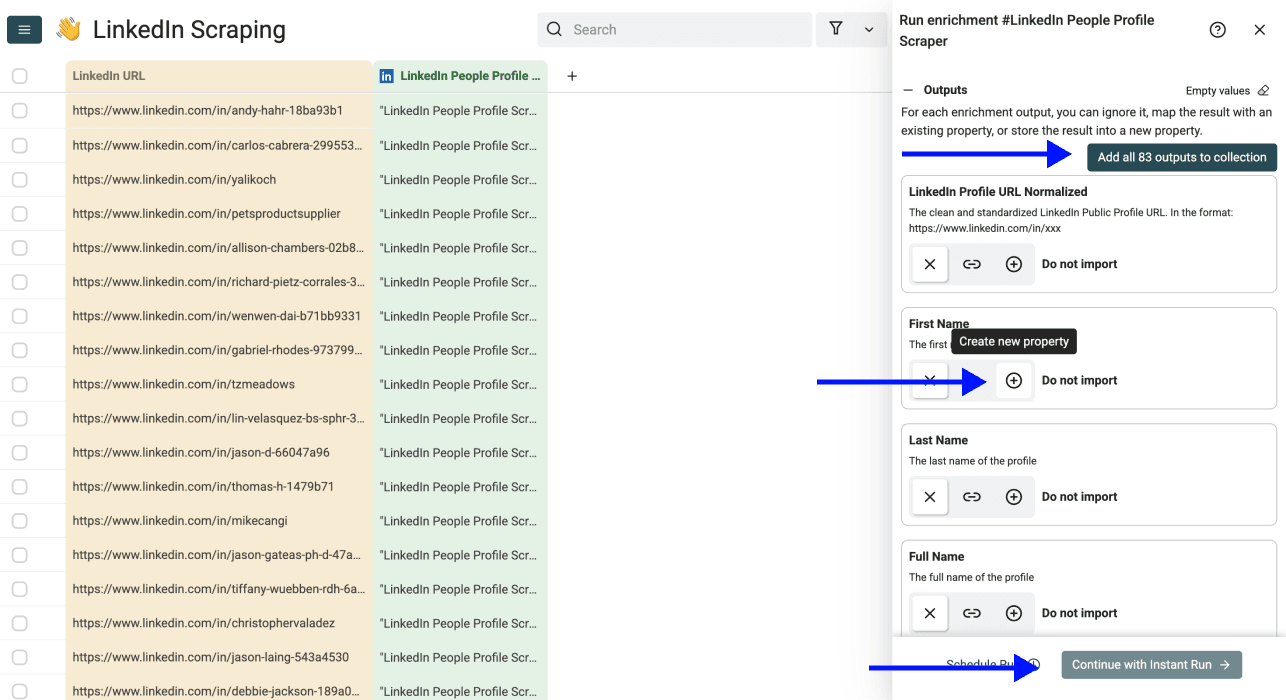
Then click Continue with Instant Run.
Step 6: Preview, Run And Review Your Results
Choose a run size:
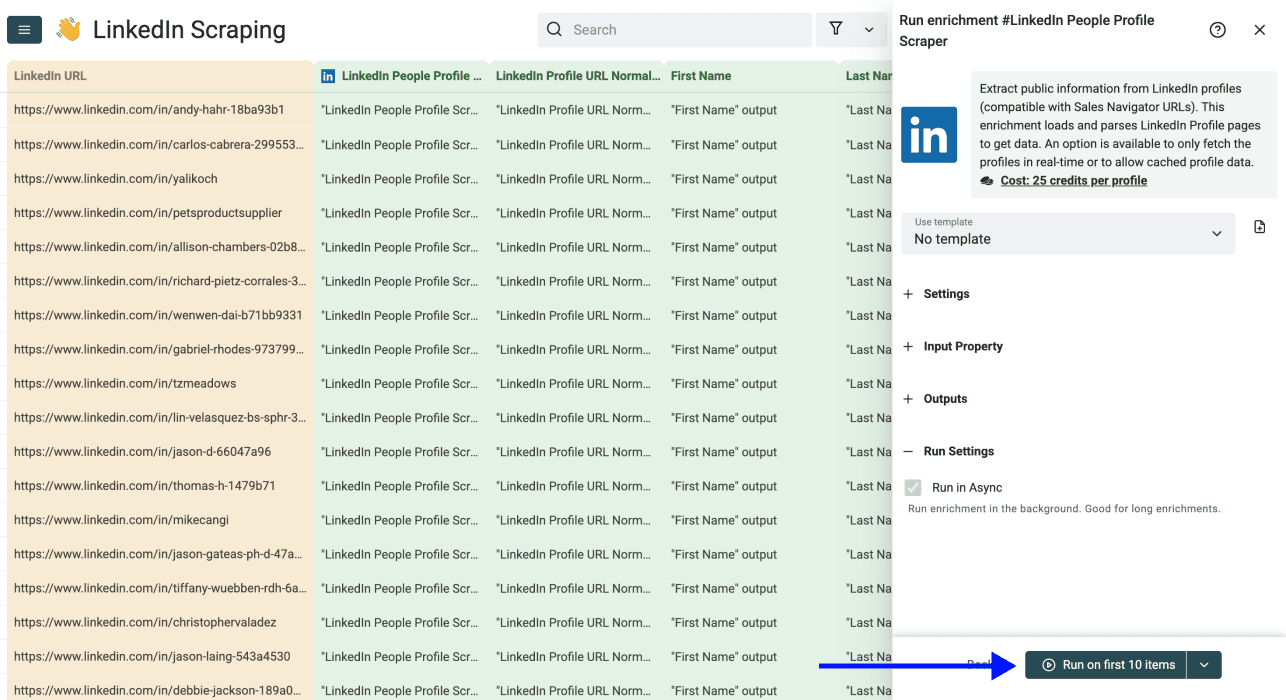
- Run on first 10 items to test your inputs and output mapping.
- Run on first 100 items to validate a larger sample.
- Run on all view items to process the rows in your current view.
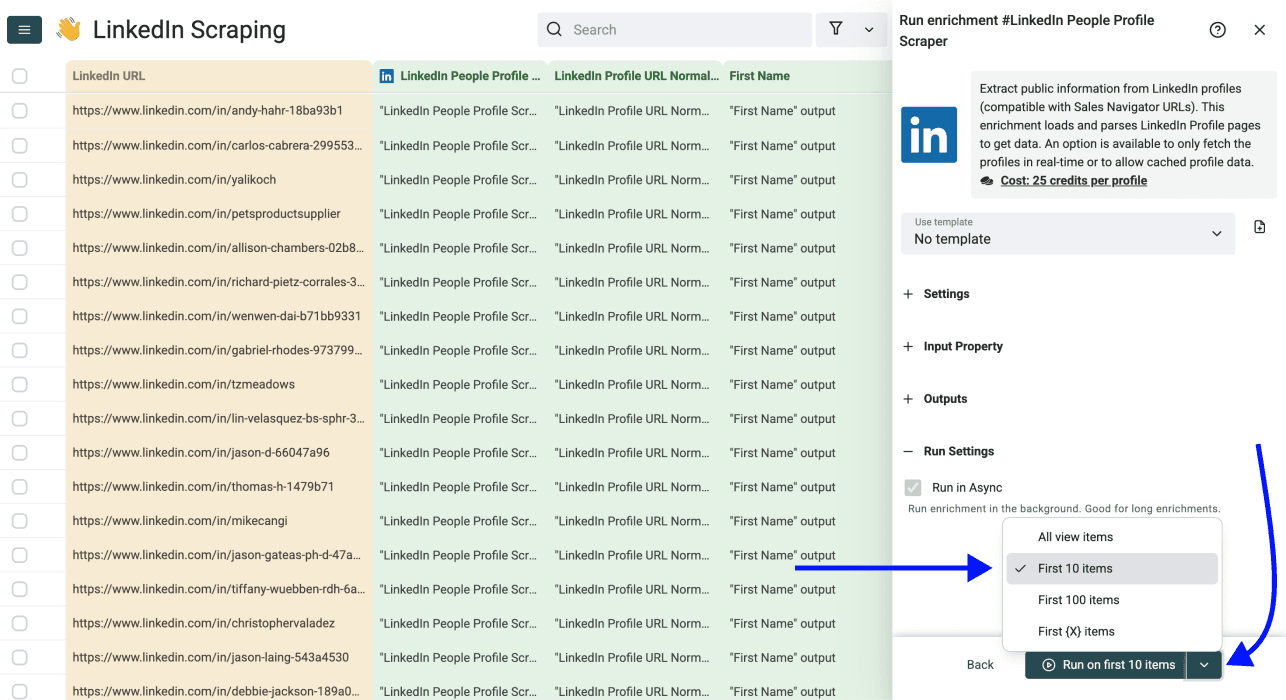
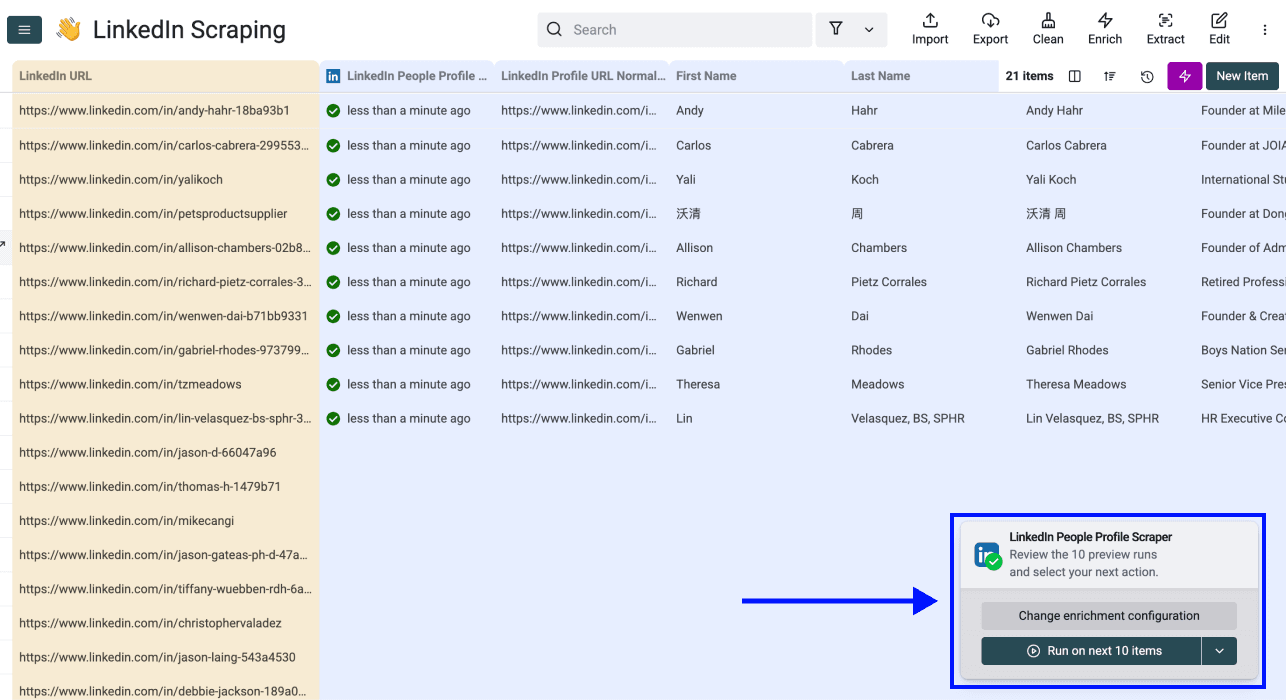
Start with Run on first 10 items and review the returned data before processing the full list.
Use the run-status column to find rows that did not succeed. Check malformed URLs, fix inputs, and filter your view before choosing Run on all view items again. This lets you retry the relevant rows.
Fresh profiles cost 25 Datablist credits per profile. Cached results cost 20 credits per profile when available. For example, 20,000 credits cover 800 fresh profiles or 1,000 cached profiles; 200,000 credits cover 8,000 fresh profiles. Choose fresh data when recency matters, and accept cached profiles when an existing copy is suitable.
Credits are included with paid plans, and you can buy non-expiring credit top-ups. Use the page's calculator and pricing page for current package prices. Read how Datablist credits work for the credit system.
What To Prepare Before Scraping LinkedIn Profiles
Before running a large CSV or Excel file:
- Keep one LinkedIn profile URL per row and retain the original source column.
- Choose the output fields you need and use new columns when comparing results with existing CRM data.
- Run a small preview to check profile matching and output mapping.
- Use run status to review failures and filter retries.
- Download any returned pictures you need to keep before their URLs expire.
LinkedIn Profile Scraper works without connecting to your LinkedIn account or asking for its password, cookies, or session ID.
What To Do With The Scraped Profile Data
Use the results to refresh job titles, employers, locations, headlines, and public profile details before outreach, recruiting, or CRM cleanup. Work history can help qualify leads and personalize messages; education fields can help review recruiting lists.
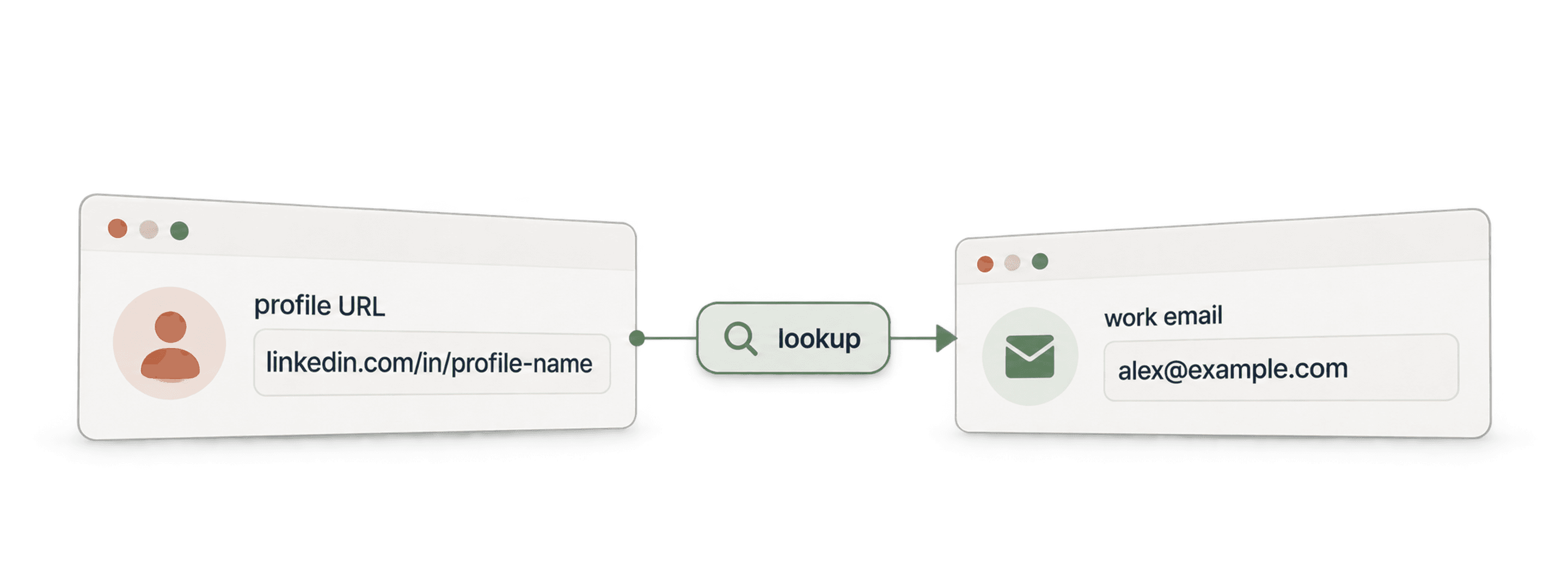
The scraper returns profile data rather than work email addresses or mobile numbers. Continue with Waterfall Email Finder or Waterfall Phone Finder on the same rows. Use the normalized public profile URL for these follow-up enrichments.
Read How to Scrape LinkedIn Profile Details for a longer workflow, or How to Find Emails From LinkedIn Profile URLs to continue building your contact list.