
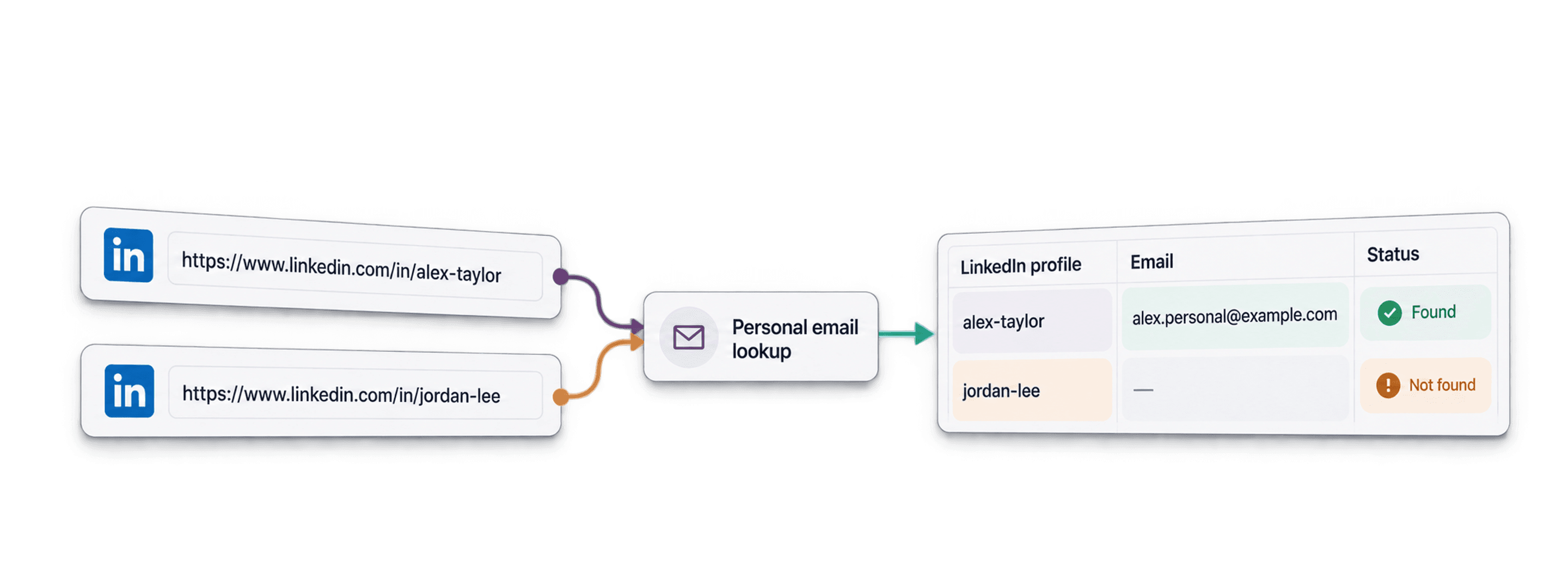
To find a personal email address, start with a profile that identifies the person, then review the address returned by the lookup. A common provider such as Gmail identifies an email domain; it does not establish who owns a particular mailbox.
To find personal email addresses with Datablist, upload a CSV with a standard LinkedIn profile URL in each row, map that column to the Waterfall Personal Email Finder, run it on a small sample, and review the email results before processing the full list. Use profile URLs such as https://www.linkedin.com/in/jane-doe/; Sales Navigator profile URLs are not supported by this enrichment.
This guide shows you the setup and the checks to make before using the results. For recruiting, the candidate-email workflow explains how to review public profile inputs, pending lookups and completed no-result rows.
📌 Summary For Those In a Rush
Turn a list of standard LinkedIn profile URLs into personal-email results you can review in the same spreadsheet. Import the file, choose Waterfall Personal Email Finder, map LinkedIn Profile and save the Email output. Test a few rows before running the full view.
A found email costs 75 credits. Check the run details for invalid inputs, unfinished lookups and completed no-result rows. A returned address still needs identity and mailbox review before use.
Table of Contents
- Finding Personal Email Addresses: Quick Context
- How To Find a Personal Email Address: The Step-by-Step
- Conclusion: What You Should Remember
- Frequently Asked Questions About Finding Personal Emails
Finding Personal Email Addresses: Quick Context
Before jumping into the tutorial, here's some quick context on what makes finding personal emails different and how Datablist's approach actually works. This will help you understand why the tool is set up the way it is.
How It Works
Datablist's Personal Email Finder works differently from most email finder tools you've probably seen. There are two layers worth understanding: the data layer and the workflow layer.
The Data Layer
The personal-email lookup uses a LinkedIn profile URL to search its available data providers. A person can have a personal address on a common provider or a custom domain. If your task is only to classify business versus personal email domains, use that separate domain check instead of looking up a person's address.
Provider coverage can be missing or out of date. The enrichment returns an Email output, not a separate verified-identity or deliverability verdict. Compare the result with the intended person and use an appropriate mailbox check when your next workflow requires it.
⚠️ Review how you will use the result
Finding an address does not establish permission to contact its owner. Check the requirements for your campaign before using personal contact data.
The Workflow Layer
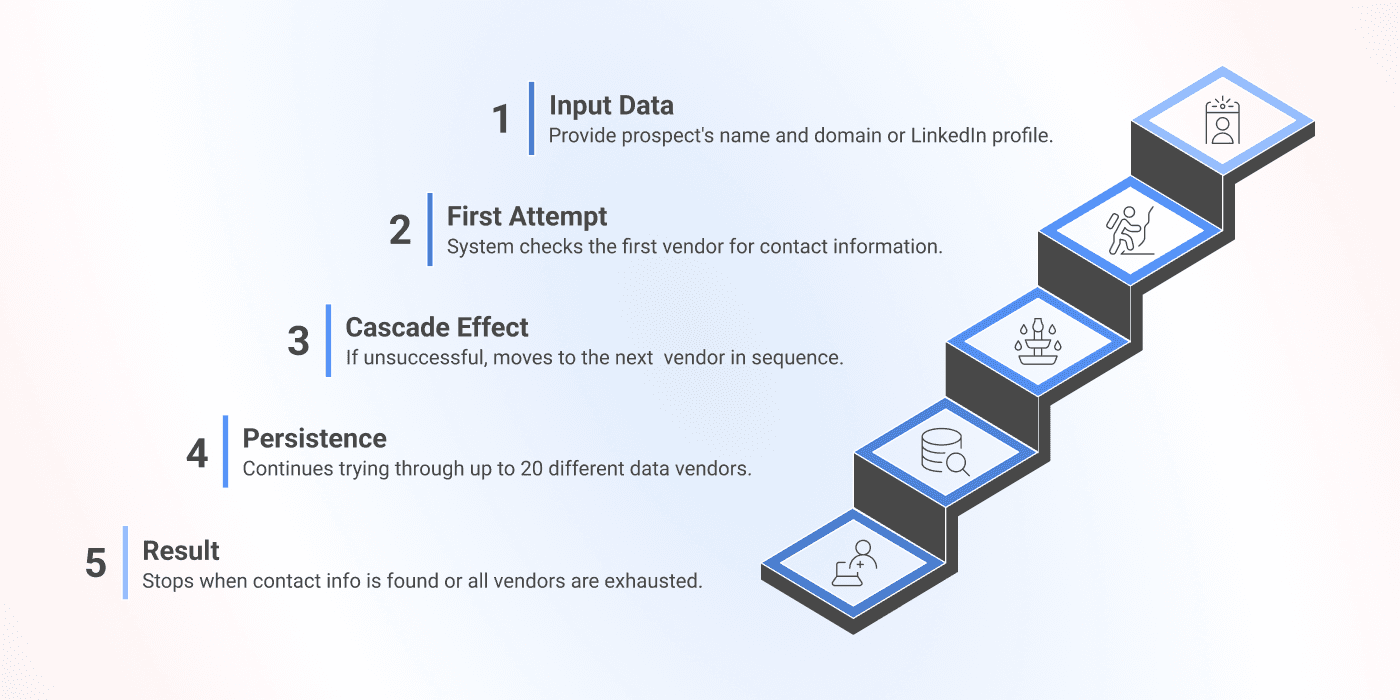
The Waterfall method tries available providers in sequence. Another provider can be tried when an earlier lookup returns no usable email. Coverage depends on the supplied profile and the providers available for that run; it is not a promised finding rate.
In practice:
- Submit a standard LinkedIn profile URL.
- Datablist searches the configured provider sequence for a personal email.
- A returned result is saved to the mapped Email property.
- Some lookups continue asynchronously. An unfinished lookup is not yet a completed no-result row.
- Inspect the final run status and output before deciding whether to retry or export.
A found personal email costs 75 credits. The action checks that the starting balance can cover the submitted valid lookups at that rate. The final charge uses the found results; completed no-result lookups are not charged as found emails. Review the sample's credit usage before scaling up.
What You Need: Inputs and Outputs
The setup is straightforward:
Input: LinkedIn Profile URL
Output: Personal Email Address
Cost: 75 credits per email found (pay only for success)
Map the action's LinkedIn Profile input and Email output. There is no separate verification-status output in this enrichment. Keep a stable row ID and the source profile URL so you can check each returned address against the intended record.
For example, a CSV can contain Record ID and LinkedIn Profile, with a profile such as https://www.linkedin.com/in/jane-doe/. This URL illustrates the accepted shape; it is not a lookup result. Blank cells and Sales Navigator URLs need correction before a useful search.
How To Find a Personal Email Address: The Step-by-Step
Now for the hands-on part. Finding personal email addresses with Datablist takes just 6 steps. No technical skills required, no complicated configuration. Let's walk through it.
📘 Before We Start
This guide uses LinkedIn profile URLs to find personal emails. If you're looking to find professional (work) emails instead, check out our guide on how to find emails at scale or how to find emails from LinkedIn profiles.
Step 1: Sign Up & Upload Your Data
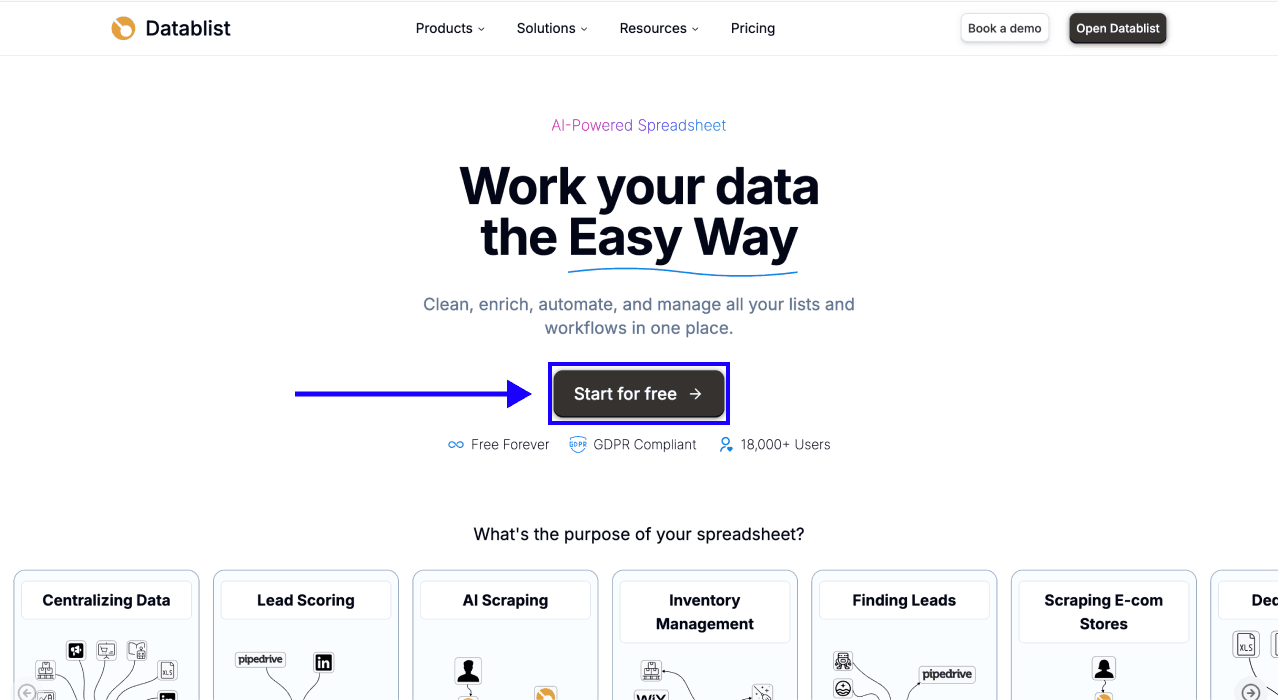
First, Sign up for Datablist.com
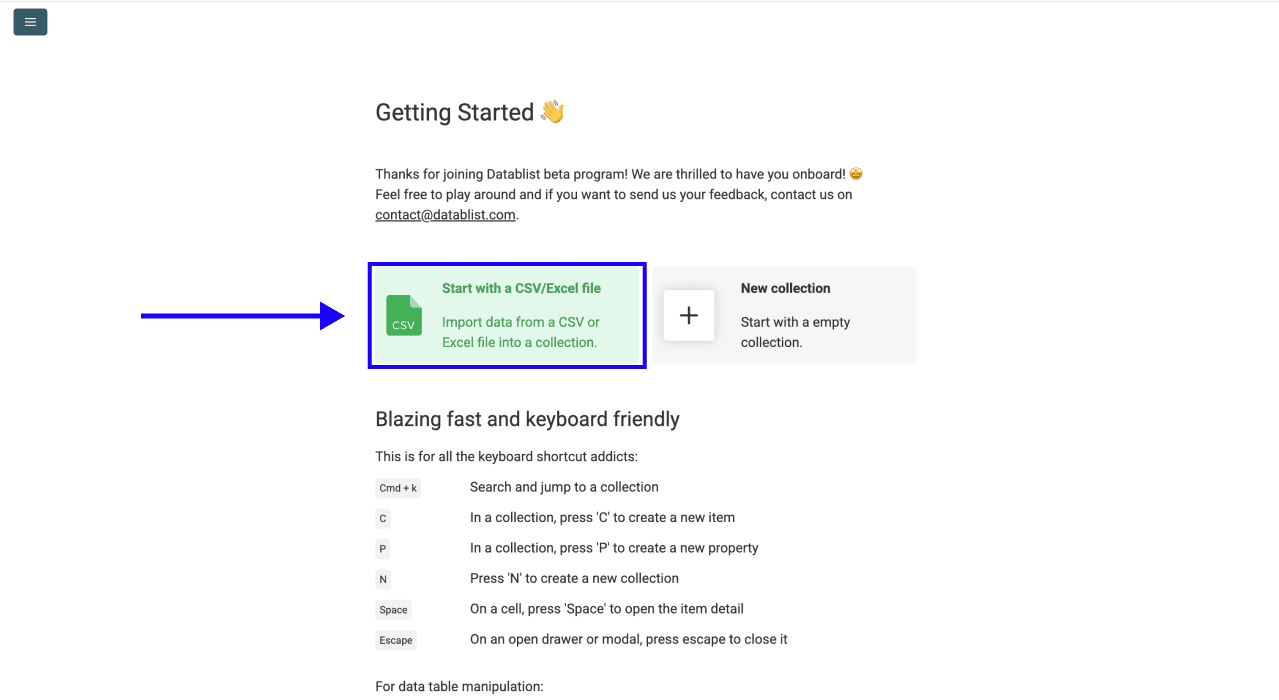
Then, Upload your CSV or Excel file containing your LinkedIn profile URLs.
Step 2: Navigate to the Enrichment
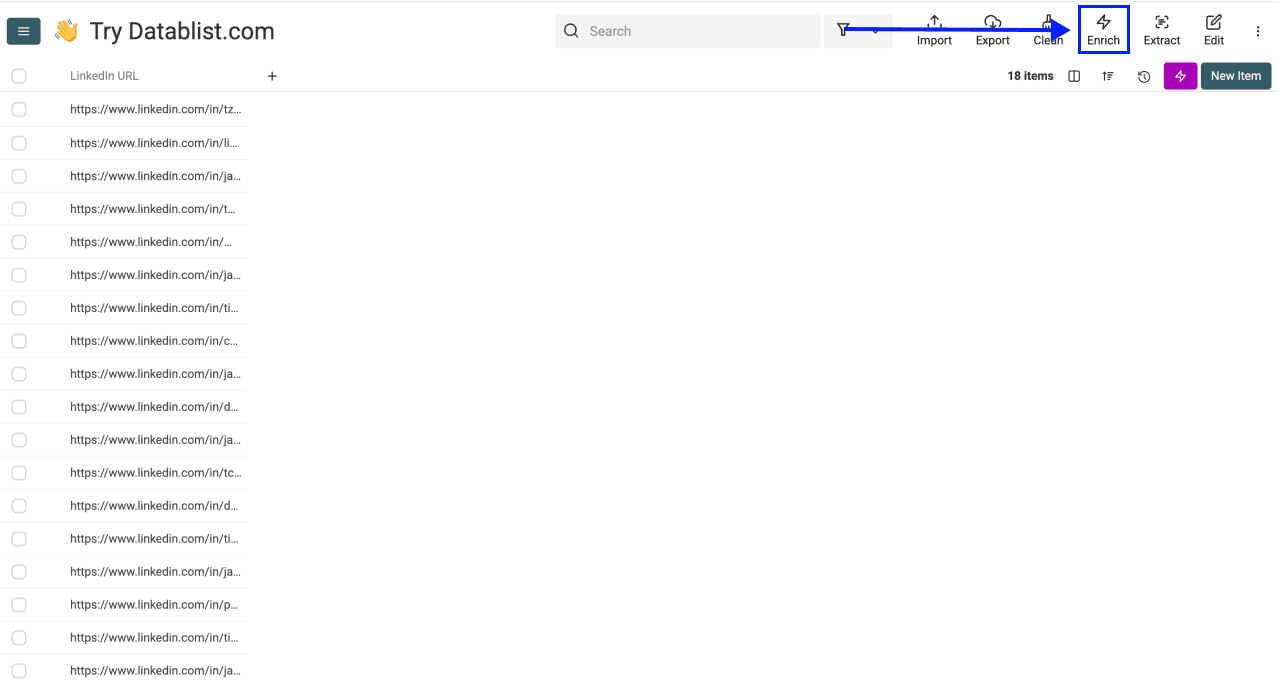
- Click on Enrich in the top menu of the app
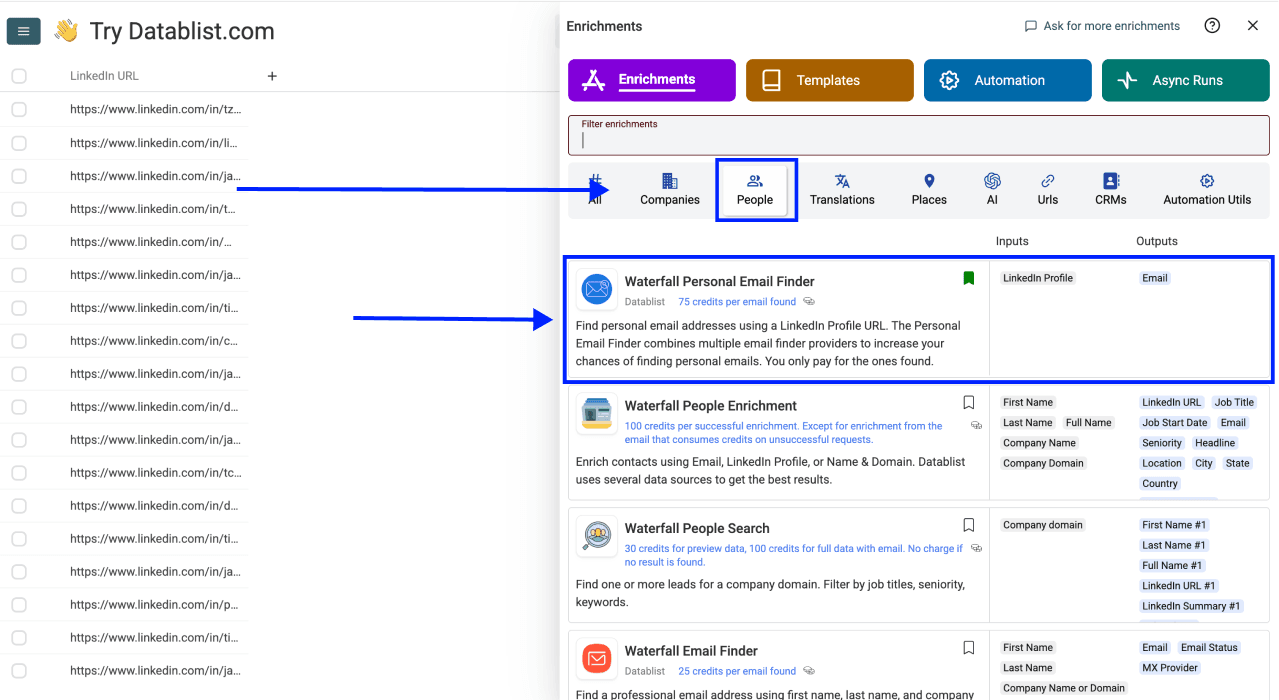
- Go to the People tab
- Select the Waterfall Personal Email Finder
Step 3: Set Up the Enrichment
For a standard run, this enrichment has no additional search settings to configure. Continue to the profile input and Email output mapping.
Scroll down to configure your inputs.
Step 4: Configure Your Inputs
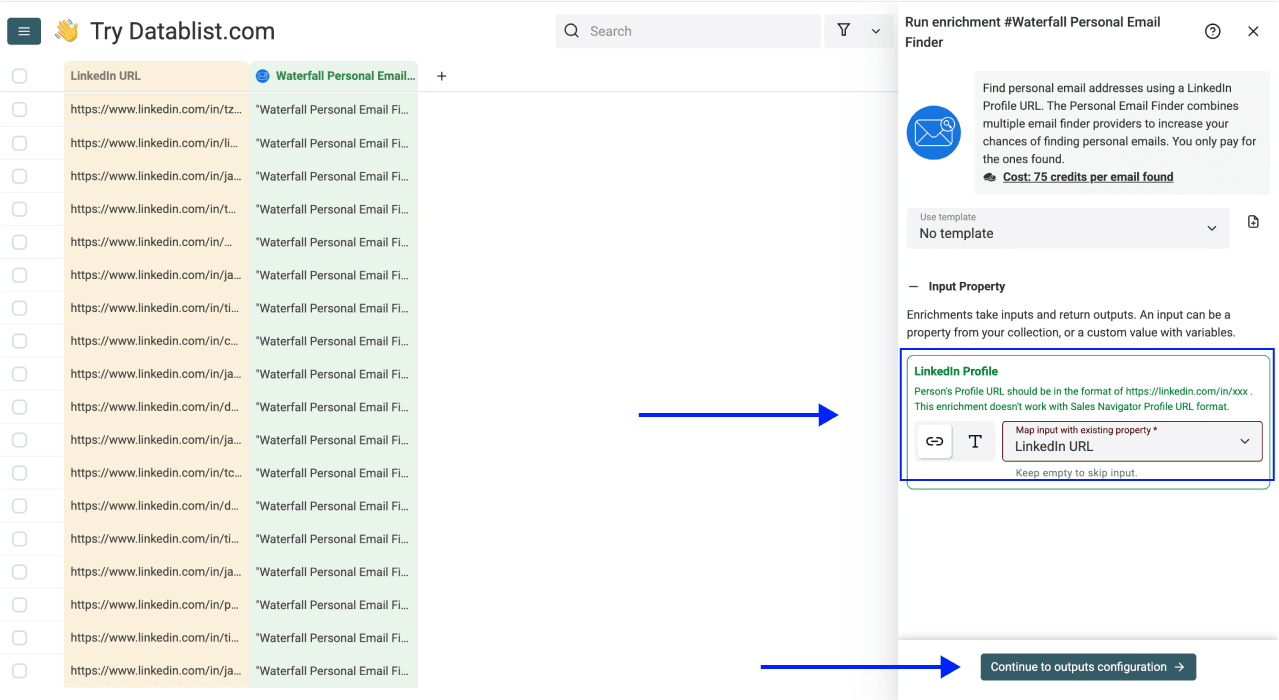
Map the column containing your LinkedIn profile URLs as the Input Property.
Then click Continue to outputs configuration.
Step 5: Select Outputs
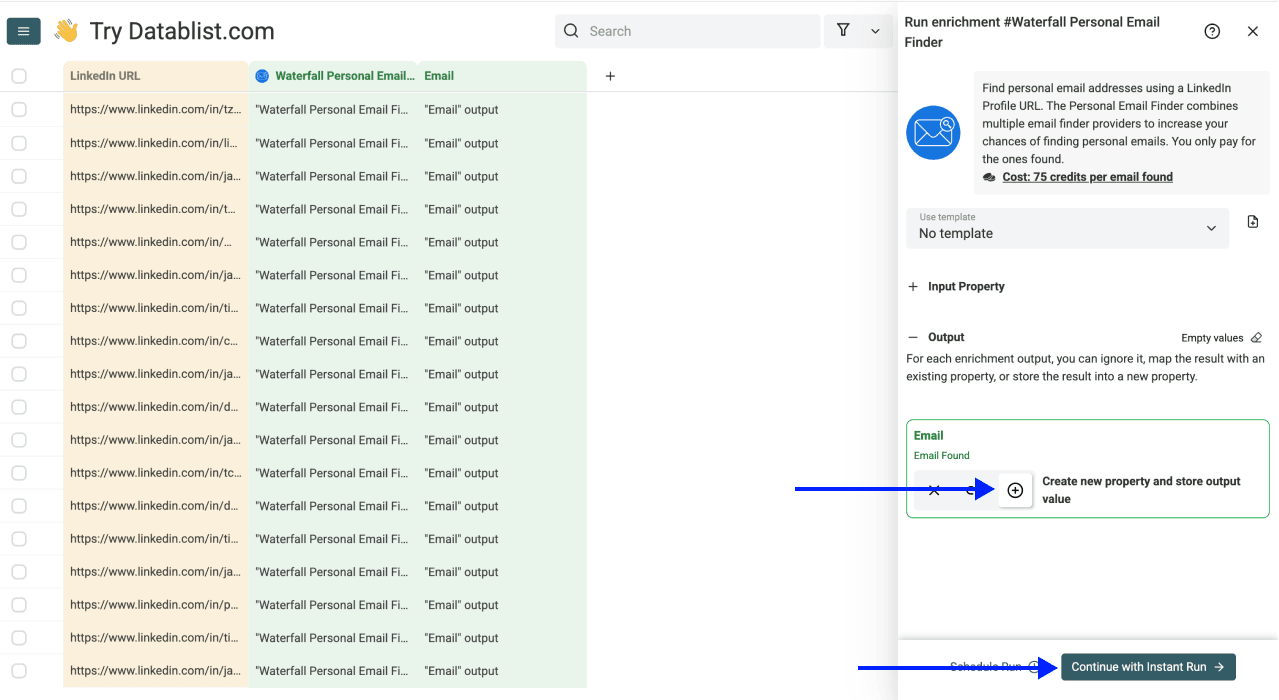
Add the Email output as a new property with the ⊕ Icon. Keep existing contact columns available for comparison. Review the run settings in the next step before starting.
Step 6: Run the Enrichment
Finally, configure your run settings by clicking on the chevron on the right side of the button. This will allow you to choose between the following options:
- Run on first 10 items: Good for checking results before committing
- Run on first 100 items: Useful if you want to validate larger samples
- Run on first {X} items: Lets you choose how many items you want to process
- Run on all view items: Process your entire list (or view if you’ve enabled filters)
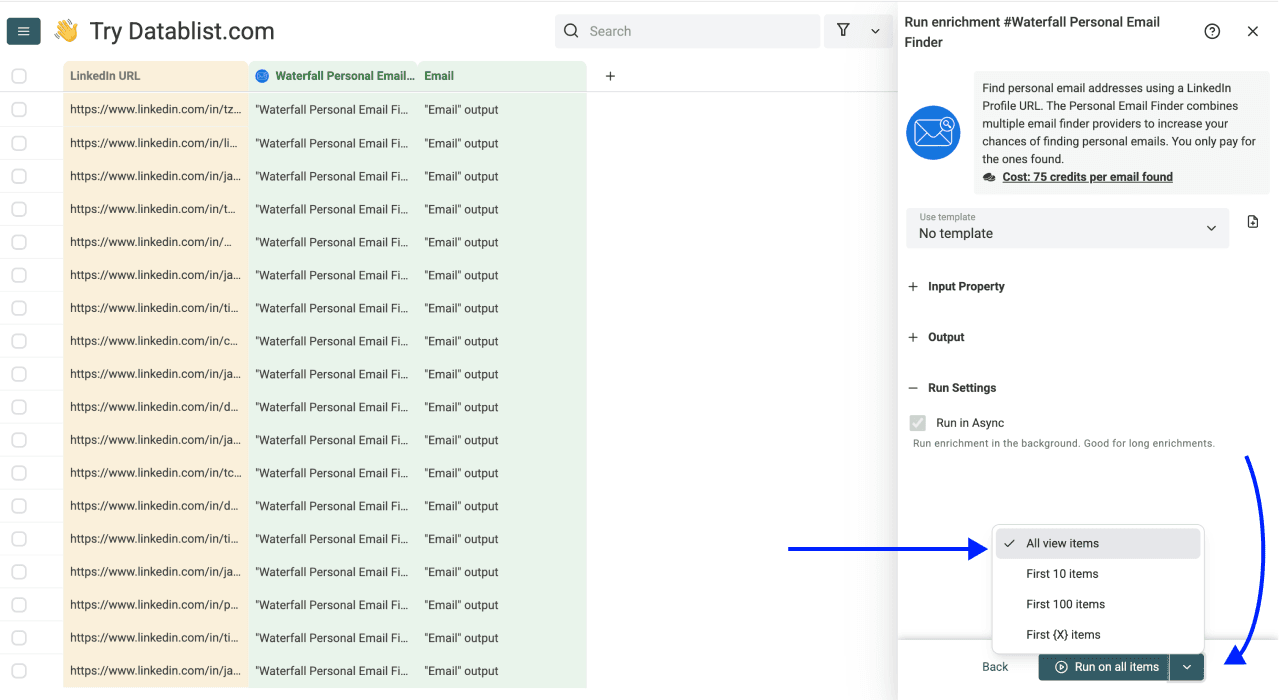
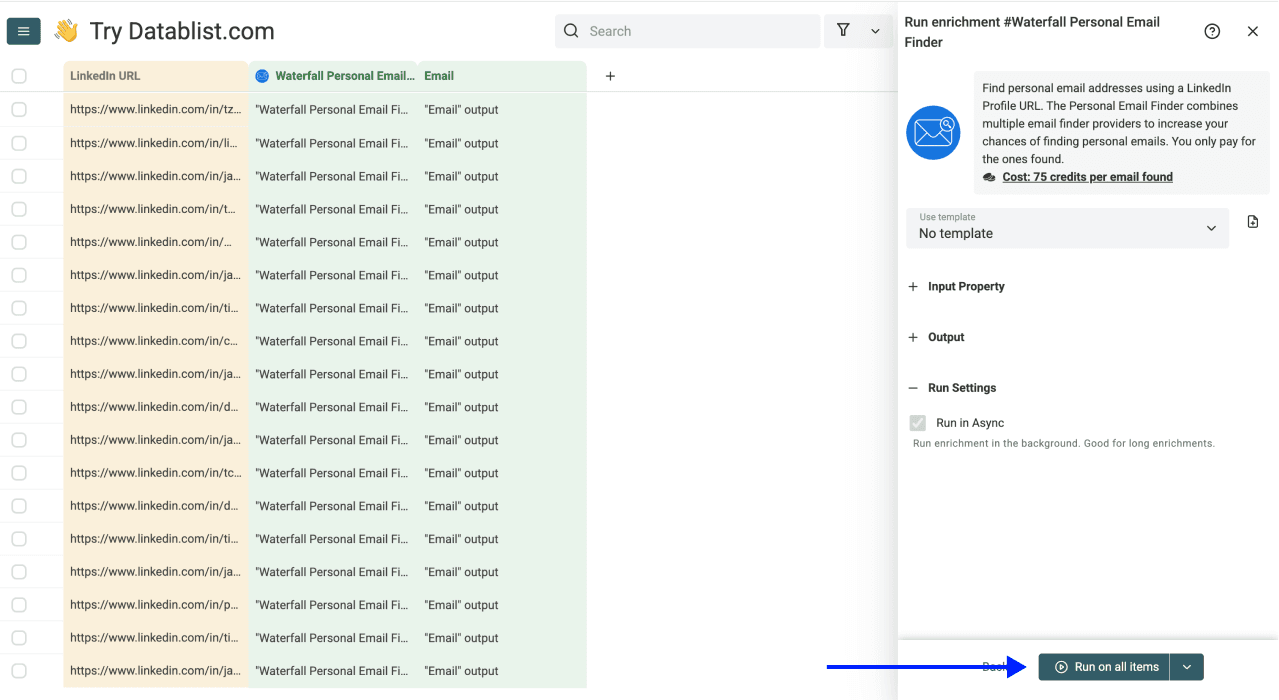
Check the displayed selection or view count, then click Run Enrichment on X items. If you map an output to an existing column, review the existing-data rule first so you do not overwrite values you meant to keep.
After running: You'll see a summary showing credits spent and run status, giving you full visibility into costs and results.
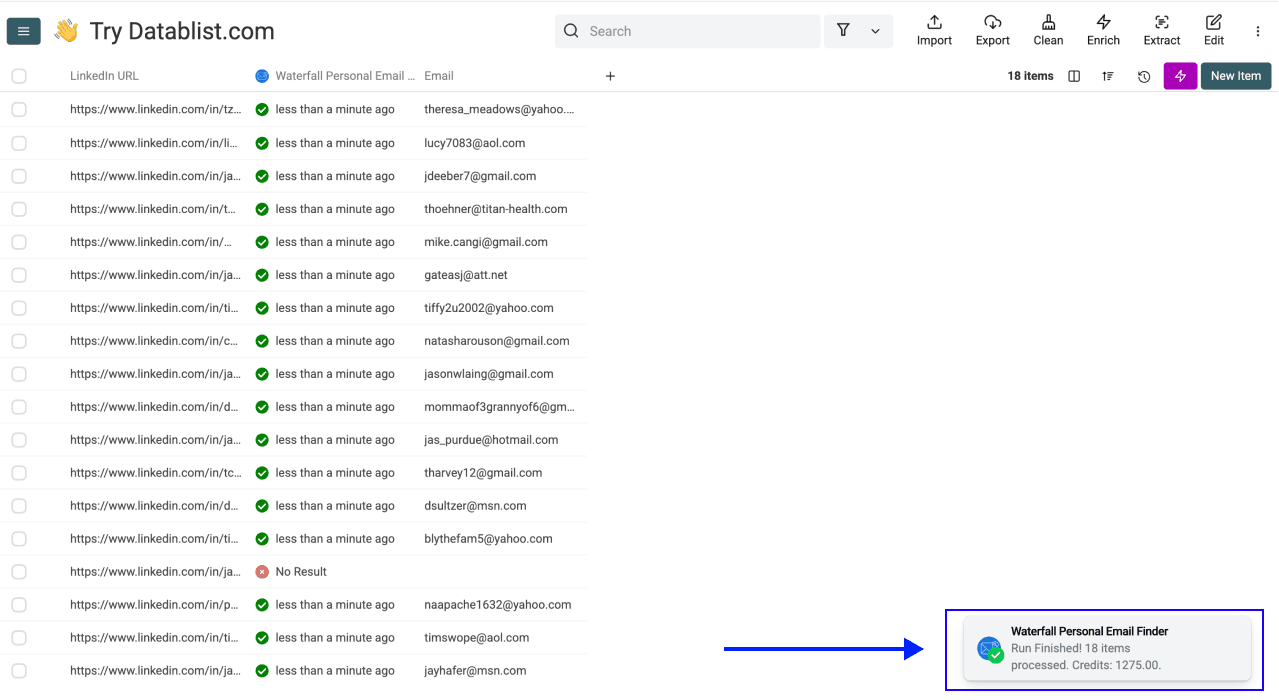
Review the output before export
Use the email value and run details together:
- Email returned: compare it with the intended profile and record ID. The output alone does not prove current mailbox ownership or deliverability.
- Missing or invalid input: correct the mapped profile URL, then retry those rows.
- Lookup still in progress: wait for the final status before treating a blank email as no result.
- Completed with no result: keep the source row if you plan another research step. It means this lookup returned no address, not that the person has no personal email.
After checking the results, open Export and download CSV or Excel. Include the source profile URL and stable ID so the addresses stay attached to the right contacts.
Conclusion: What You Should Remember
Use the profile URL to identify the lookup target, keep each result attached to its source row, and review the output before export.
I recommend starting with a small sample because it exposes incorrect URLs and output mapping before a larger run. Check completed errors and no-result rows separately from unfinished lookups. Budget 75 credits per found email and review the actual sample charge before continuing.
Frequently Asked Questions About Finding Personal Emails
How Much Does It Cost to Find a Personal Email With Datablist?
A found personal email costs 75 credits. The starting balance must cover the valid lookups submitted at that rate; the final charge uses found results. The cash value depends on your credit package and currency, so check the sample usage and your balance before processing the full list.
How Long Does It Take to Find 500 Personal Emails?
Completion time depends on provider responses, queueing and whether lookups need asynchronous continuation. Check the run progress and final statuses rather than assuming that 500 submitted profiles will return 500 emails or finish within a fixed number of minutes.
Is There a Limit on How Many Personal Emails I Can Search For?
Check your plan access, available credits and the scope shown in the enrichment runner. Collection storage capacity is a separate limit from credit-funded searches. Run a selected sample first, then continue with the remaining rows after the input mapping and results look correct.
What Data Does Datablist's Personal Email Finder Return?
It returns an Email output when an address is found. There is no separate verification-status output. Review the address against the intended person and inspect the run details for invalid inputs, completed no-result rows or work still in progress.
Do I Need Technical Skills to Use Datablist's Personal Email Finder?
Not at all. The entire process is 6 steps: sign up, upload your data, navigate to the enrichment, map your input column, select your output, and hit run. If you can use a spreadsheet, you can use Datablist.
Can I Also Find Someone's Phone Number After Finding Their Personal Email Address?
You can run a separate phone-number enrichment on the same collection when you have its required input. Review that enrichment's settings and credit estimate separately. Keep the profile URL and stable record ID for matching the results.
Can I Find Personal Emails in Bulk or Only One at a Time?
Datablist.com is built for bulk operations. You can upload thousands of LinkedIn profile URLs at once and run the personal email finder on all of them in a single enrichment. There's no need to search one by one.
Can I search a personal email directory by name?
This enrichment expects a standard LinkedIn profile URL for each row. It does not accept a person's name as the lookup input or export a complete personal-email directory. Find and check the intended person's profile first, then run the lookup for that row.
How Can I Find Someone's Personal Email?
With Datablist, supply the person's standard LinkedIn profile URL to Waterfall Personal Email Finder and review any returned address. A provider can have no result or an outdated result, so confirm that the address belongs with the intended record before using it.
What's the Difference Between Finding Personal Emails and Finding Professional Emails?
In this Datablist workflow, the personal-email lookup takes a LinkedIn profile URL. The work-email workflow also offers name-and-company inputs. Choose the enrichment for the address you need, then review its returned result; the input method does not establish mailbox ownership or permission to send a message.