 0.10 Credits per Page
 Follows About and Contact Pages
 500 Free Credits to Try













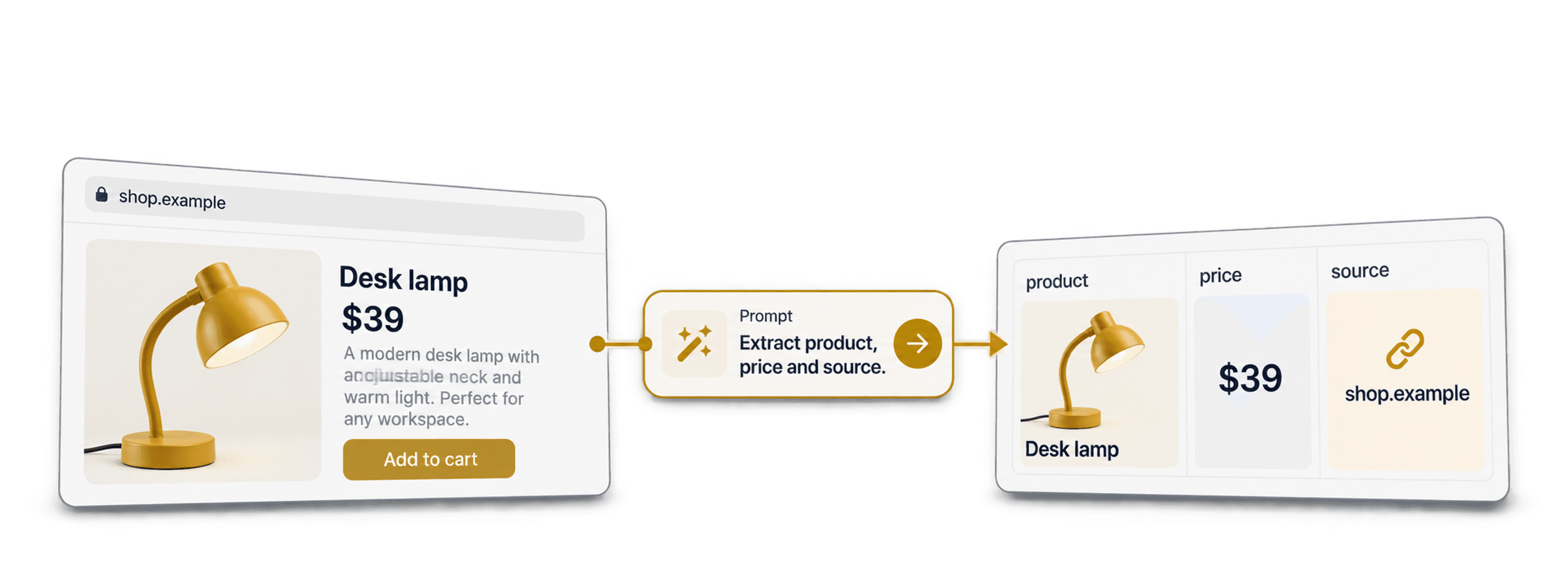
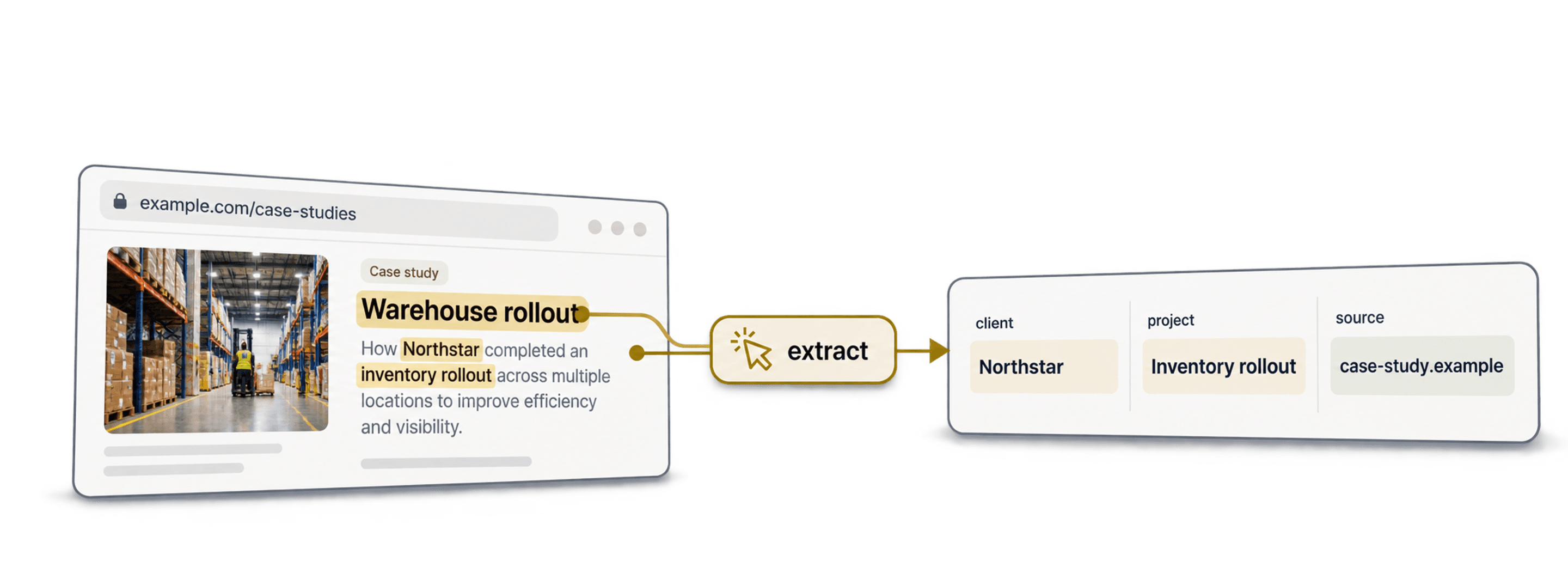



 Easy to Use
 Fully No-Code
 Scrapes JS-Rendered Pages
Step-by-Step Guide
Step 1: Sign Up And Upload Your Data
First, sign up for Datablist.com.
Create a new collection and upload your CSV or Excel file with the webpage URLs you want to scrape. Use one URL per row and remove duplicate URLs before running the enrichment.
You can start with company websites, personal websites, product pages, directories, or landing pages. Datablist's CSV editor lets you work with these lists directly, without writing scraping code or copying each page by hand. No browser extension is needed.
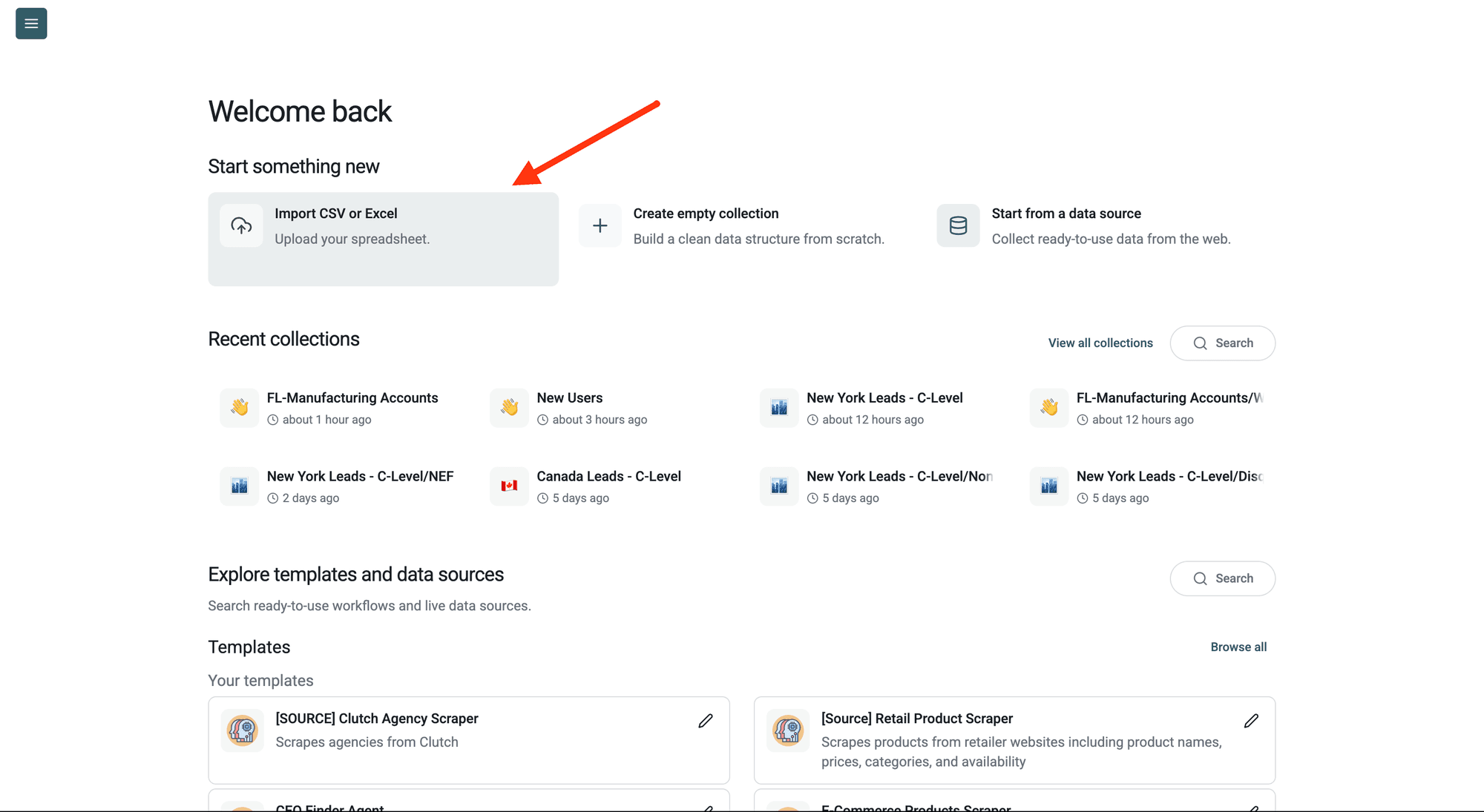
Step 2: Navigate To The Enrichment
Click Enrich in the top menu and search for Smart Scraper. Select it to configure your bulk webpage scraping run.
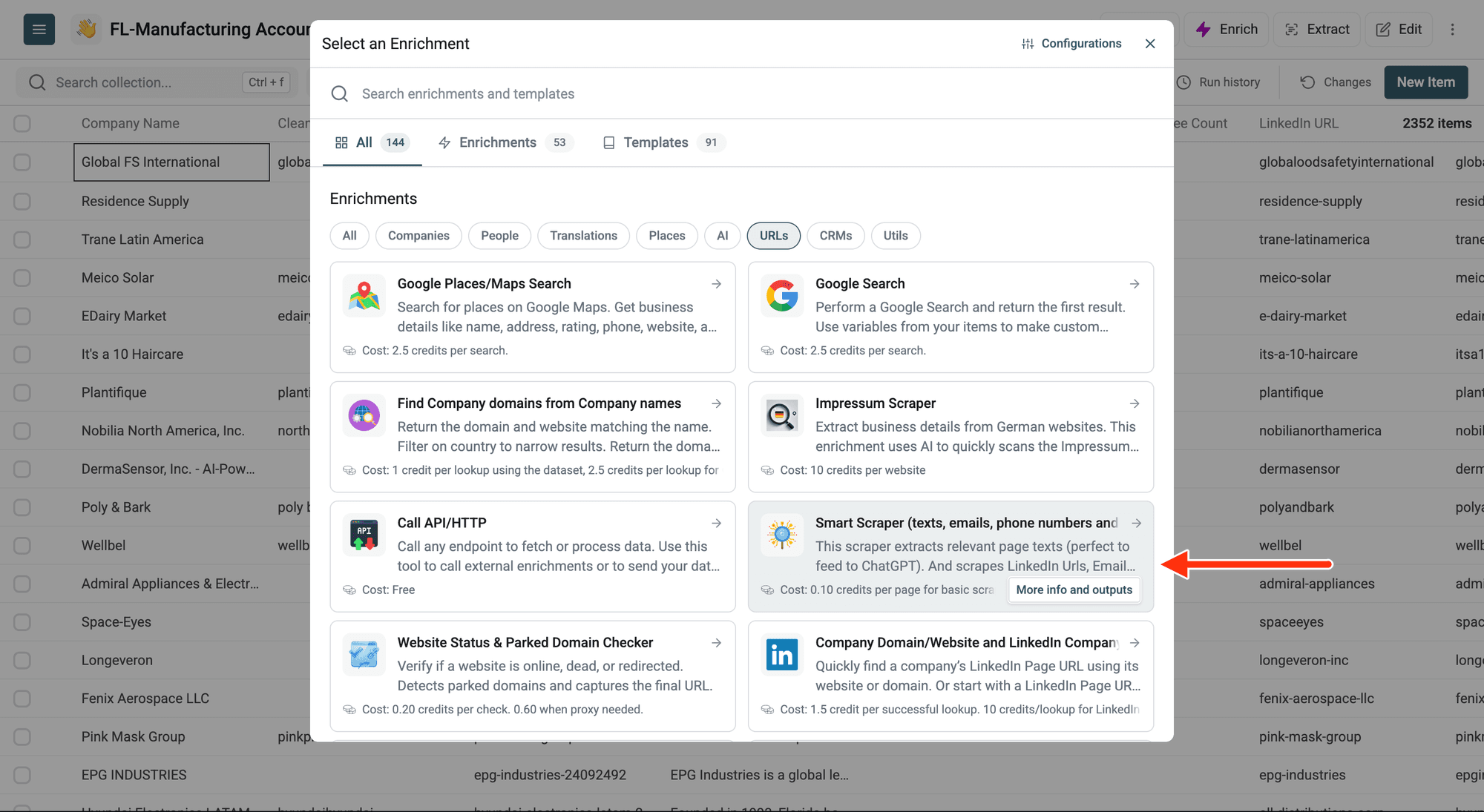
Step 3: Set Up The Enrichment
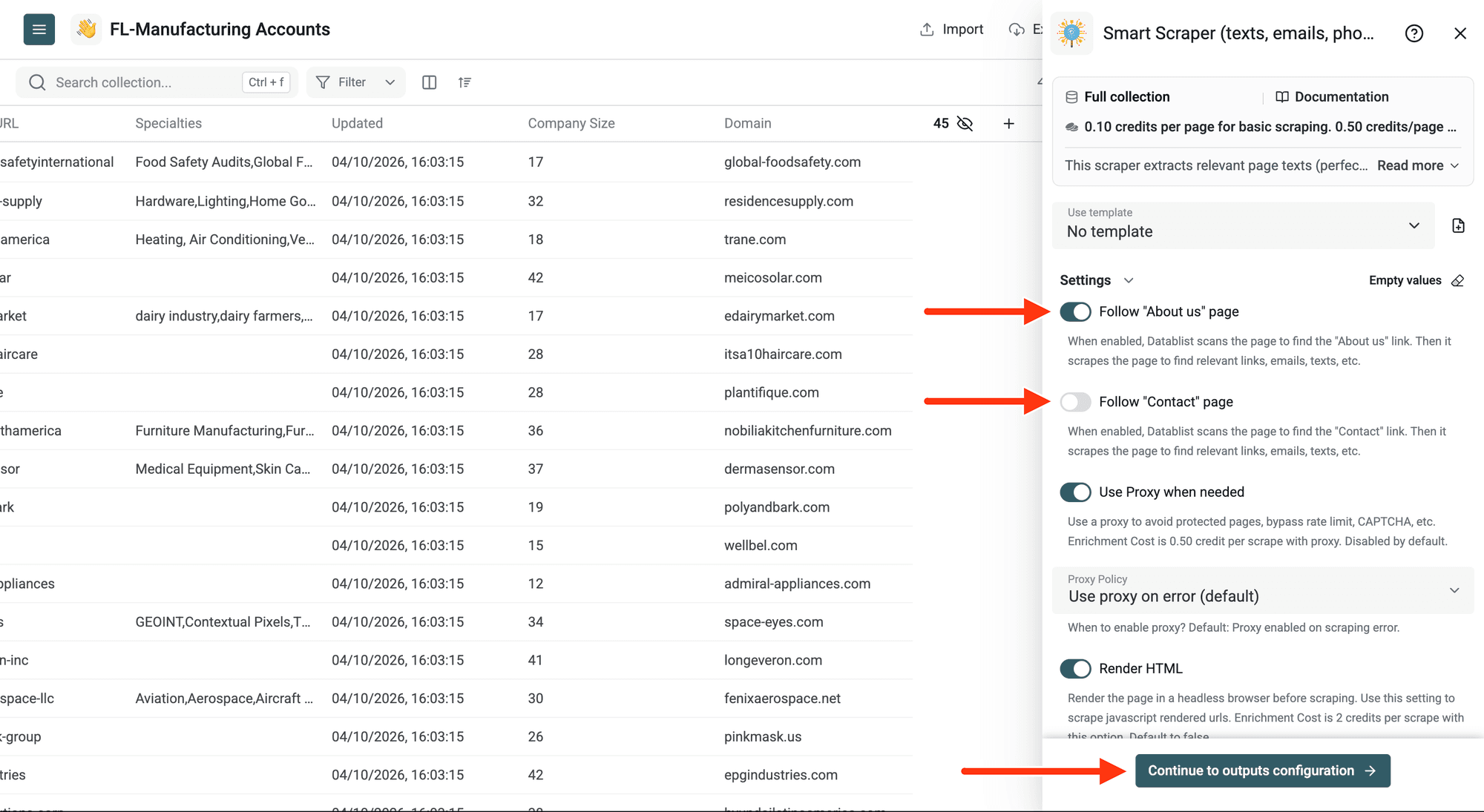
Choose whether to follow additional pages and how to fetch the websites. You will select the text, email, phone and social-link outputs in Step 5.
- Follow "About us" page: scans the first page for an About link, then scrapes the discovered page for relevant text, emails and links.
- Follow "Contact" page: does the same for a Contact link.
About and Contact discovery uses common URL paths and link text to find a likely page. See the list of common About Us paths for examples. This follows the discovered About/Contact pages; it does not crawl every page on the website.
Additional pages have their own scrape costs. For example, fetching an uncached homepage, About page and Contact page with basic scraping costs 0.30 credits in total. The calculator estimates each listed URL once, so account for these extra pages when planning your run.
Proxy And JavaScript Rendering
Start with normal scraping. Enable Use Proxy when needed if websites block requests or return incomplete content. The proxy is disabled by default.
With the proxy enabled, Proxy Policy offers two choices:
- Use proxy on error (default): tries a normal request first and uses the proxy when needed.
- Always use proxy: uses the proxy for uncached page requests from the start.
For pages whose useful content is loaded by JavaScript, enable the proxy and Render HTML. This renders the page in a headless browser before extracting its content. Render HTML is off by default. Proxy fallback may also render pages that return no useful text.
The rates are 0.10 credits per basic page, 0.50 credits per proxy page, and 2 credits per rendered page. With fallback, basic pages retain the basic rate; pages fetched through a proxy or rendered use the corresponding rate. A proxy can help with protected sites, but it does not guarantee that every page can be scraped.
Cache And Ignore Terms
Open Show advanced settings when you need these options:
- Disable cached data: skips the cached page content. By default, pages are cached for 7 days; reusing a cached page costs 0.05 credits, including cached proxy pages. Skip the cache when you need fresh content.
- Instagram Ignore Terms: a comma-separated list of terms to exclude from Instagram profile links.
- LinkedIn Ignore Terms: a comma-separated list of terms to exclude from LinkedIn profile and company-page links.
Ignore terms match part of a link without regard to case. For example, data excludes instagram.com/DATAblist or linkedin.com/company/DATAblist in the corresponding output.
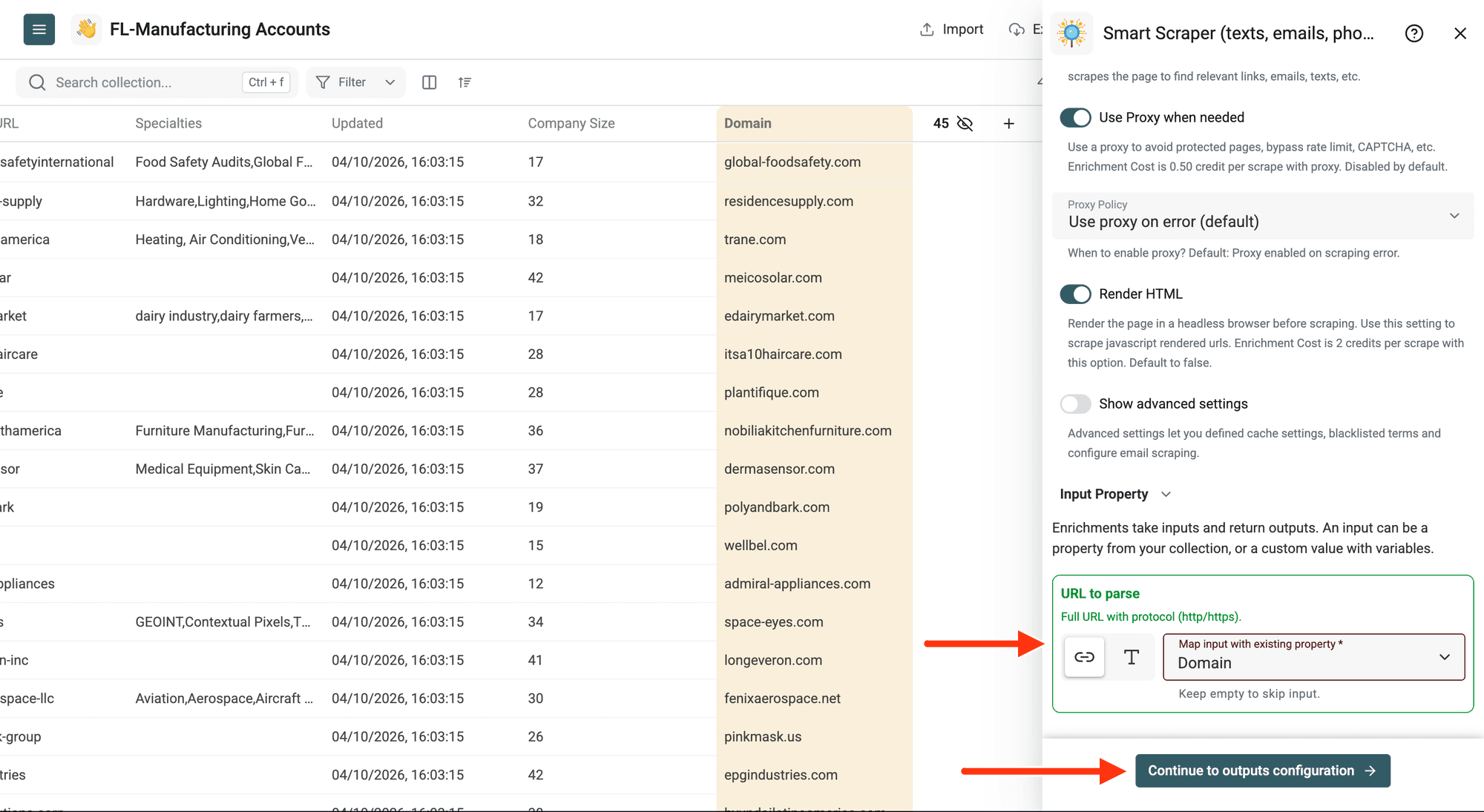
Step 4: Configure Your Inputs
Map the column containing your website or webpage URLs to URL to parse. Use full URLs with the http:// or https:// protocol, such as https://www.datablist.com/.
Keep the source URL in your collection so you can review where each extracted contact or text came from. Click Continue to outputs configuration when ready.
Step 5: Select Outputs
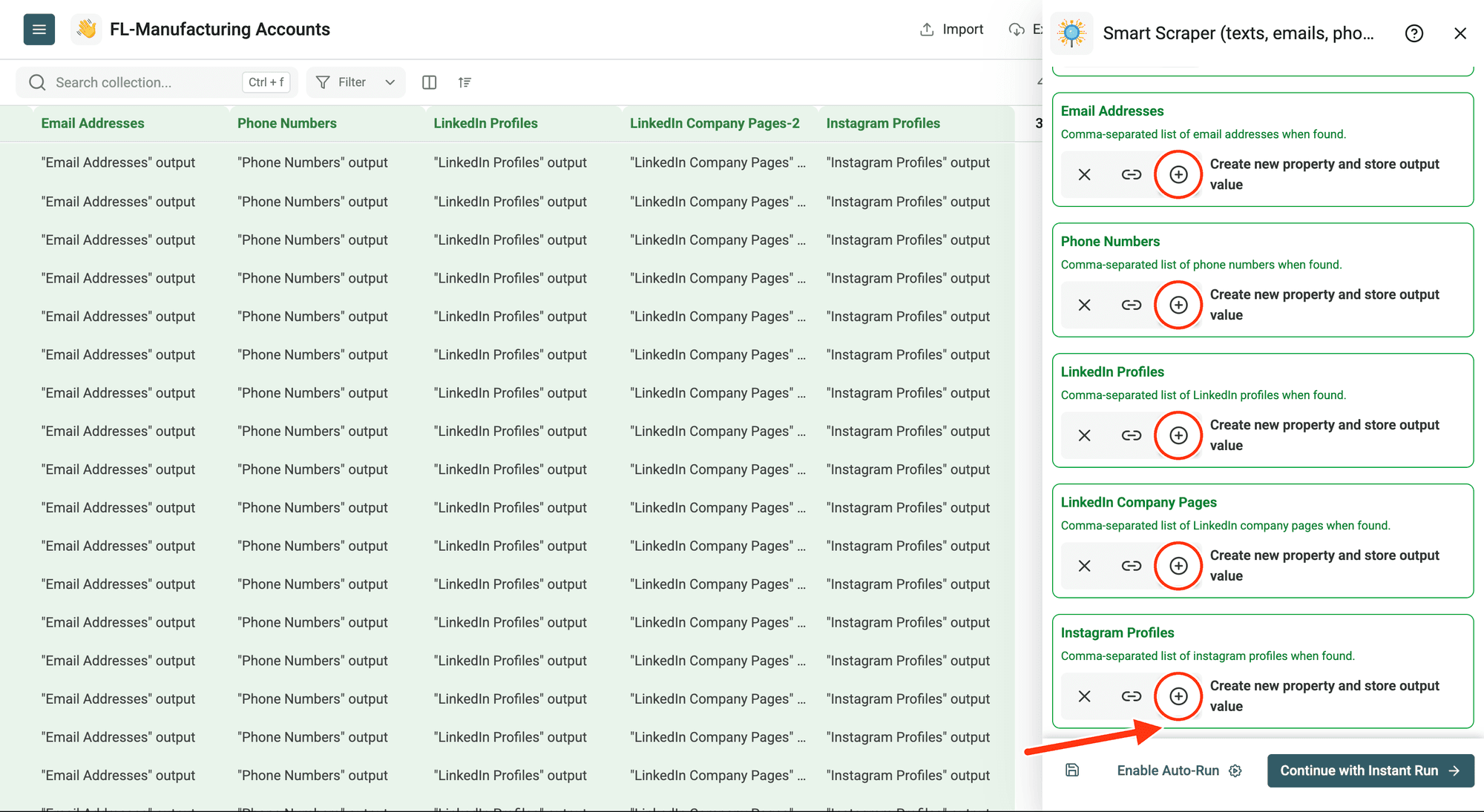
Create new properties or map the outputs to existing columns. Click the ⊕ icon to create a column for an output you need:
- Website Texts: relevant page text, with layout text such as headers, navigation and footers skipped. This output can feed ChatGPT, classification enrichments, or manual review.
- Email Addresses: emails found on the page.
- Phone Numbers: phone numbers found on the page.
- LinkedIn Profiles: links to personal LinkedIn profiles.
- LinkedIn Company Pages: links to company pages on LinkedIn.
- Instagram Profiles: links to Instagram profiles.
When several emails, phone numbers or social links are found, they are returned as a comma-separated list in the corresponding cell. Following About and Contact pages adds their extracted data to the same row.
Smart Scraper extracts contacts and links present on the fetched pages. Review them before outreach; finding an email address on a website does not verify that its inbox is deliverable.
Step 6: Preview, Run And Review Your Results
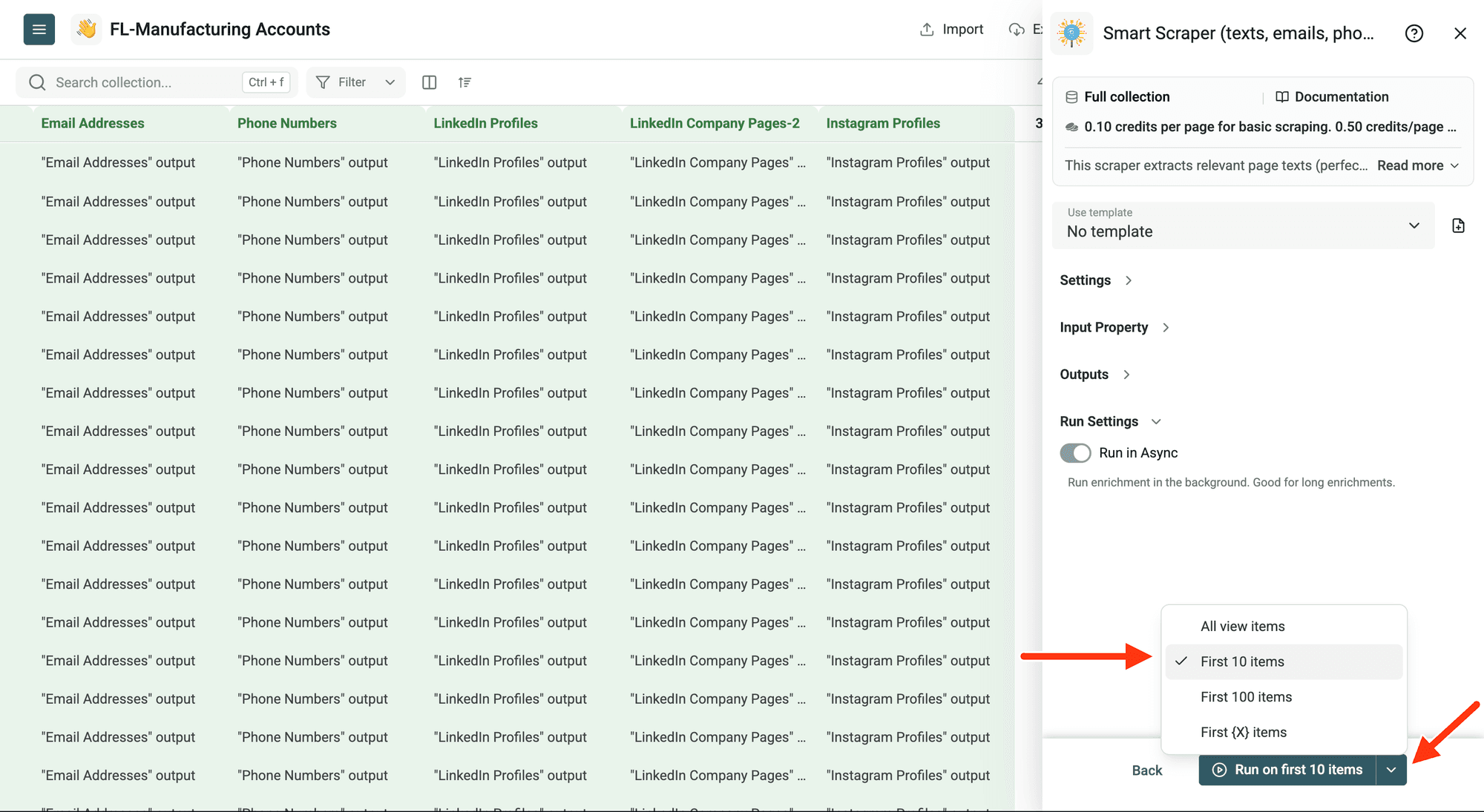
Click the chevron next to the run button to choose a run size:
- Run on first 10 items to check the settings and output columns.
- Run on first 100 items to validate a larger sample.
- Run on first {X} items to choose how many rows to process.
- Run on all view items to process your current view, including any filters.
For lists with hundreds or thousands of URLs, start with a small sample. Then click the run button for your selected number of items.
Review the returned text, contacts and links alongside the run-status column. If a row has missing or invalid input, correct its URL. If a website is unreachable or returns an HTTP error, review the page and try the appropriate proxy or rendering setting. Filter the rows you want to retry, then choose Run on all view items.
An empty contact column does not necessarily mean the scrape failed: the page may contain no matching contact data. Review the source page and the run status before retrying. See Run an enrichment for the shared run workflow.
10,000 basic page scrapes cost 1,000 credits before any extra About/Contact pages. Proxy use, rendering and cached content change the total. Use this page's calculator and the pricing page for current plan and top-up prices, then review the credits spent in your run summary.
How To Use The Extracted Texts With ChatGPT
The Smart Scraper can return text from the input page and followed pages such as About us or Contact. It removes repeated layout text and keeps content that gives context about the company, product, service, or person behind the page.
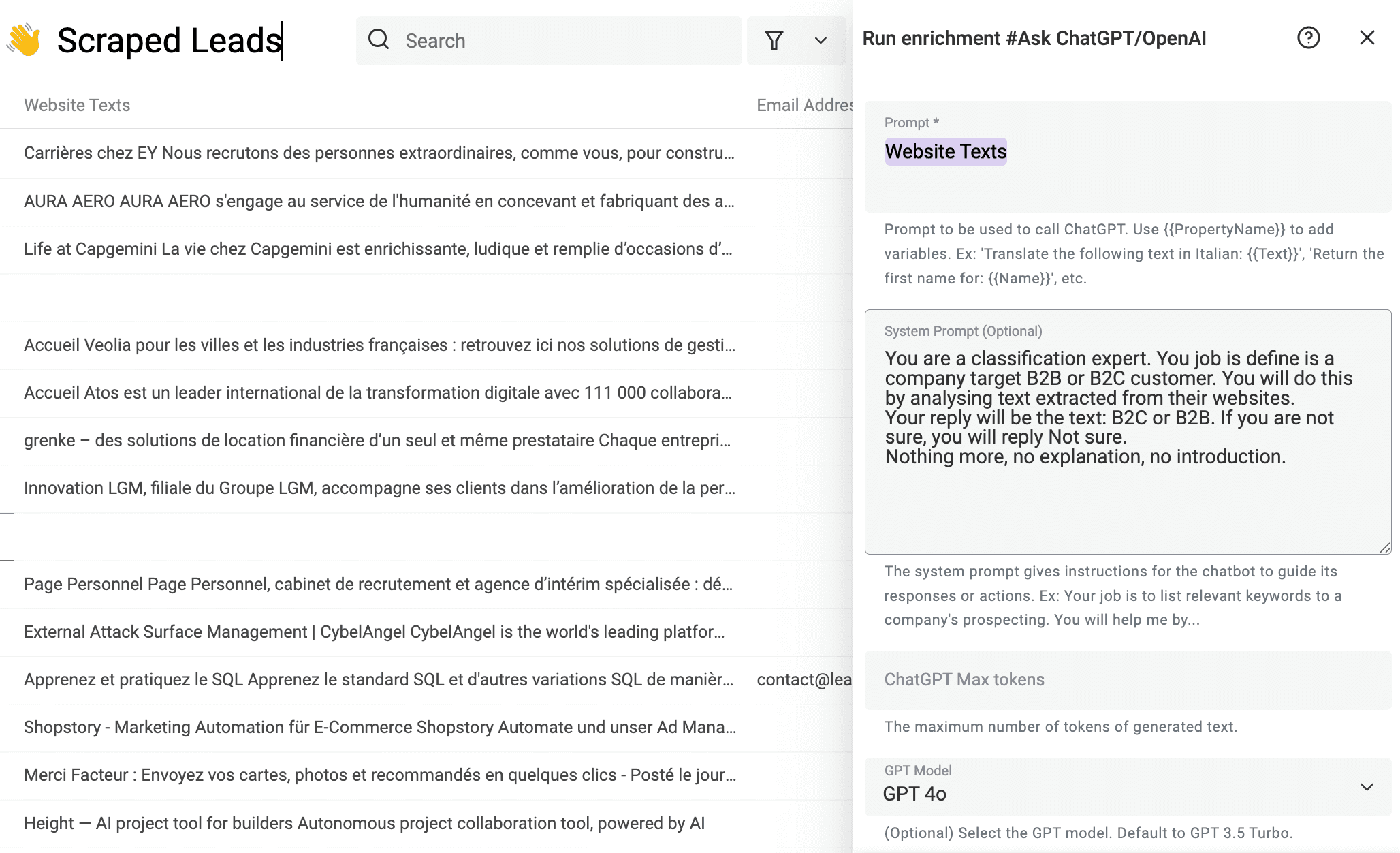
Map Website Texts into Ask ChatGPT/OpenAI or a classification enrichment. You can classify websites as B2B or B2C, summarize company descriptions, detect an industry, score leads, or write a short sales note.
Here is an example that segments websites between B2B and B2C companies:
Datablist writes the classification back to your collection:
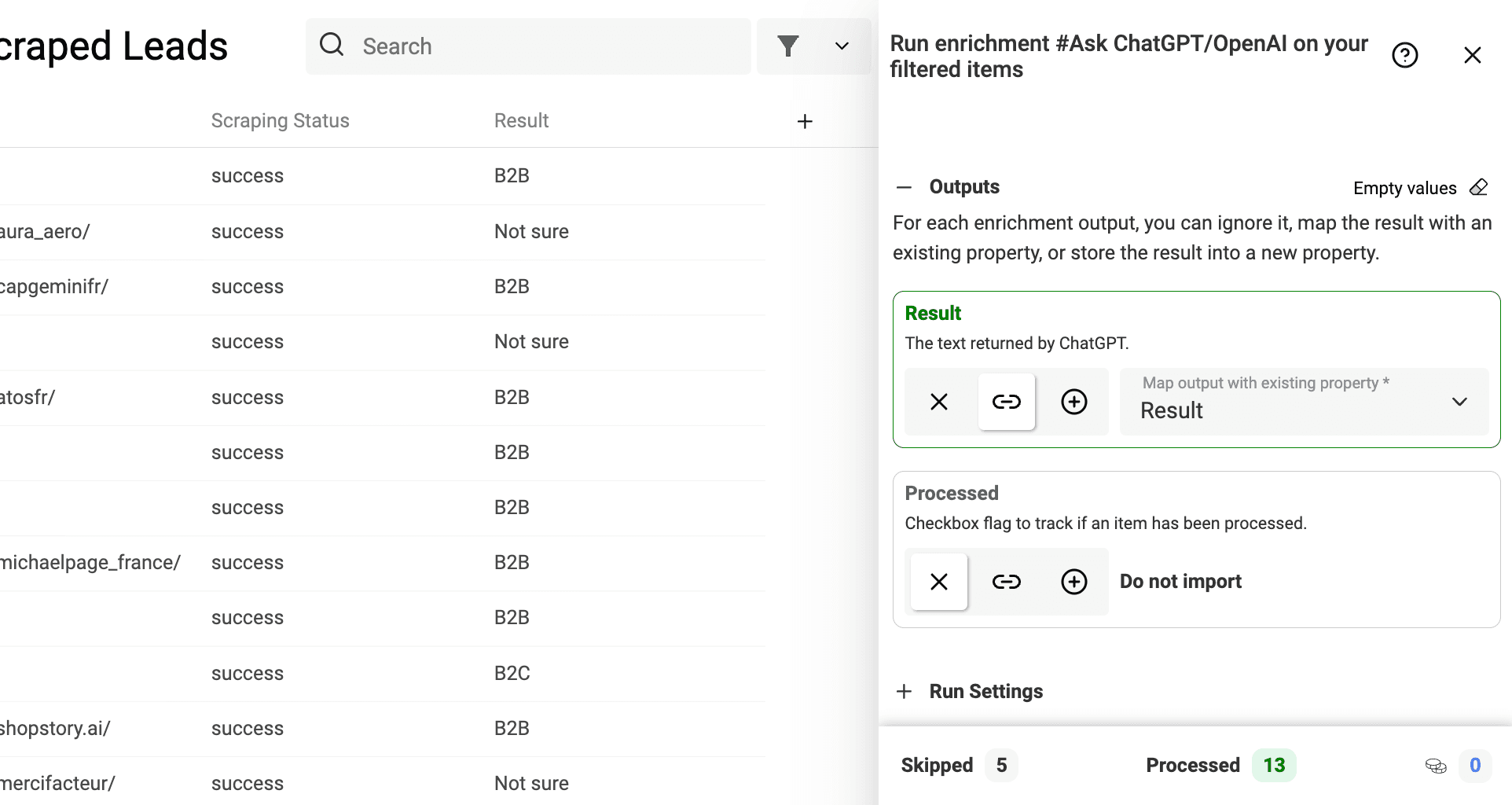
Review a sample of the labels before running the full list. The AI step is a separate enrichment with its own pricing. For a broader workflow, see Run a ChatGPT prompt on CSV and Excel rows.
Use Cases
Lead Generation
Start with a list of company websites and extract contact emails, phone numbers, LinkedIn company pages, LinkedIn profiles and Instagram profiles. Sales teams can use the results to enrich accounts before outreach.
You can also extract website text and send it to ChatGPT to create industry tags, company summaries, lead scores or first-line personalization. See cold email personalization tactics for examples.
Recruiting And Talent Sourcing
Scrape personal websites, agency pages, portfolios or company team pages. Extract LinkedIn profile links and emails, then review the results and their source URLs in Datablist.
Company Research
Extract website text from a list of company URLs, then use ChatGPT to classify each company by industry, audience, location or business model. Review the page content to confirm it supports the classification.
Social Profile Discovery
Find Instagram profiles and LinkedIn pages linked from websites. Use the links for influencer research, ecommerce prospecting, local business lists or brand monitoring. To extract data from the Instagram profiles themselves, continue with Instagram Profile Scraper.