
Need to find the right people at a list of companies?
Datablist's Apollo People Search enrichment runs Apollo people searches in bulk from a CSV or Excel file. Give it company domains, define the roles or seniority levels you want, and Datablist returns matching profiles directly in your table.
This is useful for account-based prospecting, recruiting, partnership research, agency lead generation, and CRM enrichment.
This enrichment requires your own Apollo API key.
Step-by-step guide
Step 1: Load your CSV or Excel file on Datablist
Create a free account and import your data file. Datablist is a CSV editor built for large lead lists, account lists, and CRM exports.
Create a new collection and import your file.
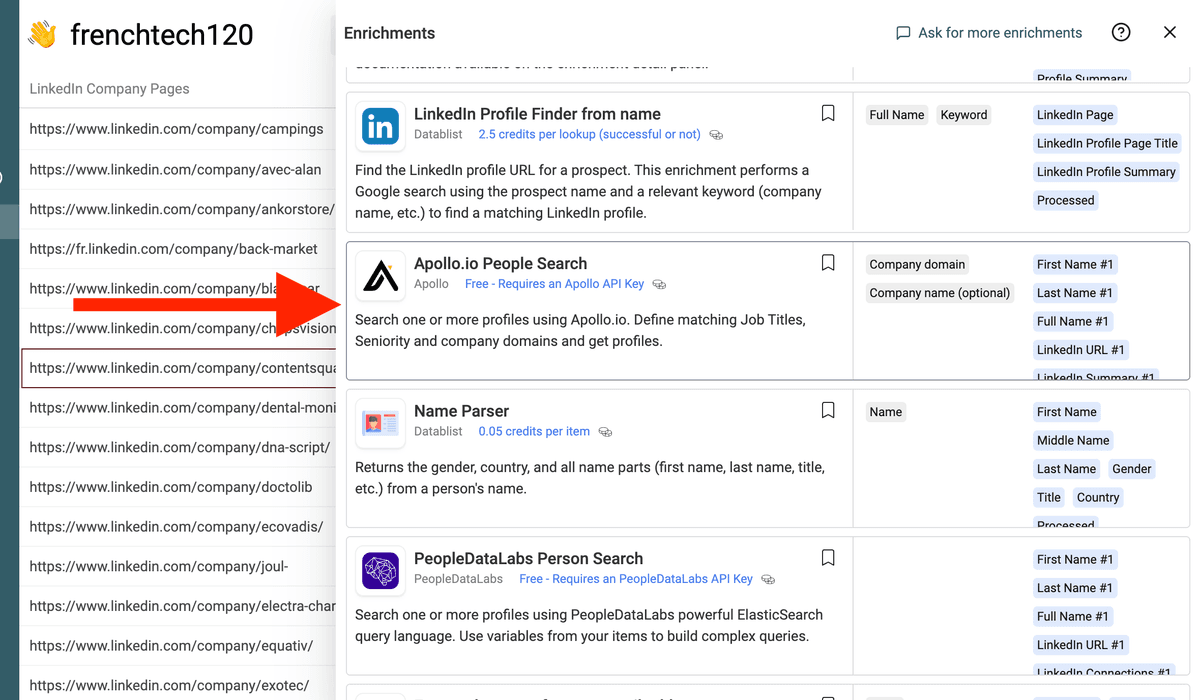
Step 2: Select the "Apollo People Search" enrichment
Click on the "Enrich" button, and search for "Apollo People Search".
Step 3: Add Your Apollo API Key
Paste your Apollo API key in the enrichment settings. You can find it in your Apollo developer account.
Datablist does not charge credits for this enrichment. Apollo People Search itself costs 0 Apollo credits, then Apollo Bulk People Enrichment typically consumes 1 Apollo credit for each complete profile returned.
Step 4: Configure Your Search
You can search by job title, seniority, or both.
Settings include:
- Person Titles - Comma-separated titles. Example:
sales director, head of growth, marketing manager. - Titles Fallback 1, 2, and 3 - Extra title lists Datablist tries when no profile matches the previous title list.
- Person Seniority - Select one or more levels:
owner,founder,c_suite,partner,vp,head,director,manager,senior,entry, orintern. - Number of persons returned per search - Return 1 to 3 profiles for each company.
You must define at least one title or one seniority setting.
Step 5: Map Company Inputs
The enrichment needs:
- Company domain - Required. Example:
google.com. - Company name - Optional fallback when the domain returns no result.
The company name fallback helps with companies that use several domains or local country domains.
Step 6: Preview and Run
Run a preview on a few companies. Check the title filters, seniority filters, and number of returned profiles.
When the preview looks right, run the enrichment on the full list.
What You Get
For each matching profile, Datablist can return:
- First name
- Last name
- Full name
- LinkedIn profile URL
- LinkedIn summary
- Job title
- Job start date
- Seniority
- City, state or region, country, postal code, and time zone
- Company LinkedIn page
- Work email address and Apollo email-verification details
- Profile photo and social profile URLs
- Departments, subdepartments, functions, and employment history
- Apollo person and organization IDs
- Company domain, website, industry, keywords, and estimated employee count
- Company revenue, headcount growth, location, social URLs, languages, and industry codes
The enrichment also returns:
- Total Query Results - The number of Apollo profiles matching the query.
- Search Status - Found, no result, query error, or Apollo rate-limit error.
If you return more than one person per company, Datablist creates numbered output columns such as First Name #1, First Name #2, and First Name #3.
Common Use Cases
Find Decision Makers for Account Lists
Start from a list of company domains and search for founders, heads of sales, marketing directors, or operations managers.
Build Recruiting Lists
Search for engineers, product managers, designers, or executives at target companies.
Expand CRM Accounts
Add new contacts to accounts that only have company data.
Create Fallback Title Searches
Search for a specific role first, then use fallback title lists when no result is found. For example:
- Main titles:
head of sales, sales director - Fallback 1:
vp sales, chief revenue officer - Fallback 2:
business development manager
Return Several Contacts per Company
Set the result limit to 2 or 3 when you want more than one contact for each account.
Cost and API Usage
Datablist lists this enrichment as Free - Requires an Apollo API Key.
Datablist does not charge credits for the search itself. Apollo's People Search endpoint costs 0 Apollo credits, but this workflow then uses Bulk People Enrichment to turn obfuscated search hits into complete profiles. Apollo typically charges 1 credit for each profile that returns demographic or email data.
When a domain returns no result, the optional company-name fallback also uses Apollo Organization Search, which costs 1 Apollo credit per search page.
Examples:
- 100 company domains with 1 returned profile each can consume about 100 Apollo credits when every search returns a complete profile.
- 1,000 company domains use both Apollo People Search and Apollo Bulk People Enrichment requests.
- Returning 3 profiles per company creates more output data, but the Datablist enrichment itself remains free.
Check your Apollo API limits before running a large file.
Tips for Better Search Results
- Use company domains when possible. They are more precise than company names.
- Add company names as fallback for local domains or multi-brand companies.
- Start with a narrow title list, then add fallback titles.
- Use Apollo seniority values when titles vary across countries.
- Preview a few rows to check Apollo's email coverage and profile quality.
- Keep the search status output so you can filter no-result and rate-limit rows.
Best Use Cases for Apollo People Search in Bulk
Apollo People Search is useful when you start from accounts, not contacts. Upload a CSV with company domains, define the roles you want, and let Datablist return matching people for each company.
Use it for:
- Finding founders, executives, sales leaders, or HR contacts from a target account list
- Building recruiting lists from company domains
- Expanding CRM accounts with missing decision makers
- Creating agency prospecting lists by industry, region, or company size
This workflow works best when your file has clean company domains. Domains reduce ambiguity and help Apollo match the right company before searching for people.
FAQ
Can I run Apollo People Search on a CSV file?
Yes. Import your CSV into Datablist, map the company domain column, configure your Apollo search filters, and run the enrichment on selected rows or the full file.
Do I need an Apollo API key?
Yes. This enrichment uses your Apollo API key. Datablist handles the spreadsheet workflow, row mapping, and result storage, while Apollo provides the people search data.
What inputs work best?
Company domains work best. A domain such as example.com is more reliable than a company name because it points to one organization.
What can I do with the results?
Use the returned profiles to build lead lists, enrich CRM accounts, find hiring managers, or prepare outreach files before exporting to CSV or your sales tool.