Use Clean > Find & Replace to change matching text across a collection. Enter what to find, enter the replacement (or leave it blank to remove the match), choose the properties to search, and run Find. Review the match counts and sample replacements before clicking Replace All.
For example, to remove https:// from website URLs, search for that exact text in the website property and leave Replace with empty. Use a regular expression only when the pattern needs to match several variants.
Find and Replace workflow
Step 1: Define the pattern and the options
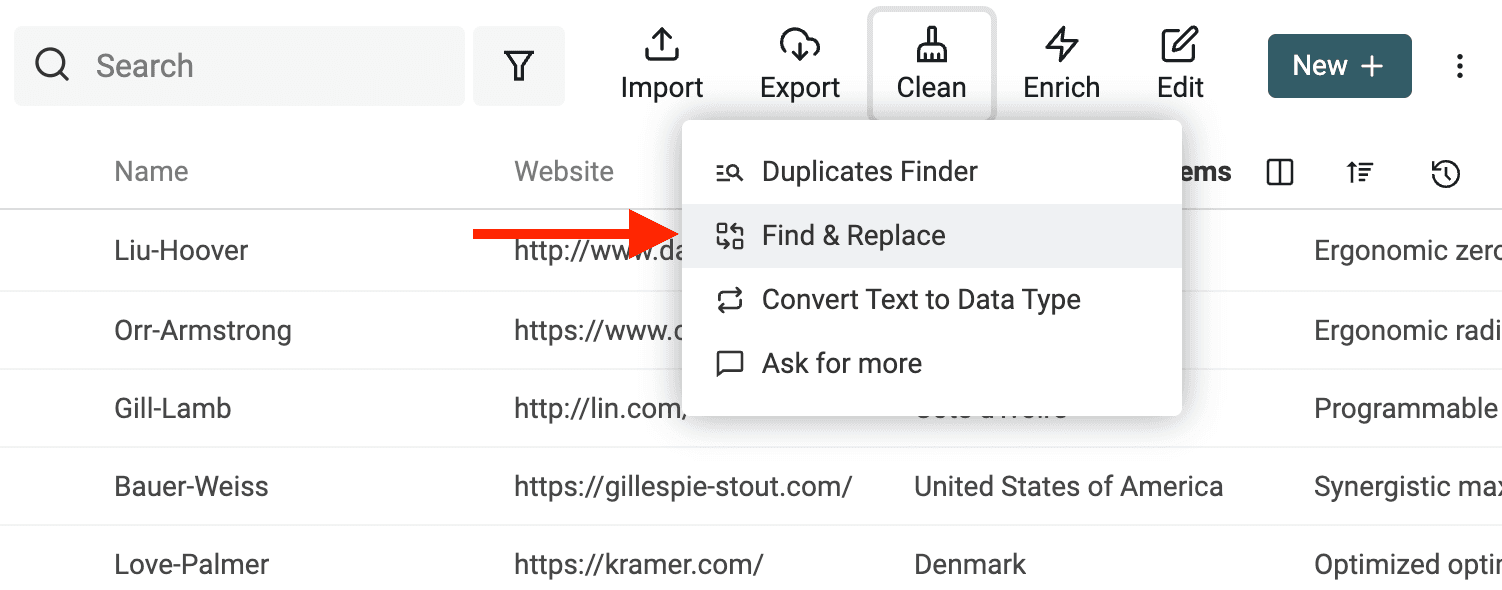
From the Datablist app, open the Find and Replace tool from the "Clean" menu.
The first step is to define the pattern to be looked for. And the property to search.
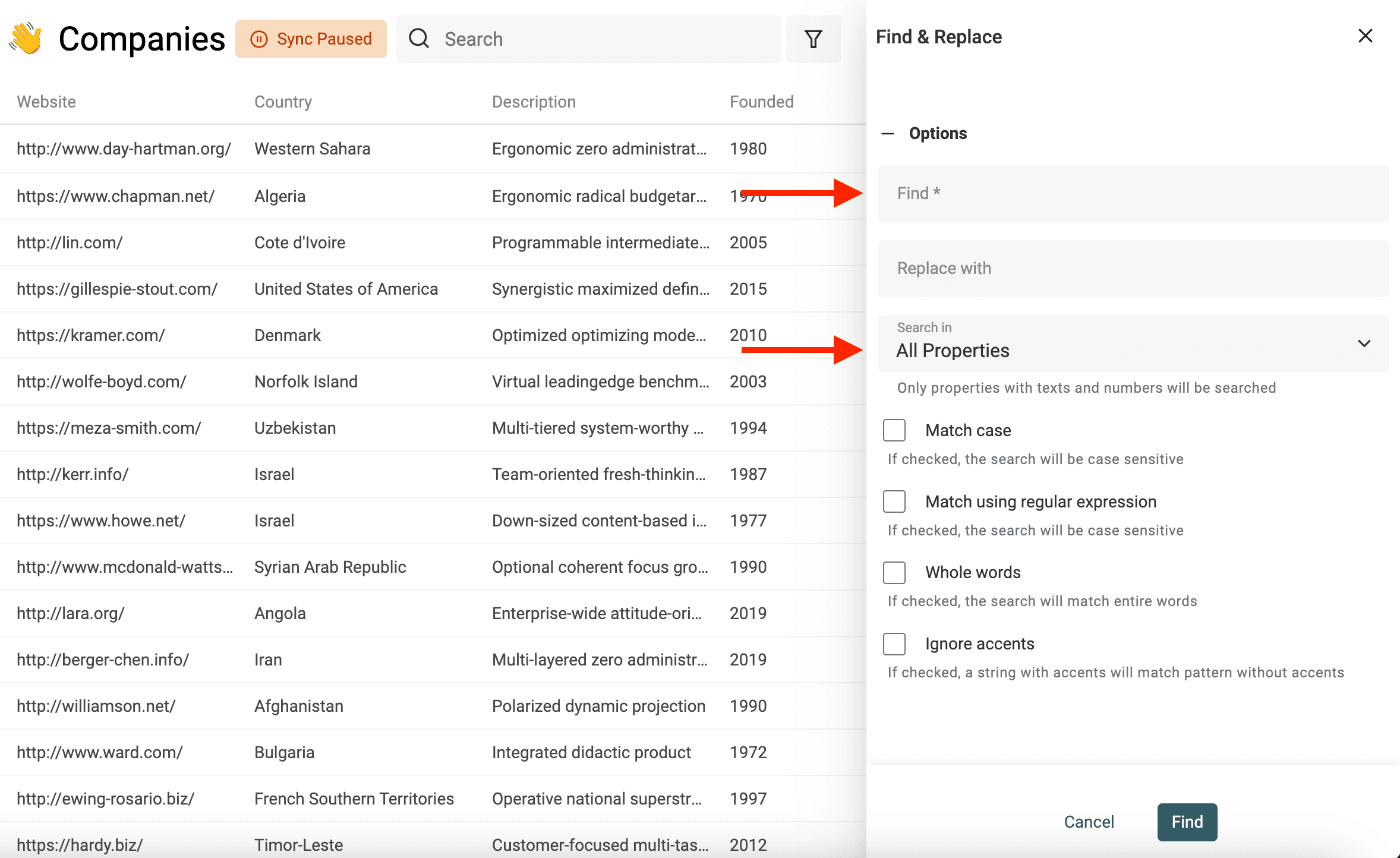
The "Find" pattern is mandatory. All other inputs are optional. With an empty "Replace with" string, the pattern will be removed from your data.
Select if the search must be performed on a specific property or on all your data.
To learn more about the options, check the Find and Replace Options section.
Step 2: Run the "find" phase
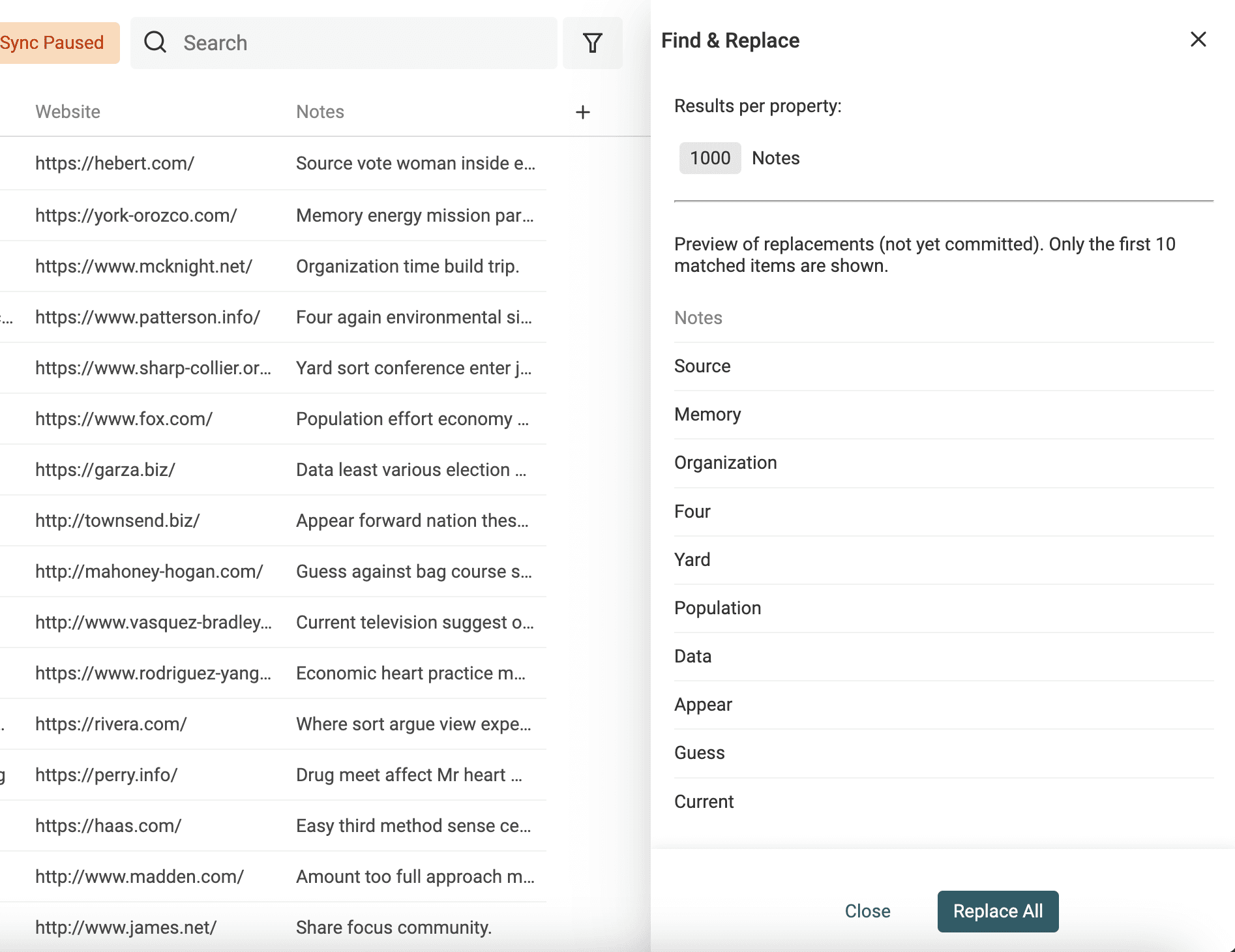
Datablist "Find and Replace" uses a two phases workflow. It first searches for all the occurrences of your entered pattern. And then, after your confirmation, it replaces them. To replace each selected cell with the same complete value instead of matching a substring, use Bulk Edit and preview the fixed replacement.
Click on the "Find" button to run the first phase.
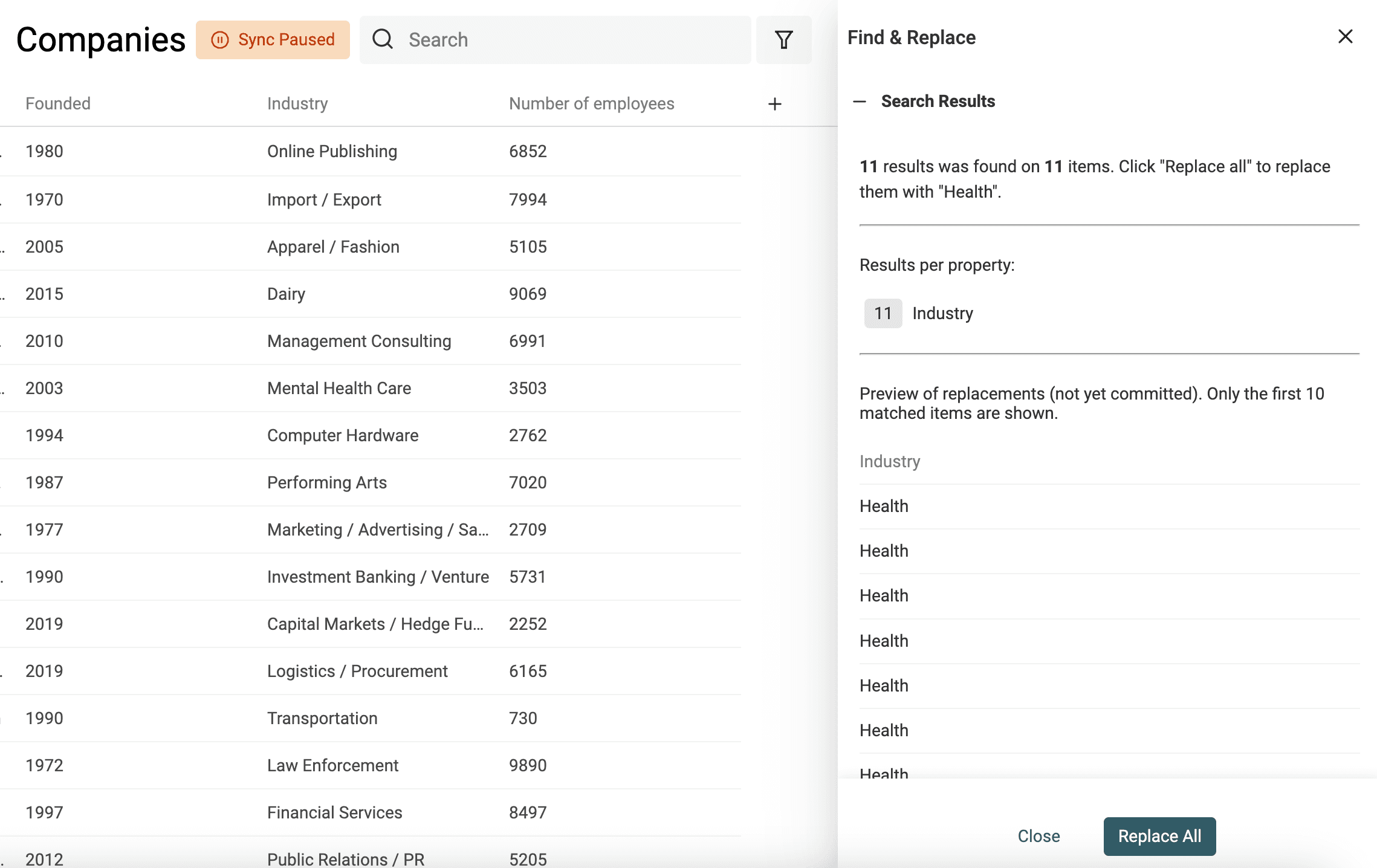
On the search summary, you will find:
- How many occurrences of the pattern have been found
- How many distinct items have the pattern in their property(ies). If the pattern is found twice in a text, it will count for 1 item.
- The occurrences number per property.
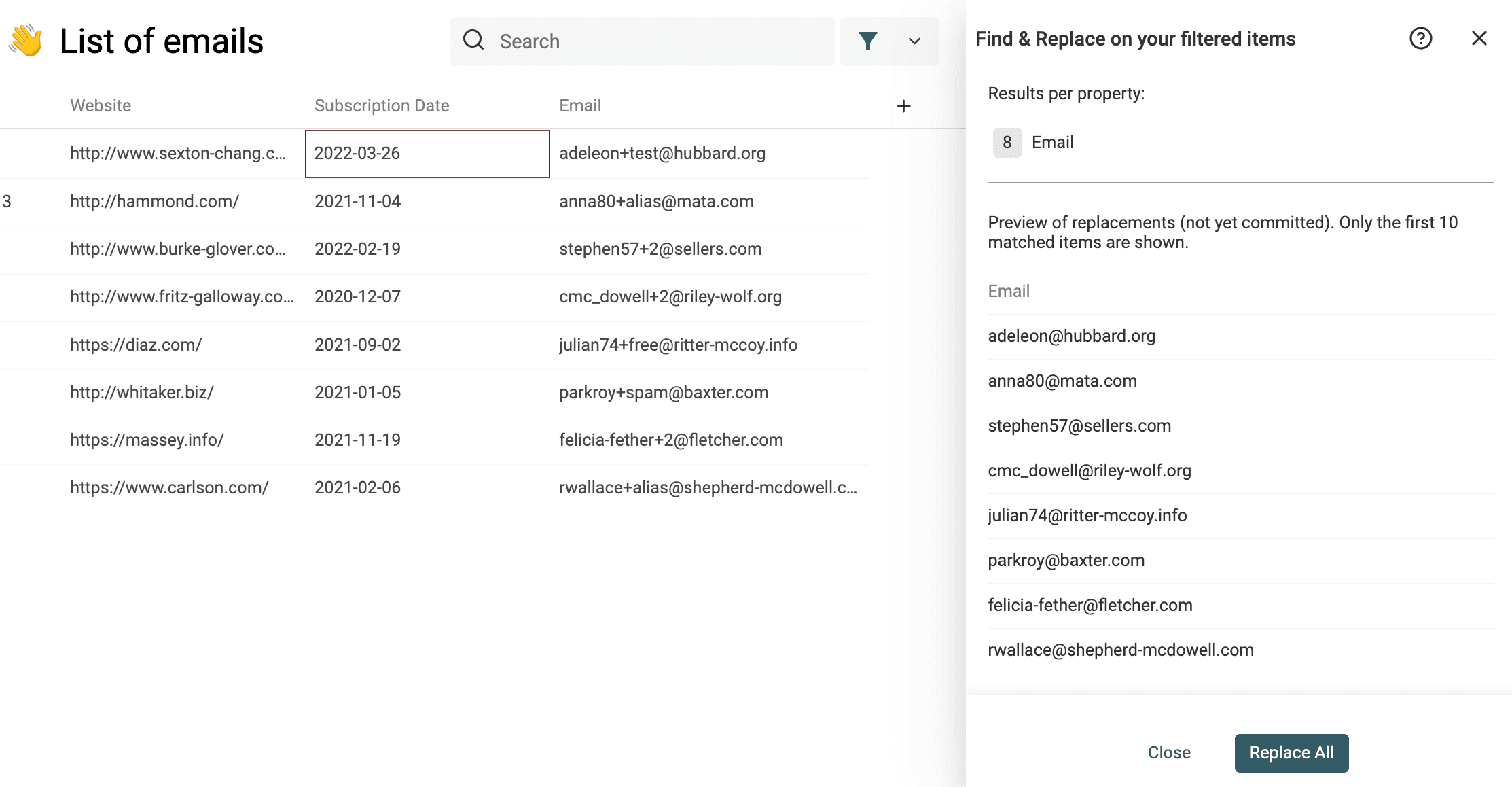
- And a preview of the replacement process on a sample of 10 items.
Step 3: Replace matched terms
At any moment, you can change the search options. Change the search pattern or the options until you get the requested preview results.
Then, run the replace phase by clicking "Replace All". The time needed depends on the number of matching items and their values.
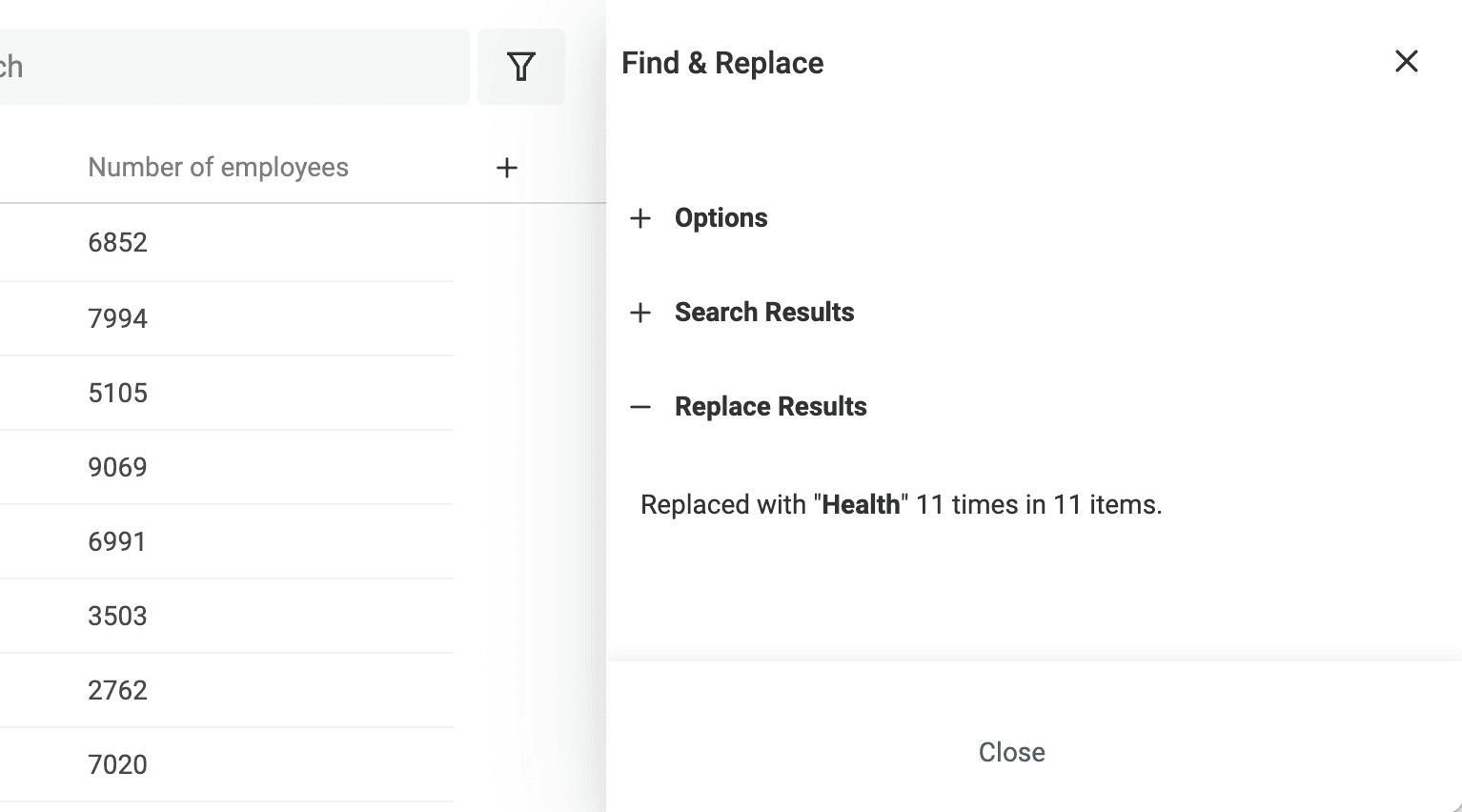
The items will be updated directly in the data table. Close the drawer or re-open the "Options" section to start a new Find and Replace process.
Find and Replace Options
Match case
By default, searching for "John" will return items that have "john", "John", or "JOHN" in their data. To make your search case-sensitive, and only replace items with "John", check the checkbox "Match case".
Match using regular expression
When using regular expressions, all options except "Match case" are disabled. Please check the Find and Replace using Regular Expression to see examples.
Whole words
Searching for "and" will match "Land", "and", "Andor", etc. To only search for "and", check the "whole words" checkbox. This option can also be used with brackets or parenthesis. Search for (s) with "Whole words" checked to search and replace all (s) occurrences but not the ones belonging to words (like street(s)).
Ignore Accents
Characters with accents are different from their non-accented ancestor. é is a different character than e, or ë. Datablist Find and Replace tool has the option to ignore the differences. Any accented or non-accented character will match any accented or non-accented character.
For example:
- Search for "Ile de Ré" will match "Ile de Re", "Ile de Ré".
- Search for "Ile de Re" will also match "Ile de Re", "Ile de Ré".
Find and Replace using Regular Expression
Turn on Match using regular expression before pasting a pattern. Named groups such as (?<first>...) can be reused in Replace with as $<first>. In plain-text mode, regex punctuation is searched literally.
The preview shows only the first ten matched items. Test representative values, including punctuation and values that should stay unchanged, before Replace All. Duplicate the source property when you need to preserve identifiers.
Regular Expression Cheat Sheet
| ^  	| Start of string
| $  	| End of string
| \b 	| Word boundary
| \s 	| White space (tab, space, new line, etc.)
| \w 	| Word characters - A word character is a character a-z, A-Z, 0-9, including _ (underscore)
| \d 	| Matches digits from 0 to 9
| + 	| n+ - matches any string that contains at least one n
| * 	| n* - quantifier matches any string that contains zero or more occurrences of n
| ? 	| n? quantifier matches any string that contains zero or one occurrences of n
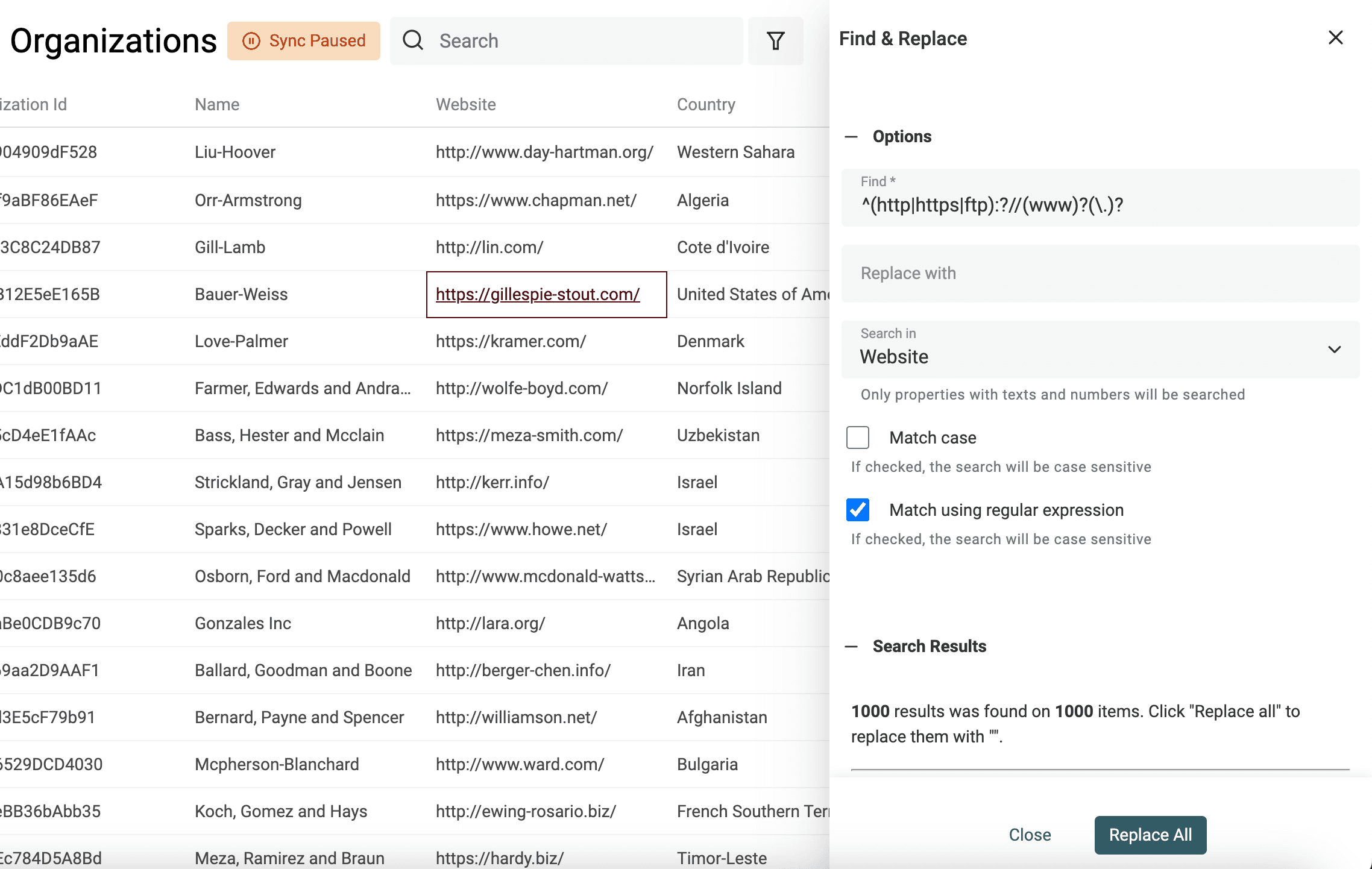
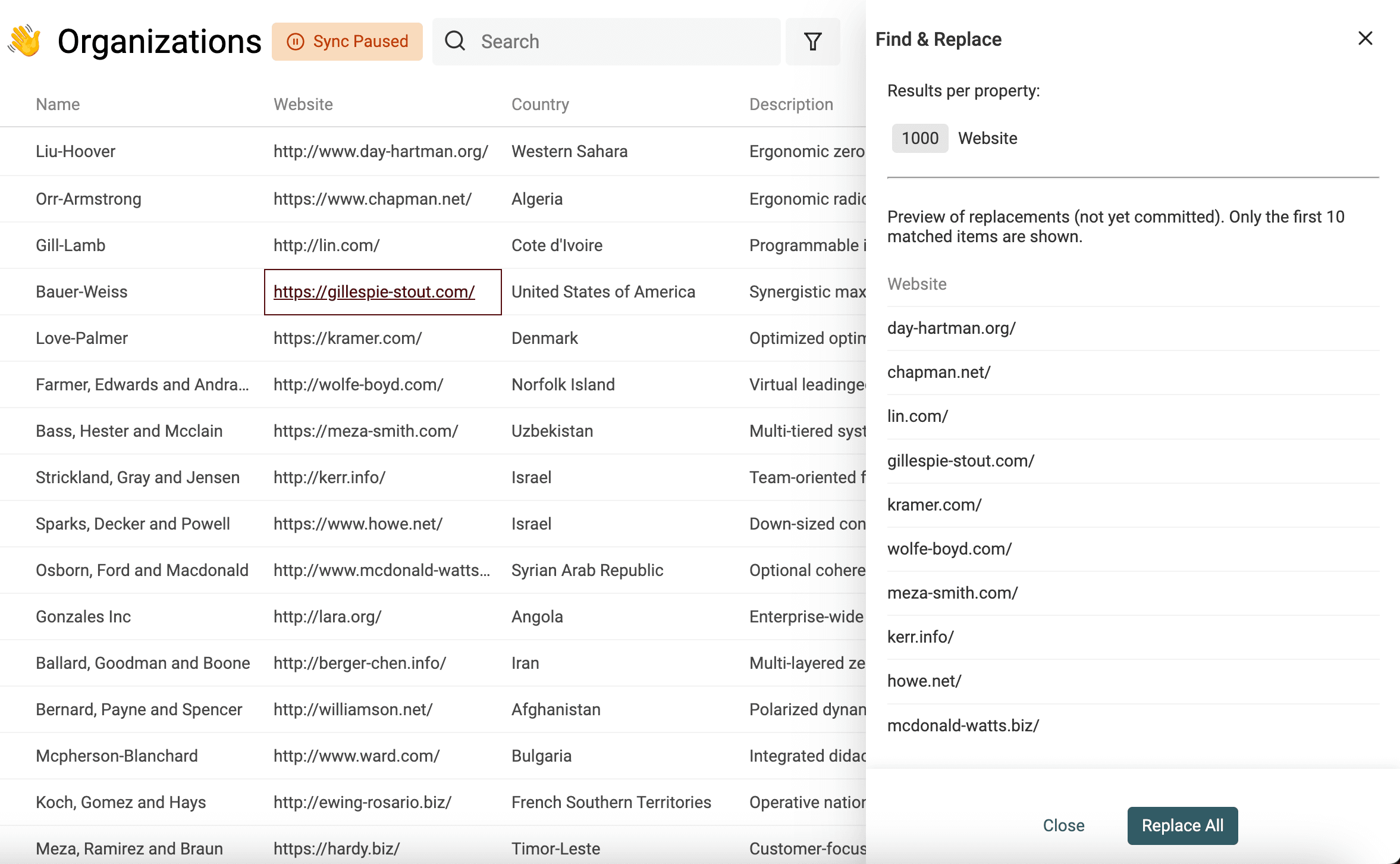
Remove url scheme
^(?:https?|ftp)://(?:www\.)?
And replace with an empty string. This removes an optional literal www. prefix after the scheme. For example, https://www.example.com/path becomes example.com/path, while https://wwwtools.example.com keeps the full wwwtools.example.com hostname. Enable Match using regular expression and leave Match case off for these examples.
Remove letter at the end
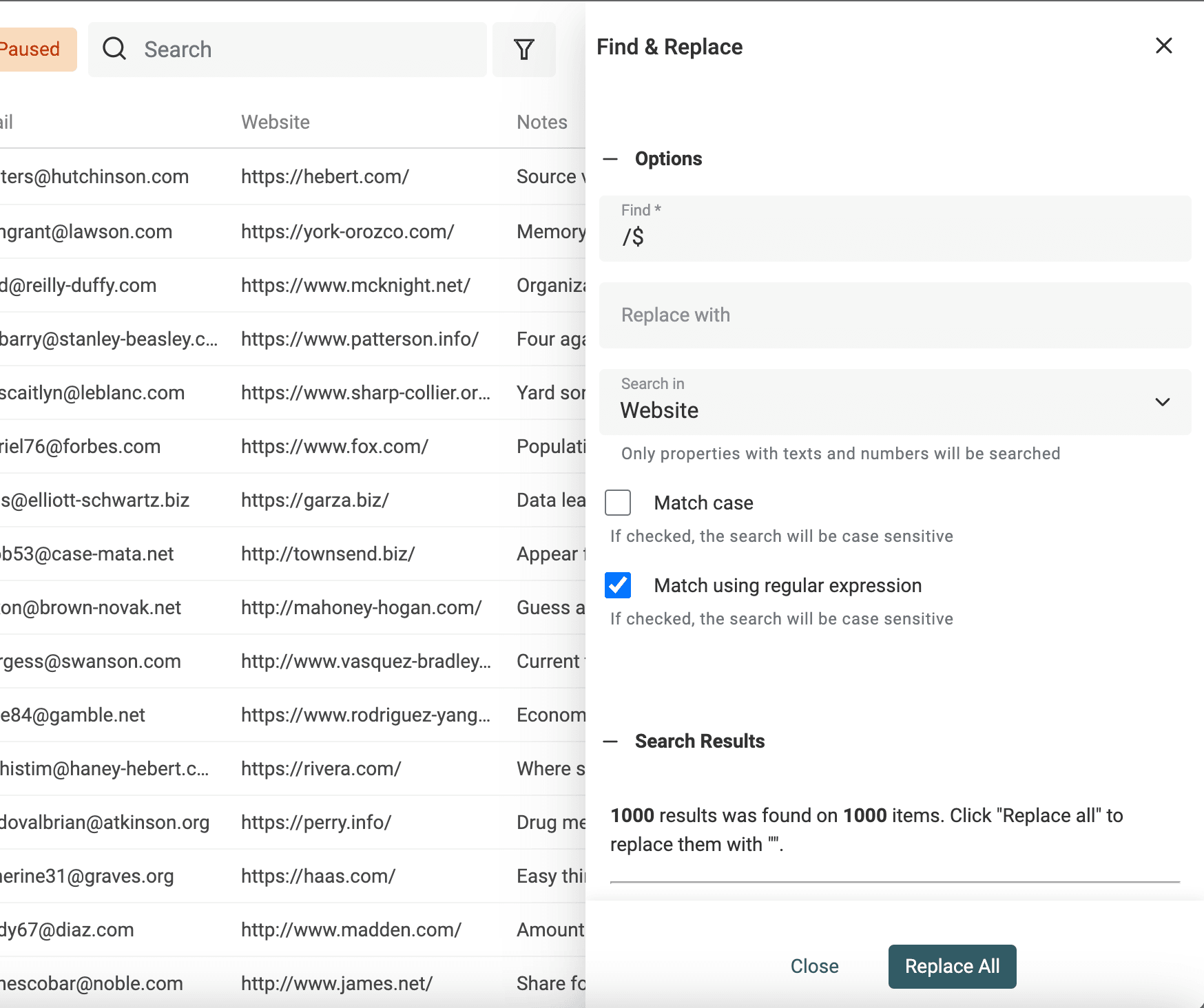
Define the letter you want to remove and add $ to indicate the letter must be at the end.
Here is an example to remove the / from url.
/$
And replace with an empty string.
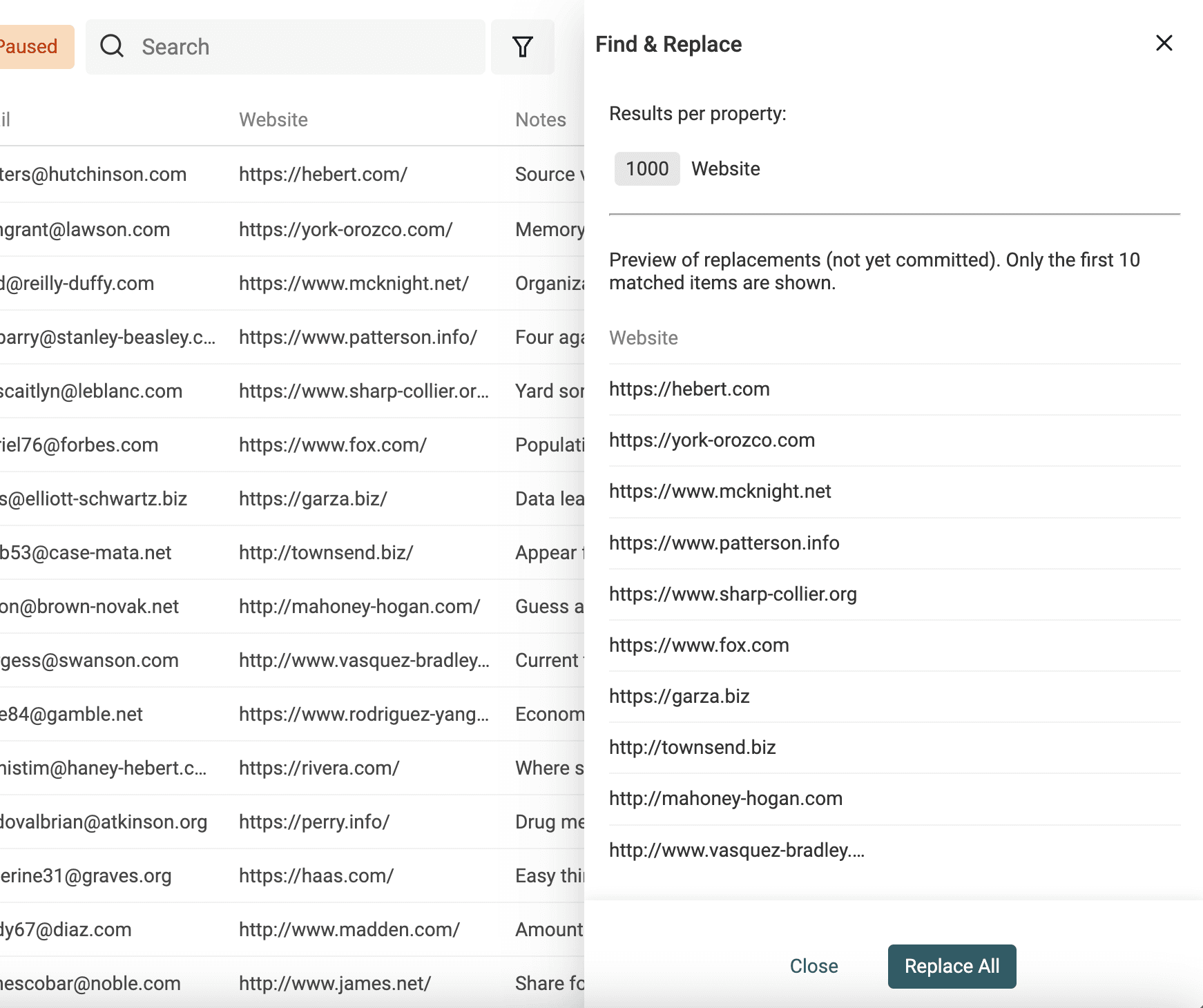
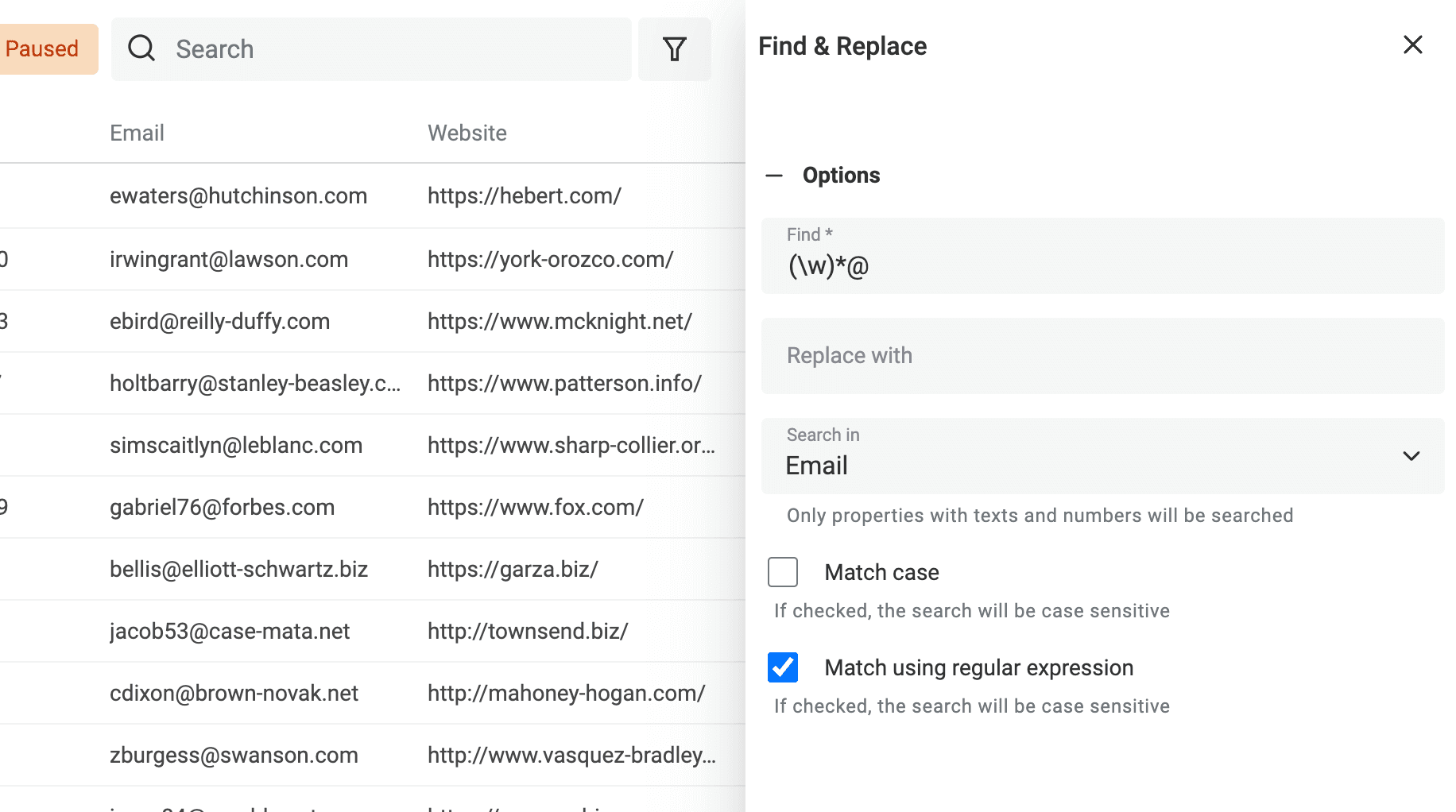
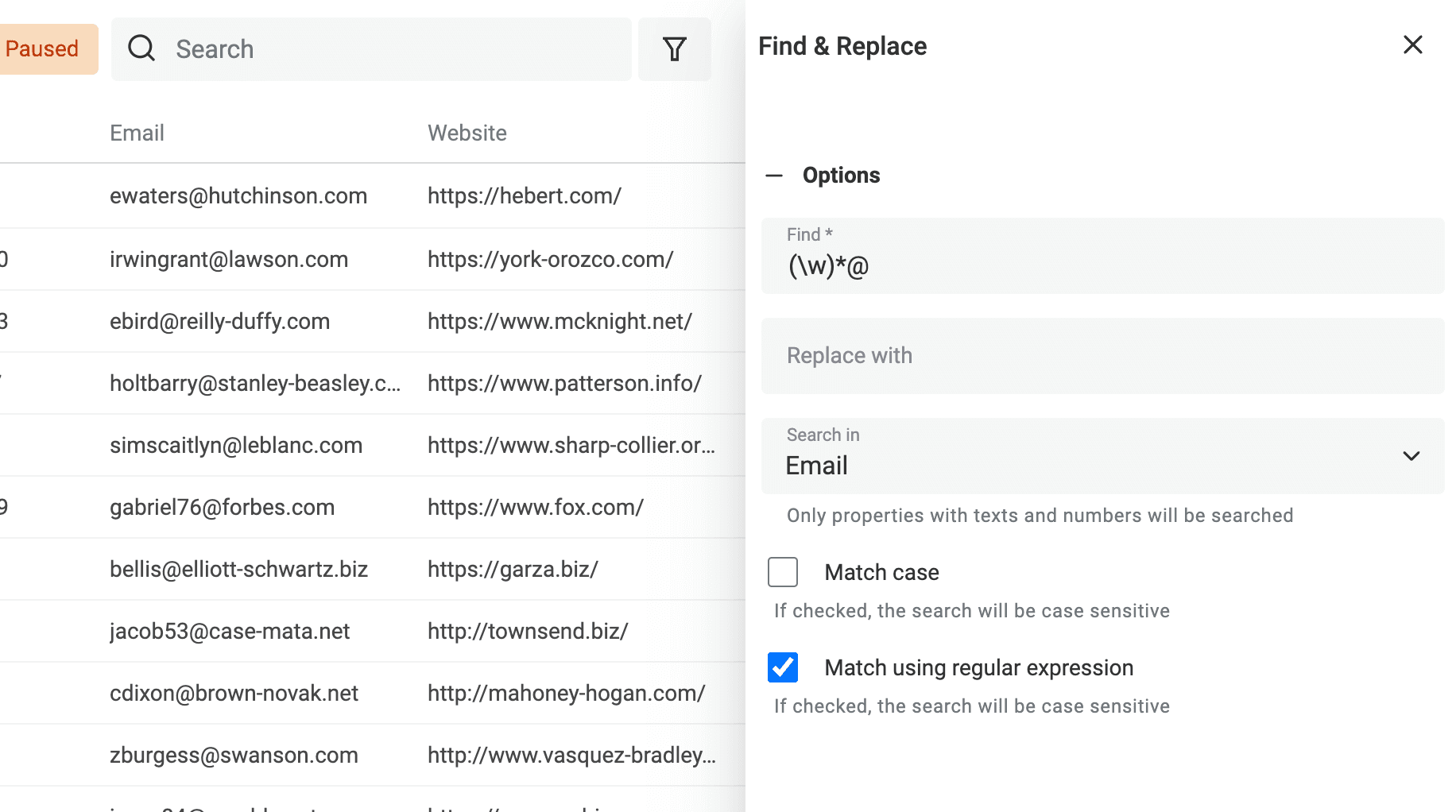
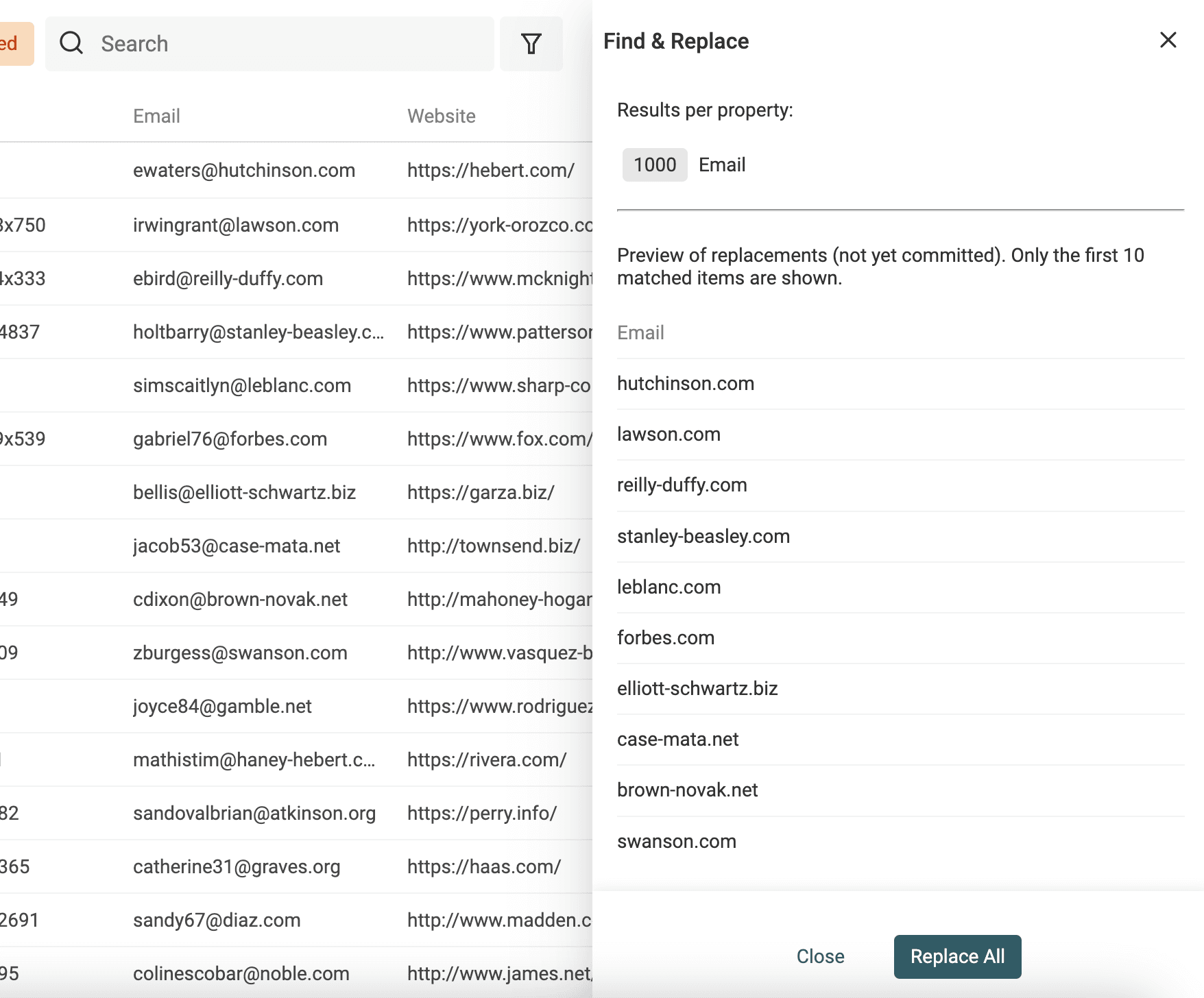
Get domain from an email address
^[^@\s]+@
And replace with an empty string. For a cell containing one plain email address, o'connor+news@example.com becomes example.com. This example assumes one unwrapped address per cell; it does not parse display names, lists of addresses or malformed values. Preview those separately.
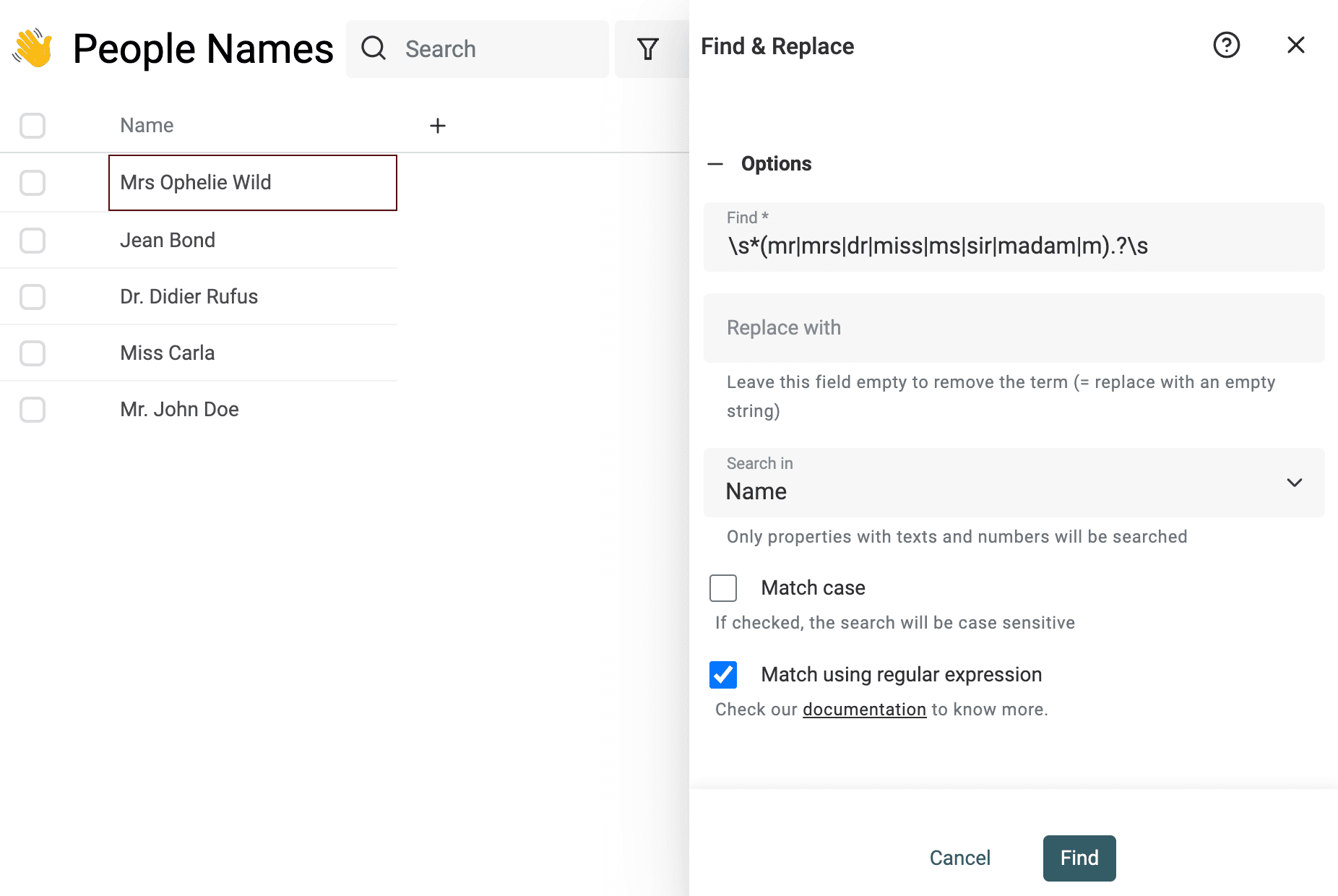
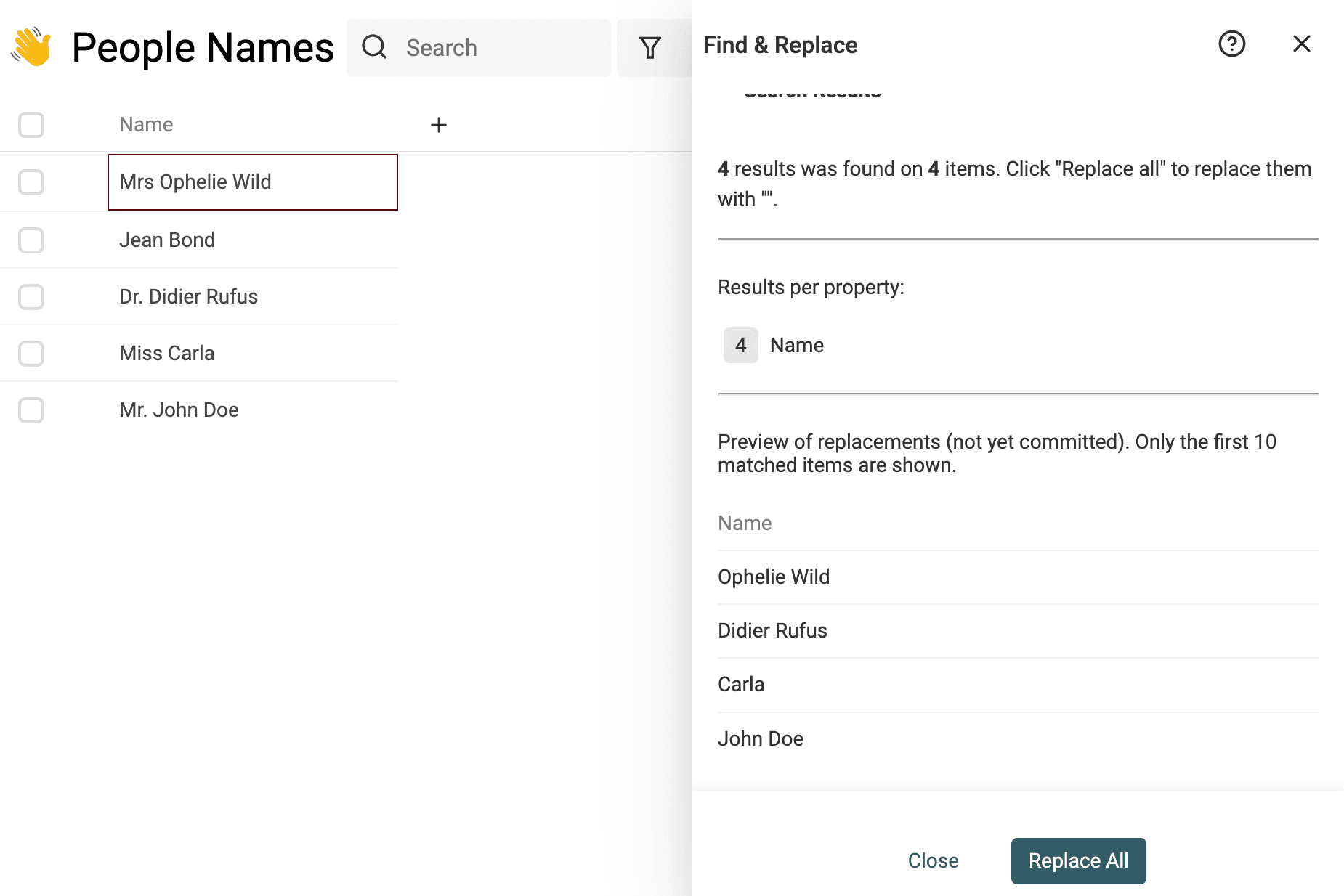
Remove people name titles
^\s*(?:mr|mrs|dr|miss|ms|sir|madam|m)\.?\s+
And replace with an empty string.
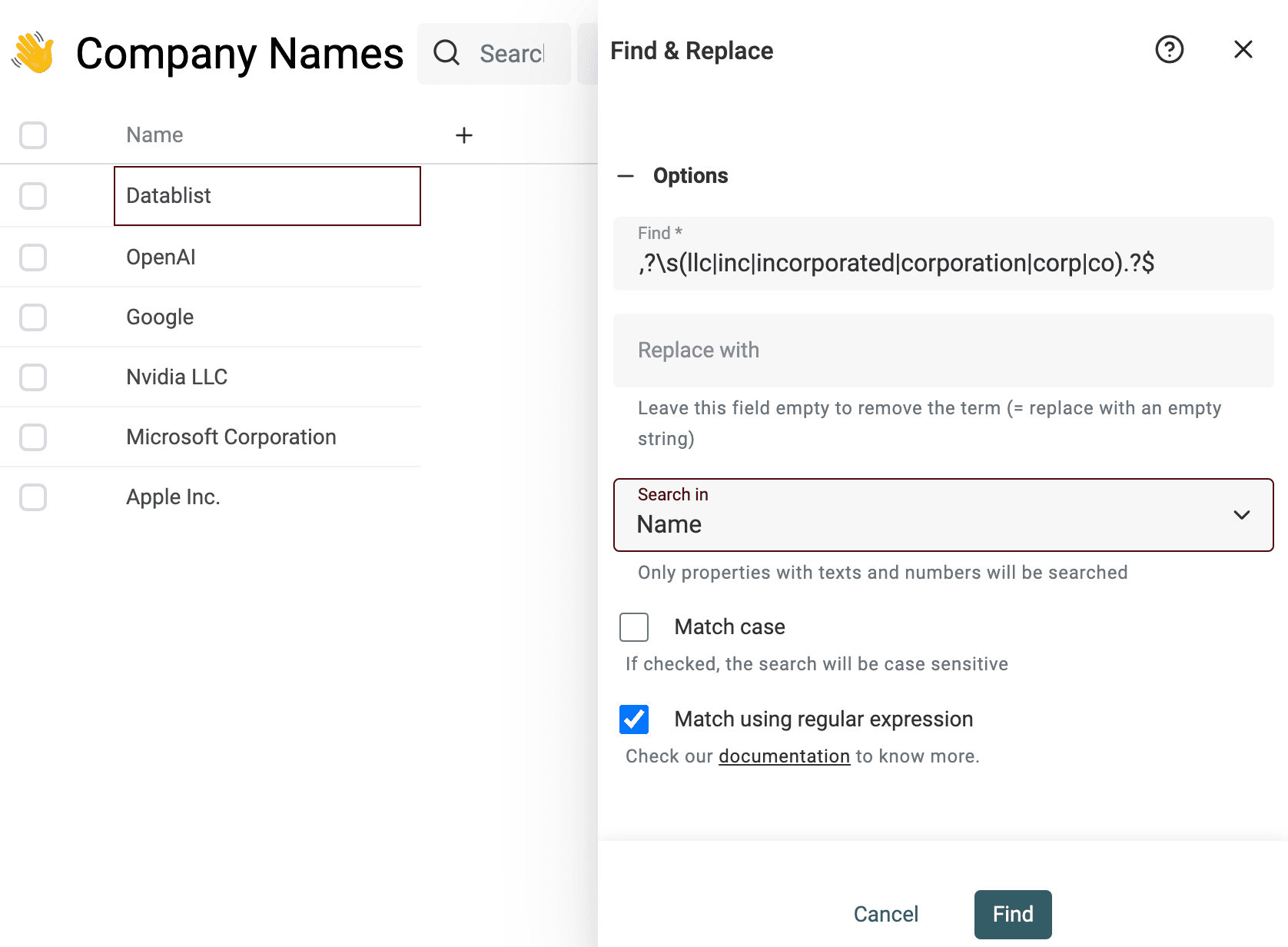
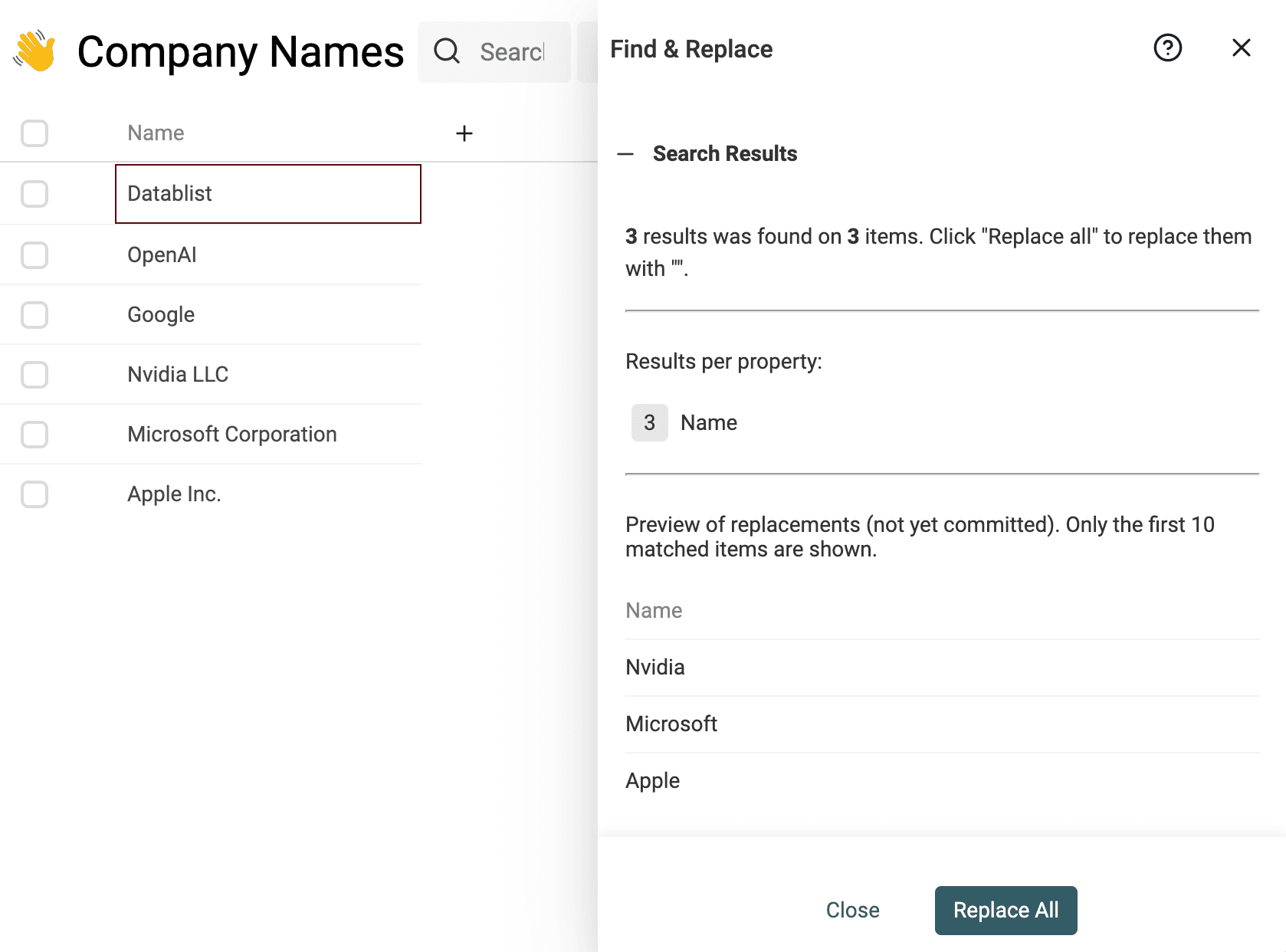
Remove Company name suffix
,?\s+(?:llc|inc|incorporated|corporation|corp|co|gmbh|ltd)\.?\s*$
And replace with an empty string. The optional \. matches a period, not any final character: Acme Co. becomes Acme, while Acme Com stays unchanged. Review the resulting company names before replacing them; removing a legal suffix does not establish that two businesses are the same.
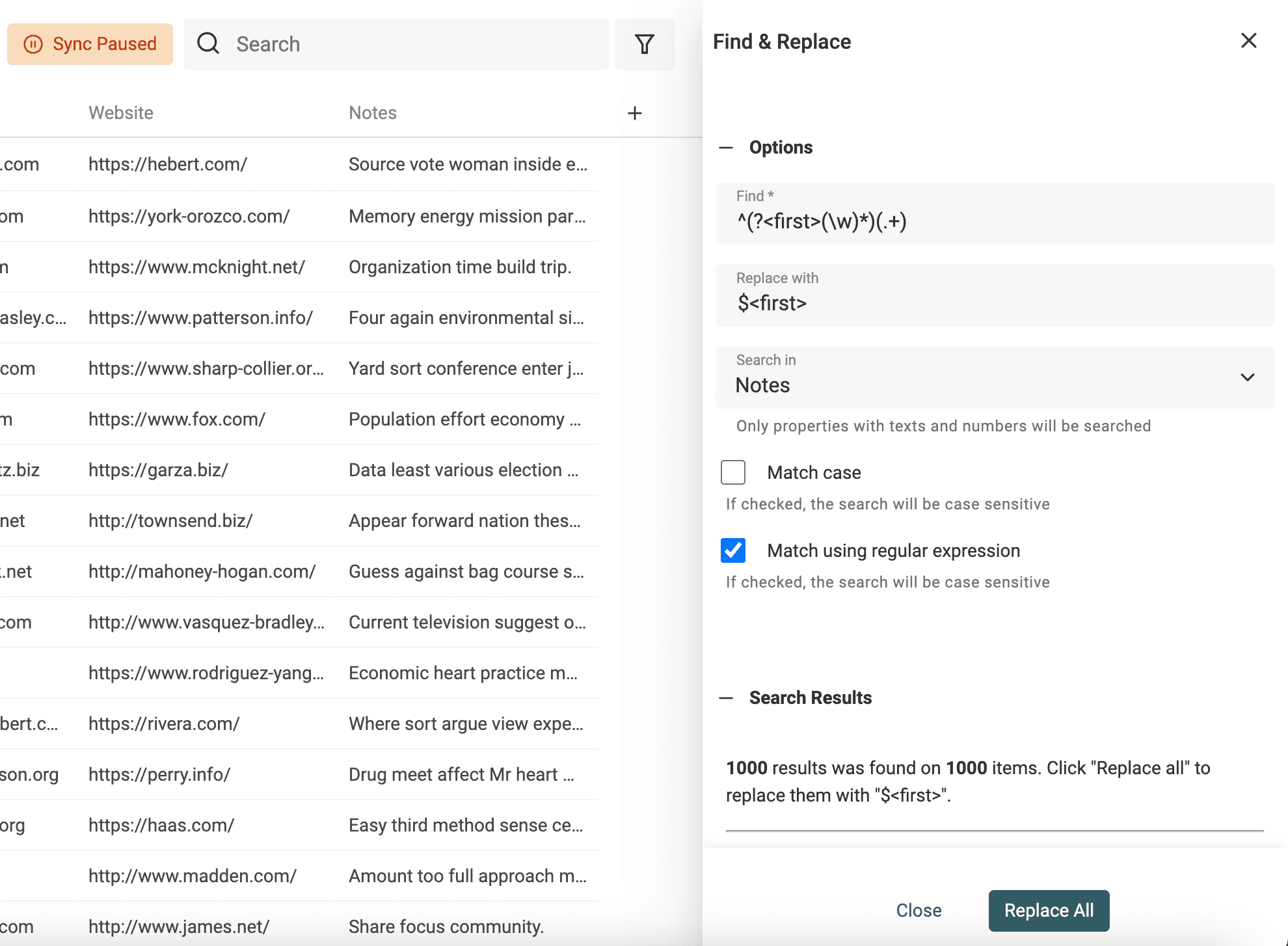
Keep only the first word of a sentence (or keep the first name from full name)
^\s*(?<first>\S+)[\s\S]*$
And replace with
$<first>
This keeps the first whitespace-separated token, including its punctuation. Anne-Marie Smith becomes Anne-Marie; this is text extraction, not a reliable rule for identifying every person's given name.
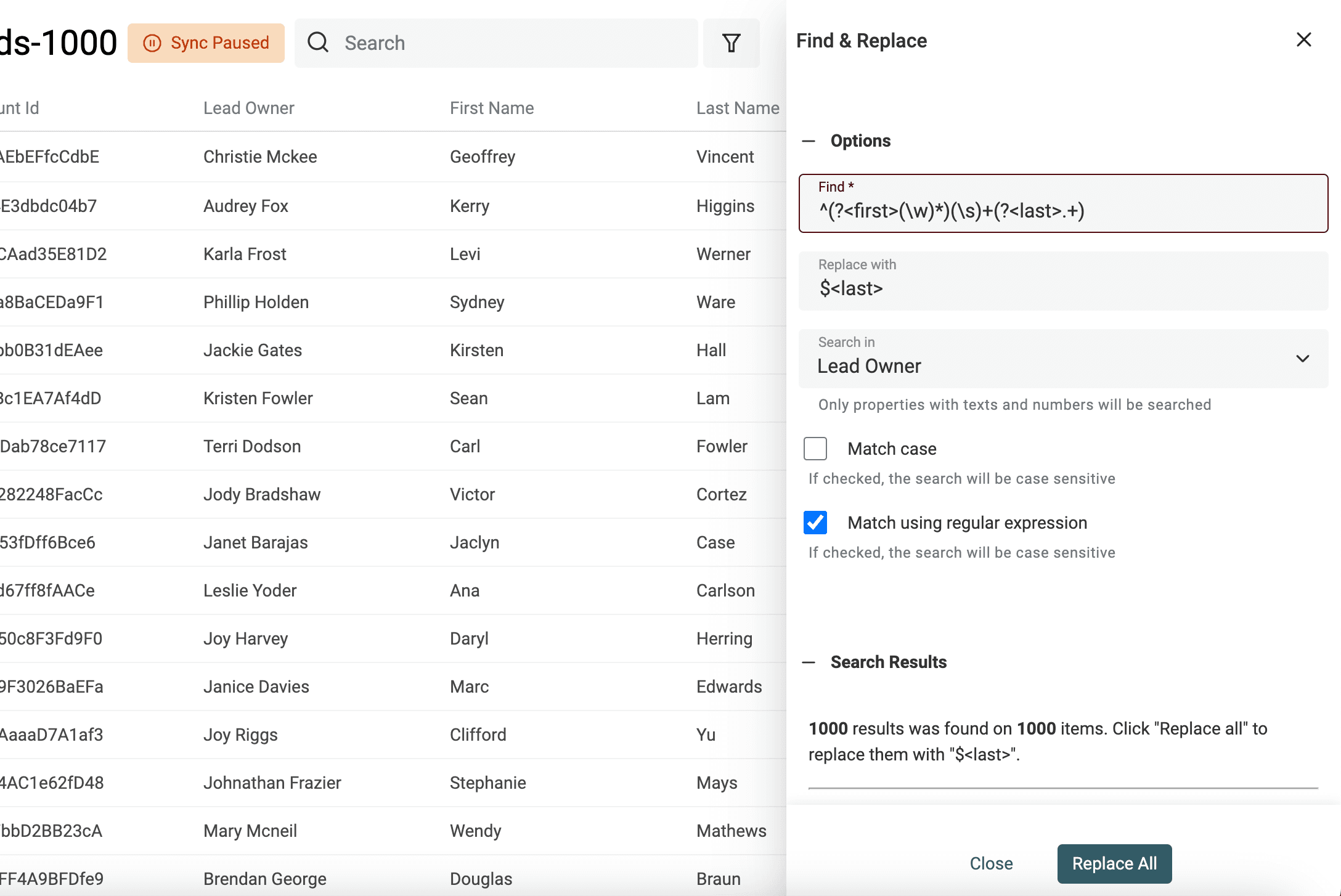
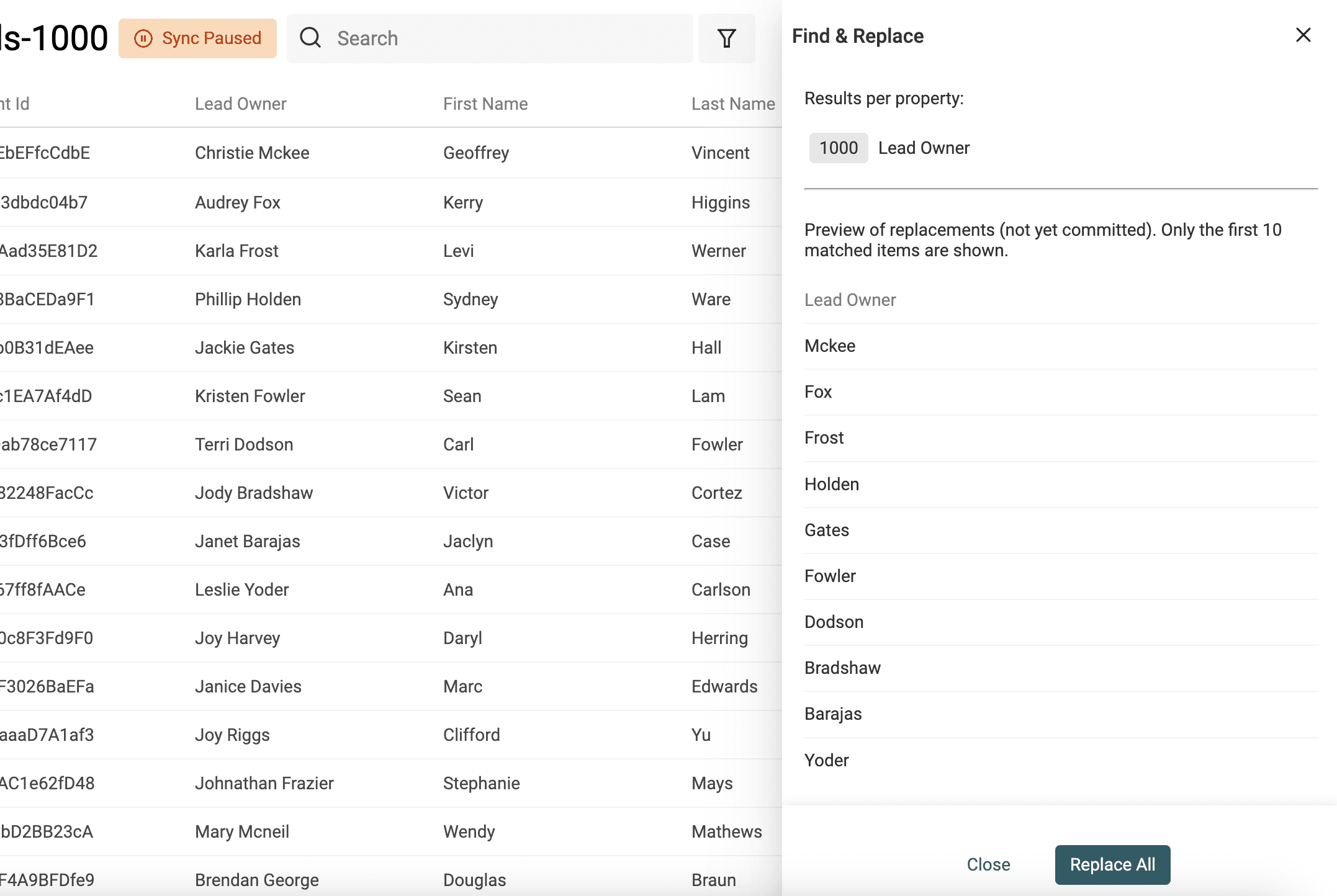
Remove the first word of a sentence (or keep the last name from full name)
^\s*\S+\s+(?<last>[\s\S]+)$
And replace with
$<last>
This keeps everything after the first token. Anne-Marie de Silva becomes de Silva. A one-token value is unchanged; compound given names and differing name orders need manual review.
Remove the alias component of email addresses
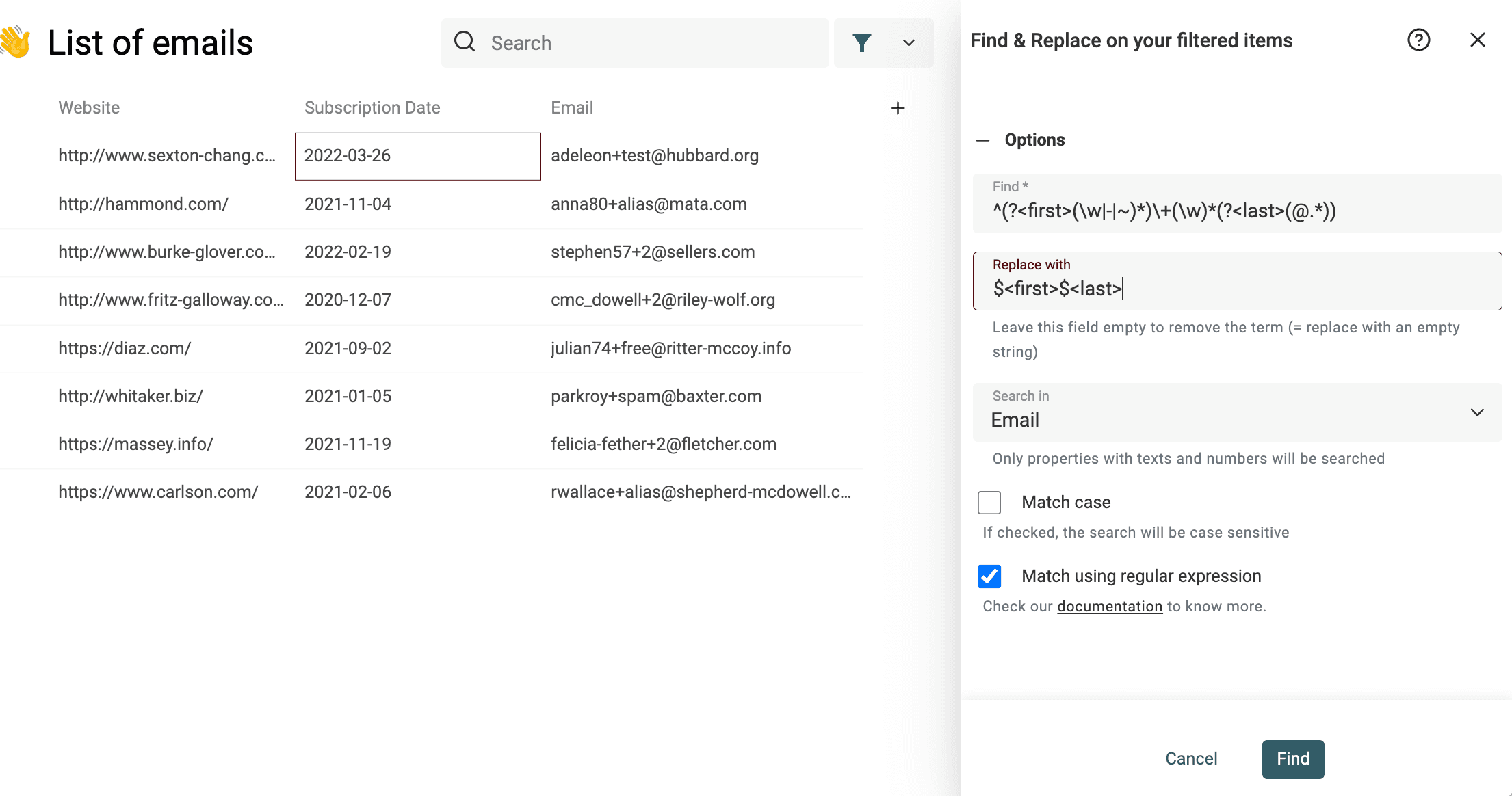
^(?<first>[^@\s+]+)\+[^@\s]*(?<last>@[^@\s]+)$
And replace with
$<first>$<last>
For example, john.smith+weekly-news@example.com becomes john.smith@example.com. Apply this only when you have decided the tag can be removed for the relevant mail provider. Keep the original address in another property; changing an identifier can merge mailing purposes or contact records you wanted to keep separate.
Check our full guide on email list cleaning.
Remove query params from URLs
To remove query params (?path=string in a URL such as https://www.google.com?path=string) from a list of URLS, use the following RegEx.
\?.*$
And replace with an empty string
FAQ
Why some properties are not available to search in?
Find and Replace is available only for Text and Number properties.