Auto-Run lets Datablist run an enrichment when new items arrive, when its input data changes, or on a fixed schedule. You configure the trigger, output behavior, and Run Conditions once. Datablist then checks eligible items and queues the enrichment automatically.
Auto-Run is available on the Growth plan and requires a collection synced to the cloud.
Auto-Run modes
Datablist supports three Auto-Run modes.
Run on new items
Use this mode to process items when they are added to a collection.
Typical use cases include:
- Enriching leads imported from a data source.
- Enriching items created through the Datablist API or an integration.
- Cleaning or classifying new records.
- Finding company or contact data for new leads.
- Processing only new items matching specific Run Conditions.
When an item is created, Datablist checks the Run Conditions and the existing output data rule. If the item is eligible, the enrichment is queued.
This mode only reacts to item creation. Updating an existing item does not trigger it.
Run when inputs change
Use this mode to rerun an enrichment when data used by the enrichment changes on an existing item.
Datablist builds the list of watched properties from the enrichment configuration. It includes:
- Properties mapped directly to enrichment inputs.
- Property variables used in custom input values.
- Property variables used in RichText settings, such as prompts.
For example, an enrichment using Website and Company Name runs when either value changes. Updating an unrelated property does not trigger it.
Datablist compares the previous and new values. Sending an update containing a watched property with the same value does not start Auto-Run.
💡 New items and input changes are separate triggers. Use Run on new items for item creation. Use Run when inputs change for updates to existing items.
This mode is useful for workflows where one enrichment produces data used by another. Map the first enrichment's output as an input to the next enrichment. When the first output changes, Datablist can trigger the next step. Use Run Conditions to check the previous enrichment status or any other item property.
Scheduled runs
Use this mode when an enrichment must run at a fixed interval. You can configure daily, weekly, or monthly runs and select the schedule timezone.
Scheduled runs are useful for:
- Refreshing data every morning.
- Rerunning a source or enrichment every week.
- Processing records that became eligible after a status change.
- Limiting each run with the Max fetch setting.
Datablist evaluates the filters again when each scheduled run starts.
Configure Auto-Run
You can configure Auto-Run from an existing enrichment column.
- Open your collection.
- Open the enrichment column menu.
- Select Auto-Run and Configuration.
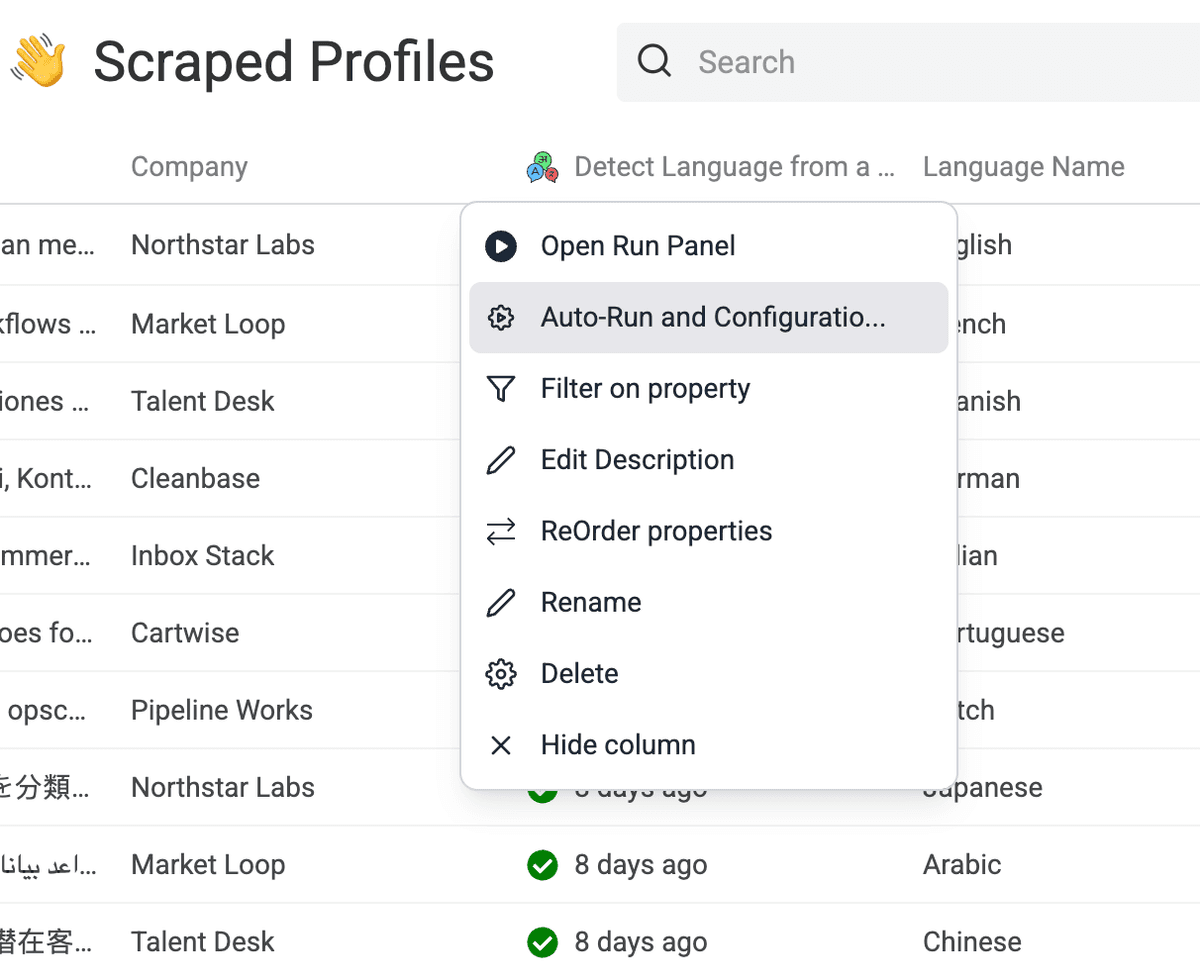
You can also click Enable Auto-Run from the enrichment run drawer after configuring and saving an enrichment.
In the Auto-Run modal:
- Choose Run on new items, Run when inputs change, Run every X days/weeks, or Disable Auto-Run.
- Select how Datablist handles existing output data.
- Add Run Conditions or scheduled-run filters.
- Review the enrichment inputs and outputs. Input-change mode derives its watched properties from these mappings.
- Click Save.
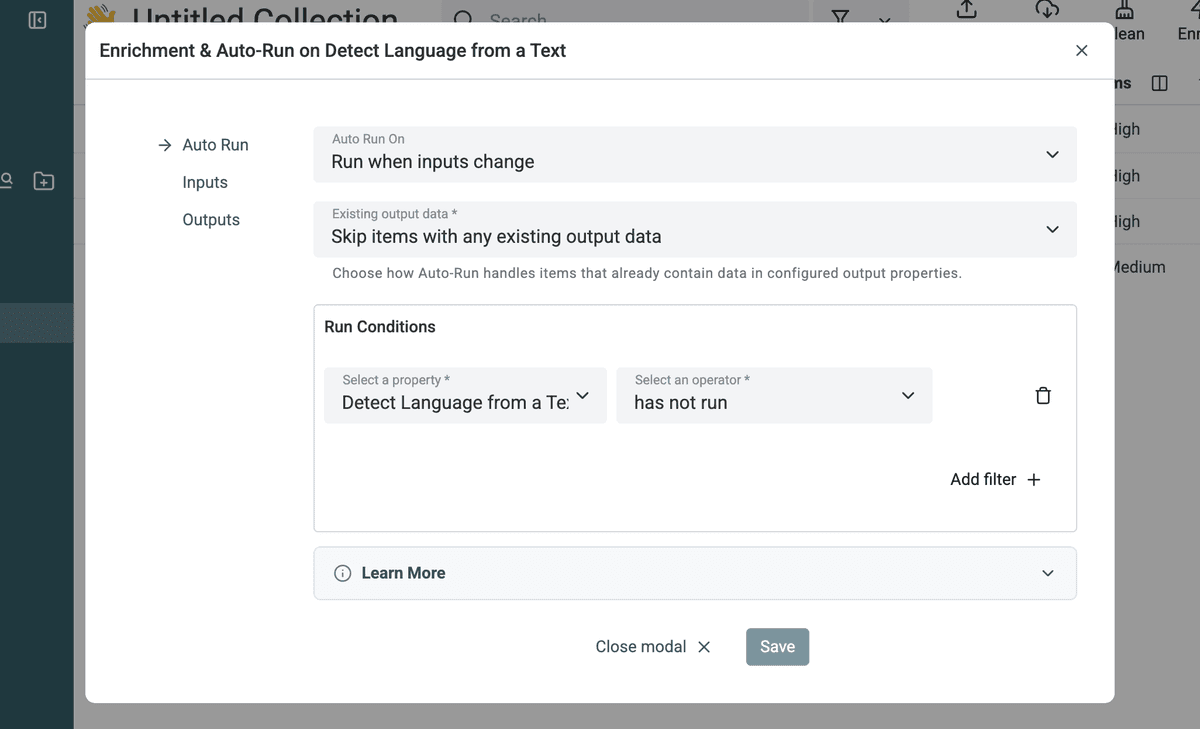
The configuration stores the enrichment settings, input and output mappings, trigger mode, filters, schedule, and existing output data rule.
Choose how to handle existing output data
The Existing output data setting controls what happens when an eligible item already contains values in the enrichment's mapped output properties.
Skip items with any existing output data
This is the default. Datablist processes an item only when every configured output property is empty. If any output already contains data, the item is skipped.
Use this option to avoid changing records already enriched or completed manually.
Update empty output properties only
Datablist processes an item when at least one configured output property is empty. It writes results only to empty outputs and preserves populated outputs.
If every output property contains data, the item is skipped.
This option works well for partially enriched records. For example, an enrichment returning an email and phone number can fill a missing phone number without replacing an existing email.
Overwrite existing output data
Datablist processes eligible items regardless of their current output values. New results replace existing data in the mapped output properties.
Use this option when an input change should refresh previously generated results.
⚠️ Check both settings when you want to rerun completed items. The existing output rule may allow an item, while a Run Condition such as Current enrichment has not run still excludes it. Choose Overwrite existing output data and update or remove that Run Condition when you want to regenerate completed outputs.
If an enrichment has no mapped output properties, the existing output data rule does not exclude items.
Use Run Conditions
Run Conditions define which items can be processed after the trigger matches.
For example, you can require:
- A label property to equal
New. - An email property to be empty.
- A website property to contain data.
- A country property to match a target market.
- The current enrichment not to have run.
- Another enrichment to have completed successfully or with an error.
For Run on new items and Run when inputs change, filters appear as Run Conditions. For scheduled runs, they appear as Filters. Both control item eligibility before Datablist starts the enrichment.
Run Conditions do not define which properties trigger input-change mode. The enrichment's input and RichText mappings define the watched properties.
Cloud synchronization requirement
Auto-Run executes in the cloud. The collection must be eligible for cloud synchronization and fully synced before you can enable or edit Auto-Run.
When a collection is not synced, the Auto-Run button is disabled and the configuration modal displays the cloud-sync requirement. You can still save the enrichment and run it manually.
Cloning collections and workflows
When you clone a collection, Datablist can also clone enrichment configurations.
If Clone Enrichment Configurations is checked, the new collection receives the same input mappings, output mappings, Run Conditions, existing output rule, and Auto-Run mode. This lets you reuse a collection as a workflow template.
Cloning items does not trigger Auto-Run for the copied items. This prevents a clone operation from starting enrichments unexpectedly.
Disable Auto-Run
To turn Auto-Run off:
- Open the enrichment column menu.
- Select Auto-Run and Configuration.
- In Auto Run On, select Disable Auto-Run.
- Save the configuration.
Disabling Auto-Run keeps the enrichment column, configuration, and existing data. It only stops automatic triggers.
Monitor Auto-Run activity
When Auto-Run starts, Datablist displays the run status in the enrichment column. Items can show statuses such as queued, running, completed, or checking Auto-Run conditions.
Open the enrichment drawer to review recent runs and errors or to edit the Auto-Run configuration.
FAQ
Can I run Auto-Run on only some items?
Yes. Add Run Conditions to the Auto-Run configuration. Datablist applies them before processing items.
Which properties trigger "Run when inputs change"?
Datablist watches direct input mappings and property variables used in custom inputs or RichText settings. Updating unrelated properties does not trigger the enrichment.
Does saving the same input value trigger Auto-Run?
No. Datablist compares the previous and new item values. At least one watched property must have a different value.
Will Auto-Run overwrite existing output values?
It depends on the Existing output data setting. Choose Skip to require all outputs to be empty, Update empty to preserve populated outputs, or Overwrite to replace existing output values.
Why did an input change not rerun my enrichment?
Check the watched input mappings, Run Conditions, and existing output data rule. The default rule skips an item when any configured output already contains data. A has not run condition also excludes previously completed items.
Does cloning a collection trigger Auto-Run?
No. Cloned items do not trigger Auto-Run. If you select Clone Enrichment Configurations, the Auto-Run setup is copied to the new collection.
Can I stop using Auto-Run without deleting the enrichment?
Yes. Select Disable Auto-Run and save. The enrichment configuration and existing output data remain unchanged.
Which plan includes Auto-Run?
Auto-Run is available on the Growth plan. The collection must also be synced to the cloud.