To use a Datablist coupon, enter the code in the subscription checkout before completing payment. Check that the discount appears in the order summary before you confirm the purchase.
These steps show the checkout for a new subscription. If you already have a paid subscription and want to apply an offer, contact us before changing your plan.
Apply a coupon during checkout
Visit the Upgrade Page
First, head over to the Datablist upgrade page by clicking this link: https://app.datablist.com/account/upgrade. If you cannot sign in because you forgot your Datablist password, request a password-reset email before continuing to checkout.
Choose Your Plan
Choose your plan and billing period on the upgrade page, then click Upgrade. Check the offer terms first: a coupon may be limited to a particular plan, billing period, or customer group.
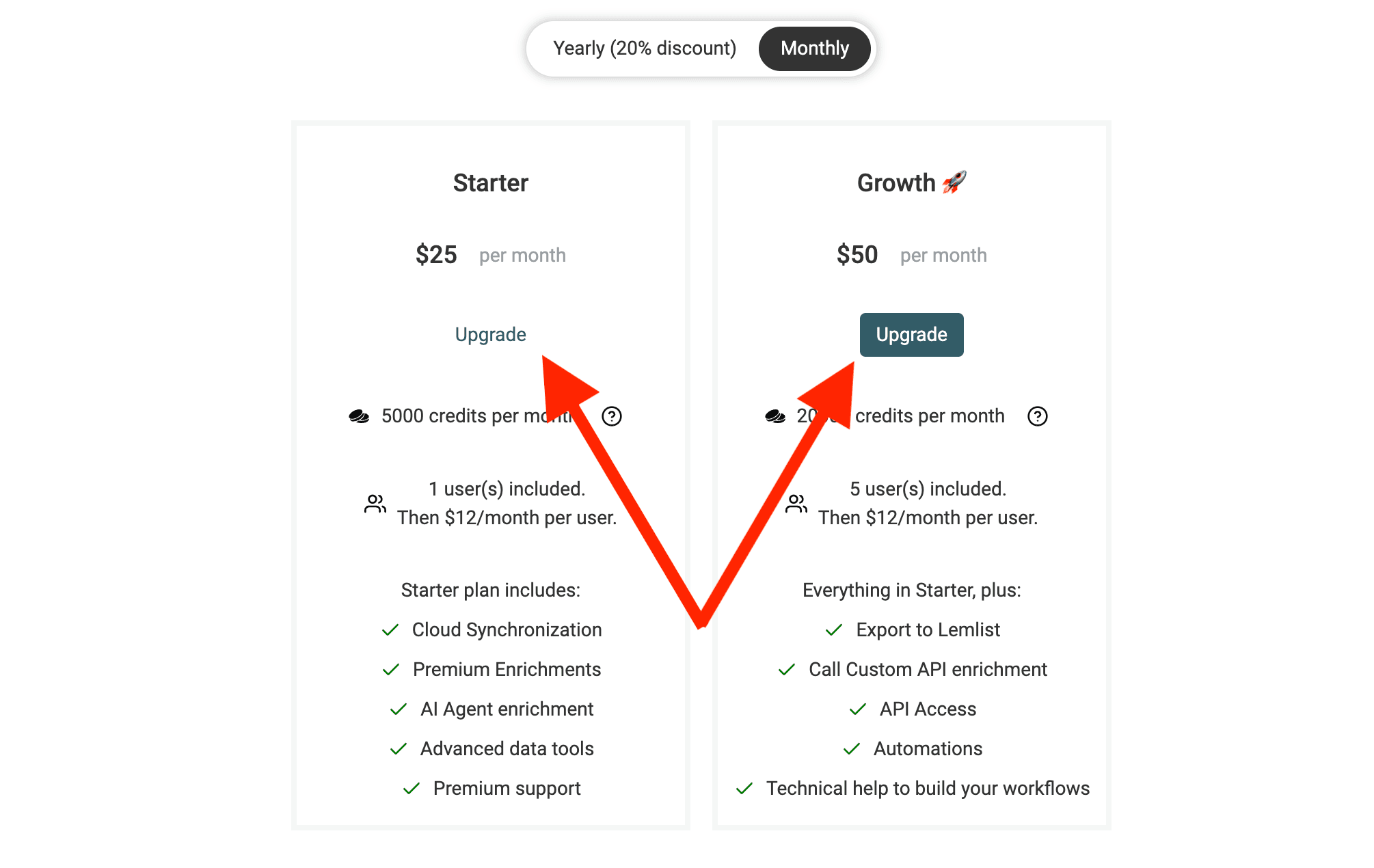
Open the Subscription Modal
The subscription checkout opens. Click the plan name to open the order details and find the coupon section.
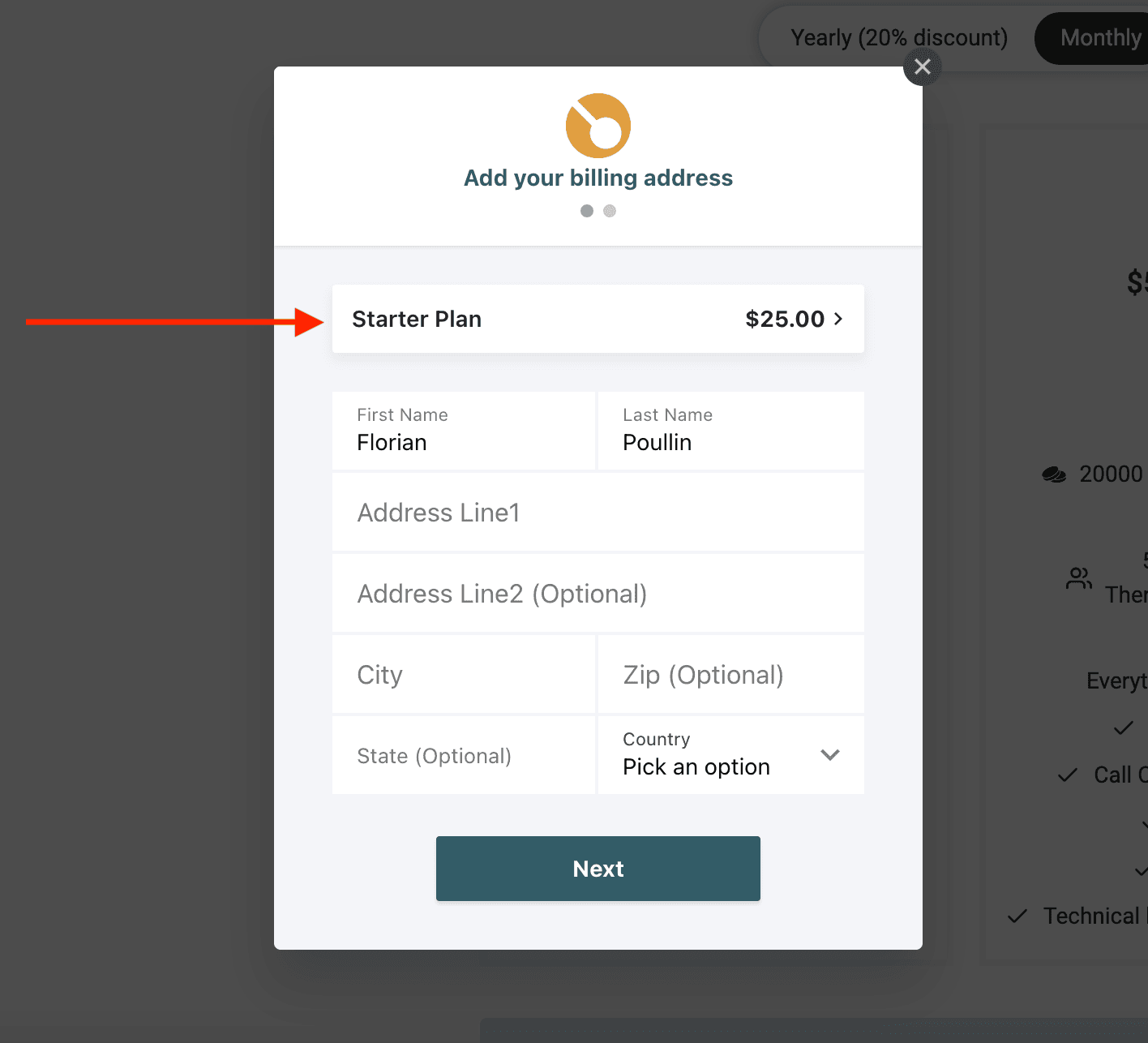
Apply the Coupon
Click Apply Coupon and enter the code exactly as provided. Avoid copying spaces before or after the code.
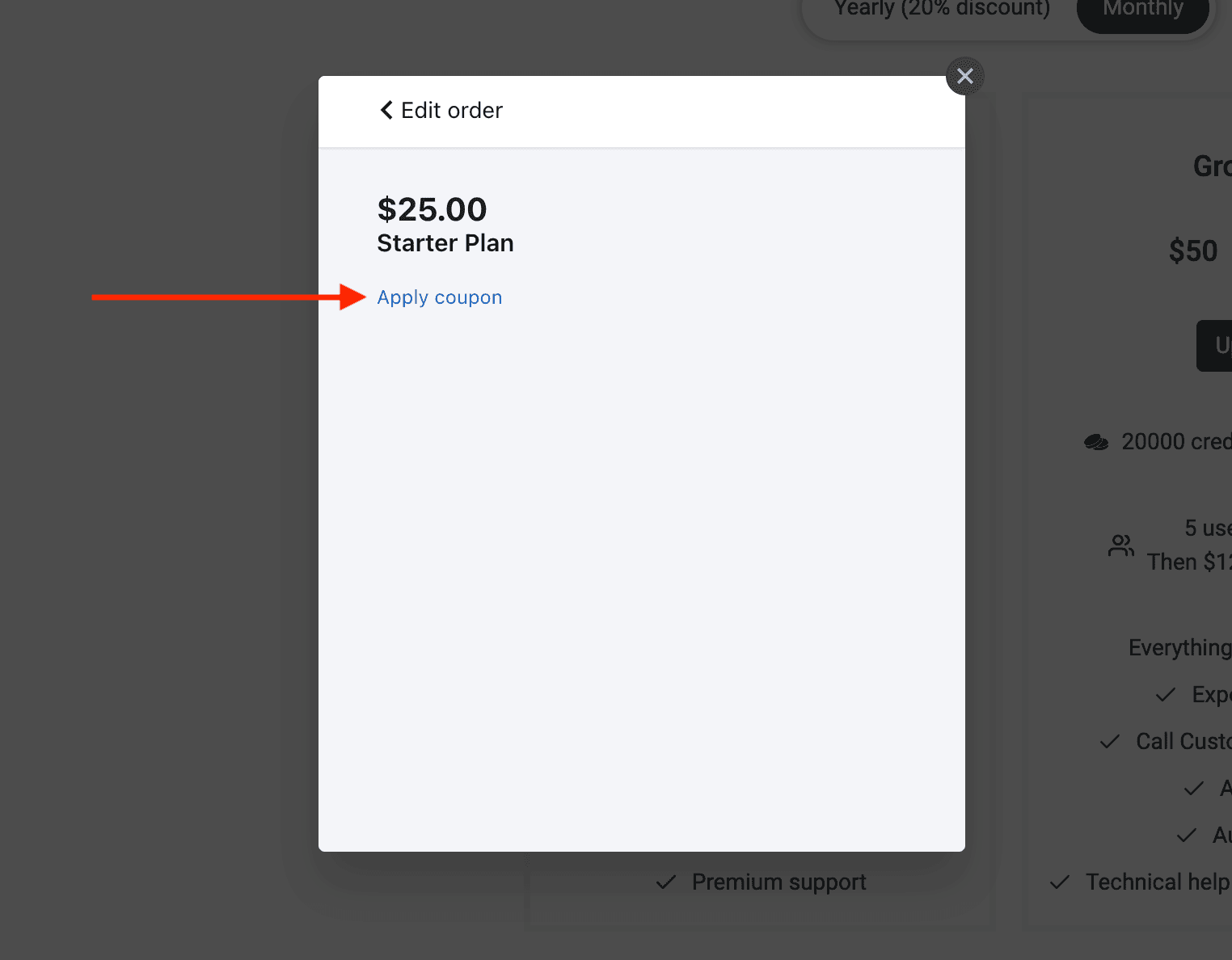
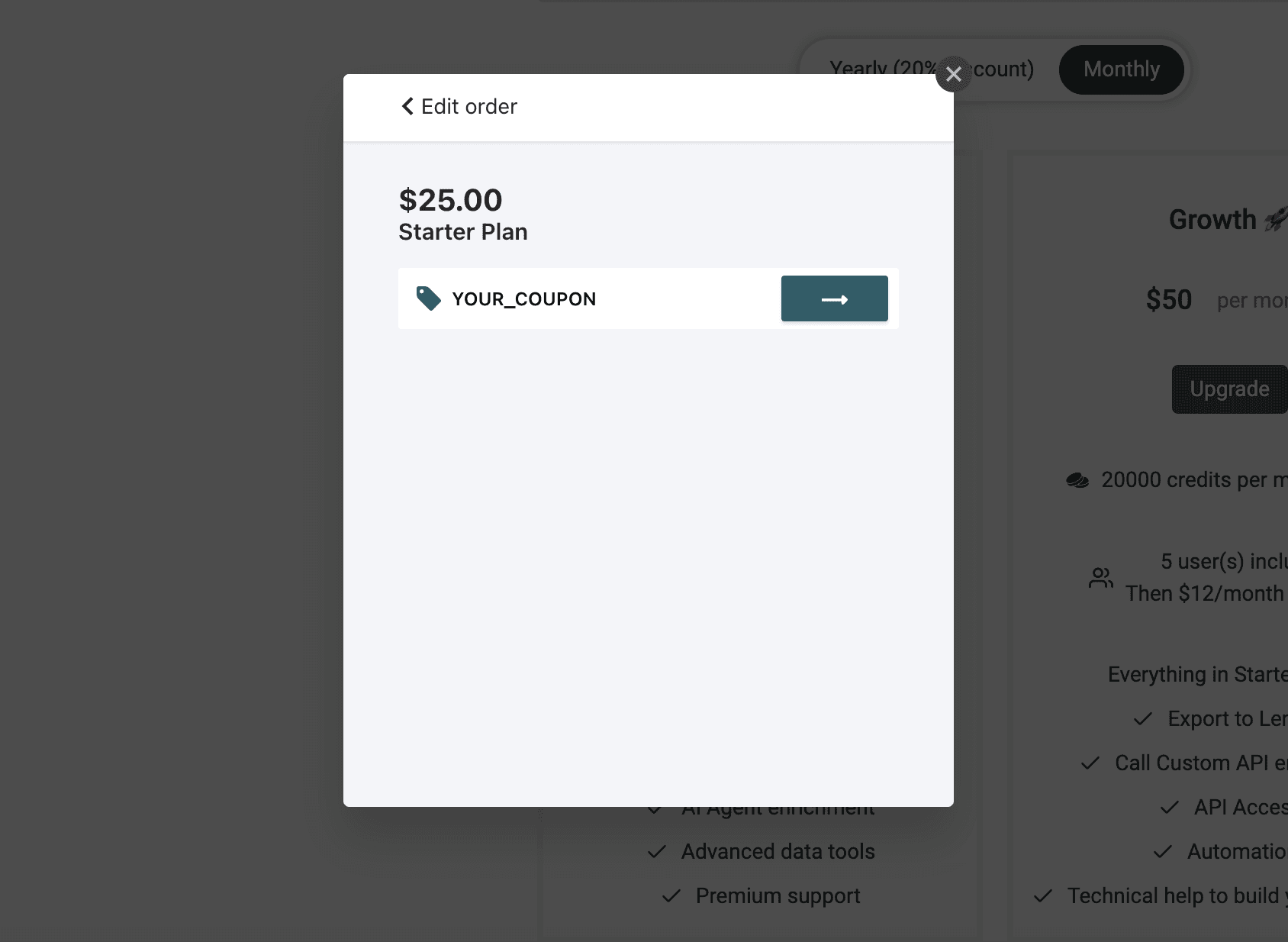
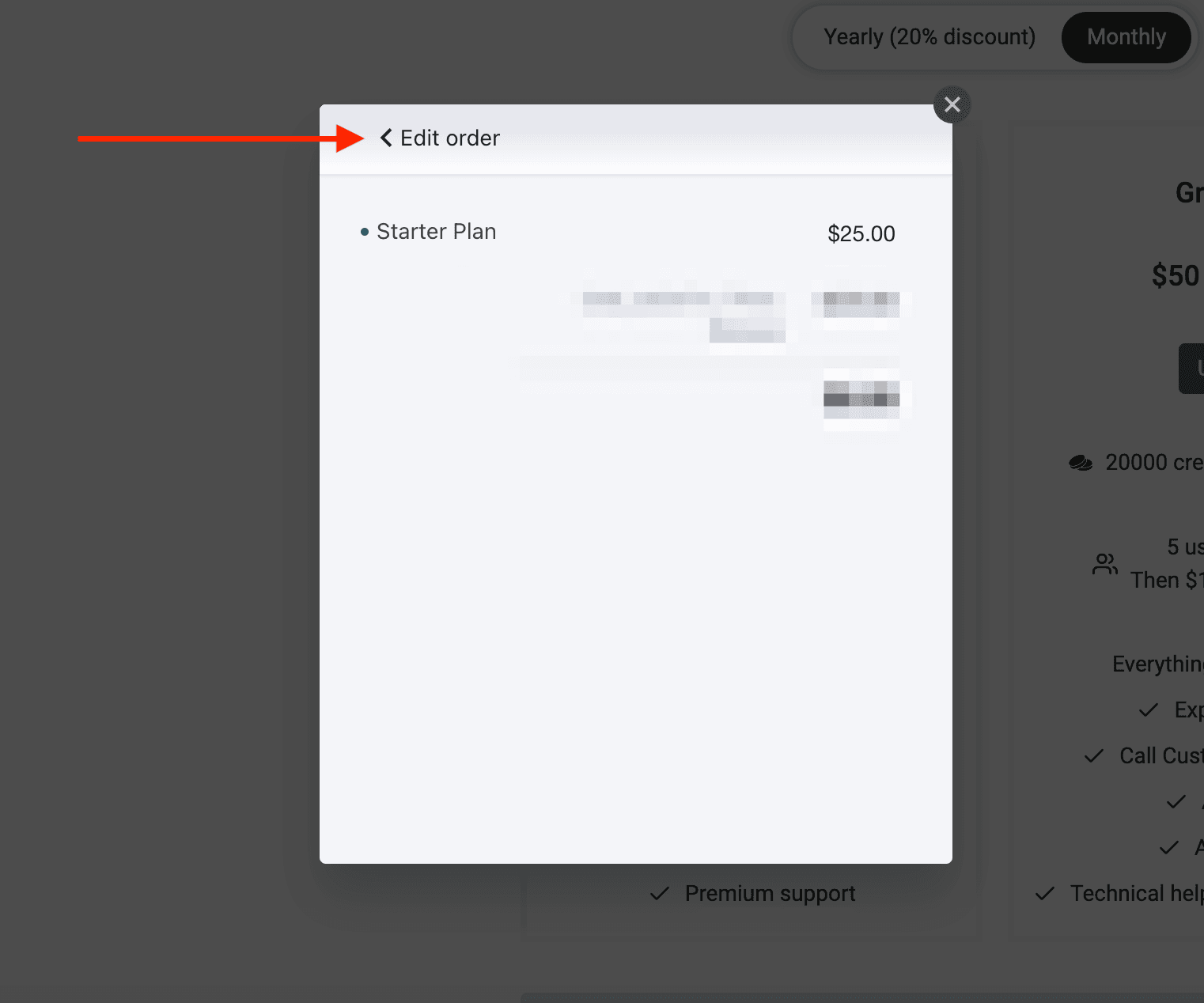
Edit Your Order
After applying the coupon, click Edit Order to return to checkout. Review the plan, billing period, discount, and final amount before completing payment.
Check how long the offer lasts in the terms that came with your code. A discount on the first payment does not necessarily apply to every renewal.
What if the coupon is not accepted?
Read the message shown in checkout. Confirm that you copied the right code, that the offer has not expired, and that your selected plan and billing period match its terms. If the discount still does not appear, contact us with the code and the checkout error before paying.
I have more questions
No problem, please contact me using this contact form. Or book a meeting on my Calendly.