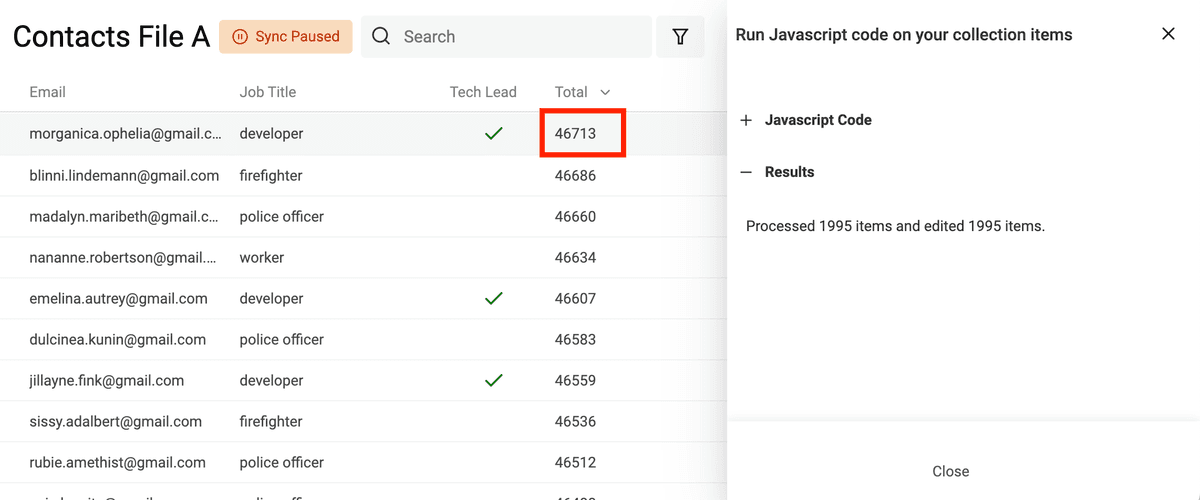
Use the JavaScript runner to transform items in a collection when a built-in cleaning action does not cover your rule. Write a runOnItem(item) function, preview its output on sample rows, then run it on the selected items or current view. For example, combine a firstName and lastName property into an existing fullName property.
Your function must return an object whose keys match collection property identifiers, or null to leave an item unchanged. Create the destination property before running the manual script. On a paid plan, you can save a tested script in the Code Library for later use.
Open the Javascript editor
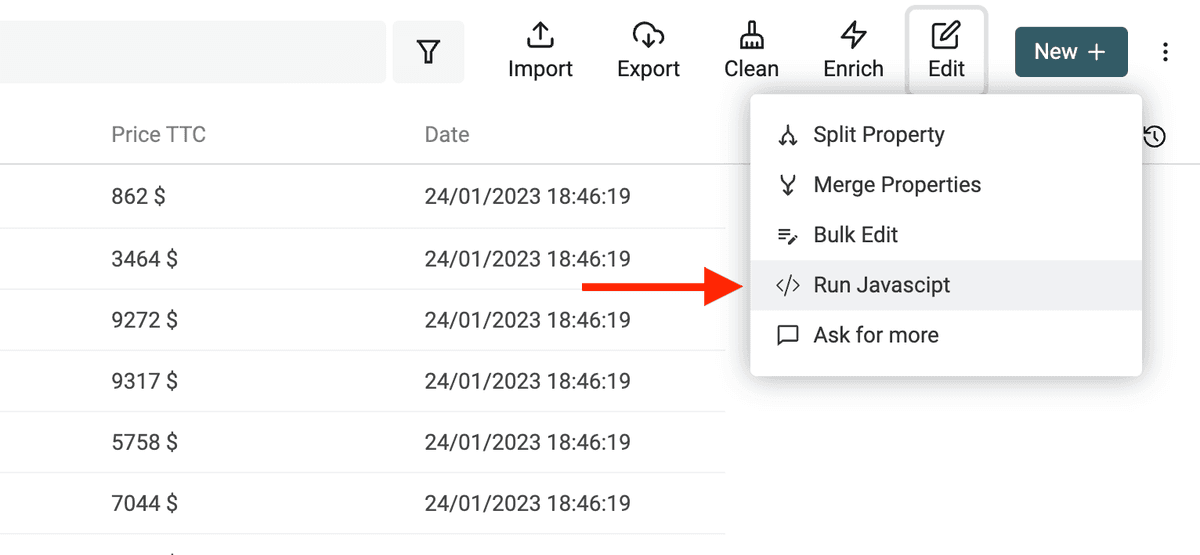
In a collection, open the Edit menu and choose the JavaScript runner.
Writing JavaScript codes
Once you have opened the Javascript editor, you can start writing your own custom scripts.
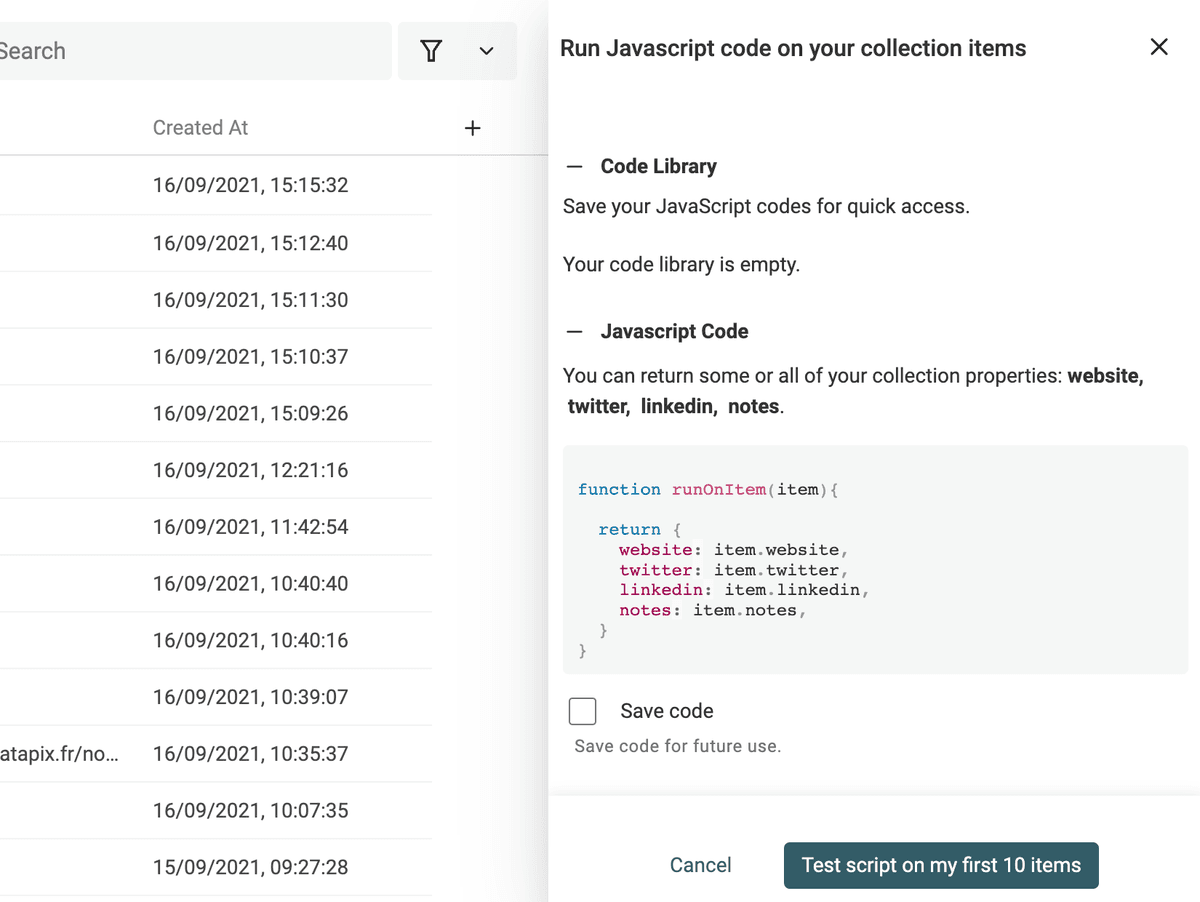
Previously saved scripts are listed in the Code Library section. More on that later.
How to structure code
Your JavaScript code must expose a runOnItem function. Datablist calls it for each item in the selected scope. It receives an object with that item's data and must return null or an object with some or all existing collection property identifiers. A returned object updates only its listed properties.
Here are examples of runOnItem functions:
Valid ✅: Return null on some cases:
If the function returns null, Datablist will ignore the result and continue to the next item. Returning null doesn't erase data.
function runOnItem(item){
    if(item.propertyA){
        return null
    }
    return {
        propertyB: "test"
    }
}
Valid ✅: Return only some properties:
You can return a subset of all the properties. Datablist will perform a partial update with only the properties returned.
function runOnItem(item){
    // return only the firstName property
    return {
        fullName: [item.firstName, item.lastName].filter(Boolean).join(" ")
    }
}
Invalid ❌: Returning extra properties:
If you return a property that is not in your collection properties, it will throw an error.
function runOnItem(item){
    // return only the firstName property
    return {
        aNonExistingProperty: "value"
    }
}
Invalid ❌: Returning bad data types
Datablist works with Data Types. DataBlist will return an error when the data returned is not compatible with the property data type.
function runOnItem(item){
    return {
        aNumber: "value", // Must return a number
        aDate: 2423 // Must return a date
    }
}
Cache
The runOnItem function gives you only the context of an item. The "item data" as object in the parameters, and the result edits the current item.
For more advanced use cases, you can use a cache variable that is kept during a "run process".
Inside your javascript code, you can access and edit a special object named scriptCache.
// Init counter
scriptCache['counter'] = scriptCache['counter'] || 0;

function runOnItem(item){
    scriptCache['counter'] += 1;
    return {
        anumberproperty: scriptCache['counter']
    }
}
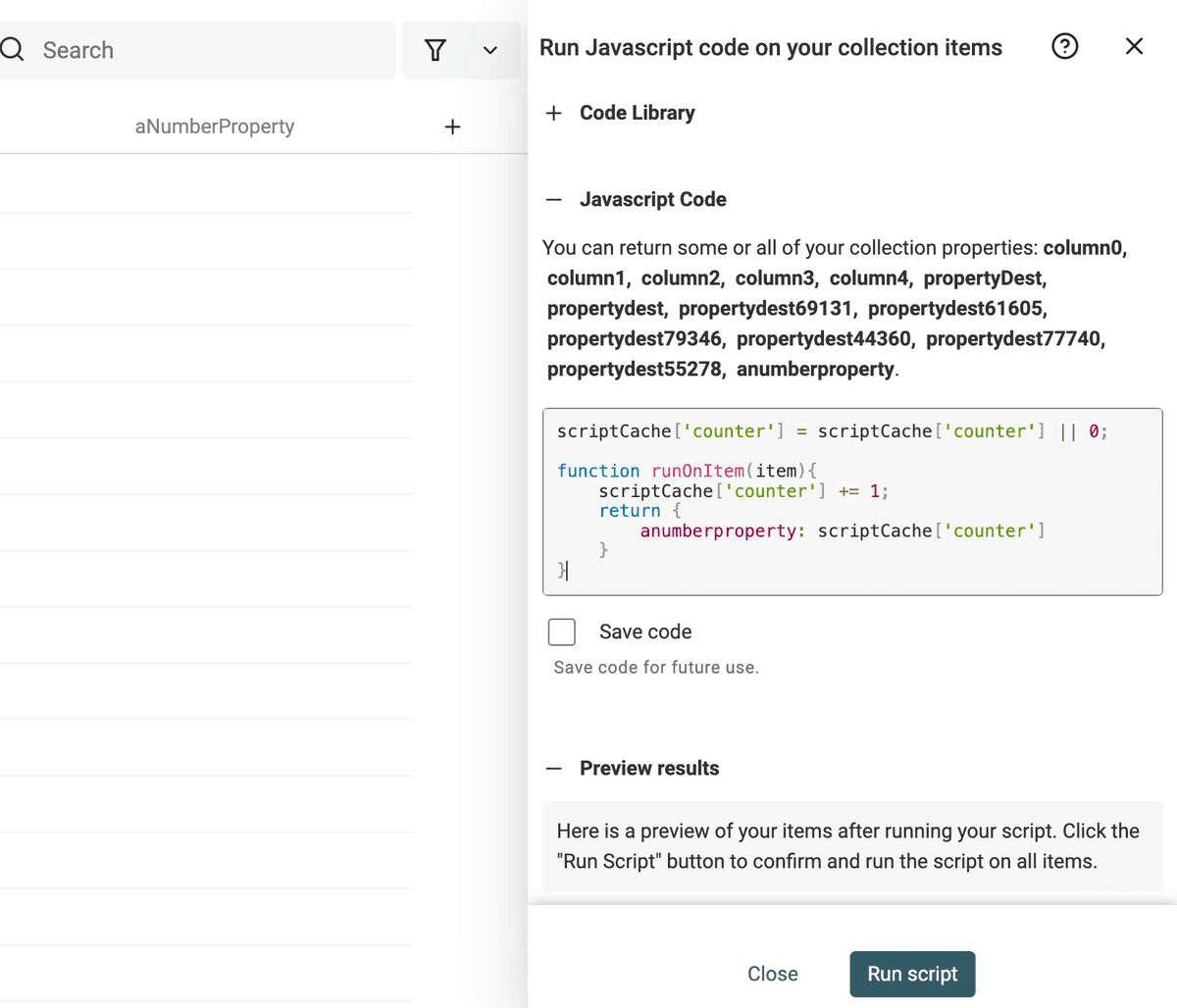
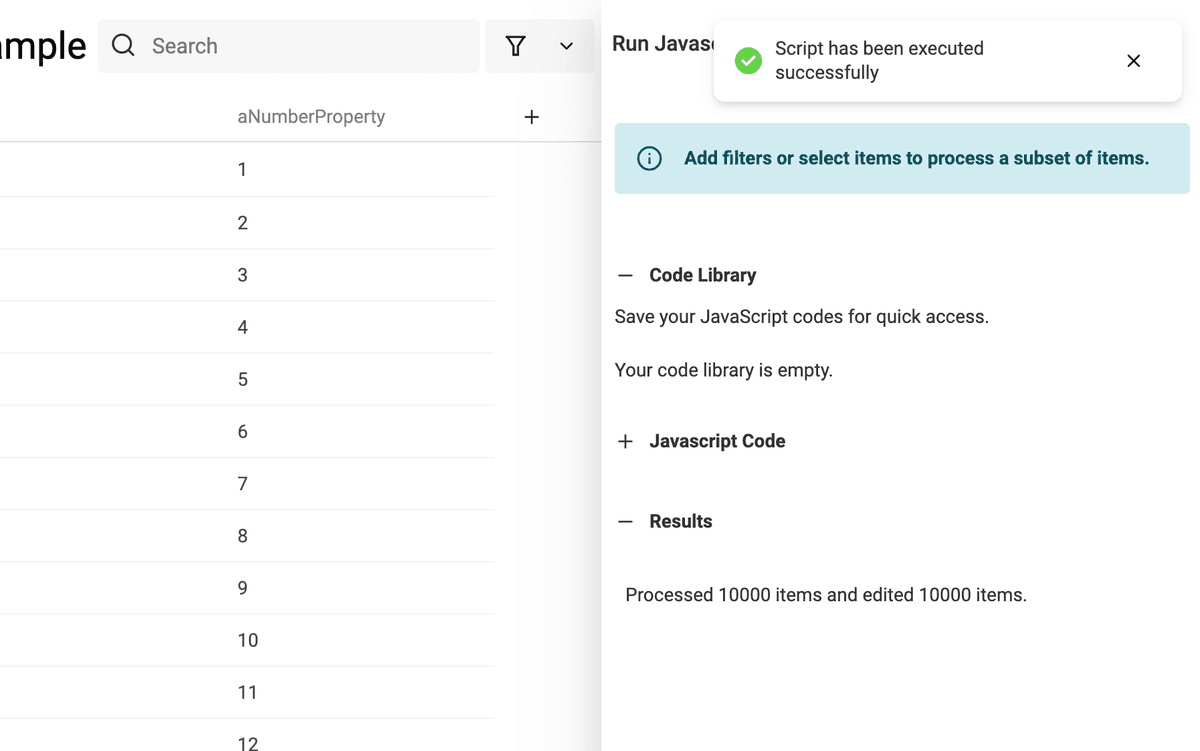
Important - The cache object is reset for each run. The cache is also reset after a preview run.
Console
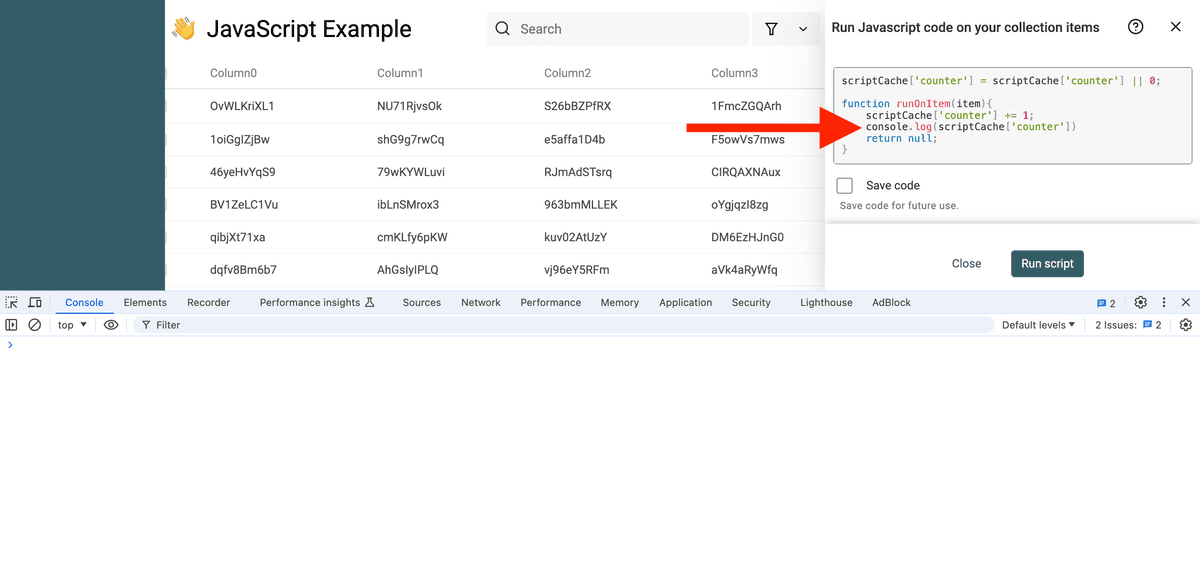
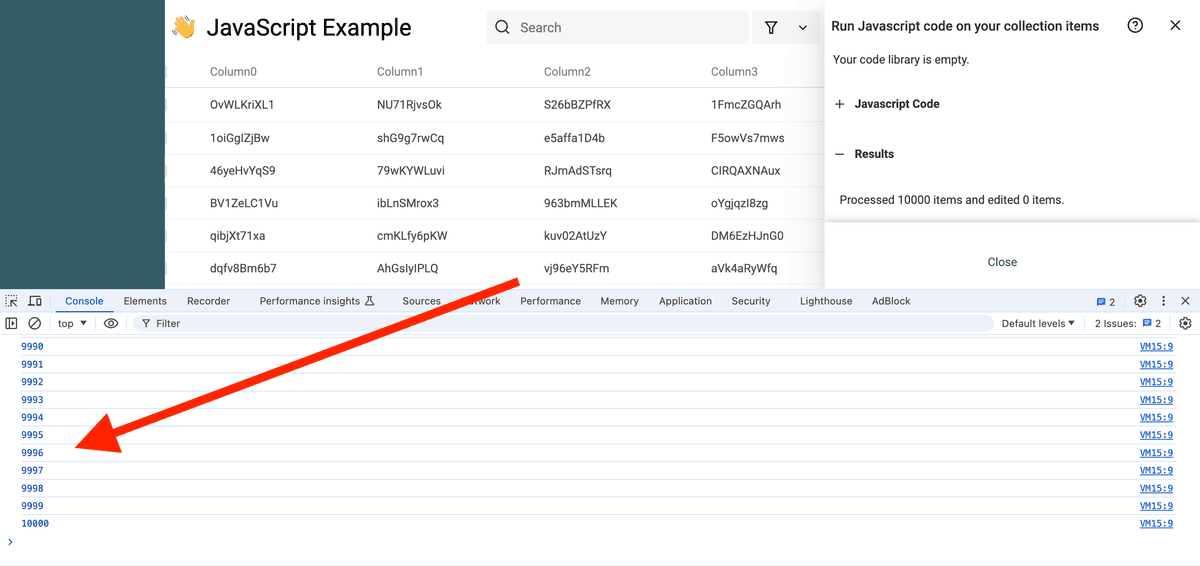
To inspect values while testing, use console.log("value", item) and open your browser's developer console. Remove logs containing personal data before saving a reusable script.
Synchronous or asynchronous function
You can write synchronous or asynchronous functions. Add async before the function statement to use await in your JavaScript function.
async function runOnItem(item){
    const response = await fetch('https://api.website.com')
    const data = await response.json()
    return {
        companyName: data['name']
    }
}
Call external APIs
Paid-plan users can call external APIs from JavaScript. Requests run in the browser, so the target API must allow cross-origin requests, and you should not put a secret API key into a shared script.
async function runOnItem(item){
    const response = await fetch('https://postman-echo.com/post', {
        method: 'POST',
        mode: 'cors',
        headers: {
            "Content-Type": "application/json"
        },
        body: JSON.stringify({
            "value": "Datablist"
        })
    })
    const data = await response.json()
    return {
        companyName: data['data']['value']
    }
}
Restricted functions
Free and anonymous users cannot make external requests from this JavaScript runner. A script that only transforms local item values does not need an external API.
Run JavaScript codes
Define items to be processed
Datablist processes the items in the current scope. Check the drawer title before running:
- If you have selected items in your collection, it will process them
- If you have a filter or a full-text search term, it will process the filtered items
- Otherwise, it will process all your collection items
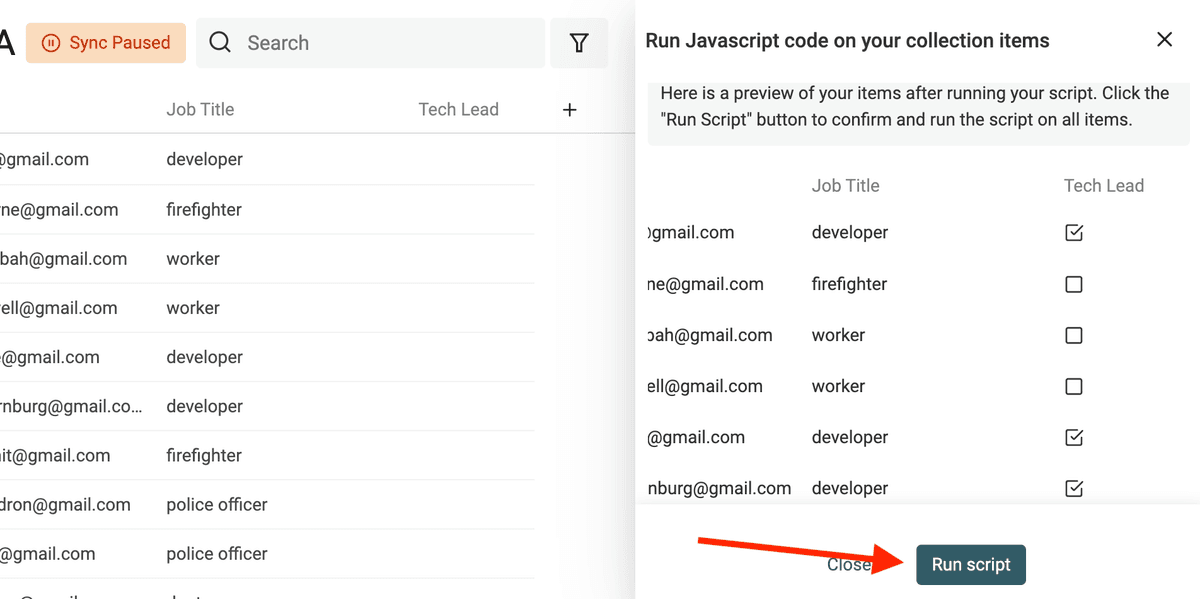
First Step: Preview
Datablist will test your code on a sample dataset before running it on all your data. This will help you catch errors and ensure that your code produces the desired results.
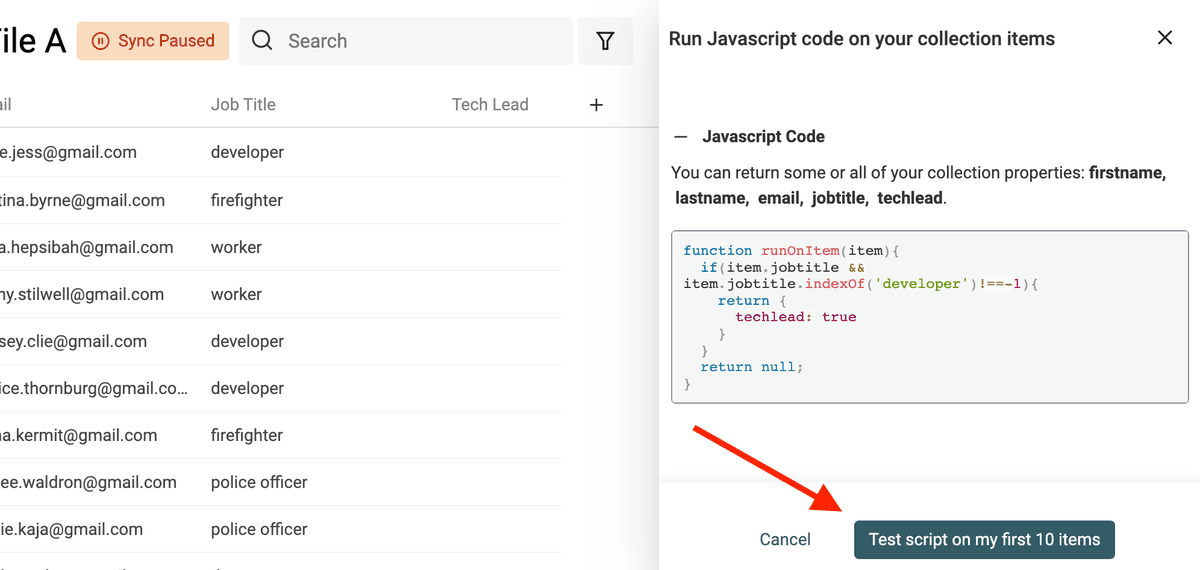
After the preview run, and if it is successful, you will see the results in a table representing your collection.
Use it to iterate on your code.
Second Step: Run code
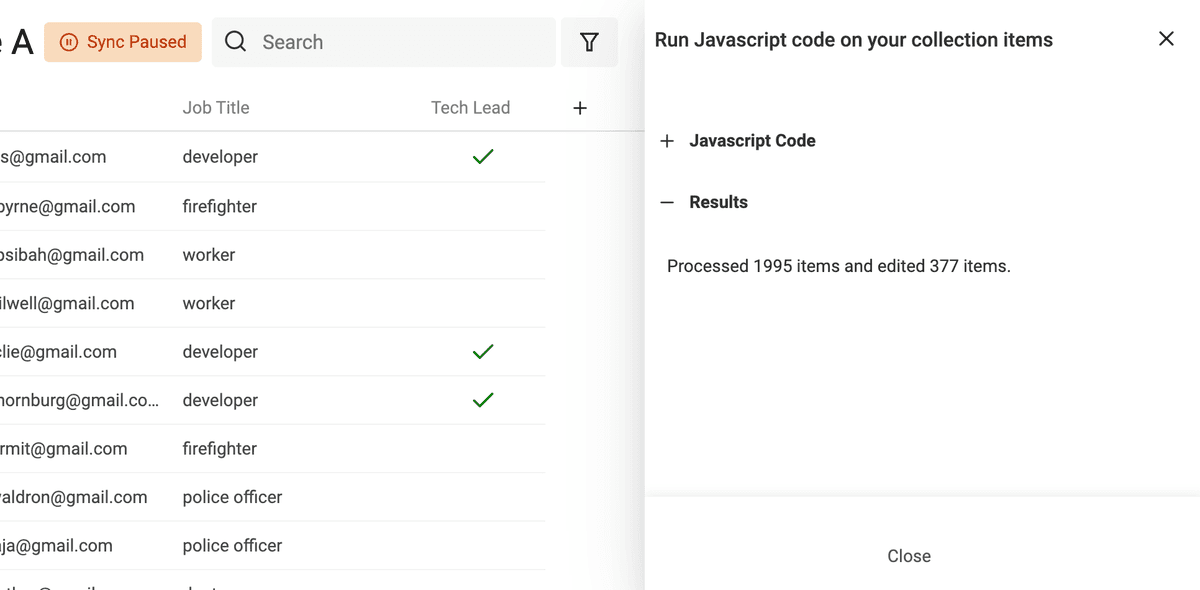
When the preview matches the expected output, run the code on the selected scope. Review the processed and edited counts in the summary.
After the run, a summary is displayed with the number of processed items and the number of items edited.
Code Library
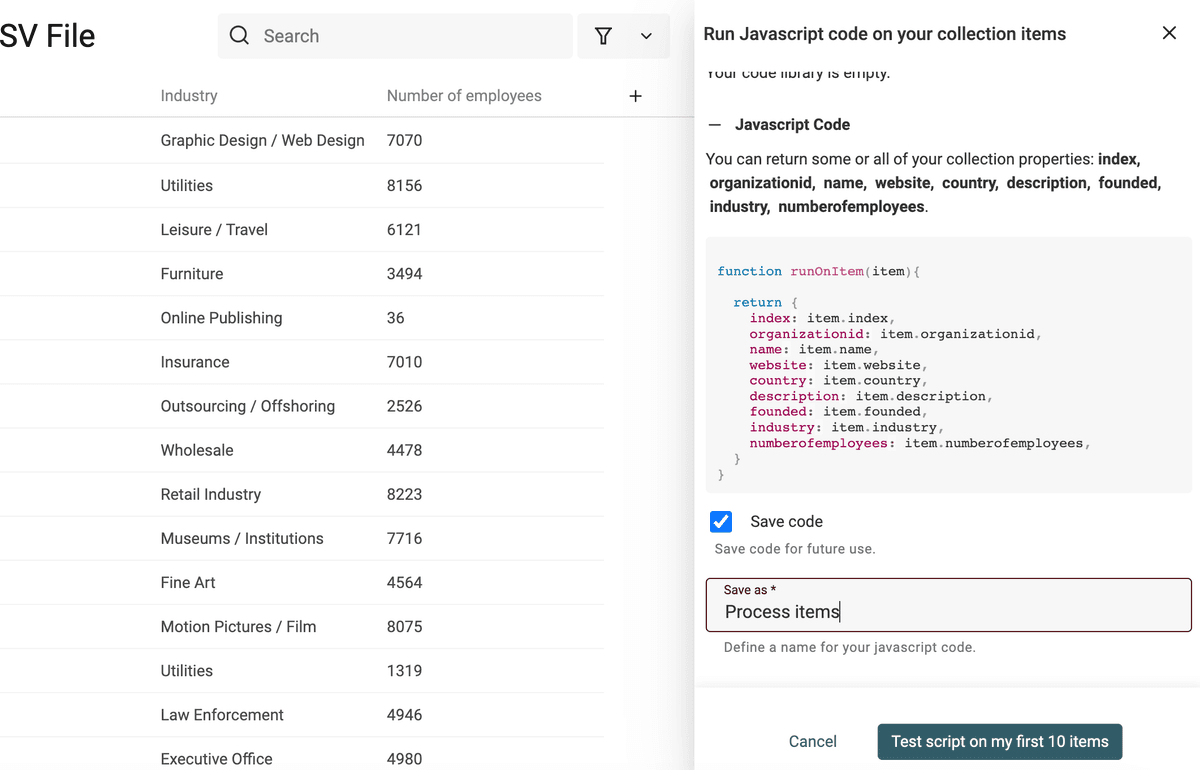
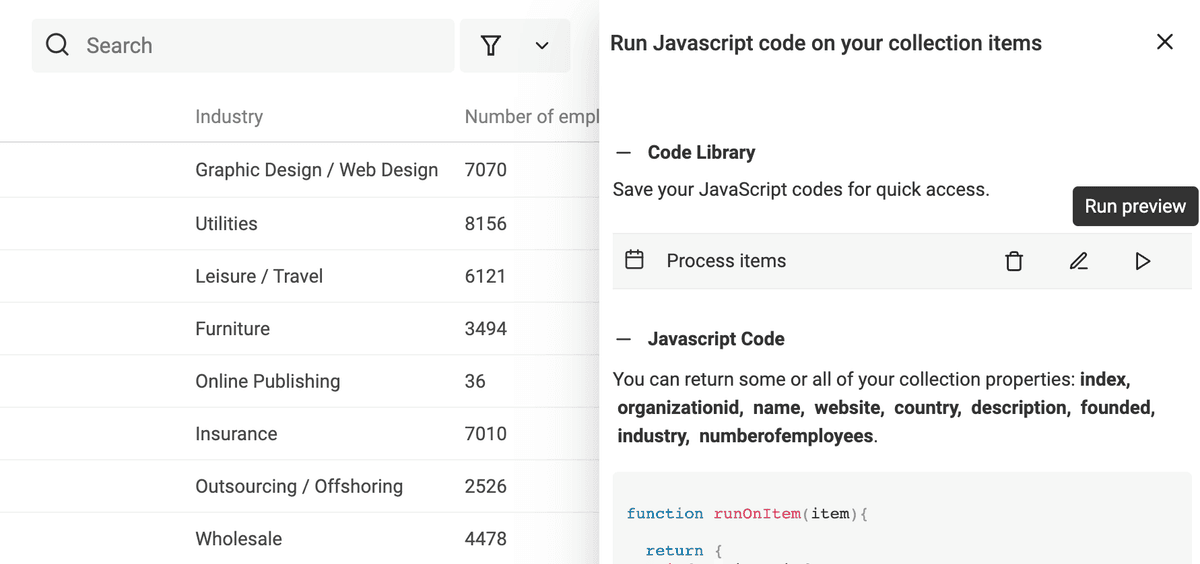
Paid-plan users can save JavaScript code in the Code Library. Preview a saved script again before running it on a collection with different property identifiers.
Once saved, run it directly.
Code Examples
Here are some examples of Javascript codes.
Keep a variable between items
scriptCache['counter'] = scriptCache['counter'] || 0;

function runOnItem(item){
    scriptCache['counter'] += 1;
    return {
        index: scriptCache['counter']
    }
}
Count the total number of characters for a property
scriptCache['total'] = scriptCache['total'] || 0;
function runOnItem(item){
    if(!item.property){
        return null;
    }
    scriptCache['total'] += item.property.length;

    return {
        results: scriptCache['total']
    }
}
First, create a Number property with the identifier results. This example writes the running total to each processed row; sort descending on results to see the final total on the last processed row. The cache resets between a preview and a full run.
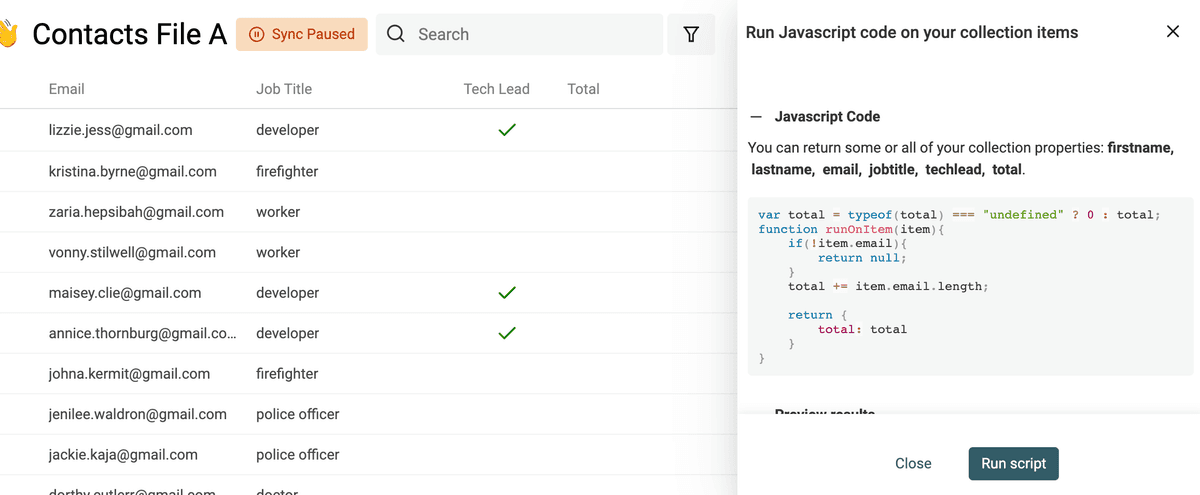
After running the script, sort your collection by the number property. The first number is your count.