Use Edit > Bulk Edit to change one property across selected, filtered, or all collection items. Choose the property and action, inspect the preview, then confirm the edit. The tool can replace values, clean text, perform arithmetic on numbers, or clear a property.
Available actions depend on the property type:
- Edit current value
- Change text case
- Truncate
- Add a Prefix or a Suffix
- Remove extra spaces
- Remove symbols
- Convert HTML into Plain Text
- Math operation
- Clear the property
Bulk Edit Process
Step 1 - Items to edit
The bulk edit feature works by selecting the items to edit in this order:
- If you have selected items, Bulk Edit applies to those items.
- Otherwise, if you have a filter or full-text search, it applies to the matching items.
- Otherwise, it applies to all items in the collection.
Check the scope shown in the drawer before running an edit, especially when you intend to change only part of a collection.
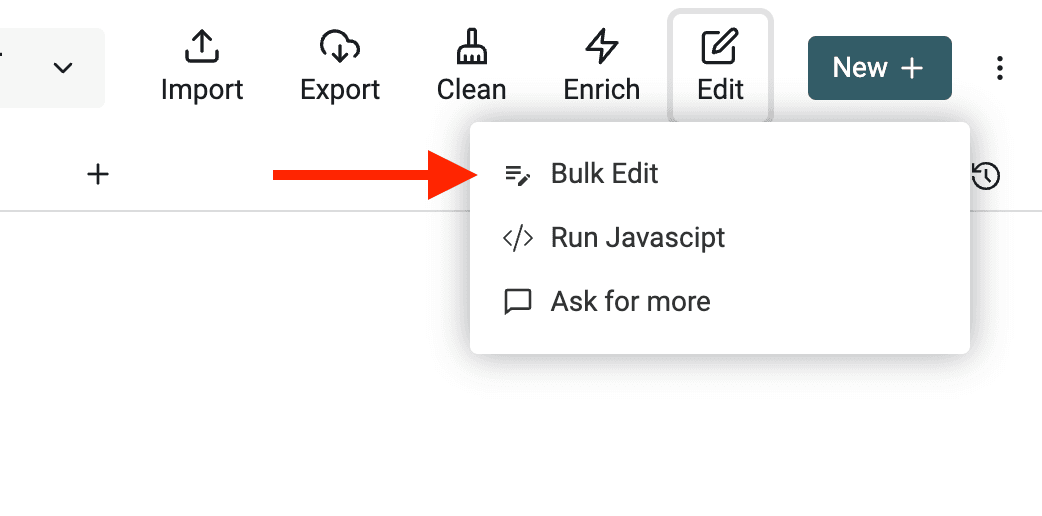
Click on "Bulk Edit" in the "Edit" menu:
Step 2 - Select a property to edit
All your collection properties are displayed in the Bulk Edit drawer.
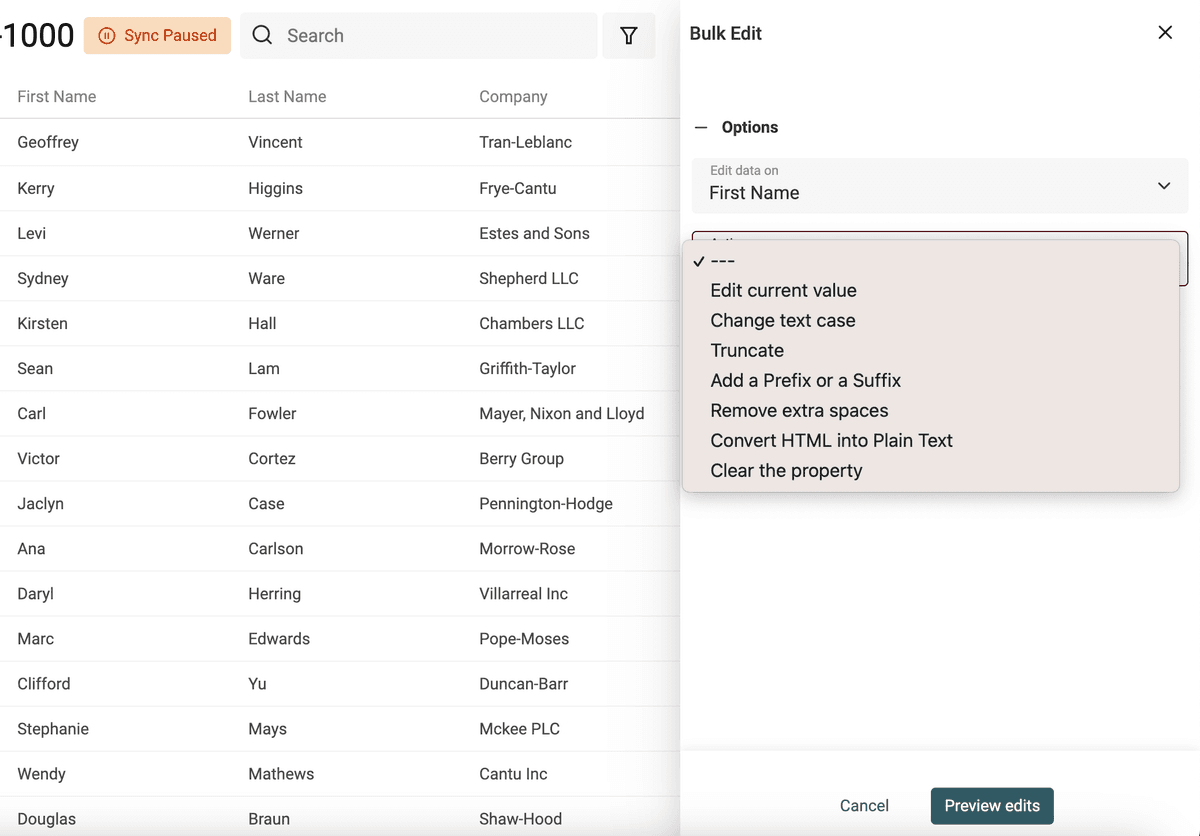
Step 3 - Select action and options
The actions list depends on the property data type. Some are available for all data types. Others are restricted to Text properties.
Step 4 - Preview and run
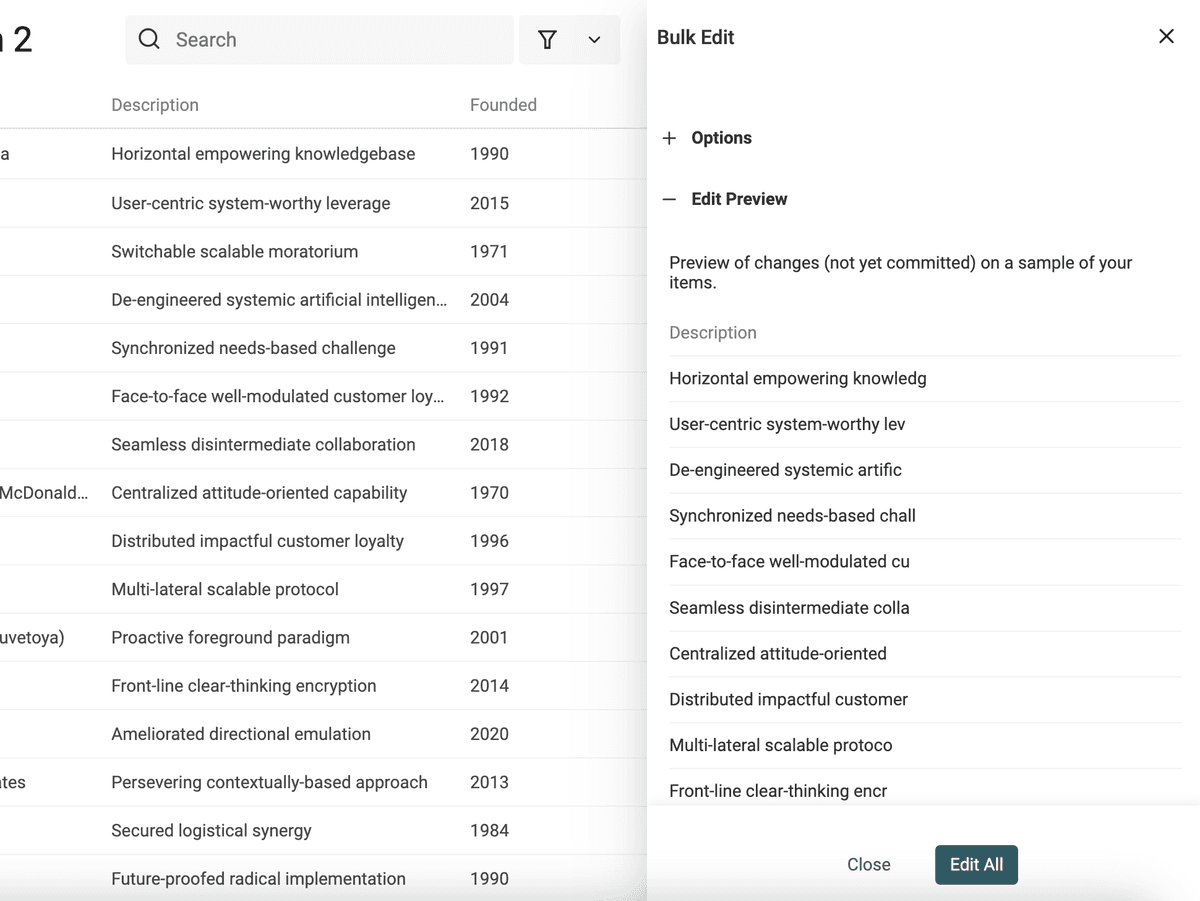
Before editing your items, a preview step is shown. If the preview suits you, click "Edit all" to run the editing process on your items.
If you change a setting (the bulk edit action or its options), the preview step is reinitialized. And another preview will be shown again before editing your data.
Edit current value
Replace the current value with a new value.
Use this action to set a value on every item in the selected scope. For a text property, include at least one property variable such as {{Name}} or /Name in the replacement; you can combine it with fixed text to build each item's result. For a number property, use a fixed value when every item should receive the same number; use a math operation when the result should depend on the current number.
Math operation
For a Number property, select Math operation (add, sub, mul, div) to calculate a new value from each item's current value. Enter the number to add, subtract, multiply, or divide by, then inspect the preview. For example, adding 5 changes 20 to 25, while multiplying by 1.1 changes 20 to 22. The division settings let you choose the order of the operands and the number of decimal places.
Truncate
The truncate action is available for text properties. It has 3 options:
- Max length - The max length allowed. If a text is longer, it will be truncated
- Don't cut on word - When checked, will truncate on the first space before the defined length. It means the truncated results length will always be shorter or equal to the original text.
- Add Ellipsis - If checked, will add '...' at the end when the text is shortened. The result string will be at max 3 characters longer than
Max length. **If the text is not shortened, an ellipsis won't be added.
Add a Prefix or a Suffix
This action is available for text properties. It is self-explanatory: it adds a prefix or a suffix to your text.
Notes: It doesn't add a space. If needed, add a space after the prefix text or before the suffix text.
Remove symbols
This action is available for text properties. It remove non-letter and non-digit characters from your data.
An option to keep punctionation is available ('-', '.', ',', ':', '!', '?', '@', etc.).
Examples with removing punctuation option:
France (2022) => France 2022
John 🚀! => John
contact@gmail.com 🙏 => contactgmailcom
Examples with keeping punctuation option
France (2022) => France (2022)
John 🚀! => John !
contact@gmail.com 🙏 => contact@gmail.com
Remove Extra Spaces
The "Remove Extra Spaces" tool can remove all spaces in a text, or just "extra spaces".
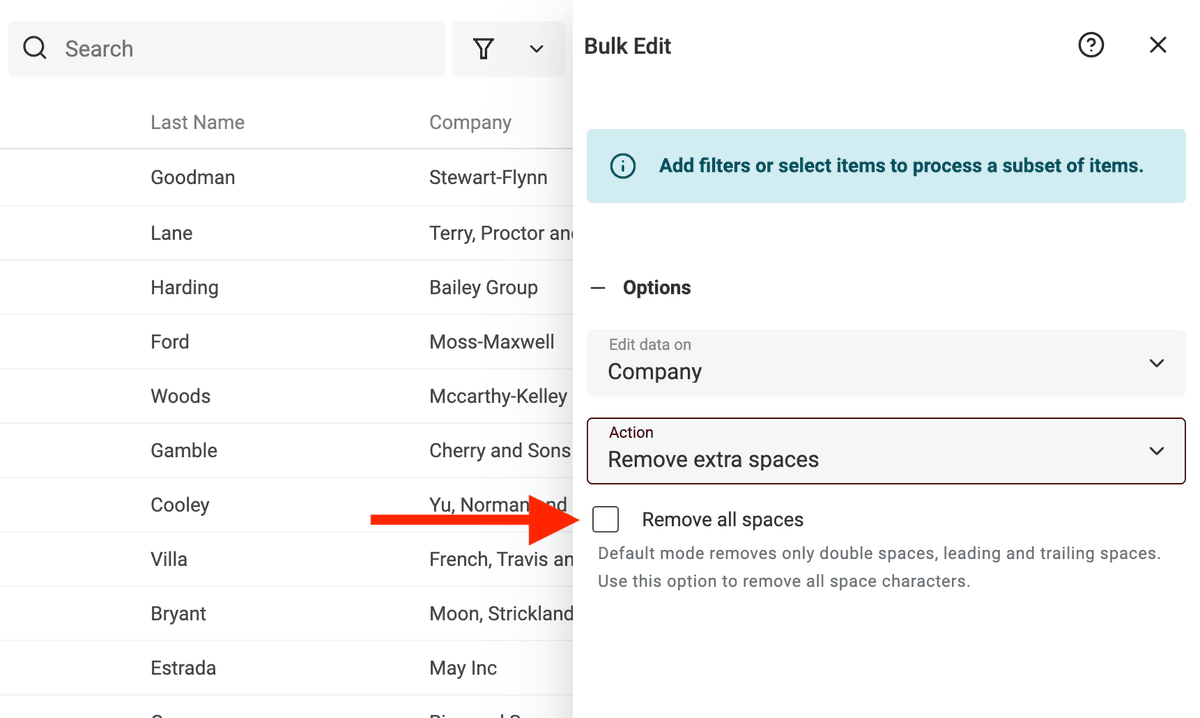
Use the "Remove all spaces" option to normalize phone numbers, etc.
For example: +33 7 78 23 93 23 would be edited to +33778239323.
When the "Remove all spaces" is disabled, the tool cleans your texts with the following steps:
- Remove leading and trailing spaces
- Remove extra spaces between words (keep a single space). A space can be a
Tab, a space, a non-breaking space (nbsp), and any other character that represents a space. - Remove extra new line (keep a single newline character)
Change Text Case
For text properties. 3 modes are available:
- Uppercase - All letters will be converted to their uppercase version. Ex:
john=>JOHN - Lowercase - All letters will be converted to their lowercase version. Ex:
API=>api - Capitalize - The first letter of all words will be capitalized. Ex:
john is a good man=>John Is A Good Man - Capitalize only the first word - Only the first letter of the first word will be capitalized. Ex:
john is a good man=>John is a good man - Reverse case - Converts the uppercase caracters to lowercase and lowercase characters to uppercase. Ex:
John->jOHN
Convert HTML into Plain Text
Convert HTML to text while keeping some structure. This action removes HTML tags and concatenates the text to generate readable text.
- Bullet lists are converted to text lists with
- - New lines are kept
And the action cleans the results to remove any extra spaces.
Clear the property
Will clear values for all current items for the selected property.
If your items are:
First Name   |    Last  Name     |    Job Title
John         |     Doe           |       CEO
Frank        |     Sinatra       |      Singer
Clearing on the property Last Name will give you:
First Name   |    Last  Name     |    Job Title
John         |                   |       CEO
Frank        |                   |      Singer