 2.5 Credits per Search
 Live Google Search
 Data for AI

















 Easy to Use
 No Technical Configuration
 Fully No-Code
Step-by-Step Guide
Step 1: Sign Up & Upload Your Data
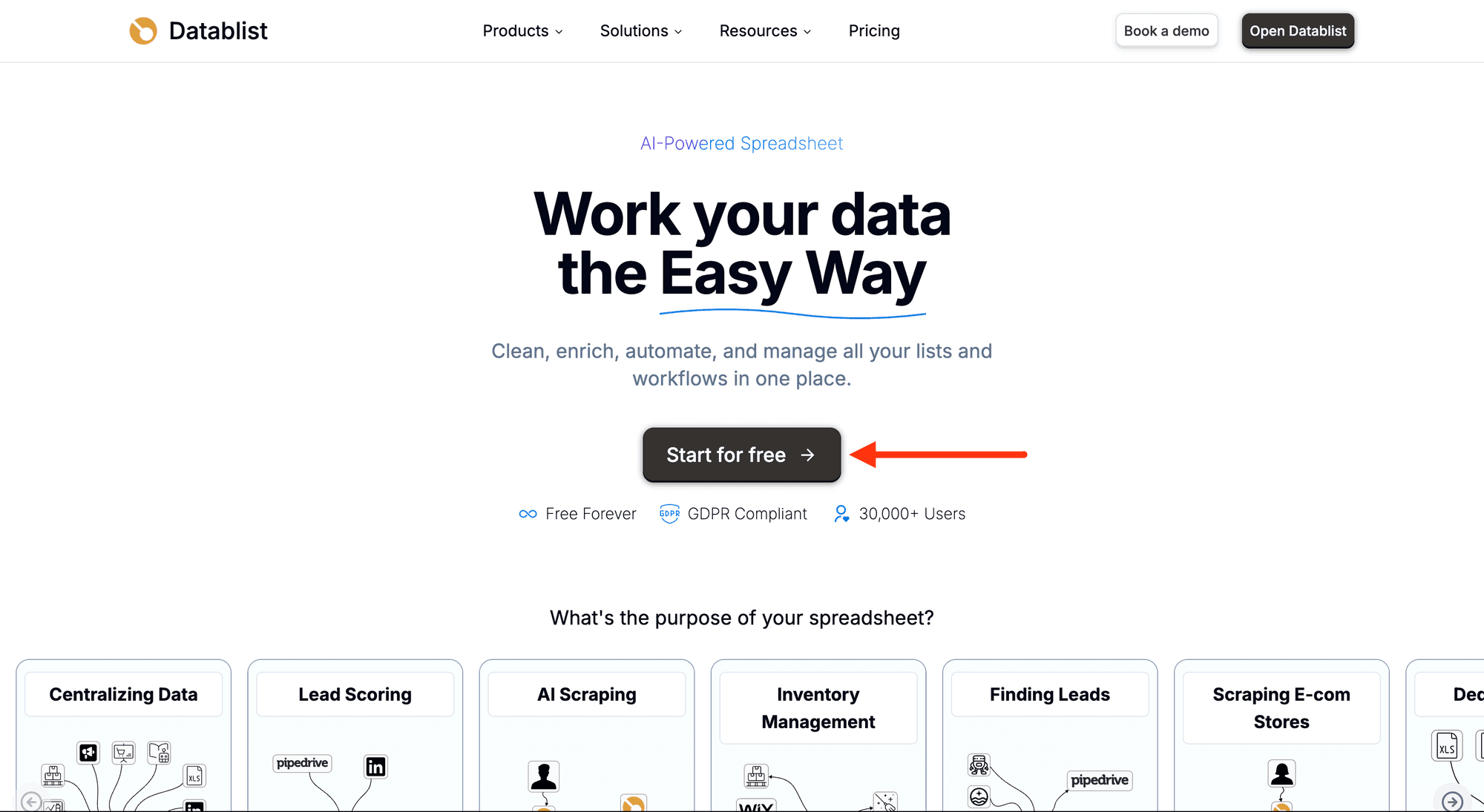
First, sign up for Datablist.com.
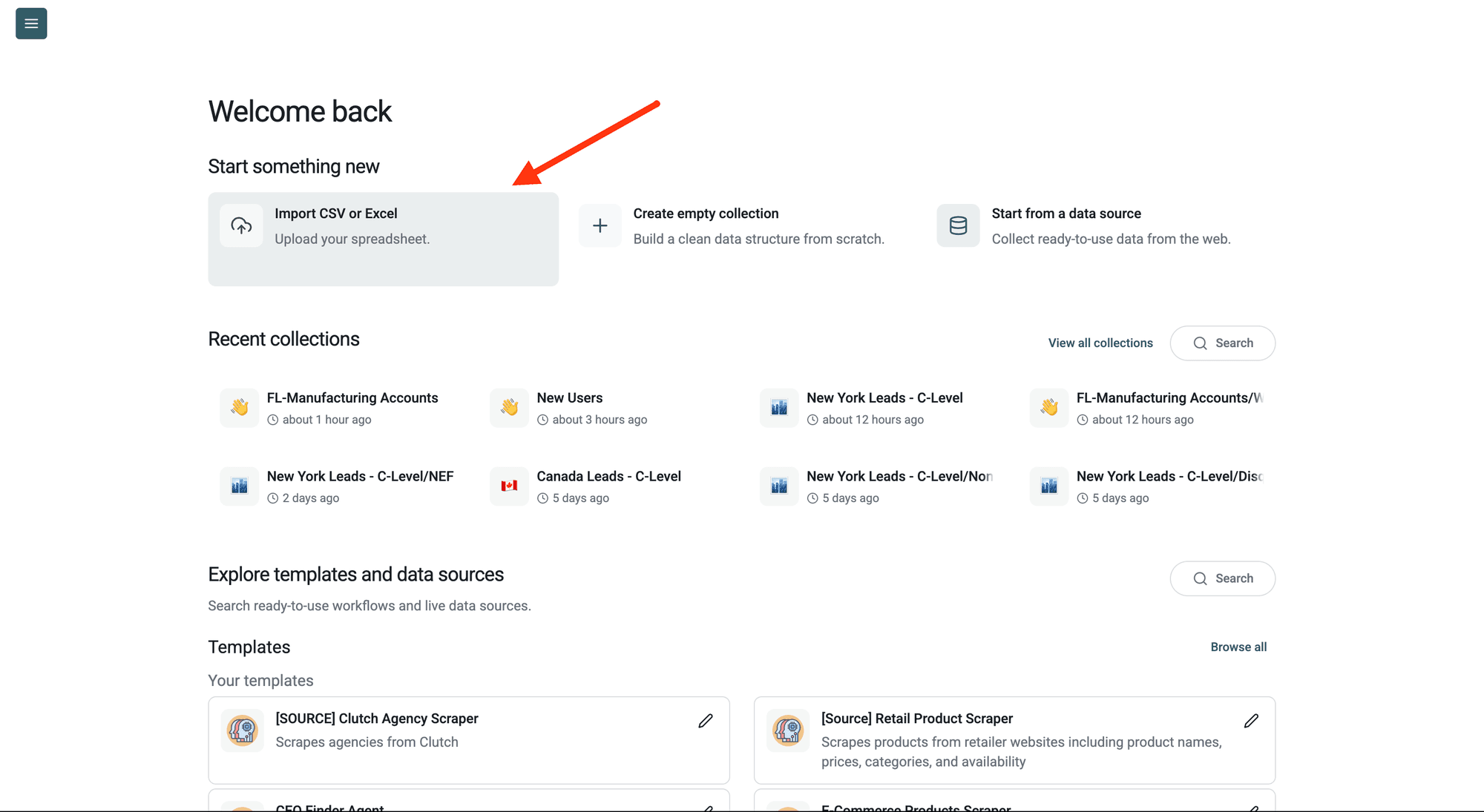
Then, upload your CSV or Excel file to Datablist.
Use it when you need to turn structured data into URLs at scale. Search queries can include variables from your collection, which makes it useful for finding official websites, profiles, review pages, knowledge-base links, or other public references without writing scripts.
Step 2: Navigate to the Enrichment
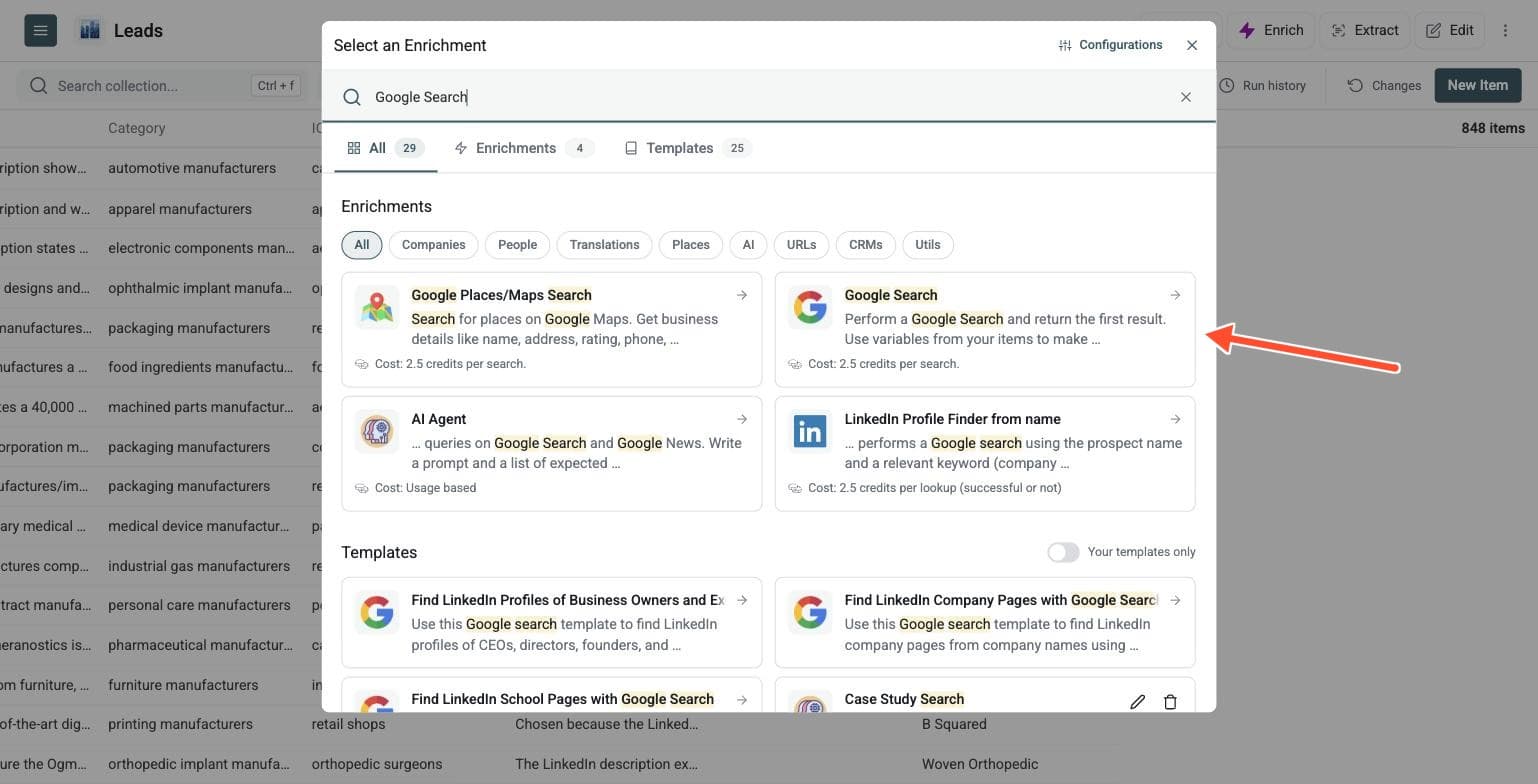
Open Enrich and choose the Google Search enrichment.
Step 3: Set Up the Enrichment
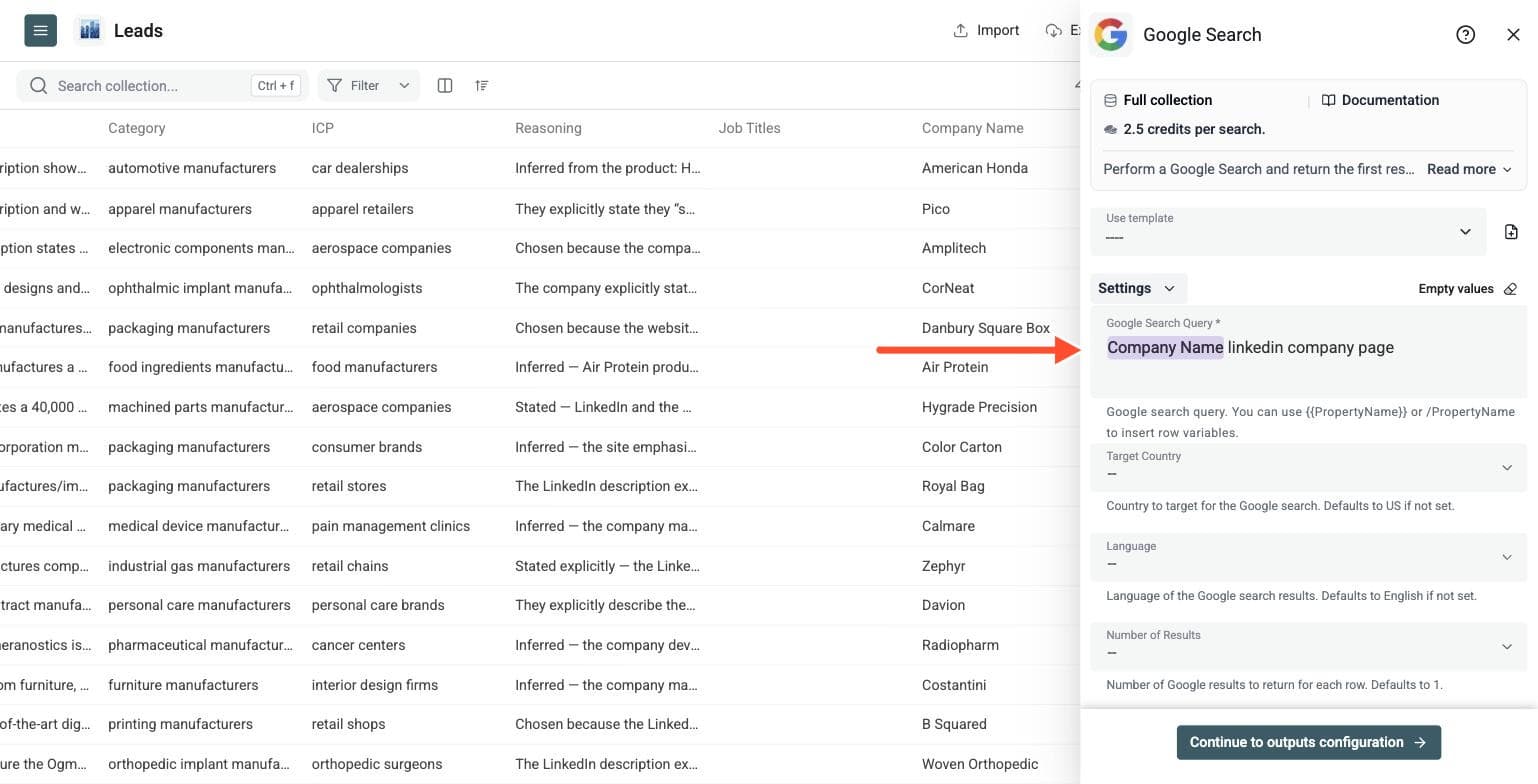
Write your search query with row variables such as company name, domain, or person name. Type a slash and choose the property to insert it.
Example queries:
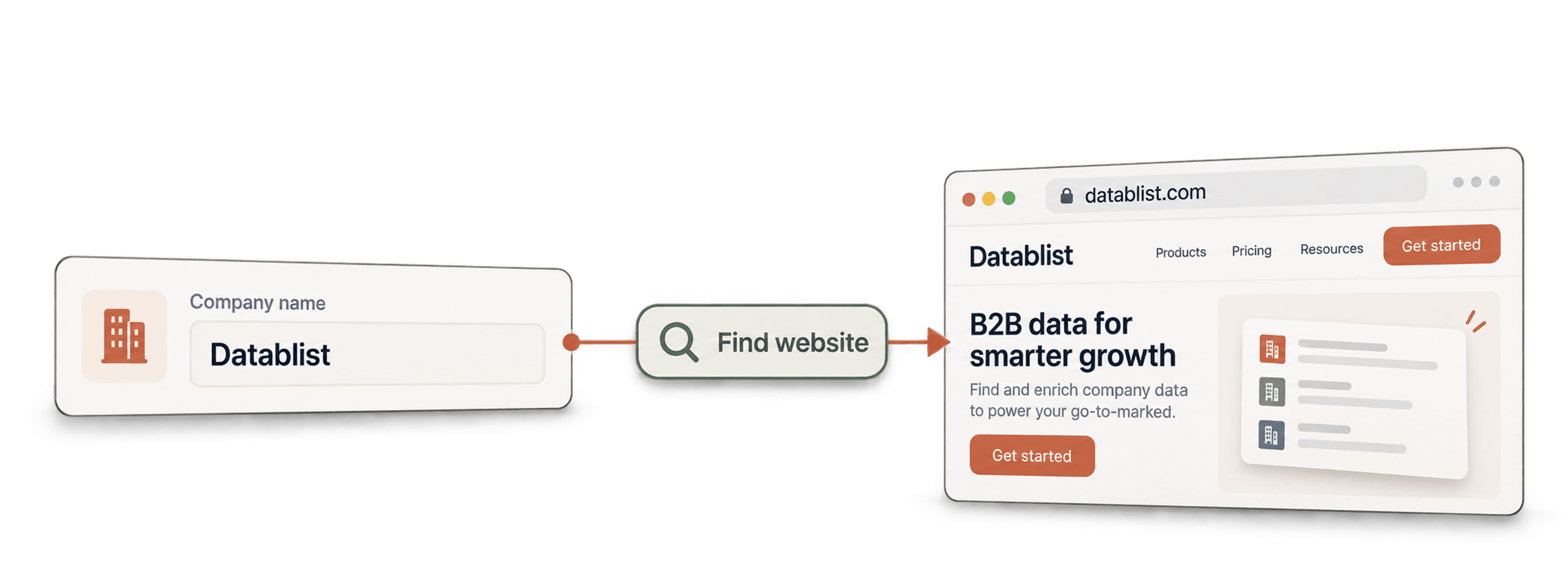
- The Company Name property followed by the words official website
- site:linkedin.com/in followed by the Full Name and Company properties
- The Company property followed by the word pricing
You can also set Target Country, Language and Number of Results, and filter out domains such as linkedin.com or facebook.com if you want the company website instead of directory pages.
Target Country defaults to US, Language to English and Number of Results to 1. You can return between 1 and 5 results for each row.
Enter comma-separated domains in Filter Out Domains/Urls. Matching is applied to the hostname only; full URL paths are not matched. Filter Out Keywords skips results containing those keywords in the title or snippet. Filtering is applied only on the first 10 Google results, so a search can return fewer results than requested when those results are excluded.
Step 4: Select Outputs
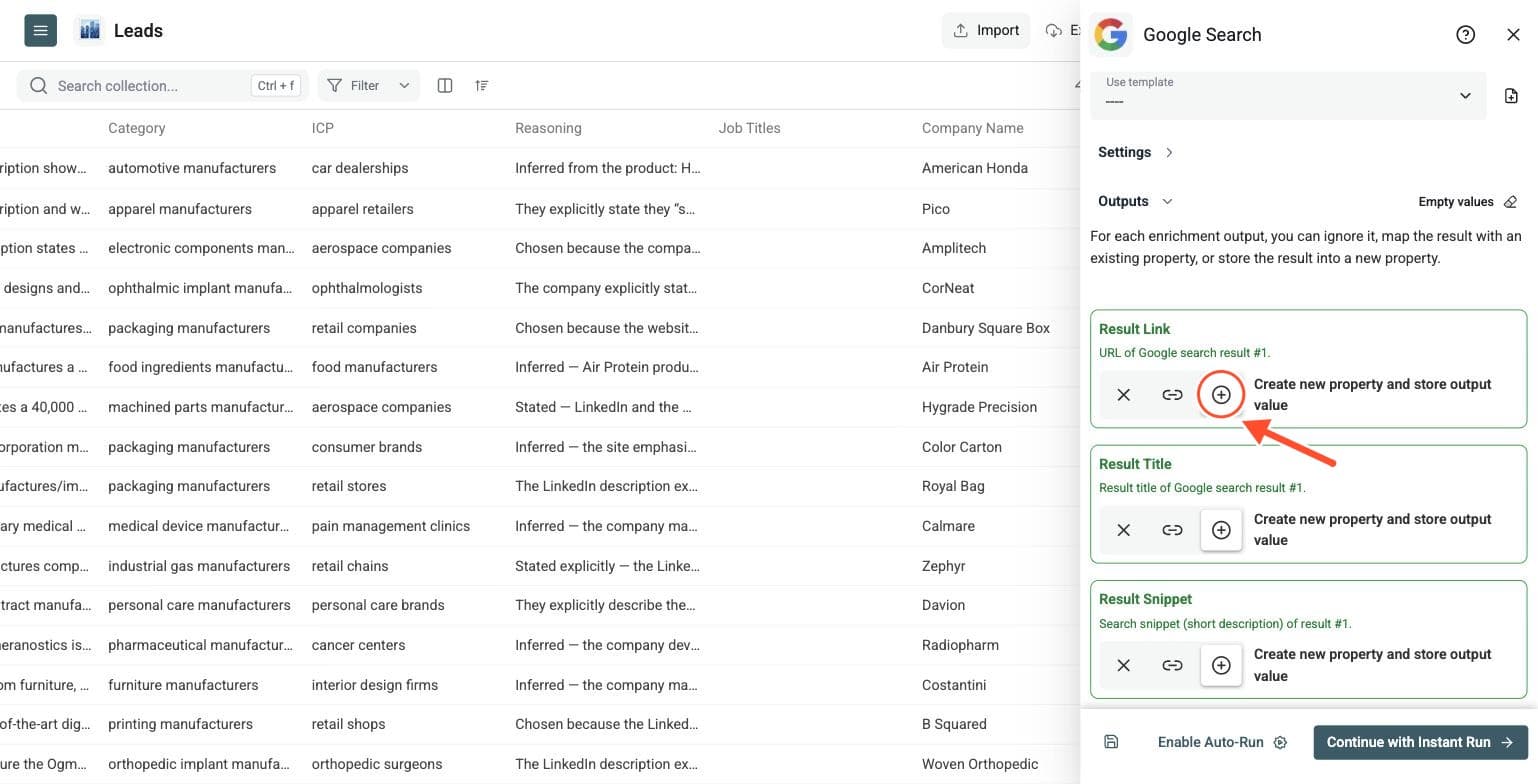
Create output columns for the result link, title, and snippet. The first result is required. You can optionally return up to 5 results per row.
For each result, Datablist can save:
- Result link
- Result title
- Result snippet
Result Link for the first result is required when configuring outputs; titles and snippets are optional. Increasing Number of Results makes the additional output fields available. Keep your original search columns alongside the results so you can review each match.
Step 5: Run the Enrichment
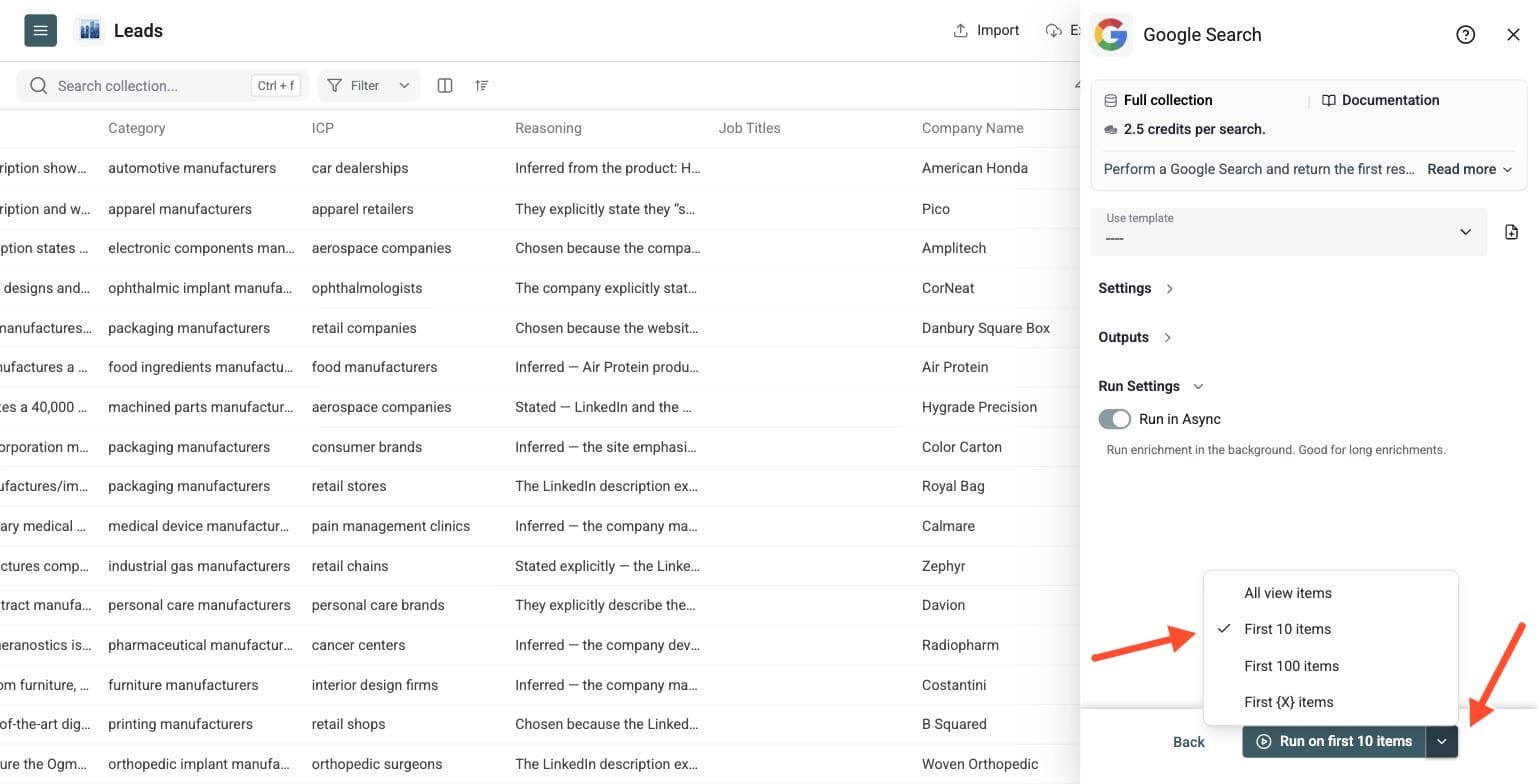
Finally, configure your run settings by clicking on the chevron on the right side of the button. This will allow you to choose between the following options:
- Run on first 10 items: Good for checking results before committing
- Run on first 100 items: Useful if you want to validate larger samples
- Run on first {X} items: Lets you choose how many items you want to process
- Run on all view items: Process your entire list (or view if you have enabled filters)
This enrichment costs 2.5 credits per search. For example, 1,000 searches cost 2,500 credits and 10,000 searches cost 25,000 credits.
Review a small sample before running the full list. A search may return fewer results, or none after filtering. Use the run-status column to find rows without results, review the query and exclusions, and rerun the rows that need attention. Then filter or export the result links, titles and snippets.
Why this is better than manual Google searching
This enrichment gives you row-level Google automation with controls for:
- Query templates with variables
- Country targeting
- Language targeting
- 1 to 5 results per row
- Domain exclusions
- Keyword exclusions
That makes it useful for both list building and list cleaning.
Query Ideas for Bulk Google Search
The search query can include values from each row. This makes the enrichment useful for repeatable research tasks.
Examples:
{{Company Name}} official websitesite:linkedin.com/company {{Company Name}}{{Company Name}} pricing{{Full Name}} {{Company}} LinkedIn{{Domain}} contact emailsite:linkedin.com/in {{Full Name}} {{Company}}{{Company}} pricing
Use domain exclusions when search results are polluted by directories, marketplaces, or social networks.
Common use cases
- Find the official website for a company list
- Search for public profile pages at scale
- Turn structured lead data into research links
- Find pricing, careers, docs, or knowledge-base pages
- Build QA checks for broken or missing URLs
For company website lookups, see the Company Name to Domain guide. If you need to browse the result pages and extract information, see Automating Google Searches On Excel With AI and Using Agents to Scale AI Search.
Pricing and example
This enrichment costs 2.5 credits per search.
Example:
- 1,000 searches cost 2,500 credits
- 10,000 searches cost 25,000 credits
The rate is per search, whether you request one result or five. Matching cached queries cost 0 credits. A completed search can still use credits when no result remains after filtering. The cache uses the query, country and language; changing those values can require a fresh search.
Use the pricing page or the page's cost calculator for current plan and credit-package prices. The calculator estimates each entered search once at 2.5 credits; cached results can reduce actual charges.